
The UFW firewall Ubuntu ships with decides which network connections may reach your server: you block everything by default, allow only what you need, rate-limit SSH, test before you switch it on, and keep a timer ready that undoes the change if you lock yourself out. This guide shows each step with the exact commands on Ubuntu 24.04 LTS and 26.04 LTS (pick yours with the switch below), explains in plain English why the rules are written this way, and covers the one trap that catches almost everyone who also runs Docker.
UFW stands for Uncomplicated Firewall. It is the default firewall tool on Ubuntu and a friendly front end for the real firewall built into the Linux kernel. You do not need networking expertise, but you do need to be careful in one place: the moment you enable a firewall remotely, a wrong rule can cut off your own connection. We show a safe order and a safety net so that cannot become an outage.
Every command here was run twice in disposable labs, once on Ubuntu 24.04 (UFW 0.36.2) and once on Ubuntu 26.04 (UFW 0.36.2), and the rules were tested from a separate network stack that stood in for another machine. Where the two releases differ, the page shows only the one you picked. The labs could not run Docker or show kernel log messages, so those parts follow the Docker and UFW documentation.
A container also shares its host's kernel (6.8 here), not the 7.0 kernel of Ubuntu 26.04, so run the outside tests in step 6 on your own server.
Choose your Ubuntu version
This guide covers both releases. Commands, file paths and version numbers change with your choice; everything else is the same.
JavaScript is off, so both versions are shown below and each block says which release it is for.
Before you start: the safety net
Do these three things before you touch the firewall, every time.
- Keep your current SSH session open and test new logins from a second window before you close the first.
- Find your provider's web console. It reaches the server even when the network is blocked.
- Set a rollback timer (shown in step 5) that disables the firewall automatically after about five minutes unless you cancel it. This is the cheapest insurance in system administration.
Why UFW and not the other ways
Linux has several ways to build a firewall. They all end up controlling the same kernel machinery, so the choice is about how easy it is to get right.
| Option | In plain English | When we use it |
|---|---|---|
| UFW | A short list of allow and deny rules, written in nearly plain language | Single servers and small estates. Easy to read, hard to get badly wrong, and it is Ubuntu's default tool |
| iptables or nftables directly | Writing the kernel's rule language yourself | Routers, NAT, and complex setups. Powerful, but one typo can open or close everything |
| firewalld | The equivalent friendly tool on Red Hat-family systems | If you run those systems. Not the Ubuntu default |
| Provider (cloud) firewall | Rules enforced outside your server, at the hosting company's network | As an extra outer layer. It cannot see what is running inside the machine |
| No firewall, because only a few programs listen | Trusting every program to be configured correctly forever | Never. One forgotten service on a public address is how most exposures happen |
The reasoning is the same as for the locks on a building. The provider firewall is the fence, UFW is the locks on each door, and your applications' own login screens are the safes. You want more than one layer, and you want each layer simple enough that you can read it a year from now.
UFW firewall Ubuntu rules: how decisions are made
Three ideas explain nearly everything. First, default policies say what happens to traffic that matches no rule: we want to deny incoming and allow outgoing. Second, rules are checked in order and the first match wins, as the UFW manual puts it, so a broad allow placed above a specific deny can cancel it. Third, every rule is written for both IPv4 and IPv6 by default, which is what you want unless you have switched IPv6 off.
Underneath, UFW 0.36 on both releases loads its rules through the nftables-based iptables command (iptables -V says (nf_tables)). sudo iptables -S lists them, and sudo nft list ruleset shows the same rules under a warning that the tables are managed by iptables-nft: look at them there, but leave the editing to UFW.
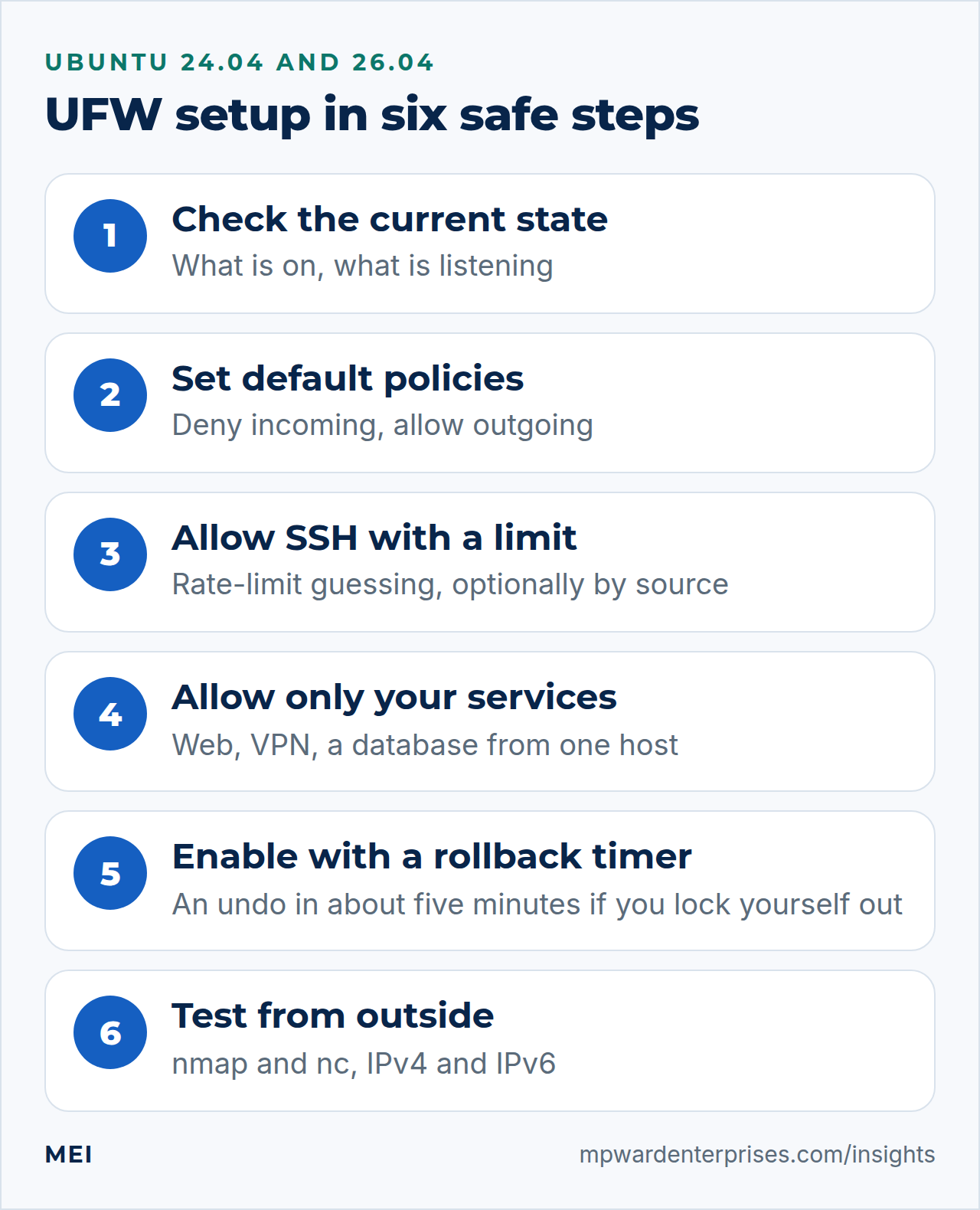
Step 1: Check the current state
On a fresh Ubuntu server the firewall is installed but switched off. Look before you change anything.
sudo ufw status verbose
sudo ss -tulpn
The first command shows whether UFW is active. The second lists what is listening, which tells you which ports you may need to allow.
Step 2: Set the default policies
These two lines are the foundation: refuse anything not expressly allowed, and let the server make its own outgoing connections for updates and DNS.
sudo ufw default deny incoming
sudo ufw default allow outgoing
Why this way?
"Deny by default" means a new service you install later is not accidentally exposed. The opposite approach, allowing everything and blocking known-bad ports, fails the first time you forget one. Allowing outgoing is a deliberate convenience: locking down outbound traffic is stronger but needs more care, and is worth doing only when you know what the server must reach.
Step 3: Allow SSH, with rate limiting
Add SSH first. Use limit instead of allow.
sudo ufw limit OpenSSHOpenSSH is an application profile that Ubuntu ships; it means port 22 over TCP. The limit rule allows connections but denies an address that opens six or more within thirty seconds, which is how password guessing and noisy scanners behave. A person logging in normally never notices it.
If your server has a fixed admin address or a private VPN, go further and allow SSH only from there, using a rule for the admin network instead of the one above.
sudo ufw allow from 203.0.113.0/24 to any port 22 proto tcpDo not guess the source address
Restricting SSH to an address range is a strong control, and also the quickest way to lock yourself out if you get the range wrong or your home address changes. Use it with a rollback timer, and confirm your current address first: echo $SSH_CLIENT prints it as the first word. who also shows it, in parentheses at the end of your line.w shows it in its FROM column, but who printed nothing in our 26.04 lab, because its Rust version reads login records (utmp) that sshd and systemd no longer write.
Step 4: Allow only the services this server provides
Each rule is a deliberate decision to expose something. For a web server:
sudo ufw allow "Nginx Full"That profile opens ports 80 and 443. You can see all profiles with sudo ufw app list.
On Ubuntu 26.04 the nginx package also ships a profile called Nginx QUIC, which opens TCP 80 and 443 plus UDP 443. Choose it instead of Nginx Full only if you have set up HTTP/3, the web protocol that runs over QUIC. Nginx Full leaves UDP 443 closed.
For a server that sits behind a private tunnel, you can limit the web ports to the tunnel interface, so the public internet cannot reach the site directly.
sudo ufw allow in on wg0 to any port 80,443 proto tcpOther everyday rules are in this table. The principle is to open the smallest possible audience: a specific address, an interface, or nothing.
| You want to allow | Command | Note |
|---|---|---|
| A web server to the world | sudo ufw allow "Nginx Full" |
Ports 80 and 443 |
| WireGuard VPN | sudo ufw allow 51820/udp comment "WireGuard" |
The comment makes the rule self-explaining |
| A database, from one app server only | sudo ufw allow from 192.0.2.10 to any port 3306 proto tcp |
Never open a database to everyone |
| Outgoing mail submission | (none needed) | Outgoing traffic is already allowed |
| Block one bad address | sudo ufw insert 1 deny from 198.51.100.7 |
insert 1 puts it first, so it wins |
Why this way?
Everything that is not on the list stays blocked, so the list doubles as documentation of what the server is supposed to do. Services that only need to talk to the server itself, such as a cache on the same machine, should not be on it at all.
Step 5: Turn it on, with a rollback timer
First, review the rules you have added, which UFW shows exactly as typed. Then arm the timer and enable the firewall.
sudo ufw show added
sudo systemd-run --on-active=5m --unit=ufw-rollback --description="Disable UFW if I lock myself out" /usr/sbin/ufw disable
sudo ufw enable
UFW warns that the command may disrupt existing SSH connections. Established connections are normally kept, so confirm. Now, before anything else, open a new terminal and log in. If it works, cancel the timer:
sudo systemctl stop ufw-rollback.timerIf you cannot log in, do nothing. In about five minutes the timer runs ufw disable for you, and you are back in. That is the whole point. Give it six minutes, because systemd lets a timer run up to a minute late by default.
Why this way?
A firewall change is one of the few administrative changes that can remove your ability to fix it. A timer that undoes the change by itself converts a possible outage into a five-minute wait. It uses the system's own scheduler, so there is nothing to install.
Step 6: Test it from the outside
A firewall you have not tested is a hope. From a different computer, check that the ports you intended are open and the rest are closed.
nmap -Pn -p 22,80,443,3306 your-server-address
nc -vz your-server-address 3306
You should see 22, 80 and 443 open (or filtered, depending on where you test from; a port with nothing listening behind it shows as closed). Port 3306 should not be open. With the default deny policy it shows as filtered, because UFW drops the packets without answering, so nc -vz waits for its timeout instead of printing a refusal. Repeat the test over IPv6 if the server has an IPv6 address.
A rule that works for IPv4 and not IPv6 is a common surprise, and UFW writes both by default unless IPV6=no is set in /etc/default/ufw.
Managing rules day to day
These commands cover almost every later change.
sudo ufw status numbered          # list rules with numbers
sudo ufw delete 3                 # remove rule number 3 (asks to confirm)
sudo ufw insert 1 deny from 198.51.100.7
sudo ufw reload                   # re-apply after editing files
sudo ufw logging low              # log blocked packets
sudo ufw reset                    # wipe everything and start again (disables UFW)
Numbers change after each deletion, so list again before deleting a second rule. The logging levels run from off through low, medium and high to full; low records blocked packets that match no rule, with rate limiting, and is a good default. Messages go to the kernel log, so read them with sudo journalctl -k | grep UFW.
The Docker trap: published ports skip UFW
If the server also runs Docker, read this carefully. Docker's own documentation says that when you publish a container's ports, traffic to and from that container is diverted before it reaches the UFW rules, because Docker routes container traffic in the nat table, ahead of the chains UFW uses. In practice, a container started with a plain port mapping can be reachable from the internet even though UFW says the port is closed.
The safest habit is to publish container ports only on the loopback address, so only the server itself can reach them, and put a reverse proxy such as Nginx in front.
docker run -d -p 127.0.0.1:8080:80 --name web nginxThere are other approaches, including custom rules in Docker's DOCKER-USER chain and helper tools, but they are more fragile. Test from the outside after every change, as in step 6.
The private-backend pattern
On the servers we build, the public internet talks only to a small edge server, and everything behind it is reached over an encrypted WireGuard tunnel. A backend's firewall then allows web traffic only on the tunnel interface, and SSH only from the admin network. The effect is that the web server has no public door at all, so a scanner on the internet finds nothing to probe. If you want to build this, see our guides to WireGuard server setup and HAProxy SNI routing.
Common mistakes
- Enabling the firewall before allowing SSH. Add the SSH rule first.
- Testing only IPv4, and leaving IPv6 open or closed by accident.
- Opening a database or cache, such as MariaDB or Redis, to everyone. They should be reachable only from the machines that need them.
- Putting a broad allow above a specific deny. Remember: first match wins.
- Assuming UFW protects Docker's published ports. It does not.
- Forgetting the provider's own firewall, which may block traffic UFW allows, or the reverse.
- Never testing from outside.
Keep it tidy
Review the rules every quarter. Add a comment to each rule so that you remember why it exists, delete rules for services you removed, and keep a copy of /etc/ufw/ in your backups. A firewall that nobody understands tends to be left alone until it causes an incident. If you are building a larger hardening routine, our 12-step guide to harden Ubuntu Server puts UFW in context with SSH, updates and backups.
Getting help
If you would rather have an expert check your exposure, MEI's Network Architecture & Security service starts at $1,500, scoped after an assessment, and covers firewall and network hardening, secure remote access and private networking, server and endpoint hardening, monitoring and alerting, and access control. For a wider look at what is exposed across your website, email, hosting and backups, start with a Business Tech Rescue Audit from $497, or read the Linux server hardening checklist.
Frequently asked questions
How do I enable UFW on Ubuntu?
Set the defaults with ufw default deny incoming and ufw default allow outgoing, add your rules first (for example ufw limit OpenSSH and ufw allow "Nginx Full"), review them with ufw show added, then run ufw enable. Arm a rollback timer beforehand so a wrong rule cannot lock you out for long.
Is UFW enough to protect my server?
No firewall is enough on its own. UFW controls which network connections reach the server, but it does not fix vulnerable software, weak passwords or exposed Docker ports. Pair it with SSH keys, automatic security updates, least-privilege access and tested backups, and consider your hosting provider's firewall as an outer layer.
Does UFW work with Docker?
Not for published ports. Docker's documentation says traffic to and from a published container port is diverted before it reaches the UFW rules, so UFW can show a port as closed while the container is reachable. Publish container ports on 127.0.0.1 and put a reverse proxy in front, and test from another machine.
How do I check and delete UFW rules?
Run ufw status numbered to list rules with numbers, then ufw delete followed by the number. The numbers change after each deletion, so list again before deleting another. ufw show added prints the rules exactly as you entered them, even when the firewall is inactive.
What does ufw limit do?
It allows connections to a port but denies an address that attempts to initiate six or more connections within thirty seconds. It is meant for services such as SSH that attract automated guessing. Normal logins are unaffected.
What if I lock myself out with UFW?
If you armed the rollback timer, wait about five minutes (systemd can run the timer up to a minute late) and it will disable UFW for you. Otherwise use your hosting provider's web console to log in locally and run ufw disable, then correct the rules and enable the firewall again.
Sources and further reading
- Ubuntu Server documentation: Firewall — UFW as Ubuntu's default firewall tool, application profiles and IPv4 and IPv6 support
- Ubuntu 24.04 manpage: ufw(8) — limit, rule ordering, insert, reset, logging levels and show added
- Ubuntu 26.04 manpage: ufw(8) — the same limit rule (6 or more connections within 30 seconds), first match wins, show added, logging levels and reset on UFW 0.36.2 (we re-ran them on 26.04)
- Docker documentation: Packet filtering and firewalls — why published container ports bypass UFW
- Ubuntu 24.04 manpage: systemd-run(1) — transient timer units with --on-active, --unit and --description
- Ubuntu 26.04 manpage: systemd.timer(5) — AccuracySec defaults to one minute, so a timer can run up to a minute after its scheduled time
- Ubuntu 26.04 LTS release notes: summary for LTS users — the Rust core utilities are the default on 26.04 (the GNU tools stay under a gnu prefix), which is why who prints nothing there