
Knowing when to replace business computers is mostly about arithmetic, not age. A machine that costs an employee fifteen minutes a day has already cost more in lost time than a new one would cost to buy. This guide gives the six signs worth acting on, the arithmetic behind them, and the one trigger that should override everything else.
Most small businesses replace business computers either far too late — limping along until a machine dies in the middle of a busy week — or far too early, on a vendor's schedule rather than their own. Neither is necessary. A simple refresh cycle, reviewed once a year, removes the question entirely.
When to replace business computers: six clear signs
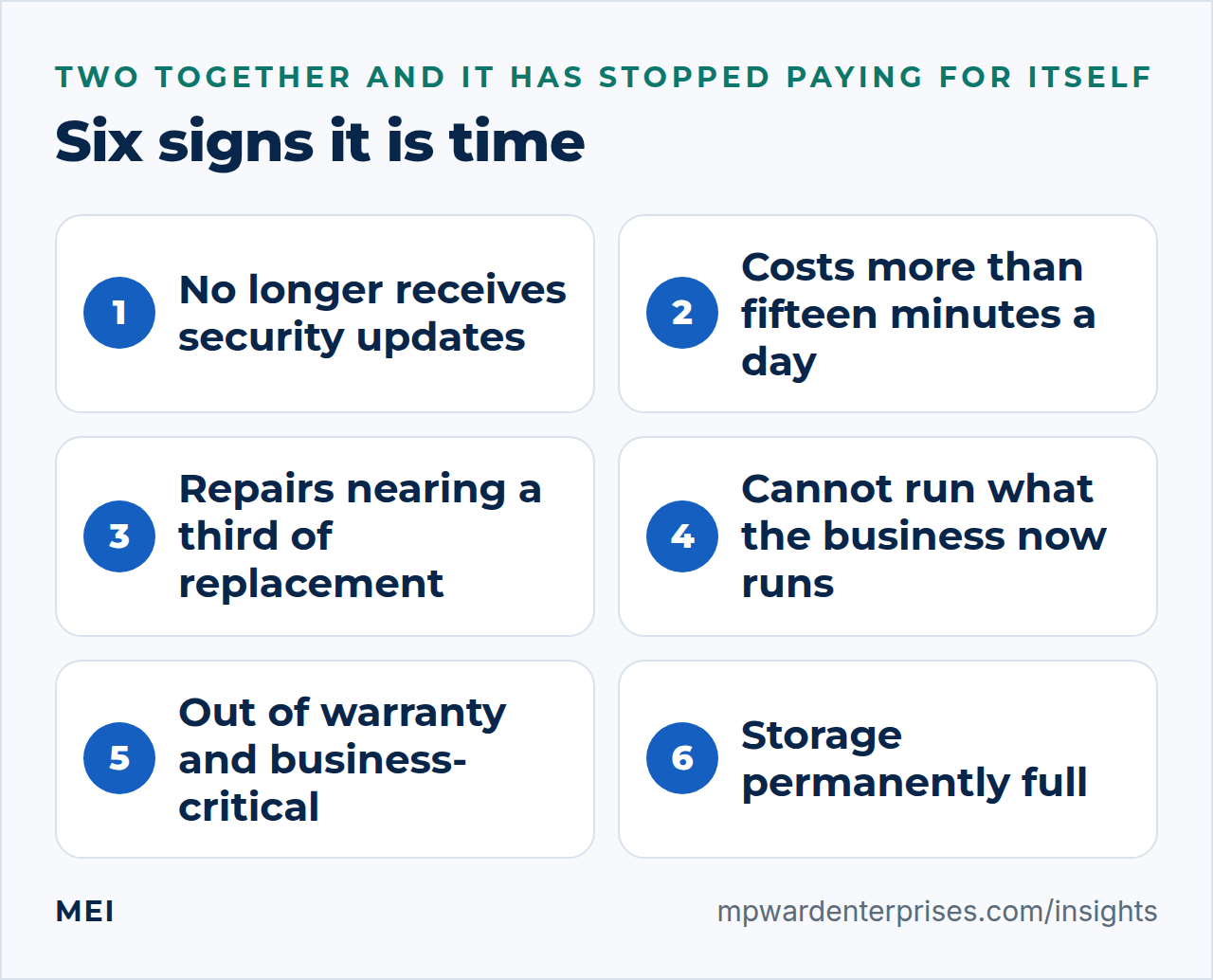
Any one of these on its own is a conversation. Two together, and the machine has already stopped paying for itself.
- It no longer receives security updates. This is the only item on the list that is not negotiable. A machine running an operating system past its support date cannot be patched, and no amount of antivirus compensates.
- It costs more than fifteen minutes a day. Boot times, spinning cursors, crashes, the restart that fixes it. Fifteen minutes a day is roughly sixty hours a year, which exceeds the price of a mid-range laptop at almost any wage.
- Repairs are approaching a third of replacement cost. A battery and an SSD on a four-year-old machine is good value. A screen and a logic board is not.
- It cannot run what the business now runs. New software, video calls with background blur, larger datasets. Requirements drift upward whether or not you upgrade.
- It is out of warranty and business-critical. The risk is not the repair bill; it is the days without the machine while you arrange one.
- Storage is permanently full. A disk with no free space is slow, fails sooner, and cannot install updates — which quietly returns you to sign one.
The arithmetic that settles most arguments about business computers
Owners resist replacing business computers that still switch on, which is understandable and usually wrong. The way to settle it is to put both costs in the same units.
Take the time lost per day, multiply by 250 working days, and multiply by the loaded hourly cost of the person using it. Ten minutes a day for someone costing $40 an hour is about 42 hours, or roughly $1,660 a year. Against a $900 laptop expected to last four years — about $225 a year — the old machine is costing seven times more than its replacement.
That calculation is deliberately crude and it does not need to be precise. The gap is almost never close. The only time it comes out the other way is a lightly used machine doing simple work, which is exactly the case where keeping it is correct.
Setting a refresh cycle for business computers
The better answer is not to decide when to replace business computers one machine at a time, but to set a refresh cycle and let it decide for you. For most small businesses that means a four-year cycle for laptops and five for desktops, with a quarter of the fleet replaced each year rather than all of it at once.
| Role | Sensible cycle | Why |
|---|---|---|
| Field and sales laptops | 3 years | They are carried, dropped and charged constantly |
| Office laptops | 4 years | Battery and storage usually decide it before the processor |
| Desktops | 5 years | No battery, easier to upgrade in place |
| Design, video, data work | 3 years | Requirements rise fastest and time lost costs most |
| Light or occasional use | 6 years or until unsupported | Replace on support dates, not performance |
Staggering the refresh cycle matters as much as the interval. Replacing every machine in one year creates a cliff you will face again four years later, usually at a bad moment. Replacing a quarter each year turns a capital shock into a predictable line in the technology budget.
When an upgrade beats new business computers
Sometimes the right answer is a part, not a purchase. Two upgrades are worth doing and the rest usually are not.
- A solid-state drive in a machine still using a spinning disk is transformative and cheap. It is the single best money-for-speed decision in computing.
- More memory, where the machine allows it, fixes the specific symptom of slowness with many tabs or several applications open.
- A new battery is worth it once, on a machine with at least two good years left.
- Almost nothing else. Processors and graphics are rarely replaceable in business machines, and a sealed laptop usually cannot be upgraded at all.
The rule we use: if the upgrade costs under a quarter of a replacement and buys at least two more years, do it. Otherwise replace business computers outright and redeploy the old one to a lighter role if it is still supported.
What to buy when the time comes
Once you have decided when to replace business computers, the specification question is simpler than vendors make it sound. For ordinary office work in 2026, four things matter and the rest is noise.
- A solid-state drive, 512 GB or larger. Storage pressure is what makes a three-year-old machine feel old, and a full disk cannot install updates.
- 16 GB of memory as the floor. 8 GB is adequate the day you buy it and painful two years later, which defeats the point of a refresh cycle.
- A business line, not a consumer one. You are buying next-business-day warranty, replaceable parts and a known support channel. The premium is modest and it is the part you actually use.
- A screen the person will tolerate. The cheapest panel is the most common reason a new machine gets quietly resented.
Buy the same model across the business wherever you can. Identical business computers mean one image to maintain, one set of drivers, one spare that fits anyone, and a support call that does not start with "what have you got?". The saving from chasing the best deal on each individual purchase is almost always smaller than the cost of supporting six different machines.
Resist buying at the very bottom of the range. A machine chosen to be cheap enters your refresh cycle already behind, and tends to be the one generating the fifteen minutes a day that started this article.
The support-date trigger that overrides everything
One sign outranks the other five. When an operating system stops receiving security updates, the machine becomes a standing risk to everything else on your network, and that risk does not care how well it still runs.
This is why the arithmetic above has a hard floor. A perfectly fast computer running an unsupported system should be replaced or rebuilt, because patching is the foundation every other control is built on — it appears in CISA's Cyber Essentials and in the NIST Cybersecurity Framework for the same reason. The same logic applies to the servers behind your business, which is the subject of our Linux server hardening checklist.
Put support end dates in a calendar the year before they arrive. It converts an emergency into a purchase decision, which is a much better kind of problem.
Disposing of old business computers properly
Replaced business computers are a data breach waiting for a skip. Three steps, in order, and none of them optional.
- Confirm the data is elsewhere. Not "it syncs" — verify the files you care about exist somewhere you can restore from.
- Erase properly. Use the manufacturer's secure-erase or full-disk encryption plus a key wipe. Dragging files to the bin removes the index, not the data.
- Record the disposal. Serial number, date, method, who took it. If you are ever asked where a customer record went, this is the answer.
Removable drives from genuinely dead machines should be destroyed rather than donated. It takes a minute and removes an entire category of problem.
Making business computers a budget line, not a surprise
The reason businesses replace business computers too late is almost never that they decided to. It is that nobody owned the decision and no money was set aside. Fixing that is simple: count your machines, divide by the cycle length, and multiply by a realistic unit price. Ten laptops on a four-year cycle at $1,100 each is $2,750 a year — a predictable number you can plan around.
That figure belongs in a wider technology budget alongside licences, hosting and support, which our small business tech stack guide lays out layer by layer, and which small business IT support cost covers on the services side. Equipment bought for a business is generally a deductible expense, and the IRS publishes the current rules on expensing and depreciation — worth a conversation with your accountant, because the timing of a purchase can matter.
If you would rather hand the whole cycle to someone else, that is what Managed Website & IT Care does, and a Business Tech Rescue Audit will tell you where your fleet stands today.
Frequently asked questions
How often should a small business replace computers?
Three years for laptops that are carried daily, four for office laptops, and five for desktops is a sensible default. Design, video and data work sits at three because requirements rise fastest there, and lightly used machines can run to six or until their operating system goes out of support. More important than the exact number is staggering it — replace a quarter of the fleet each year so you never face a cliff.
Is it cheaper to upgrade or replace an old work computer?
Upgrade if it costs under a quarter of a replacement and buys at least two more years. In practice that means two things: fitting a solid-state drive to a machine still using a spinning disk, which is the best money-for-speed decision available, and adding memory where the machine allows it. Nearly everything else — processors, graphics, anything in a sealed laptop — is not worth it or not possible.
Can I keep using a computer after its operating system loses support?
Not safely on a business network. Once security updates stop, newly discovered vulnerabilities are never fixed, and antivirus does not compensate for an unpatchable system. Either replace the machine or rebuild it on a supported operating system. Put support end dates in a calendar a year ahead so this arrives as a purchase decision rather than an emergency.
How do I work out whether a slow computer is costing money?
Estimate the minutes lost each day to boot times, freezes and restarts, multiply by 250 working days, and multiply by the loaded hourly cost of the person using it. Compare that with the replacement spread over its expected life. Fifteen minutes a day is about sixty hours a year, which exceeds the price of a mid-range laptop at almost any wage — the comparison is rarely close.
What should I do with old business computers?
Verify that the data you care about genuinely exists somewhere restorable, then erase the drive properly using the manufacturer's secure-erase or full-disk encryption with a key wipe — deleting files removes the index, not the data. Record the serial number, date, method and recipient. Destroy drives from machines that are too dead to erase rather than donating them.
How much should I budget for computer replacement each year?
Count your machines, divide by the cycle length in years, and multiply by a realistic unit price. Ten laptops on a four-year cycle at $1,100 each is $2,750 a year. Putting that single figure in the budget is what stops replacement being a surprise, and it belongs alongside licences, hosting and support rather than being treated as an unexpected capital event.
Sources and further reading
- CISA: Cyber Essentials — patching and supported software as a baseline control, which is why the support date outranks performance
- NIST: Cybersecurity Framework — asset management and maintenance as named functions, not optional extras
- IRS: Small Businesses and Self-Employed — current rules on expensing and depreciating equipment — worth checking with your accountant before timing a purchase