Why is my WordPress site so slow? Almost always because of one or two real causes, not twenty: a slow server response, no caching, oversized images, heavy scripts or a pile of plugins. The way to tell which is to measure before you change anything, then fix the biggest cause first.
Most advice on a slow WordPress site is a shopping list of plugins. That is how sites end up slower and more fragile than when they started. This guide does it the other way round: it shows how to read the numbers, then gives nine fixes in the order they usually pay off, including what we measured when we did the same work on our own website.
Why is my WordPress site so slow? Start by measuring
"Slow" means different things to different visitors, so judge page speed by the targets that Google and the industry agree on. Google's Core Web Vitals judge three things, each measured on real visits at the 75th percentile and split between mobile and desktop:
- Largest Contentful Paint (LCP): how long the main content takes to appear. The target is 2.5 seconds or less.
- Interaction to Next Paint (INP): how quickly the page reacts when someone taps or clicks. The target is 200 milliseconds or less.
- Cumulative Layout Shift (CLS): how much the page jumps around while loading. The target is 0.1 or less.
Test your page speed on your homepage and one inner page in Google's PageSpeed Insights, which shows real-visitor data when your site has enough traffic and a lab test when it does not. Look at the mobile result first, because that is where slow sites suffer most.
Then open the LCP details. web.dev breaks LCP into four parts: time to first byte, resource load delay, resource load duration and element render delay, and says most of the time should go on the first byte and loading the main resource, roughly 40% each, with the other two parts under 10% each. If your time to first byte alone is over 0.8 seconds (the "good" threshold; over 1.8 seconds is "poor"), the problem is on the server, and fixes one to three matter most.
If the first byte is fast but the main image takes forever, jump to the image fix.
| What the test shows | Likely cause | Start with |
|---|---|---|
| High time to first byte (over 0.8 s) | Slow hosting, no page cache, heavy database work | Fixes 1, 2 and 3 |
| Slow LCP with a fast first byte | A huge image, or CSS and fonts blocking the paint | Fixes 4 and 5 |
| Fine on desktop, bad on mobile | Too much JavaScript and unoptimized images for a phone | Fixes 4, 5 and 6 |
| Poor INP | Heavy scripts: page builder effects, chat widgets, tracking tags | Fixes 5, 6 and 9 |
| High CLS | Images and embeds without dimensions, late-loading fonts and ads | Fix 9 |
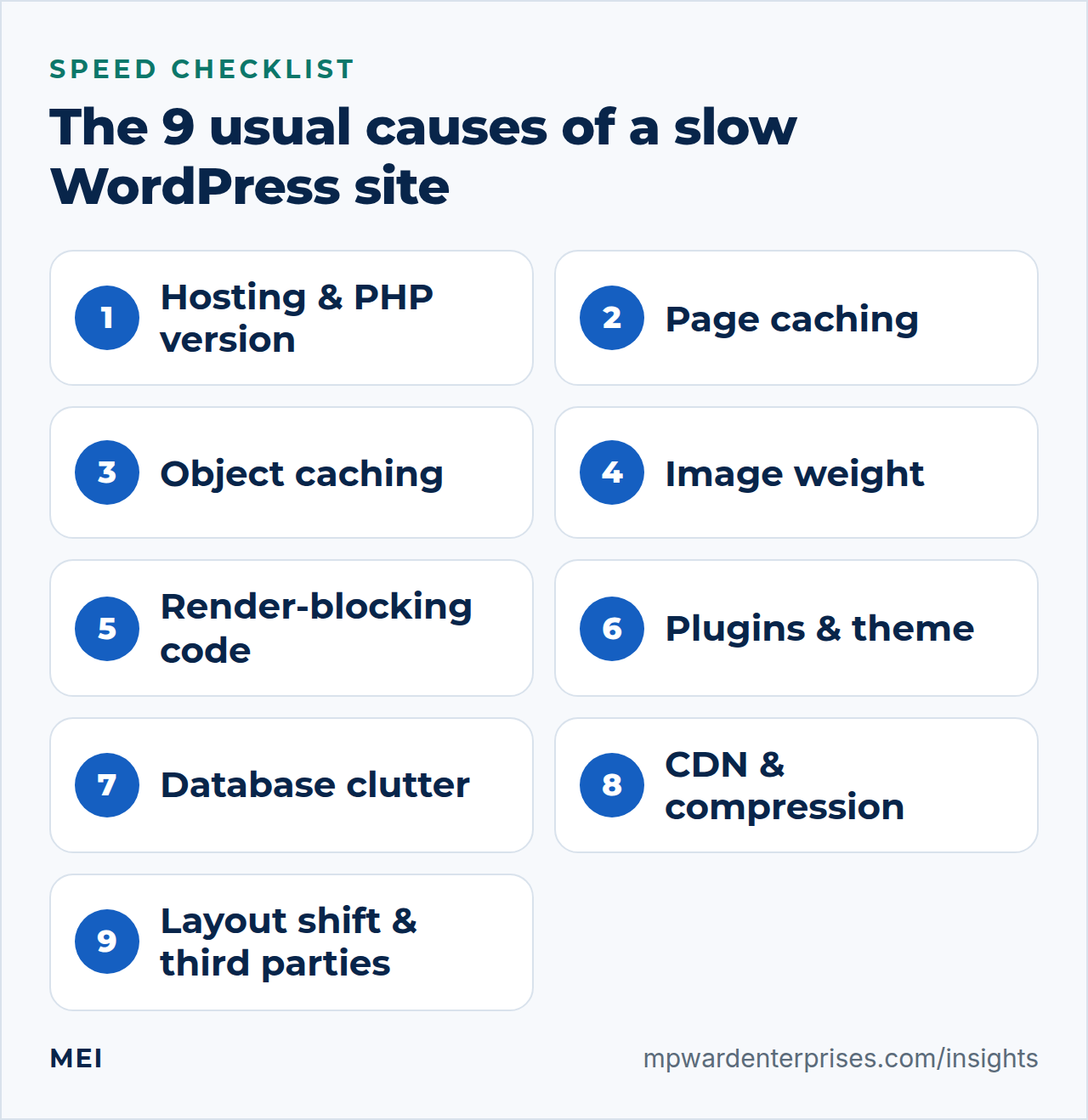
9 fixes for a slow WordPress site, in order of effect
1. Check your hosting and PHP version
Every page starts with a request to your server. If the server is overloaded, shares too little CPU or runs an old PHP version, nothing else you do can make up for it, and no plugin can rescue the page speed of an overloaded server. WordPress recommends PHP 8.3 or greater, MariaDB 10.11 or greater or MySQL 8.0 or greater, HTTPS, and either Apache or Nginx. In your hosting control panel, check the PHP version and move to the newest your plugins support.
Then look at the host itself: if time to first byte stays high even with caching on, or the site slows down at busy times, you may have outgrown the plan. Our guide to VPS versus shared hosting shows the signs and the trade-offs.
2. Turn on page caching
By default WordPress builds each page from scratch for every visitor: PHP runs, the database is queried, the HTML is assembled. A page cache saves the finished HTML and serves it to the next visitor in a fraction of the time. It is usually the single biggest win for page speed. On our own site, switching on page caching cut the server's response time from about 1.1 seconds to about 0.07 seconds, roughly 18 times faster, with no change to the design.
Use one caching tool, not three: your host's built-in cache, a plugin such as WP Rocket, Hummingbird or LiteSpeed Cache, or server-level caching if you run your own. Exclude the cart, checkout and account pages if you sell online, and clear the cache after you publish changes.
3. Add object caching for dynamic sites
Page caching cannot help pages that are different for every visitor, such as shop carts, account areas and membership sites. For those, an object cache (usually Redis or Memcached) keeps the results of common database queries in memory so WordPress does not ask the database the same question hundreds of times. It matters most for WooCommerce, membership and busy sites. Many hosts offer it as a switch; on your own server it is a small service plus a plugin that connects to it.
4. Fix your images
Images are usually the heaviest thing on a page and the biggest drag on page speed, and the main image at the top is usually your LCP element. Four rules cover most of the gain. Resize images to the size they are shown at, not the size the camera produced. Use modern formats such as WebP or AVIF, which are much smaller than JPEG or PNG at similar quality. Always include width and height attributes so the browser can reserve the space.
And lazy-load images below the first screen, but not the top one: give that image a high fetch priority (fetchpriority="high"), which web.dev shows can bring LCP forward, and never lazy-load it.
5. Remove render-blocking code
Before a browser can paint anything, it must download and process the CSS in the page's head and any script that is not marked to wait. Page builders and plugins often add large files to every page, and those files cost page speed. Look at PageSpeed Insights' "render-blocking resources" list, and for each one ask whether this page needs it. Load scripts with defer where you can, load stylesheets only on the pages that use them, and self-host your fonts instead of calling third-party font servers, which adds connections and delays.
Inlining the small amount of CSS the first screen needs can help, but do it carefully and measure it; badly done, it makes pages worse. That is also how we got our own homepage to a Lighthouse performance score of 99 on desktop.
6. Audit your plugins and theme
A slow WordPress site is rarely about the number of plugins; what each one does matters more. A plugin that loads its CSS and JavaScript on every page, runs slow database queries or phones home on every request is expensive; a well-made one with no front-end footprint is nearly free. Install the free Query Monitor plugin on a staging copy to see which plugins and hooks cost the most time and queries, then deactivate and delete what you do not use.
Replace heavy plugins that do something small with lighter alternatives or a few lines of code, and be wary of an all-in-one theme that bundles features you never turned off. If one plugin is the culprit and nothing lighter exists, custom plugin development can be cheaper than carrying the bloat.
7. Clean up the database
Over the years WordPress databases fill with post revisions, expired transients, spam comments and options that autoload on every request. Limit revisions with the WP_POST_REVISIONS setting, clear expired transients and spam, and check for oversized autoloaded options, which are a common cause of slow admin pages. Always take a backup first; our 3-2-1 backup rule guide explains how. For sites with years of data this is worth doing once and then scheduling.
8. Use a CDN, compression and good caching headers
A content delivery network serves your images, styles and scripts from servers near the visitor, which helps most when your visitors are spread across the country or the world. Make sure the server compresses text files with Gzip or Brotli and sends caching headers so returning visitors do not download unchanged files again. A CDN helps page speed everywhere but will not fix a slow server response for uncached pages; it removes a lot of weight and distance from everything else.
9. Stop layout shift and tame third-party scripts
Layout shift happens when something loads late and pushes the page around. web.dev names the usual culprits: images without dimensions, ads, embeds and iframes without reserved space, content injected after load, and web fonts. The fixes are to set image dimensions or an aspect ratio, reserve space for late content with min-height, and load fonts early or with font-display: optional.
We took our homepage layout shift from 0.12 to about 0.01 on desktop (0.002 on mobile) by pinning the final sizes of the header and hero in the page's first CSS, so nothing moved when the rest of the styling arrived. Then look at third-party scripts: chat widgets, tracking pixels, social feeds, ad tags and review badges all cost time. Keep the ones that earn their place and load the rest only when needed, because every extra script costs page speed on a phone.
What to fix first for the biggest gain
If you only have an afternoon to improve page speed, do these in this order. First, run PageSpeed Insights on mobile and note time to first byte and the LCP element. Second, turn on page caching and measure again. Third, fix the image that is your LCP element. Fourth, remove or defer the one or two biggest render-blocking files. Those four steps account for most of the improvement on most sites. Everything else on the list is polish, or relevant only to particular kinds of sites such as shops and membership sites.
Re-measure page speed after every change
Change one thing at a time and run the test again. Results vary from run to run, so compare averages of a few tests, and compare like with like (mobile with mobile, cached with cached). Most of all, check the real-visitor data in PageSpeed Insights or Search Console over the following weeks, because that is what Google's Core Web Vitals report uses.
Myths that make a slow WordPress site harder to fix
- "More plugins always means slower." Not necessarily; a few poorly built plugins can cost more than thirty good ones. Measure.
- "A caching plugin fixes everything." It fixes server response, not images, scripts or layout shift.
- "I need a perfect 100 score." You need good page speed for real visitors, measured as Core Web Vitals. Chasing the last few points of a lab score often makes sites more fragile for no real benefit.
- "My site is fast for me, so it is fast." You are on a fast connection with the page cached. Test on mobile and on a cold cache.
When a slow WordPress site needs more than a plugin
If the server response is slow even with caching on, if the theme or page builder itself is the weight, or if the site has grown by accretion for years, the honest answer may be a rebuild or a move to better hosting rather than another round of tweaks. MEI measures what is actually slow, fixes the causes in order of effect, and tells you plainly when something cannot be saved. Our website rebuild service starts at $2,500, and a speed review is part of every Business Tech Rescue Audit.
To keep a fast site fast, add the monthly checks from our WordPress website maintenance checklist.
Frequently asked questions
What is a good load time for a WordPress site?
Rather than a single number, Google's Core Web Vitals set the targets: Largest Contentful Paint within 2.5 seconds, Interaction to Next Paint of 200 milliseconds or less, and Cumulative Layout Shift of 0.1 or less, measured at the 75th percentile of real page loads on both mobile and desktop. Server response time (TTFB) of 0.8 seconds or less is considered good.
Will a caching plugin improve page speed on my WordPress site?
It will help a great deal if the problem is server response time, because visitors get a ready-made page instead of waiting for PHP and the database. It will not fix oversized images, heavy scripts or poor hosting, which is why measuring first matters.
How many plugins are too many?
There is no magic number. A site with 40 well-written plugins can be faster than a site with 10 heavy ones. Judge each plugin by what it loads on the front end and what database queries it adds, and remove anything you do not use.
Does my hosting really matter for page speed?
Yes, because every page starts with the server's response. If the time to first byte is high even with caching on, the host's hardware, PHP configuration or resource limits are the bottleneck, and no plugin will fix that. WordPress itself recommends PHP 8.3 or greater, MariaDB 10.11 or greater or MySQL 8.0 or greater, and HTTPS.
Should I lazy-load every image?
No. Lazy-load images that start below the first screen, but never the main image or banner at the top of the page, which is usually your Largest Contentful Paint element. Give that one a high fetch priority so the browser loads it first.
Sources and further reading
- web.dev: Web Vitals — the Core Web Vitals thresholds: LCP 2.5 s, INP 200 ms, CLS 0.1 at the 75th percentile
- web.dev: Optimize Largest Contentful Paint — the four LCP subparts and where the time should go
- web.dev: Time to First Byte (TTFB) — good TTFB is 0.8 seconds or less; poor is over 1.8 seconds
- web.dev: Optimize Cumulative Layout Shift — causes of layout shift and how to prevent them
- web.dev: Fetch Priority API — fetchpriority="high" for the LCP image
- WordPress.org: Requirements — recommended PHP, database and HTTPS support for hosting WordPress