This WordPress website maintenance checklist lists the 21 tasks that keep a WordPress site secure, fast and actually delivering inquiries, sorted by how often each one needs doing: five weekly, six monthly, five quarterly and five yearly. Follow it and most of the emergencies that hit small-business sites never happen.
WordPress is free software, but it is not maintenance-free software. Left alone, plugins fall out of date, backups quietly stop working, forms stop delivering and certificates expire, usually at the worst moment. The good news is that WordPress maintenance is mostly routine, and routine WordPress maintenance is cheap compared with a recovery. This guide gives you the routine, explains why each task matters, and flags the one that most sites skip entirely.
What a WordPress website maintenance checklist covers (and what WordPress does for you)
Out of the box, WordPress applies minor core updates automatically on most sites, which is how many security fixes arrive. Major core releases, plugins and themes are different: by default they update automatically only in special cases, and you must switch on automatic updates for them yourself. Backups, form testing, performance checks, user reviews and renewals are never automatic.
That gap is what a good WordPress maintenance routine fills, and the same routine applies whether the site is a five-page brochure or a busy online shop. It breaks into four rhythms, and the rest of this guide takes them in turn. If you want the whole-business view rather than just the website, pair it with our IT audit checklist.
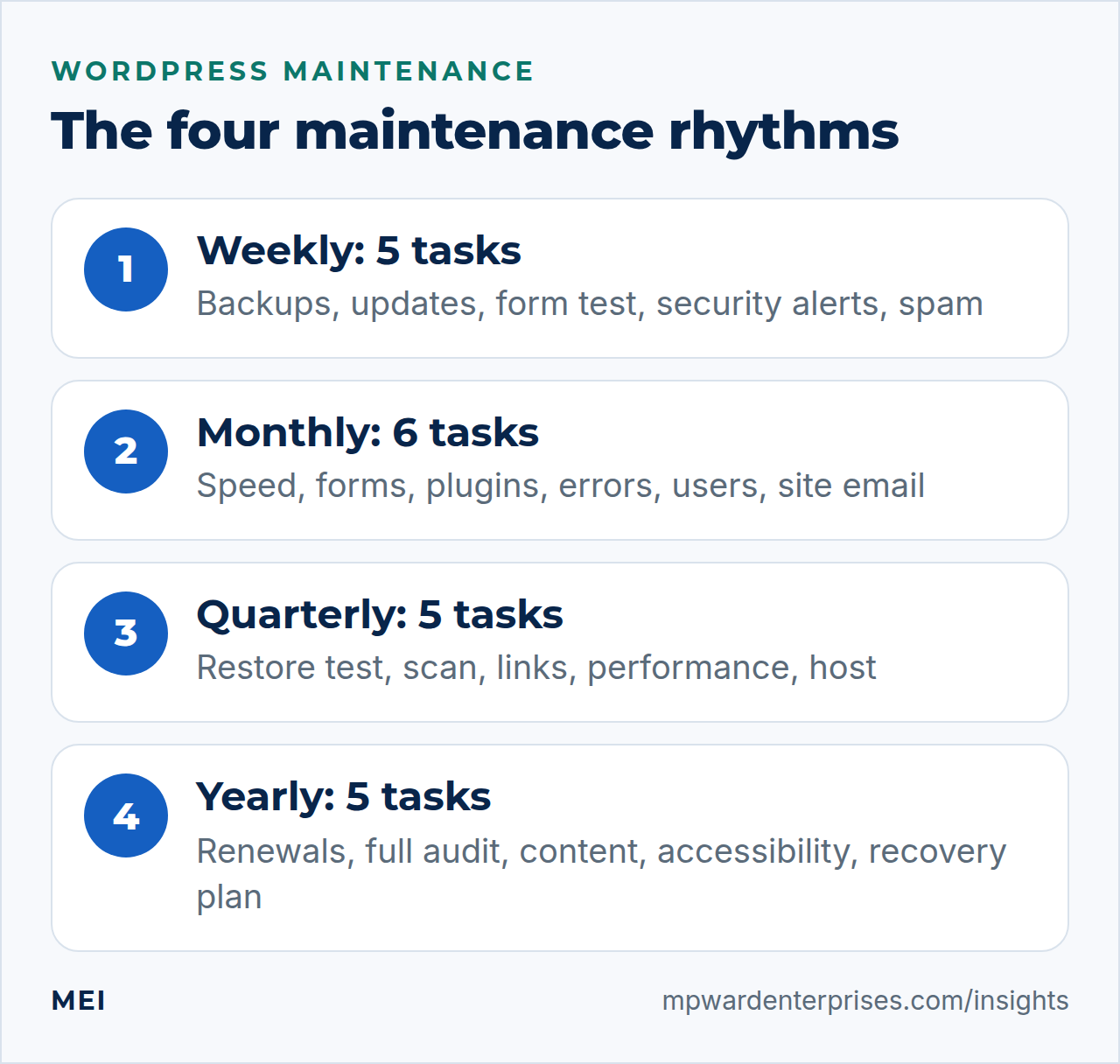
Weekly WordPress maintenance checklist (5 tasks)
Fifteen minutes a week keeps small problems small.
- Confirm the last backup completed.Check that it ran, how big it is compared with last week, and that a copy exists somewhere other than the web server.
- Apply updates, after the backup.Update WordPress core, plugins and themes. Always back up first: WordPress's own guidance is blunt that without a backup of the whole site and database, a rollback is near impossible.
- Do a quick form test.Submit your contact form and confirm the email arrives. A broken form costs real money while it is broken; see WordPress contact form not sending email if it does not.
- Read the security alerts.Review failed login attempts, firewall notices and any "file changed" warnings from your security plugin or host.
- Clear the spam.Moderate comments and form entries, delete the spam, and empty the trash.
Monthly WordPress maintenance checklist (6 tasks)
- Check speed and uptime.Run your homepage and one inner page through PageSpeed Insights and compare with last month. The targets are Largest Contentful Paint within 2.5 seconds, Interaction to Next Paint of 200 ms or less and Cumulative Layout Shift of 0.1 or less. If it is drifting, our guide to why your WordPress site is slow explains the fixes.
- Test every form and checkout path end to end.Not just the contact form: booking forms, quote requests, newsletter sign-ups and, for shops, a complete test order.
- Review plugins and themes.Delete anything inactive, and check each remaining plugin for recent updates. A plugin that has not been updated in years, or has been removed from the WordPress directory, is a risk.
- Check Google Search Console.Look for new crawl errors, pages that returned 404, and security or manual-action messages, and fix or redirect what you find.
- Review user accounts.Remove people who have left, downgrade anyone with more access than they need, and confirm administrators use multi-factor authentication.
- Test email from the site.Send a test through the same route your forms and shop use, and read the headers for SPF, DKIM and DMARC passes. See SPF, DKIM and DMARC explained if anything fails.
Quarterly WordPress maintenance checklist (5 tasks)
- Restore a backup to a test copy.This is the most important task on the list and the one most sites never do. Restore the latest backup to a staging site or a spare server and confirm the pages, images, forms and logins all work. A backup you have never restored is a hope, not a plan.
- Run a full security scan.Scan files and the database for malware and unexpected changes, review your firewall rules and confirm the login page has rate limiting or a second factor.
- Run a broken-link check.Fix or remove links to pages that no longer exist, both internal and external.
- Review performance in depth.Check image sizes, caching settings, database size and the slowest plugins, not just the headline score.
- Review hosting and PHP.Check which PHP version you run against WordPress's recommendation (PHP 8.3 or greater at the time of writing), check disk space and resource limits, and confirm your host still suits the site. See VPS versus shared hosting if you are hitting limits.
Yearly WordPress maintenance checklist (5 tasks)
- Check renewals.Domain, SSL certificate, hosting, premium plugins and themes. Confirm the card on file works, auto-renew is on, and the registrar lock is enabled.
- Run a full audit.Work through the 12-point IT audit: accounts, backups, email authentication, vendors and the rest of the chain that surrounds the website.
- Refresh the important pages.Check pricing, contact details, opening hours, team pages and key articles for accuracy, and update the ones that have aged.
- Review accessibility and mobile.Test keyboard navigation, color contrast, image descriptions and how the site looks on a phone, and keep your accessibility statement current.
- Review your recovery plan.Confirm who does what if the site goes down, where the credentials are kept and how long you can afford to be offline. Our business continuity plan guide shows how to write it down.
How to run WordPress maintenance updates safely
Updates fix security holes, but they are also the most common way a working site breaks, because a new plugin version can clash with the theme or another plugin. A short WordPress maintenance routine for updates removes most of the risk, and it is worth writing down so that anyone covering for you follows the same steps.
- Back up first.A fresh backup of files and database, stored away from the server.
- Update a staging copy.If your host offers one-click staging, clone the site and apply the updates there first. Updates that touch checkout, forms or the page builder deserve this most.
- Test what earns money.Load the homepage, a service page and a blog post, submit a form, and run a test order if you sell online.
- Update the live site.Apply the same updates in the same order, then repeat the quick test.
- Know how to roll back.Keep the previous plugin version or the backup at hand, and note what you changed and when.
For low-risk plugins that you trust, turning on automatic updates is reasonable, provided backups run first and someone reads the results. For anything that touches payments, memberships or the page builder, update by hand.
Tools and habits that make WordPress maintenance easier
You do not need many tools, but you need each job covered. Backups: your host's snapshots plus a plugin or service that stores copies off the server. Uptime monitoring: a free external monitor that emails you if the site goes down. Security: a firewall and malware scanner, from your host or a reputable plugin, with alerts that actually reach a person. Logs: an email log and an activity log so you can see what changed and what failed. Finally, a staging environment for testing updates.
Keep a simple maintenance log
A shared spreadsheet with four columns is enough: date, task, result and who did it. It shows at a glance when the restore test was last done, helps a new person pick up where the last one left off, and is the kind of evidence an insurer or an auditor asks for.
Backups done right: what to copy, where, and how often
WordPress's backup documentation names the two things to protect: the files in your WordPress directory and the database, which lives separately. A backup of one without the other cannot rebuild the site. The same documentation suggests weekly backups for smaller sites and daily backups for busy ones, and advises keeping at least three to five recent copies in different places, for example one on the host, one in cloud storage and one downloaded locally.
That is the 3-2-1 backup rule in a WordPress setting. Add one more habit to it: for any backup tool that creates backups automatically, back up the backups manually now and then, so you know the process works. Then do the quarterly restore test above.
Do it yourself or have it managed?
The weekly and monthly tasks take under an hour a month once you have the routine, and doing them yourself costs nothing but discipline. The case for handing them over is not the time; it is that the work is invisible until it fails, and it only works when it is done every time. A managed WordPress maintenance plan turns it into a service with reports and someone accountable, so the work happens whether or not anyone remembers.
Our Managed Website & IT Care starts at $149 a month and covers updates, backups, monitoring and priority help, and our guide to small business IT support cost explains how to compare plans. Whichever route you choose, put the dates in a calendar today.
Frequently asked questions
How often should WordPress be maintained?
Light checks weekly (backups, updates, a form test), a deeper review monthly, a restore test and security review quarterly, and renewals plus a full review yearly. Busy or e-commerce sites should add daily backups.
Does WordPress update itself?
Partly. Minor core releases, which carry security fixes, update automatically on most sites. Major core releases, plugins and themes update on their own only if you turn automatic updates on, and even then you should keep backups and test important changes.
How much does WordPress website maintenance cost?
It depends on what is included. Doing it yourself costs time. Managed plans typically bundle updates, backups, monitoring and support for a monthly fee; MEI's Managed Website & IT Care starts at $149 a month, with tiers that add security review, performance checks and priority help.
What is the most common WordPress maintenance mistake?
Trusting backups that have never been restored. A backup that is incomplete, stored on the same server, or impossible to restore is not a backup. Test a restore on a staging copy every quarter.
Can I automate WordPress maintenance?
Much of it, yes: automatic updates for trusted plugins, scheduled backups, uptime monitoring and security alerts. But automation needs a human reviewing the results, because a green checkmark on a backup tells you it ran, not that it can be restored.
Sources and further reading
- WordPress Developer Resources: Backups — what to back up (files and database), how often, and where to keep copies
- WordPress Developer Resources: Upgrading WordPress — automatic background updates and what needs configuring
- WordPress.org: Requirements — recommended PHP and database versions for hosting WordPress
- web.dev: Web Vitals — the speed and stability targets worth checking monthly