
This Linux server hardening checklist takes a fresh Ubuntu or Debian server from default to defensible in 15 steps, with the commands. It is written for the servers small businesses actually run (a website, a mail relay, a file server, a few internal tools), not for a data center with a security team.
Linux server hardening is mostly about removing things: services you do not need, accounts nobody uses, ports that should not be open, and password logins that invite brute force. Each one shrinks what an attacker can reach. The steps below are in the order we apply them to a new server. Test as you go: a mistake in SSH or the firewall can lock you out of your own machine.
Before you start the Linux server hardening checklist
Three habits make the work safe. First, take a snapshot or backup of the server before you begin, so every change is reversible. Second, keep one SSH session open while you test a change in a second one, and do not close the first until the second works. Third, write down what you change. The commands below assume Ubuntu 24.04 LTS or Debian 12 and a user with sudo; package and service names differ slightly on other distributions.
Do not harden a server you cannot reach if it breaks
If the server is remote, make sure you have console access through your hosting provider before you touch SSH or the firewall. It is your way back in if a setting goes wrong.
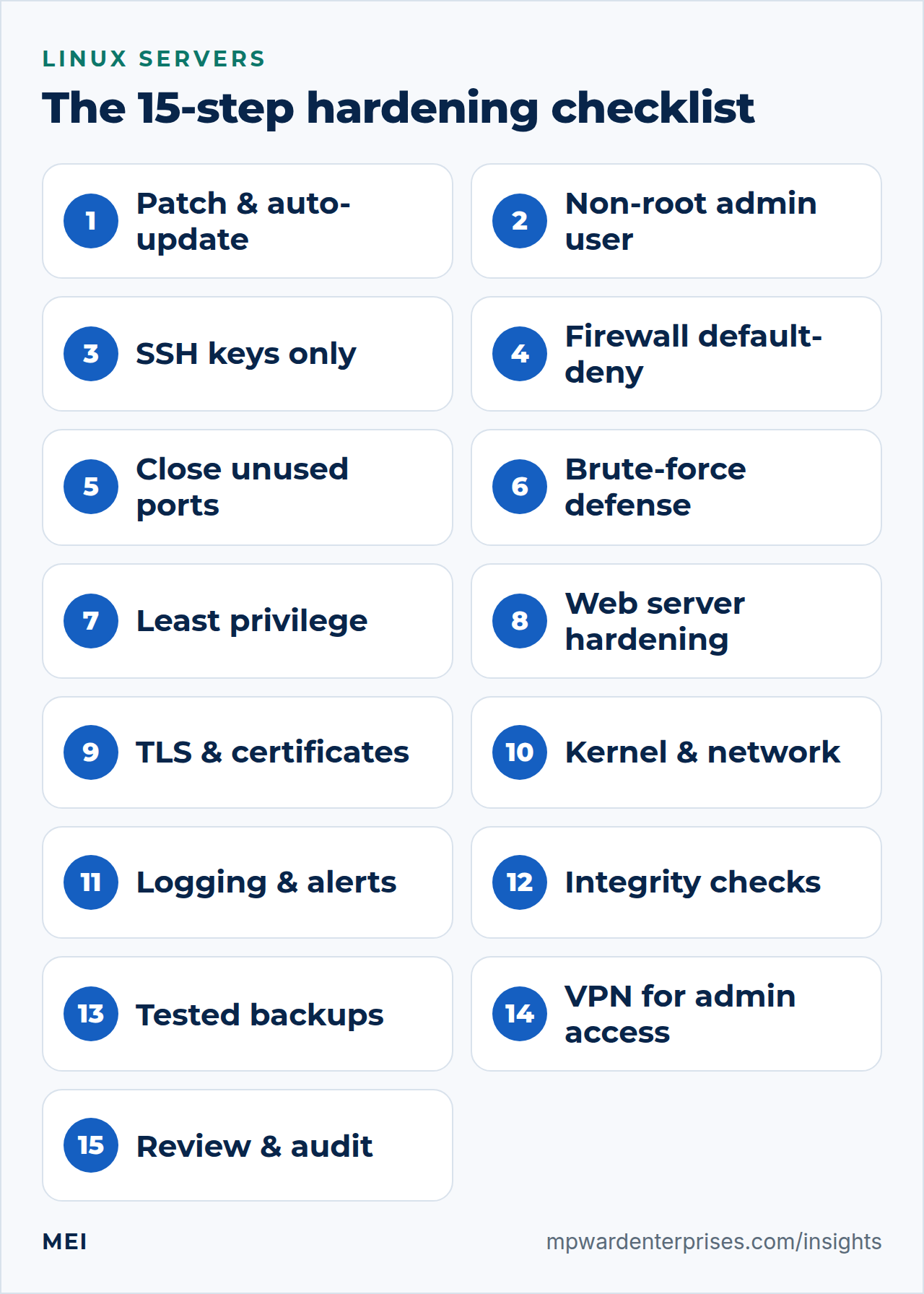
The short version: Linux server hardening in 30 minutes
If you only have half an hour for Linux server hardening, do these six things in this order. They address the great majority of attacks that hit small-business servers, and every one is covered in detail below.
- Update everything and enable automatic security updates.Step 1.
- Create a named admin user with an SSH key.Steps 2 and 3.
- Disable root and password login for SSH.Step 3, after proving key login works.
- Enable a default-deny firewall.Step 4, allowing SSH first.
- Close every port you did not choose to open.Step 5.
- Confirm there is a backup you can restore.Step 13.
The Linux server hardening checklist: 15 steps
1. Patch now and turn on automatic security updates
Unpatched software is the most common way servers are compromised, so update first and then keep it that way:
sudo apt update && sudo apt full-upgrade
sudo apt install unattended-upgrades
sudo dpkg-reconfigure unattended-upgrades
The Debian documentation notes that the default configuration auto-installs security updates, not new features, and keeps its settings in /etc/apt/apt.conf.d/50unattended-upgrades. Decide whether the server may reboot itself after kernel updates (the Automatic-Reboot option in that file) and schedule reboots for a quiet hour if so. Check apt list --upgradable monthly for anything that needs manual attention.
2. Use a named administrator, not root
Create a personal account for each administrator, give it sudo rights, and stop logging in as root. You get an audit trail of who did what, and you remove the one username every attacker already knows.
sudo adduser alex
sudo usermod -aG sudo alex
3. Switch SSH to keys only and lock down root
Passwords can be guessed; keys cannot, in practice. Copy your public key to the new account first (ssh-copy-id alex@server), confirm that key login works, then tighten the SSH server. On current Ubuntu and Debian you can put settings in a drop-in file, /etc/ssh/sshd_config.d/99-hardening.conf:
PermitRootLogin no
PasswordAuthentication no
PubkeyAuthentication yes
MaxAuthTries 3
AllowUsers alex
X11Forwarding no
The sshd_config manual explains the defaults you are changing: PermitRootLogin defaults to prohibit-password, PasswordAuthentication to yes, MaxAuthTries to 6, and X11Forwarding to no. Test the file with sudo sshd -t, reload with sudo systemctl reload ssh, and verify from a second terminal before closing the first.
4. Turn on a firewall that denies by default
Ubuntu's documentation is explicit that UFW, its friendly firewall front end, is disabled by default. Allow SSH before you enable it, or you will cut off your own session:
sudo ufw default deny incoming
sudo ufw default allow outgoing
sudo ufw allow OpenSSH
sudo ufw allow 80,443/tcp
sudo ufw enable
sudo ufw status verbose
Open only what the server must serve. If a service does not need to be reachable from the internet, it should not be.
5. Find and close everything else that is listening
List what the server is listening on and ask of each line whether it should be:
sudo ss -tulpnDisable services you do not use with sudo systemctl disable --now servicename and remove packages you do not need. A database, cache or admin panel should usually listen on 127.0.0.1 or a private address only, never on the public interface.
6. Slow down brute-force attempts
Even with keys only, your logs will fill with login attempts. A tool such as fail2ban or CrowdSec reads the logs and temporarily blocks addresses that keep failing, cutting the noise and the load. Treat it as a helpful extra layer after step 3, not a replacement for it.
7. Give each service the least privilege it needs
Linux server hardening depends on least privilege. Run each application as its own unprivileged user, so a bug in one cannot read the files of another. On web servers that means a separate system user and PHP-FPM pool per site, which is how we isolate sites on our own servers. Check file permissions: web roots owned by the application user, configuration files with secrets readable only by that user, and nothing world-writable.
8. Harden the web server
For Nginx or Apache, hide version banners (server_tokens off; in Nginx), disable directory listing, set sensible request-size limits, and add basic security headers. Keep the web server's configuration in version control so a change is reviewable and reversible. Our comparison of VPS and shared hosting explains when a business needs its own server at all.
9. Use TLS everywhere, and make renewal automatic
Serve every site over HTTPS with certificates from a free automated authority such as Let's Encrypt, using a client like Certbot that renews on a timer. An expired certificate is both an outage and a warning to visitors. Add the expiry date to your monitoring, so a failed renewal is noticed weeks before it matters.
10. Tighten kernel and network settings
A few sysctl settings, typically placed in /etc/sysctl.d/99-hardening.conf, close common network tricks:
net.ipv4.tcp_syncookies = 1
net.ipv4.conf.all.rp_filter = 1
net.ipv4.conf.all.accept_redirects = 0
net.ipv4.conf.all.send_redirects = 0
Apply them with sudo sysctl --system. These are a small subset of what published benchmarks recommend; they are low-risk on ordinary servers but test on a copy if the machine routes traffic or runs unusual networking.
11. Keep logs, and make someone read them
Good Linux server hardening includes logging. Make the systemd journal persistent so logs survive a reboot (Storage=persistent in /etc/systemd/journald.conf), rotate application logs, and send important ones to a second location so an intruder cannot erase the evidence. Set an alert for the events that matter: repeated failed logins, new administrator accounts, a service that keeps crashing, a disk filling up. Logs nobody reads are only a record of what went wrong.
Review the authentication log monthly at the very least, and look for logins at odd hours, logins from new locations and any new administrator account you did not create.
12. Check file integrity
A file-integrity tool such as AIDE records a fingerprint of important system files and tells you when they change unexpectedly. It is optional for a small server, but a cheap way to notice tampering. Even without one, your backup system's change reports and a security plugin's file-change alerts serve the same purpose for websites.
13. Back up, and prove you can restore
Hardening reduces the chance of a breach; backups limit the damage when something happens anyway, including a failed disk or a mistaken command. Keep several copies, at least one off the server and out of reach of the server's own credentials, and restore one to a test machine regularly. Our guide to the 3-2-1 backup rule shows how.
14. Put administrative access behind a VPN
Admin panels, databases and SSH do not need to face the whole internet. A WireGuard VPN lets administrators reach them over a private address, and the firewall can then drop public access to those ports entirely. Where something must be public, use an allow-list of addresses and multi-factor authentication.
15. Review against a benchmark, then repeat
Compare your Linux server with a published standard. The CIS Benchmarks are consensus configuration guides, with versions for Ubuntu and Debian among many others, and NIST's guide to general server security covers the fundamentals of securing and maintaining servers. Open-source auditing tools such as Lynis can run many of those checks for you and list what to fix. Put the review on a quarterly calendar entry and repeat the checklist after every significant change.
Which Linux server hardening step stops which attack
Linux server hardening is easier to prioritize when you connect each control to the threat it answers. This table maps the common ways small-business servers get compromised to the steps that blunt them.
| What goes wrong | Steps that help |
|---|---|
| A known vulnerability in unpatched software | 1 (updates), 15 (review), plus patching the applications on top |
| Password guessing against SSH or admin panels | 3 (keys only), 6 (brute-force defense), 14 (VPN) |
| A service exposed by accident (database, cache, admin tool) | 4 (firewall), 5 (close listeners), 14 (VPN) |
| One compromised website taking over the whole server | 7 (least privilege and isolation), 8 (web server hardening) |
| Stolen or reused credentials | 2 (named admins), 3 (keys), 14 (multi-factor and allow-lists) |
| Tampering you do not notice | 11 (logs and alerts), 12 (integrity checks) |
| Ransomware, a bad command or a failed disk | 13 (backups you can restore) |
Verify your Linux server hardening in five commands
When you are done, confirm the important settings are really in force rather than assuming:
sudo sshd -T | grep -Ei 'permitrootlogin|passwordauthentication|maxauthtries'
sudo ufw status verbose
sudo ss -tulpn
apt list --upgradable
sudo journalctl -u ssh --since "1 hour ago" | tail
The first should show root login and passwords off. The second should show a default-deny policy with only the ports you intended. The third should list nothing you cannot explain. The fourth should be empty or short, and the last shows whether anyone has been trying.
Linux server hardening for a server that runs WordPress or PHP sites
Many small-business Linux servers exist to run WordPress. A few extra measures matter there. Give each site its own system user and PHP-FPM pool so one hacked site cannot read the files of the others. Keep file ownership tight: the application user owns the site, configuration files holding secrets (such as wp-config.php) are readable only by that user, and nothing is writable by everyone. Stop PHP from running in the uploads folder, because attackers who find an upload hole drop scripts there. In Nginx that is one rule:
location ~* ^/wp-content/uploads/.*\.php$ { deny all; }Also deny access to files that should never be public, such as .git directories and .env files, and keep WordPress itself, its plugins and its themes updated as described in our WordPress website maintenance checklist. A hardened server cannot protect a vulnerable plugin; the layers need each other.
Linux server hardening mistakes to avoid
- Locking yourself out. Enabling the firewall before allowing SSH, or disabling password login before key login is proven.
- Copying a long list blindly. A hardening script that disables something your application needs creates an outage; apply changes in stages and test.
- Forgetting the application. A hardened operating system running an outdated, vulnerable web application is still a vulnerable server. Patch the software on top too.
- Treating it as done. New services, new staff and new software change the picture. Review on a schedule.
- Having no way back in. Keep your provider's console or recovery access tested and its credentials stored safely, because when SSH or the firewall is misconfigured, that console is the only door left. Test it before you need it, not during the outage.
When to bring in help
If you run a Linux server that holds customer data, takes payments or keeps the business running, and nobody on the team is confident about the steps above, a short review is cheap compared with a breach. MEI builds, hardens and documents Linux servers and private networks; see our network architecture and security and infrastructure and private cloud services. A server check is part of every Business Tech Rescue Audit, and the broader view is in our small business cybersecurity checklist and self-hosted versus cloud guide.
Frequently asked questions
What is Linux server hardening?
Linux server hardening is the process of reducing a server's attack surface and tightening its configuration: removing unneeded software and services, restricting access, applying updates, and logging what happens, so that a mistake or a vulnerability is less likely to become a breach.
What is the first thing to do on a new Linux server?
Update it, create a non-root administrator with SSH key access, turn on a firewall that allows only the ports you need, and turn on automatic security updates. Do these before you install any application.
Is a firewall enough to secure a Linux server?
No. A firewall limits which ports can be reached, but it does nothing about a vulnerable application on an allowed port, a weak password, an unpatched package or a stolen key. Hardening is layers: updates, authentication, firewall, least privilege, logging and backups.
Should I disable root login over SSH?
Yes. Set PermitRootLogin no and use a named administrator account with sudo. That gives you an audit trail of who did what and removes the one username every attacker already knows.
How often should a server be reviewed?
Check patch status and logs monthly, run a fuller review quarterly, and repeat the whole checklist after any significant change such as a new application, a new administrator or a change of provider.
Sources and further reading
- OpenBSD: sshd_config manual — PermitRootLogin, PasswordAuthentication, MaxAuthTries and other SSH server options with their defaults
- Ubuntu Server documentation: Firewalls (UFW) — UFW is disabled by default; allow SSH before enabling
- Debian Wiki: UnattendedUpgrades — installing and enabling automatic security updates
- CIS Benchmarks — consensus configuration guides, including for Ubuntu and Debian
- NIST SP 800-123: Guide to General Server Security — fundamentals of securing and maintaining servers