
To harden Ubuntu Server is to close the doors you do not need and lock the ones you do: log in with keys instead of passwords, allow only the network traffic you expect, install security patches automatically, and then check your work. This guide walks through 12 steps in a safe order, with the exact commands, what each one does in plain English, and why we choose it over the alternatives. It covers Ubuntu 24.04 LTS and 26.04 LTS, so pick yours with the switch below. It takes about an hour on a fresh server.
Every command below was run twice in disposable test machines before we wrote it down, once on Ubuntu 24.04 LTS (OpenSSH 9.6) and once on Ubuntu 26.04 LTS (OpenSSH 10.2), and the approach mirrors how we set up our own servers and client servers. Where the two releases differ, the page shows only the one you picked. You do not need to be a Linux expert, but you should be comfortable opening a terminal and connecting with SSH.
Where a step can lock you out, we say so and show you how to test first.
Choose your Ubuntu version
This guide covers both releases. Commands, file paths and version numbers change with your choice; everything else is the same.
JavaScript is off, so both versions are shown below and each block says which release it is for.
Before you start: build a safety net
The most common hardening accident is locking yourself out of your own server. Three habits prevent it, and they matter more than any single setting.
- Keep a second SSH session open while you change login settings. If the new rules break something, the old session still works and you can undo the change.
- Know how to reach the console. Almost every hosting provider offers a web console that works even when SSH does not. Find it now, before you need it.
- Take a snapshot or backup first. A fresh server costs nothing to rebuild; a production one does not. See the 3-2-1 backup rule.
- Rehearse on a throwaway server. Spend a few cents on a test machine, run the steps, and only then repeat them on the real one.
Harden Ubuntu Server: why this way and not the other ways
There is more than one way to secure a server. This table compares the common approaches in plain English, so you can see why this guide is built the way it is.
| Approach | In plain English | Our verdict |
|---|---|---|
| A short manual checklist (this guide) | You make a dozen well-understood changes yourself | Best for small servers: you know what every change does, so you can fix it when it breaks |
| A one-click hardening script | A stranger's script changes hundreds of settings at once | Read it for ideas, do not run it blind. If you cannot explain a change, you cannot repair it |
| Only the hosting provider's firewall | A fence around the property, but no locks on the doors | Use it as an extra layer, not a replacement for the server's own firewall |
| Changing the SSH port | Moving the front door to a different street | Skip it. Scanners find every port, and on Ubuntu 24.04 and 26.04 it takes extra steps because SSH is started by a socket unit |
| Antivirus and "security suites" | A guard who checks bags but ignores the unlocked back door | Rarely the right first step on a Linux web server. Patching and least privilege come first |
| A full compliance benchmark (such as CIS) | A several-hundred-item inspection checklist | A good next step once these basics are done, especially if a client or insurer requires it |
| Managed hosting | Someone else does all of this for you | Often the right answer if nobody on your team wants to own a server |
NIST's guide to general server security frames the job as the fundamental activities of securing and maintaining servers: selecting, implementing and maintaining the necessary security controls. The 12 steps below are those controls made concrete for a small Ubuntu server: patch it, limit what is reachable, control who can log in, keep evidence, and be able to recover.
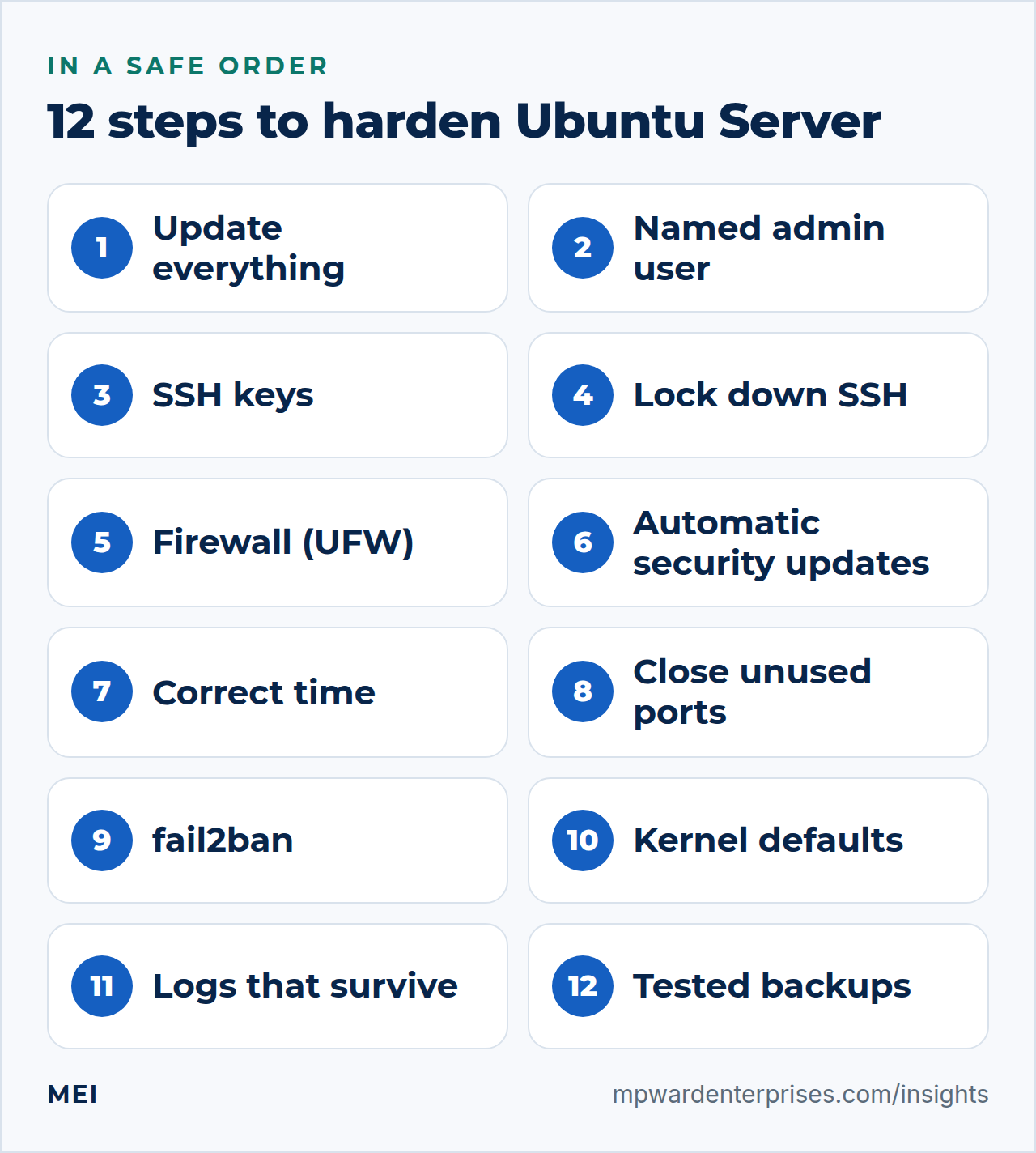
Step 1: Update everything first
A new server image can be weeks or months old, and security fixes are released constantly. Bring it up to date before anything else, so you do not harden a house with a known broken window.
sudo apt update
sudo apt full-upgrade -y
[ -f /var/run/reboot-required ] && echo "Reboot needed"
If it says a reboot is needed, run sudo reboot, wait a minute, and log back in. A reboot is how a new kernel starts being used.
Why this way?
apt update refreshes the list of what is available, and full-upgrade installs it, including packages that need to be added or removed to complete an upgrade. Plain upgrade can hold some updates back, which is how servers quietly end up unpatched.
Step 2: Create a named admin user instead of using root
The root account can do anything and leaves no trace of who did it. Create a personal administrator account, give it permission to use sudo, and use that every day. Replace alex with your own username.
sudo adduser alex
sudo usermod -aG sudo alex
Choose a strong password when prompted. This password is needed for sudo; later we will switch off passwords for logging in over the network, so it cannot be guessed from the internet.
On Ubuntu 26.04 the sudo command is the Rust rewrite called sudo-rs, and the original is still available as sudo.ws. Membership of the sudo group works as before, and sudo, sudo -u and sudoedit behaved the same in our lab. The visible difference is the password prompt, which reads [sudo: authenticate] Password: instead of [sudo] password for alex:.
Why this way?
Working as a named user means each action is tied to a person in the logs, and a mistake typed as a normal user cannot damage as much as one typed as root. sudo asks for a password each time you need extra power, which acts as a speed bump. The alternative, logging in as root everywhere, saves a few keystrokes and removes every safeguard.
Step 3: Log in with an SSH key, not a password
A password is something a robot can guess. An SSH key is a pair of long numbers: a private half that stays on your computer and a public half that you place on the server. The server only lets you in if your computer can prove it holds the private half. On your own computer (not the server), create a key and send the public half across.
ssh-keygen -t ed25519 -C "alex@laptop"
ssh-copy-id alex@your-server-address
Now test it. Open a new terminal window and connect as the new user: ssh alex@your-server-address. You should log in without being asked for the account password (you may be asked for the key's own passphrase, which we recommend setting). Do not move on until this works.
Why this way?
Ed25519 is a modern key type that is short, fast and considered strong. Protect the private key with a passphrase, so a stolen laptop does not hand over your servers. RSA keys still work, but if you choose RSA make them at least 3072 bits. The alternative to keys is relying on long, unique passwords for every server, which people reuse, and which the next step turns off entirely.
Step 4: Lock down SSH
With a working key, you can safely turn off the weakest ways in. Ubuntu reads extra configuration files from /etc/ssh/sshd_config.d/, which is tidier than editing the main file. Create one with settings that tighten the defaults.
sudo tee /etc/ssh/sshd_config.d/00-hardening.conf > /dev/null <<'EOF'
PermitRootLogin no
PasswordAuthentication no
KbdInteractiveAuthentication no
PubkeyAuthentication yes
X11Forwarding no
MaxAuthTries 3
LoginGraceTime 30
ClientAliveInterval 300
ClientAliveCountMax 2
EOF
sudo sshd -t && sudo systemctl restart ssh
The sshd -t command checks the syntax and prints nothing if all is well; only then do we restart. Now open a third terminal and confirm you can still log in with your key. Keep your original session open until you have.
| Setting | What it does in plain English |
|---|---|
PermitRootLogin no |
Nobody can log in directly as root over the network |
PasswordAuthentication no |
Passwords are refused for SSH logins; only keys are accepted |
KbdInteractiveAuthentication no |
Closes a side door that can ask for a password through a different prompt |
X11Forwarding no |
Turns off remote graphical forwarding; Ubuntu ships with it on, and a server does not need it |
MaxAuthTries 3 |
Disconnects after 3 failed attempts per connection, instead of the default 6 |
LoginGraceTime 30 |
Gives an unauthenticated connection 30 seconds instead of the default 120 |
ClientAliveInterval 300 and ClientAliveCountMax 2 |
Probes a silent connection after five minutes and drops it after two unanswered probes, cleaning up dead sessions |
The file name matters
OpenSSH uses the first value it reads for each setting, and files in sshd_config.d are read in alphabetical order. Many cloud images include a file such as 50-cloud-init.conf that says PasswordAuthentication yes. If your own file sorts after it, for example 99-hardening.conf, your setting loses and passwords stay on. We tested exactly this on both releases.
Name your file 00-hardening.conf so it is read first, and always confirm the effective value with sudo sshd -T | grep -i passwordauthentication. The stock /etc/ssh/sshd_config on 26.04 now says the same thing in a comment near its top.
Why this way?
These settings remove the two things automated attackers rely on, guessable passwords and a known administrator name, without making your own work harder. We do not recommend AllowUsers unless you are sure: it is a good extra lock (only the listed users can log in) but a typo in it will lock out everyone, including you.
Step 5: Turn on the firewall
A firewall decides which network connections may reach your server. Ubuntu includes a friendly tool called UFW (Uncomplicated Firewall) that manages the underlying rules for you. The approach is to refuse everything by default, then allow only what you need. We add the rules first, check them, and switch the firewall on last.
sudo ufw default deny incoming
sudo ufw default allow outgoing
sudo ufw limit OpenSSH
sudo ufw allow "Nginx Full"     # only if this server runs a website (profile exists once Nginx is installed)
sudo ufw show added
sudo ufw enable
sudo ufw status verbose
The limit rule lets SSH through but temporarily blocks an address that opens six or more new connections within thirty seconds, which is typical of password guessing. Nginx Full opens ports 80 and 443 for web traffic; skip that line on a server that does not host websites. For more detail and real-world rules, see our UFW firewall guide.
Why this way?
"Deny by default" means a service you forget about, or install later, is not exposed to the internet by accident. Writing the allow rules before enabling means there is no moment when the firewall is on and SSH is blocked. The alternative, relying only on your hosting provider's network firewall, is useful but sits outside the machine; a host firewall travels with the server and survives a provider mistake.
Step 6: Install security updates automatically
The single most effective thing you can do for a server's long-term safety is to apply security patches quickly. Ubuntu's unattended-upgrades package does that for you. It is normally installed already; this makes sure it is switched on.
sudo apt install -y unattended-upgrades
sudo dpkg-reconfigure -f noninteractive -plow unattended-upgrades
cat /etc/apt/apt.conf.d/20auto-upgrades
sudo unattended-upgrade --dry-run -v | tail -5
The file should show APT::Periodic::Update-Package-Lists "1" and APT::Periodic::Unattended-Upgrade "1", meaning check daily and apply updates daily. The dry run simulates a run without changing anything. By default only security updates are installed automatically, and the server does not reboot itself. Kernel updates need a reboot to take effect, so plan a monthly maintenance window, or read our guide to automatic updates on Ubuntu to schedule reboots safely.
Why this way?
Automatic security updates are a trade: you accept a small chance that a patch causes a problem in exchange for a much larger chance of being patched in time. Limiting automation to security fixes keeps surprises low. The alternative, patching by hand when you remember, is how servers end up months behind. Automatic feature upgrades are a different matter and are best done deliberately.
Step 7: Keep the clock right
Logs, certificates and security tokens all depend on correct time. Set the timezone and make sure network time is on. Ubuntu 24.04 uses systemd-timesyncd by default; newer releases switch to chrony.Ubuntu 26.04 installs chrony instead of systemd-timesyncd on new servers. A server upgraded from 24.04 keeps systemd-timesyncd until you switch it by hand, which the release notes describe. Both register with timedatectl, so the commands below are the same.
timedatectl list-timezones | grep America/New_York
sudo timedatectl set-timezone America/New_York
sudo timedatectl set-ntp true
timedatectl status
Look for "System clock synchronized: yes" in the output. Many people also set servers to UTC so logs from different places line up; pick one and use it everywhere.
Our 26.04 lab is a container, which shares its host's clock, so we did not start a time service there. We confirmed the packaging and the timedatectl output, but not a live synchronization, so check the "synchronized" line on your own server.
Step 8: Check what is listening, and switch off what you do not need
Every program that listens on the network is a possible way in. List what is open to the outside.
sudo ss -tulpnOn a fresh server you should see SSH, and perhaps your web server. Anything else deserves a question: do I need this? If not, stop and disable it, for example sudo systemctl disable --now servicename, or remove the package with sudo apt remove packagename. Services that listen only on 127.0.0.1 are reachable from the machine itself and are much lower risk than those that listen on all addresses.
Why this way?
This is the principle of the smallest possible surface: software you did not install on purpose cannot be attacked, forgotten or left unpatched. The firewall already blocks outside access to it, but defense in depth means not depending on one layer.
Step 9: Slow down password guessers with fail2ban
Fail2ban reads your logs and, when an address fails to log in too many times, adds a temporary firewall rule to block it. On Ubuntu 24.04 and 26.04 the SSH protection comes switched on as soon as the package is installed.
sudo apt install -y fail2ban
sudo systemctl enable --now fail2ban
sudo fail2ban-client status sshd
To change the defaults, never edit the shipped files; create /etc/fail2ban/jail.local with your overrides.
sudo tee /etc/fail2ban/jail.local > /dev/null <<'EOF'
[DEFAULT]
bantime  = 1h
findtime = 10m
maxretry = 5
EOF
sudo systemctl restart fail2ban
Why this way?
With password logins already off, brute-force guessing cannot get in over SSH, so fail2ban's main benefit here is quieter logs and protection for other services later, such as web login pages. It is optional on a key-only server, and cheap insurance. Do not set very long or permanent bans without a plan: you can ban yourself or a whole office behind one address. Newer community tools such as CrowdSec add shared blocklists; they are worth a look but add more moving parts.
OpenSSH 10.2 also ships with a built-in penalty for repeat offenders. It is called PerSourcePenalties, it is on by default, and sudo sshd -T | grep persourcepenalties shows its settings. In our lab an address that kept failing password logins in quick succession was cut off by sshd itself after about ten attempts. That covers SSH only, so fail2ban still earns its place for other services.
Step 10: Check the kernel's network defaults
You will find long lists of kernel tweaks online. On a current Ubuntu release most of the important ones are already set. Check rather than copy.
sysctl net.ipv4.tcp_syncookies net.ipv4.conf.all.rp_filter kernel.randomize_va_spaceYou should see tcp_syncookies = 1 (resists a type of connection flood), rp_filter set to 1 or 2 (drops packets with forged source addresses), and randomize_va_space = 2 (makes memory layouts unpredictable to attackers). On our own Ubuntu 24.04 servers all three were already correct with no changes.In our Ubuntu 26.04 lab all three were already correct with no changes as well.
Ubuntu's rp_filter = 2 now ships in /usr/lib/sysctl.d/55-network-security.conf (on 24.04 it is in /etc/sysctl.d/), and the other two are kernel defaults. A container shares its host's 6.8 kernel, not the 7.0 kernel of 26.04, so run the command on your own server to confirm those two.
Why this way?
Copying a hundred sysctl lines from a blog post is a classic way to break networking or container tools. The right habit is to verify the few settings that matter and change only what the evidence says is wrong.
Step 11: Make sure the logs survive and someone looks
If something goes wrong you want evidence. By default Ubuntu keeps system logs in the journal and in /var/log, and rotates them so they do not fill the disk (our logrotate nginx guide shows how that works for web server logs). Check that the logs persist across reboots and know the three commands you will use most.
sudo mkdir -p /var/log/journal && sudo systemctl restart systemd-journald
sudo journalctl -u ssh --since "1 hour ago" | tail
sudo last -n 10
sudo grep "Failed password" /var/log/auth.log | tail -5sudo journalctl -u ssh --no-pager | grep Accepted | tail -n 10
sudo grep "Failed password" /var/log/auth.log | tail -5Two things differ on 26.04. The last command is no longer installed by default, because it now comes from the optional wtmpdb package, so the first command reads the accepted logins from the journal instead. And sshd's log lines now carry the program name sshd-session rather than sshd, so filter by unit (-u ssh) or by message text, not by program name. The /var/log/auth.log file in the second command exists only while rsyslog is installed, which Ubuntu recommends on servers; without it, add grep "Failed password" to the journal command instead.
A log nobody reads protects nobody. Put a monthly reminder in the calendar, or send alerts somewhere a person sees them, and add an external uptime check so you hear about an outage from a tool, not a customer.
Step 12: Back up, and prove the backup restores
Hardening reduces the chance of a break-in; it does not remove it. A backup you have tested is what turns a disaster into an inconvenience. Back up the data and the configuration, keep a copy off the server, and restore it to a test machine at least once. Our guide to server backups with restic shows a practical setup, and the 3-2-1 backup rule explains how many copies to keep and where.
Check your work in 10 minutes
Run these commands and compare the results with what you intended. They are the quickest audit you can do yourself.
sudo sshd -T | grep -E "^(permitrootlogin|passwordauthentication|kbdinteractiveauthentication|x11forwarding|maxauthtries) "
sudo ufw status verbose
sudo ss -tulpn
apt list --upgradable 2>/dev/null | tail -n +2 | wc -l
systemctl is-active unattended-upgrades fail2ban
You are looking for: root login and passwords off; the firewall active with default deny; only expected programs listening; zero (or few) pending updates; and both services active. If you want a deeper, repeatable audit, the free Lynis tool and the CIS Ubuntu Benchmark are the natural next steps.
What hardening does not protect against
- Vulnerable applications. A flawed WordPress plugin can be exploited through a perfectly hardened server. Keep applications updated; our WordPress maintenance checklist shows how.
- A stolen key or a compromised laptop. Use passphrases and keep the computers you administer from clean.
- Mistakes and bad habits. Reused passwords, shared accounts and skipped updates undo any amount of configuration.
- Everything an attacker already holds. If you suspect a break-in, do not just harden: rebuild from a known-good backup and rotate every credential.
If you lock yourself out
It happens to everyone once. Stay calm and work through these in order. First, try your still-open second session. Second, use your provider's web console to log in locally and fix the file; the usual fix is removing or correcting the file in /etc/ssh/sshd_config.d/ and running sudo sshd -t before restarting. Third, if the firewall is the problem, run sudo ufw disable from the console, correct the rules, and enable it again. Fourth, if all else fails, restore the snapshot you took before you began.
Keep it hardened: a monthly 15-minute routine
- Install any pending updates and reboot if the system asks for it.
- Review who has accounts with
getent passwd | awk -F: '$3 >= 1000 && $7 !~ /nologin/'and remove people who have left. - Check what is listening and which firewall rules exist.
- Skim the SSH log for anything unfamiliar.
- Restore a backup to a test location and confirm it works.
Getting help
Doing this once is straightforward; doing it consistently on several servers is where mistakes creep in. MEI's Network Architecture & Security service starts at $1,500, scoped after an assessment, and covers firewall and network hardening, server and endpoint hardening, monitoring and alerting, access control, and a backup and recovery review. Our Infrastructure & Private Cloud service builds and manages servers for businesses that want to own their stack. We say plainly that no one can promise perfect security; we focus on the highest-impact, most likely risks.
For the bigger picture, read the Linux server hardening checklist, the small business cybersecurity checklist and VPS vs shared hosting, or start with a Business Tech Rescue Audit, which starts at $497.
Frequently asked questions
How do I harden Ubuntu Server 24.04 or 26.04?
Update the system, create a named admin user, log in with SSH keys, disable root and password logins in a drop-in file named 00-hardening.conf, enable the UFW firewall with default deny, turn on automatic security updates, keep the clock in sync, close unused ports, add fail2ban if you wish, check the kernel defaults, make sure logs persist, and keep a tested backup. Verify each change with commands before moving on. The steps are the same on Ubuntu 24.04 and 26.04, and the guide flags the few places where a command or its output differs.
Is Ubuntu Server secure by default?
It is a reasonable starting point, but not hardened. The UFW firewall is disabled until you enable it, SSH password logins are allowed unless you turn them off, and Ubuntu's default SSH configuration enables X11 forwarding. Security updates are applied automatically by default, but reboots are not. The steps in this guide close those gaps.
Should I change the SSH port?
It is not worth it as a security measure. Automated scanners probe every port, so moving SSH only trims log noise. On Ubuntu 24.04 and 26.04 SSH is started by a socket unit, so a port change needs extra steps: in our 26.04 test, editing sshd_config and restarting ssh was not enough until we also reloaded systemd and restarted ssh.socket. It can also break tools that assume port 22. Spend the effort on keys, a firewall and updates instead.
Do I need fail2ban if SSH passwords are disabled?
Not strictly. With key-only SSH, password guessing cannot succeed. Fail2ban still keeps logs quieter and protects other services later, such as web login pages, so it is cheap insurance. Avoid very long bans and permanent bans without a plan, because you can ban yourself or a whole office.
How often should I update an Ubuntu server?
Let unattended-upgrades install security updates daily, and review the rest monthly. Reboot when the system asks for it, since a new kernel only takes effect after a reboot. Plan a regular maintenance window, and take a snapshot or backup before major changes.
What if I lock myself out of SSH?
Use your still-open second session if you have one. Otherwise log in through your hosting provider's web console, correct or remove the file in /etc/ssh/sshd_config.d/, run sshd -t to validate, and restart ssh. If the firewall is the problem, run ufw disable from the console, fix the rules and enable it again. As a last resort, restore your snapshot.
Sources and further reading
- OpenBSD: sshd_config manual — defaults and meanings for PermitRootLogin, MaxAuthTries, LoginGraceTime, ClientAlive settings, and the first-value-wins rule
- Ubuntu Server documentation: OpenSSH server — the sshd_config.d include directory and generating Ed25519 keys
- Ubuntu Server documentation: Firewall — UFW as the default firewall tool, application profiles and IPv4 and IPv6 support
- Ubuntu Server documentation: Automatic updates — unattended-upgrades, its two configuration files, reboots and dry runs
- Ubuntu Server documentation: Time synchronization — timedatectl, systemd-timesyncd and the switch to chrony in newer releases
- Fail2ban project — what fail2ban does: scans logs and bans addresses with too many failed logins
- NIST SP 800-123: Guide to General Server Security — the fundamental activities of securing and maintaining servers
- Ubuntu 26.04 manpage: sshd_config(5) — on OpenSSH 10.2 the first obtained value wins for each keyword, Include files are read in lexical order, defaults for MaxAuthTries and LoginGraceTime, and PerSourcePenalties
- Ubuntu 26.04 LTS release notes: summary for LTS users — sudo-rs is the default sudo, chrony replaces systemd-timesyncd for new installations, and OpenSSH 10.2 adds PerSourcePenalties