A good logrotate nginx setup keeps your web server's log files from filling the disk: once a day, logrotate renames the current logs, tells nginx to open fresh ones, compresses the previous copy and deletes the oldest. This guide shows how to check what Ubuntu already does, extend it to per-site logs, test it without waiting a day, and avoid the one permission trap that makes rotation fail without any warning. It covers Ubuntu 24.04 LTS and 26.04 LTS, so pick yours with the switch below. Allow about 40 minutes; basic command-line skills are enough.
Every command here was run twice in disposable labs, once on Ubuntu 24.04 (nginx 1.24 and logrotate 3.21) and once on Ubuntu 26.04 (nginx 1.28 and logrotate 3.22), never on a live server. Where the two releases differ, the page shows only the one you picked. We use example.com, siteuser and documentation addresses as placeholders, so swap in your own names. Beside each command you get the plain-English reason for it, and why we chose it over the alternatives.
Choose your Ubuntu version
This guide covers both releases. Commands, file paths and version numbers change with your choice; everything else is the same.
JavaScript is off, so both versions are shown below and each block says which release it is for.
Before you start
You need a server running Ubuntu 24.04 LTS or 26.04 LTS, with nginx installed from Ubuntu's own repository and a user who can run sudo. If you are still building that server, start with our guides to hardening Ubuntu Server and to the WordPress web stack on nginx, PHP-FPM and MariaDB. Log rotation is low risk, but three habits keep it that way.
- Add your own file; leave the packaged one alone. Your rules go in a new file in
/etc/logrotate.d/, so a package update has nothing of yours to overwrite or ask about. - Keep a second terminal open running
sudo tail -f /var/log/nginx/error.logwhile you test, so any nginx error appears the moment it happens. - Check your paths. Ours match nginx from Ubuntu's repository. If you installed nginx another way (the nginx.org packages, a container or a source build), look in
/etc/logrotate.d/and/var/log/first and adjust.
Why logrotate and not the other ways
There are several ways to stop logs growing forever. They are not equal, and the differences explain most of the choices later in this guide.
| Option | In plain English | Our verdict |
|---|---|---|
| logrotate on a timer | The standard Linux housekeeper: it renames, compresses and deletes old logs on a schedule | Our choice. Already installed and scheduled on Ubuntu, and it handles retention, compression and file permissions for you |
| Do nothing | Let the files grow until the disk is full | Never. A full disk can stop the database and mail as well as the website |
| Delete big logs by hand | Notice a problem, then run rm |
Fails for a log nginx has open: the space is not released (step 7 shows it). Truncating instead is a fair emergency measure |
| A home-made cron script | Your own rename-and-signal script | Works, but you rebuild compression, retention, error handling and a test mode that logrotate already has |
| Send logs to syslog or the journal | nginx writes entries to the system log, which has its own size limits | Reasonable if you already collect logs centrally. It changes where you read them, so any tool pointed at the old files needs reconfiguring |
| Ship logs to a central service | A copy of each entry goes to another machine as it happens | A good addition for audits and larger estates, but not a replacement: the local files still need rotating |
| Turn the access log off | Stop recording visits | Only for noisy paths such as a health check (step 6). With no access log you cannot investigate an incident or measure traffic |
The rest of this guide is about doing the first row properly, because the defaults cover the common case and quietly miss the rest.
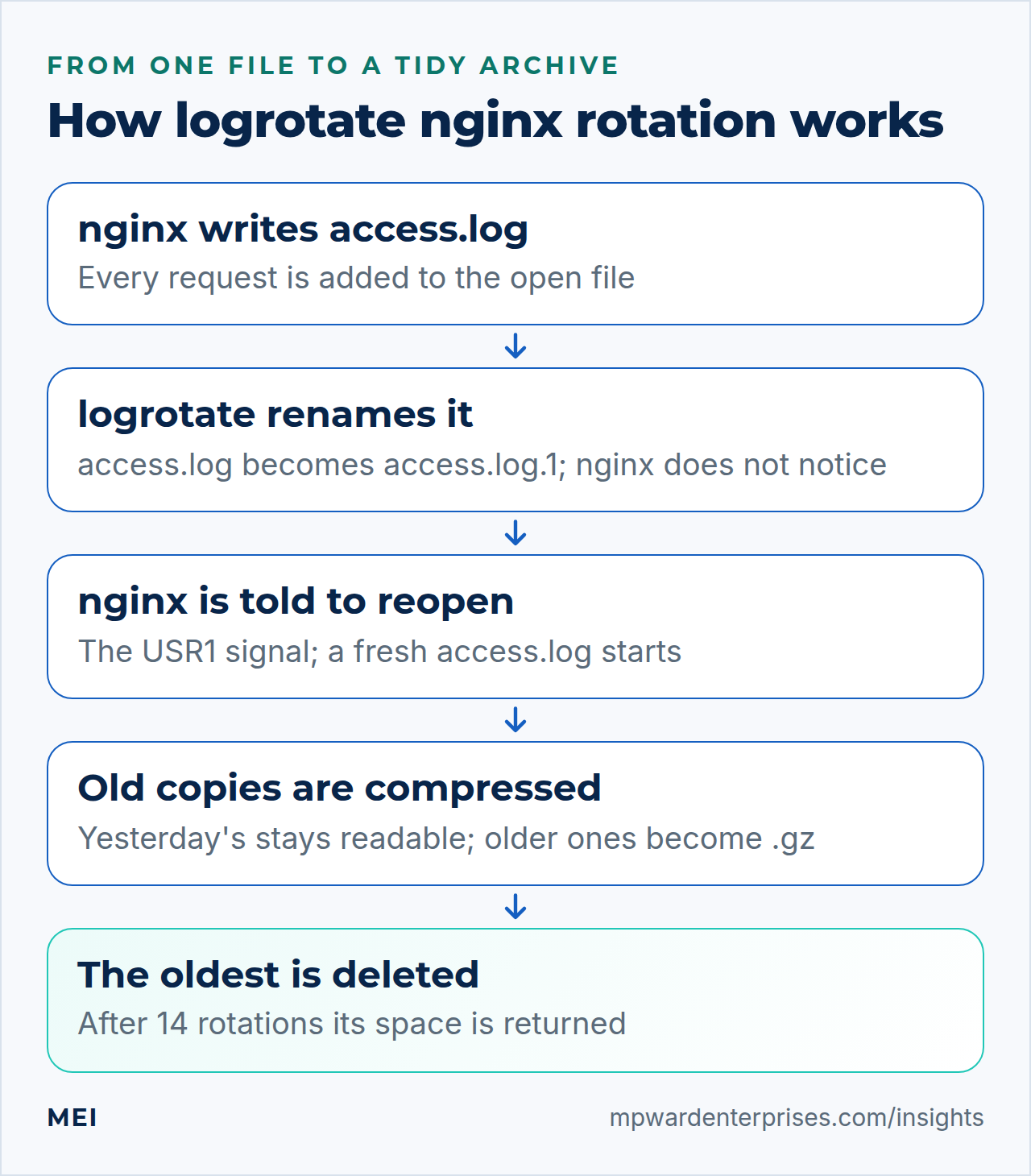
How logrotate nginx works, in plain English
Picture nginx as a clerk writing in a ledger. Every visit to your site adds a line. The clerk never looks at the ledger's label, only at the book in their hand. If someone renames that book "last week" and puts a fresh one on the desk, the clerk carries on writing in "last week". Linux programs behave the same way: they keep a log file open, and renaming it does not change where they write.
So rotation has four beats, in this order. First, logrotate renames the live log, so access.log becomes access.log.1. Second, it asks nginx to reopen its logs, which is what makes nginx start a fresh access.log. Third, it compresses older copies. Fourth, it deletes the copies beyond the number you chose to keep. The nginx documentation describes the same sequence: rename the files, send the master process the USR1 signal, and the old files are then free for work such as compression.
Skip the second beat and you get the classic failure. nginx keeps writing into the renamed file, the fresh access.log stays empty, and when logrotate later compresses and deletes the old copy, the disk space is not returned because nginx still holds the file open. Most "rotation does not work" stories are this one.
On both releases the schedule is a systemd timer, not cron: logrotate.timer starts logrotate.service once a day, which runs /usr/sbin/logrotate /etc/logrotate.conf. The old cron script steps aside when systemd is running. The main file sets the defaults (weekly rotation, keep four copies, run as root with group adm) and includes every file in /etc/logrotate.d/. Each package drops its own file there, and so will you. Our guide to systemd timers versus cron explains the difference.
Step 1: Look at what you have today
Before you change anything, find out whether rotation already works and where the space is going. These four commands take a minute.
df -h /
sudo du -xsh /var/log/* 2>/dev/null | sort -h | tail -8
ls -lh /var/log/nginx
systemctl list-timers logrotate.timer
The first command shows how full the disk is. The second lists the eight biggest items in /var/log, largest last. The third shows whether rotated copies exist, and the fourth shows when logrotate runs next. Healthy output for the third command looks like this (illustrative):
-rw-r----- 1 www-data adm  84K Oct  8 21:47 access.log
-rw-r----- 1 www-data adm 1.2M Oct  8 00:00 access.log.1
-rw-r----- 1 www-data adm  96K Oct  7 00:00 access.log.2.gz
-rw-r----- 1 www-data adm  11K Oct  8 21:45 error.log
Numbered copies mean rotation is working. The .1 file stays readable and older ones end in .gz, because the stock rule delays compression by one cycle. One huge access.log with no numbered siblings means nothing is rotating that file. Look in subfolders too, with ls -R /var/log/nginx, because the stock rule does not reach into them.
On Ubuntu 26.04 the everyday tools in these commands (ls, du, sort, tail, install and truncate) are the Rust rewrites from the uutils project, which Ubuntu now installs in place of the GNU originals (cp, mv and rm are still GNU). They accepted the same options and gave the same results in our lab, so nothing in this guide changes. ls --version tells you which one you have, and the GNU versions remain available under a gnu prefix, such as gnuls.
Why this way?
Look first, because most servers already rotate the default logs. The gaps are the logs added later: a per-site log, an application log, a debug file somebody switched on. Finding the gap first also stops the other classic mistake, adding a second rule for a file the first rule already covers, which logrotate rejects as a duplicate.
Step 2: Read the stock rule, line by line
Ubuntu's nginx package installs this rule in /etc/logrotate.d/nginx. Do not edit it. Just understand it, because your own rules will be small variations on it.
/var/log/nginx/*.log {
	daily
	missingok
	rotate 14
	compress
	delaycompress
	notifempty
	create 0640 www-data adm
	sharedscripts
	prerotate
		if [ -d /etc/logrotate.d/httpd-prerotate ]; then \
			run-parts /etc/logrotate.d/httpd-prerotate; \
		fi \
	endscript
	postrotate
		invoke-rc.d nginx rotate >/dev/null 2>&1
	endscript
}| Line | In plain English | Why it is there |
|---|---|---|
/var/log/nginx/*.log |
Every file ending in .log directly inside that folder | The pattern does not look inside subfolders, which matters in step 3 |
daily |
Rotate once a day | A day is a convenient unit when you ask what happened on Tuesday |
rotate 14 |
Keep 14 old copies, then delete the oldest | Two weeks of history in a bounded amount of space |
compress |
Squeeze old logs into .gz files | Logs are repetitive text, so they compress well |
delaycompress |
Wait one cycle before compressing | Yesterday's log stays plain text, so you can read it without unzipping |
missingok |
If a file is missing, move on without an error | A site with no log yet should not make the whole job fail |
notifempty |
Skip logs with nothing in them | An idle site's empty log does not push real history out of the 14 kept copies |
create 0640 www-data adm |
After the rename, make a new empty file with this owner and permissions | Only the web server and the admin group can read it, and visitors' IP addresses should not be world-readable |
sharedscripts |
Run the command below once for all matched files | Otherwise nginx would be told to reopen once per file |
postrotate |
The command to run after the rename | This is the "tell nginx" beat. invoke-rc.d nginx rotate runs the rotate action of nginx's service script, which sends nginx the USR1 signal |
prerotate |
A hook that other packages may use | Safe to ignore |
Why this way?
The rule does the gentlest possible thing: it renames the file instead of copying it, then politely asks the program to switch. Renaming is instant and loses nothing, nginx understands the request, and nobody has to stop the website. The alternatives (copy then empty the file, or restart nginx) also work, but each has a cost, as the next steps show.
Step 3: Choose where each site's logs live
This decision matters more than any setting, and it comes before any configuration. When you host more than one site, each needs its own access and error log, and there are three common places to put them. If you are planning several sites on one machine, our guide to running multiple WordPress sites on one server covers the wider design.
| Layout | How it rotates | Our verdict |
|---|---|---|
A. In /var/log/nginx, with the site in the file name, such as example.com.access.log |
The stock rule already covers it, because it matches *.log. Nothing new to write |
Best for a handful of sites. Fewest moving parts |
B. One subfolder per site under /var/log/nginx |
Needs your own rule (step 4), because the stock pattern stops at the folder | Best for many sites. Tidy, and the web server can always reach the files |
| C. Inside each site's own folder, owned by that site's user | Not covered. Needs copytruncate or a permission change (see below) |
Only if you need that separation, and expect extra work |
One more reason to prefer a folder of your own: files that nginx creates itself start with permissions 0644, which means every account on the server can read them until the first rotation applies 0640. A folder set to 0750 keeps them private from the start.
The permission trap, in plain English
Layout C looks tidy and fails in an instructive way. When nginx is asked to reopen its logs, the main process (running as root) recreates the files. But the worker processes, which run as the unprivileged user www-data and do the actual writing, open the files again by name, as the nginx documentation notes. If the log folder belongs to another account and www-data is not allowed into it, the workers cannot open the new file.
Nothing crashes and the site stays up. nginx writes lines like this to its main error log at every rotation, one for each log file and each worker process (from our lab, with the path changed to the example domain):
2026/10/08 21:45:09 [emerg] 3310#3310: open() "/var/www/example.com/logs/access.log" failed (13: Permission denied)What you notice, if you notice anything, is that the new access.log stays empty while access.log.1 keeps growing. In our lab test the workers carried on writing into the renamed file. Even after we deleted that file they kept its space allocated, which is the disk-full surprise covered in step 7.
Three ways out of the trap
| Fix | How | The trade-off |
|---|---|---|
| Move the logs (layouts A or B) | Change the access_log and error_log paths to /var/log/nginx/... |
None worth worrying about. This is the clean fix, and the one we use |
copytruncate |
logrotate copies the file, then empties the original in place, so nginx never has to reopen | A very small window between the copy and the truncate where a few lines can be lost, as the logrotate manual warns |
| Let the web server walk through | sudo apt install acl, then sudo setfacl -m u:www-data:--x /var/www/example.com/logs |
Tested in our lab: nginx's workers can open files in the folder but cannot list it. It is still a widening of access, so avoid it if that account also runs PHP for other sites |
Why this way?
We prefer moving the logs because it removes the problem instead of working around it. copytruncate is a fair fix when a folder must stay where it is, but it exists for programs that cannot be told to reopen their logs. nginx can, so use the clean method whenever you have the choice.
Step 4: Add a logrotate nginx rule for per-site logs
This step is for layout B. If you chose layout A, skip to step 5, because the stock rule already covers you. First create the site's log folder, owned like the stock logs:
sudo install -d -o www-data -g adm -m 0750 /var/log/nginx/example.cominstall -d creates the folder and sets its owner, group and permissions in one step. Then point the site at it in the server block. Only the two log lines are new; the rest of your server block stays as it is.
server {
    listen 80;
    server_name example.com;

    access_log /var/log/nginx/example.com/access.log;
    error_log  /var/log/nginx/example.com/error.log;
}
sudo nginx -t && sudo systemctl reload nginxnginx -t checks the configuration for mistakes, and reload applies it without dropping visitors. Now create your rule. Run sudoedit /etc/logrotate.d/nginx-sites, paste the following, then save and exit:
/var/log/nginx/*/*.log {
    daily
    rotate 14
    compress
    delaycompress
    missingok
    notifempty
    create 0640 www-data adm
    sharedscripts
    postrotate
        invoke-rc.d nginx rotate >/dev/null 2>&1
    endscript
}
It is the stock rule with one change: the pattern */*.log means every .log file in every folder directly under /var/log/nginx. Everything else is deliberately identical, so your sites behave like the default logs. Two details are easy to miss. Never widen the pattern so that it also matches /var/log/nginx/*.log, because logrotate refuses to manage one file in two rules and reports duplicate log entry. And keep the name nginx-sites rather than nginx, so a package update never touches your file.
Common adjustments, all one line each:
rotate 30orrotate 90keeps a month or a quarter of daily history instead of two weeks.weeklyinstead ofdailysuits quiet sites;maxsize 500Mrotates early when a log passes 500 MB. logrotate only looks when it runs, which on Ubuntu is once a day, so a size limit cannot stop a log that balloons within a few hours.dateextnames old copies by date (access.log-20261008) instead of by number.
Why this way?
We copy the stock rule instead of inventing one because it has years of use behind it. The only real decisions are how long to keep logs and how much disk you can spare. Pick retention by asking how far back you would need to look to solve a problem you noticed late. Two weeks is a reasonable starting point; keep more if you may need to investigate older incidents.
Step 5: Test the rule before you trust it
Nobody wants to find out at midnight that a rule has a typo. logrotate has a dry-run mode that prints what it would do and changes nothing.
sudo logrotate -d /etc/logrotate.conf
sudo logrotate -d /etc/logrotate.conf 2>&1 | grep '^error:'
The -d option is debug mode: no changes are made to the logs and the state file is not updated. Scroll to your site's section and look for "considering log" lines. The second command shows only the lines that begin with error:, which is how logrotate reports a problem; no output means none were found. We test against the main file rather than only your new file because the main file supplies the defaults, and running a single rule file on its own skips them.
Now force one real rotation of just your rule, and look at the result:
sudo logrotate -f /etc/logrotate.d/nginx-sites
ls -l /var/log/nginx/example.com
The -f option forces a rotation even though a day has not passed. Check three things: a new, empty access.log exists with the owner and permissions from create; the earlier content is in access.log.1; and error.log shows nothing odd. A forced run counts as a real rotation, so on a site already holding 14 copies the oldest is deleted.
The most important check is the next one. Make a request to your own server and see where it lands:
curl -s -o /dev/null -H "Host: example.com" http://127.0.0.1/
sudo tail -n 2 /var/log/nginx/example.com/access.log
sudo tail -n 3 /var/log/nginx/error.log
The request should appear in the new access.log, not in access.log.1, and the main error log should show no [emerg] lines. If the new file stays empty, go to the troubleshooting table below.
Watch out: do not rotate straight after a reload
In our labs, on both releases, forcing a rotation less than a second after nginx -s reload left nginx's new worker processes writing to the old, renamed file, and the next request landed in access.log.1. Waiting a few seconds avoided it, and running sudo nginx -s reopen once more repaired it. It only matters if a reload and the nightly rotation coincide, but it is one more reason to check where the first request after a rotation lands.
Finally, run the real service once, because that is what the timer does, and it runs inside a more restricted environment than your shell:
sudo systemctl start logrotate.service
journalctl -u logrotate.service -n 5 --no-pager
A clean run ends with "Finished logrotate.service". It only rotates what is actually due, so it is a check of the plumbing rather than of the schedule. We also ran this in both labs with a size-triggered rule and confirmed that the stock postrotate command works inside the service's sandbox.
Why this way?
Each test catches a different kind of mistake. The dry run proves the syntax, the forced run proves the permissions, the request proves nginx switched files, and the service run proves the real schedule's environment. All four are cheap, and together they replace waiting a day to find out.
Step 6: Cover the other logs that fill disks
nginx is rarely the only thing writing logs. Three others cause most of the surprises, and one habit reduces the volume before it reaches the disk.
PHP-FPM's own log
PHP-FPM keeps its log file open just as nginx does, so it needs the same reopen trick. On Ubuntu the package already ships the rule and a helper that makes PHP-FPM reopen its log, so there is usually nothing to do. The names carry the PHP version, which is 8.38.5 on this release. Confirm the rule exists with ls /etc/logrotate.d/php8.38.5-fpm. This is what it contains:
/var/log/php8.38.5-fpm.log {
	rotate 12
	weekly
	missingok
	notifempty
	compress
	delaycompress
	postrotate
		if [ -x /usr/lib/php/php8.38.5-fpm-reopenlogs ]; then
			/usr/lib/php/php8.38.5-fpm-reopenlogs;
		fi
	endscript
}
If you run extra PHP-FPM pools with their own log files, copy this rule, change the path, and keep the helper call.
Application logs such as the WordPress debug log
When WordPress debugging is switched on, it writes wp-content/debug.log, and nothing ever empties it. This file needs less ceremony than nginx's, because PHP opens its log file for each message, writes the line and closes it again. We confirmed that in the lab: after we renamed the file mid-run, the next message created a fresh one. A plain rename is enough, with no signal and no copytruncate:
/var/www/example.com/public/wp-content/debug.log {
    su siteuser siteuser
    weekly
    rotate 4
    compress
    missingok
    notifempty
}
The su line makes logrotate do the work as the site's own account. It is also required if the folder can be written by a group other than root: logrotate then refuses, by design, with skipping ... because parent directory has insecure permissions, since root working inside a folder another account can change is a classic way to be tricked into touching the wrong file. The same applies to any log inside a site's own folder.
Debugging should be off in production unless you are chasing a problem, but rotate the file anyway, because somebody will forget to turn it off.
The systemd journal
Ubuntu also keeps a system journal, which logrotate does not manage. Check its size with journalctl --disk-usage. By default, the manual says, it may use up to 10% of the file system, with each limit capped at 4 GB. To set your own limits, add a drop-in file rather than editing the main one. Run sudoedit /etc/systemd/journald.conf.d/50-size-limit.conf and add:
[Journal]
SystemMaxUse=500M
MaxRetentionSec=1month
sudo systemctl restart systemd-journald
journalctl --disk-usageIn our labs the journal's start-up message then reported max 500.0M500M, which confirms the limit took effect. These limits apply when the journal is stored on disk, which is the case when /var/log/journal exists. A drop-in is safer than editing /etc/systemd/journald.conf because package updates never overwrite your file, and the files are read in alphabetical order, so a number at the start of the name controls precedence.
Write less log in the first place
Some requests are noise: a monitoring service pinging a health-check URL every ten seconds adds thousands of useless lines a day. nginx can skip logging for just that path:
location = /healthz {
    access_log off;
    return 200 "ok\n";
}
The off value cancels access logging at that level only. Do not switch off the access log for a whole site, because it is the record you will want when something goes wrong or someone asks where a visitor came from.
Step 7: Watch the disk and know the emergency moves
Rotation is not entirely set and forget. Once a month, spend two minutes on these checks, ideally when you apply updates:
df -h /
sudo du -xsh /var/log/* 2>/dev/null | sort -h | tail -5
sudo lsof +L1 | grep -E 'COMMAND|nginx'
journalctl --disk-usage
The third command is the one few people know. lsof +L1 lists files that were deleted but are still held open by a program (if the command is not found, sudo apt install lsof adds it). If nginx appears with a large size, that space is being held by a file you cannot see in any folder. Example output (illustrative):
COMMAND  PID     USER   FD TYPE DEVICE SIZE/OFF NLINK     NODE NAME
nginx   3388 www-data  31w  REG  0,133 20971603     0 28996664 /var/www/example.com/logs/access.log (deleted)
Set an alert at about 80% disk use in whatever monitoring you already have, such as your hosting provider's dashboard, an uptime service or a monitoring agent. A slowly filling disk is one of the few server failures you can see coming for days.
If the disk is full right now
Find the biggest file with the du command above, then truncate it instead of deleting it:
sudo truncate -s 0 /var/log/nginx/example.com/access.logThis is the one place where the obvious move is wrong. In our lab, deleting a 20 MB log that nginx had open freed nothing: the main process and every worker still held the deleted file, shown by NLINK 0 and the "(deleted)" tag. Truncating to zero frees the space at once, and nginx carries on appending at the start of the same file.
If you have already deleted a log, ask nginx to let go with sudo nginx -s reopen. If the space does not come back, you are in the permission trap from step 3, because the workers could not reopen the file. In our lab, sudo systemctl reload nginx finished the job within seconds and without dropping visitors, because the old workers exit once they finish their current requests. A full restart works too but interrupts connections, so we avoid it.
Troubleshooting: what the symptoms mean
| What you see | Likely cause | What to do |
|---|---|---|
New access.log stays empty, the .1 file keeps growing, and [emerg] ... (13: Permission denied) appears in the error log |
The workers cannot open the new file because they cannot enter the folder (the permission trap) | Move the logs, use copytruncate, or give www-data access (step 3). Recover with sudo systemctl reload nginx |
The new access.log is empty right after a rotation, with no errors |
nginx was reloaded within a second of the rotation, and its new workers missed the reopen request | Run sudo nginx -s reopen once, then check that the next request lands in the new file |
Logs rotate, but df still shows the disk full |
A deleted log is still held open | sudo lsof +L1, then sudo nginx -s reopen, then reload if it persists |
error: skipping ... because parent directory has insecure permissions |
The log folder is writable by a group other than root, and logrotate refuses by design | Add su siteuser siteuser to the rule, or tighten the folder's permissions |
error: ... duplicate log entry for /var/log/nginx/access.log |
Two rules match the same file | Narrow the new pattern, or remove the duplicate rule |
| Nothing rotates | The rule file is in the wrong place, the pattern misses the files, the logs are empty (notifempty), or the timer is off |
sudo logrotate -d /etc/logrotate.conf and systemctl list-timers logrotate.timer |
logrotate reports a postrotate failure |
The reopen command failed, for example because nginx is not running | Run sudo nginx -s reopen by hand and read the error |
Common mistakes
- Editing the packaged
/etc/logrotate.d/nginxinstead of adding a file of your own. - Rotating without telling nginx: a rule that renames the file but has no reopen step.
- Using
copytruncateeverywhere out of habit, accepting a small risk of lost lines when a clean reopen was available. - Testing only with
-dand never forcing one real rotation and checking where the next request lands. - Deleting a log with
rmto free space, then wondering why the disk is still full. - Leaving WordPress debug logging on for months with no rule to rotate its file.
Keep it healthy
Treat log rotation as part of routine maintenance rather than a one-time job. Each month, run the checks from step 7. Whenever you add a site, give it a log location that fits your layout and run sudo logrotate -d /etc/logrotate.conf to confirm no errors. After a major Ubuntu or nginx upgrade, repeat the forced rotation test once. Our WordPress maintenance checklist and Linux server hardening checklist list the other jobs that belong in the same routine.
Getting help
If you would rather not own this job, MEI's infrastructure and private cloud service covers Linux administration, monitoring and updates, and starts at $2,500, scoped by systems and scale. Managed Website and IT Care starts at $149 a month, with scope-based tiers that include updates, backups and monitoring. Both begin with a look at what you actually run.
Frequently asked questions
How do I set up logrotate for nginx?
On Ubuntu the nginx package already installs a rule in /etc/logrotate.d/nginx that rotates every .log file directly inside /var/log/nginx daily and keeps 14 copies. For per-site log folders, add your own file in /etc/logrotate.d/ with the same settings and a pattern such as /var/log/nginx/*/*.log, keep the postrotate command that tells nginx to reopen its logs, then test with a dry run and one forced rotation.
How often does logrotate run on Ubuntu 24.04 and 26.04?
Once a day, started by a systemd timer called logrotate.timer. Each rule then decides whether its logs are due, by age or by size. Because the job runs only once a day, a size limit cannot act on a log that grows past it within a few hours until the next run.
Where are the nginx logs on Ubuntu?
By default in /var/log/nginx: access.log records requests and error.log records problems. Sites can set their own paths with the access_log and error_log directives, so list them all with sudo nginx -T and look for those two names.
Why is my nginx access log empty after rotation?
Usually nginx was not told to reopen its logs, or its worker processes could not open the new file because they are not allowed into the folder. Check the main error log for a line that says open() failed (13: Permission denied), then read the permission trap section of this guide.
Should I use copytruncate or let nginx reopen the log?
Prefer reopening. It is instant and loses nothing. Use copytruncate only when the log must stay in a folder nginx's worker processes cannot reach, and accept that a few lines written between the copy and the truncate may be lost, as the logrotate manual warns.
How long should I keep nginx logs?
Ubuntu's default is 14 daily copies, enough to look back two weeks. Keep longer if you may need to investigate older incidents, or if a contract, insurer or regulator requires it. Logs hold visitors' IP addresses, so shorter retention also limits what a breach could expose.
Sources and further reading
- nginx documentation: Controlling nginx — the USR1 signal re-opens log files, and the steps for rotating logs: rename first, then signal the master process
- Ubuntu 24.04 manpage: logrotate(8) — debug and force options, the state file, copytruncate and its caveat, su, create, delaycompress, sharedscripts, rotate, maxsize and dateext
- Ubuntu 26.04 manpage: logrotate(8) — the same options on the newer release (we re-ran the debug, force and size-triggered runs on 26.04)
- nginx documentation: ngx_http_log_module — the access_log directive and the special value off
- Ubuntu 24.04 manpage: journald.conf(5) — SystemMaxUse, MaxRetentionSec, Storage, and the journald.conf.d drop-in directory
- Ubuntu 26.04 manpage: journald.conf(5) — the journald.conf.d drop-in directory and the SystemMaxUse limits on systemd 259
- Ubuntu 26.04 LTS release notes: summary for LTS users — rust-coreutils provides the core utilities by default, with cp, mv and rm still from GNU and the GNU tools available under a gnu prefix