If you searched for how to "install WordPress Nginx Ubuntu", you probably want a site that works today and is still safe to update next year. This guide builds exactly that on Ubuntu 24.04 LTS or 26.04 LTS, so pick yours with the switch below: one WordPress site with Nginx, PHP-FPM and MariaDB, running as its own Linux user and installed with WP-CLI, so no password ever sits on a command line. Plan on about an hour and some comfort with a terminal.
We ran every command below twice in disposable test machines before writing it down: once on Ubuntu 24.04 LTS (Nginx 1.24, PHP 8.3.6, MariaDB 10.11) and once on Ubuntu 26.04 LTS (Nginx 1.28.3, PHP 8.5.4, MariaDB 11.8.6). Both used WP-CLI 2.12.0 and WordPress 7.1.3, in October 2026. We also reproduced the common failures, such as a 404 on every page or a 502, so you can recognize them.
Where the two releases differ, the page shows only the one you picked, and where common advice turned out to be wrong, we say so.
Choose your Ubuntu version
This guide covers both releases. Commands, file paths and version numbers change with your choice; everything else is the same.
JavaScript is off, so both versions are shown below and each block says which release it is for.
Before you start: what you need and a way back
You need a fresh Ubuntu Server 24.04 LTS or 26.04 LTS machine and an admin account that can use sudo and logs in with an SSH key; our 12-step server hardening guide sets that up. You also need a domain name, but DNS only matters once real visitors and HTTPS arrive. Every test below uses curl against the server itself, so you can build first and point DNS later.
- Take a snapshot first. A fresh server is cheap to rebuild and a production one is not. The 3-2-1 backup rule explains how many copies to keep.
- Keep a second SSH session open while you change web server settings, so a mistake never locks you out.
- Test before you reload. Run
sudo nginx -tandsudo php-fpm8.38.5 -tfirst. If a test fails, the old configuration keeps serving while you fix the new one. - Swap the placeholders. We use
example.comfor your domain,siteuserfor the site's Linux account and PHP pool,sitedbandsitedb_userfor the database and its account, andalexfor you.
On Ubuntu 26.04, sudo is now sudo-rs, a Rust rewrite, and the everyday tools used below (ls, chmod, install, tee, sha1sum and others) are the Rust versions from the uutils project, with cp, mv and rm still GNU. We ran every command as the admin user alex, and each one behaved as it does on 24.04, so nothing in this guide changes because of them. ls --version tells you which implementation you have.
Install WordPress Nginx Ubuntu: why this way and not the other ways
There is more than one sensible way to run WordPress. This table compares them in plain English, so you can see why the guide takes this path and when another one is the better choice.
| Option | In plain English | Our verdict |
|---|---|---|
| Nginx, PHP-FPM and MariaDB from Ubuntu's packages (this guide) | You assemble four standard parts and know what each one does | Best when you want control and a server you can repair. It is the most work up front |
| Apache with PHP-FPM | The other server WordPress.org recommends. It reads per-folder .htaccess files |
A fine choice, and the better one if plugins you rely on write .htaccess rules. Nginx has no such files, so those rules go into the server block by hand |
| A hosting control panel | A web interface that builds a similar user-and-pool layout for you | Good when nobody wants the command line. It costs money and adds one more login page to protect |
| Managed WordPress hosting | A company runs the server, updates and backups | Often the right answer if nobody on your team wants to own a server. It costs more per site, and you usually give up root access |
| Shared hosting | Many sites on one machine that someone else manages | The cheapest start. See VPS vs shared hosting for when to move up |
| Docker containers | Ready-made boxes for WordPress and the database | Great for testing and for teams that already run containers. For one small site you take on image updates, storage volumes and Docker's firewall bypass (see the UFW guide) |
| The browser installer | You type database and admin passwords into a web page | Skip it on a public server. Step 7 shows why |
WordPress.org's requirements page recommends Apache or Nginx as the most robust and featureful servers for WordPress. It also notes that hosting is more secure when PHP applications run under your account's username instead of the server's default shared username. This guide follows both points.
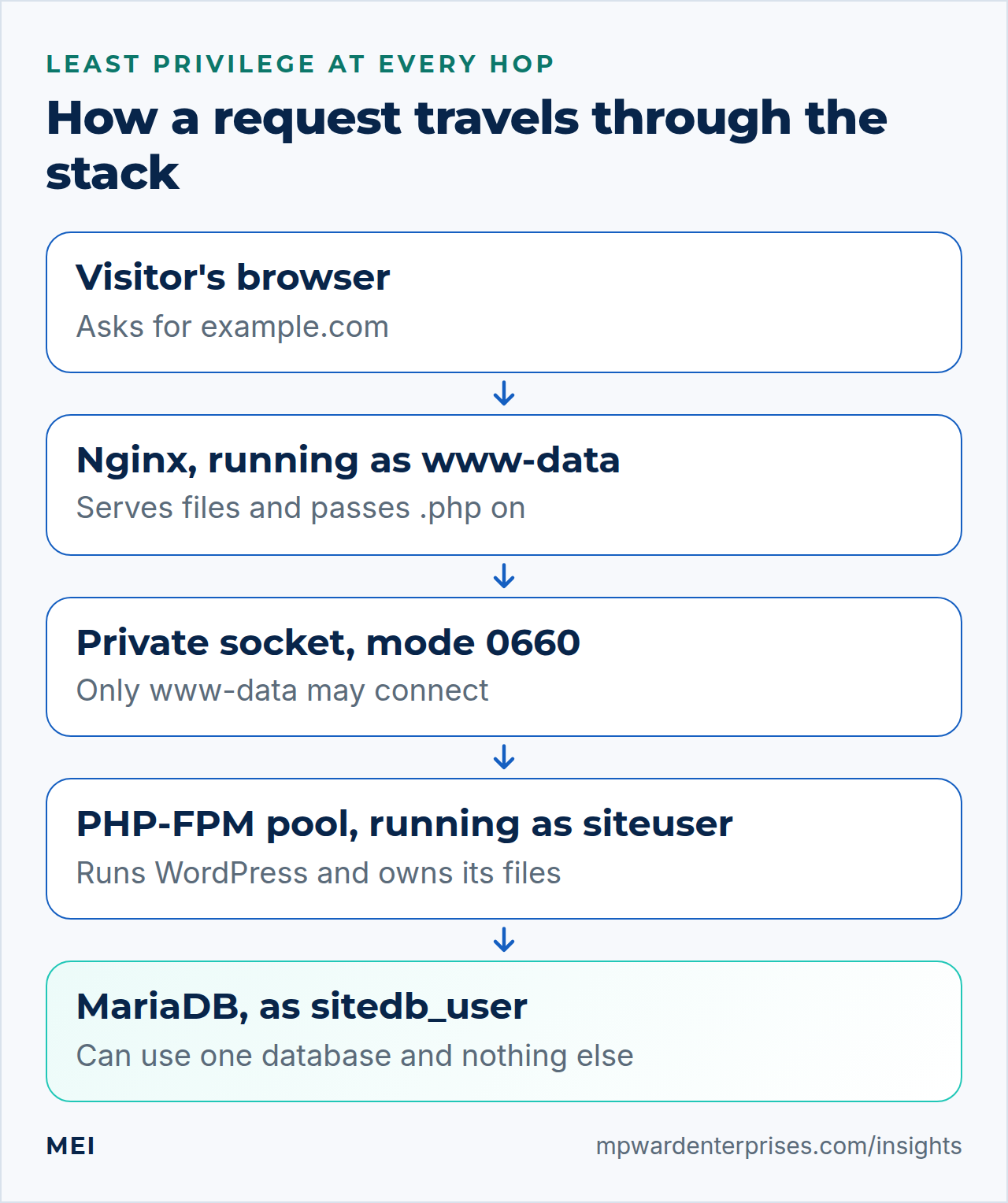
Read the diagram from top to bottom. A visitor's request reaches Nginx, which runs as the www-data account and only reads files. Anything ending in .php goes through a private socket to a PHP-FPM pool running as siteuser, the account that owns the site's files. WordPress then asks MariaDB for content through an account that can use one database and nothing else. Each hop uses the least powerful account that can do its job.
Step 1: Install Nginx, PHP-FPM and MariaDB
Everything comes from Ubuntu's own repositories, so security updates arrive through the same apt you already use. Besides the three servers, the command installs the PHP extensions that WordPress's hosting handbook lists as required or highly recommended, plus php8.38.5-cli, which WP-CLI needs.
sudo apt update
sudo apt install -y nginx mariadb-server php8.38.5-fpm php8.38.5-cli php8.38.5-mysql \
  php8.38.5-curl php8.38.5-gd php8.38.5-imagick php8.38.5-intl php8.38.5-mbstring php8.38.5-xml php8.38.5-zip \
  unzip curl
Each service starts by itself. Confirm that, check the versions, and let a small loop report any extension that is missing. No "missing" line means the set is complete.
systemctl is-active nginx php8.38.5-fpm mariadb
nginx -v; php -v | head -1; mariadb --version
for m in mysqli curl dom exif fileinfo gd hash imagick intl mbstring openssl xml zip; do
  php -m | grep -qix "$m" || echo "missing: $m"
done
Compare what you got with what WordPress.org asks for on its requirements page.
| WordPress.org asks for | Ubuntu gives you |
|---|---|
| PHP 8.3 or greater | PHP 8.3.68.5.4, with Ubuntu's security fixes added on top |
| MariaDB 10.11 or greater, or MySQL 8.0 or greater | MariaDB 10.1111.8 |
| Apache or Nginx | Nginx 1.241.28 |
| HTTPS support | Free certificates with Certbot, covered in the next guide |
Why this way?
Ubuntu keeps the version number at 8.3.68.5.4 and adds security fixes on top: our lab package was at Ubuntu revision 11revision 8.5.4-0ubuntu1.3, the third security update to that version, and its changelog lists the CVEs it patches. Newer upstream versions need a third-party repository, which sits outside Ubuntu's security process and can be stranded by a later release upgrade. We prefer the distribution's packages and a planned move to a newer Ubuntu LTS.
Watch out: PHP 8.3 is not the newest PHP
WordPress's hosting handbook says PHP 8.3 has been security-fix-only upstream since the end of 2025, gives 31 December 2027 as its end of life, and recommends PHP 8.4 or later for production. The requirements page still names 8.3. PHP and MariaDB also live in Ubuntu's "universe" repository: Ubuntu says its five-year security commitment covers "main", and that universe gets the same commitment through Ubuntu Pro. Plan your next LTS move with that in mind.
Good to know: PHP 8.5 is fully supported, but PHP-FPM still lives in universe
WordPress's hosting handbook says PHP 8.5 is in active support, is fully supported by WordPress 6.9 and later, and reaches end of life on 31 December 2029. It recommends PHP 8.4 or later for production, so Ubuntu 26.04's PHP 8.5.4 meets that advice. In our lab, with every PHP notice and deprecation switched on, WordPress 7.1.3 logged nothing across the front page, the login and about a dozen admin screens.
PHP-FPM still lives in Ubuntu's "universe" repository, as do the Imagick, intl and zip extensions: Ubuntu says its five-year security commitment covers "main", and that universe gets the same commitment through Ubuntu Pro. On 26.04 Nginx, MariaDB and the other PHP packages in this guide are in main.
Optional: skip Imagick
php8.38.5-imagick is the heaviest item here. In our lab it brought 33 extra packages, including Ghostscript, where php8.38.5-gd brought threefour. Without it WordPress falls back to GD for images, and Site Health shows a notice about a recommended module. Leave it out if you prefer the smaller footprint.
Step 2: Create a dedicated Linux user for the site
Instead of running WordPress as the shared www-data account, give the site its own account. Think of it as giving each tenant in a building their own key: a lost key opens one apartment, not the whole floor. The account has no password and no login shell, so nobody can sign in as it, but you can still run commands as it with sudo -u.
sudo useradd --system --user-group --no-create-home \
  --home-dir /var/www/example.com --shell /usr/sbin/nologin siteuser
sudo install -d -o siteuser -g siteuser -m 711 /var/www/example.com
sudo install -d -o siteuser -g siteuser -m 755 /var/www/example.com/public
ls -ld /var/www/example.com /var/www/example.com/public
The first command makes a system account with a group of the same name. --no-create-home is deliberate, because we create the folders ourselves with exact modes. Mode 711 on the site folder lets Nginx walk through to public/ without being able to list what else is there. Mode 755 on public/ lets Nginx read the files WordPress will put there.
Why this way?
The usual tutorial advice is to run PHP and Nginx as www-data and chown -R www-data:www-data /var/www. That works, but every site on the machine, and the web server itself, then share one identity. With a site account, a flaw in one plugin can only touch what that account can touch. It reduces the blast radius, but it is not a sandbox: PHP can still change its own site's files. Our multiple WordPress sites guide builds on this layout.
Watch out: the default home folder mode locks Nginx out
Ubuntu creates new home folders with mode 750, on 24.04 and on 26.04. If you use useradd --create-home here, Nginx's www-data account cannot enter the folder. We reproduced it on both releases: the home page returned 404, static files returned 403, and the Nginx error log said stat() ... failed (13: Permission denied). Mode 711, as above, is the cure.
Step 3: Give the site its own PHP-FPM pool
PHP-FPM keeps groups of PHP worker processes ready to run WordPress. Each group is a pool, and each pool has its own account, its own socket and its own limits. Ubuntu ships one pool called www. We add a pool for the site and retire the default one. Write the pool file first; the table below the commands explains every value.
sudo tee /etc/php/8.38.5/fpm/pool.d/siteuser.conf > /dev/null <<'EOF'
[siteuser]
user = siteuser
group = siteuser

; a private socket for this site; only Nginx's account may connect
listen = /run/php/php8.38.5-fpm-siteuser.sock
listen.owner = www-data
listen.group = www-data
listen.mode = 0660

; start workers when requests arrive, stop them when idle
pm = ondemand
pm.max_children = 10
pm.process_idle_timeout = 20s
pm.max_requests = 500

; log PHP errors, never show them to visitors
catch_workers_output = yes
php_admin_flag[log_errors] = on
php_admin_flag[display_errors] = off

; WordPress limits (Nginx's client_max_body_size and fastcgi_read_timeout must agree)
php_admin_value[memory_limit] = 256M
php_admin_value[upload_max_filesize] = 64M
php_admin_value[post_max_size] = 64M
php_admin_value[max_execution_time] = 120
php_admin_value[max_input_vars] = 3000
EOF
sudo php-fpm8.38.5 -t
sudo mv /etc/php/8.38.5/fpm/pool.d/www.conf /root/www.conf.disabled
sudo systemctl restart php8.38.5-fpm
ls -l /run/php/
Look for a socket named php8.38.5-fpm-siteuser.sock, owned by www-data with permissions srw-rw----. Ignore the php-fpm.sock link, which points at the retired default pool, and the .pid file. There are no worker processes yet. With ondemand they appear when the first request arrives and exit after 20 idle seconds.
Watch out: a PHP-FPM reload is not graceful by default
We used restart because nothing is live yet. On a running site you might expect reload to let requests in progress finish, but it did not: in our tests, on both releases, a 5-second request got a 502 when we reloaded PHP-FPM, just as with a restart, while systemctl reload nginx let it finish. Setting process_control_timeout = 10s under [global] in /etc/php/8.38.5/fpm/php-fpm.conf made the PHP-FPM reload wait for the worker. Either set that first or change pools at a quiet moment.
If you test this yourself, make the slow script keep the CPU busy for 5 seconds instead of calling sleep(): the reload signal cuts a sleep short and fakes a pass.
| Setting | Value | What it does |
|---|---|---|
user, group |
siteuser |
PHP, and so WordPress, runs as this account and owns what it creates |
listen, listen.owner, listen.group, listen.mode |
a socket file, www-data, www-data, 0660 |
A private door instead of a network port. The PHP manual says that on Linux these settings control who may connect |
pm = ondemand |
workers on request | An idle site holds no worker processes. In our lab the first request after an idle spell was about 10 ms slower than a warm one |
pm.max_children, pm.max_requests |
10, 500 |
A cap on simultaneous PHP requests, and a worker restart after 500 requests to limit slow memory leaks in plugins |
catch_workers_output |
yes |
Without it PHP's error messages are discarded. With it they reach /var/log/php8.38.5-fpm.log, tagged with the pool name |
log_errors, display_errors |
on, off | Errors go to the log, not to visitors. Settings made with php_admin_flag and php_admin_value cannot be overridden by a plugin calling ini_set() |
memory_limit |
256M |
The ceiling for one request. Ubuntu's default is 128M |
upload_max_filesize, post_max_size |
64M |
Ubuntu's defaults of 2M and 8M block many media uploads |
max_execution_time |
120 |
Seconds one request may run. Ubuntu's default is 30 |
max_input_vars |
3000 |
The default of 1,000 silently drops fields from big forms. We posted 1,500 fields: at 1,000 only about 1,000 arrived, and PHP logged "Input variables exceeded 1000". Large menus and page builders send that many |
How big should pm.max_children be? Measure rather than guess. ps -u siteuser -o rss,args | grep 'php-fpm: pool' lists each worker's resident memory in kilobytes. In our lab a plain WordPress front page used about 4650 MB per worker, but most of that is shared: ten busy workers added up to about 110116 MB of real memory. Plugins, page builders and shop software raise this, so check your own site under load.
The memory_limit is a ceiling per request, so the theoretical worst case is workers times limit, here 10 times 256 MB, or 2.5 GB. When /var/log/php8.38.5-fpm.log contains the warning server reached max_children setting (10), consider raising it, requests are queuing for a free worker. Raise the cap only if you have the memory.
Watch out: two numbers must agree
Upload size lives in three places: upload_max_filesize and post_max_size in PHP, and client_max_body_size in Nginx (Step 8). The smallest one wins. Nginx's default is 1 MB: in our lab a 2 MB upload returned 413 Request Entity Too Large even though PHP would have accepted it. Run time has the same pair, PHP's max_execution_time and Nginx's fastcgi_read_timeout.
Why this way?
Putting the values in the pool keeps everything about this site in one file and leaves Ubuntu's global php.ini untouched, so package upgrades never fight your edits. We retired the www pool because an unused pool still runs as www-data and listens on a socket. A reinstall of the package did not bring the file back in our test, but run ls /etc/php/8.38.5/fpm/pool.d/ after large upgrades to be sure.
Step 4: Install WP-CLI and check that it is genuine
WP-CLI is the command-line tool for WordPress. It can download, configure, install, update and repair a site without a browser. It is not in Ubuntu's repositories, so you install the single-file .phar build from the project. Download it, then check its signature before it gets a place on your system path. Run these as your admin user, not as root.
cd ~
curl -fLO https://raw.githubusercontent.com/wp-cli/builds/gh-pages/phar/wp-cli.phar
curl -fLO https://raw.githubusercontent.com/wp-cli/builds/gh-pages/phar/wp-cli.phar.asc
curl -fL https://raw.githubusercontent.com/wp-cli/builds/gh-pages/wp-cli.pgp | gpg --import
gpg --fingerprint [email address]
gpg --verify wp-cli.phar.asc wp-cli.phar
Compare the fingerprint with the one printed on the project's "Verifying downloads" page; they must match exactly. gpg --verify should report Good signature from "WP-CLI Releases <[email address]>". A warning that the key is not certified is normal, because you have not personally signed it. Only then install the file.
chmod +x wp-cli.phar
sudo mv wp-cli.phar /usr/local/bin/wp
rm wp-cli.phar.asc
wp --info | head -4
WP-CLI on PHP 8.5
WP-CLI 2.12.0 ran every command in this guide on PHP 8.5.4. One library bundled inside it still uses syntax that PHP 8.5 marks as deprecated, so a "Deprecated" line appears if you raise PHP's error reporting to include deprecations, for example with php -d error_reporting=-1 /usr/local/bin/wp --info. Ubuntu's default command-line setting hides those notices, and none appeared during our install. It is a warning about older syntax that a future PHP version will stop accepting, not an error.
Now define a small helper for the rest of this guide. It runs WP-CLI as siteuser, never as root, pointed at the site. It exists only in this terminal window; add the line to ~/.bashrc if you want it back next time.
wps() { ( cd /tmp && sudo -u siteuser -- wp --path=/var/www/example.com/public "$@" ); }Why this way?
Anything in /usr/local/bin runs with your privileges, so a signature check is cheap insurance. The project notes that a plain checksum only proves the file matches what was published, not who made it. The helper changes to /tmp first because sudo -u keeps your current folder, and your home folder is closed to other accounts. In our lab wp rewrite structure failed with posix_spawn() failed: Permission denied when started from a home folder and worked from /tmp. WP-CLI also refuses to run as root; --allow-root removes that guard, so leave it alone.
Step 5: Download WordPress and check it
Download the official archive, compare its SHA-1 checksum with the one WordPress.org publishes next to it, and unpack it as the site user. Then ask WP-CLI to compare every core file with WordPress.org's published checksums. This takes under a minute and proves you have the real thing, intact.
cd /tmp
curl -fsSLO https://wordpress.org/latest.tar.gz
echo "$(curl -fsSL https://wordpress.org/latest.tar.gz.sha1)  latest.tar.gz" | sha1sum -c -
sudo -u siteuser tar -xzf /tmp/latest.tar.gz --strip-components=1 -C /var/www/example.com/public
rm /tmp/latest.tar.gz
wps core verify-checksums
You want latest.tar.gz: OK and Success: WordPress installation verifies against checksums. The archive holds a top-level wordpress folder, which --strip-components=1 removes so the files land directly in public/.
Watch out: wp core download can damage long file names
The obvious command, wp core download, unpacked the archive with PHP's built-in PharData reader in our test, and that reader cuts file names longer than 100 characters. With WP-CLI 2.12.0, PHP 8.3.68.5.4 and WordPress 7.1.3, 39 files lost their real names, cut off at 100 characters (the same 39 on both releases), including fonts in the default theme and files under wp-includes/php-ai-client. wp core verify-checksums flagged it; system tar unpacked the same archive correctly.
If a later WP-CLI release fixes this, wp core download will pass the same check, so keep that check either way.
Step 6: Create the database and a least-privilege database user
WordPress keeps its content in a database. Create one database for this site and one database account that can use only that database. On Ubuntu the MariaDB administrator account is tied to your operating-system identity through a local socket, so sudo mariadb needs no database password. Generate the new account's password with openssl, and keep it in a shell variable, not in a command.
DB_PASS=$(openssl rand -base64 24 | tr -d '/+=')
sudo mariadb <<SQL
CREATE DATABASE sitedb CHARACTER SET utf8mb4 COLLATE utf8mb4_unicode_ci;
CREATE USER 'sitedb_user'@'localhost' IDENTIFIED BY '$DB_PASS';
GRANT ALL PRIVILEGES ON sitedb.* TO 'sitedb_user'@'localhost';
SQL
sudo mariadb -e "SHOW GRANTS FOR 'sitedb_user'@'localhost'" | grep -v 'ON \*\.\*'
The tr step removes characters that need quoting in SQL and PHP, leaving roughly 30 letters and digits. utf8mb4 is MariaDB's name for full UTF-8, including emoji; plain utf8 is a three-byte subset. The account name ends in @'localhost', so it can only connect from the server itself. The grant covers everything inside sitedb and nothing outside it. The last command hides the first grant line, which contains a hash of the password.
Stay in this terminal window
The password now exists only in this shell's memory. Do Step 7 in the same window. If you lose it, set a new password with ALTER USER 'sitedb_user'@'localhost' IDENTIFIED BY '...' and rerun the config create command in Step 7 with --force.
Why this way?
One database and one account per site means a leaked wp-config.php exposes one site, not the server. Never put the MariaDB administrator account into WordPress. WordPress's hardening guide says everyday work needs only SELECT, INSERT, UPDATE and DELETE, but that some plugins and updates need structural changes, so a narrower account must be loosened for them. We grant everything on that single database because the scope is what contains the damage. Our MariaDB secure installation guide goes deeper.
Step 7: Configure and install WordPress with WP-CLI
Now WP-CLI writes wp-config.php, checks that the database login works, and installs WordPress. The password reaches WP-CLI through standard input, so it appears in no argument list. WP-CLI creates fresh secret keys and salts for you, and we pass --dbcharset=utf8mb4 because its default is the older utf8.
printf '%s\n' "$DB_PASS" | wps config create \
  --dbname=sitedb --dbuser=sitedb_user --dbhost=localhost --dbcharset=utf8mb4 \
  --prompt=dbpass --quiet
unset DB_PASS
wps db check
wps core install --url=http://example.com --title="Example Co" \
  --admin_user=alex --admin_email=[email address] --skip-email
The install prints Admin password: once. Copy it into a password manager now, then run clear. Name the administrator something like alex, not admin, the best-known default. Then tidy the defaults: pretty permalinks, no code editor in the dashboard, and no sample content.
wps rewrite structure '/%postname%/'
wps config set DISALLOW_FILE_EDIT true --raw
wps plugin delete hello
wps post delete 1 2 --force
Finally, prove the database account is boxed in. It should see only its own database, and every attempt to reach beyond it should be refused.
wps db query "SHOW DATABASES;"
wps db query "SELECT user FROM mysql.user;"
wps db query "CREATE DATABASE other_db;"
The first command lists information_schema and sitedb. The other two fail with ERROR 1142 ... SELECT command denied and ERROR 1044 ... Access denied. That is the point.
Why WP-CLI beats the browser installer
The browser installer asks for the database password and the new administrator's password in a web form. Before HTTPS exists, that form crosses the internet as plain text. Until it finishes, whoever reaches the URL first can create the administrator account, and an administrator can edit PHP code. WP-CLI runs on the server, as the site user, in seconds, and the same tool later handles updates and integrity checks. The cost is one more tool to keep current.
Why the password never touches a command line
A command line is not private. We scanned the process list every few milliseconds while each method ran. With --dbpass="$DB_PASS" two processes showed the password to any local user. With the here-document in Step 6 and the --prompt method here, none did. sudo also logs the full command, and our log contained the --dbpass= line. Shell history keeps what you type. And without --quiet, WP-CLI printed the finished command back to us, password included.
Step 8: Write the Nginx server block
Nginx reads one file per site from /etc/nginx/sites-available/ and serves the ones linked from sites-enabled/. First retire the packaged welcome site and add a catch-all for names you do not host. Then add the site itself.
sudo rm /etc/nginx/sites-enabled/default
sudo tee /etc/nginx/conf.d/00-default-server.conf > /dev/null <<'EOF'
# Answers requests for any hostname we do not host (bare IP address, stray DNS names)
server {
    listen 80 default_server;
    listen [::]:80 default_server;
    server_name _;
    return 444;    # nginx-specific: close the connection without sending a response
}
EOF
sudo tee /etc/nginx/sites-available/example.com.conf > /dev/null <<'EOF'
server {
    listen 80;
    listen [::]:80;
    server_name example.com www.example.com;

    root /var/www/example.com/public;
    index index.php;

    client_max_body_size 64M;

    access_log /var/log/nginx/example.com.access.log;
    error_log  /var/log/nginx/example.com.error.log;

    # WordPress front controller: real files first, everything else goes to index.php
    location / {
        try_files $uri $uri/ /index.php?$args;
    }

    # Never execute PHP from the uploads folder. This must stay ABOVE the generic PHP location below
    location ~* ^/wp-content/uploads/.*\.php$ {
        deny all;
    }

    # Hide dotfiles (.git, .env, .htaccess) but keep /.well-known/ reachable for Let's Encrypt
    location ~ /\.(?!well-known) {
        deny all;
    }

    location ~ \.php$ {
        include snippets/fastcgi-php.conf;
        fastcgi_pass unix:/run/php/php8.38.5-fpm-siteuser.sock;
        fastcgi_read_timeout 120s;
    }

    # Let browsers cache static files for 30 days
    location ~* \.(?:css|js|mjs|jpe?g|png|gif|webp|avif|svg|woff2?)$ {
        expires 30d;
        access_log off;
    }
}
EOF
sudo ln -s /etc/nginx/sites-available/example.com.conf /etc/nginx/sites-enabled/example.com.conf
sudo nginx -t && sudo systemctl reload nginx
The test should print syntax is ok and test is successful. Here is what each part of the site file does and why it is there.
| Rule | What it does | Why |
|---|---|---|
default_server with return 444 |
Answers any name you did not list by hanging up | Without it the first server block on the port answers for every name pointed at the machine, including the bare IP address |
client_max_body_size 64M |
Largest request body Nginx accepts | The default is 1 MB. Keep it equal to PHP's post_max_size |
location / with try_files |
Serves a real file if one exists, otherwise hands the request to index.php |
This makes pretty links such as /about/ work |
| The uploads rule | Refuses any .php request under /wp-content/uploads/ |
Uploads are where attackers try to plant code, and a legitimate site never runs PHP from there. It is case-insensitive, so PROBE.PHP is refused too |
| The dotfile rule | Refuses /.env, /.git/config, /.htaccess and similar |
Hidden files often hold secrets. /.well-known/ stays open because Let's Encrypt looks there |
location ~ \.php$ |
Passes PHP to this site's own pool through Ubuntu's fastcgi-php.conf |
That snippet returns 404 for a script that does not exist, which stops the old trick of requesting image.png/x.php |
| The static files rule | Adds a 30-day Cache-Control and Expires header and skips access logging |
Repeat visitors do not re-download images, CSS and scripts, and the log stays readable |
Watch out: rule order decides whether the uploads rule works
Nginx checks regular-expression locations in the order they appear and stops at the first match; its documentation says so. Copied configs often put the deny rule for uploads below location ~ \.php$, where it never runs. We tested both orders with a harmless probe file in the uploads folder. With the deny rule above the PHP location, the request returned 403 and PHP did not run. With the same rule below it, the request returned 200 and the PHP executed.
Why this way?
A prefix location with the ^~ modifier is a valid alternative, because it switches off regex matching for that folder. But it switches off every regex rule there, including the caching rule: in our test uploaded images lost their cache headers. A regex deny placed first keeps things simple. Also, do not add your own try_files inside the PHP location. Ubuntu's snippet already has one, and a second makes nginx -t fail with "try_files" directive is duplicate.
Step 9: Lock down ownership and permissions
Everything WP-CLI and tar created belongs to siteuser, but the exact modes depend on the umask of whoever ran them, so set them explicitly. Directories get 755: the owner can read, write and enter, everyone else can read and enter. Files get 644: the owner can read and write, everyone else can only read. The configuration file gets 640, so only the site account can read it.
sudo find /var/www/example.com/public -type d -exec chmod 755 {} +
sudo find /var/www/example.com/public -type f -exec chmod 644 {} +
sudo chmod 640 /var/www/example.com/public/wp-config.php
sudo find /var/www/example.com \( -type d -o -type f \) -perm -0002
sudo find /var/www/example.com ! -user siteuser
sudo -u www-data cat /var/www/example.com/public/wp-config.php
The two find commands should print nothing: no world-writable entries and nothing owned by another account. The last command should fail with Permission denied, proving Nginx's account cannot read your database password. The 755 and 644 pattern is the one WordPress's own hardening guide gives. That guide suggests 400 or 440 for wp-config.php; we use 640 so WP-CLI can still edit it, and the file's group is the site's private group.
The payoff is that WordPress can update itself without being world-writable. Before writing files, WordPress creates a test file and compares its owner with the owner of its own core files. If they match it writes directly; otherwise it asks for FTP details. We checked what WordPress decides inside PHP-FPM in four situations.
| Situation we tested | WordPress file method |
|---|---|
Files owned by siteuser, PHP running as siteuser (this guide) |
direct: updates just work |
wp-content owned by www-data and not writable by PHP |
ftpext: WordPress asks for FTP details |
Everything owned by root, even with wp-content set to 777 |
ftpext: still asks |
wp-content owned by www-data and set to 777 |
direct, but only because every account on the server can now write there |
Watch out: chmod 777 and running as root
If a guide tells you to chmod 777 to silence the FTP prompt, it is trading a safe fix for a dangerous one. The cure is matching ownership. For the same reason, never unpack WordPress or run WP-CLI as root: the files become root-owned, and updates fall back to FTP prompts. Our WordPress file permissions guide covers the stricter read-only-code model.
Check your work with curl
Test from the server itself with --resolve, which pretends DNS already points at the machine. Each line prints a status code and what it means. A 000 means the connection was closed with no reply.
R="--resolve example.com:80:127.0.0.1"
curl -s -o /dev/null -w '%{http_code}  home page\n'                  $R http://example.com/
curl -s -o /dev/null -w '%{http_code}  login page\n'                 $R http://example.com/wp-login.php
curl -s -o /dev/null -w '%{http_code}  dotfile (want 403)\n'         $R http://example.com/.env
curl -s -o /dev/null -w '%{http_code}  unknown page (want 404)\n'    $R http://example.com/no-such-page/
curl -s -o /dev/null -w '%{http_code}  bare IP address (want 000)\n' http://127.0.0.1/
curl -sI $R http://example.com/wp-includes/js/jquery/jquery.min.js | grep -i -E '^(cache-control|expires)'
Now prove the uploads rule, the most important negative test. Create a harmless PHP file where it must not run, request it, and delete it. If you see 200 and the words PHP RAN, your rules are in the wrong order.
sudo -u siteuser mkdir -p /var/www/example.com/public/wp-content/uploads
echo '<?php echo "PHP RAN";' | sudo -u siteuser tee /var/www/example.com/public/wp-content/uploads/probe.php > /dev/null
curl -s -o /dev/null -w '%{http_code}  PHP in uploads (want 403)\n' $R http://example.com/wp-content/uploads/probe.php
sudo rm /var/www/example.com/public/wp-content/uploads/probe.php
Finally, check who runs what and what is listening. Nginx workers should run as www-data and the pool as siteuser (it appears after the first request). Port 80 should be open on all addresses, and MariaDB's port 3306 only on 127.0.0.1.
ps -eo user:12,args | grep -E 'nginx: worker|php-fpm: pool' | grep -v grep
sudo ss -tlnp | grep -E ':(80|3306) '
wps core verify-checksums
To see the site from another computer, open the web ports in the firewall with sudo ufw allow "Nginx Full", as our UFW guide explains, and point DNS (or a line in your computer's hosts file) at the server. Then log in at /wp-login.php and open Tools, then Site Health. Expect notices about HTTPS, page caching and unused default plugins and themes. The PHP version, extensions and database checks should be green.
What to do next
That completes the install, but a public site needs a few more things before launch. Do them in this order.
- HTTPS. Follow Certbot with Nginx on Ubuntu first. If you switch WordPress to https before it works,
/wp-admin/redirects to an address that does not answer, and you lock yourself out of the dashboard. Once HTTPS works, runwps option update home 'https://example.com', the same forsiteurl, andwps search-replace 'http://example.com' 'https://example.com' --all-tables. - Speed. Add the Nginx FastCGI cache and, if you need it, the Redis object cache. See also why is my WordPress site so slow.
- Scheduled tasks. WordPress runs its jobs when someone visits. Systemd timers versus cron shows how to run them on a clock instead.
- Backups. Set up server backups with restic and test a restore.
- Hardening. Apply the server hardening steps, add security headers and consider fail2ban.
- Email. A new server cannot send reliable mail by itself. Start with why a WordPress form is not sending email.
Common mistakes
- Testing by IP address. With the catch-all in place the IP shows nothing, and without it you see the Nginx welcome page. Test with the real name or
--resolve. - A 404 on every page and 403 on images. The site folder is mode 750 and Nginx cannot enter. Use 711.
- 502 Bad Gateway.
fastcgi_passpoints at a socket that does not exist, often the default one you retired. Read the Nginx error log forconnect() to unix:... failed. - 413 when uploading.
client_max_body_sizeis still the 1 MB default. - The FTP prompt on updates. The files and the PHP account do not match. Fix ownership, not modes.
- A deny rule below the PHP location. It never fires. Test it with the probe file.
- Passwords in commands. They reach the process list, shell history and the sudo log.
- Skipping the checksum check. It catches a damaged unpack and later tampering.
- Trusting .htaccess promises. A plugin that says it updated
.htaccessdid nothing on Nginx. WordPress's own Nginx documentation says it cannot change the server configuration.
Keep it healthy: a monthly routine
- Apply Ubuntu updates and reboot when asked:
sudo apt update && sudo apt full-upgrade. Our WordPress maintenance checklist covers the application side. - Check for updates with
wps core check-update,wps plugin list --update=availableandwps theme list --update=available. - Verify integrity with
wps core verify-checksumsandwps plugin verify-checksums --all. - Look for ownership drift and loose modes with the two
findcommands from Step 9. - Read the last lines of
/var/log/nginx/example.com.error.logand/var/log/php8.38.5-fpm.log. Both rotate on their own: Ubuntu's rules cover every.logfile in/var/log/nginx/; our logrotate nginx guide covers per-site log folders and the permission trap that breaks them. - Update WP-CLI itself with
sudo wp cli update. Delete plugins and themes you do not use, but keep one default theme as a fallback. - Restore a backup to a test machine and load the site.
Getting help
Building one server by hand is a good afternoon; keeping several consistent is where mistakes creep in. MEI's WordPress Engineering & Plugin Development service starts at $1,200, with fixed scope or hourly work, and covers performance, security hardening, migrations and custom plugins. If you would rather not run the server yourself, Managed Website & IT Care starts at $149 per month, with scope-based tiers for updates, backups, monitoring and help. We say plainly that no one can promise perfect security; we focus on the highest-impact, most likely risks.
For a wider look at your hosting, backups and exposure, start with a Business Tech Rescue Audit, which starts at $497.
Frequently asked questions
How do I install WordPress with Nginx on Ubuntu 24.04 or 26.04?
Install Nginx, PHP-FPM with the recommended extensions and MariaDB from Ubuntu's repositories (PHP 8.3 on 24.04, PHP 8.5 on 26.04). Create a dedicated Linux user with its own PHP-FPM pool, then a database and a least-privilege database account. Download WordPress, check its checksum and install it with WP-CLI. Add an Nginx server block that sends PHP to the pool's socket, set permissions, and verify with curl before adding HTTPS.
Does WordPress need Apache, or is Nginx enough?
Nginx is enough. WordPress.org recommends Apache or Nginx as the most robust and featureful servers. The practical difference is that Nginx has no .htaccess files, so rewrite and security rules that a plugin would write there must go into the Nginx server block by an administrator.
Which PHP version should I use for WordPress on Ubuntu 24.04 and 26.04?
Use the PHP that ships with your release: PHP 8.3 on Ubuntu 24.04 and PHP 8.5 on Ubuntu 26.04. Both meet WordPress.org's requirement of PHP 8.3 or greater and receive Ubuntu's security fixes. WordPress's hosting handbook recommends PHP 8.4 or later for production, gives 31 December 2027 as the end of life for PHP 8.3, and says PHP 8.5 is fully supported by WordPress 6.9 and later. So 26.04 is the better fit; on 24.04, newer PHP needs a third-party repository, so plan a move to a newer Ubuntu LTS instead.
Why does WordPress ask for FTP credentials when I update a plugin?
WordPress writes a test file and compares its owner with the owner of its core files. If they differ, or PHP cannot write there, it falls back to FTP. The cure is to make the account that PHP runs as own the WordPress files, for example a dedicated site user with its own PHP-FPM pool. Setting folders to 777 can hide the prompt, but it makes them writable by every account on the server.
How do I fix 413 Request Entity Too Large when uploading to WordPress?
Nginx's client_max_body_size defaults to 1 MB and rejects larger uploads before PHP sees them. Set it to the size you need in the server block, and raise upload_max_filesize and post_max_size in PHP to match. The smallest of the three wins. Run nginx -t and reload Nginx afterward.
Should every WordPress site get its own PHP-FPM pool?
Yes, it is cheap and worthwhile. A pool per site runs PHP as that site's own Linux user, behind its own socket and limits, so a flaw in one site cannot read or change another site's files. It also lets WordPress update itself without loosening permissions. It reduces the blast radius but is not a sandbox, so keep software updated and backups tested.
Sources and further reading
- WordPress.org: Requirements — PHP 8.3 or greater, MariaDB 10.11 or greater or MySQL 8.0 or greater, HTTPS, Apache or Nginx, and the advice to run PHP under your own account's username
- WordPress Hosting Handbook: Server environment — required and recommended PHP extensions, and the support status and end-of-life dates for PHP 8.3, 8.4 and 8.5, including full WordPress support for PHP 8.5
- WordPress Advanced Administration: Nginx — Nginx has no .htaccess, so WordPress cannot change the server configuration; example deny rules for hidden files and PHP in uploads
- WordPress Advanced Administration: Hardening WordPress — file ownership with 755 and 644 modes, wp-config.php permissions, DISALLOW_FILE_EDIT and database privileges
- nginx documentation: the location directive — regular-expression locations are checked in file order and the first match wins; the ^~ modifier skips them
- PHP manual: FPM configuration — Unix socket permissions, the ondemand process manager, pm.max_requests, catch_workers_output and php_admin_value
- WP-CLI handbook: Verifying downloads — checking the WP-CLI phar with its GPG signature, and why a checksum alone only proves integrity
- Ubuntu: Expanded Security Maintenance — the difference between Main and Universe security coverage and what Ubuntu Pro adds
- Ubuntu 26.04 LTS release notes: summary for LTS users — PHP 8.5 in the release, sudo-rs as the default sudo, and rust-coreutils as the default core utilities with cp, mv and rm still from GNU