
This fail2ban Ubuntu guide for 24.04 LTS and 26.04 LTS shows how to ban repeat offenders without banning yourself. You install it, write one settings file, pick the ban action, point it at SSH and nginx, and test every piece before you trust it. Pick your release with the switch below. Allow about 60 minutes. You need a server with sudo, a second SSH session and, for the web part, nginx.
Every command here was run twice in disposable labs, once on Ubuntu 24.04 (fail2ban 1.0.2, nginx 1.24) and once on Ubuntu 26.04 (fail2ban 1.1.0, nginx 1.28), each with a real WordPress 7.1.3 site and a second network namespace playing the attacker. The 26.04 lab shares its host's kernel (6.8, not the 7.0 that 26.04 ships), so its firewall results come from that kernel.
We also reproduced the quiet failures: a jail that watches nothing, a ban that fails while the status screen says it worked, and a change that leaves a jail with no action. Addresses such as 198.51.100.7 are documentation placeholders, so swap in your own.
Choose your Ubuntu version
This guide covers both releases. Commands, file paths and version numbers change with your choice; everything else is the same.
JavaScript is off, so both versions are shown below and each block says which release it is for.
Before you start
You need an Ubuntu 24.04 or 26.04 server and a user who can run sudo. Fail2ban is only as useful as the locks behind it, so set those first: harden the server, switch SSH to keys as in our SSH hardening guide, and enable a firewall with the UFW guide. Three habits keep this guide safe to follow.
- Keep a second SSH session open while you edit, and know how to reach your provider's web console. A ban can cut off the address you are working from.
- Write down your own public address. Step 2 puts it on the never-ban list.
- Know the way back. Delete the lines you added, run
sudo fail2ban-client -t, thensudo systemctl restart fail2ban, and the server behaves as before.
Why fail2ban, and not the other ways
Several tools answer the question "what do we do about people who keep guessing?" They work at different layers, and the best setups combine two or three. Here is how we weigh them for a small server.
| Option | In plain English | Our verdict |
|---|---|---|
| fail2ban (this guide) | A doorman who reads your logs and, after repeated failures, asks the firewall to refuse that address for a while | Our second layer. Free, local, and every setting is a text file. It reacts after the fact and sees one address at a time |
| nginx rate limiting | A counter inside the web server that refuses visitors who ask too fast | Our first layer for web logins: it refuses at once, before PHP starts, but forgets the visitor. See nginx rate limiting for WordPress. fail2ban adds the memory |
| A firewall rate rule | UFW's limit rule refuses an address that opens 6 or more connections within 30 seconds | Good for SSH, and our UFW guide uses it. It counts connections, not failed passwords: a patient guesser stays under it, and a busy legitimate user can trip it |
| CrowdSec | The same idea with shared intelligence: local detection, a community blocklist, and separate enforcement components | A fair alternative if shared blocklists appeal to you, with more parts to run. Ubuntu 24.04 and 26.04 both package version 1.4.6 in universe, so check which release a guide targets |
| A WAF or CDN | A service in front of your server that filters traffic before it arrives | The best protection against large floods, and WordPress's own handbook prefers it. It costs money, adds a third party, and does not replace protecting SSH |
| Do nothing | Rely on keys and strong passwords alone | Reasonable for a key-only server with no login pages, if you accept noisy logs and no early warning. A WordPress login page deserves at least a counter |
The reasoning is a building's. Strong locks (keys, updates) come first. A clicker at the door (rate limiting) slows a crowd. A doorman who remembers faces (fail2ban) keeps repeat offenders out longer. A security company outside (a WAF or CDN) handles the mob. You rarely need all four, and you should never rely on the doorman alone.
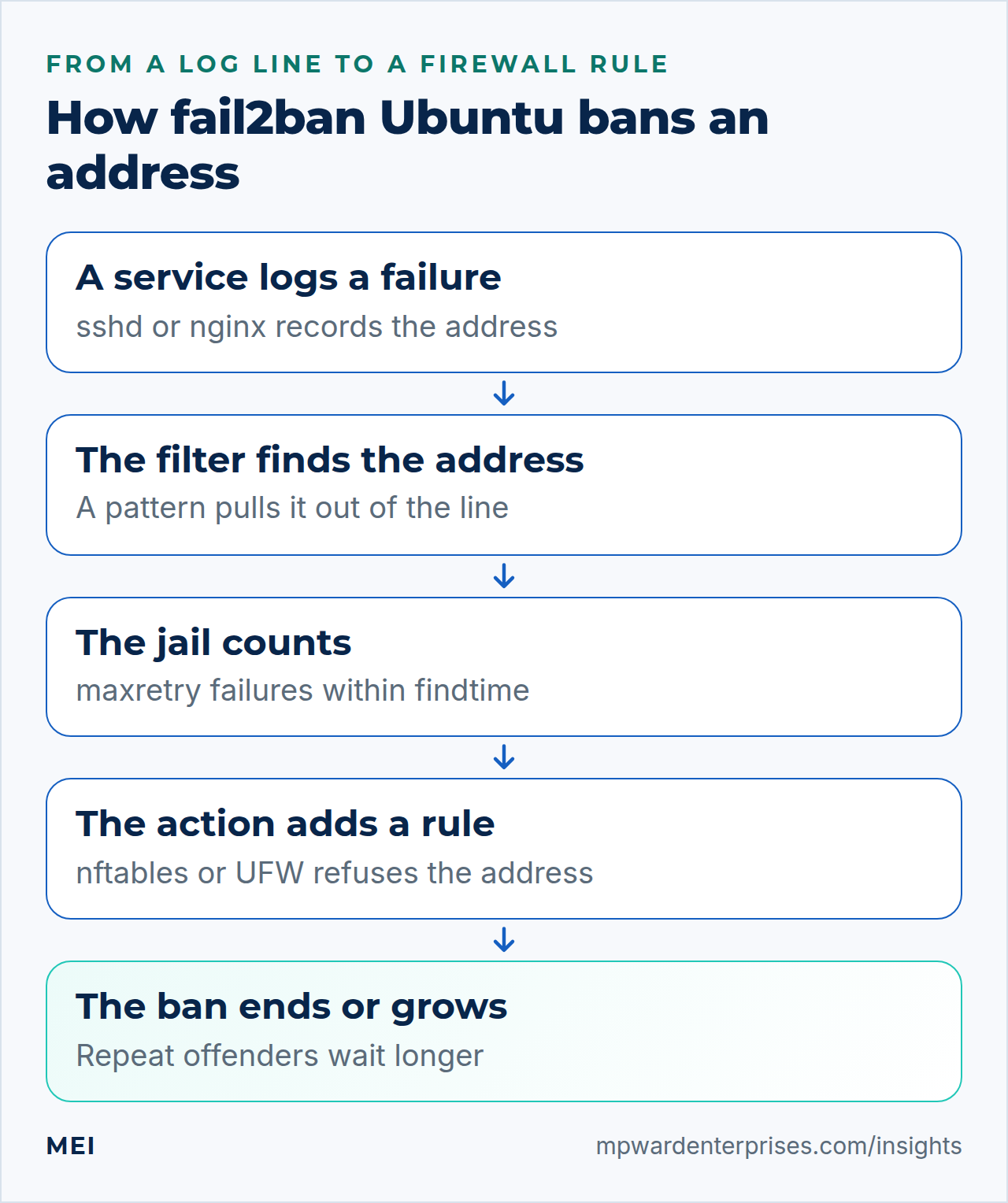
How fail2ban Ubuntu works: a doorman, not a lock
Think of a doorman with a visitors' book. Each time someone is turned away, a line goes into the book. When the same person is turned away too often in a short time, the doorman asks the building's lock to refuse that person for a while. Fail2ban is the doorman. The lock is your firewall, and behind it your SSH settings and passwords. Four words describe the whole system.
| Word | In plain English | Example on Ubuntu |
|---|---|---|
| filter | The pattern that recognizes a failure in a log line and pulls out the address | /etc/fail2ban/filter.d/sshd.conf |
| jail | One watched service: which log, which filter, how many failures, which action | The [sshd] section |
| action | What to do to a banned address, which is a firewall rule | nftables or ufw |
| backend | How fail2ban reads the log: from the systemd journal or from plain files | The journal for the sshd jail, set by Ubuntu |
What fail2ban cannot do matters as much. It acts after the fact, so the first few attempts always get through. It sees one address at a time, so an attacker with many addresses can stay under the limit. It trusts the log, so it is only as good as its patterns. The section on limits comes back to this.
Step 1: Install fail2ban and read what Ubuntu already switched on
Install the package, make sure the service starts at boot, then ask it what it is watching. On Ubuntu the answer is already "one jail, sshd", because the package ships a small file that turns the SSH jail on.
sudo apt update
sudo apt install -y fail2ban
sudo systemctl enable --now fail2ban
sudo fail2ban-client status
sudo fail2ban-client status sshd
In our labs the first status command printed Jail list: sshd, and the second showed Journal matches: _SYSTEMD_UNIT=sshd.service + _COMM=sshdJournal matches: _SYSTEMD_UNIT=ssh.service + _COMM=sshd under the filter. Now read the file responsible (its contents follow the commands) and the three numbers that set how strict the SSH jail is.
cat /etc/fail2ban/jail.d/defaults-debian.conf
for k in bantime findtime maxretry; do echo "$k = $(sudo fail2ban-client get sshd $k)"; done
[DEFAULT]
banaction = nftables
banaction_allports = nftables[type=allports]
backend = systemd
[sshd]
enabled = true[DEFAULT]
banaction = nftables
banaction_allports = nftables[type=allports]
[sshd]
backend = systemd
journalmatch = _SYSTEMD_UNIT=ssh.service + _COMM=sshd
enabled = trueThe loop printed bantime = 600, findtime = 600 and maxretry = 5: five failures within ten minutes earn a ten-minute ban. The file above explains much of this guide.
Ubuntu enables the SSH jail, tells fail2ban to read the systemd journal instead of log files for every jail, and blocks with nftables. Upstream's defaults are backend = auto and banaction = iptables-multiport, so many older tutorials describe a different system.
Ubuntu enables the SSH jail, tells that one jail to read the systemd journal, and blocks with nftables. Upstream's defaults are backend = auto and banaction = iptables-multiport, so many older tutorials describe a different system. Ubuntu's own file changed between releases: 24.04 set the journal backend for every jail, and 26.04 no longer does (step 5).
The new journalmatch line matters too. OpenSSH 10 logs from a process called sshd-session, and the journal records the unit as ssh.service. In our lab the 24.04 match (sshd.service plus _COMM=sshd) found none of the failed-login lines on 26.04, while the shipped one found them all. Do not carry the old match over to an SSH jail of your own.
Watch out: a ban can fail while the status screen says it worked
The nftables action runs the nft command. Ubuntu lists nftables as a recommended package, not a dependency, so a plain apt install brings it along and --no-install-recommends does not. In our lab without it, fail2ban-client status sshd showed "Currently banned: 1" while /var/log/fail2ban.log said "Failed to execute ban jail 'sshd' action 'nftables'" and "nft: not found". Run command -v nft now, and read the log after your first test ban.
Why this way?
We install Ubuntu's package rather than a newer release from GitHub or pip because Ubuntu's defaults (journal, nftables) were built for it, and it updates with everything else. The price: fail2ban lives in the universe repository, where security fixes depend on the community unless you use Ubuntu Pro, as our unattended upgrades guide explains.
Step 2: Create jail.local and protect yourself first
Fail2ban reads its settings from several files in a fixed order, and later files win: jail.conf, then every jail.d/*.conf, then jail.local, then every jail.d/*.local. A package upgrade may replace the shipped files, but it never touches jail.local. So every change goes into /etc/fail2ban/jail.local, and you never edit jail.conf.
The first thing to write there is the list of addresses that must never be banned. Find the address your SSH session comes from, then open the file.
echo "${SSH_CLIENT%% *}"
sudoedit /etc/fail2ban/jail.local
[DEFAULT]
# Never ban these: loopback, the office, the VPN exit (separate with spaces)
ignoreip = 127.0.0.1/8 ::1 203.0.113.0/24Replace 203.0.113.0/24 with your own address or range, and keep the list short: an address you exempt can guess freely. Fail2ban already ignores the server's own addresses (ignoreself is true by default). Test the file, apply it, and read the list back.
sudo fail2ban-client -t
sudo fail2ban-client reload
sudo fail2ban-client get sshd ignoreip
The -t option tests the configuration, reload applies it without dropping existing bans (a test ban survived a reload in our labs), and the last command prints the ignored addresses. A harmless warning about allowipv6 appears on every run on 24.04.On 26.04 the test prints only the OK line. In the labs, failures from inside an ignored range were logged as "Ignore 203.0.113.9 by ip" and never produced a ban.
Watch out: the configuration test is not strict
We wrote maxretry = five and -t still ended with "OK: configuration test is successful"; the only hint was a warning above it, "Wrong value for 'maxretry' ... Using default one". A broken section header or a jail whose log file does not exist is different: -t reports an ERROR, and a restart then leaves the service stopped, with no protection at all. Read every line, and run systemctl is-active fail2ban after each change.
Why this way?
We set one value in a .conf file under jail.d/, in jail.local and in a .local file under jail.d/, and read back 11, 3 and 7: the later file always won. The classic mistake is dropping a .conf file into jail.d/ and wondering why your jail.local silently overrides it. Ubuntu's own defaults-debian.conf is such a file, so jail.local can override it too.
The never-ban list protects an address, not a person: on a phone hotspot or in a hotel you are not on it. An SSH agent holding many keys can also get you banned. In our labs one connection offering eight keys added two failuresone failure, so a handful of such connections reach the limit of five. IdentitiesOnly yes for that host in ~/.ssh/config limits the keys offered.
On 26.04, sshd also keeps its own short-term penalty box for repeated failed logins (see our SSH hardening guide). ignoreip does not exempt an address from it; that list is PerSourcePenaltyExemptList in the sshd configuration.
Step 3: Choose ban times that fit, and make repeat offenders pay more
Three numbers decide how strict a jail is: if an address fails maxretry times within findtime, it is banned for bantime. Ubuntu keeps upstream's values. We lengthen only the ban.
| Setting | What it controls | Ubuntu default | We suggest |
|---|---|---|---|
bantime |
How long one ban lasts | 10 minutes | 1 hour, then growing (below) |
findtime |
The window in which failures are counted | 10 minutes | 10 minutes |
maxretry |
Failures inside the window that trigger a ban | 5 | 5 |
Open jail.local again and replace the [DEFAULT] section with the version below. The two bantime. lines are the interesting part: with bantime.increment on, fail2ban looks the address up in its database and lengthens the ban each time it returns.
[DEFAULT]
ignoreip = 127.0.0.1/8 ::1 203.0.113.0/24
bantime  = 1h
findtime = 10m
maxretry = 5

# Repeat offenders: 1h, then 2h, 4h, 8h ... up to five weeks
bantime.increment = true
bantime.maxtime   = 5w

[sshd]
# Also count scanners that connect and leave without logging in
mode = aggressive
The doubling is real. In the lab a 20-second test ban became 40 seconds, then 80 seconds, for the same address. With an hour as the base you get 1, 2, 4, 8 hours until the five-week cap, where, in fail2ban's words, the ban "doesn't grow further".
One catch most tutorials skip: the count lives in the ban history, which fail2ban keeps for one day by default (dbpurgeage = 1d in fail2ban.conf). On a copy of the database, an address whose last ban was three days old was forgotten at that default and remembered with 8 days. To remember offenders for about a week, add a second file.
sudoedit /etc/fail2ban/fail2ban.local[Definition]
dbpurgeage = 8dThe [sshd] line needs a word too. The default normal mode counts wrong passwords and unknown user names. It ignores what sshd logs when a client names a real account such as root, offers no valid key and disconnects: "Connection closed by authenticating user root ... [preauth]". On a key-only server that is most of what scanners do. In the labs, eight such attempts were eight ignored lines in normal mode and eight failures in aggressive mode.
One side effect: an unknown user name logs two lines, "Invalid user" and "Connection closed by invalid user", and aggressive mode counts both. Three such attempts therefore reach the limit of five. We saw this on both releases.
Apply both files, then read the values back:
sudo fail2ban-client -t && sudo fail2ban-client reload
sudo fail2ban-client get sshd bantime
sudo fail2ban-client get sshd bantime.increment
sudo fail2ban-client get dbpurgeage
Expect 3600, True, and a purge age of 691200 seconds. A plain reload is enough for these settings and for newly enabled jails; Step 4 covers the one change that needs a restart.
Why this way?
Escalating bans give most of the deterrent of a permanent ban at a bounded risk: a permanent ban piles up dead rules and locks out whoever inherits that address later, or a whole office behind one address. Ubuntu also ships a recidive jail for repeat offenders, but bantime.increment needs nothing extra. Aggressive mode can also count a bare connection that closes at once, so put a monitoring system that checks port 22 in ignoreip.
Step 4: Decide how bans are enforced: nftables or UFW
A ban is only a firewall rule that fail2ban adds and removes for you. Ubuntu's default adds it with nftables. If you manage the firewall with UFW, you can make fail2ban use UFW instead. Both work, and they differ in ways we measured with a second host in the lab.
| Question | nftables (Ubuntu's default) | ufw |
|---|---|---|
| Where does the rule live? | In a set inside fail2ban's own table, inet f2b-table. UFW never sees it, and ufw reload leaves it alone |
In UFW's rule list, as a reject rule at position 1 with a comment naming the jail |
| What does it block? | Only the jail's ports. A host banned by the sshd jail could still load the website | Every port, for that address |
| Connections already open? | Cut off: an open web connection from the banned host stopped answering | Keep working until they close |
| What else should I know? | IPv4 and IPv6 addresses go into separate sets, so both work | UFW must be active: with UFW disabled the rule is stored but not enforced |
If you keep Ubuntu's default, there is nothing to change. To switch to UFW, add one line to the [DEFAULT] section of jail.local, then restart the service and check the result. A restart is required here; a plain reload is not enough.
banaction = ufwsudo fail2ban-client -t && sudo systemctl restart fail2ban
sudo fail2ban-client get sshd actions
sudo fail2ban-client set sshd banip 198.51.100.7
sudo ufw status numbered
sudo fail2ban-client set sshd unbanip 198.51.100.7The second command should print ufw. After the test ban, UFW listed REJECT IN 198.51.100.7 at position 1, with a comment naming the jail, and unbanip removed it. Real bans from the second host worked too: after a few failed SSH logins it was refused on every port.
Watch out: a plain reload can leave a jail with no action
We changed banaction and ran fail2ban-client reload. The command said OK, but get sshd actions then printed "No actions for jail sshd", in both directions, from nftables to ufw and back. A test ban was recorded and nothing enforced it. Restarting the service, or reload --restart, applied the change. Always check get <jail> actions after changing an action.
Why this way?
We keep Ubuntu's nftables default unless a team wants every block in one place. It is scoped to the jail's ports and needs no UFW state. Choose UFW if you want ufw status to be the single list of what is blocked, and accept that a ban covers all ports. Either way, a clean stop removes the rules and a start puts unexpired bans back. Do not enable both actions for one jail.
Step 5: Know your backend, because the nginx jails depend on it
The backend decides where a jail reads its evidence. Ubuntu's defaults-debian.conf sets backend = systemd for every jail. That is right for sshd, which logs to the journal. It is wrong for nginx, which writes plain log files. Fail2ban's own comments warn about this: if the systemd backend is the default and you enable a jail whose logs exist only in files, give that jail another backend.
The symptom is a jail that is enabled, starts without complaint, and never catches anything. We enabled nginx-http-auth with no other change and made six wrong-password requests. The jail counted nothing. Two commands show what a jail is reading.
The backend decides where a jail reads its evidence. On 26.04, Ubuntu's defaults-debian.conf sets backend = systemd for the sshd jail only, which is right because sshd logs to the journal. Every other jail keeps fail2ban's normal backend = auto and reads its log files, so the nginx jails work as soon as you enable them. Ubuntu 24.04 set the journal backend for every jail, so guides written for it tell you to add backend = auto to each file-reading jail, and many older tutorials paste a global backend = systemd.
The trap can still come back. We enabled nginx-http-auth with no other change and made six wrong-password requests: the jail read the nginx error logs, counted all six and banned the address. Then we pasted a global backend = systemd into [DEFAULT], as older tutorials do, and the same six requests counted nothing. Two commands show what a jail is reading.
sudo fail2ban-client status nginx-http-auth
sudo fail2ban-client get nginx-http-auth logpath
With a journal backend inherited by mistake, the first command shows Journal matches: _SYSTEMD_UNIT=nginx.service + _COMM=nginx and the second says "No file is currently monitored". With the file backend, the first showed a File list: with the nginx error logs, the failures were counted, and a request after the ban was refused. A jail that should read files must show File list.
Why this way?
We override the backend per jail and leave the global default alone. Setting backend = auto in [DEFAULT] would also move sshd to log files, and this lab has no /var/log/auth.log at all, because no syslog daemon is installed. Where rsyslog is installed, auth.log exists too, but the packaged sshd jail reads the journal either way.
Why this way?
We keep Ubuntu's default, the journal for sshd only, and still write backend = auto into each file-reading jail in step 6. It changes nothing on 26.04, it is required on 24.04, and it protects the jail if someone later adds a global backend = systemd. Our 26.04 lab image has no /var/log/auth.log because no syslog daemon is installed, and the packaged sshd jail reads the journal either way.
Step 6: Turn on the nginx jails, and add one for WordPress logins
Ubuntu ships fourfive nginx filters, with matching jail definitions in jail.conf. All are off until you enable them, and all need backend = auto here, and on 26.04 they read their log files without any backend line (the backend = auto lines below are harmless there and required on 24.04). This is what each one reads and counts.
| Jail | What counts as a failure | Use it when |
|---|---|---|
nginx-http-auth |
A wrong password or unknown user on a basic-authentication page, from the error log | You protect a staging site or an admin path with auth_basic |
nginx-limit-req |
A request refused by nginx rate limiting, from the error log | You followed our nginx rate limiting guide. Its dry-run lines do not count (we checked), so testing bans nobody |
nginx-botsearch |
A 404 for a probe URL such as phpMyAdmin or webmail | You want scanners banned. Needs one change on WordPress, below |
nginx-bad-request |
A 400 response, from the access log | Rarely. Malformed requests can also come from broken clients |
The fifth jail on 26.04, nginx-forbidden, reads the error log and counts the "access forbidden by rule" lines nginx writes when a deny rule refuses a request. Use it only if you rely on deny rules, and keep your own address in ignoreip.
The nginx-botsearch jail needs attention. The packaged jail reads the error log, but a WordPress site sends unknown URLs to index.php, which answers 404 without nginx logging anything. In the lab, eight probe requests all got 404, and the stock jail counted zero failures. The same filter matches those requests in the access log, so point the jail there. Add this to jail.local:
[nginx-http-auth]
enabled = true
backend = auto

[nginx-limit-req]
enabled = true
backend = auto

[nginx-botsearch]
enabled = true
backend = auto
logpath = %(nginx_access_log)s
%(nginx_access_log)s is a variable from Ubuntu's paths-common.conf for /var/log/nginx/*access.log, so per-site logs such as example.com.access.log are included. With these stanzas, six probes for phpMyAdmin, webmail and similar paths got the second host banned, and its next request was refused.
Ubuntu has no filter for WordPress logins, but the access log is enough. A wrong password makes WordPress answer 200, because it shows the form again, and a correct one answers 302 (we measured both, and our rate limiting guide shows the same 200). So a POST to wp-login.php answered 200 is a failed login. Create the filter:
sudoedit /etc/fail2ban/filter.d/wordpress-login.conf[Definition]
# A failed WordPress login answers 200 (the form again); a good one answers 302.
failregex = ^<HOST> - \S+ \[\] "POST /wp-login\.php[^"]*" 200 \d+
datepattern = ^[^\[]*\[({DATE})Copy datepattern exactly: it is the form Ubuntu's own botsearch filter uses for the combined access-log format. Then add the jail to jail.local, test, and reload.
[wordpress-login]
enabled = true
filter  = wordpress-login
logpath = %(nginx_access_log)s
backend = auto
port    = http,https
sudo fail2ban-client -t && sudo fail2ban-client reload
sudo fail2ban-client statusWatch out: test your own login flow first
A two-factor plugin or a custom login page may answer 200 even for a correct step, and this filter would count it. Log in once as yourself, read the last lines of the access log, and confirm your successful login shows 302. Keep your own address in ignoreip.
Why this way?
The rate limit in our other guide allows six attempts a minute, which is three hundred and sixty an hour. A guesser who stays under that is invisible to nginx, but five wrong passwords in ten minutes is exactly what this jail bans. In the lab, wrong passwords sent eleven seconds apart were banned on the fifth, and a successful login made just before them was not counted. The two layers complement each other.
Step 7: Test every filter against real log lines before you trust it
A jail that never fires looks exactly like a quiet network. The cure is to run each filter over real log lines before relying on it, with fail2ban-regex. It takes a log (a file, a single line, or the systemd journal) and a filter, and tells you how many lines matched.
sudo fail2ban-regex /var/log/nginx/example.com.access.log nginx-botsearch
sudo fail2ban-regex /var/log/nginx/example.com.error.log nginx-botsearch
sudo fail2ban-regex /var/log/nginx/example.com.access.log wordpress-login
sudo fail2ban-regex systemd-journal sshd
sudo fail2ban-regex systemd-journal 'sshd[mode=aggressive]'
Read the summary line. Lines: 7 lines, 0 ignored, 6 matched, 1 missed means seven lines were read and six counted as failures; "ignored" lines were recognized and deliberately not counted. On our WordPress access log, botsearch matched six probe requests and missed the one legitimate page, while the same filter on the error log matched nothing: the quiet failure from step 6, made visible.
For the login filter, first type two wrong passwords and one correct one into your own login page; the two wrong ones should match. Add -v to print the address each match extracted.
Custom filters carry one more trap. Attackers control some text in your logs, such as a user name or a URL, and a loose pattern can be steered by it. We tested two patterns against a line whose user name contained a fake address.
printf '%s\n' '2026-10-09 10:00:01 app: Invalid user bob from 192.0.2.10 from 203.0.113.9 port 4242' > /tmp/app.log
sudo fail2ban-regex -v /tmp/app.log '^\s*app: Invalid user .*? from <HOST>'
sudo fail2ban-regex -v /tmp/app.log '^\s*app: Invalid user \S+ from <HOST> port \d+$'
The loose pattern blamed 192.0.2.10, the address typed into the user name, instead of the real source, 203.0.113.9. The anchored pattern, which expects one user name and then the address and port, did not match the line at all. Missing a line is safe; banning an innocent address is not. Ubuntu's packaged filters are written the careful way, so copy their style.
Why this way?
A new jail should earn your trust before it can ban anyone. Give it an empty action line, action =, and fail2ban still counts and logs "Ban" entries but changes no firewall rule. In the lab such a jail logged a ban for a host that kept loading the site normally. Read /var/log/fail2ban.log for a few days, look for your own address and your customers', then delete the line and reload. It is the fail2ban version of nginx's dry run.
Step 8: Test the whole chain safely, then learn to undo a ban
Test from the least risky to the most. In your second session, run sudo tail -f /var/log/fail2ban.log so every Found, Ban and Unban appears as it happens. First prove the plumbing with an address that is not yours, a documentation address no real visitor uses.
sudo fail2ban-client set sshd banip 198.51.100.7
sudo fail2ban-client status sshd
sudo nft list table inet f2b-table
sudo grep -E "Ban|ERROR" /var/log/fail2ban.log | tail -n 5
sudo fail2ban-client set sshd unbanip 198.51.100.7
You should see the address in the jail's banned list, a set holding it in the nftables table (or the UFW rule, if you chose ufw), a Ban line with no ERROR line, and 1 from unbanip. This is also where you catch the missing nft command from step 1.
Then do one real end-to-end test from a second machine that is not on the never-ban list: a laptop on a phone hotspot, or another server. Make six SSH attempts as a user that does not exist, with no key (-n stops ssh reading your keyboard).
for i in 1 2 3 4 5 6; do ssh -n -o BatchMode=yes -o StrictHostKeyChecking=accept-new nosuchuser@203.0.113.10 true; sleep 1; doneThe first answers are "Permission denied". Once the ban lands, they change to "Connection refused". With aggressive mode each unknown-user attempt scores two (step 3), so the ban can land after only three or four attempts, and the one-second pause gives fail2ban time to act. Back in your admin session, look at the ban and then lift it.
sudo fail2ban-client status sshd
sudo fail2ban-client banned
sudo fail2ban-client get sshd banip --with-time
sudo fail2ban-client set sshd unbanip 203.0.113.99
sudo fail2ban-client unban --all
status lists the jail's bans, banned lists them for every jail, and --with-time adds when each ban started and ends. unbanip frees one address in one jail, and unban 203.0.113.99 frees it in every jail; both print how many bans they removed, so 0 means the address was not banned. unban --all empties every jail. Unbanning also erases that address's ban history, so its next ban starts again at the base time.
Watch out: never test with the address you are logged in from
With the default nftables action, a ban drops traffic from the banned address, including connections that are already open. In the lab, a web connection open before the ban stopped answering. If you ban the address of your own SSH session, that session freezes. Use the second session from a different address, or your provider's console, to run unbanip.
Why this way?
The documentation-address test proves that bans appear and disappear without risking a lockout. The second-machine test proves what the first cannot: that real failures are detected, counted and enforced. If you have no second machine, a disposable cloud server for an hour is cheap. We used a network namespace on the lab host, which is not something to try on a production server.
Check your work
Run these six checks once your fail2ban Ubuntu setup is in place. Each answers a question you would otherwise ask during an incident.
- Is it running?
systemctl is-active fail2banprintsactive, andsudo fail2ban-client -tends with OK. - Is every jail reading something?
sudo fail2ban-client statuslists each jail you enabled, showingFile listor the expectedJournal matches. - Can the filters see real lines?
fail2ban-regexreports matches for a request you made on purpose. - Is a rule created? A test ban appears in
nft list table inet f2b-table(orufw status) and disappears onunbanip. - Are you protected from yourself?
sudo fail2ban-client get sshd ignoreiplists your address or range. - Do bans survive a restart? After
sudo systemctl restart fail2ban, a live ban returns, and the log says "Restore Ban".
What fail2ban does not do: the honest limits
A fail2ban Ubuntu setup is useful and small. Treat it as one layer, and know where it stops.
- It acts after the fact. The first attempts always get through. A ban is a consequence, not a defense, so keep key-only SSH, patched software and strong passwords underneath it. Our small business cybersecurity checklist lists them.
- It sees one address at a time. Attackers who spread guesses over many addresses, or try a few times a day from each, stay under a limit of five per ten minutes. A second, slower jail on the same filter catches some of them (config below). Past that, an edge service or a WAF is the better tool.
- IPv6 gives attackers more addresses. A ban covers one address. In the lab, after we banned one IPv6 address, a neighbor in the same /64 connected immediately and got "Permission denied". Per-address bans are weak against someone who can rotate through a whole block.
- It trusts the log. A filter is only as good as its pattern (step 7), and anyone with root can edit logs or stop the service. Fail2ban is not an intrusion detector.
- It needs the real visitor address. Behind a proxy or CDN, the log may show the proxy for everyone. Fix that first with
set_real_ip_from, as in our rate limiting guide and the PROXY protocol guide, or fail2ban acts on the wrong address.
Here is the slower jail from the second point. It reads the same journal with the aggressive filter, but counts over a whole day and bans for two days, so an address that tries ten times in a day is caught even if it never trips the fast jail.
[sshd-slow]
enabled  = true
filter   = sshd[mode=aggressive]
port     = ssh
findtime = 1d
maxretry = 10
bantime  = 2d
[sshd-slow]
enabled = true
backend = systemd
filter = sshd[mode=aggressive]
port = ssh
findtime = 1d
maxretry = 10
bantime = 2dOn 26.04 the backend = systemd line is required, because a new jail no longer inherits the journal from a global setting. Without it, the same jail loaded without an error, listed no file and no journal match, and counted nothing in our lab.
Troubleshooting: what the symptoms mean
| What you see | Likely cause | What to do |
|---|---|---|
systemctl is-active fail2ban says failed after an edit |
A jail points at a log file that does not exist, or a section header is broken | Run sudo fail2ban-client -t, read the ERROR line, fix or remove that jail, then start the service again |
A jail is enabled, Total failed stays 0, and the status shows Journal matches |
A file-reading jail inherited backend = systemd, which Ubuntu 24.04 sets for every jail and older tutorials paste into [DEFAULT] |
Add backend = auto to that jail (step 5) |
Currently banned lists an address, but it still reaches the server |
The ban action failed or is missing. The status list is not proof of a rule | Read /var/log/fail2ban.log for Failed to execute ban, run get <jail> actions, check command -v nft, then sudo nft list ruleset |
get sshd actions says No actions for jail sshd |
The ban action was changed with a plain reload | sudo systemctl restart fail2ban, then check again (step 4) |
The nginx jails never fire, and your log lines name 127.0.0.1 or one proxy address |
The real visitor address is not in the log | Restore real client addresses behind the proxy, then re-run fail2ban-regex |
nginx-botsearch catches nothing on a WordPress site |
The packaged jail reads the error log, and WordPress answers 404 itself | Set logpath = %(nginx_access_log)s (step 6) |
| A setting you changed has no effect | A jail.d/*.conf file is overridden by jail.local, or a typo fell back to a default |
Use jail.local or a .local file, and read the warnings printed by -t |
| A banned scanner still loads your website | Under the nftables action, the sshd jail's rule covers only port 22 | Expected. Enable the nginx jails, or use the ufw action for all-port bans |
| You banned yourself | Your address was not in ignoreip, or an SSH agent offered too many keys |
Use the console or another address, run unbanip for yours, and add it to ignoreip |
Common mistakes
- Editing
jail.conf. A package upgrade can replace it. Usejail.local. - Restarting without
-t. One missing log file stops the service, and SSH protection goes with it. - Enabling a file-reading jail on the journal backend. It starts, and it does nothing.
- Trusting the status screen instead of the firewall. Look for the rule, not only the list.
- Skipping
ignoreip. The first tired colleague with a wrong password bans the office. - Writing a filter and never testing it. Run
fail2ban-regexon real lines, including hostile ones.
Keep it healthy
A fail2ban Ubuntu server needs a monthly look. Run sudo fail2ban-client status and each jail's status. A jail on a public server whose Total failed has not moved in weeks deserves attention. Skim recent bans with sudo grep Ban /var/log/fail2ban.log | tail -n 20 for addresses you recognize. Ubuntu rotates that log weekly and keeps four old copies, as the logrotate guide explains for nginx.
After any change to nginx log paths or formats, a new proxy, or a new site, run fail2ban-regex again. After an upgrade, confirm systemctl is-active fail2ban; unattended upgrades restart the service on their own, and unexpired bans come back from the database. Keep ignoreip current when your office address changes. Our Linux server hardening checklist lists the other recurring jobs.
Getting help
If you would rather have someone set this up and watch it, MEI's Network Architecture and Security service covers firewall and server hardening, secure remote access, monitoring and access control, and starts at $1,500, scoped after an assessment. Managed Website and IT Care starts at $149 a month, with scope-based tiers for updates, backups, monitoring and help, so routine jobs like this have an owner. We focus on the highest-impact, most likely risks, and we do not promise perfect security.
Frequently asked questions
What does fail2ban do on Ubuntu?
It reads service logs, such as the systemd journal for SSH and nginx's log files, counts failures per IP address, and when an address fails too often in a set time it adds a temporary firewall rule that refuses it. It reacts after the fact and does not replace strong passwords, SSH keys or updates.
Is the SSH jail on by default in Ubuntu 24.04 and 26.04?
Yes, once the package is installed. A packaged file, /etc/fail2ban/jail.d/defaults-debian.conf, enables the sshd jail, sets the journal as its backend and nftables as the ban action. Ubuntu 24.04 applies the journal backend to every jail, while 26.04 applies it to sshd only. Every other jail, including the nginx ones, stays off until you enable it.
How do I unban an IP address in fail2ban?
Run sudo fail2ban-client set sshd unbanip 203.0.113.50 for one jail, or sudo fail2ban-client unban 203.0.113.50 for every jail. It prints 1 when it removed a ban and 0 when the address was not banned. Unbanning also erases that address's ban history, so any escalating ban time starts over.
Should I edit jail.conf or jail.local?
Always jail.local. Fail2ban reads jail.conf first, then jail.d/*.conf, then jail.local, then jail.d/*.local, and later files win. A package upgrade can replace jail.conf but never touches your jail.local. A .conf file in jail.d is overridden by jail.local, which surprises people.
Does fail2ban work with UFW?
Yes, in two ways. Ubuntu's default action uses nftables in its own table, alongside UFW, and blocks only the jail's ports. Setting banaction = ufw in jail.local puts each ban into UFW's rule list instead, where it blocks every port for that address. Pick one for a given jail, and restart the service after changing the action, because a plain reload can leave the jail with no action.
Can fail2ban protect a WordPress site on nginx?
Partly. Ubuntu ships nginx jails for basic-authentication failures, rate-limit refusals and scanner probes, and a small custom filter can ban repeated failed wp-login.php logins. Fail2ban cannot see attacks that use many addresses, so pair it with rate limiting, strong passwords and, for large floods, a CDN or WAF.
Sources and further reading
- Ubuntu 24.04 manpage: jail.conf(5) — the order configuration files are read (jail.conf, jail.d/*.conf, jail.local, jail.d/*.local), ignoreip, ignoreself, backend options and banaction
- fail2ban 1.0.2 source: config/jail.conf — bantime.increment and its options, the note about the systemd backend and file-only jails, the four nginx jail definitions and upstream defaults on Ubuntu 24.04
- fail2ban 1.1.0 source: config/jail.conf — the same defaults on Ubuntu 26.04 (backend auto, iptables-multiport, 10m/10m/5), bantime.increment, and the fifth nginx jail, nginx-forbidden
- Ubuntu 24.04 manpage: fail2ban-client(1) — -t, reload, status, banned, unban, set unbanip and banip, get banip --with-time, dbpurgeage
- Ubuntu 24.04 manpage: fail2ban-regex(1) — testing a log, a line or the systemd journal against a filter, filter options such as sshd[mode=aggressive], and -v
- Ubuntu packages: fail2ban in noble — version 1.0.2-3, and that nftables or iptables, python3-pyinotify and whois are recommended rather than required
- Ubuntu 24.04 manpage: ufw(8) — the limit rule (6 or more connections within 30 seconds), prepend and delete, reject versus deny, and first-match rule order
- CrowdSec documentation: Introduction — what CrowdSec is: a log-analyzing security engine with scenarios, a local API, bouncers and a community blocklist
- WordPress Advanced Administration Handbook: Brute Force Attacks — layers of defense, preferring edge or WAF protection, and fail2ban as a way to block abusive addresses