
SSH hardening is the work of deciding who may reach your server's front door, how they must prove who they are, and what they can do once inside, then checking that the settings you wrote are the ones the server really uses. This guide goes deeper than our 12-step server guide: ten settings that matter, three that do not, and a safe way to roll out each one. It covers Ubuntu 24.04 LTS and 26.04 LTS, so pick yours with the switch below. Plan on about two hours, and start with working SSH keys.
Every command below was run twice in disposable labs, once on Ubuntu 24.04 (OpenSSH 9.6) and once on Ubuntu 26.04 (OpenSSH 10.2): real key logins, a forced-command key, Match blocks, a two-factor test and a deliberate lockout that a timer repaired. A lab cannot test a hardware security key, so that part follows the vendor and OpenSSH documentation, and we say so. SSH is the door you use to fix everything else, so every step includes a way back.
Where the two releases differ, the page shows only the one you picked.
Choose your Ubuntu version
This guide covers both releases. Commands, file paths and version numbers change with your choice; everything else is the same.
JavaScript is off, so both versions are shown below and each block says which release it is for.
Before you start: build a safety net
SSH hardening changes can take away your ability to undo them. Four habits make them safe.
- Keep a second session open. After each change, log in fresh from a new window before you close anything.
- Find your provider's web console now. It works even when SSH does not.
- Prove your SSH keys work for your named admin account first. Step 3 of the 12-step server guide shows how.
- Arm a rollback timer before risky edits. It puts your last good settings back by itself.
On Ubuntu 26.04, sudo is sudo-rs, a Rust rewrite, and everyday tools such as ls, install, sort and tail are Rust rewrites too (cp, mv and rm are still the GNU originals). Every command in this guide behaved the same under them in our lab, including sudoedit, sudo tee, sudo sh -c and sudo systemd-run.
This timer copies your settings aside and undoes any change after about ten minutes (systemd can fire a timer a minute late). We tested it on both releases against a misspelled group that locked every user out, and against an edit that left the SSH socket failed. Each time it restored access without the console. It restores sshd_config.d only, so copy aside any other file you edit.
sudo cp -a /etc/ssh/sshd_config.d /root/sshd_config.d.bak
sudo systemd-run --on-active=10m --unit=ssh-rollback --description="Undo SSH config change" \
  /bin/sh -c 'rm -rf /etc/ssh/sshd_config.d && cp -a /root/sshd_config.d.bak /etc/ssh/sshd_config.d && systemctl daemon-reload && systemctl reset-failed ssh.service ssh.socket; systemctl restart ssh.socket'
Cancel it with sudo systemctl stop ssh-rollback.timer once your new login works. After every edit, use one routine: sshd -t checks the syntax (silence means fine), reload applies the change without ending your session, and sshd -T prints the values the server will really use.
sudo sshd -t && sudo systemctl reload ssh
sudo sshd -T | grep -E '^(passwordauthentication|permitrootlogin) '
Watch out: reload, not restart
A reload checks the file first and leaves the running server alone if it is bad. A restart with a bad file is worse on Ubuntu 24.04 and 26.04: in our labs a few connection attempts used up systemd's start limit and the SSH socket failed, so port 22 refused everyone until we ran systemctl reset-failed ssh.service ssh.socket and systemctl restart ssh.socket from the console.
SSH hardening: why this way and not the other ways
There are many ways to approach SSH hardening. The short version: make a few well-understood changes in a file you can read, and save the heavier options for where they pay off.
| Approach | In plain English | Our verdict |
|---|---|---|
| A drop-in file with a few settings (this guide) | A short list you wrote, in its own file beside the vendor's | Best for small estates: you can explain every line, and package updates leave it alone. A script from the internet is fine for ideas, but options written for a different OpenSSH version can stop sshd from starting or quietly do nothing |
| SSH certificates | Short-lived passes signed by an authority you control | Excellent when many people and servers change often. We tested the basics. For a handful of servers, a reviewed authorized_keys file is simpler |
| A second factor (TOTP code or FIDO2 hardware key) | Your key plus something else you hold | Worth it on a few admin accounts. It adds ways to get locked out, and robots cannot use it. We could not test hardware in the lab |
| VPN or admin-network-only access | Take the SSH door off the public street | The best single measure. Do it first if you can |
| Changing the port | Moving the front door to another street | Skip it. See "Three SSH hardening myths" below |
| fail2ban | A doorman who bans addresses after repeated failures | A good noise filter, not a lock. See our fail2ban guide |
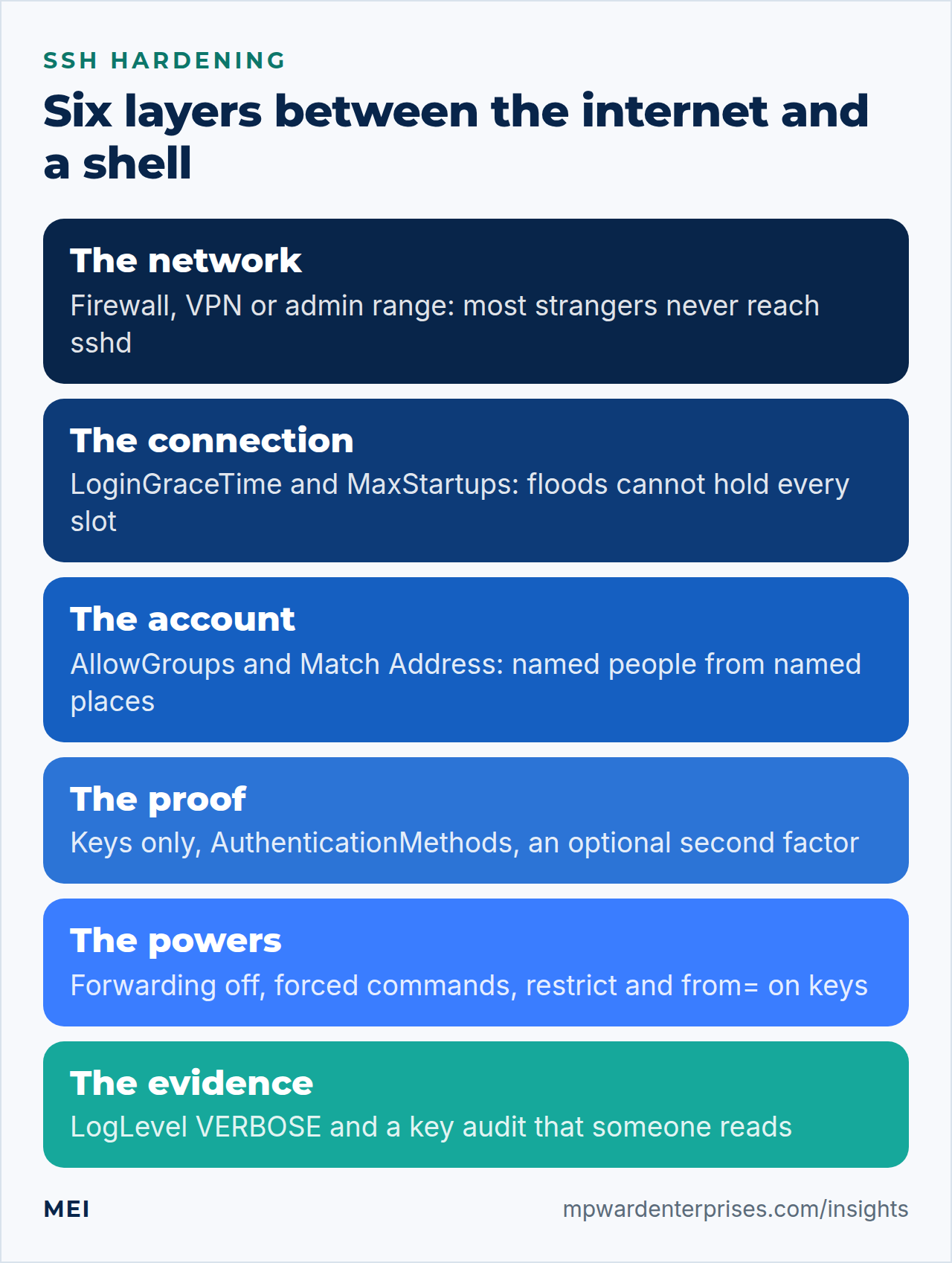
Think of the server as an apartment building. The firewall or VPN is the street door, the allowed-group list is the front desk, your SSH keys are the lock on the apartment, and the logs are the camera. No layer has to be perfect, because the next one catches what slips through.
The rule that decides whether any setting works
On Ubuntu, /etc/ssh/sshd_config begins with Include /etc/ssh/sshd_config.d/*.conf, so the files in that folder are read first, in alphabetical order. For each setting OpenSSH keeps the first value it finds. A file that sorts earlier than yours, or sets the same word earlier, quietly beats you.
We reproduced the trap. A provider-style file named 50-cloud-init.conf said PasswordAuthentication yes. Our hardening file was named 99-hardening.conf and said no. The syntax check passed and the server still offered passwords, while the root-login line in the same file did take effect. Half-working is the dangerous part.
sudo ls /etc/ssh/sshd_config.d/
sudo sshd -T | grep -E '^(passwordauthentication|permitrootlogin) '
50-cloud-init.conf
99-hardening.conf
permitrootlogin no
passwordauthentication yesBefore you write anything, list every place that already sets the words you plan to use, then create your own file with a name that sorts first.
sudo grep -rniE '^\s*(passwordauthentication|kbdinteractiveauthentication|permitrootlogin|x11forwarding)\b' /etc/ssh/sshd_config /etc/ssh/sshd_config.d/
sudoedit /etc/ssh/sshd_config.d/00-hardening.conf
You need two ways to check. sshd -T shows what the files add up to, but it cannot prove the running server reloaded them. So also ask the server what it offers, from your own computer. Permission denied (publickey). is the answer you want once passwords are off; (publickey,password) means passwords are still on.
ssh -o BatchMode=yes -o PubkeyAuthentication=no -o PreferredAuthentications=password,keyboard-interactive [email address] trueWhy this way?
Ubuntu's own sshd_config is built around snippets in sshd_config.d: its comments say they take precedence over the main file, and they keep your changes apart from the defaults that packages manage. A name starting with 00- makes yours the first value. Editing the main file also works, but it makes it easy to add a global setting below a Match block by accident (see step 8).
Step 1: SSH keys only: PasswordAuthentication and AuthenticationMethods
A password is something a robot can guess; a key is not. Once your named admin can log in with an SSH key, tell the server to stop accepting anything else. Add these lines to 00-hardening.conf.
PasswordAuthentication no
KbdInteractiveAuthentication no
PubkeyAuthentication yes
AuthenticationMethods publickey
PasswordAuthentication is the plain password prompt. KbdInteractiveAuthentication is the second door: it lets PAM ask questions, which can include a password. AuthenticationMethods publickey states what a login must prove, and it is where a second factor is added later. In a worst-case test, with PasswordAuthentication yes still in force, this line made the server refuse a correct password, because it offered only public keys.
Why this way?
Allowing only SSH keys removes the whole class of password-guessing attacks, and the secret stays on your computer. Long unique passwords per server depend on people never reusing them. If one account truly needs a password, give it a Match block (step 8) so the exception is visible instead of becoming the rule.
Step 2: No direct root login: PermitRootLogin
Ubuntu's default is prohibit-password, which still lets root in with a key. Root is a shared name: the logs cannot say which person used it, and one stolen key means full control. Check that sudo works for your named admin, then close the root door.
PermitRootLogin noIn our lab a valid key for root was refused, and it stayed refused even after we added root to the allowed group from step 3. If a tool truly needs root over SSH, allow it from one address with a Match block (step 8) or, better, give that tool a key that can run one command (step 9).
Step 3: Decide who may even try: AllowGroups
By default every account on the server can attempt a login, including a service account or a test user someone forgot. AllowGroups reverses that: nobody gets in unless they belong to a group you named. Create the group, add the people, and check the list before you switch the rule on.
sudo groupadd ssh-users
sudo usermod -aG ssh-users alex
getent group ssh-users
AllowGroups ssh-usersNow the trap. sshd -t checks syntax, not meaning. In our lab a misspelled group, ssh-user, passed the syntax check and every login was refused, with this line in the log: "User alex from 203.0.113.5 not allowed because none of user's groups are listed in AllowGroups". Arm the rollback timer, apply the change, log in from a new window, then cancel the timer.
Why this way?
Groups scale: adding a person is one usermod, with no change to sshd. AllowUsers suits one or two admins and has a useful form, AllowUsers alex@203.0.113.0/24, which pins a person to a network. You can use both; we tested that a user must then satisfy both lists.
Step 4: Make guessing slow: MaxAuthTries and LoginGraceTime
Two settings decide how much patience the server has with someone who has not yet proved who they are. Ubuntu's defaults are 6 attempts per connection and 120 seconds to log in.
MaxAuthTries 3
LoginGraceTime 30
We checked the grace time by opening a raw connection and saying nothing: the server closed it after exactly 30 seconds. A short wait matters because every half-open connection holds a slot, as the next step shows. For automatic bans after repeated failures, see our fail2ban guide.
Watch out: too many authentication failures
An SSH agent offers its SSH keys one after another, and each rejected key counts toward MaxAuthTries. With five keys loaded and the limit at 3, our login failed before the right key was tried. On your computer, set IdentitiesOnly yes and name the key for each server in ~/.ssh/config (an example is in step 10).
Ubuntu 26.04 adds a penalty box: PerSourcePenalties
OpenSSH 10.2 turns PerSourcePenalties on by default. When one address keeps making connections that fail to log in, sshd starts refusing it, for up to 10 minutes as the failures add up. In our lab four wrong-key logins within four seconds earned a 17-second refusal: the client printed Connection reset by and the journal said drop connection ... penalty: failed authentication. Connections that never try to log in earn only one second each.
It is a short brake held in sshd's memory, not a ban list, so a reload clears it; use fail2ban or a firewall to keep an address out. A script that retries a wrong key will lock out its own address, so exempt your admin range with PerSourcePenaltyExemptList 203.0.113.0/24 when you test from it. See the settings with sudo sshd -T | grep ^persource.
Step 5: Cap the pile-up: MaxStartups
MaxStartups limits how many connections may wait to log in at once. Its numbers are start, rate and full: once start connections are waiting, sshd refuses rate percent of new ones, climbing evenly to 100% when full are waiting. The Ubuntu default is 10:30:100.
MaxStartups 10:30:60Be clear about what this buys. It stops a flood from using unlimited resources; it does not stop a flood from filling the slots and making your own login fail. We saw that with a tiny limit and five idle connections: a real login was dropped, and the log said "drop connection ... past MaxStartupsMaxstartups". The real protection sits outside sshd: the rate limit in UFW and, best of all, not answering the public internet (step 10).
Step 6: Switch off the forwarding you do not use
SSH can carry more than a terminal. It can tunnel network ports, pass your key agent to the server, and show remote windows. Each is useful and each reaches places you did not mean to open. Ubuntu ships X11Forwarding yes, which a server rarely needs.
AllowTcpForwarding no
AllowAgentForwarding no
X11Forwarding no
PermitTunnel no
In the lab, ssh -L failed with "administratively prohibited", ssh -R reported "remote port forwarding failed", ssh -A left no agent on the server, and ssh -X was refused. PermitTunnel is already off; we state it so nobody enables it by accident. This also breaks ProxyJump through the server, database tools that tunnel over SSH, and VS Code's Remote-SSH, which asks you to enable TCP forwarding. Give those people a Match block (step 8) instead of loosening the rule for everyone.
Watch out: this is hygiene, not a wall
The OpenSSH manual says disabling TCP forwarding does not improve security unless users are also denied shell access, because a user with a shell can run their own forwarder. These settings limit what a stolen key or a careless user can do through the normal client. They do not stop someone who already has a shell.
Why this way?
OpenSSH also has DisableForwarding yes, one switch for all of this. It worked in our test on OpenSSH 9.610.2, but spelling the options out makes each decision visible and easy to relax for one group. Prefer ProxyJump (step 10) to agent forwarding: while it is on, anyone who can bypass file permissions on the server, such as root, can use your agent.
Step 7: Keep evidence you can use: LogLevel VERBOSE
The default log level records that someone logged in. Verbose records enough to answer "which key, from where, and was it the one we expected?" This is a key login at that level, with documentation addresses and shortened fingerprints.
LogLevel VERBOSEConnection from 203.0.113.5 port 43892 on 192.0.2.10 port 22 rdomain ""
Accepted key ED25519 SHA256:FdDCM... found at /home/alex/.ssh/authorized_keys:1
Accepted publickey for alex from 203.0.113.5 port 43892 ssh2: ED25519 SHA256:FdDCM...A refused key shows up too, with its own fingerprint on a Failed publickey line. Read the log with the command below, or in /var/log/auth.log if your server keeps one.
sudo journalctl -u ssh --since "1 day ago" -o cat | grep -E "Accepted|Failed"On Ubuntu 26.04 these entries are tagged sshd-session, not sshd, because the per-connection work now runs in a separate program. Searching by unit, as above, still works; a log filter or alert rule that looks for sshd[ needs updating.
Watch out: the common advice is slightly off
Some guides say you need VERBOSE to log key fingerprints. On Ubuntu 24.04 and 26.04 the default level already logs the fingerprint of the accepted key. What VERBOSE adds is the file and line number in authorized_keys, the fingerprint of keys that were refused, and a line for every connection. That is what makes an unknown key easy to trace.
Step 8: Give exceptions their own place: Match blocks
Rules without exceptions do not survive real work. A contractor needs file transfer, a developer needs a tunnel, a backup job needs a robot account. A Match block starts with a condition, such as a user, a group or a source address, and inside it the settings override the global ones. We tested three facts that people often get wrong.
- A block ends at the next
Matchline or the end of the file. In a drop-in file it can never swallow settings from another file. - A matching block beats the global value, whatever the file order. If two blocks match and set the same word, the first one wins, so put narrow rules first.
- You can preview any combination without logging in:
sshd -T -C user=alex,host=laptop,addr=203.0.113.5.
The first example is a contractor who may upload files and nothing else. The account has no shell, and sshd locks the session into one folder. sshd refuses a chroot directory that anyone but root can write to; we saw "bad ownership or modes for chroot directory" until we fixed it. The second block lets a developers group (who also belong to ssh-users) use ssh -L and ProxyJump while still refusing ssh -R.
sudo useradd -m -s /usr/sbin/nologin -G ssh-users contractor
sudo install -d -m 755 -o root -g root /srv/sftp /srv/sftp/contractor
sudo install -d -m 755 -o contractor -g contractor /srv/sftp/contractor/uploads
sudoedit /etc/ssh/sshd_config.d/10-sftp.conf
Match User contractor
ChrootDirectory /srv/sftp/contractor
ForceCommand internal-sftp
PermitTTY no
AllowTcpForwarding no
X11Forwarding no
Match Group developers
AllowTcpForwarding localAdd the contractor's public key to their authorized_keys, then apply and preview. In our lab sftp listed only the uploads folder, ssh contractor@server id answered "This service allows sftp connections only", and a port forward was refused.
sudo sshd -t && sudo systemctl reload ssh
sudo sshd -T -C user=contractor,host=laptop,addr=203.0.113.5 | grep -E '^(chrootdirectory|forcecommand|allowtcpforwarding|permittty) '
Watch out: blocks in the main file
If you add a Match block to the end of /etc/ssh/sshd_config and later add a global setting below it, that setting becomes part of the block and applies only to matching connections, silently. Drop-in files avoid the mistake because every block ends at the end of its own file.
Step 9: Treat SSH keys like keys: type, passphrase, options and audits
The settings above decide who may try. This step covers the SSH keys themselves, because a key that is copied, forgotten or too powerful undoes the rest of your SSH hardening.
Create SSH keys that are expensive to steal
Run this on your own computer. Ed25519 keys are short and fast, and ssh-keygen creates one by default. The passphrase encrypts the private key file, so a stolen laptop does not hand over your servers. -a 100 raises the key-derivation rounds well above the default, which slows anyone guessing the passphrase of a stolen copy (the manual page says 16 by default, but key files made in our labs recorded 24, and 100 with this option). ssh-add -t 4h keeps the key in your agent for four hours, then forgets it.
ssh-keygen -t ed25519 -a 100 -C "alex@laptop-2026"
ssh-add -t 4h ~/.ssh/id_ed25519
Use separate SSH keys for each device, so you can remove a lost laptop's key without disturbing the others. If an old device forces RSA, make it at least 3072 bits, the default for ssh-keygen -t rsa.
Make each of your SSH keys able to do less
Options at the start of a line in authorized_keys limit what that one key can do, so a script or a person gets exactly the power they need. We tested each of these four.
| Option | What it does | What we saw |
|---|---|---|
from="203.0.113.0/24" |
The key works only from these addresses | From another address: Permission denied, and a log line saying the key was right but not from a permitted host |
restrict |
Switches off forwarding, agent, X11, terminals and ~/.ssh/rc for this key |
PTY allocation request failed when we asked for a terminal |
command="/usr/local/bin/disk-report" |
Runs this program whatever the client asks. The request is in SSH_ORIGINAL_COMMAND |
We asked for id; the report ran instead |
expiry-time="20271231" |
The key stops working after this date | A past date was refused; a future date worked |
Together, one line gives a backup job a key that can run exactly one program, from one network, with nothing else switched on. The robot's account must still be in an allowed group, like any other. The script behind it is small and does one fixed thing.
from="203.0.113.0/24",restrict,command="/usr/local/bin/disk-report" ssh-ed25519 AAAA...key... backup@app1#!/bin/sh
echo "client asked for: ${SSH_ORIGINAL_COMMAND:-nothing}"
df -h / | tail -1Watch out: who can edit the key file?
SSH keys with options live in a file the account can usually edit. If the software running as that account is compromised, the attacker can delete restrict and command= from its own key. For robot accounts, keep the key file where only root can change it (below), or enforce the limit in a Match block, which the account cannot touch.
Audit the SSH keys that are already there
Key sprawl is how old access outlives the people it was for. List every file of SSH keys that sshd might read, with fingerprints.
sudo sh -c 'for f in /root/.ssh/authorized_keys* /home/*/.ssh/authorized_keys*; do [ -f "$f" ] && { echo "## $f"; ssh-keygen -lf "$f"; }; done'Each line shows the key size, fingerprint, comment and type. The comment is only a label anyone can type, so match fingerprints against what the owners give you. There should be one line per person per device. Remove leavers' SSH keys and lost laptops' keys the same day.
The authorized_keys* pattern is deliberate. By default Ubuntu's sshd reads .ssh/authorized_keys and also a legacy .ssh/authorized_keys2, a second place for a stray key to hide. In our lab a key planted in authorized_keys2 logged in without trouble. One line in the hardening file closes that gap.
AuthorizedKeysFile .ssh/authorized_keysOn tightly controlled servers you can go further and keep the key files where only root can change them. A key a user adds to their own home folder is then ignored, which we tested. The trade-off is that adding a key needs an administrator. Use one of the two AuthorizedKeysFile lines, never both, because the first one wins.
sudo install -d -m 755 /etc/ssh/authorized_keys
echo 'ssh-ed25519 AAAA...key... alex@laptop-2026' | sudo tee /etc/ssh/authorized_keys/alex
AuthorizedKeysFile /etc/ssh/authorized_keys/%uStep 10: Let admins in from one place only
This is the biggest single step of SSH hardening. A server that does not answer the public internet on port 22 cannot be guessed at from it. On the servers we build, SSH is reachable only from the admin network or the VPN. There are three ways to do it, and the strongest setups use more than one.
A firewall rule
Add the new rule first, then delete the broad one, so there is never a gap. This assumes UFW as in our UFW guide. We tested it from a second machine: with only the admin range allowed, a connection from anywhere else timed out.
sudo ufw allow from 203.0.113.0/24 to any port 22 proto tcp comment 'SSH from the admin network'
sudo ufw delete limit OpenSSH
Listen only on the private address
If the server has a VPN address (see our WireGuard guide), make sshd listen there and nowhere else, so there is nothing on the public address to scan. Add the line, then do the part that Ubuntu adds.
ListenAddress 10.0.0.1sudo systemctl daemon-reload
sudo systemctl restart ssh.socket
sudo ss -tlnp | grep ':22 'Watch out: on Ubuntu, systemd owns the listening port
SSH is started by ssh.socket, which holds port 22. In our labs ListenAddress passed sshd -t, systemctl restart ssh finished without an error, and sshd was still listening on every address. Only daemon-reload plus restart ssh.socket moved it. Open sessions survived, and an address that does not exist yet still binds, because the unit sets FreeBind=yes.
Belt and braces inside sshd
If the firewall is ever off, sshd can still refuse everyone outside the admin range. Use your real range, and preview it with sshd -T -C before you apply it.
Match Address *,!203.0.113.0/24
    DenyUsers *
One front door for many servers: ProxyJump
With several servers, give them one hardened entry point, a jump host, and keep the rest private. ProxyJump passes your connection through it, and the session stays encrypted end to end between your computer and the target. Set it up once in ~/.ssh/config.
Host bastion
    HostName bastion.example.com
    User jump
    IdentityFile ~/.ssh/id_ed25519
    IdentitiesOnly yes

Host app1
    HostName 10.0.0.5
    User alex
    IdentityFile ~/.ssh/id_ed25519
    IdentitiesOnly yes
    ProxyJump bastion
After that, ssh app1 goes through the jump host. It needs the TCP forwarding that step 6 switched off, so give the jump account its own Match block. ProxyJump needs no shell on the jump host, so the account can have none. In our lab the shell command was refused, the permitted target worked, and any other destination was refused.
sudo useradd -m -s /usr/sbin/nologin -G ssh-users jump
sudoedit /etc/ssh/sshd_config.d/10-jump.conf
Match User jump
AllowTcpForwarding local
PermitOpen 10.0.0.5:22
PermitTTY no
ForceCommand /usr/sbin/nologinPermitOpen takes host:port pairs, not network ranges, so list each target. A jump host is one more machine to patch and watch, so keep it small. And test your provider's console before you rely on a VPN or jump host as your only way in.
Optional: add a second factor, a code or a hardware key
Your SSH keys protect you as long as the private key stays private. A second factor protects you when it does not. It is optional, it adds ways to get locked out, and it suits a few administrators better than a whole team. Start with one account.
Time-based codes (TOTP)
Install the PAM module, then enroll the person who will use it by running google-authenticator as that user, not as root. It shows a QR code for an authenticator app, a secret key and emergency codes, then asks you to type the first code from the app. Store the emergency codes somewhere safe and offline, and do not paste the web link it prints into a browser, because the tool warns that this exposes the secret to Google.
On 26.04 it prints no web link (older versions did, with a warning), so keep the QR code, the key and the codes private.
The options mean time-based, no code reuse, write the file without asking, 3 logins per 30 seconds, and a window of 3 codes for clock drift.
sudo apt install libpam-google-authenticator
google-authenticator -t -d -f -r 3 -R 30 -w 3
Next, copy /etc/pam.d/sshd aside (the timer does not cover it), then comment out the line @include common-auth (so PAM stops asking for the Unix password) and add this line above it. Then require key plus code for one person with a Match block, which overrides the global lines from step 1. Only the people you name are affected, which is why this is the safe way to roll it out.
auth required pam_google_authenticator.soMatch User alex
KbdInteractiveAuthentication yes
AuthenticationMethods publickey,keyboard-interactiveWith the key alone, our server answered Permission denied (keyboard-interactive): the key was accepted and the code was still required. Key plus the current code logged in. A wrong code was refused, so was a code used twice, and other users were unaffected.
Watch out: enroll before you widen the block
A user inside the Match block who has no secret file is refused at the second step; adding nullok did not change that in this layout. Robots cannot answer a prompt either, so keep backup and deploy accounts out of the block, on publickey only. The server's clock must also be right (step 7 of the 12-step guide).
Hardware security keys (FIDO2)
We could not test hardware in the lab, so this part follows the OpenSSH manual and Yubico's guide. A FIDO2 security key keeps the private key inside the device and needs a touch for each login. You need OpenSSH 8.2 or newer on your computer; Ubuntu's server already accepts security-key types on both releases.
ssh-keygen -t ed25519-sk -O resident -O verify-required -C "alex@yubikey-1"It asks for a touch and the key's PIN, then writes id_ed25519_sk (a handle, not the secret) and id_ed25519_sk.pub, which goes into authorized_keys as usual. -O resident stores the credential on the device so ssh-keygen -K can rebuild the handle on a new laptop. To make the server insist on the PIN, add PubkeyAuthOptions verify-required; our sshd accepted that line, but we could not complete a login with real hardware.
Two cautions from Yubico's guide. ed25519-sk needs YubiKey firmware 5.2.3 or newer, and older keys use ecdsa-sk. And enroll a second key and store it safely, because losing your only key is a lockout.
Three SSH hardening myths: the settings that do not matter
1. Changing the SSH port
Moving SSH to port 2222 trims the noise from the simplest bots, and that is all. A port scan finds the new port, and service detection recognizes it: in our labs nmap -sV -p 2222 printed ssh OpenSSH 9.610.2p1 Ubuntu.
On Ubuntu it also costs effort. Because systemd holds the port, editing Port and restarting the service changed nothing in our test; port 2222 stayed closed until we ran daemon-reload and restarted ssh.socket, which then closed port 22. If you still want it, open the new port first and keep your old session.
echo 'Port 2222' | sudo tee /etc/ssh/sshd_config.d/05-port.conf
sudo sshd -t && sudo ufw allow 2222/tcp
sudo systemctl daemon-reload && sudo systemctl restart ssh.socket
2. Restating defaults and obsolete options
Many guides paste long lists that mostly repeat what OpenSSH already does. sshd -T prints every effective value, so you can check. PermitEmptyPasswords no, IgnoreRhosts yes, HostbasedAuthentication no and StrictModes yes are already the defaults. They do no harm, but they bury the lines that matter.
Some lines do nothing at all: Protocol 2 is accepted and ignored, and UsePrivilegeSeparation sandbox prints a "Deprecated option" warning.
The riskier case is an option from a newer guide. PerSourcePenalties, added in OpenSSH 9.8, made sshd -t fail on Ubuntu 24.04's 9.6 with "Bad configuration option". That is why you validate before you reload.
The riskier case is an option written for another OpenSSH version. PerSourcePenalties made sshd -t fail on Ubuntu 24.04's 9.6 with "Bad configuration option", yet on 26.04 it is valid and already on by default (step 4), so a guide that tells you to add it is repeating a default. Run sudo sshd -T on your own release, and validate before you reload.
3. Hand-built cipher lists, and what ssh-audit tells you
Ubuntu's defaults already put modern choices first: sntrup761x25519-sha512 and curve25519-sha256the post-quantum mlkem768x25519-sha256, then sntrup761x25519-sha512 and curve25519-sha256 for key exchange, chacha20-poly1305 for encryption. A hand-written list copied from an old guide goes stale and can lock out an older client. Install ssh-audit on another machine to see what an outsider sees, with no login needed.
sudo apt install ssh-audit
ssh-audit server.example.com
It prints the banner, then every algorithm the server offers marked fail, warn or info, with suggested removals. On a stock 24.04 server (ssh-audit 3.1.0)26.04 server (ssh-audit 3.3.0) the red lines were old but still negotiable choices kept for compatibility: NIST-curve key exchanges, HMAC-SHA1 and 64-bit UMAC tags. It also showed the Terrapin countermeasure, [email address], was advertised.
Treat those lines as questions, not orders. Does any client, scanner or backup appliance of yours still need that algorithm? If a client or insurer requires a specific list, use a published policy, test it with a second session open, and check again after OpenSSH upgrades. The ssh-audit in Ubuntu 24.04's repositories lists built-in policies only up to Ubuntu 22.04;The ssh-audit in Ubuntu 26.04's repositories lists a built-in policy for Ubuntu Server 24.04 but none for 26.04 or OpenSSH 10; ssh-audit -L shows what your copy has.
The finished file in one place
Here is the whole 00-hardening.conf from steps 1 to 9. Match blocks, ListenAddress and the second factor live in their own small files, so the global rules stay readable.
# First value wins, so this file is named 00- on purpose.
PermitRootLogin no
PasswordAuthentication no
KbdInteractiveAuthentication no
PubkeyAuthentication yes
AuthenticationMethods publickey
AuthorizedKeysFile .ssh/authorized_keys
AllowGroups ssh-users
MaxAuthTries 3
LoginGraceTime 30
MaxStartups 10:30:60
AllowTcpForwarding no
AllowAgentForwarding no
X11Forwarding no
PermitTunnel no
LogLevel VERBOSE
Check your SSH hardening in 10 minutes
Run the first block on the server and the second from another computer, and compare each result with what you intended.
sudo sshd -T | grep -E '^(permitrootlogin|passwordauthentication|kbdinteractiveauthentication|authenticationmethods|allowgroups|maxauthtries|logingracetime|maxstartups|allowtcpforwarding|allowagentforwarding|x11forwarding|permittunnel|loglevel|authorizedkeysfile) '
sudo sshd -T -C user=alex,host=laptop,addr=203.0.113.5 | grep -E '^(authenticationmethods|allowtcpforwarding|permitopen|forcecommand) '
sudo ss -tlnp | grep ':22 '
ssh -o BatchMode=yes -o PubkeyAuthentication=no -o PreferredAuthentications=password,keyboard-interactive [email address] true
ssh-audit server.example.comYou want: root login and passwords off, SSH keys required, only the allowed group listed, forwarding off except where a Match block says otherwise, permitopen and forcecommand reading any and none for ordinary accounts and showing real values only where you set them, sshd listening only where you intended, and a refusal that says (publickey) and nothing else.
Common mistakes, and what to do if you lock yourself out
- Naming the file
99-something, so an earlier file wins over your SSH hardening settings. - Turning passwords off before proving an SSH key login from a second window.
- A typo in the allowed group, or a group that does not contain you.
sshd -tcannot see either. - Restarting without
sshd -t, or changingListenAddressorPortwithoutdaemon-reloadandrestart ssh.socket. - Forgetting that ProxyJump, VS Code Remote-SSH and database tunnels need forwarding.
- Leaving old SSH keys behind: leavers, lost laptops and
authorized_keys2. - Pasting an option from a newer guide, or treating
ssh-auditas a to-do list instead of a set of questions.
If you do lock yourself out, work through these in order. First, wait for the rollback timer or use your still-open second session. Second, log in through your provider's web console, correct or remove the file in /etc/ssh/sshd_config.d/, and run sudo sshd -t. Third, if port 22 refuses connections, run sudo systemctl reset-failed ssh.service ssh.socket and sudo systemctl restart ssh.socket. Fourth, restore the snapshot you took before you began.
One trap on that path: while the SSH service is stopped, sudo sshd -t can fail with "Missing privilege separation directory: /run/sshd" even for a good file, because systemd removes that folder when the service stops. sudo mkdir -p /run/sshd fixes the check.
On Ubuntu 26.04 a lock-out can also come from sshd's own penalty for repeated failed logins from your address (step 4). It fades within minutes, or at once after sudo systemctl reload ssh from the console.
Keep SSH hardening in shape: a monthly 15-minute routine
- Run the SSH keys audit from step 9, match each fingerprint to a person and a device, and remove leavers.
- See who logged in with which key:
sudo journalctl -u ssh --since "30 days ago" -o cat | awk '/^Accepted publickey/ {print $4, $6, $NF}' | sort | uniq -c | sort -rn. - Catch drift: save
sudo sshd -T > ~/sshd-baseline.txtafter each change, and compare monthly withsudo sshd -T | diff - ~/sshd-baseline.txt. No output means nothing changed. - Install updates and reboot when asked. OpenSSH is patched through security updates; our unattended upgrades guide shows how to automate that safely.
- Run
ssh-auditagain after an OpenSSH upgrade, and confirm you can still reach the provider's console.
Getting help
SSH hardening done once is straightforward; keeping ten servers consistent is where drift creeps in. MEI's Network Architecture & Security service starts at $1,500, scoped after an assessment, and covers firewall and network hardening, secure remote access (VPN), server and endpoint hardening, access control and monitoring. Our Infrastructure & Private Cloud service builds and runs Linux servers for businesses that want to own their stack. No one can promise perfect security; we focus on the highest-impact, most likely risks.
For the wider picture, read the Linux server hardening checklist and the small business cybersecurity checklist, or start with a Business Tech Rescue Audit, which starts at $497.
Frequently asked questions
How do I start SSH hardening on Ubuntu 24.04 or 26.04?
Put your settings in a drop-in file named 00-hardening.conf so they are read first. Turn off passwords and root login, allow one named group, set MaxAuthTries to 3, switch off unused forwarding and set LogLevel to VERBOSE. Add Match blocks for exceptions. Check each change with sshd -t, sshd -T and a second login, with a rollback timer armed.
Why is PasswordAuthentication still yes after I set it to no?
OpenSSH keeps the first value it reads, and files in /etc/ssh/sshd_config.d/ are read alphabetically. A file such as 50-cloud-init.conf that says yes beats your own file if yours is named 99-hardening.conf. Name yours 00-hardening.conf, then confirm with sshd -T and by asking the running server which authentication methods it offers.
Should I change the SSH port?
Not as a security measure. A port scan finds the new port and identifies it as SSH. On Ubuntu 24.04 and 26.04 the port belongs to ssh.socket, so editing Port and restarting ssh changes nothing until you run systemctl daemon-reload and restart ssh.socket. Spend the effort on SSH keys, a firewall and admin-network access instead.
How do I limit an SSH key to a single command?
Prefix the key's line in authorized_keys with options such as command="/path/to/script",restrict and, if you can, from="203.0.113.0/24". The server runs that script whatever the client asks, and the original request is in SSH_ORIGINAL_COMMAND. Keep the file where the account cannot edit it, or enforce the limit in a Match block.
Do I need two-factor authentication for SSH?
It is optional. Key-only logins with a passphrase, an allowed-group list and admin-network access cover the likely risks on many small servers. A time-based code or a FIDO2 hardware key adds most on a few administrator accounts. Robots and backup jobs cannot answer a code prompt, so keep them on restricted keys.
Why did my ListenAddress or Port change not take effect on Ubuntu?
SSH is started by systemd socket activation on Ubuntu 24.04 and 26.04, so ssh.socket owns the listening port and sshd inherits it. Ubuntu rebuilds the socket settings from sshd_config only when systemd reloads. Run systemctl daemon-reload, then systemctl restart ssh.socket, and confirm with ss -tlnp. Restarting ssh alone leaves the old listener in place.
Sources and further reading
- Ubuntu 24.04 manpage: sshd_config(5) — first-value-wins, Match scope, AuthenticationMethods, AllowGroups and AllowUsers, MaxStartups, forwarding options and the note on shell access
- Ubuntu 26.04 manpage: sshd_config(5) — PerSourcePenalties and its defaults, PerSourcePenaltyExemptList, the AuthorizedKeysFile default and the default key exchange list on OpenSSH 10.2
- Ubuntu 24.04 manpage: sshd(8) — authorized_keys options (from, command, restrict, expiry-time) and the -t, -T and -C test modes
- Ubuntu 24.04 manpage: ssh-keygen(1) — the Ed25519 and 3072-bit RSA defaults, security keys (ed25519-sk) and certificates (the 26.04 page gives the same defaults)
- Ubuntu 24.04 manpage: ssh_config(5) — ProxyJump, IdentitiesOnly, AddKeysToAgent and the warning about agent forwarding
- Ubuntu 26.04 LTS release notes: summary for LTS users — OpenSSH 10.2 and PerSourcePenalties are new, and sudo-rs and rust-coreutils are the defaults, with cp, mv and rm still from GNU
- Ubuntu Discourse: SSHd now uses socket-based activation — ssh.socket and how Ubuntu pulls port and address settings from sshd_config through a systemd generator
- ssh-audit — what the tool checks (algorithms, banner, version) and its built-in hardening policies
- Yubico: Securing SSH with FIDO2 — ed25519-sk keys, resident keys, verify-required, firmware requirements and backup keys