Nginx FastCGI cache is a page cache built into your web server: it turns WordPress pages into files that nginx can hand to anonymous visitors without starting PHP or touching the database. This guide builds it on Ubuntu 24.04 LTS or 26.04 LTS (pick yours with the switch below) in eight tested steps, with the rules that keep logged-in users, comment authors and shops safe. Allow about 75 minutes. You need a working WordPress site on nginx and PHP-FPM, and a user who can run sudo.
Every command was run twice in disposable labs: on Ubuntu 24.04 with nginx 1.24.0, PHP 8.3 and MariaDB 10.11, and on Ubuntu 26.04 with nginx 1.28.3, PHP 8.5.4 and MariaDB 11.8.6. Both used WordPress 7.1.3 and, for the shop tests, WooCommerce 11.2.0. Where the two releases differ, the page shows only the one you picked.
We also reproduced the traps: a logged-in visitor handed an anonymous page, twenty simultaneous requests that ran PHP twenty times, and a "clear the cache" command that broke uploads. Timings are lab numbers and illustrative only: a lab is not a production server, and the two labs ran at different times on a shared machine, so the figures say nothing about which release is faster.
Choose your Ubuntu version
This guide covers both releases. Commands, file paths and version numbers change with your choice; everything else is the same.
JavaScript is off, so both versions are shown below and each block says which release it is for.
Before you start: what you need and your way back
You need WordPress running on nginx and PHP-FPM, laid out as in our guide to installing WordPress with Nginx on Ubuntu. The commands below use its wps helper, which runs WP-CLI as the site user, and its site name, example.com. A page cache can show one visitor another visitor's page if a rule is wrong, so three habits keep this safe. The examples use plain HTTP.
If your site already serves HTTPS, make the same edits in the HTTPS server block and use https:// in the tests; the cache key includes the scheme, so the two never mix.
- Keep a second SSH session open and run
sudo nginx -tbefore every reload. - Write the rules before you switch the cache on. Step 3 comes before step 4 on purpose.
- Know the way back. Delete the
fastcgi_cachelines from the PHP location, runsudo nginx -t && sudo systemctl reload nginx, and the site behaves as before.
wps() { ( cd /tmp && sudo -u siteuser -- wp --path=/var/www/example.com/public "$@" ); }On Ubuntu 26.04, sudo is sudo-rs, a Rust rewrite, and the everyday tools used below (seq, sort, tr, cut, uniq, md5sum, head and others) are the Rust versions from the uutils project, while sed, grep, find, xargs and cp are still the GNU ones. We ran every command as an admin user, and each behaved as it does on 24.04, so nothing in this guide changes because of them. The wps helper above works unchanged under sudo-rs. sudo --version and ls --version tell you which implementation you have.
If you have a page cache plugin or a host-level cache switched on, use one page cache, not two. Two layers hide each other's results and make purging a guessing game. Our guide to why a WordPress site is slow says the same.
Nginx FastCGI cache: why this way and not the other ways
Several tools keep WordPress from rebuilding the same page for every visitor. They work at different layers, and some combine well.
| Option | In plain English | Our verdict |
|---|---|---|
| nginx FastCGI cache (this guide) | nginx keeps a finished copy of each public page on disk and serves it itself | Our choice on servers we run. No plugin, and a hit never starts PHP. You write the safety rules once, and purging is by file or by lifetime |
| A page cache plugin | WordPress saves its own pages, and the plugin decides when to refresh them | Friendlier, with a settings screen and purge on publish, and the only choice on hosting you do not control. Many plugins still start PHP for each visit unless nginx is set up to serve their files. Use one page cache, not two |
| Redis object cache | PHP remembers database answers it asked for before | A different layer: it speeds up the pages that a page cache must skip. See our Redis guide |
| A caching proxy such as Varnish | A separate service in front of nginx keeps the copies | Powerful, but one more service to run and secure. Not worth it for most small sites |
| A CDN with full-page caching | Copies live on servers near the visitor | Good against floods and for far-away visitors, and it costs money. It combines well with an origin cache |
| A bigger server | Run the same work faster | It works until a traffic spike arrives, and every page view still costs CPU |
Think of a restaurant that gets the same order a hundred times. The kitchen (PHP and the database) can cook it a hundred times, or cook it once and keep portions warm at the pass (nginx). The warm portion is only right for diners who ordered the standard dish, so anyone with special requests, such as a logged-in user with a cart, still goes to the kitchen. Most of the work is deciding who counts as a standard diner.
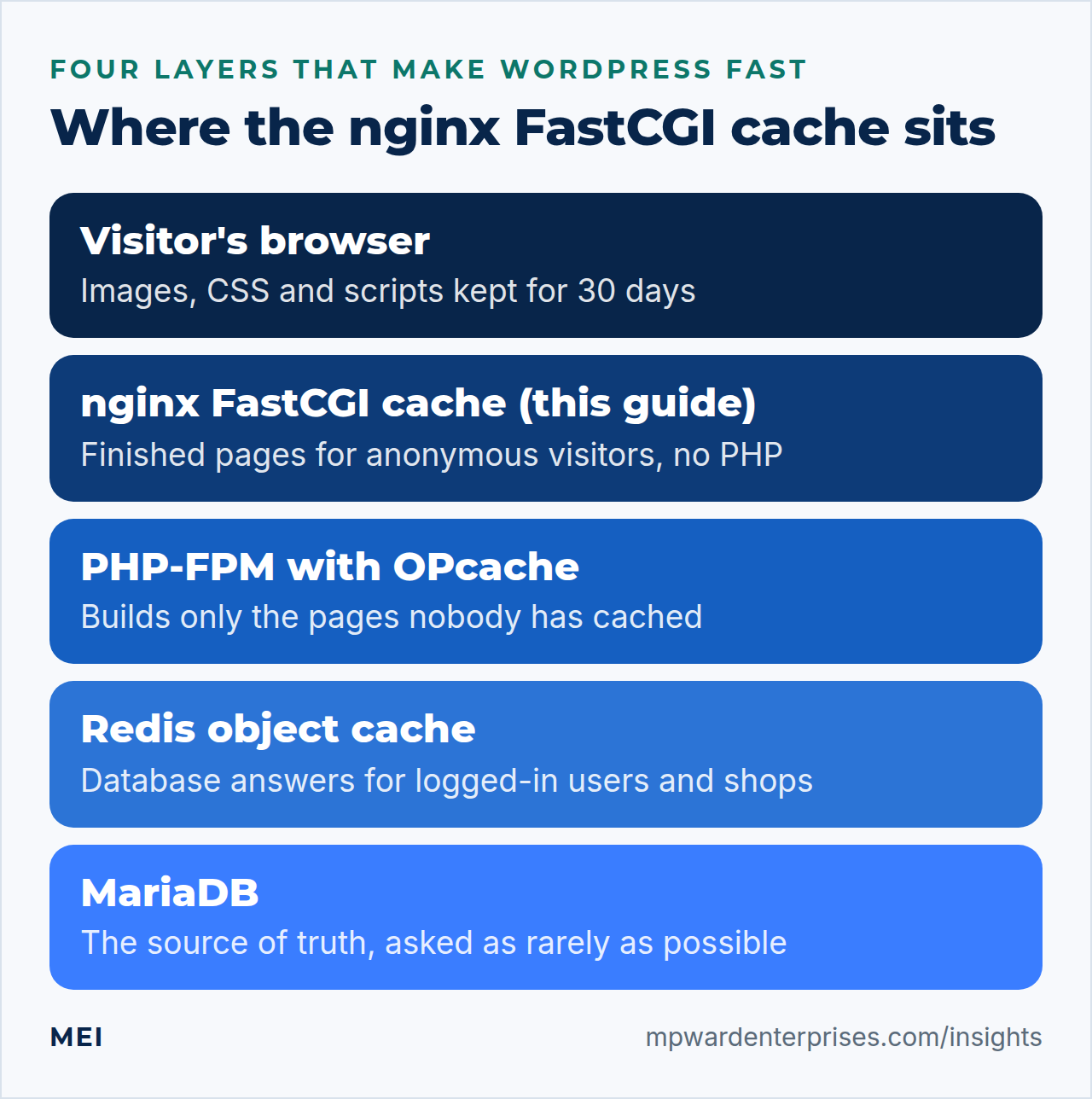
How the cache works, in plain English
Here is how this page cache works. When a request arrives, nginx builds a key from the scheme, method, host and address, for example httpGETexample.com/about/, and hashes it with MD5 into a file name. If a fresh file exists, nginx sends it and PHP never hears about it. If not, nginx asks PHP-FPM, sends the answer to the visitor and stores a copy. The X-Cache-Status header tells you which happened:
| X-Cache-Status | What it means |
|---|---|
MISS |
No usable copy. PHP built the page and nginx stored it for next time |
HIT |
Served from a stored copy. PHP and the database did nothing |
BYPASS |
One of your rules said not to use the cache for this request |
EXPIRED |
The copy was older than its lifetime, so nginx fetched a fresh one |
STALE |
An expired copy was served on purpose, because PHP failed or was busy refreshing |
UPDATING |
An expired copy was served while another request refreshes it |
nginx's documentation lists these values for $upstream_cache_status.
Two safety nets exist before any rule of ours. nginx will not store a response that sets a cookie, and it honors a Cache-Control header that says not to store it. WordPress sends such a header, no-cache, must-revalidate, max-age=0, no-store, private, on pages for logged-in users, on 404 pages and on password-protected posts, according to the source of its WP::send_headers() function. We saw them in the lab. Step 5 shows why they are not enough on their own.
Step 1: Measure before you change anything
A page cache is only worth the trouble if it helps, so take two measurements first: the time until the first byte arrives (TTFB) for your home page, and how many requests per second the server answers when ten visitors arrive at once. Run them on the server itself so that network speed does not blur the result. They need ab (ApacheBench), which comes in the apache2-utils package.
sudo apt install apache2-utils
URL=http://example.com/
# TTFB: the median of 20 requests, in milliseconds
for i in $(seq 1 20); do
  curl -s -o /dev/null -w '%{time_starttransfer}\n' "$URL"
done | sort -n | awk '{a[NR]=$1} END {printf "median TTFB: %.1f ms\n", (a[10]+a[11])/2*1000}'
# throughput: 500 requests, 10 at a time
ab -q -n 500 -c 10 "$URL" | grep -E 'Requests per second|Failed requests'
Write the numbers down. In our lab a default WordPress home page took a median 6548 ms, and the server answered 5697 requests per second with no failures. Repeated runs on a shared machine can vary by 10 to 20 percent, so compare orders of magnitude, not decimals. That is the cost of building a page: PHP, the theme and the database, for every single visit.
Why this way?
Median time to first byte measures the part the server controls, and it ignores the visitor's network. Requests per second shows the ceiling when many people arrive together. Measuring both before and after keeps you honest, and our slow-site guide explains why a fast first byte is only the start of a fast page.
Step 2: Create the cache folder and the cache zone
The nginx FastCGI cache keeps cached pages in a folder of your choice and an index of them in shared memory, called a zone. Both are declared once, outside any server block. First look at where nginx keeps its own temporary folders, because the cache must never share a folder with them:
nginx -V 2>&1 | tr ' ' '\n' | grep temp-pathOn Ubuntu's package they are under /var/lib/nginx, such as --http-client-body-temp-path=/var/lib/nginx/body. Some other builds keep them under /var/cache/nginx, which is also the usual place for a cache, so check yours. Our cache gets a folder of its own below /var/cache/nginx. nginx creates the last folder itself but not its parent, so create the parent first. Then run sudoedit /etc/nginx/conf.d/wp-cache.conf and add:
sudo mkdir -p /var/cache/nginx# /etc/nginx/conf.d/wp-cache.conf
fastcgi_cache_path /var/cache/nginx/wpcache levels=1:2 keys_zone=WPCACHE:10m
inactive=60m max_size=1g use_temp_path=off;
fastcgi_cache_key "$scheme$request_method$host$request_uri";| Setting | What it does |
|---|---|
/var/cache/nginx/wpcache |
The cache folder. Every purge command in step 7 is limited to this folder |
levels=1:2 |
Spreads files over two levels of subfolders named from the file name, so no folder holds thousands of files |
keys_zone=WPCACHE:10m |
The index in shared memory. nginx's documentation says one megabyte holds about 8,000 keys, so 10 MB is about 80,000 pages |
inactive=60m |
Delete a copy nobody has asked for in an hour, whatever its age. The default is 10 minutes |
max_size=1g |
A ceiling on disk use. nginx's cache manager removes the least recently used copies above it |
use_temp_path=off |
Write new copies straight into the cache folder, with no second temporary folder |
fastcgi_cache_key |
What makes two requests "the same page". It has no default, and the host belongs in it so that sites can share a zone |
Test the configuration. nginx -t creates the folder for you:
sudo nginx -t && ls -ld /var/cache/nginx/wpcacheYou should see drwx------ 2 www-data root: owned by the web server's account, closed to everyone else. How big should the cache be? In our lab seven WordPress pages averaged about 70 KB each (the home page is 7883 KB before compression), so 1 GB holds roughly 15,000 pages and the 80,000-key index is never the limit. Measure your own average later with step 8 and adjust max_size.
Watch out: the parent folder must exist
With only /var/cache/nginx/wpcache in the file and no /var/cache/nginx on the disk, nginx -t failed with mkdir() "/var/cache/nginx/wpcache" failed (2: No such file or directory). Ubuntu's package does not create /var/cache/nginx, so the mkdir -p above is not optional.
Why this way?
A folder of its own is the safety measure the rest of this guide depends on. When the cache lives alone, "empty the cache" can mean "delete files in this one folder" and nothing else. Step 7 shows what goes wrong when the cache shares a folder with anything that matters.
Step 3: Write the rules for what must never be cached
A page cache is safe when it stores only pages that look the same to everyone. Four things make a request unsafe: its method, a query string, its address and its cookies. We express each as a small map that answers 1 (unsafe) or 0 (fine), then combine the answers into one verdict. Run sudoedit /etc/nginx/conf.d/wp-cache-rules.conf:
# /etc/nginx/conf.d/wp-cache-rules.conf
# Each map answers "is this request unsafe to cache?" with 1 (yes) or 0 (no)
map $request_method $skip_method {
    default 1;
    GET     0;
    HEAD    0;
}

map $query_string $skip_query {
    default 1;
    ""      0;
}

map $request_uri $skip_uri {
    default 0;
    ~*^/wp-admin(/|$)                      1;
    ~*^/wp-login\.php                      1;
    ~*^/xmlrpc\.php                        1;
    ~*^/wp-cron\.php                       1;
    ~*^/wp-json/                           1;
    ~*^/(cart|checkout|my-account)(/|$)    1;
}

map $http_cookie $skip_cookie {
    default 0;
    ~*wordpress_logged_in_                 1;
    ~*wp-postpass_                         1;
    ~*comment_author_                      1;
    ~*woocommerce_items_in_cart            1;
    ~*woocommerce_cart_hash                1;
    ~*wp_woocommerce_session_              1;
}

# one verdict: cache only when all four answers are 0
map "$skip_method$skip_query$skip_uri$skip_cookie" $skip_cache {
    default 1;
    "0000"  0;
}| Rule | Why it is there |
|---|---|
Only GET and HEAD |
A POST submits a form, a comment or a payment. It must always reach PHP. nginx's default also stores only these two methods |
| Any query string | Search results, previews, ?add-to-cart= links and tracking tags all use one. Each distinct string would be a new cache entry, and anyone can invent a million |
/wp-admin, wp-login.php, xmlrpc.php, wp-cron.php, /wp-json/ |
Back-end, login and API addresses are personal or dynamic |
/cart, /checkout, /my-account |
WooCommerce's three pages that show one customer's data. Rename them here if you renamed the pages |
wordpress_logged_in_ |
The login cookie. Staff and members must always see their own page |
comment_author_, wp-postpass_ |
A visitor who has just commented sees their own pending comment, and a visitor who unlocked a password-protected post sees it |
woocommerce_items_in_cart, woocommerce_cart_hash, wp_woocommerce_session_ |
WooCommerce's cart cookies. Its documentation names these cookies and tells you to keep the cart, checkout and account pages dynamic |
The rules use only what nginx already knows about the request, and they are cheap. A request is cached only when every answer is 0, and any unexpected combination falls into default 1, which means "do not cache". That is deliberate: when in doubt, skip the cache.
Why this way?
Many guides chain if statements inside the server block. A map keeps the whole decision in one declarative file, away from the site configuration, so a site edit cannot break the rules. Splitting the verdict into four named answers also makes each rule testable on its own, as step 5 does.
Watch out: campaign links never hit the cache
Because any query string bypasses the cache, a link ending in ?utm_source=newsletter or ?fbclid=... is built by PHP every time. For most sites that is the right trade, since the alternative is a cache that anyone can fill with junk. Stripping tracking tags from the key is possible but easy to get wrong, so we do not cover it here.
Step 4: Switch the cache on and prove it with X-Cache-Status
Now connect the zone and the rules to the site, and the nginx FastCGI cache starts working. Open your site file, usually /etc/nginx/sites-available/example.com.conf. Add one line to the server block, below client_max_body_size:
# in the server block, below client_max_body_size
    add_header X-Cache-Status $upstream_cache_status always;
Then add the cache lines to the existing location ~ \.php$ block, below fastcgi_read_timeout. Leave your include and fastcgi_pass lines as they are.
# in location ~ \.php$, below fastcgi_read_timeout
        fastcgi_cache WPCACHE;
        fastcgi_cache_valid 200 301 302 10m;
        fastcgi_cache_bypass $skip_cache;
        fastcgi_no_cache $skip_cache;
        fastcgi_cache_lock on;
        fastcgi_cache_use_stale error timeout updating http_500 http_503;
        fastcgi_cache_background_update on;
The first line turns the cache on with the zone from step 2. fastcgi_cache_valid keeps good answers and redirects for ten minutes. fastcgi_cache_bypass and fastcgi_no_cache apply the verdict from step 3: one decides whether to look in the cache, the other whether to store the answer. Step 6 explains the last three lines. Reload and ask for the home page three times:
sudo nginx -t && sudo systemctl reload nginx
sleep 1
for i in 1 2 3; do curl -s -o /dev/null -D - http://example.com/ | grep -i x-cache-status; done
The sleep matters: a reload returns at once, the new nginx workers start a moment later, and a request sent in the same instant can still be answered by the old ones. Without it, our first two requests printed no header at allin four of five trials all three requests printed no header at all.
The output should be X-Cache-Status: MISS once and then HIT twice. Look at what is on disk: sudo find /var/cache/nginx/wpcache -type f lists one file, named after the MD5 of the key. If the second request is also a MISS, jump to the troubleshooting table.
Watch out: put the header at the server level, not in the PHP location
We first put add_header X-Cache-Status inside the PHP location. It worked, but a security header added at the server level, X-Content-Type-Options, vanished from the same responses. nginx's documentation explains why: add_header directives are inherited only if the current level defines none of its own. Keep every add_header at the server level, as above, and our security headers guide will keep working.
Why this way?
Ten minutes is a deliberate middle path for a page cache. It makes the cache self-healing, because while PHP is healthy every page is rebuilt at least that often, and it needs no purge machinery. A shorter lifetime means fresher pages and more PHP work, and a longer one the opposite. The header costs nothing and answers "is it working?" for anyone with curl, and it is what WordPress's Site Health screen looks for, as step 8 shows.
Step 5: Prove the safety rules, one by one
A rule you have not tested is a rule you hope works. This block sends one request of each kind and prints the header. Run it on the server:
H=http://example.com
cache() { curl -s -o /dev/null -D - "$@" | tr -d '\r' | grep -i '^x-cache-status' || echo 'X-Cache-Status: (none)'; }
echo "--- anonymous home page, twice";   cache $H/; cache $H/
echo "--- query string";                 cache "$H/?utm_source=test"
echo "--- login page";                   cache $H/wp-login.php
echo "--- admin area";                   cache $H/wp-admin/
echo "--- REST API";                     cache $H/wp-json/
echo "--- comment author cookie";       cache -H 'Cookie: comment_author_test=Alex' $H/
echo "--- password-protected cookie";   cache -H 'Cookie: wp-postpass_test=1' $H/
echo "--- unrelated cookie";            cache -H 'Cookie: wp-settings-1=x' $H/
echo "--- POST request";                cache -X POST -d a=1 $H/
Expect HIT twice for the home page, which step 4 already cached, then BYPASS for the next five, HIT for the unrelated cookie (only the cookies you listed matter) and (none) for the POST. nginx never consults the cache for a POST, so it never sets the variable and the header is not sent. Now the one that matters most, a real logged-in user. WP-CLI can make a valid login cookie for user 1 without a password on any command line:
COOKIE=$(wps eval '$t = WP_Session_Tokens::get_instance(1)->create(time() + 3600); echo LOGGED_IN_COOKIE, "=", wp_generate_auth_cookie(1, time() + 3600, "logged_in", $t);')
curl -s -o /dev/null -D - -H "Cookie: $COOKIE" http://example.com/ | grep -i x-cache-status
curl -s -H "Cookie: $COOKIE" http://example.com/ | grep -c wpadminbar
curl -s http://example.com/ | grep -c wpadminbar
wps user session destroy 1 --all
The logged-in request should say BYPASS, the first count should be above zero (the admin bar is there) and the second should be 0 (the anonymous page has none). The last command ends the test session. For a shop, test the cart the same way. Use a real product ID in place of 42:
curl -s -o /dev/null -D - -c /tmp/cart.jar "http://example.com/?add-to-cart=42" | grep -i '^set-cookie' | cut -d= -f1
curl -s -o /dev/null -D - -b /tmp/cart.jar http://example.com/shop/ | grep -i x-cache-status
In our lab the first command listed woocommerce_items_in_cart, woocommerce_cart_hash and wp_woocommerce_session_ cookies, and the shop page with those cookies said BYPASS, while the anonymous shop and product pages were MISS then HIT. WooCommerce also marked /cart/, /checkout/ and /my-account/ as no-cache itself. Our rules do not rely on that.
Watch out: without the rules, the page cache serves the wrong page
We removed the bypass lines and tried again. An anonymous request filled the cache, and a logged-in visitor then received that cached page: HIT, no admin bar. WordPress's no-cache headers protected only one direction. A logged-in page was never stored, and wp-login.php and the admin were not stored either, but the cache happily served stored anonymous pages to logged-in users. Query strings were cached as separate pages too. The headers are a net, not a plan.
Why this way?
Testing each rule with a request that triggers only that rule tells you which line to fix when something fails. It also leaves you with a script you can run again after every plugin or theme change.
Step 6: Protect against stampedes and outages
Three lines of the nginx FastCGI cache configuration from step 4 do quiet but valuable work. fastcgi_cache_lock on; makes simultaneous requests for an uncached page wait for the first one, instead of all starting PHP. Test it with twenty requests at once for a page that is not cached yet:
sudo find /var/cache/nginx/wpcache -type f -delete
seq 1 20 | xargs -P 20 -I{} curl -s -o /dev/null -D - http://example.com/post-3/ \
  | tr -d '\r' | awk 'tolower($1)=="x-cache-status:" {n[$2]++} END {for (s in n) print s, n[s]}'
We got MISS 1 and HIT 19: PHP ran once. With the lock line commented out, the same test gave MISS 20, so PHP ran twenty times. That is a cache stampede, and on a busy page after a purge it is how a cache turns into an outage. The lock waits up to five seconds by default (fastcgi_cache_lock_timeout) before letting a request through.
fastcgi_cache_use_stale and fastcgi_cache_background_update keep the site answering when PHP is slow or down. Both depend on an expired copy still being on disk, which is why inactive is longer than the page lifetime. We tested both with the lifetime shortened to three seconds on a lab copy:
| Situation | Result |
|---|---|
Expired page, PHP-FPM stopped, use_stale error timeout ... |
200 with STALE: the visitor still gets a page |
The same, with the use_stale line removed |
502 Bad Gateway |
| A page that was never cached, PHP-FPM stopped | 502 either way. There is nothing to serve |
| Expired page, PHP taking two seconds, four requests in a row | The first got STALE in 0.2 seconds, the other three UPDATING in 0.01 seconds or less, and the next request was a HIT with the new copy |
So a PHP restart, a short database outage or one slow plugin no longer shows visitors an error for pages that were cached before. Do not test the stopped-PHP rows on a live server. Use a staging copy, or trust the lab.
Why this way?
The lock protects PHP from you, and the stale settings protect visitors from PHP. http_500 http_503 extends the protection to PHP errors, not only dead sockets. We left http_404 and http_403 out of the list on purpose, so a page that really disappeared is not served from memory for ever. Background update means the visitor who triggers a refresh does not wait for it either.
Step 7: Clear the nginx FastCGI cache safely
Pages stay for ten minutes, so many sites never purge by hand. When you change a theme, a menu or a plugin setting and want the result now, delete the files, and only the files, inside the cache folder:
sudo find /var/cache/nginx/wpcache -type f -deletenginx needs no reload: the next request for each page is a MISS. To purge one page, compute the file name yourself. The key from step 2 is scheme + method + host + address, and the file is named after its MD5. With levels=1:2 it sits in subfolders named from the last character and the two before it:
KEY='httpGETexample.com/post-1/'
sudo find /var/cache/nginx/wpcache -type f -name "$(printf '%s' "$KEY" | md5sum | cut -d' ' -f1)" -delete
In our lab httpGETexample.com/post-1/ became 4b21ec8dac7bd62e4dabc6266d09e058, stored at 8/05/4b21..., and after the command that page was a MISS while the others stayed HIT. For an HTTPS site the key starts with https. Purging automatically on every publish usually means a third-party purge module with a helper plugin, or a small script of your own. We tested neither, and ten minutes is usually enough.
Watch out: deleting the wrong folder breaks the site
We reproduced two ways of getting this wrong. Removing the cache folder itself while nginx ran made every page that needed caching fail with an empty reply (curl: (52)), and the error log said mkdir() "/var/cache/nginx/wpcache/2" failed (2: No such file or directory). A reload recreated the folder. Removing nginx's own temporary upload folder, /var/lib/nginx/body on Ubuntu, made large POST requests fail with 500 and open() ... failed (2: No such file or directory), while small ones worked.
On servers whose temporary folders sit under /var/cache/nginx, wiping that whole tree does the same. Delete files inside the cache folder, never the folder, and never its parent.
Why this way?
find ... -type f -delete cannot remove a directory, so it cannot break the layout nginx expects. The same command works from a script, from a deployment hook and from a half-awake terminal at midnight. A lifetime of minutes plus a file-level purge is also easy to explain to the next administrator.
Step 8: Measure again and keep watching
Repeat the measurements from step 1 with the warm cache, using the same two commands, and compare. These are our lab results, which are illustrative:
| Measure (lab, illustrative) | Before | After |
|---|---|---|
| Median time to first byte, home page | 65 ms48 ms | 0.6 ms |
| Requests per second, 10 at a time | 5697 | 12,96512,380 |
| Simultaneous requests for an uncached page that ran PHP | 20 (lock off) | 1 (lock on) |
| Median time to first byte for a logged-in visitor | 65 ms48 ms | 64 ms48 ms (bypass) |
The jump is huge because the lab is a container on a fast eight-core machine and the test never leaves it: a production server adds network time, and real traffic mixes cached and uncached pages. The last row is the honest part. A page cache never serves logged-in users, carts or checkouts, which is what an object cache is for.
The WordPress Site Health screen (Tools, Site Health) reported "Page cache is detected" with the cache on and "not detected" when we bypassed everything, because it recognizes the X-Cache-Status header.
To watch the hit ratio, log the X-Cache-Status value. Add a log format in a new file, /etc/nginx/conf.d/wp-cache-log.conf, then change the site's access_log line to use it:
# /etc/nginx/conf.d/wp-cache-log.conf
log_format cached '$remote_addr [$time_local] "$request" $status $body_bytes_sent $upstream_cache_status';
# in the server block, replace the access_log line
access_log /var/log/nginx/example.com.access.log cached;sudo nginx -t && sudo systemctl reload nginx
awk '$NF ~ /^(HIT|MISS|BYPASS|EXPIRED|STALE|UPDATING|-)$/ {print $NF}' /var/log/nginx/example.com.access.log | sort | uniq -c | sort -rnThe last command counts the status at the end of each line and ignores older lines in the previous format. A healthy public site shows mostly HIT, then MISS, and the BYPASS entries are your logged-in users, shop traffic and tagged links. A - means the request never reached the cache, such as a static file.
Why this way?
A number you can read in one command beats a feeling that the site seems quicker. If the hit ratio is low on a site with mostly public pages, the status counts and the troubleshooting table below point at the reason within minutes.
Check your work
- The
X-Cache-Statusheader showsMISSonce andHITafterwards for the anonymous home page, and a file named after the MD5 of its key sits in the cache folder. - Every test in step 5 gives the expected header, including
BYPASSfor the login cookie, and the logged-in page still has the admin bar. - Twenty simultaneous requests for an uncached page produce one
MISS. - The cache folder is its own folder, owned by
www-data, and your purge command names it explicitly. - The median time to first byte for a public page is now a small fraction of the number you wrote down in step 1.
Troubleshooting: what the symptoms mean
| What you see | Likely cause | What to do |
|---|---|---|
X-Cache-Status is always MISS, never HIT, for a public page |
The response sets a cookie or sends Cache-Control: no-cache or private, often a plugin that starts a session |
Run curl -sI and read the headers. Find the plugin. Avoid fastcgi_ignore_headers, which can store and share personal pages |
X-Cache-Status is always BYPASS for anonymous visitors |
A rule matches: a query string on every link, or a cookie your site sets for everyone | Test the four conditions separately, as in step 5 |
No X-Cache-Status header at all |
A POST, a static file, a different server block, or an add_header in the same location that cancels inherited ones |
Check which block answers, and keep add_header at the server level |
| Staff see a page without the admin bar, or old content | The login cookie rule is missing or misspelled | Repeat the logged-in test of step 5 |
| A visitor sees someone else's cart or account | A personal page was cached: its address or cookie is not in the rules | Purge everything at once (step 7), add the rule, and retest |
| Edits take up to ten minutes to appear | The page lifetime | Purge the page or the whole folder, or shorten fastcgi_cache_valid |
nginx -t says mkdir() ... failed (2: No such file or directory) |
The parent folder does not exist | sudo mkdir -p /var/cache/nginx |
| Empty replies on cacheable pages after someone "cleaned up" | The cache folder was deleted while nginx ran | sudo nginx -t && sudo systemctl reload nginx recreates it |
| 500 errors on large uploads after a cleanup | nginx's temporary folder was deleted | Find it with nginx -V, recreate it with the same owner and mode (owner www-data, mode 700 on Ubuntu) and retest |
Common mistakes
- Switching the cache on before the rules exist, or never testing the rules.
- Caching pages that carry a query string, a cart cookie or a login cookie.
- Running a page cache plugin and the nginx FastCGI cache at the same time.
- Emptying the cache with
rm -rfon the folder or on its parent. - Putting the cache in the same folder as nginx's temporary files.
- Adding
add_headerlines inside the PHP location and losing security headers. - Using
fastcgi_ignore_headers Set-Cookieto "fix" a cache that never showsHIT. - Expecting a page cache to speed up logged-in users, carts or the admin.
Keep it healthy
After a theme, plugin or menu change, purge the page cache and repeat the step 5 tests, because a new plugin can add a cookie or a header that changes the picture. Once a month, run the status count from step 8, check disk use with sudo du -sh /var/cache/nginx/wpcache, and look for [crit] lines in the nginx error log. If you rename the cart, checkout or account pages, update the rules.
Our rate limiting guide covers the abuse that bypassed requests can still bring, and the maintenance checklist lists the other recurring jobs.
Getting help
If you would rather have someone tune an nginx FastCGI cache for your site, MEI's WordPress Engineering and Plugin Development service covers performance, security hardening and migrations, and starts at $1,200, with fixed scope or hourly work. The Infrastructure and Private Cloud service covers server provisioning, performance tuning and monitoring, and starts at $2,500, scoped by systems and scale. We focus on the highest-impact, most likely risks, and we do not promise perfect security.
Frequently asked questions
What is the nginx FastCGI cache?
A built-in nginx page cache. It stores the responses PHP-FPM produces as files on disk and serves them again without calling PHP. For WordPress it means anonymous visitors get finished pages straight from nginx, while logged-in users, carts and form submissions still reach PHP.
Is the nginx FastCGI cache safe for logged-in users and WooCommerce?
Yes, if you bypass the cache for them. Skip POST requests, any query string, the admin, login and REST addresses, the cart, checkout and account pages, and the login, comment and cart cookies. Then test each rule. Without the cookie rule, our lab served a cached anonymous page to a logged-in user.
How do I clear the nginx FastCGI cache?
Delete the files inside the cache folder with find /var/cache/nginx/wpcache -type f -delete. Never delete the folder itself or its parent, because nginx expects the folder and may keep its temporary upload folders nearby. A single page can be purged by deleting the file named after the MD5 of its cache key.
How long should fastcgi_cache_valid be for WordPress?
Ten minutes is a sensible start. While PHP is healthy, every page is rebuilt at least that often, so no purge machinery is needed. Shorter lifetimes give fresher pages and more PHP work, and longer ones the opposite. Keep inactive longer than the lifetime so stale copies exist when PHP fails.
What is the difference between the FastCGI cache and a Redis object cache?
The FastCGI cache is a page cache: it stores whole finished pages for anonymous visitors and skips PHP. A Redis object cache stores database answers that PHP still needs while it builds a page, so it also helps logged-in users and shops. They are different layers and work well together.
Why is X-Cache-Status always MISS or BYPASS?
Always MISS usually means the response sets a cookie or sends Cache-Control no-cache or private, often from a plugin that starts a session. Always BYPASS means one of your rules matches every request, such as a cookie your site sets for everyone. Test each rule separately.
Sources and further reading
- nginx documentation: ngx_http_fastcgi_module — fastcgi_cache_path (levels, keys_zone, inactive, max_size, use_temp_path), fastcgi_cache_valid and header priority, bypass, no_cache, lock, use_stale, background_update
- nginx documentation: ngx_http_upstream_module — the $upstream_cache_status values: MISS, BYPASS, EXPIRED, STALE, UPDATING, REVALIDATED, HIT
- nginx documentation: ngx_http_headers_module — add_header inheritance rule and the always parameter
- WordPress Developer Reference: WP::send_headers() — no-cache headers for logged-in users, 404 responses and password-protected posts
- WordPress Developer Reference: wp_get_nocache_headers() — the Expires and Cache-Control values WordPress sends to prevent caching
- WooCommerce developer docs: Configuring caching plugins — keep the cart, checkout and account pages dynamic; cart cookies; add-to-cart query strings
- WooCommerce documentation: WooCommerce cookies — woocommerce_items_in_cart, woocommerce_cart_hash and wp_woocommerce_session_ and what each does
- Ubuntu 26.04 LTS release notes: summary for LTS users — sudo-rs is the default sudo and rust-coreutils provides the core utilities, with cp, mv and rm still from GNU