Running multiple WordPress sites on one server is safe only when each site gets its own lock: its own Linux user, PHP-FPM pool, database login and nginx server block, so a hacked plugin in one site cannot read the others. This guide builds that on Ubuntu 24.04 LTS or 26.04 LTS (pick yours with the switch below) in nine steps, explains why each piece is there, and ends with three tests that prove the walls hold. Plan on about two hours and basic comfort with the command line.
Every command was run twice in disposable labs, once on Ubuntu 24.04 LTS (nginx 1.24, PHP 8.3, MariaDB 10.11) and once on Ubuntu 26.04 LTS (nginx 1.28, PHP 8.5, MariaDB 11.8), with WordPress 7.1 on both. Every number is a measurement from one of them, and where the two releases differ the page shows only the one you picked. The labs cannot issue real certificates, so TLS is left to the Certbot guide.
What can go wrong: a wrong folder mode can lock a site out of its own files, and a careless PHP reload drops requests that are running. We say where, and how to check.
Choose your Ubuntu version
This guide covers both releases. Commands, file paths and version numbers change with your choice; everything else is the same.
JavaScript is off, so both versions are shown below and each block says which release it is for.
Before you start: what you need and your safety net
This guide builds on our WordPress on nginx guide, on a server hardened as in Harden Ubuntu Server. You need an admin account with sudo and a domain name for each site. We use example.com and example.net for the sites, siteone and sitetwo for their accounts, and alex for the administrator.
- Snapshot or back up first. A mistake in the PHP-FPM files can stop every site. See the 3-2-1 backup rule.
- Keep a second SSH session open while you reload nginx and PHP-FPM.
- Start with a new site, not a live one. Moving an existing site in is a migration: build the new home first, copy the site across, switch DNS last.
On Ubuntu 26.04, sudo is sudo-rs, a Rust rewrite, and the everyday tools used below (ls, chmod, install, tee, stat, cat and others) are the Rust versions from the uutils project, with cp, mv and rm still GNU. We ran every command as the admin user alex. They behaved as they do on 24.04, with one difference that affects file modes and is explained in Step 7.
Multiple WordPress sites on one server: why this way and not the other ways
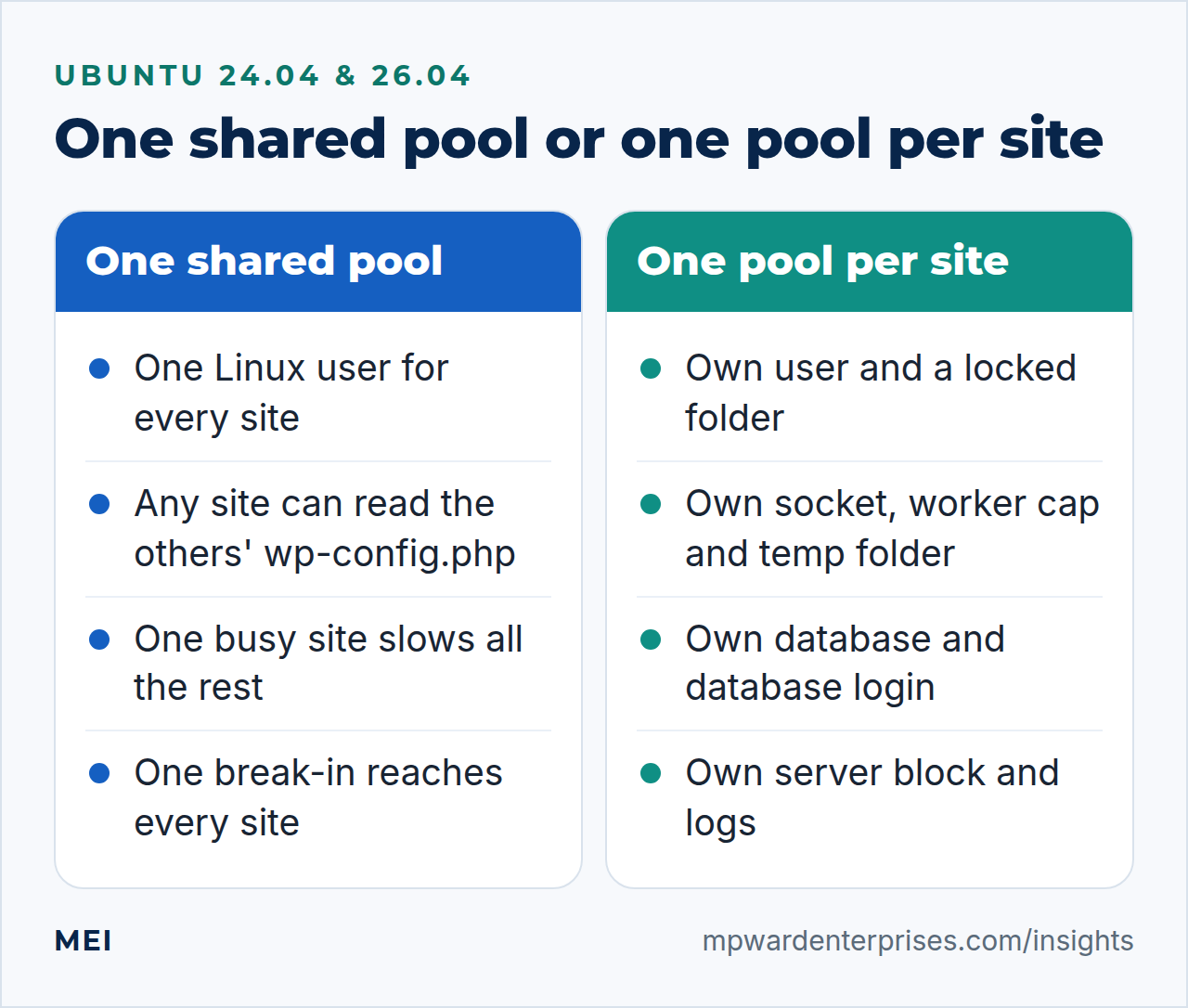
Picture the server as an apartment building. On a default setup every site lives in one flat with one key: one Linux account, one PHP pool, files owned by the same user. A burglar who gets in through one window is already in every other site's rooms. We build a building where each flat has its own lock, and only the walls and plumbing are shared.
We tested the default first. In our lab two WordPress sites shared the stock PHP pool. A harmless probe in the first site, standing in for a hacked plugin, read the second site's wp-config.php, took its database name, user and password, logged in, and counted the rows in its user table. WordPress's own hardening guide warns that on a shared server a compromised neighbor can compromise you.
There was a quieter problem too. With five shared workers and eight slow requests aimed at the first site, a normal page of the second took 5.7 secondsabout 4 seconds instead of under a tenth. Separate pools fix both. Here is where else people look.
| Option | In plain English | Our verdict |
|---|---|---|
| One shared pool and account (the default) | One flat, one key | Fine for one site, weakest for several: in our lab one site logged in to another's database |
Shared pool, open_basedir set per site in nginx |
Curtains in the same flat | Do not: in our lab the setting stuck to the worker and broke the next site it served |
| A user, pool, database and server block per site (this guide) | A building with a lock on every flat | Our default for a handful to a few dozen sites you or your clients control |
| One PHP-FPM service per site | The same building plus a private basement per flat | For the few sites that matter most: own cache, own temp folder, a memory ceiling |
| WordPress Multisite | One flat with many rooms and one landlord | A different tool: sites share one installation, plugins and themes. Not a wall between unrelated owners |
| Containers, one per site | Prefabricated units on one foundation | A strong boundary with more images to patch. The kernel is still shared |
| A virtual machine per site | Separate houses on one plot | The strongest practical boundary short of hardware, plus one more system to patch per site |
| Separate small servers | Separate plots | For high-value or regulated sites, or owners who do not trust each other |
| Managed WordPress hosting | Renting from a landlord who handles the locks | Often best if nobody wants to own a server. Less control, higher price |
Step 1: Plan the names and the layout
Choose one short name per site, three to sixteen lowercase letters or digits, and use it for the Linux account, the PHP pool, the database and its login. Then every command needs only three values, set once. Keep this terminal open for the steps that follow.
DOMAIN=example.com
SITE=siteone
ROOT=/var/www/$DOMAIN

render() {   # fill in a template: @DOMAIN@, @SITE@, @ROOT@ and @PW@ are replaced
  local t; t=$(<"$1")
  t=${t//@DOMAIN@/$DOMAIN}; t=${t//@SITE@/$SITE}; t=${t//@ROOT@/$ROOT}; t=${t//@PW@/$PW}
  printf '%s\n' "$t"
}
The render function fills a template: it swaps four placeholders for your values and prints the result, so each long configuration file appears once and serves every site. Each site gets these pieces.
| Piece | Value for example.com |
|---|---|
| Linux account and group | siteone, with no login shell and no password |
| Site folder (the account's home) | /var/www/example.com |
| Web root, the only part nginx serves | /var/www/example.com/public |
| wp-config.php, one level above the web root | /var/www/example.com/wp-config.php |
| PHP-FPM pool and socket | siteone, /run/php/php8.38.5-fpm-siteone.sock |
| Database and login | siteone and siteone@localhost |
| Server block and logs | /etc/nginx/sites-available/example.com.conf, logs in /var/log, outside the site folder |
Watch out: no underscores in database names
In a MariaDB GRANT, an underscore in a database name is a wildcard for any single character, and MariaDB's documentation confirms that database names there can contain wildcards. In our lab a login granted site_one.* could also read a database called siteXone. Escaping it (site\_one) closed the hole. Letters and digits only, as in the naming rule, avoid it.
Step 2: Prepare the server once
These settings apply to every site, so you make them once, before the first site. Each closes a gap we hit in the lab. The block writes four small files, makes two folders, and ends with a test-then-reload pair.
# an unknown host name must never fall through to a real site
sudo tee /etc/nginx/conf.d/00-default.conf >/dev/null <<'EOF'
server {
    listen 80 default_server;
    listen [::]:80 default_server;
    server_name _;
    return 444;
}
server {
    listen 443 ssl default_server;
    listen [::]:443 ssl default_server;
    ssl_reject_handshake on;
}
EOF
sudo rm -f /etc/nginx/sites-enabled/default

# PHP settings that every pool shares
sudo tee /etc/php/8.38.5/fpm/conf.d/90-sites.ini >/dev/null <<'EOF'
opcache.validate_permission = 1
opcache.restrict_api = /usr/share/php/opcache-admin/
opcache.memory_consumption = 256
opcache.max_accelerated_files = 20000
EOF

# let "reload" finish the requests that are running
sudo tee /etc/php/8.38.5/fpm/pool.d/00-global.conf >/dev/null <<'EOF'
[global]
process_control_timeout = 20s
EOF

# per-site PHP logs: a folder the site users can pass through, and rotation
sudo install -d -m 711 /var/log/php-fpm
sudo tee /etc/logrotate.d/php-fpm-sites >/dev/null <<'EOF'
/var/log/php-fpm/*.log {
    weekly
    rotate 8
    missingok
    notifempty
    compress
    delaycompress
    create
}
EOF

# a home for the per-site templates used below
sudo install -d /usr/local/share/wp-sites

sudo nginx -t && sudo systemctl reload nginx
sudo php-fpm8.38.5 -t && sudo systemctl reload php8.38.5-fpm| Setting | What it does, and what we saw |
|---|---|
| Catch-all server block | nginx gives an unknown host name to the first site it read; in our lab that returned the first site's page. Now the connection is closed (code 444) and TLS clients get an "unrecognized name" alert |
opcache.validate_permission |
Makes the shared PHP cache check who is asking. See the warning below |
opcache.restrict_api |
Limits the OPcache functions to a path no site owns. Without it, one probe listed 494496 scripts of other sites and flushed the cache for everyone |
opcache.memory_consumption, max_accelerated_files |
One cache serves all sites, and PHP's defaults are 128 MB and 10,000 files. After browsing a WooCommerce site and a stock site, ours held 2,060 scripts in 80 MB2,230 scripts in 88 MB. Stock WordPress has about 1,500 PHP files, with WooCommerce about 5,200. Count yours: find /var/www -name '*.php' | wc -l |
process_control_timeout |
Makes reload wait for running requests. At its default of 0, a reload cut off a five-second request and nginx returned a 502 ("recv() failed (104: Connection reset by peer)"). With 20 seconds it finished. (If you test this yourself, make the slow script keep the CPU busy rather than calling sleep(): the reload signal cuts a sleep short and fakes a pass.) FPM reads every file in pool.d as part of its main configuration, so a [global] section works there; sudo php-fpm8.38.5 -tt prints the effective value |
/var/log/php-fpm and its rotation |
Mode 711 lets each account reach its own log without listing the others. Ubuntu's stock rule already rotates /var/log/nginx/*.log, our per-site files included. Plain create keeps each PHP log's owner |
Where the OPcache settings live on 26.04
PHP 8.5 has OPcache built in, as its migration guide explains, so there is no php8.5-opcache package and no opcache.ini file to edit. Any file in /etc/php/8.5/fpm/conf.d/ is still read at start-up, which is why the 90-sites.ini file above works: after a restart, php-fpm8.5 -i showed opcache.validate_permission as On. A leftover zend_extension=opcache line from an older setup now only produces a warning. The PHP defaults are unchanged: 128 MB of memory, 10,000 files and validate_permission off.
Watch out: PHP's shared cache ignores your walls by default
All pools of one PHP-FPM service share one OPcache. With the default opcache.validate_permission = 0, a script that site A recently ran can be included by site B straight from the cache, though B cannot read the file. In our lab a probe in site B ran site A's cached wp-config.php and learned A's database name, user and password length, though B had its own account, a locked folder and open_basedir. With the setting at 1 it learned nothing.
The PHP manual says the setting validates cached file permissions against the current user.
Step 3: Give the site its own account and a locked folder
This step creates the Linux account and the folders, and decides who may enter. The site folder is the lock; everything else in this guide is a second layer behind it.
| Path | Mode | What it means |
|---|---|---|
| The site folder | 710 | The site account can do anything. nginx, as a group member, may walk through but not list. Everyone else is shut out |
public/ |
750 | The site account writes. nginx reads |
wp-config.php |
600 | The site account only. nginx cannot read it |
tmp/, backups/ |
700 | The site account only |
sudo useradd --system --user-group --home-dir "$ROOT" --no-create-home --shell /usr/sbin/nologin "$SITE"
sudo usermod -aG "$SITE" www-data
sudo install -d -o "$SITE" -g "$SITE" -m 710 "$ROOT"
sudo install -d -o "$SITE" -g "$SITE" -m 750 "$ROOT/public"
sudo install -d -o "$SITE" -g "$SITE" -m 700 "$ROOT/tmp" "$ROOT/backups"
sudo systemctl reload nginx      # nginx workers pick up their new group at reload
sudo ls -la "$ROOT"
id www-data
The first command creates a system account and a same-named group, with no login shell and no password. The second adds the web server's account, www-data, to that group so nginx can read static files. The reload matters: workers learn a new group only when they restart (we checked a worker's groups in /proc before and after). You should see:
total 20
drwx--x--- 5 siteone siteone 4096 Oct  8 22:10 .
drwxr-xr-x 1 root    root    4096 Oct  8 22:10 ..
drwx------ 2 siteone siteone 4096 Oct  8 22:10 backups
drwxr-x--- 2 siteone siteone 4096 Oct  8 22:10 public
drwx------ 2 siteone siteone 4096 Oct  8 22:10 tmp
uid=33(www-data) gid=33(www-data) groups=33(www-data),996(siteone)
A neighbor's account is in neither group and has no "other" rights, so it cannot even list the folder. That also protects files anyone could read: WordPress's updater never creates anything stricter than 644 files and 755 folders, so file modes drift open, yet in our test a neighbor could not read a mode-644 upload.
Watch out: nothing else may run as www-data
The web server's account now has a key to every site folder, so any PHP running as www-data can read them all. The stock "www" pool runs as www-data; Step 5 retires it. Never add a site account to the www-data group either: in our lab such a user opened another site's PHP socket and made that pool run a script as its own user.
Why this way? Groups, not ACLs
POSIX ACLs (setfacl) can also let nginx in, and they are more precise, but they hide behind a plus sign in ls -l. In our lab a plain tar and rsync -a dropped them, so a restored site was unreadable to nginx (cp -a and tar --acls kept them). Groups show in ls -l and survive ordinary backups. Their cost is discipline: a group-writable file is writable by the web server, so Step 7 and the monthly check look for them.
ACLs also have a mask that can widen access after a chmod; the file permissions guide tests it.
Step 4: Give the site its own database and login
Each site gets one database and one login that sees only that database. If a site's code is hijacked, the attacker holds that login and nothing more. The password is generated, and it reaches MariaDB through a here-document, so it never appears on a command line.
PW=$(openssl rand -hex 24)
sudo mariadb <<SQL
CREATE DATABASE \`$SITE\` CHARACTER SET utf8mb4;
CREATE USER '$SITE'@'localhost' IDENTIFIED BY '$PW';
GRANT ALL PRIVILEGES ON \`$SITE\`.* TO '$SITE'@'localhost';
SQL
sudo mariadb -e "SHOW GRANTS FOR '$SITE'@'localhost'"
You should see a grant for all privileges, but only on this one database, for a login that works only from the server itself. MariaDB stores the password as a hash.
Grants for siteone@localhost
GRANT USAGE ON *.* TO `siteone`@`localhost` IDENTIFIED BY PASSWORD '*<hash>'
GRANT ALL PRIVILEGES ON `siteone`.* TO `siteone`@`localhost`
"All privileges" sounds alarming and is not: WordPress must create and alter its own tables during updates. In our lab the login could not read mysql.user, and writing a file to disk with SELECT ... INTO OUTFILE was refused, because file access is a global privilege and this grant covers one database. Because the account is @localhost, it is useless from any other machine, and WordPress reaches the database through the local socket.
Why this way?
The alternative is one shared login for all sites, or the root account in wp-config.php. It is common, and one leaked file then opens every database. A login per site costs one line. For the rest of the database hardening, see our MariaDB secure installation guide.
Step 5: Give the site its own PHP-FPM pool
A pool is a group of PHP workers that all run as one account and listen on one socket. This is the step that makes the site account matter: whatever the site's PHP does, it does as siteone, so the folder modes from Step 3 apply to it. We save the pool as a template and render it for each site.
sudo tee /usr/local/share/wp-sites/pool.tpl >/dev/null <<'EOF'
[@SITE@]
user = @SITE@
group = @SITE@
listen = /run/php/php8.38.5-fpm-@SITE@.sock
listen.owner = www-data
listen.group = www-data
listen.mode = 0660

pm = ondemand
pm.max_children = 8
pm.process_idle_timeout = 20s
pm.max_requests = 500
request_terminate_timeout = 120s

php_admin_value[open_basedir] = @ROOT@/:/usr/share/php/
php_admin_value[sys_temp_dir] = @ROOT@/tmp
php_admin_value[upload_tmp_dir] = @ROOT@/tmp
php_admin_value[session.save_path] = @ROOT@/tmp
php_admin_value[disable_functions] = exec,passthru,shell_exec,system,proc_open,popen
php_admin_value[memory_limit] = 256M
php_admin_value[upload_max_filesize] = 64M
php_admin_value[post_max_size] = 64M
php_admin_value[error_log] = /var/log/php-fpm/@SITE@.log
php_admin_flag[log_errors] = on
php_admin_flag[display_errors] = off
EOF
sudo install -m 640 -o "$SITE" -g "$SITE" /dev/null "/var/log/php-fpm/$SITE.log"
render /usr/local/share/wp-sites/pool.tpl | sudo tee "/etc/php/8.38.5/fpm/pool.d/$SITE.conf" >/dev/null| Setting | What it does |
|---|---|
user, group |
Runs this pool's PHP as the site's own account |
listen.* |
One socket per site that only the web server can open. A neighbor's account got "Permission denied" in our test |
pm.* |
How many workers, when they start and stop, and when each is recycled (see below) |
request_terminate_timeout |
Kills a request after 120 seconds, so a runaway script cannot hold a worker forever |
open_basedir, disable_functions |
Second layers: PHP's file functions stay in the site's folder, and six shell-running functions are removed |
sys_temp_dir, upload_tmp_dir, session.save_path |
Temporary files, uploads and sessions go in the site's own tmp/, not the shared /tmp |
memory_limit, upload and post limits |
A per-request ceiling, and sizes that match nginx's client_max_body_size. A 20 MB upload worked in our lab; a 70 MB one got a 413 from nginx |
error_log, display_errors |
Errors go to the site's own log, never onto visitors' screens |
php_admin_value rather than php_value makes a setting immutable from PHP code: the PHP manual says admin values cannot be overridden with ini_set(). Now retire the stock pool and reload. FPM refuses to start with no pools, so do this after the first site's pool exists, and skip the first line for later sites.
sudo mv /etc/php/8.38.5/fpm/pool.d/www.conf /etc/php/8.38.5/fpm/pool.d/www.conf.disabled   # first site only
sudo php-fpm8.38.5 -t && sudo systemctl reload php8.38.5-fpm
sleep 2; ls -l /run/php/*.sock
lrwxrwxrwx 1 root root 30 Oct 8 21:51 /run/php/php-fpm.sock -> /etc/alternatives/php-fpm.sock
srw-rw---- 1 www-data www-data 0 Oct 8 22:10 /run/php/php8.38.5-fpm-siteone.sockThe stock pool's own socket, php8.38.5-fpm.sock, is gone, and the new one belongs to www-data with mode 660. Once the site answers requests, its workers run as siteone, never as www-data.
Why this way?
The stock pool serves every site as www-data, which is exactly the shared key we are removing. One pool per site, started on demand, costs almost nothing while a site is idle and gives each site its own account, socket and worker cap. The cost is a few more small files to manage, which the templates and the script absorb.
On-demand or dynamic pools, and the memory arithmetic
PHP's manual defines three process modes: static keeps a fixed number of workers, dynamic keeps a number that moves between limits, and ondemand starts workers when requests arrive. A small business site is idle most of the day, so we use ondemand.
| Mode | In plain English | What we measured |
|---|---|---|
ondemand |
Hire a worker when a request arrives, let it go after 20 idle seconds | No workers when idle. The first request after idle was only a millisecond or two slower for a tiny script and roughly 10 to 30 ms for a WordPress page |
dynamic |
Keep a few workers on shift all day | Two spare workers per site on two sites (one WooCommerce): six idle workers holding about 116 MBTwo to three spare workers per site on two sites (one WooCommerce): five idle workers holding about 147 MB |
static |
A fixed crew, always on | Workers times their size, all day. For one large site on its own server |
To size pm.max_children you need one number: what a busy worker really holds. Not memory_limit, which is a ceiling for one request, and not the RSS column of ps, which counts the shared PHP libraries and OPcache in every worker. The fair figure is PSS, which splits shared memory among the processes sharing it:
for p in $(pgrep -f 'php-fpm: pool'); do sudo awk '/^Pss:/ {print $2/1024}' /proc/$p/smaps_rollup; done | awk '{t+=$1; n++} END {printf "%d workers, %.0f MB private share\n", n, t}'In the lab, a stock WordPress worker had a private share of 11 to 15 MB while ps showed about 45 MB. With WooCommerce, after a browse of shop, cart, checkout and admin pages, it was 37 to 64 MB against 81 to 120 MB in ps. One request's PHP heap peaked at about 6 MB on stock WordPress and 7 to 15 MB with WooCommerce. PSS shifts with how many workers share the pages, so measure under your own traffic.
In the lab, a stock WordPress worker had a private share of 16 to 19 MB after front-page and dashboard requests, while ps showed 68 to 77 MB. With WooCommerce, after a browse of shop, cart, checkout and admin pages, it was 26 to 33 MB against 97 to 113 MB in ps. One request's PHP heap peaked at about 6.6 MB on stock WordPress and 12 to 15 MB with WooCommerce. PSS shifts with how many workers share the pages, so measure under your own traffic.
The rule: memory you can spare for PHP, divided by a busy worker's private share. An illustrative example: a 4 GB server keeping 1 GB for Ubuntu and nginx and 1 GB for MariaDB has 2 GB for PHP. At 65 MB per WooCommerce-sized worker that is about 30 workers across all sites; at 15 MB, over 130.
So a cap of 8 per site is a starting point, and a fence: a runaway site can hold 8 workers of memory, not all of it. Raise a cap only when the log says server reached max_children setting (8), consider raising it.
The fence protects neighbors too. On the shared pool, one site's slow requests made another wait 5.7 secondsabout 4 seconds. With a pool each and a similar storm (12 slow requests against a cap of 8), the other site's page took 0.440.56 seconds including a cold start, while the busy site's own pages queued for 2.83.0. A pool caps workers, not CPU or disk.
Temp files: what PrivateTmp does and does not do
By default PHP writes temporary files to the shared /tmp. Many assume Ubuntu's PHP-FPM service already has a private one. Check:
sudo systemctl show php8.38.5-fpm -p PrivateTmpOn both Ubuntu 24.04 and 26.04 the answer is PrivateTmp=no. In our lab, with /tmp allowed in open_basedir as many guides suggest, a file one site wrote there was readable by everyone, sat in the server's real /tmp, and was read by another site's PHP.
A drop-in with PrivateTmp=yes moved the file into a folder the rest of the system cannot see, yet the second site's PHP still read it, because both pools belong to one service. systemd's manual says the private directories are not shared with processes outside the service's namespace. So PrivateTmp protects PHP from the machine, not one pool from another. The pool settings do that job: temp files go to the site's 700-mode tmp/, and /tmp is not in open_basedir.
open_basedir and disable_functions: speed bumps, not walls
Keep these two, and do not trust them. open_basedir limits PHP's own file functions. In our lab it stopped file_get_contents() reading a neighbor's config, but not a shell command: on the shared pool, shell_exec('head ...') still read the neighbor's file. And in the OPcache test a cached script ran from another site despite it. The operating system stopped both. The PHP manual says disable_functions can be circumvented and is not a sufficient measure for shared hosting.
They have a price, so we tested it. Stock WordPress and WooCommerce under these exact settings logged in, loaded the dashboard and Site Health, uploaded media with thumbnails, installed a plugin from wordpress.org, and served the shop, cart, checkout and account pages, with no PHP errors. Plugins that shell out, for example to run zip or an image optimizer, need those functions; on PHP 8.3 and 8.5 the symptom is a fatal "Call to undefined function exec()" in the site's PHP log. Prefer a different plugin to a weaker list.
Watch out: do not set open_basedir from nginx
Older advice puts fastcgi_param PHP_ADMIN_VALUE "open_basedir=..." in each server block so one shared pool can look different per site. In our lab the value stuck to the worker. The next request for another site on that worker failed with "No input file specified", because its files were outside the leftover restriction. Use one pool per site and set the value in the pool.
Step 6: Give the site its own nginx server block and logs
The server block ties the pieces together: this domain, this folder, this socket, these logs. It is a template too. The commands save it, create the two log files with safe permissions, render the block, enable it, and reload nginx after a test.
sudo tee /usr/local/share/wp-sites/vhost.tpl >/dev/null <<'EOF'
server {
    listen 80;
    listen [::]:80;
    server_name @DOMAIN@ www.@DOMAIN@;
    root @ROOT@/public;
    index index.php;
    client_max_body_size 64m;
    access_log /var/log/nginx/@DOMAIN@.access.log;
    error_log  /var/log/nginx/@DOMAIN@.error.log warn;

    location / { try_files $uri $uri/ /index.php?$args; }

    # no PHP may run from uploads, whatever other rules say
    location ^~ /wp-content/uploads/ {
        location ~ \.php$ { return 403; }
    }

    # hide dotfiles, but keep /.well-known/ (Let's Encrypt, security.txt)
    location ~ /\.(?!well-known/) { deny all; }

    location ~ \.php$ {
        include snippets/fastcgi-php.conf;
        fastcgi_pass unix:/run/php/php8.38.5-fpm-@SITE@.sock;
    }
}
EOF
sudo install -m 640 -o root -g adm /dev/null "/var/log/nginx/$DOMAIN.access.log"
sudo install -m 640 -o root -g adm /dev/null "/var/log/nginx/$DOMAIN.error.log"
render /usr/local/share/wp-sites/vhost.tpl | sudo tee "/etc/nginx/sites-available/$DOMAIN.conf" >/dev/null
sudo ln -s "/etc/nginx/sites-available/$DOMAIN.conf" /etc/nginx/sites-enabled/
sudo nginx -t && sudo systemctl reload nginx
Three details come from things we saw go wrong. First, the log files are created in advance as root:adm with mode 640. When nginx created them they came out root:root with mode 644, readable by every account on the server, including another site's PHP. That matters: WordPress password-reset links carry their secret key in the URL, and the default format logs the whole URL. We requested a reset link in the lab and found the full key in the log line.
Second, the logs live outside the site folder, because a file inside a folder the site account owns is one it can delete: rm worked there in our lab and was refused in /var/log/nginx. And client_max_body_size matches PHP's upload limit from Step 5.
Third, the two comment-marked location rules. nginx checks regular-expression locations in the order they appear and stops at the first match, so a deny rule written after the general .php handler can lose. A prefix location with ^~ is different: nginx's documentation says that when the longest matching prefix location has this modifier, regular expressions are not checked. So PHP in uploads is refused whatever the rule order.
The dotfile rule hides .env and .git but exempts /.well-known/, which Let's Encrypt and security.txt need. In the lab /.well-known/security.txt returned 200 while /.env and /.git/config returned 403.
Why this way?
This block is deliberately plain. Security headers, login rate limiting and the XML-RPC question belong in the same file, and our nginx security headers guide adds them with tests. Add TLS once DNS points here, with the Certbot guide. Afterwards port 80 redirects to HTTPS, so aim the curl lines in Step 9 at your https:// address. On nginx 1.28 the old listen 443 ssl http2; form still works but nginx warns that it is deprecated, so write listen 443 ssl; and put http2 on; on a line of its own.
Step 7: Install WordPress as the site account
Everything that writes WordPress files should run as the site account, never as root: a folder made by root inside a site is one PHP cannot read, and the symptom is baffling (in the lab, "opendir(): Failed to open directory: Permission denied"). The block downloads WordPress and checks its published checksum, unpacks it as the site account, writes wp-config.php from a template, shuffles the salts, runs the installer, verifies every core file, and tightens the modes.
cd /tmp             # a folder every account can enter: WP-CLI needs one
curl -fsSLO https://wordpress.org/latest.tar.gz
echo "$(curl -fsSL https://wordpress.org/latest.tar.gz.sha1)  latest.tar.gz" | sha1sum -c -
sudo -u "$SITE" tar -xzf latest.tar.gz --strip-components=1 -C "$ROOT/public"
rm latest.tar.gz

sudo tee /usr/local/share/wp-sites/wp-config.tpl >/dev/null <<'EOF'
<?php
define( 'DB_NAME', '@SITE@' );
define( 'DB_USER', '@SITE@' );
define( 'DB_PASSWORD', '@PW@' );
define( 'DB_HOST', 'localhost' );
define( 'DB_CHARSET', 'utf8mb4' );
define( 'DB_COLLATE', '' );
$table_prefix = 'wp_';
define( 'DISALLOW_FILE_EDIT', true );
if ( ! defined( 'ABSPATH' ) ) { define( 'ABSPATH', __DIR__ . '/public/' ); }
/* That's all, stop editing! Happy publishing. */
require_once ABSPATH . 'wp-settings.php';
EOF
sudo install -m 600 -o "$SITE" -g "$SITE" /dev/null "$ROOT/wp-config.php"
render /usr/local/share/wp-sites/wp-config.tpl | sudo tee "$ROOT/wp-config.php" >/dev/null
sudo -u "$SITE" -- wp config shuffle-salts --path="$ROOT/public"

sudo -u "$SITE" -- wp core install --path="$ROOT/public" --url="https://$DOMAIN" \
  --title="$DOMAIN" --admin_user=alex --admin_email=[email address] --skip-email
sudo -u "$SITE" -- wp core verify-checksums --path="$ROOT/public"

# tighten what the archive and WordPress created: no access for "other", none for the web server to write
sudo find "$ROOT/public" -type d -exec chmod 750 {} +
sudo find "$ROOT/public" -type f -exec chmod 640 {} +
The installer prints the admin password once. Copy it into a password manager and change it at first login. The output looks like this:
latest.tar.gz: OK
Success: Shuffled the salt keys.
Admin password: <twelve random characters>
Success: WordPress installed successfully.
Success: WordPress installation verifies against checksums.
Watch out: do not use wp core download here
The obvious command, wp core download, unpacked WordPress with a reader that cut long file paths at 100 characters. In our lab, with WP-CLI 2.12.0 and WordPress 7.1.3, wp core verify-checksums flagged 2122 files with cut-off names on a fresh download. System tar unpacked the same archive correctly, as the install guide also found. We keep verify-checksums in the block for that reason.
Why wp-config.php sits above the web root, with mode 600
WordPress's hardening guide says wp-config.php can sit one directory level above the installation, and that only you and the web server should read it. It adds that some people think moving it gains little. We do both for other reasons. Above the web root, a mistake in nginx or PHP handling cannot serve it as text. And since our PHP runs as the site account, the web server never needs to read it, so mode 600 takes it away from nginx entirely; in the lab nginx's account was refused.
The password reaches the file through a here-document and render, a pipe, not a command line. On Linux every account can read every other account's command lines: in the lab one site's account read --dbpass=... from a process another account had started, so a secret typed into wp config create --dbpass= is exposed to a compromised neighbor while it runs. The hidepid=2 mount option for /proc (see proc(5)) hid other accounts' processes in our lab; test it with your own tools before making it permanent.
Watch out: umask 002 turns the web server into a writer
On Ubuntu, a command run with sudo -u siteone gets umask 002, because the account's group has the same name as the account (pam_umask and USERGROUPS_ENAB in /etc/login.defs). What you create that way is group-writable, and nginx's account is in that group. In our lab a plain touch gave mode 664, and an earlier build with wp core download left about 470 folders at 775 and 3,776 files at 664. The find lines at the end of the block fix the tree; repeat them after manual file work.
Watch out: some ways of becoming the site account give umask 002
On Ubuntu the account's group has the same name as the account, so a login-style session such as su gets umask 002 (pam_umask and USERGROUPS_ENAB in /etc/login.defs). What you create that way is group-writable, and nginx's account is in that group. On 26.04, sudo -u siteone avoids this: sudo-rs handed the command umask 022 in our lab, so a plain touch gave mode 644, and wp core download left 467 folders at 755 and 3,776 files at 644.
But su -s /bin/sh siteone gave umask 002 (mode 664 files), and so did the classic sudo, which 26.04 still ships as sudo.ws, which left folders at 775 and files at 664. Check umask whenever you switch accounts another way. The find lines at the end of the block fix the tree; repeat them after manual file work.
Watch out: start WP-CLI in a folder the account can enter
The block begins with cd /tmp for a reason. Started from /root as the site account, a WP-CLI command that runs a helper process failed with "posix_spawn() failed: Permission denied" and a fatal error, because the working directory comes along when you switch accounts. From /tmp it worked.
Because the site account owns the files and PHP runs as that account, WordPress can update itself without asking for FTP details: it compares the owner of a test file with the owner of its own files and then uses direct file access. In the lab, a plugin installed from WordPress.org through the dashboard's own code path worked under the Step 5 settings.
DISALLOW_FILE_EDIT removes the dashboard's code editors but, as the hardening guide notes, does not stop an attacker who can upload files. The WordPress file permissions guide covers a stricter model where PHP cannot change code.
Step 8: Add the next site with one command
When you host multiple WordPress sites on one server you repeat the same few actions with new names, and the three templates hold all the long text. Wrap the actions in a script that stops at the first error, checks the name, and refuses to reuse an existing account or folder. Save it as /usr/local/sbin/add-wp-site and make it executable.
#!/bin/bash
# add-wp-site DOMAIN SITE ADMIN_USER ADMIN_EMAIL
# example: sudo add-wp-site example.com siteone alex [email address]
# Needs step 2 (the once-per-server setup) and the three templates from steps 5 to 7.
set -euo pipefail
DOMAIN=$1 SITE=$2 ADMIN=$3 EMAIL=$4 SCHEME=${SCHEME:-https}   # SCHEME=http while testing without a certificate
ROOT=/var/www/$DOMAIN T=/usr/local/share/wp-sites
[[ $SITE =~ ^[a-z][a-z0-9]{2,15}$ ]] || { echo "SITE: 3-16 lowercase letters or digits" >&2; exit 1; }
if getent passwd "$SITE" >/dev/null || getent group "$SITE" >/dev/null || [ -e "$ROOT" ]; then
  echo "$SITE or $ROOT already exists" >&2; exit 1
fi
PW=$(openssl rand -hex 24)
render() {
  local t; t=$(<"$1")
  t=${t//@DOMAIN@/$DOMAIN}; t=${t//@SITE@/$SITE}; t=${t//@ROOT@/$ROOT}; t=${t//@PW@/$PW}
  printf '%s\n' "$t"
}

# 1. account, folders and log files
useradd --system --user-group --home-dir "$ROOT" --no-create-home --shell /usr/sbin/nologin "$SITE"
usermod -aG "$SITE" www-data
install -d -o "$SITE" -g "$SITE" -m 710 "$ROOT"
install -d -o "$SITE" -g "$SITE" -m 750 "$ROOT/public"
install -d -o "$SITE" -g "$SITE" -m 700 "$ROOT/tmp" "$ROOT/backups"
install -m 640 -o "$SITE" -g "$SITE" /dev/null "/var/log/php-fpm/$SITE.log"
install -m 640 -o root -g adm /dev/null "/var/log/nginx/$DOMAIN.access.log"
install -m 640 -o root -g adm /dev/null "/var/log/nginx/$DOMAIN.error.log"

# 2. database and login
mariadb <<SQL
CREATE DATABASE \`$SITE\` CHARACTER SET utf8mb4;
CREATE USER '$SITE'@'localhost' IDENTIFIED BY '$PW';
GRANT ALL PRIVILEGES ON \`$SITE\`.* TO '$SITE'@'localhost';
SQL

# 3. pool and server block, from the templates
render $T/pool.tpl > "/etc/php/8.38.5/fpm/pool.d/$SITE.conf"
render $T/vhost.tpl > "/etc/nginx/sites-available/$DOMAIN.conf"
ln -s "/etc/nginx/sites-available/$DOMAIN.conf" "/etc/nginx/sites-enabled/$DOMAIN.conf"
[ ! -e /etc/php/8.38.5/fpm/pool.d/www.conf ] || mv /etc/php/8.38.5/fpm/pool.d/www.conf /etc/php/8.38.5/fpm/pool.d/www.conf.disabled
php-fpm8.38.5 -t
nginx -t
systemctl reload php8.38.5-fpm
systemctl reload nginx

# 4. WordPress, as the site user
cd /tmp                                              # WP-CLI must start in a folder the site user can enter
D=$(mktemp -d); chmod 755 "$D"
curl -fsSL -o "$D/wp.tar.gz" https://wordpress.org/latest.tar.gz
echo "$(curl -fsSL https://wordpress.org/latest.tar.gz.sha1)  $D/wp.tar.gz" | sha1sum -c --quiet -
sudo -u "$SITE" tar -xzf "$D/wp.tar.gz" --strip-components=1 -C "$ROOT/public"
rm -rf "$D"
install -m 600 -o "$SITE" -g "$SITE" /dev/null "$ROOT/wp-config.php"
render $T/wp-config.tpl > "$ROOT/wp-config.php"
sudo -u "$SITE" -- wp config shuffle-salts --path="$ROOT/public" --quiet
sudo -u "$SITE" -- wp core install --path="$ROOT/public" --url="$SCHEME://$DOMAIN" \
  --title="$DOMAIN" --admin_user="$ADMIN" --admin_email="$EMAIL" --skip-email
sudo -u "$SITE" -- wp core verify-checksums --path="$ROOT/public"
find "$ROOT/public" -type d -exec chmod 750 {} +
find "$ROOT/public" -type f -exec chmod 640 {} +
echo "Done. Point DNS at $DOMAIN to this server, then run certbot."
Run it with the domain, a new short name and the administrator's name and email: sudo add-wp-site example.net sitetwo alex [email address]. In the lab, the second site came out identical to the first apart from the names (we compared the pool files and server blocks). To test without a certificate, put the variable after sudo: sudo SCHEME=http add-wp-site example.net sitetwo alex [email address]. A variable written before sudo never reaches the script, because sudo starts the command with a clean environment.
The script does not undo anything if it stops half-way; use the removal commands below, then run it again. Each new site follows one checklist:
- Choose names. A domain, and a short name nobody has used: letters and digits only.
- Run the script. Save the admin password it prints.
- Point DNS, then get a certificate with the Certbot guide.
- Run the proofs. Step 9, against every other site on the server.
- Add it to your backups: the site folder, a database dump, and the configuration under
/etc/nginx,/etc/php/8.38.5/fpmand/usr/local/share/wp-sites. See server backups with restic.
Step 9: Prove the walls hold
A lock you have not tried is a hope. These tests ask the server whether the isolation works, using two sites. Run them again for every new site and after any change to a pool, a server block or a folder mode. Each cleans up after itself.
Test 1: can one site read the other's wp-config.php?
We put a harmless probe in site one. It stands in for a hacked plugin that can run any PHP there, and it runs inside site one's pool, through nginx, like real code.
sudo -u siteone tee /var/www/example.com/public/probe.php >/dev/null <<'EOF'
<?php
$t = '/var/www/example.net';
function say($what, $v) { printf("%-34s%s\n", $what . ':', $v); }
say('run as', posix_getpwuid(posix_geteuid())['name']);
say("read neighbor's wp-config.php", @file_get_contents("$t/wp-config.php") === false ? 'BLOCKED' : 'READABLE');
say("list neighbor's folder", @scandir($t) === false ? 'BLOCKED' : 'LISTED');
say("talk to neighbor's PHP socket", @stream_socket_client('unix:///run/php/php8.38.5-fpm-sitetwo.sock') ? 'CONNECTED' : 'BLOCKED');
say('read own wp-config.php', @file_get_contents('/var/www/example.com/wp-config.php') === false ? 'BLOCKED' : 'readable (needed by WordPress)');
EOF
curl -s -H 'Host: example.com' http://127.0.0.1/probe.php
sudo -u siteone cat /var/www/example.net/wp-config.php
sudo -u siteone rm /var/www/example.com/public/probe.php
run as: siteone
read neighbor's wp-config.php: BLOCKED
list neighbor's folder: BLOCKED
talk to neighbor's PHP socket: BLOCKED
read own wp-config.php: readable (needed by WordPress)
cat: /var/www/example.net/wp-config.php: Permission deniedThe last line is the operating system saying no with PHP out of the picture. open_basedir alone would have blocked the first probe, so the plain cat shows the wall is the account and the folder, not a PHP setting. On the shared pool in our lab, a similar probe read the other site's config and went on to log in to its database.
Test 2: can one site's database login open the other's database?
WP-CLI reads the site's own credentials from wp-config.php, so this asks MariaDB exactly what WordPress would be allowed to ask.
cd /tmp
W="sudo -u siteone -- wp --path=/var/www/example.com/public"
$W db query 'SHOW DATABASES;'
$W db query 'SELECT COUNT(*) FROM sitetwo.wp_users;' 2>&1 | grep ERROR
$W db query 'SELECT user FROM mysql.user;' 2>&1 | grep ERROR
Database
information_schema
siteone
ERROR 1142 (42000) at line 1: SELECT command denied to user 'siteone'@'localhost' for table `sitetwo`.`wp_users`
ERROR 1142 (42000) at line 1: SELECT command denied to user 'siteone'@'localhost' for table `mysql`.`user`The login sees its own database and the built-in information_schema, and nothing else. The two refusals are what you want; grep keeps just the error lines, because WP-CLI also echoes each failed query.
Test 3: does a PHP file dropped into uploads run?
Uploads is the folder visitors and plugins can write to, and the classic place for an attacker to leave a PHP file. We drop a harmless file there, one level deeper too, and add a control file in the web root so the test cannot pass by accident.
sudo -u siteone tee /var/www/example.com/public/wp-content/uploads/probe.php >/dev/null <<'EOF'
<?php echo "EXECUTED\n";
EOF
sudo -u siteone mkdir -p /var/www/example.com/public/wp-content/uploads/2026/10
sudo -u siteone cp /var/www/example.com/public/wp-content/uploads/probe.php /var/www/example.com/public/wp-content/uploads/2026/10/probe.php
sudo -u siteone cp /var/www/example.com/public/wp-content/uploads/probe.php /var/www/example.com/public/control.php
curl -s -o /dev/null -w "uploads/probe.php          -> HTTP %{http_code}\n" -H 'Host: example.com' http://127.0.0.1/wp-content/uploads/probe.php
curl -s -o /dev/null -w "uploads/2026/10/probe.php  -> HTTP %{http_code}\n" -H 'Host: example.com' http://127.0.0.1/wp-content/uploads/2026/10/probe.php
curl -s -H 'Host: example.com' http://127.0.0.1/control.php
sudo -u siteone rm /var/www/example.com/public/control.php /var/www/example.com/public/wp-content/uploads/{probe,2026/10/probe}.php
uploads/probe.php -> HTTP 403
uploads/2026/10/probe.php -> HTTP 403
EXECUTEDThe two 403s are the lock. If you ever see EXECUTED for the uploads files, a rule in your server block is losing the order race; the nginx security headers guide shows how that happens. One last check takes seconds: ask the other accounts directly.
sudo -u sitetwo cat /var/www/example.com/wp-config.php      # Permission denied
sudo -u sitetwo ls /var/www/example.com                     # Permission denied
sudo -u www-data cat /var/www/example.com/wp-config.php     # Permission denied
sudo -u www-data touch /var/www/example.com/public/x        # Permission denied
sudo -u siteone touch /var/www/example.com/public/ok-test   # works; delete it afterwards
Read that list as a story. A neighbor can neither read nor list the site. The web server can read the public files but not the config, and cannot write. The site's own account can write to its own folder. That is the shape you want.
What isolation does not stop
Separate accounts and pools reduce what a hacked site can do. They do not turn one server into several machines, so multiple WordPress sites on one server still share these things.
- The kernel. A flaw that lets any local account become root defeats every wall here. Patch automatically and reboot for kernel updates; see Harden Ubuntu Server.
- The web server. One nginx serves every site, and its account holds a key to every site folder, by design. Run
nginx -tbefore every reload. - The database server. Separate logins, one MariaDB. A server flaw, a runaway query or a full disk reaches every site. See the MariaDB guide.
- Redis. A stock install listens on loopback without a password. In our lab one site's account read a key another site's account had written, then ran
FLUSHALLand wiped it. Ubuntu 26.04 packages both Redis 8.0 and its fork Valkey 9.0, and both behaved the same way. Database numbers are a filing system, not a lock; read the WordPress Redis object cache guide before sharing one Redis, or skip it for small sites. - Resources. A pool caps workers, not CPU, disk space or disk activity. One site can still fill the disk.
- What accounts can see. Command lines are visible to every local account, and the folders under
/var/wwwlist your domains. - The break-in itself. A weak admin password or a vulnerable plugin still compromises that site. Isolation limits the damage; keeping every site updated prevents it.
Going further: one PHP-FPM service per site
Everything above shares one PHP-FPM service, hence one OPcache and one system temp folder. For the one or two sites that matter most, give the pool its own master process and systemd unit. We moved the second site into one.
sudo mkdir -p /etc/php/8.38.5/fpm/site-pools
sudo mv /etc/php/8.38.5/fpm/pool.d/sitetwo.conf /etc/php/8.38.5/fpm/site-pools/
sudo tee /etc/php/8.38.5/fpm/site-sitetwo.conf >/dev/null <<'EOF'
[global]
pid = /run/php-fpm-sitetwo/php-fpm.pid
error_log = /var/log/php-fpm/sitetwo-master.log
process_control_timeout = 20s
include = /etc/php/8.38.5/fpm/site-pools/sitetwo.conf
EOF
sudo tee /etc/systemd/system/php8.38.5-fpm@.service >/dev/null <<'EOF'
[Unit]
Description=PHP 8.38.5 FPM for site %i
After=network.target

[Service]
Type=notify
ExecStart=/usr/sbin/php-fpm8.38.5 --nodaemonize --fpm-config /etc/php/8.38.5/fpm/site-%i.conf
ExecReload=/bin/kill -USR2 $MAINPID
RuntimeDirectory=php-fpm-%i
PrivateTmp=yes
ProtectSystem=full
NoNewPrivileges=yes
MemoryMax=512M
TasksMax=200

[Install]
WantedBy=multi-user.target
EOF
sudo php-fpm8.38.5 -t --fpm-config /etc/php/8.38.5/fpm/site-sitetwo.conf
sudo systemctl daemon-reload
sudo systemctl reload php8.38.5-fpm          # lets go of the old socket
sudo systemctl enable --now php8.38.5-fpm@sitetwo
Site two answered normally through its own service while site one stayed on the shared one. A file site two wrote to /tmp was invisible to site one, and with opcache.validate_permission deliberately off, site two's probe could not run site one's cached wp-config.php, because the caches are separate. The price is a master process per site (about 39 MB with one workerabout 12 MB idle and about 74 MB after one WooCommerce page in our test) and one more unit to watch.
We keep it for sites where a break-in would be expensive.
Taking a site down cleanly
Retiring a site is the same steps in reverse: archive, look at the archives, then remove. A dump can fail quietly and leave an almost empty file, so check its size before the database is dropped. The archive holds wp-config.php, so keep it in a root-only folder. The group needs its own removal, because userdel leaves it while the web server's account is still a member.
DOMAIN=example.net; SITE=sitetwo

# archive first, then LOOK at the archives before going on
sudo install -d -m 700 /var/backups/retired-sites
sudo sh -c "mariadb-dump --single-transaction $SITE | gzip > /var/backups/retired-sites/$SITE.sql.gz"
sudo tar -czf /var/backups/retired-sites/$DOMAIN.tar.gz -C /var/www $DOMAIN
sudo ls -l /var/backups/retired-sites/
sudo zcat /var/backups/retired-sites/$SITE.sql.gz | wc -c

# then take the site apart, in this order
sudo rm /etc/nginx/sites-enabled/$DOMAIN.conf /etc/php/8.38.5/fpm/pool.d/$SITE.conf
sudo nginx -t && sudo systemctl reload nginx php8.38.5-fpm
sudo mariadb -e "DROP DATABASE \`$SITE\`; DROP USER '$SITE'@'localhost';"
sudo userdel "$SITE"; sudo groupdel "$SITE"
sudo rm -rf "/var/www/$DOMAIN"
In our lab the dump was about 2120 KB compressed and 113105 KB unpacked. Afterwards, id www-data should no longer list the old group, and the other sites should still answer.
Common mistakes
These are the slips to avoid when you run multiple WordPress sites on one server.
- Adding a site account to the www-data group, or leaving the stock "www" pool running.
- Running commands as root inside a site folder, or starting WP-CLI from a folder the site account cannot enter.
- Typing passwords into commands, where every account can read them.
- Using underscores in database names, or letting nginx create its own log files.
- Reloading PHP-FPM with
process_control_timeoutleft at 0, or skippingopcache.validate_permissionand trustingopen_basedirinstead. - Changing a pool or a server block and not running the three tests again.
Keep it healthy: a monthly 15-minute routine
Isolation drifts quietly. A tool run as root, a package upgrade or one hurried chmod can open a gap, and nothing breaks to tell you. These four checks take a minute and print nothing alarming when all is well.
ps -eo user:12,args | grep 'php-fpm: pool' | grep -v grep
ls /etc/php/8.38.5/fpm/pool.d/
php-fpm8.38.5 -i | grep -E '^opcache.(validate_permission|restrict_api)'
for d in /var/www/*/; do u=$(stat -c %U "$d"); sudo find "$d" -xdev \( ! -user "$u" -o -perm /022 \) ! -type l -printf '%u %m %p\n' | head -5; done
The first line shows each pool's account; none may be www-data. The second shows the stock pool has not come back after a PHP package update (a reinstall did not bring it back in our test, but check). The third shows the shared OPcache settings active. The fourth lists files not owned by their site's account or writable by a group or everyone; a healthy server prints nothing, and in the lab it flagged a root-owned file and a group-writable file at once.
- Update WordPress core, plugins and themes on every site, and the operating system. Reboot when asked.
- Run the three tests from Step 9 after any change to a pool, a server block or a folder mode.
- Look for pool-cap warnings:
sudo grep max_children /var/log/php8.38.5-fpm.log. - Restore one site from backup onto a test machine and check that nginx can read it. Ownership and group membership are part of the restore.
Getting help
Doing this once is a good weekend project. Keeping multiple WordPress sites on one server right, with updates, backups and a way back when something breaks, is where help pays for itself. MEI's Infrastructure & Private Cloud service starts at $2,500, scoped by systems and scale, and covers provisioning and Linux administration, performance tuning, migrations, monitoring and updates, and documentation. For one site that needs speed or security work, WordPress Engineering & Plugin Development starts at $1,200. No one can promise perfect security; we focus on the highest-impact, most likely risks.
Still choosing between a shared host and a server of your own? Read VPS vs shared hosting and the Linux server hardening checklist, or begin with a Business Tech Rescue Audit, which starts at $497.
Frequently asked questions
Is it safe to host multiple WordPress sites on one server?
Yes, if the sites are isolated. Give each its own Linux user, PHP-FPM pool, database login and nginx server block, lock the site folder to mode 710 and keep wp-config.php at 600. In our lab a shared pool let one site read another's config and log in to its database; separate users and pools stopped it. Isolation limits the damage but does not prevent a break-in, and the kernel, nginx, MariaDB and Redis stay shared.
Do I need a separate PHP-FPM pool for each WordPress site?
For this kind of isolation, yes. A pool runs its PHP as one account on one socket, so a site's code can touch only what that account can. Pools also cap workers per site: in our labs a shared pool made a neighbor wait four to six seconds during a storm of slow requests, while separate pools kept it under 0.6 seconds. Set opcache.validate_permission = 1 too, since all pools share one OPcache.
Should I use WordPress Multisite instead of separate installs?
Multisite is a different tool. It runs many sites from one WordPress installation that shares plugins, themes, files and a user table, which suits related sites run by one team. It does not separate unrelated owners from one another. Use separate installs with separate accounts when the sites belong to different people or clients.
How much memory do I need for several WordPress sites?
Measure it. In our labs a PHP-FPM worker's private memory (PSS) ranged from 11 to 19 MB for stock WordPress and 26 to 64 MB with WooCommerce, although ps showed up to 120 MB because shared memory is counted in every worker. Divide the memory you can spare for PHP by the busy-worker figure, then set pm.max_children per site below that. On-demand pools hold no workers while a site is idle.
Is open_basedir enough to separate WordPress sites?
No. It limits only PHP's own file functions. In our lab a shell command read a neighbor's file despite it, and a script cached by another site ran despite it until opcache.validate_permission was set. PHP's manual also warns that disable_functions can be circumvented. Treat both as second layers behind separate accounts and locked folders.
How do I add another WordPress site without disturbing the others?
Use a script that creates the account, folders, database, pool and server block, tests both configurations, and reloads instead of restarting. Set process_control_timeout to 20 seconds first, because otherwise a PHP-FPM reload cuts off requests in progress, as it did in our lab. Then run the three isolation tests against the other sites.
Sources and further reading
- PHP manual: FastCGI Process Manager (FPM) configuration — pm modes, process_control_timeout, listen defaults, php_admin_value
- PHP manual: OPcache configuration — opcache.validate_permission, opcache.restrict_api, default limits
- PHP manual: Description of core php.ini directives — open_basedir matching; disable_functions can be circumvented
- Ubuntu 24.04 manpage: systemd.exec(5) — PrivateTmp gives a service private /tmp and /var/tmp (the 26.04 page describes the same behavior)
- MariaDB documentation: GRANT — wildcards in database names; FILE is a global privilege
- WordPress developer documentation: Hardening WordPress — wp-config.php above the install, DISALLOW_FILE_EDIT, shared-server warning
- nginx documentation: ngx_http_core_module — how nginx chooses a location, the ^~ modifier, and the deprecated http2 parameter of listen
- WordPress developer documentation: Multisite — what the sites in a network share
- PHP manual: Backward incompatible changes in PHP 8.5 — OPcache is always built into PHP 8.5 and always loaded, with opcache.enable still honored and a zend_extension=opcache line now producing a warning