This certbot nginx Ubuntu guide gets you a free HTTPS certificate from Let's Encrypt and keeps it renewed, in eight steps. It covers Ubuntu 24.04 LTS and 26.04 LTS, so pick yours with the switch below. You prepare DNS and the firewall, install Certbot, serve the proof file on port 80, request the certificate, add the HTTPS block, make renewal reload nginx, watch the expiry date and add HSTS. Allow about 60 minutes. You need a domain, an nginx site and a user who can run sudo.
A lab has no public DNS, so we could not request a real certificate. We ran every issuance step against Pebble, Let's Encrypt's own test server, once on Ubuntu 24.04 (nginx 1.24 and Certbot 2.9.0) and once on Ubuntu 26.04 (nginx 1.28 and Certbot 4.0.0), and we reproduced the failures that bite in practice. What that did and did not prove is spelled out near the end. Where the two releases differ, the page shows only the one you picked.
Names such as example.com and addresses such as 203.0.113.10 are placeholders, and Let's Encrypt refuses example.com itself, so use your own domain.
Choose your Ubuntu version
This guide covers both releases. Commands, file paths and version numbers change with your choice; everything else is the same.
JavaScript is off, so both versions are shown below and each block says which release it is for.
Before you start
You need a server running Ubuntu 24.04 LTS or 26.04 LTS, with nginx serving your site over plain HTTP. If you are still building it, our guide to installing WordPress with Nginx on Ubuntu produces the layout used here, with the web root at /var/www/example.com/public. Hardening the server and the UFW guide cover the basics around it. Three habits keep this safe.
- Test before every reload. Run
sudo nginx -tfirst. A mistake in one site file stops nginx from reloading for every site on the server. - Copy the site file before you edit it, for example
sudo cp /etc/nginx/sites-available/example.com.conf /root/example.com.conf.bak. The way back is to copy it over the edited file, test and reload. - Do not hand-edit
/etc/letsencrypt. Certbot's own documentation says to use its commands, such ascertbot delete, instead of removing files.
On Ubuntu 26.04, sudo is now sudo-rs, a Rust rewrite, and the everyday tools used below (ls, cat, tee, chmod, mkdir and head) are the Rust versions from the uutils project, with cp, mv and rm still GNU. We ran every command as the admin user alex, including sudoedit, and each behaved as it does on 24.04, so nothing in this guide changes because of them. ls --version tells you which implementation you have.
Why certbot with the webroot method, and not the other ways
Certbot can prove that you control a domain in several ways, and it can be installed in two. The choices below are the ones small servers meet, with the reasoning behind ours.
| Option | In plain English | Our verdict |
|---|---|---|
| Webroot (this guide) | Certbot drops a proof file into a folder nginx already serves. nginx keeps running and none of your files are edited | Our choice. No downtime, no surprise edits, and it works for any site nginx serves. You write the small challenge location yourself |
The nginx plugin (--nginx) |
Certbot edits your nginx files to add the certificate lines and a redirect | Quick for one simple site, and it reloads nginx for you at renewal. It rewrites files you may maintain by hand, so read the result (step 4 shows what it changed) |
Standalone (--standalone) |
Certbot starts its own tiny web server on port 80 | Needs port 80 to be free, so nginx must stop for every issuance and renewal. Wrong for a live server |
| The DNS challenge | You prove control by publishing a DNS record instead of a file | The only way to get a wildcard certificate, and it needs no open port 80. Needs DNS credentials on the server, so keep them narrowly scoped |
| A CDN or host certificate | Your CDN or hosting provider issues and renews it | No work, but it usually secures only the visitor-to-CDN leg. The hop to your server still needs its own certificate if you want it encrypted |
| A paid certificate | Buy one from a commercial authority | Rarely needed for ordinary HTTPS. It adds a yearly manual renewal that is easy to forget |
| Self-signed | You sign your own certificate | Browsers warn every visitor. For internal tools and labs only |
The reasoning is the one a building manager uses for a key. You want the lock changed on a schedule without anyone standing in the lobby. Webroot is the method that asks the least of the rest of the building: no service stops, no wiring is edited, and nothing but a small file is added. The cost is that you must keep the door that file sits behind open, which is what the next sections are about.
How certbot nginx Ubuntu setups work, in plain English
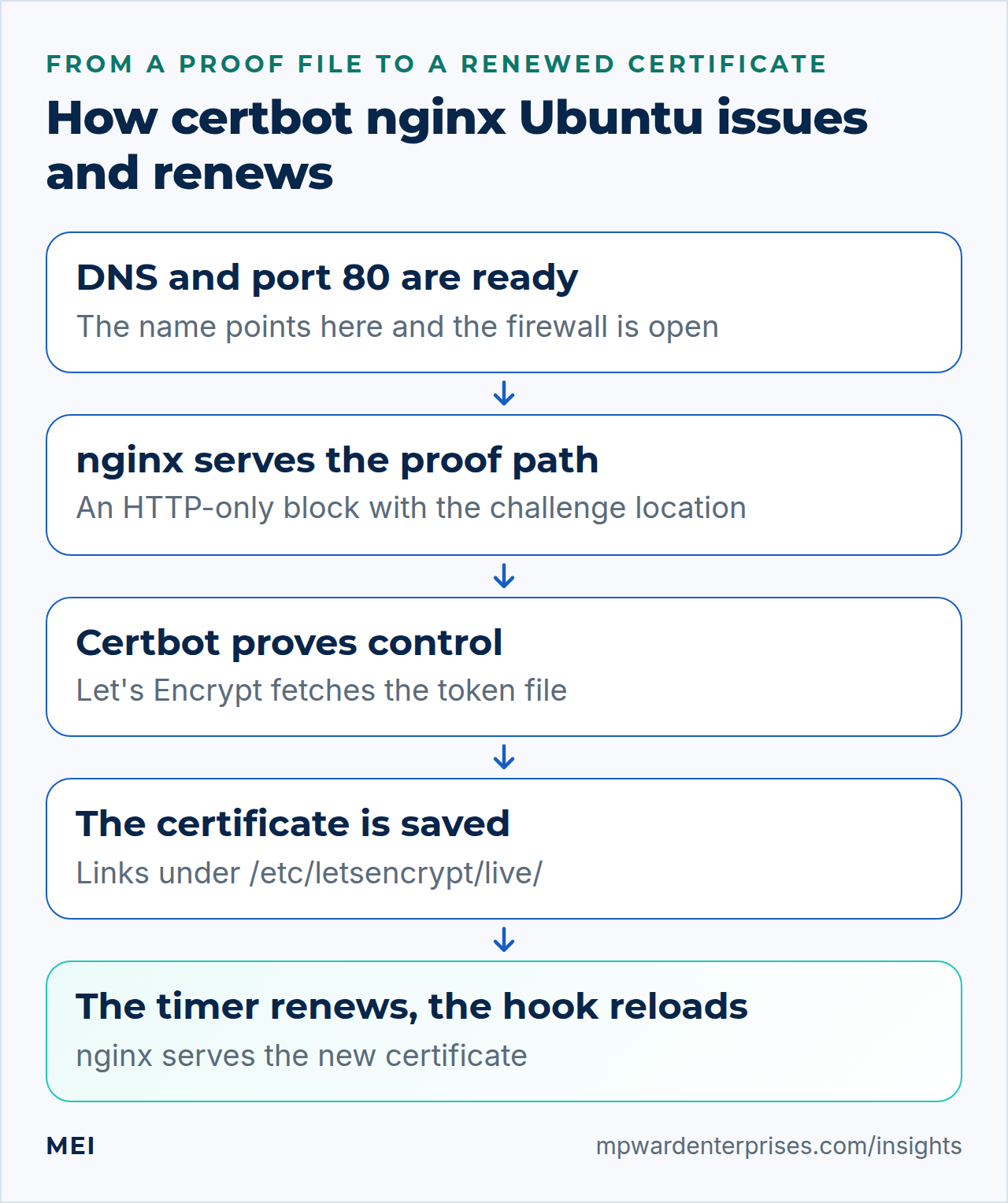
Let's Encrypt gives a certificate to whoever can prove they control the name. With the HTTP challenge, Certbot asks for a random token, saves a file named after it under /.well-known/acme-challenge/ in your web root, and Let's Encrypt fetches http://example.com/.well-known/acme-challenge/<token>. If the file is there, the certificate is issued. Let's Encrypt's documentation says this challenge uses port 80 and follows up to ten redirects, only to ports 80 and 443.
That explains the order of this guide. The proof must be served over plain HTTP, so the HTTP site comes first. The HTTPS block cannot exist before the certificate does. When we put one in the site file early, nginx -t failed with cannot load certificate ... No such file or directory, and a failed test blocks every reload.
The certificate lasts 90 days today. Certbot's packaged timer checks twice a day, and Certbot 2.9.0 renews once 30 days or fewer remain. Let's Encrypt has announced shorter default lifetimes, 64 days from February 10, 2027 and 45 days from February 16, 2028, which a twice-daily check with a 30-day threshold still handles. Renewal must be automatic, and a missed step shows up months later, not on the day you set it up.
The certificate lasts 90 days today. Certbot's packaged timer checks twice a day, and Certbot 4.0.0 renews once a third of the certificate's lifetime is left, which is 30 days for a 90-day certificate. We confirmed the threshold in the lab by moving the clock: 31 days before expiry the certificate was not due, 29 days before it was. Let's Encrypt has announced shorter default lifetimes, 64 days from February 10, 2027 and 45 days from February 16, 2028, and a one-third rule scales with them.
Renewal must be automatic, and a missed step shows up months later, not on the day you set it up.
Step 1: Check DNS and the firewall
Most failed first attempts are not Certbot problems. The name must point at this server, and the Internet must be able to reach port 80. Check both before you touch anything. Run the first three commands anywhere, and the last one on the server.
dig +short example.com A
dig +short www.example.com A
dig +short example.com AAAA
sudo ufw status
Each name you plan to include must return the address of this server. If you publish an AAAA (IPv6) record, it must point here too, so remove any stale one. dig comes from the bind9-dnsutils package if your server lacks it. In the firewall output, ports 80 and 443 should be allowed; sudo ufw allow "Nginx Full" opens both, as our UFW guide explains. Then, from another machine, confirm that plain HTTP answers:
curl -I http://example.com/Any HTTP answer, even a 404, proves the path from the Internet to nginx is open. A timeout means a firewall or your provider is blocking port 80, and Certbot cannot succeed until that is fixed. Add www only if its DNS record exists: a certificate request covers every name you list, and one name that fails validation blocks the whole request.
Why this way?
Checking by hand takes a minute and gives a clear answer. Failed validations are also rate limited: Let's Encrypt allows 5 failures per name, per account, per hour. Each blind retry spends part of that budget, so fix the cause before you try again.
Step 2: Install Certbot
On both releases the simplest route is the distribution package. It comes from the universe repository, installs the command, and sets up a systemd timer for renewal. Install it and look at what you got:
sudo apt update
sudo apt install -y certbot
certbot --version
sudo certbot plugins
systemctl list-timers certbot.timer
We got certbot 2.9.04.0.0. The plugin list showed standalone and webroot, and the timer was enabled with its next run listed. The nginx plugin appears only after sudo apt install python3-certbot-nginx. We removed it to check: certbot certonly --nginx then fails with "The requested nginx plugin does not appear to be installed". This guide does not need it.
Why this way?
The Certbot project recommends its snap package, and its instruction page says to remove the apt package first. The snap tracks current releases; Ubuntu's package stays on the 2.9 series for the life of 24.04, apart from fixes. We tested the apt package, because we could verify the timer, the hook folders and the renewal rule in it. We did not test the snap, which needs snapd, so follow the project's page if you choose it. Never install both.
Why this way, and how old is the package?
The Certbot project recommends its snap package, and its instruction page says to remove the apt package first. Its install guide says the snap makes it easy to have the latest version, and that packages maintained by third parties tend to fall out of date quickly on LTS-style distributions. On Ubuntu 26.04 the package is Certbot 4.0.0, released in April 2025, while the changelog we read lists 5.8.0 from September 2026.
For this guide's method the older version is enough: we ran every step on 4.0.0 and nothing blocked us. The snap would add newer features. Certbot 4.1 added ACME Renewal Information, which lets the certificate authority ask for an early renewal, for example after a revocation. From 5.3 the deploy-hook folder also runs at first issuance. Several nginx-plugin fixes arrived too, which matter only if you use --nginx. We tested the apt package and not the snap, which needs snapd. Choose one, and never install both.
Step 3: Write the HTTP-only server block and test the challenge path
Now make sure nginx serves the proof path on port 80, with no HTTPS block yet. Open your site file with sudoedit /etc/nginx/sites-available/example.com.conf. If you already have a working site, keep its other locations and add the acme-challenge block. The complete file for a plain static site looks like this:
server {
    listen 80;
    listen [::]:80;
    server_name example.com www.example.com;
    root /var/www/example.com/public;
    index index.html index.php;

    # Let's Encrypt fetches its proof file from here. Keep this block.
    location ^~ /.well-known/acme-challenge/ {
        default_type "text/plain";
        try_files $uri =404;
    }

    location / {
        try_files $uri $uri/ =404;
    }
}
The ^~ makes this the winning match for that path, even if a regular-expression location (a dotfile rule, a PHP handler) could also match. try_files $uri =404 serves the file or answers 404 directly, so no application can intercept it. default_type "text/plain" is only a courtesy: the token files have no extension. Test the file and prove the path works before you involve Certbot:
sudo nginx -t && sudo systemctl reload nginx
sudo mkdir -p /var/www/example.com/public/.well-known/acme-challenge
echo probe | sudo tee /var/www/example.com/public/.well-known/acme-challenge/probe
curl -i http://example.com/.well-known/acme-challenge/probe
sudo rm /var/www/example.com/public/.well-known/acme-challenge/probe
Expect HTTP/1.1 200 OK with Content-Type: text/plain and the word probe. In the lab, a token that did not exist answered 404. Run the curl from another machine if you can, so that you test the route Let's Encrypt will use.
Watch out: a dotfile rule can hide the proof
Many hardening snippets deny every path that starts with a dot. We removed the ^~ block, kept a rule like location ~ /\. { deny all; }, and Pebble's validation failed with "returned 403". The WordPress guide keeps the folder open with /\.(?!well-known). The explicit block above is the safer belt.
Step 4: Rehearse with a dry run, then request the real certificate
Run the whole flow once without saving anything. The --dry-run option talks to Let's Encrypt's staging server, which has much higher limits and issues untrusted test certificates. Production allows 5 failed validations per name per hour, 5 duplicate certificates per week and 50 certificates per registered domain per week, so rehearse first.
sudo certbot certonly --webroot -w /var/www/example.com/public \
  -d example.com -d www.example.com \
  --email [email address] --agree-tos --no-eff-email --dry-run
certonly obtains a certificate and changes nothing else. -w is the folder Certbot writes the proof into, each -d is a name on the certificate, and the email address is for account notices. A good run ends with "The dry run was successful", and no files appear in /etc/letsencrypt/live. A failure prints a Type and a Detail line, which the troubleshooting section explains. Once the dry run passes, run the same command again without --dry-run:
sudo certbot certonly --webroot -w /var/www/example.com/public \
  -d example.com -d www.example.com \
  --email [email address] --agree-tos --no-eff-email
Certbot ends with "Successfully received certificate" and the file paths. Look at what it created:
sudo certbot certificates
sudo ls -l /etc/letsencrypt/live/example.com/
sudo cat /etc/letsencrypt/renewal/example.com.conf
The first command lists each certificate with its names, key type and expiry date. In our lab it showed Key Type: ECDSA and VALID: 89 days. The folder holds a README and four symbolic links, cert.pem, chain.pem, fullchain.pem and privkey.pem, which point into /etc/letsencrypt/archive/. Certbot replaces the targets at each renewal, so nginx should always reference the live links.
The renewal file records the method (authenticator = webroot) and the folder for each name. The live and archive folders are readable only by root, and the key file is mode 600.
Watch out: example.com is refused
Our lab ran certbot renew --dry-run without a server option, which sent it to the real Let's Encrypt staging server. It answered "The ACME server refuses to issue a certificate for this domain name, because it is forbidden by policy". That is the reserved documentation name at work. Use a domain you own, whose DNS points at your server.
Why this way?
The nginx plugin would have done steps 3 to 5 in one command. We ran it on a throwaway site: it replaced listen 80 with listen 443 ssl in our block, added a second block for port 80 with an if redirect and return 404, and created two files under /etc/letsencrypt. That works, but you would be reviewing machine-generated edits to files you run your business on. With certonly --webroot you write every line yourself.
Step 5: Add the HTTPS server block and the redirect
With the certificate files in place, nginx -t will accept an HTTPS block. Replace the site file's contents with two server blocks. The HTTP block keeps serving the proof path and sends everything else to HTTPS. The HTTPS block uses the certificate. Keep your own application locations inside the HTTPS block, where location / is.
server {
    listen 80;
    listen [::]:80;
    server_name example.com www.example.com;
    root /var/www/example.com/public;

    # Renewals arrive over plain HTTP, so serve the proof file here and never redirect it
    location ^~ /.well-known/acme-challenge/ {
        default_type "text/plain";
        try_files $uri =404;
    }

    # Everything else goes to HTTPS
    location / {
        return 301 https://$host$request_uri;
    }
}

server {
    listen 443 ssl http2;
    listen [::]:443 ssl http2;
    server_name example.com www.example.com;
    root /var/www/example.com/public;
    index index.html index.php;

    ssl_certificate     /etc/letsencrypt/live/example.com/fullchain.pem;
    ssl_certificate_key /etc/letsencrypt/live/example.com/privkey.pem;
    ssl_protocols       TLSv1.2 TLSv1.3;

    location / {
        try_files $uri $uri/ =404;
    }
}
server {
listen 80;
listen [::]:80;
server_name example.com www.example.com;
root /var/www/example.com/public;
# Renewals arrive over plain HTTP, so serve the proof file here and never redirect it
location ^~ /.well-known/acme-challenge/ {
default_type "text/plain";
try_files $uri =404;
}
# Everything else goes to HTTPS
location / {
return 301 https://$host$request_uri;
}
}
server {
listen 443 ssl;
listen [::]:443 ssl;
http2 on;
server_name example.com www.example.com;
root /var/www/example.com/public;
index index.html index.php;
ssl_certificate /etc/letsencrypt/live/example.com/fullchain.pem;
ssl_certificate_key /etc/letsencrypt/live/example.com/privkey.pem;
ssl_protocols TLSv1.2 TLSv1.3;
location / {
try_files $uri $uri/ =404;
}
}Test, reload, and check the three answers that matter: the redirect, the proof path and HTTPS itself.
sudo nginx -t && sudo systemctl reload nginx
curl -sI http://example.com/ | head -n 3
curl -sI https://example.com/ | head -n 1
echo | openssl s_client -connect example.com:443 -servername example.com 2>/dev/null | openssl x509 -noout -enddate -ext subjectAltName
In the lab, plain HTTP answered 301 with Location: https://example.com/, HTTPS answered HTTP/2 200, a proof file on port 80 still answered 200, and the serial number nginx served matched the one in the file. If you run WordPress, switch its address to https only after this works; our WordPress guide lists the commands, and doing it earlier can lock you out of the dashboard.
Watch out: nginx 1.24 rejects the newer HTTP/2 syntax
Many guides write http2 on;. On Ubuntu 24.04's nginx 1.24 that is an error: unknown directive "http2". Use listen 443 ssl http2; as above. The newer form needs a later nginx than Ubuntu 24.04 ships.
Good to know: nginx 1.28 wants http2 on its own line
Older guides, and Ubuntu 24.04's nginx 1.24, put http2 on the listen line. nginx 1.28 still accepts that and still negotiates HTTP/2, but nginx -t prints [warn] the "listen ... http2" directive is deprecated, use the "http2" directive instead. Use http2 on; as above. If you copy this file to a 24.04 server, change it back, because nginx 1.24 rejects http2 on;.
Why this way?
Redirecting the proof path as well would often still work, since Let's Encrypt follows redirects. We keep it on plain HTTP so that renewal does not depend on the HTTPS side being healthy. The redirect uses $host, which keeps whichever name the visitor used. If you prefer one canonical name, replace it with that name. TLS tuning and security headers are a separate job for our security headers guide.
Step 6: Make renewal reload nginx, and test it
The packaged timer handles scheduling. Look at it, and at the service it starts:
systemctl list-timers certbot.timer
sudo systemctl cat certbot.timer certbot.service
The timer runs at 00:00 and 12:00 with a random delay of up to twelve hours, and Persistent=true makes it catch up after downtime. The service runs certbot -q renew --no-random-sleep-on-renew. A cron file also ships, but it does nothing while systemd is running. certbot renew only renews certificates that are due, so on most runs nothing happens. In the lab it said "Certificate not yet due for renewal" and "No renewals were attempted".
The step that most guides skip is the reload. With certonly --webroot, Certbot renews the files and never touches nginx. nginx loaded the old certificate into memory when it started, and it keeps serving that one until it reloads. We forced a renewal: the file on disk had a new serial number, and nginx still served the old one until we ran systemctl reload nginx. Left alone, the old certificate expires while the new one sits unused on disk. Create a deploy hook, a small script Certbot runs after each successful renewal:
sudoedit /etc/letsencrypt/renewal-hooks/deploy/reload-nginx.sh#!/bin/sh
systemctl reload nginxsudo chmod +x /etc/letsencrypt/renewal-hooks/deploy/reload-nginx.shBoth lines of the script and the executable bit matter. We created the file without the executable bit and Certbot skipped it silently: the renewal succeeded and nginx kept the old certificate. After chmod +x, the log said "Running deploy-hook command" and nginx served the new certificate at once. Hooks in this folder run for every certificate on the server, only at renewal, not at first issuance. Now test the renewal and the hook:
sudo certbot renew --dry-run
sudo certbot renew --dry-run --run-deploy-hooks
The first command simulates a renewal against the staging server and ends with "all simulated renewals succeeded". It does not run deploy hooks, which we confirmed with a marker file, so it cannot tell you the hook works. The second runs the hook too. Both need port 80 to be reachable, so they also test the path from the Internet.
A last test of the real unit is sudo systemctl start certbot.service. In the lab, with a certificate made due, that unit renewed it, ran the hook and nginx served the new certificate. On a live server, avoid --force-renewal: every forced renewal is a new certificate and counts toward the duplicate limit of 5 per week.
Why this way?
You can also pass --deploy-hook "systemctl reload nginx" to certonly. Certbot stores it in that certificate's renewal file as renew_hook, and it also runs at the first issuance. We prefer the hooks folder because one file covers every certificate, including ones added later by someone else. The nginx plugin reloads nginx itself ("Reloading nginx server after certificate renewal"), so it needs no hook.
Watch out: scripts get a random delay
Run from a terminal, certbot renew starts at once. Run from a script or cron job, it first sleeps a random time, but only when a certificate is actually due. Our log said "random delay of 364.9123.2 seconds", which looks like a hang. The packaged service adds --no-random-sleep-on-renew because the timer already randomizes. Add that option if you call renew yourself.
Step 7: Watch the expiry date yourself
Automatic renewal fails quietly when DNS changes, a firewall rule appears or the hook is wrong. Let's Encrypt stopped sending expiration reminder emails on June 4, 2025, and suggests third-party monitoring instead, so the warning is now your job. The most honest check looks at the certificate nginx actually serves, not at the files. This script exits with an error if it expires within a set number of days, or cannot be read at all:
sudoedit /usr/local/sbin/check-cert-expiry#!/bin/sh
# Exit 1 (and log) if the certificate nginx serves for a host expires within N days, or cannot be read.
host="${1:-example.com}"
days="${2:-14}"
if echo | openssl s_client -connect "$host:443" -servername "$host" 2>/dev/null \
| openssl x509 -noout -checkend $((days * 86400)) > /dev/null 2>&1; then
exit 0
fi
logger -t cert-expiry -p user.err "certificate for $host expires within $days days or cannot be read"
exit 1sudo chmod 755 /usr/local/sbin/check-cert-expiry
/usr/local/sbin/check-cert-expiry example.com 14; echo "exit status: $?"
/usr/local/sbin/check-cert-expiry example.com 100; echo "exit status: $?"The first run printed exit status: 0. The second asks whether a 90-day certificate expires within 100 days, so it exits 1 and writes a line to the journal under the tag cert-expiry. Run it daily with a systemd timer; our timer guide explains the format. Create two small files, then enable the timer.
sudoedit /etc/systemd/system/cert-expiry-check.service
sudoedit /etc/systemd/system/cert-expiry-check.timer
[Unit]
Description=Check how long the served HTTPS certificate is valid
[Service]
Type=oneshot
ExecStart=/usr/local/sbin/check-cert-expiry example.com 14[Unit]
Description=Check certificate expiry every day
[Timer]
OnCalendar=daily
RandomizedDelaySec=1h
Persistent=true
[Install]
WantedBy=timers.targetsudo systemd-analyze verify /etc/systemd/system/cert-expiry-check.service /etc/systemd/system/cert-expiry-check.timer
sudo systemctl daemon-reload
sudo systemctl enable --now cert-expiry-check.timer
systemctl list-timers cert-expiry-check.timerWhen the check fails, the service is marked failed, and systemctl --failed lists it. Anything that watches your systemd units or journal can raise the alarm. A check on the server cannot see a DNS or CDN problem, so also run the same script from a second machine, or use a free external monitor.
Step 8: Add HSTS last, and start small
HSTS tells browsers to use only HTTPS for your site. It protects visitors from downgrade tricks, and it removes the click-through option on certificate errors. That is the risk: if the certificate expires or HTTPS breaks while a visitor's browser remembers HSTS, the page simply will not open. Add it inside the HTTPS server block, only after the earlier steps work:
add_header Strict-Transport-Security "max-age=300" always;Test and reload, then check the header. In the lab it came back on HTTPS only, because we added it only to the HTTPS block; MDN adds that browsers ignore it over plain HTTP anyway.
sudo nginx -t && sudo systemctl reload nginx
curl -sI https://example.com/ | grep -i strict-transport
The 300 seconds are five minutes. Raise the value in stages, to a day, a week and then months, only after you have watched at least one renewal complete. Leave out includeSubDomains until every subdomain works over HTTPS, and leave out preload: MDN warns that removal from the preload lists is difficult and can take months. Our security headers guide covers the full set of headers.
Why this way?
A short first value turns a mistake into a five-minute inconvenience. An HSTS value of a year does the opposite: a lapsed certificate becomes an outage that visitors cannot click past. The value is ours, not Let's Encrypt's. Ask what happens if your certificate lapsed tomorrow, and raise the number only as far as your answer allows.
When you need a wildcard certificate
A wildcard certificate covers every subdomain, such as *.example.com, and Let's Encrypt issues it only through the DNS challenge. In the lab, a webroot request for a wildcard ended with "Client with the currently selected authenticator does not support any combination of challenges that will satisfy the CA". The DNS challenge needs a TXT record at _acme-challenge.example.com, so in practice you use a Certbot DNS plugin for your DNS provider, which puts an API credential on the server. Keep that credential narrowly scoped.
We tested the mechanism with Pebble and a manual hook script that published the record: certbot certonly --manual --preferred-challenges dns --manual-auth-hook <script> --manual-cleanup-hook <script> -d '*.example.com' -d example.com. It worked, and the renewal file stored both hooks. A wildcard does not cover the bare domain. Our certificate for *.example.com alone listed only DNS:*.example.com, and adding -d example.com gave both names.
When validation fails: what the symptoms mean
Certbot prints Type and Detail lines for each failed name. We reproduced these on Pebble. Let's Encrypt's detail text may be worded differently, but the Type line uses the same ACME categories, so read the line, not just the headline.
| What you see | Likely cause | What to do |
|---|---|---|
Type: unauthorized and returned 404 |
The proof file is not where nginx looks: the -w folder differs from root, or an application answers the path |
Check root, the acme-challenge block and the probe test in step 3 |
Type: unauthorized and returned 403 |
A dotfile deny rule, a security plugin or a CDN rule blocks /.well-known/ |
Add the explicit ^~ block, or allow .well-known in the rule |
Type: connection and Client.Timeout exceeded |
A firewall or your provider drops port 80, or the name points at another address | Run step 1 again from outside. Check dig, UFW and your provider's firewall |
Type: connection and connection refused |
Nothing is listening on port 80, or a rule rejects it | sudo ss -ltnp should show nginx on port 80. Check nginx -t and any reject rule |
forbidden by policy |
You requested a reserved or blocked name such as example.com | Use a domain you own |
cannot load certificate from nginx -t |
A server block still names certificate files that do not exist, or that certbot delete removed |
Remove or comment out that block, or restore the certificate, then test again |
| The plugin error "does not appear to be installed" | You used --nginx without python3-certbot-nginx |
Install it, or use certonly --webroot |
A CDN or proxy in front of your domain changes who Let's Encrypt talks to: it reaches the CDN, not your server. Make sure the CDN passes /.well-known/acme-challenge/ through unchanged, or switch to the DNS challenge. We could not test a CDN. Stop before the fifth failure in an hour, because the failed validation limit applies, and keep experimenting on staging with --dry-run.
Check your work
Run these checks once your certbot nginx Ubuntu setup is in place. Each answers a question you would otherwise ask during an incident.
- Does the site answer on HTTPS?
curl -sI https://example.com/returns 200 and the redirect from HTTP returns 301. - Is the proof path still open on port 80? A test file under
.well-known/acme-challenge/answers 200 over plain HTTP. - Is the timer active?
systemctl list-timers certbot.timershows a next run. - Does a simulated renewal pass?
sudo certbot renew --dry-runends with "all simulated renewals succeeded". - Is the hook executable and wired?
ls -l /etc/letsencrypt/renewal-hooks/deploy/shows thexbits, and--run-deploy-hooksruns it. - Do you hear about trouble?
systemctl list-timers cert-expiry-check.timershows a next run, and the check exits non-zero for a certificate that expires soon.
What this guide could not test
Be clear about the boundary. We did not request a certificate from Let's Encrypt itself, because the lab has no public DNS. Pebble validated through our nginx on port 80, and its DNS companion pretended every name pointed at the lab.
That exercised the proof path, the files Certbot writes, the renewal file, the hooks, the packaged service and the plugin. It did not exercise Let's Encrypt's production servers, its validation from several network locations or real DNS. Pebble's error wording may differ from Let's Encrypt's. We did not test the snap package or a CDN.
Treat your first real run as part of the test. The --dry-run rehearsal exists for exactly that: it hits the same kind of server you will use, without using the production limits.
Common mistakes
- Adding the HTTPS block before the certificate exists.
nginx -tfails and nothing reloads. - Forgetting the deploy hook, or forgetting
chmod +x. Renewal succeeds, and nginx serves the old certificate until it expires. - Blocking
/.well-known/acme-challenge/on port 80. A dotfile rule, a security plugin or a CDN rule makes renewals fail months after a perfect first run. - Deleting a certificate that nginx still names. Run
certbot deleteonly after removing it from every server block, or nginx will refuse to reload, and to start after a reboot. - Trusting
renew --dry-runfor the hook. It skips deploy hooks unless you add--run-deploy-hooks. - Starting HSTS with a long value. A lapsed certificate becomes an outage visitors cannot click past.
Keep it healthy
A certbot nginx Ubuntu server needs a monthly look. Run sudo certbot certificates and systemctl list-timers certbot.timer, and check the expiry dates and the next run. Run sudo certbot renew --dry-run --run-deploy-hooks after any change to nginx, the firewall, DNS or a CDN. Before an upgrade to the next Ubuntu release, run it again, and check that the timer is still enabled afterwards.
Include /etc/letsencrypt in your backups, because it holds the account and renewal settings; our restic backup guide shows how, and the folder contains private keys, so encrypt the copy. If you lose it, you can issue again, but expect some work. Our Linux server hardening checklist lists the other recurring jobs.
Getting help
If you would rather have someone set this up and watch it, MEI's Infrastructure and Private Cloud service covers provisioning and Linux administration, performance tuning, migrations, monitoring and updates, and starts at $2,500, scoped by systems and scale. Managed Website and IT Care starts at $149 a month, with scope-based tiers for updates, backups, monitoring and help, so a renewal that fails quietly has an owner. We focus on the highest-impact, most likely risks, and we do not promise perfect security.
Frequently asked questions
How do I install a free SSL certificate on nginx on Ubuntu 24.04 or 26.04?
Point your domain at the server and open ports 80 and 443, install Certbot with sudo apt install certbot, serve /.well-known/acme-challenge/ from your web root in an HTTP-only server block, run certbot certonly --webroot with your names, then add an HTTPS server block that uses the files under /etc/letsencrypt/live/ and reload nginx.
Does Certbot renew certificates automatically on Ubuntu?
Yes. The apt package installs certbot.timer, which runs twice a day with a random delay and renews certificates that are due: with 30 days or fewer left on Ubuntu 24.04 (Certbot 2.9.0), or with a third of the lifetime left on Ubuntu 26.04 (Certbot 4.0.0), which is also 30 days for a 90-day certificate. It does not reload nginx for certificates obtained with certonly --webroot, so add an executable script in /etc/letsencrypt/renewal-hooks/deploy/ that runs systemctl reload nginx.
Why does nginx still serve the old certificate after Certbot renewed it?
nginx loads the certificate into memory when it starts or reloads. Certbot replaces the files on disk, but nginx keeps the old copy until a reload. Add a deploy hook that runs systemctl reload nginx, make it executable, and test it with certbot renew --dry-run --run-deploy-hooks.
Should I use certbot --nginx or certonly --webroot?
The nginx plugin is quick for one simple site and reloads nginx itself, but it rewrites your site files. certonly --webroot changes nothing in nginx and works for any site, at the cost of writing the challenge location and the HTTPS block yourself. We prefer webroot for servers that people maintain by hand.
Can I get a wildcard certificate with Certbot and nginx?
Yes, but only with the DNS challenge, because Let's Encrypt does not issue wildcards through the HTTP challenge. You publish a TXT record at _acme-challenge, usually through a Certbot DNS plugin for your DNS provider. A wildcard for *.example.com does not cover example.com itself, so request both names.
Why does Let's Encrypt validation fail for my domain?
Read the Type and Detail lines. A 404 or 403 means the proof file is not served at /.well-known/acme-challenge/. A timeout means a firewall, your provider or wrong DNS is blocking port 80. Connection refused means nothing is listening. Check dig for every name, the firewall, and a CDN or proxy in front of the domain.
Sources and further reading
- Let's Encrypt: Challenge Types — the HTTP-01 challenge on port 80 and its redirect rules, the DNS-01 challenge for wildcards and its credential risk
- Let's Encrypt: Rate Limits — 300 new orders per 3 hours, 50 certificates per registered domain per week, 5 duplicates per week, 5 failed validations per hour, and the renewal exemptions
- Let's Encrypt: Staging Environment — the staging directory URL, its untrusted roots, higher limits, --dry-run and --test-cert, and Pebble for testing
- Certbot User Guide — webroot, nginx, standalone and manual methods, renewal hooks and their environment variables, --dry-run behavior, certbot certificates, and not deleting files by hand
- Certbot instructions for nginx on Linux (snap) — the project's recommended snap install, removing the apt package first, and automatic renewal checks
- Let's Encrypt: From 90 to 45 days — the announced timeline for shorter default certificate lifetimes, 64 days from February 10, 2027 and 45 days from February 16, 2028
- Let's Encrypt: Ending expiration emails — expiration notification emails ended on June 4, 2025, with third-party monitoring suggested instead
- MDN: Strict-Transport-Security header — max-age, includeSubDomains and preload, the header being ignored over plain HTTP, no click-through for certificate errors, and preload being hard to undo
- Certbot change log (CHANGELOG.md on GitHub) — Certbot 4.0.0 renews at one third of a certificate's lifetime instead of a fixed 30 days; directory hooks on certonly (3.2.0, 5.3.0); ACME Renewal Information (4.1.0); release dates up to 5.8.0