Unattended upgrades Ubuntu Server ships with are a quiet daily job that installs security updates by itself, so a server nobody has logged in to for a month does not stay vulnerable for a month. This guide covers Ubuntu 24.04 LTS and 26.04 LTS, so pick yours with the switch below. It shows how that job really works, how to rehearse it safely, how to handle reboots and service restarts, and how to prove it is still running. Allow about an hour, and some comfort with a terminal.
Every command below was run twice in disposable labs, once on Ubuntu 24.04 (unattended-upgrades 2.9 and apt 2.8) and once on Ubuntu 26.04 (unattended-upgrades 2.12 and apt 3.2), including a rehearsed security update from a test archive, a library update that restarted services, a stand-in for the reboot command and a mail report. Where the two releases differ, the page shows only the one you picked.
Live kernel patching cannot be tested in a lab, so that part follows Canonical's documentation, and mail delivery to outside addresses cannot be tested either. The real risk is a surprise at a bad moment, so we plan for restarts and reboots first.
Choose your Ubuntu version
This guide covers both releases. Commands, file paths and version numbers change with your choice; everything else is the same.
JavaScript is off, so both versions are shown below and each block says which release it is for.
Before you start: decide what a surprise would cost
Automatic updates trade a small chance of an unplanned change for a much larger chance of being patched in time. Four preparations keep that trade in your favor.
- Have a backup you have restored from. A snapshot that has never been restored is a hope. See the 3-2-1 backup rule.
- Know what listens. Library updates restart services, so list them with
sudo ss -tulpnand note which ones your business would notice blinking. - Check the clock and time zone with
timedatectl. Every time in this guide is server local time. - Keep console access through your provider, and rehearse on a copy first if the server matters.
Unattended upgrades Ubuntu: why this way and not the other ways
There are several ways to keep a server patched. This table compares them in plain English, so you can see why this guide automates security updates and leaves the rest to you.
| Approach | In plain English | Our verdict |
|---|---|---|
| Security updates automatic, everything else on your schedule (this guide) | A night watchman fixes urgent leaks; renovations happen in daylight | Our default, and Ubuntu's: the release and security sources are on, the bug-fix source is off |
| Everything automatic, including bug-fix updates | Repairs and improvements both arrive unannounced | Fine for test servers. On production, extra changes land at dawn with nobody watching, so we review them in a window |
| Manual patching when someone remembers | A to-do item | Fails the first busy month. A weekly calendar entry beats memory, but automation beats both for security updates |
| Live kernel patching (Livepatch) | Some kernel fixes applied without a reboot | A useful extra for servers that cannot reboot often. It needs Ubuntu Pro and does not replace reboots |
| Rebuilding from fresh images or containers | Replace instead of repair | Excellent if you already work that way. It needs pipelines most small businesses do not have |
| A managed care plan | Someone else owns the patching | Often right when nobody on your team wants the pager |
Think of the server as a shop. Security updates are urgent repairs to the locks, and you want them done the same night. Bug fixes and new features are renovations: valuable, but you schedule them. Ubuntu's own default follows the same split.
How it works: two timers and two files
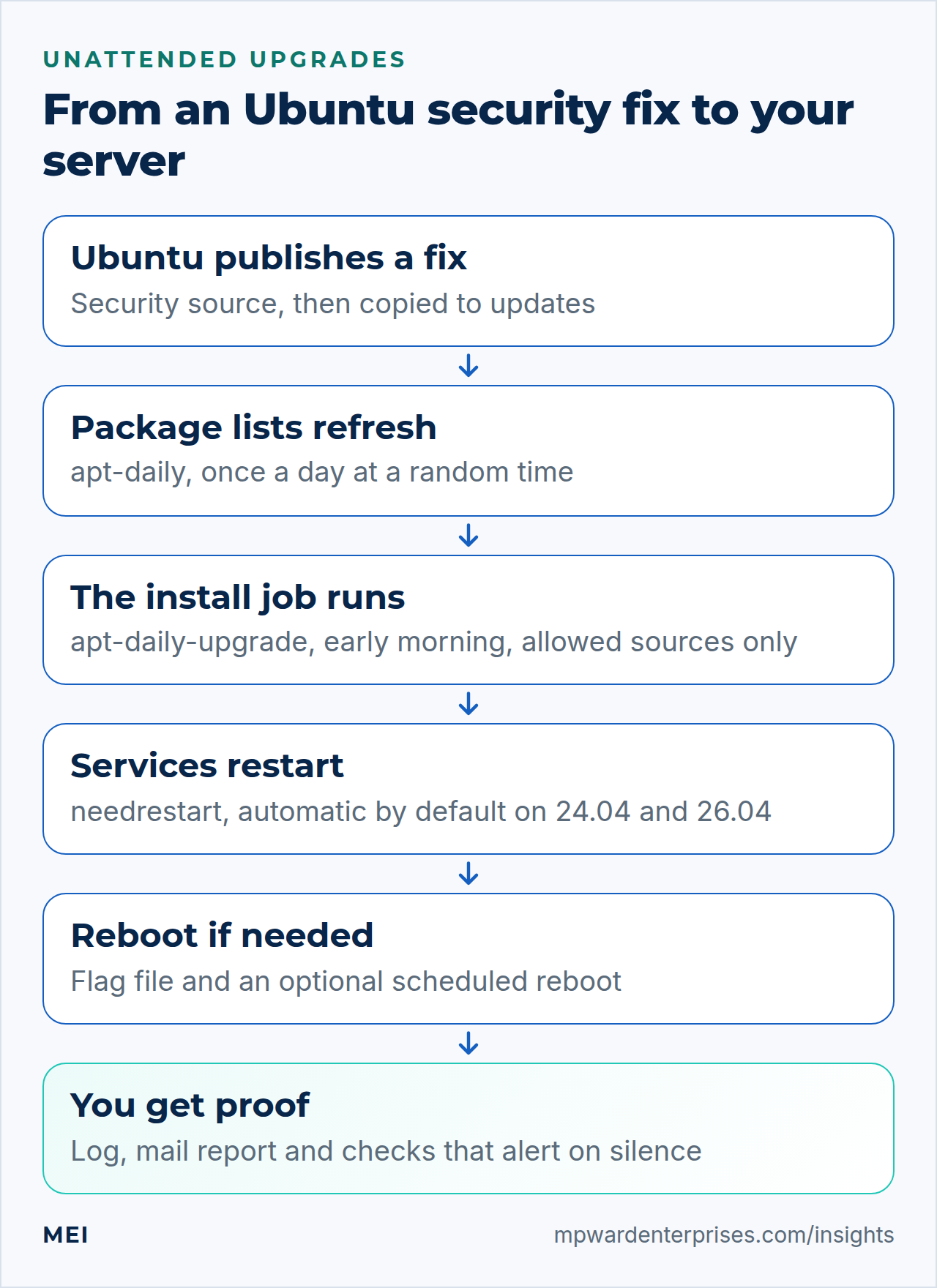
There is no background service polling for updates. Two systemd timers start two short jobs each day. apt-daily refreshes the package lists and downloads what is pending. apt-daily-upgrade installs the allowed updates by running the unattended-upgrade program. Each timer adds a random delay after its scheduled time. A small helper, unattended-upgrades.service, does run all the time, but it never looks for updates: it only lets a running upgrade finish or stop cleanly when the machine shuts down.
systemctl list-timers 'apt-daily*' --no-pagerNEXT LEFT LAST PASSED UNIT ACTIVATES
Fri 2026-10-09 06:46:50 UTC 8h - - apt-daily-upgrade.timer apt-daily-upgrade.service
Fri 2026-10-09 09:49:19 UTC 11h - - apt-daily.timer apt-daily.serviceNEXT LEFT LAST PASSED UNIT ACTIVATES
Fri 2026-10-09 22:28:23 UTC 12h Fri 2026-10-09 09:46:21 UTC 1min 11s ago apt-daily.timer apt-daily.service
Sat 2026-10-10 06:28:43 UTC 20h Fri 2026-10-09 09:46:21 UTC 1min 11s ago apt-daily-upgrade.timer apt-daily-upgrade.service| Timer | Scheduled | Random delay | What the job does |
|---|---|---|---|
apt-daily.timer |
06:00 and 18:00 | Up to 12 hours | Refreshes package lists, pre-downloads updates |
apt-daily-upgrade.timer |
06:00 | Up to 60 minutes | Installs allowed updates, then cleans up |
Two small files in /etc/apt/apt.conf.d/ steer the work. 20auto-upgrades says how often, in days. 50unattended-upgrades says what and how: which sources are allowed, which packages are held back, whether to reboot, and where to send mail. One file decides whether it runs; the other decides what it may do.
cat /etc/apt/apt.conf.d/20auto-upgradesAPT::Periodic::Update-Package-Lists "1";
APT::Periodic::Unattended-Upgrade "1";Each job runs at most once per calendar day. The scripts keep stamp files in /var/lib/apt/periodic/, and starting the install job a second time the same day did nothing in our test. Because the list refresh happens once a day at a random time and the install runs once a day between 06:00 and 07:00, expect a new fix to arrive within about a day or two of publication, not within minutes.
Step 1: Check it is switched on, and really running
Ubuntu Server normally ships with the job on, but container images, minimal images and migrated servers often differ, so check rather than assume. Three commands answer the question.
systemctl list-timers 'apt-daily*' --no-pager
cat /etc/apt/apt.conf.d/20auto-upgrades
apt-config dump | grep APT::Periodic
You want two timers with a NEXT time, both lines of 20auto-upgrades set to "1", and no line that says APT::Periodic::Enable "0". If the file is missing or says "0", write it yourself.
sudo apt install unattended-upgrades
printf 'APT::Periodic::Update-Package-Lists "1";\nAPT::Periodic::Unattended-Upgrade "1";\n' | sudo tee /etc/apt/apt.conf.d/20auto-upgrades
Watch out: a job that succeeds and does nothing
We set APT::Periodic::Enable "0" and, separately, Unattended-Upgrade "0". Both times apt-daily-upgrade.service finished with Result=success, wrote no log lines and made no upgrade-stamp. A leftover line in an image or a provisioning script can switch the job off this way: Ubuntu's own Docker base images, for example, ship APT::Periodic::Enable "0"; in /etc/apt/apt.conf.d/docker-disable-periodic-update. Even a night when an install failed left the unit green. A green unit proves little, so step 7 checks the evidence instead.
Why this way?
You will see sudo dpkg-reconfigure -plow unattended-upgrades in guides. It is a question dialog. Run without a terminal, as in a script or an image build, it exited successfully in our lab and changed nothing, whether the file was missing or set to "0". We did not test the interactive dialog, so we write the file ourselves. It is two lines, easy to read, and easy to review later.
Step 2: Know what it may install
The list of allowed sources is the most important setting in 50unattended-upgrades. You can see it, as the program understands it, in the first lines of a dry run.
sudo unattended-upgrade --dry-run -v | grep "Allowed origins"Allowed origins are: o=Ubuntu,a=nobleresolute, o=Ubuntu,a=nobleresolute-security, o=UbuntuESMApps,a=nobleresolute-apps-security, o=UbuntuESM,a=nobleresolute-infra-security| Source | What it holds | Automatic? |
|---|---|---|
nobleresolute (release) |
What the release shipped with. Allowed so security updates can pull in what they depend on | Yes |
nobleresolute-security |
Security updates only | Yes |
| ESM apps and infra | Extra security coverage that exists only with an Ubuntu Pro subscription | Yes, harmless without Pro |
nobleresolute-updates |
Non-security bug fixes | No (commented out) |
nobleresolute-proposed |
A staging area for testing updates | No |
nobleresolute-backports |
Newer packages with no security guarantee | No |
The difference is easy to see. In our lab we published one test package, demo-extras, to a stand-in bug-fix source. apt list --upgradable listed it, yet a dry run with debug output reported that nothing qualified, because that source is not on the list.
apt list --upgradable 2>/dev/null | tail -n +2
sudo unattended-upgrade --dry-run -d 2>&1 | grep -E "^Checking:|^No packages found"
demo-extras/noble-updates 1.1 all [upgradable from: 1.0]
Checking: demo-extras ([<Origin component:'' archive:'noble-updates' origin:'Ubuntu' ...>])
No packages found that can be upgraded unattended and no pending auto-removalsdemo-extras/resolute-updates 1.1 all [upgradable from: 1.0]
Checking: demo-extras=1.1 ([<Origin component:'' archive:'resolute-updates' origin:'Ubuntu' ...>])
No packages found that can be upgraded unattended and no pending auto-removalsSo "pending" is not the same as "broken". Security updates normally appear in both nobleresolute-security and nobleresolute-updates; Ubuntu's security team says packages are copied from one to the other frequently, which is why security-only automation still receives them. In our lab the same nginx update was listed in both.
Change it in your own file, not the shipped one
Do not edit 50unattended-upgrades; a package update may want to replace it. Apt reads every file in apt.conf.d in order, so create a second one that sorts after it. We tested two rules. A single setting in your file overrides the shipped value. A list in your file is added to the shipped list; to replace the shipped list instead, put #clear Unattended-Upgrade::Allowed-Origins; above your own entries.
sudoedit /etc/apt/apt.conf.d/52unattended-upgrades-local// Add the bug-fix source (not recommended on production)
Unattended-Upgrade::Allowed-Origins {
"${distro_id}:${distro_codename}-updates";
};With that file in place the dry run listed o=Ubuntu,a=nobleresolute-updates as a fifth origin and demo-extras became eligible. To allow a vendor's repository, read the origin and archive names apt already knows. They appear as o= and a=, for example o=Vendor Demo,a=stable for our test repository. Then add them.
apt-cache policy | grep release | sort -uUnattended-Upgrade::Origins-Pattern {
"origin=Vendor Demo,archive=stable";
};Why this way?
A product that updates only from its own repository never gets its fixes unless you allow that repository. Allowing it also means trusting that vendor to change your server unattended, so allow one repository at a time and read the first reports.
Check what your stack depends on
Ubuntu's security team supports the Main and Restricted components for the life of a release. Universe and Multiverse are supported by the community, and Ubuntu Pro adds Canonical's coverage. On our lab server, nginx, OpenSSH and Postfix came from Main, while PHP-FPM, MariaDB, Redis, fail2ban and Certbot came from Universe.On our 26.04 lab server, nginx, OpenSSH, Postfix and MariaDB came from Main (MariaDB moved there from Universe), while PHP-FPM, Redis, fail2ban and Certbot came from Universe. Run pro security-status to count your own.
Step 3: Rehearse with a dry run, then read the log
A dry run makes every decision the real job would make but installs nothing, so it shows what would happen tonight. Use -v for a readable summary and -d when you want to know why a package was skipped. Debug lines also land in the log file, so the third command shows only the INFO, WARNING and ERROR lines.
sudo unattended-upgrade --dry-run -v
sudo unattended-upgrade --dry-run -d 2>&1 | grep -E "^Checking:|^adjusting|blacklist|Packages that will"
sudo grep -E " (INFO|WARNING|ERROR) " /var/log/unattended-upgrades/unattended-upgrades.log | tail -n 12
This is what the second command printed in our lab when three test packages were waiting in a security source, one in the bug-fix source and one in a vendor repository (trimmed). Only the security ones qualified.
Initial blacklist:
Checking: demo-db ([<Origin component:'' archive:'noble-security' origin:'Ubuntu' ...>])
Checking: demo-extras ([<Origin component:'' archive:'noble-updates' origin:'Ubuntu' ...>])
adjusting candidate version: demo-extras=1.0
Checking: demo-kernel ([<Origin component:'' archive:'noble-security' origin:'Ubuntu' ...>])
Checking: demo-vendor ([<Origin component:'' archive:'stable' origin:'Vendor Demo' ...>])
adjusting candidate version: demo-vendor=1.0
Checking: demo-web ([<Origin component:'' archive:'noble-security' origin:'Ubuntu' ...>])
Packages blacklist due to conffile prompts: []
Packages that will be upgraded: demo-db demo-kernel demo-web
Initial blacklist:
Checking: demo-db=1.1 ([<Origin component:'' archive:'resolute-security' origin:'Ubuntu' ...>])
Checking: demo-extras=1.1 ([<Origin component:'' archive:'resolute-updates' origin:'Ubuntu' ...>])
adjusting candidate to version demo-extras=1.0 in allowed origin [<Origin ...>, ...]
Checking: demo-kernel=1.1 ([<Origin component:'' archive:'resolute-security' origin:'Ubuntu' ...>])
Checking: demo-vendor=1.1 ([<Origin component:'' archive:'stable' origin:'Vendor Demo' ...>])
adjusting candidate to version demo-vendor=1.0 in allowed origin [<Origin ...>, ...]
Checking: demo-web=1.1 ([<Origin component:'' archive:'resolute-security' origin:'Ubuntu' ...>])
Packages blacklist due to conffile prompts: []
Packages that will be upgraded: demo-db demo-kernel demo-webThe "adjusting candidate" lines are the program saying that it will not move that package off its current version. Three files under /var/log/unattended-upgrades/ hold the history: unattended-upgrades.log is the summary of every run, unattended-upgrades-dpkg.log holds the installer's own output, including the needrestart report, and unattended-upgrades-shutdown.log belongs to the shutdown helper.
Why this way?
A dry run is safe. With a library update waiting, we compared the process IDs of nginx, MariaDB, Redis and the other services before and after one, on both releases: nothing restarted and nothing installed. It does leave traces. It writes to the same log, refreshes unattended-upgrades-stamp and adds Upgrade: lines to apt's history. The log marks it with "Option --dry-run given, *not* performing real actions", and the history entry shows --dry-run on its Commandline: line.
Step 4: Decide how reboots happen
A new kernel does nothing until the machine restarts, and a few core libraries need one too. Packages that need a restart create the file /var/run/reboot-required, and a second file names the package. In our lab, libc6, dbus and libpam0g all carry that hook, besides kernels.
[ -f /var/run/reboot-required ] && cat /var/run/reboot-required.pkgsBy default the server never reboots itself. That suits a server you babysit, and it quietly leaves old kernels running on one you do not. If you choose automatic reboots, put the settings in your own file and pick a time when a few minutes of downtime costs least.
Unattended-Upgrade::Automatic-Reboot "true";
Unattended-Upgrade::Automatic-Reboot-Time "03:00";
Unattended-Upgrade::Automatic-Reboot-WithUsers "false";
With Automatic-Reboot on, the machine restarts without confirmation when the flag file exists after a run, even a run that installed nothing new. The program does this by running shutdown -r 03:00. We tested the call with a stand-in so the lab would not reboot, and the real command with a throwaway time: it answered "Reboot scheduled for Fri 2026-10-09 03:00:00 UTC, use 'shutdown -c' to cancel." We then cancelled it.
Two defaults matter. Without Automatic-Reboot-Time the time is now, and our stand-in received shutdown -r now right after the run. And WithUsers defaults to true, which reboots even if someone is working.
Set it to false to skip the reboot while anyone is logged in. With a real login session open, the log said "Found /var/run/reboot-required, but not rebooting because {'alex'} is logged in." The flag stayed, and the next run, after the session ended, issued the reboot.
Watch out: WithUsers set to false did not protect logged-in users on 26.04
Setting it to false is meant to skip the reboot while anyone is logged in, and on 24.04 it does. On 26.04 it did not in our lab: with a real SSH session open, the run still issued the reboot command to our stand-in.
The program asks the users command who is logged in. The Rust version of users that 26.04 installs reads the old utmp login records. Our 26.04 lab had no such file, and sshd did not fill one we created, so users printed nothing, while the GNU version (gnuusers) still listed the session.
Switching the core utilities back to GNU with sudo apt install coreutils-from-gnu coreutils-from-uutils- made the log say "Found /var/run/reboot-required, but not rebooting because {'alex'} is logged in." But apt warns that it is removing an essential package, which is a big change for one setting. We would rather pick a quiet reboot time, or keep automatic reboots off and reboot by hand when the flag appears.
Watch out: patch time and reboot time are different
The install job runs around 06:00, so a 03:00 reboot happens about twenty hours after the patch, and the new kernel is not running in between. To patch and reboot in one quiet window, move the timers with a drop-in, as below. A few seconds after the reload, systemctl list-timers showed the new times. The timers are persistent, though: when a scheduled time has already passed since the last run, systemd starts the job at once.
Both jobs fired within a second of our first reload, so change them in a quiet period.when a scheduled time has passed since the timer last ran, systemd starts the job as soon as the timer is started again. In our 26.04 lab a plain reload started nothing, but restarting the timers after two idle days started both jobs within a second. Change them in a quiet period either way.
sudo mkdir -p /etc/systemd/system/apt-daily.timer.d /etc/systemd/system/apt-daily-upgrade.timer.d
printf '[Timer]\nOnCalendar=\nOnCalendar=*-*-* 00:00\nRandomizedDelaySec=30m\n' | sudo tee /etc/systemd/system/apt-daily.timer.d/override.conf
printf '[Timer]\nOnCalendar=\nOnCalendar=*-*-* 01:00\nRandomizedDelaySec=15m\n' | sudo tee /etc/systemd/system/apt-daily-upgrade.timer.d/override.conf
sudo systemctl daemon-reload
systemctl list-timers 'apt-daily*' --no-pager
Why this way?
On a server that is the only mail receiver, or the only database, we keep reboots manual and watch the flag instead, so nobody is surprised. After you turn automatic reboots on, reboot once on purpose and check that every service came back. A reboot test is the only proof that the next one will be safe.
Step 5: Let needrestart restart services, on your terms
A fix to a shared library such as OpenSSL protects only programs that load it afterwards. Programs already running keep the old copy in memory until they restart. needrestart finds them after every apt run and restarts their services, and that is the part of automatic updates that surprises people.
First check that it is installed with dpkg -l needrestart. Minimal images and containers may lack it; our lab image did until we installed it.
On Ubuntu 24.04 and 26.04 the default is automatic. Ubuntu's packaging of needrestart restarts services by itself when apt calls it, which includes every unattended-upgrades run, and Ubuntu's server documentation says the same. We also tested it on both releases. In our lab a library security update restarted nginx, MariaDB, Redis, PHP-FPM, HAProxy and fail2ban in one run; their process IDs all changed.
A few services, such as the login prompts, dbus and systemd-logind, were deferred on purpose and kept the old library until a restart or reboot.In our lab a library security update restarted nginx, MariaDB, Redis, PHP-FPM, HAProxy, fail2ban, OpenDKIM, the SSH daemon and the journal service in one run; their process IDs all changed, and an SSH session that was already open stayed connected. A few services were deferred on purpose and kept the old library until a restart or reboot: the login prompt, systemd-logind and the unattended-upgrades helper itself.
Restarting services...
 systemctl restart fail2ban.service haproxy.service mariadb.service nginx.service opendkim.service php8.3-fpm.service redis-server.service ...
Service restarts being deferred:
 systemctl restart [email address]
 systemctl restart systemd-logind.service
Restarting services...
/etc/needrestart/restart.d/systemd-manager
systemctl restart fail2ban.service haproxy.service mariadb.service nginx.service opendkim.service php8.5-fpm.service redis-server.service ssh.service systemd-journald.service
Service restarts being deferred:
systemctl restart apt-daily-upgrade.service
systemctl restart [email address]
systemctl restart systemd-logind.service
systemctl restart unattended-upgrades.serviceEach restart is a brief outage for that service. For a small site at 06:00 that is fine. For a database behind a busy store it may not be. You have three choices, set in your own file under /etc/needrestart/conf.d/ rather than in the shipped one.
| Choice | Setting | What we saw |
|---|---|---|
| Keep the default | (nothing) | Everything affected restarted during the run |
| List only | $nrconf{restart} = 'l'; |
Nothing restarted. The log said "Services to be restarted", and the services kept running the old library |
| Automatic, except one service | $nrconf{restart} = 'a'; and $nrconf{override_rc}{qr(^mariadb)} = 0; |
Everything restarted except MariaDB, which waited |
sudoedit /etc/needrestart/conf.d/50-local.conf$nrconf{restart} = 'a';
$nrconf{override_rc}{qr(^mariadb)} = 0;Setting a restart mode yourself switches off Ubuntu's special behavior, and the log says so: "Disabling Ubuntu mode, explicit restart mode configured". That line, and the lists of restarted and deferred services, are in unattended-upgrades-dpkg.log. Services you defer, or list-only mode leaves, keep running the old library, so schedule the restart yourself and check the queue.
sudo needrestart -b
sudo needrestart -p
The first command lists pending services in a plain, machine-friendly format. The second speaks in the style of monitoring tools: it printed "WARN - Services: 8 (!)" and exited with status 1 in our lab, and with a logged-in session still using an old binary it escalated to CRIT and status 2. Because dbus, the login prompts and systemd-logind are deferred by design, expect a standing WARN until the next reboot, and alert on a count above your own baseline.
The first command lists pending services in a plain, machine-friendly format. The second speaks in the style of monitoring tools: after a normal run it printed "WARN - Services: 3 (!)" and exited with status 1 in our lab, followed by the list of those services, and with a logged-in session still using an old library it escalated to CRIT and status 2. Because the login prompt, systemd-logind and the unattended-upgrades helper are deferred by design, expect a standing WARN until the next reboot, and alert on a count above your own baseline.
Watch out: the common advice is out of date
Older guides describe a dialog that asks which services to restart and tell you to set NEEDRESTART_MODE=a. On 24.04 and 26.04 the apt hook is automatic already. The opposite trap is a failed install: when a package could not be configured, needrestart printed "needrestart is being skipped since dpkg has failed", so services kept their old libraries until a later successful run.
Watch out: test the real job the way the timer runs it
needrestart knows the unit that runs the nightly upgrade and leaves it alone. A real unattended-upgrade started by hand in a shell is a stranger to it. In our lab, every hand-started run that included a library update made needrestart restart unattended-upgrades.service, which asked the running upgrade to stop. In one run only the library was installed and four packages waited for the next night.
The same job started through its unit was never interrupted. Use sudo systemctl start --no-block apt-daily-upgrade.service and read the log afterwards. It does nothing if the job already ran today. The --no-block matters because needrestart can re-execute systemd mid-run and cut a waiting systemctl command short.
Watch out: still test the real job the way the timer runs it
On 24.04, a real unattended-upgrade started by hand in a shell could be cut short, because needrestart restarted unattended-upgrades.service in the middle of the run. We could not reproduce that on 26.04. Hand-started runs, from a local shell and from an SSH session, installed every package, and needrestart listed unattended-upgrades.service among the deferred restarts.
The unit is still the better rehearsal, because it is exactly what the timer runs. Use sudo systemctl start --no-block apt-daily-upgrade.service and read the log afterwards. It does nothing if the job already ran today. The --no-block still matters: with a library update waiting, the waiting form of systemctl start printed "D-Bus connection terminated while waiting for jobs" and returned an error while the job carried on.
Step 6: Hold back what must not change
Sometimes a package should not update by itself, usually because a vendor's repository can jump to a new major version. Two tools do it. A blacklist entry stops only unattended-upgrades. An apt hold stops every apt command, including your own apt upgrade.
Unattended-Upgrade::Package-Blacklist {
    "exampleapp-server$";
};
sudo apt-mark hold exampleapp-server
apt-mark showholdBlacklist entries are regular expressions matched from the start of the package name. In our test the entry demo-db held back both demo-db and demo-dbtools, demo-db$ held back only the first, and emo-db held back neither. So anchor an exact name with $, and escape a plus sign as \+. A real run logged "Package demo-db is blacklisted." and, for a held package, "is marked to be held back." Either way the package appears in the mail report as kept back, and the subject gets a [package on hold] flag.
Watch out: a held package is an unfixed package
Blocking a security update leaves the hole open, and blocking a package can hold back others that depend on it. Use holds for third-party major-version jumps, not for core libraries. Ubuntu's security team normally patches specific problems in the version a release shipped (PHP 8.38.5 and MariaDB 10.1111.8 on Ubuntu 24.0426.04) instead of moving to a new major version, with a few listed exceptions, so those are better handled by deferring the restart in step 5. Put a monthly reminder on every hold.
One safeguard needs no setting. If a package's upgrade would stop and ask what to do about a config file you edited, unattended-upgrades skips it instead of guessing. Our test logged "Package demo-conf has conffile prompt and needs to be upgraded manually" as a warning and listed it as kept back.
When something else was installed in the same run, it counted as a failure: the report subject ended in FAILURE and no upgrade-stamp was written, which is what your alert should catch. If the conffile package was the only candidate that night, the program exits early as a success and does write the stamp, so the kept-back list in the mail and apt list --upgradable are then the only signs.
A manual apt run with no terminal to answer failed with "end of file on stdin at conffile prompt", so upgrade such a package yourself, in a terminal.
Step 7: Get reports, and watch for silence
Email is the simplest evidence. Add your address to your own file, and make sure the server can really send mail, because without a mail program the program only logs an error.
Unattended-Upgrade::Mail "[email address]";
Unattended-Upgrade::MailReport "on-change";
on-change sends a report when something was installed, held back or failed, only-on-error sends nothing unless something failed, and always sends one every day. With no sendmail or mailx on the server we saw "No /usr/bin/mail or /usr/sbin/sendmail, can not send mail" logged as an error, even on a night with nothing to report, and no mail at all.
Delivery to an outside address depends on your mail setup; see our guides to a Postfix sending server and SPF, DKIM and DMARC. The report below was delivered to a local mailbox in our lab, and real outside delivery is not something a lab can test. In that run demo-db was on a blacklist and demo-web was on hold.
Subject: [package on hold][reboot required] unattended-upgrades result for lab: SUCCESS

Unattended upgrade result: All upgrades installed

Warning: A reboot is required to complete this upgrade, or a previous one.

Packages that were upgraded:
 demo-dbtools demo-kernel

Packages with upgradable origin but kept back:
 Ubuntu noble-security:
  demo-web demo-db
Subject: [package on hold][reboot required] unattended-upgrades result for lab: SUCCESS
Unattended upgrade result: All upgrades installed
Warning: A reboot is required to complete this upgrade, or a previous one.
Packages that were upgraded:
demo-dbtools demo-kernel
Packages with upgradable origin but kept back:
Ubuntu resolute-security:
demo-db demo-webA report only helps if it arrives, so also check the evidence yourself. These checks do not trust the green status of a systemd unit, which we showed can succeed while doing nothing.
systemctl list-timers apt-daily-upgrade.timer --no-pager
ls -l --time-style=long-iso /var/lib/apt/periodic/upgrade-stamp
sudo grep -E "WARNING|ERROR|All upgrades|No packages" /var/log/unattended-upgrades/unattended-upgrades.log | tail -n 8
apt list --upgradable 2>/dev/null | tail -n +2
[ -f /var/run/reboot-required ] && ls -l --time-style=long-iso /var/run/reboot-required.pkgs
upgrade-stamp is written only by the scheduled job, and only when unattended-upgrade exits successfully, so it is the best single proof. In our lab, a package that failed to configure and a package stopped by a conffile prompt (in a run that also installed something else) both left it unwritten while the unit stayed green.
Do not trust unattended-upgrades-stamp or /var/log/apt/history.log alone: a dry run refreshes the first and adds an Upgrade: line to the second. A one-line freshness check turns the stamp into an alert; run it from cron or your monitoring tool.
find /var/lib/apt/periodic/upgrade-stamp -mtime -3 | grep -q . || echo "WARNING: no scheduled unattended upgrade in the last 3 days"Why this way?
Silence is not health. A job that stops running looks identical to a quiet week, so we alert on absence: no recent stamp, a reboot flag that has been waiting for days, or services still running old libraries. pro security-status adds a count of installed packages by support level.
Step 8: Know what not to automate, and when live patching helps
Unattended-upgrades installs updates for your current release from the sources you listed. It does not move you to a new release, and you should not script that.
A release upgrade is a different tool, do-release-upgrade, which Ubuntu recommends for servers because it handles configuration changes that are sometimes needed between releases. Ubuntu's documentation says to back up your data first, that upgrades between LTS releases become available after the first point release, and that third-party repositories and PPAs are disabled during the upgrade, with software from those sources the most common cause of upgrade issues.
Treat these as scheduled projects: a release upgrade, a major-version jump of PHP or a database, and any change you cannot undo from a backup. Our restic backup guide shows how to make the safety net.
Live kernel patching is the one optional extra. Canonical Livepatch applies fixes for critical and high-severity kernel vulnerabilities while the machine runs. Check the requirements before you plan around it.
- It needs Ubuntu Pro. Canonical's page says it is free for up to five machines for personal use or evaluation, so check Canonical's terms before relying on it for a business. Enable it with
sudo pro attach, which walks you through signing in or takes a token, and thensudo pro enable livepatchif it is not already on. - The kernel must be covered. For 24.04 that means official kernels (generic, low-latency and the main cloud flavors) on x86-64 or s390x. ARM64 coverage starts with 26.04.For 26.04 Canonical's list covers the 7.0 kernel on x86-64 and ARM64 (the 24.04 list has no ARM64), including the generic, low-latency and main cloud flavors. Self-built or test kernels, and kernels tainted by unsigned out-of-tree drivers, are not patched.
- It delays reboots; it does not remove them. Canonical says it is not a replacement for rebooting. A kernel receives patches for up to 9 to 13 months after its release, and you must upgrade and restart within that period to keep receiving them.
We could not test Livepatch in a lab, so this section follows Canonical's pages. In our lab pro status listed livepatch as available. It is not a substitute for step 4.
Check your work in 10 minutes
Run these in order and compare each result with what you intended.
systemctl list-timers 'apt-daily*' --no-pager
apt-config dump | grep -E "APT::Periodic|Unattended-Upgrade::(Mail|Automatic-Reboot|Package-Blacklist)"
sudo unattended-upgrade --dry-run -v
apt-mark showhold
sudo needrestart -p
[ -f /var/run/reboot-required ] && cat /var/run/reboot-required.pkgs
You want: both timers scheduled, Update-Package-Lists and Unattended-Upgrade set to 1, the allowed origins you expect, only holds you chose on purpose, no services waiting for a restart you did not defer, and no reboot flag older than your policy allows.
Common mistakes
- Trusting a green systemd unit: it stays green when
APT::Periodic::EnableorUnattended-Upgradeis "0" and when an install fails. - Editing
50unattended-upgradesinstead of adding your own52file. - Turning on the bug-fix source on production because "everything automatic" sounds safer.
- Forgetting that library updates restart nginx, PHP and the database, or setting list-only mode and never restarting.
- Rehearsing a real run by hand in a shell instead of through
apt-daily-upgrade.service, the job the timer actually starts. - Enabling automatic reboots without a reboot test, or with a reboot hours away from the patch, or counting on
Automatic-Reboot-WithUsersto protect logged-in users. - Holding a package with no reminder, so it never gets its security updates.
- Setting
Mailon a server that cannot send mail. - Counting dry runs as real runs when you read the log.
Keep it healthy: a monthly 15-minute routine
- Read last month's reports and the log for WARNING or ERROR lines.
- Review every hold and blacklist entry: is the reason still true?
- Run
apt list --upgradableand decide which bug-fix updates to install in a window. - Reboot if the flag has been waiting, then confirm each service came back.
- Run
pro security-statusand note how many packages rely on community support.
Getting help
Setting this up once is easy; keeping it trustworthy across several servers is the hard part. MEI's Infrastructure & Private Cloud service starts at $2,500, scoped by systems and scale, and includes provisioning and Linux administration, monitoring and updates, and documentation. Our Managed Website & IT Care plans start at $149 per month and cover updates, backups and monitoring. No one can promise perfect security; we focus on the highest-impact, most likely risks.
For the bigger picture, read our 12-step guide to harden Ubuntu Server, the SSH hardening guide and the Linux server hardening checklist, or start with a Business Tech Rescue Audit, which starts at $497.
Frequently asked questions
Are unattended upgrades enabled by default on Ubuntu 24.04 and 26.04?
On Ubuntu Server they normally are, on both releases. The unattended-upgrades package is installed, /etc/apt/apt.conf.d/20auto-upgrades holds two lines set to 1, and two systemd timers run the daily jobs. Container images, minimal images and migrated servers can differ, so check with systemctl list-timers 'apt-daily*' and by reading the file.
Does unattended-upgrades install all updates or only security updates?
Only the release and security sources by default, plus the Ubuntu Pro security sources, which do nothing without a subscription. Bug-fix updates from the -updates source stay off until you add that origin in your own file. Security updates normally appear in both the security and updates sources, so security-only automation still receives them.
Does unattended-upgrades reboot the server?
No, not by default. A package that needs a restart creates /var/run/reboot-required and the machine keeps running the old kernel until you reboot. Set Unattended-Upgrade::Automatic-Reboot to true to reboot by itself, and set Automatic-Reboot-Time too, because the default time is now, which means right after the run. Automatic-Reboot-WithUsers set to false is meant to skip the reboot while anyone is logged in. It worked on 24.04, but in our 26.04 tests the check could not see an SSH session and the reboot went ahead, so do not rely on it there.
Does needrestart restart services automatically on Ubuntu 24.04 and 26.04?
Yes. Starting with 24.04, needrestart restarts the affected services by itself after apt runs, and that includes every unattended-upgrades run. We saw the same on 26.04. A few services, such as dbus, the login prompts and systemd-logind, are deferred on purpose. For list-only mode, add a file under /etc/needrestart/conf.d/ containing $nrconf{restart} = 'l'; to defer one service, add an override_rc entry for it.
How do I check that unattended upgrades is really working?
Do not rely on the systemd unit, which shows success even when the job is switched off or an install fails. Check that both timers have a next run, that /var/lib/apt/periodic/upgrade-stamp is recent, that /var/log/unattended-upgrades/unattended-upgrades.log has no ERROR lines, and that your mail reports arrive. Alert on silence, not only on errors.
How do I stop unattended-upgrades from updating one package?
Add the package to Unattended-Upgrade::Package-Blacklist in your own file, using an anchored pattern such as exampleapp-server$, to stop only the unattended job. Use apt-mark hold to stop every apt command. Either way the package stops receiving security updates, so write down why and review each hold every month.
Sources and further reading
- Ubuntu Server documentation: Automatic updates — unattended-upgrades is installed by default, the 20auto-upgrades options, and that needrestart restarts services automatically starting with Ubuntu 24.04
- Ubuntu Community Hub: needrestart changes in Ubuntu 24.04 (service restarts) — automatic service restarts after apt runs, the -m u hook option, and excluding a service with an override_rc entry
- Ubuntu Wiki: Security Team FAQ — packages are copied from security to updates frequently; Main and Restricted are supported by the security team, Universe and Multiverse by the community; security updates patch specific issues instead of moving to new versions
- unattended-upgrades README (upstream project) — origin patterns, clearing a stock list before overriding it, blacklist regular expressions, Automatic-Reboot, MailReport values and dry-run testing
- Ubuntu Server documentation: Upgrade your release — back up first, LTS-to-LTS upgrades after the first point release, and third-party repositories disabled during a release upgrade
- Ubuntu Livepatch — free for up to five machines for personal use or evaluation, critical and high severity kernel fixes, and not a replacement for rebooting
- Livepatch documentation: Kernels covered by Livepatch — Ubuntu 24.04 and 26.04 kernel and architecture coverage (26.04: kernel 7.0 on x86-64 and ARM64), the 9 to 13 month window, and ARM64 support starting with 26.04
- Livepatch documentation: Why isn't Livepatch working on my machine? — custom and rebuilt kernels are unsupported, and tainted kernels with unsigned out-of-tree drivers refuse live patches
- Ubuntu 26.04 LTS release notes: summary for LTS users — the Rust core utilities are the default on 26.04 (the GNU tools stay under a gnu prefix), which affects the users command that the reboot check runs