Emails going to spam almost never have the cause people guess. It is rarely a "spammy word" in the subject line. Far more often it is a missing or broken DNS record, a website form that was never authenticated, or a sending reputation nobody has looked at, and all three can be found and fixed in an afternoon.
Business email lands in the spam folder when the receiving provider cannot confirm who sent it, does not trust the sender yet, or sees recipients ignoring or reporting the messages. This guide shows how to find out why your emails keep going to spam in about ten minutes, and then lists nine fixes in the order that usually matters, starting with the cheapest and most common.
Why emails go to spam: what inbox providers actually check
Gmail, Outlook.com and Yahoo each run their own filters, but they weigh the same four signals. Understanding them tells you where to look first when you find emails going to spam.
- Authentication. Can the receiver verify that your domain really sent this message? SPF lists the servers allowed to send for your domain, DKIM adds a cryptographic signature, and DMARC ties both to the address people see in the From line and tells receivers what to do when the checks fail.
- Reputation. How has mail from your domain and sending IP address behaved before? A new domain, a shared IP with noisy neighbors, or a past blocklisting all hurt.
- Content and format. Deceptive subject lines, link shorteners, image-only messages and malformed headers raise suspicion.
- Recipient behavior. Messages that people open, reply to and move out of the spam folder build trust. Messages that are deleted unread or reported as spam destroy it.
Providers have also made the first signal explicit. Since February 1, 2024, Google requires every sender to set up SPF or DKIM, to have valid forward and reverse DNS records, to use a TLS connection and to keep spam rates in Postmaster Tools below 0.3%. Anyone sending 5,000 or more messages a day to Gmail must also use both SPF and DKIM, publish a DMARC policy, align the From domain with SPF or DKIM, and offer one-click unsubscribe on marketing mail.
Yahoo asks bulk senders for SPF, DKIM and a DMARC policy of at least p=none, and Microsoft rejects mail from high-volume senders to Outlook.com that fails the same checks with error 550 5.7.515. Most small businesses send far less than 5,000 messages a day, but the filters apply the same logic to everyone: unauthenticated mail is judged first and most harshly.
| Provider | Who it applies to | What it asks for |
|---|---|---|
| Gmail | All senders; extra rules at 5,000+ messages a day | SPF or DKIM, forward and reverse DNS, TLS, spam rate under 0.3%. Bulk senders: SPF and DKIM, DMARC, aligned From domain, one-click unsubscribe |
| Yahoo | Bulk senders | SPF and DKIM, DMARC policy of at least p=none that passes, spam rate under 0.3%, one-click unsubscribe, unsubscribes honored within two days |
| Outlook.com | 5,000+ messages to Microsoft consumer services from one From domain | SPF and DKIM must pass, a DMARC record must exist, and SPF or DKIM must align with the From domain |
Find the cause in ten minutes before you change anything
Guessing is how people break working email, and emails going to spam only some of the time usually follow a pattern that evidence will reveal. Instead, collect evidence. Send a short test message from the account or system that is having the problem to three personal addresses you control: one Gmail, one Outlook.com and one Yahoo. Note which land in the spam folder and which in the inbox, because a problem at one provider and not the others points at reputation or a provider-specific rule, while a problem everywhere points at authentication.
Then read the headers. In Gmail, open the message that went to spam, click the three dots and choose Show original. Gmail summarizes three results at the top: SPF, DKIM and DMARC, each marked PASS or FAIL. In other mail programs, look for the Authentication-Results header, which carries the same information as spf=pass, dkim=pass and dmarc=pass. Whatever says fail or none is your first job.
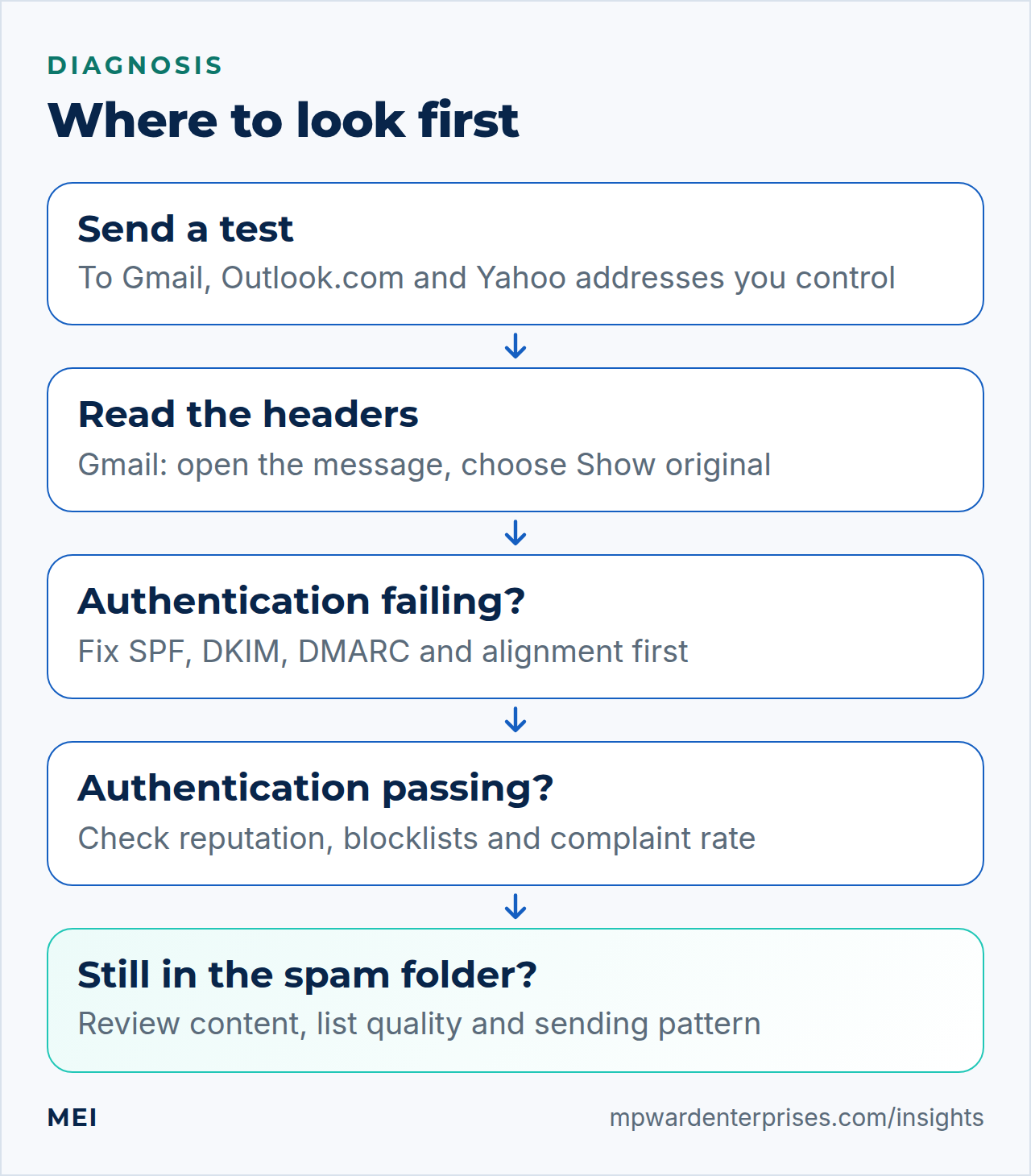
Do this for every system that sends as you
Test your normal mailbox, your website contact form, your invoicing or booking software and your marketing platform separately. Emails going to spam from only one of them means that system is the problem, not your whole domain.
The 9 fixes for emails going to spam, in order
1. Publish one correct SPF record
SPF is a single DNS TXT record that lists every service allowed to send mail for your domain. A typical record looks like v=spf1 include:_spf.google.com include:your-form-service.example ~all.
Three rules cause most failures. First, a domain may have only one SPF record; two records make SPF fail outright. Second, every service that sends as you must be included. Third, evaluation is limited to 10 DNS lookups: include, a, mx, ptr, exists and redirect each count, while ip4, ip6 and all do not, as RFC 7208 specifies. Stack up too many services and SPF breaks silently. Our guide to SPF, DKIM and DMARC explains each piece in plain English.
2. Turn on DKIM signing for every sending service
DKIM signs each outgoing message so receivers can confirm it was not altered and really came from your domain. Each service signs with its own key: you add the DKIM records it gives you (usually a CNAME or TXT) to your DNS and switch signing on. Use 2048-bit keys where the service offers them. In the headers you want to see dkim=pass with header.d= showing your own domain, not the service's.
3. Publish a DMARC record, starting in monitor mode
DMARC is a TXT record at _dmarc.yourdomain.com. Start with v=DMARC1; p=none; rua=mailto:[email address], which changes nothing about delivery but starts sending you reports of who is sending as your domain. Move to quarantine and then reject only after the reports show every legitimate sender passing. Our DMARC setup guide walks through the rollout step by step.
4. Make the From domain align
DMARC passes only when SPF or DKIM passes and the domain it authenticated matches the domain in the visible From address (the RFC 7489 definition of alignment). A common trap: a marketing or invoicing platform sends mail that passes its own SPF and DKIM, but uses its own domain behind the scenes, so DMARC fails for yours. The fix is inside that platform: set up a custom sending (or "branded") domain so the return path and the DKIM signature both use your domain.
5. Check the basics your provider assumes: DNS, reverse DNS and TLS
If you run your own mail server, or send from a server you control, the sending IP needs a matching reverse DNS (PTR) record, a forward DNS record that resolves back to it, and TLS for transport. These are baseline Gmail requirements for all senders. If you use a hosted service such as Google Workspace or Microsoft 365, they are handled for you, which is one reason to prefer one.
6. Stop your website and tools from sending unauthenticated mail
The most overlooked cause of emails going to spam is the system nobody thinks of as an email sender: the contact form on your website, the booking plugin, the invoicing tool, the CRM. By default a WordPress site hands its mail to the web server, which is not in your SPF record and does not sign with DKIM. Route that mail through authenticated SMTP or a transactional email service, send it from an address on your own domain, and put the visitor's address in Reply-To instead of From.
If your forms are the problem, see WordPress contact form not sending email for the fix.
7. Check reputation and blocklists
A poor reputation is a common reason for emails going to spam even when authentication passes. Look up your sending IP address and domain on the major blocklists; Spamhaus publishes a free lookup. If you send to Gmail in volume, Google Postmaster Tools shows your domain reputation, spam rate and authentication results. Small senders often see no data there because there is not enough volume, which is not a problem in itself.
If you share an IP with other customers of a provider, a noisy neighbor can drag your mail down, and moving to a better-managed provider is a legitimate fix.
8. Clean your list and keep complaints low
Mailing people who never asked to hear from you is the quickest route to the spam folder. Send only to people who asked, remove addresses that bounce, and make unsubscribing easy: a visible link in the body and, for marketing mail, the one-click unsubscribe header that Gmail and Yahoo now expect from bulk senders. Google and Yahoo both ask senders to keep spam complaints below 0.3%, and the closer to zero you stay the better your mail is treated.
9. Tidy the content and the sending pattern
Mailing the whole list at once is a classic reason new senders see emails going to spam. Write subject lines that say what the message is. Include a plain-text version alongside the HTML. Avoid URL shorteners, links whose visible text names a different domain, and image-only messages. Send from a consistent name and address. If the domain is new, or has been quiet, ramp volume up gradually instead of mailing the whole list on day one, and keep cold outreach off your main business domain.
When emails go to spam and it is not your fault
Sometimes the problem sits on the recipient's side. A forwarded message can break SPF, because the forwarding server is not in your record; DKIM usually survives forwarding, which is exactly why DMARC accepts either. A mailing list that adds a footer can break DKIM. And one person's mailbox may simply have learned to junk you after a past message. For a single recipient, ask them to move one of your messages out of the spam folder, mark it as not spam and add you to their contacts, then watch whether it sticks.
A ten-minute checklist for emails going to spam
- Send a test to Gmail, Outlook.com and Yahoo addresses you control, and note where each lands.
- Open the Gmail message that landed in the spam folder, choose Show original, and record the SPF, DKIM and DMARC results.
- List every system that sends as your domain: mailbox provider, website forms, invoicing, CRM, marketing platform.
- Confirm there is exactly one SPF record and that it covers every sender within 10 lookups.
- Confirm DKIM is switched on for each sender, and that a DMARC record exists.
- Check that the domain in the From address matches the domain that passed SPF or DKIM.
- Look up your sending IP and domain on a blocklist checker.
- Remove bounced and unengaged addresses, and add a clear unsubscribe link to marketing mail.
If the checklist turns up more than you want to untangle yourself, that is what MEI's email deliverability service is for, and it is also one of the areas a Business Tech Rescue Audit tests directly. For the wider picture of what to review across your systems, use our IT audit checklist.
Frequently asked questions
Why do my emails go to spam even though SPF and DKIM pass?
Passing authentication only proves who you are, not that your mail is wanted. If recipients ignore or report your messages, if your domain or sending IP is new or has a poor reputation, or if the content looks like bulk marketing, providers can still send you to the spam folder. Check DMARC alignment, complaint rate and list quality next.
How do I stop emails going to spam in Gmail?
Authenticate with both SPF and DKIM, publish a DMARC record, make sure the domain in your From address aligns with them, keep your spam-complaint rate low in Google Postmaster Tools, and make unsubscribing easy for marketing messages. Then ask a few recipients to mark a message as not spam, which helps your reputation.
Can I fix emails going to spam myself?
Often yes, if the cause is a missing or broken DNS record. The risk is breaking working mail while editing SPF or DMARC, because a single domain often has several legitimate senders. If you are not sure which systems send mail as your domain, get that inventory done first or ask for help.
Do I need a dedicated IP address?
Usually not. Low-volume senders do better on a reputable provider's shared IPs than on a brand-new dedicated one that has no sending history. Dedicated IPs make sense at high, steady volume.
How long does it take for email to recover once fixed?
Authentication fixes take effect as soon as DNS updates, usually within hours. Reputation recovers more slowly, typically over days to a few weeks of consistent, wanted mail. Avoid sudden jumps in volume while it recovers.
Sources and further reading
- Google: Email sender guidelines — requirements for all senders and for bulk senders, in force since February 1, 2024
- Yahoo: Sender best practices — SPF and DKIM, a DMARC policy, a spam-rate ceiling and one-click unsubscribe for bulk senders
- Microsoft: Fix NDR error 550 5.7.515 in Outlook.com — authentication requirements for high-volume senders to Outlook.com
- IETF RFC 7208: Sender Policy Framework (SPF) — including the limit of 10 DNS lookups
- IETF RFC 7489: DMARC — policy, alignment and reporting