
Learning how to back up a WordPress site properly takes an afternoon and saves a business. The part most people get wrong is not the backup itself — plugins make that easy — it is where the copy lives, whether the database came with it, and whether anyone has ever restored one. A WordPress backup you have never tested is a guess.
This guide covers the five methods that actually work, what a complete backup must contain, how often to take one, and a restore drill you can run in twenty minutes. It is written for owners and site managers, not developers.
What a complete WordPress backup must contain
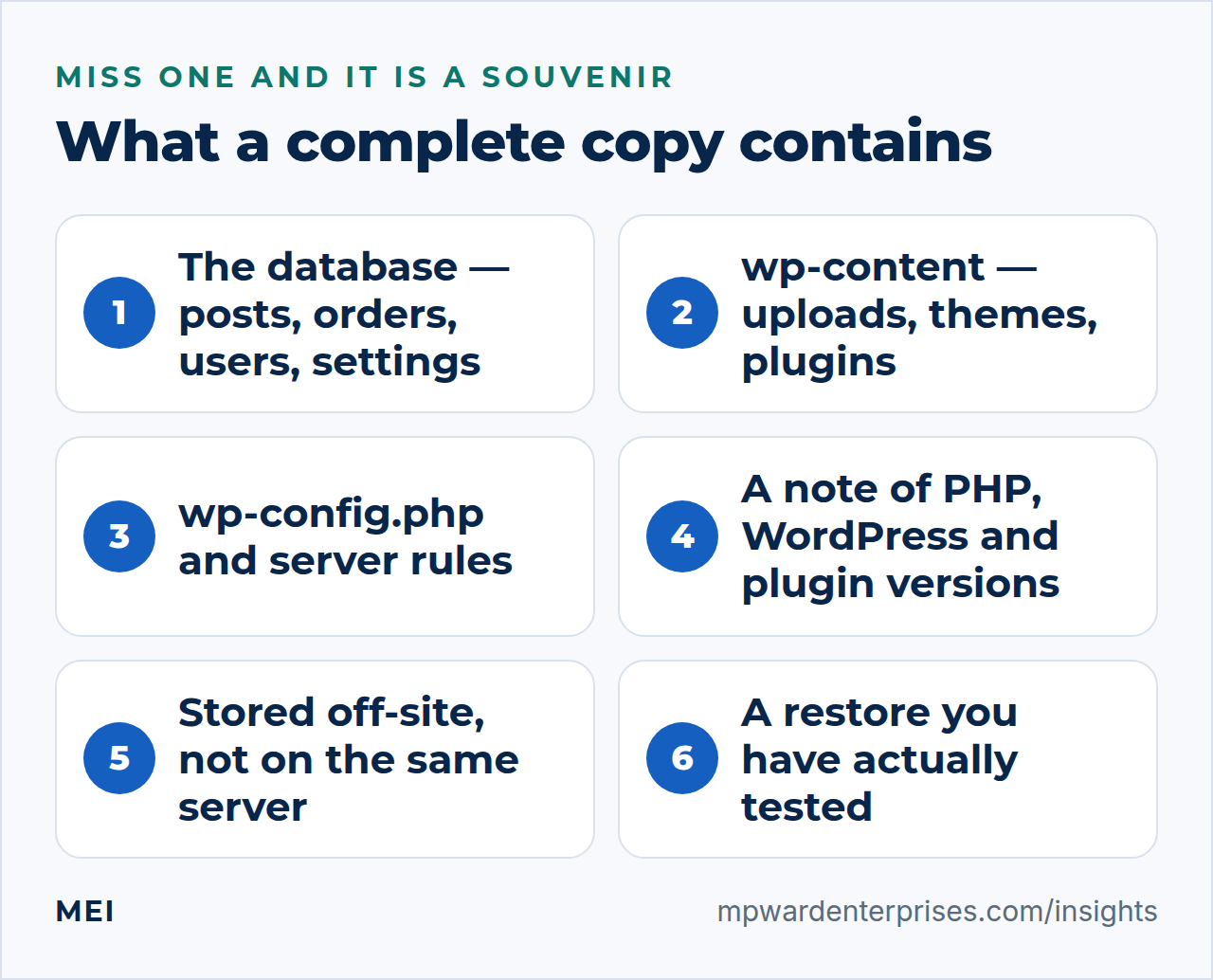
A WordPress site is two things, and a copy of only one of them is useless. Miss either and you have a souvenir rather than a backup.
- The database. Every post, page, product, order, user, comment and setting. Without it you have a theme and no site.
- The
wp-contentfolder. Uploads, themes and plugins — your images and your customisations. - Configuration.
wp-config.phpand the web server rules. Small files, painful to reconstruct. - A note of versions. PHP version, WordPress version, and which plugins were active. Restoring onto a mismatched stack is a common cause of a failed recovery.
WordPress core itself does not need backing up — it can be downloaded again. That is the one part you can safely leave out, and leaving it out makes every copy smaller and faster.
How to back up a WordPress site: five methods
These are the methods worth considering, roughly from easiest to most robust.
| Method | Good for | The catch |
|---|---|---|
| Backup plugin to off-site storage | Most small business sites | Runs inside WordPress, so a broken site can stop its own backup |
| Host's automatic backups | A useful second copy | Often same-server, short retention, and it leaves when you do |
| Server-level snapshots | Fast whole-machine recovery | Restores everything or nothing; not file-level |
| Scripted export off the server | Technical teams, full control | Needs someone to own it |
| Manual export before changes | A safety net around risky edits | Fine as an extra, hopeless as the only plan |
For most small businesses the right answer is a backup plugin writing to storage you control, plus whatever your host provides as a second copy. The important word is "off-site": a WordPress backup stored on the same server as the site is not a backup, because the most common disasters take the whole server with them.
How often should you back up a WordPress site?
Match the frequency to how much work you are willing to redo. That is the only question that matters, and it has a different answer for different sites.
| Site | Frequency | Keep for |
|---|---|---|
| Brochure site, rarely edited | Weekly, plus before any change | 30 days |
| Active blog or news site | Daily | 30 to 60 days |
| Shop taking orders | Database hourly, files daily | 60 to 90 days |
| Membership or booking site | Database hourly, files daily | 90 days |
Retention matters as much as frequency, because not every disaster is immediate. Malware and corruption are often discovered days or weeks later, and a seven-day retention means your oldest copy is already infected. Thirty days is a sensible floor for any business site.
Where the copies should live
The structure that survives real incidents is the 3-2-1 rule: three copies, on two kinds of media, one of them off-site. For a WordPress site that usually means the live site, a copy at your host, and a copy in storage you control and the web server cannot write to.
That last constraint is the one that defeats ransomware. If the credentials stored on your web server can delete or overwrite the backups, then anything that compromises the server can destroy them too. CISA's ransomware guidance makes the same point about offline or otherwise isolated copies. Write-once storage, a separate account, or a pull-based copy all achieve it.
Keep the backup storage out of the hands of the people who manage the site day to day, and keep its credentials out of the site's own configuration. It is a small inconvenience that removes an entire class of catastrophe.
Choosing a backup plugin without regretting it
There are dozens of backup plugins and most of them work. The differences that matter show up at restore time rather than at install time, so these are the questions worth asking before you commit.
- Can it write to storage you own? Not just the plugin vendor's cloud. If the copies live somewhere only the vendor controls, you have swapped one dependency for another.
- Does it back up the database and files separately? Separate schedules let you run the database hourly without copying gigabytes of images every time.
- Can it restore a single file or table? Most incidents are small — one corrupted table, one deleted page. Restoring an entire site to fix one thing is a blunt instrument.
- Does it tell you when a backup fails? Silent failure is the single most common reason a business discovers it has no usable copy. You want an email when a run does not happen, not just when it does.
- Does it work when WordPress does not? A plugin runs inside WordPress. If the site is broken enough, it cannot back itself up — which is the argument for a second method outside WordPress entirely.
That last point is why the recommendation is a plugin plus something else, rather than a plugin alone. The two failure modes are different: a plugin protects you from your own mistakes and from most attacks, while a host snapshot or server-level copy protects you when the site itself cannot run. Together they cover nearly everything a small business faces.
Whatever you pick, set it up once with monitoring and then leave it alone. A backup routine that is constantly tinkered with is one that nobody can describe under pressure, and under pressure is the only time it matters.
The twenty-minute restore drill
This is the step that separates a real backup from a hopeful one, and almost nobody does it. Run it once a quarter.
- Take the most recent backup — not a fresh one made for the test. The point is to prove the routine copy works.
- Restore it somewhere else. A staging site or a local environment. Never over the live site.
- Check four things: the home page loads, you can log in, a recent post or order is present, and images display.
- Note how long it took. That number is your real recovery time, and it is usually longer than people assume.
- Write down what went wrong and fix the process, not just this restore.
The first drill almost always finds something: a missing database, an expired storage credential, a backup that silently stopped two months ago. Finding that on a Tuesday afternoon is infinitely better than finding it during an outage.
Backing up before you change anything
Most WordPress emergencies are self-inflicted — an update, a new plugin, a theme change. The habit worth building is to take a backup immediately before any change you cannot trivially undo, and to know how to roll back.
- Before plugin or theme updates, especially on a site taking money.
- Before editing
wp-config.phpor anything on the server. - Before a migration, on both sides.
- Before bulk changes — a find-and-replace across content, an import, a price update.
If updates regularly break things, the backup is treating a symptom. The underlying maintenance routine is covered in our WordPress maintenance checklist, and performance problems that appear after updates in why is my WordPress site so slow.
Six mistakes that make a backup worthless
- Storing it on the same server. The most common mistake, and fatal in exactly the scenarios that matter.
- Backing up files but not the database. Or the reverse. Both, every time.
- Never testing a restore. Untested backups fail at roughly the rate you would fear.
- No monitoring. Backups fail silently. If nothing tells you when one does not run, assume it is not running.
- Short retention. Seven days is too short to catch malware found late.
- Credentials on the web server. Anything that compromises the site can then reach the copies.
If your site takes orders
A shop changes the arithmetic, because the database contains money. An order placed after the last backup and lost in a restore is a real customer with a real receipt and no record on your side.
For WooCommerce or any site taking payments, back the database up hourly, keep ninety days, and make sure the restore procedure is written down rather than remembered. It is also worth knowing which data lives at your payment provider rather than on your site, because that part is recoverable independently — your provider holds the transaction record even when your database does not.
If the site is business-critical, the backup plan belongs inside a wider business continuity plan with a stated recovery time, rather than existing as an isolated technical setting.
Getting it set up once, properly
Knowing how to back up a WordPress site is not difficult; the difficulty is that it is nobody's job until the morning it matters. Whoever owns it should be able to answer three questions without looking: where the copies are, how old the newest one is, and when a restore was last tested.
If those answers do not exist today, that is what Managed Website & IT Care covers — monitored backups with tested restores — and a Business Tech Rescue Audit will tell you what is currently being backed up, which is often not what people expect.
Frequently asked questions
What needs to be included in a WordPress backup?
Two essential parts: the database (every post, page, product, order, user and setting) and the wp-content folder (uploads, themes and plugins). Add wp-config.php, your web server rules, and a note of which PHP and WordPress versions and which plugins were active — restoring onto a mismatched stack is a common cause of failure. WordPress core itself can be left out, since it can simply be downloaded again.
How often should I back up my WordPress site?
Match it to how much work you are willing to redo. A brochure site edited occasionally needs a weekly backup plus one before any change. An active blog needs daily. A shop taking orders needs the database hourly and files daily, because every missed hour is real customer orders. Keep copies for at least 30 days, and 90 for a shop — malware and corruption are often discovered weeks after they arrive.
Are my host's backups enough?
They are a useful second copy, not a plan. Host backups are frequently stored on the same server or in the same account, often have short retention, usually cannot restore a single file or table, and disappear if you leave the host or the account is suspended. Treat them as a convenience and keep your own copy in storage you control.
How do I test a WordPress backup restore?
Take the most recent routine backup — not a fresh one made for the test — and restore it to a staging site or local environment, never over the live site. Then check four things: the home page loads, you can log in, a recent post or order is present, and images display. Note how long it took, because that is your real recovery time. Repeat quarterly.
Will a backup protect me from ransomware?
Only if the attacker cannot reach it. If the credentials stored on your web server can delete or overwrite the backup storage, then whatever compromises the site can destroy the copies too. CISA's guidance is to keep copies offline or otherwise isolated. Use a separate account, write-once storage, or a pull-based copy, and keep those credentials out of the site's own configuration.
What should I back up before updating plugins?
Everything — database and files — immediately before the update, and make sure you know how to roll back before you click. Most WordPress emergencies are self-inflicted by an update, a new plugin or a theme change. The same applies before editing configuration, running an import, or doing a bulk find-and-replace across content.
Sources and further reading
- WordPress Developer Resources: Backing up your database and files — the official view of which parts of a WordPress installation need preserving and which do not
- CISA: StopRansomware — why backup copies must be isolated from the systems they protect
- NIST: Cybersecurity Framework — recovery as a named function, with tested restoration rather than assumed capability