
A WireGuard server setup gives a small business one encrypted tunnel between a public server, the private servers behind it and the laptops that need them, and each machine needs only a short file. This guide builds it on Ubuntu 24.04 LTS or 26.04 LTS in six steps (pick yours with the switch below): make keys, write the public server's file, connect a private server, open the firewall and forwarding, add laptops, and add or remove peers without dropping the tunnel. Allow about 90 minutes; you need two Ubuntu machines, sudo and UDP reachability.
Every command was run twice in disposable containers on a private Docker network, once on Ubuntu 24.04 (wireguard-tools 1.0.20210914) and once on Ubuntu 26.04 (wireguard-tools 1.0.20250521). One container stood in for the public server, one for a private server, and a laptop sat behind a NAT. We also broke the setup on purpose, to see what each mistake looks like in wg show. Addresses such as 203.0.113.10 and every key in this guide are placeholders.
WireGuard runs inside the kernel, and a container shares its host's kernel, which was 6.8 in both labs. That matches Ubuntu 24.04, whose kernel is 6.8, but not Ubuntu 26.04, whose kernel is 7.0. We could not test the newer kernel, so anything that depends on it is untested. Where the two releases differ, the page shows only the one you picked.
Choose your Ubuntu version
This guide covers both releases. Commands, file paths and version numbers change with your choice; everything else is the same.
JavaScript is off, so both versions are shown below and each block says which release it is for.
Before you start
You need a public server with a fixed address, a private server that can reach it over UDP, and a laptop. The servers run Ubuntu 24.04 LTS or 26.04 LTS; the laptop can run anything that speaks WireGuard. A firewall mistake on a remote server can lock you out, so three habits keep this safe.
- Keep console access. Check that your provider's web console works before you touch the public server's firewall.
- Leave SSH where it is until the tunnel is proven. Moving SSH onto the tunnel comes last, as in our SSH hardening guide.
- Change one machine at a time and check
sudo wg showafter each change.
On Ubuntu 26.04, sudo is sudo-rs, a Rust rewrite, and the everyday tools used below (ls, install, tee, head and tail) are the Rust versions from the uutils project, while cp, rm, sed, awk and grep are still the GNU ones. We ran every command as an admin user and each behaved as it does on 24.04, so nothing in this guide changes because of them. sudo --version and ls --version tell you which implementation you have.
Why a WireGuard server setup and not the other ways
Several tools can join a public server to private machines. They differ in how much you must configure, who holds the keys, and what happens when something breaks.
| Option | In plain English | Our verdict |
|---|---|---|
| WireGuard (this guide) | An encrypted tunnel built into the Linux kernel. Each machine has a key pair and a short file | Our choice for a handful of servers and administrators. Small, fast and silent to strangers. It has no user accounts or revocation lists, so you manage keys by hand |
| OpenVPN | A TLS-based VPN with certificates or passwords, which can run over TCP port 443 | Better when you need per-user logins, two-factor sign-in or a way through a network that only allows port 443. More settings, and a larger program to patch |
| IPsec (IKEv2) | The standards-based VPN that many routers, firewalls and phones already speak | The right choice when the other end only speaks IPsec, such as a cloud gateway. The longest configuration of the lot |
| SSH tunnels | Forward one port, or hop through a jump host, over the SSH you already run | Fine for one administrator reaching one thing. Fragile as infrastructure: one tunnel per port, and nothing restarts it for you |
| A managed service built on WireGuard | A vendor's control plane handles keys, NAT traversal and sign-in | The easiest for laptops anywhere and for non-technical teams. A third party joins your trust chain, and many plans charge per user |
Think of the public server as a reception desk and the private servers as offices behind it, joined by a sealed tube that only the desk and the offices can open. WireGuard is the tube: simple, quiet, with one rule for who may send what.
WireGuard in plain English
Every machine has a private key, which never leaves it, and a public key, which you hand out freely. A peer is another machine you trust: you list its public key and the tunnel addresses it may use. WireGuard has no real client and server. The one with a stable public address plays the server, and any peer can start a conversation.
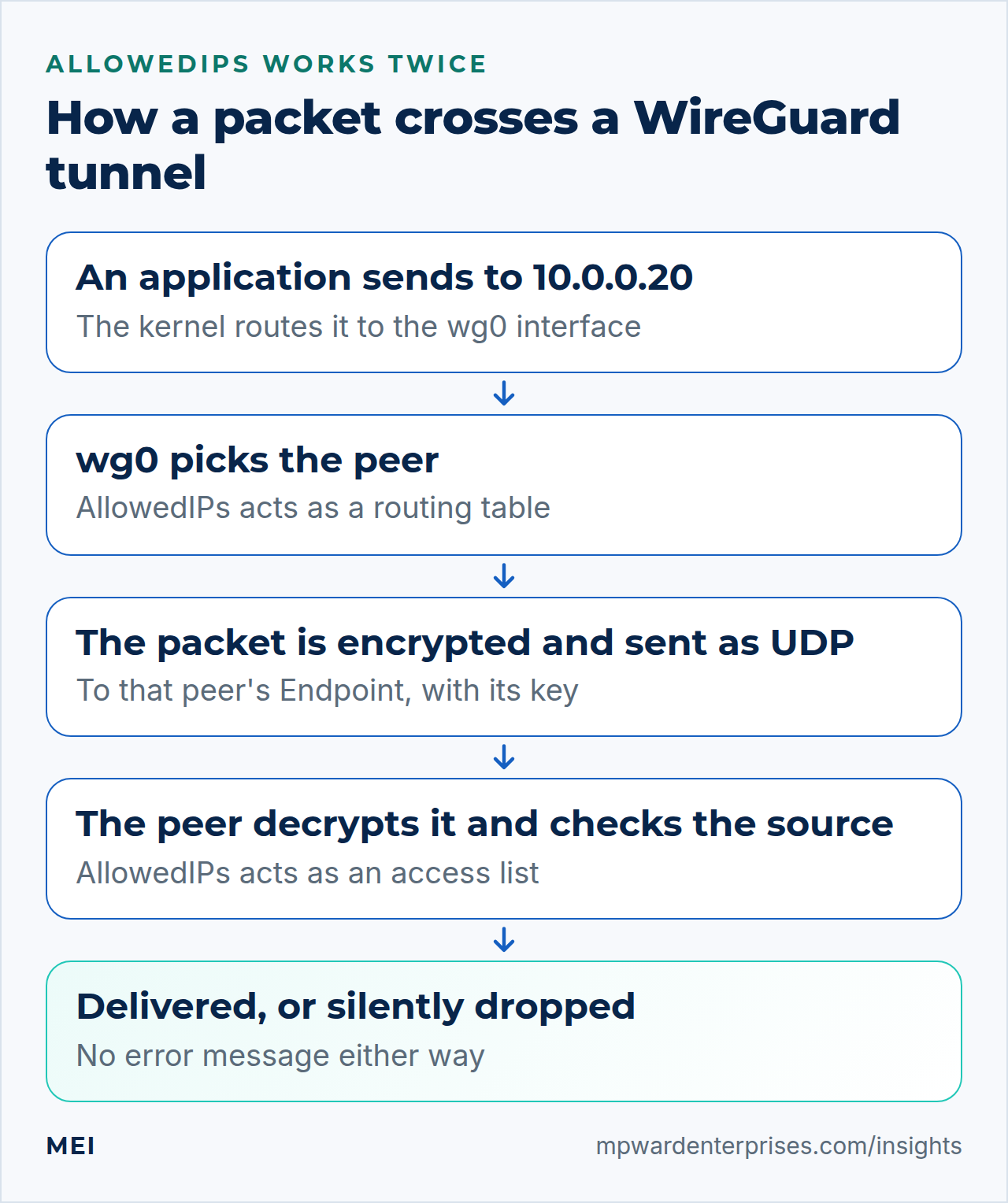
The setting that matters most is AllowedIPs, and it works twice. For packets leaving your machine it is a routing table: a packet goes to the peer whose list contains the destination. For packets arriving it is an access list: a packet is accepted only if its source address is in the list of the peer that sent it. Both facts come from WireGuard's own documentation, and we tested both in step 3.
Two more properties matter. WireGuard uses UDP only, with no connection to keep open. And it stays silent to strangers: we sent a random datagram to the WireGuard port and got no answer, while a closed port on the same server answered with an ICMP "connection refused" error.
The addressing plan
Pick a private range that no network you use already occupies, because overlapping ranges make routes ambiguous. We use 10.0.0.0/24 as a placeholder; if your office already uses it, choose another /24. Give every machine one tunnel address.
| Machine | Role | Tunnel address | Public address |
|---|---|---|---|
| Public server | The hub. Listens on UDP 51820 | 10.0.0.1/24 |
203.0.113.10 |
Private server web1 |
A spoke that dials out to the hub | 10.0.0.20/32 |
None needed |
Laptop alex |
A roaming spoke | 10.0.0.30/32 |
Changes |
Only the hub must be reachable from outside. The private server and the laptop start the connection, so they can sit behind a router or NAT with no ports opened. Our HAProxy SNI routing guide sends web traffic through this kind of tunnel to private web servers.
Step 1: Install WireGuard and make keys on every machine
Ubuntu 24.04's kernel already contains WireGuard (it loaded on kernel 6.8 in our lab).Ubuntu 26.04's kernel (7.0) contains WireGuard too. It loaded on our lab's shared 6.8 kernel, but we could not test 7.0 itself. The wireguard package adds the tools, wg and wg-quick. Run these commands on all three machines, so that each private key is created on the machine that uses it and goes nowhere else.
# On every machine (public server, private server, laptop)
sudo apt install wireguard
sudo install -d -m 700 /etc/wireguard
sudo sh -c 'umask 077; wg genkey | tee /etc/wireguard/private.key | wg pubkey > /etc/wireguard/public.key'
sudo ls -l /etc/wireguard
sudo cat /etc/wireguard/public.key
total 8
-rw------- 1 root root 45 Oct 9 02:51 private.key
-rw------- 1 root root 45 Oct 9 02:51 public.key
<server-public-key>wg genkey makes a private key, tee saves it, and wg pubkey derives the public key. umask 077 makes both files readable by root only. The last line prints the public key, which is safe to send by email or chat. Note each machine's public key with a label; steps 2 to 4 need them.
Why this way?
A key pair made on its own machine means a stolen server cannot reveal the other machines' identities. The shortcut many tutorials teach is to generate every key on the server and send out finished config files; then the server, and every email that carried a file, holds everyone's private key. If you skip umask 077, wg genkey warns you: when we wrote a key to a file others could read, it printed "Warning: writing to world accessible file." wg genpsk does the same.
Step 2: Write the public server's file and start it
The public server's file lists itself and one block for each peer. Put the public keys you collected in the two variables at the top. The private key is read from its file inside the command, so it never appears on a command line or in your shell history. The first command creates the file empty with mode 600, so the secret is never readable by others, even briefly.
# On the public server
WEB1_PUBKEY='<web1-public-key>'
ALEX_PUBKEY='<alex-laptop-public-key>'
sudo install -m 600 /dev/null /etc/wireguard/wg0.conf
sudo tee /etc/wireguard/wg0.conf > /dev/null <<EOF
[Interface]
Address = 10.0.0.1/24
ListenPort = 51820
PrivateKey = $(sudo cat /etc/wireguard/private.key)

[Peer]
# private server web1
PublicKey = $WEB1_PUBKEY
AllowedIPs = 10.0.0.20/32

[Peer]
# laptop alex
PublicKey = $ALEX_PUBKEY
AllowedIPs = 10.0.0.30/32
EOF
sudo ufw allow 51820/udp comment 'WireGuard'
sudo systemctl enable --now wg-quick@wg0
sudo wg show
Rule added
Rule added (v6)
Created symlink /etc/systemd/system/multi-user.target.wants/[email address] → /usr/lib/systemd/system/wg-quick@.service.
interface: wg0
public key: <server-public-key>
private key: (hidden)
listening port: 51820
peer: <web1-public-key>
allowed ips: 10.0.0.20/32
peer: <alex-laptop-public-key>
allowed ips: 10.0.0.30/32Rule added
Rule added (v6)
Created symlink '/etc/systemd/system/multi-user.target.wants/[email address]' → '/usr/lib/systemd/system/wg-quick@.service'.
interface: wg0
public key: <server-public-key>
private key: (hidden)
listening port: 51820
peer: <web1-public-key>
allowed ips: 10.0.0.20/32
peer: <alex-laptop-public-key>
allowed ips: 10.0.0.30/32| Setting | In plain English |
|---|---|
Address = 10.0.0.1/24 |
The hub's own tunnel address, and the whole tunnel range as one connected network |
ListenPort = 51820 |
The UDP port peers connect to. 51820 is WireGuard's customary choice; any free port works |
[Peer] and PublicKey |
One block per machine allowed in. The key is its identity |
AllowedIPs = 10.0.0.20/32 |
This peer may use exactly one address, 10.0.0.20, and no other |
sudo ufw allow 51820/udp opens the port, as in our UFW guide. systemctl enable --now wg-quick@wg0 starts the tunnel now and at every boot; wg0 is the interface name, taken from the file name. wg show lists the peers with no handshake yet, which is right: nobody has connected.
Why this way?
Each peer gets a single /32, so its key can claim only that address, and a stolen laptop key cannot pretend to be the private server. wg-quick turns the file into an interface, an address and routes; the systemd unit calls it for you. Leave SaveConfig at its default of false: with true, wg-quick rewrites your hand-edited file from the live state when it stops.
Step 3: Connect the private server and read the handshake
The private server's file has one peer, the public server, with the address it dials and a keepalive. AllowedIPs = 10.0.0.0/24 means "send the whole tunnel range to the hub", so the private server can reach the hub and, once step 4 allows forwarding, the laptop.
# On the private server
SERVER_PUBKEY='<server-public-key>'
sudo install -m 600 /dev/null /etc/wireguard/wg0.conf
sudo tee /etc/wireguard/wg0.conf > /dev/null <<EOF
[Interface]
Address = 10.0.0.20/32
PrivateKey = $(sudo cat /etc/wireguard/private.key)

[Peer]
# the public server
PublicKey = $SERVER_PUBKEY
Endpoint = 203.0.113.10:51820
AllowedIPs = 10.0.0.0/24
PersistentKeepalive = 25
EOF
sudo systemctl enable --now wg-quick@wg0
ping -c 3 10.0.0.1
sudo wg show
Created symlink /etc/systemd/system/multi-user.target.wants/[email address] → /usr/lib/systemd/system/wg-quick@.service.
PING 10.0.0.1 (10.0.0.1) 56(84) bytes of data.
64 bytes from 10.0.0.1: icmp_seq=1 ttl=64 time=0.133 ms
64 bytes from 10.0.0.1: icmp_seq=2 ttl=64 time=1.72 ms
64 bytes from 10.0.0.1: icmp_seq=3 ttl=64 time=0.249 ms
--- 10.0.0.1 ping statistics ---
3 packets transmitted, 3 received, 0% packet loss, time 2010ms
rtt min/avg/max/mdev = 0.133/0.700/1.718/0.721 ms
interface: wg0
public key: <web1-public-key>
private key: (hidden)
listening port: 38880
peer: <server-public-key>
endpoint: 203.0.113.10:51820
allowed ips: 10.0.0.0/24
latest handshake: 2 seconds ago
transfer: 476 B received, 564 B sent
persistent keepalive: every 25 secondsCreated symlink '/etc/systemd/system/multi-user.target.wants/[email address]' → '/usr/lib/systemd/system/wg-quick@.service'.
PING 10.0.0.1 (10.0.0.1) 56(84) bytes of data.
64 bytes from 10.0.0.1: icmp_seq=1 ttl=64 time=0.133 ms
64 bytes from 10.0.0.1: icmp_seq=2 ttl=64 time=1.72 ms
64 bytes from 10.0.0.1: icmp_seq=3 ttl=64 time=0.249 ms
--- 10.0.0.1 ping statistics ---
3 packets transmitted, 3 received, 0% packet loss, time 2010ms
rtt min/avg/max/mdev = 0.133/0.700/1.718/0.721 ms
interface: wg0
public key: <web1-public-key>
private key: (hidden)
listening port: 38880
peer: <server-public-key>
endpoint: 203.0.113.10:51820
allowed ips: 10.0.0.0/24
latest handshake: 2 seconds ago
transfer: 476 B received, 564 B sent
persistent keepalive: every 25 secondsThe ping traveled through the tunnel. In wg show, the peer's endpoint is the address WireGuard last heard from, allowed ips is its list, latest handshake is when the two machines last agreed on fresh session keys, and transfer counts bytes each way. On the public server the same command now shows this private server's real source address and port.
Now prove that AllowedIPs is an access list. From the private server, add a second address to the tunnel interface and ping the hub from it. The hub's entry for this peer allows only 10.0.0.20, so it should drop the second address's packets.
# On the private server
sudo ip addr add 10.0.0.99/32 dev wg0
ping -c 2 -W 2 -I 10.0.0.99 10.0.0.1 | tail -2
ping -c 2 -W 2 -I 10.0.0.20 10.0.0.1 | tail -2
sudo ip addr del 10.0.0.99/32 dev wg0
ip route get 10.44.0.5 | head -1
2 packets transmitted, 0 received, 100% packet loss, time 1020ms
2 packets transmitted, 2 received, 0% packet loss, time 1007ms
rtt min/avg/max/mdev = 0.520/0.792/1.064/0.272 ms
10.44.0.5 via 203.0.113.1 dev eth0 src 203.0.113.20 uid 0 The packets from 10.0.0.99 got no answer, and those from 10.0.0.20 did. The last line shows the routing half: an address outside every AllowedIPs list is not sent into the tunnel at all, but out by the machine's normal route.
Watch out: one address belongs to one peer
We added a third peer on the hub that claimed 10.0.0.20/32, the private server's address. WireGuard accepted it without a warning, and the private server's entry showed allowed ips: (none). Its pings to the hub failed until systemctl reload wg-quick@wg0 restored the file's version. When you copy a peer block, change the key and the address.
Why this way?
PersistentKeepalive = 25 sends a tiny packet every 25 seconds, so a router in between does not forget the connection (step 4 shows the proof). Narrowing the hub entry on the private server to AllowedIPs = 10.0.0.1/32 is the stricter choice when it only talks to the hub: in our test the laptop could then no longer reach it through the hub, because the private server drops packets from sources not in its list.
Step 4: Add the laptop and let peers reach each other
The laptop's file follows the private server's. AllowedIPs = 10.0.0.0/24 makes it a split tunnel: only the tunnel range goes through WireGuard, and everything else uses the laptop's normal connection. Bring the tunnel up and down by hand with wg-quick up wg0 and wg-quick down wg0.
# On the laptop
SERVER_PUBKEY='<server-public-key>'
sudo install -m 600 /dev/null /etc/wireguard/wg0.conf
sudo tee /etc/wireguard/wg0.conf > /dev/null <<EOF
[Interface]
Address = 10.0.0.30/32
PrivateKey = $(sudo cat /etc/wireguard/private.key)

[Peer]
# the public server
PublicKey = $SERVER_PUBKEY
Endpoint = 203.0.113.10:51820
# split tunnel: only the tunnel range goes through WireGuard
AllowedIPs = 10.0.0.0/24
PersistentKeepalive = 25
EOF
sudo wg-quick up wg0
ping -c 2 10.0.0.1
[#] ip link add wg0 type wireguard
[#] wg setconf wg0 /dev/fd/63
[#] ip -4 address add 10.0.0.30/32 dev wg0
[#] ip link set mtu 1420 up dev wg0
[#] ip -4 route add 10.0.0.0/24 dev wg0
PING 10.0.0.1 (10.0.0.1) 56(84) bytes of data.
64 bytes from 10.0.0.1: icmp_seq=1 ttl=64 time=0.256 ms
64 bytes from 10.0.0.1: icmp_seq=2 ttl=64 time=0.962 ms
--- 10.0.0.1 ping statistics ---
2 packets transmitted, 2 received, 0% packet loss, time 1017ms
rtt min/avg/max/mdev = 0.256/0.609/0.962/0.353 ms[#] ip link add dev wg0 type wireguard
[#] wg setconf wg0 /dev/fd/63
[#] ip -4 address add 10.0.0.30/32 dev wg0
[#] ip link set mtu 1420 up dev wg0
[#] ip -4 route add 10.0.0.0/24 dev wg0
PING 10.0.0.1 (10.0.0.1) 56(84) bytes of data.
64 bytes from 10.0.0.1: icmp_seq=1 ttl=64 time=0.256 ms
64 bytes from 10.0.0.1: icmp_seq=2 ttl=64 time=0.962 ms
--- 10.0.0.1 ping statistics ---
2 packets transmitted, 2 received, 0% packet loss, time 1017ms
rtt min/avg/max/mdev = 0.256/0.609/0.962/0.353 msThe laptop reaches the hub. Reaching the private server is different, because the hub has to forward the packet. Test that with a real TCP connection: start a throwaway web server on the private server, bound to its tunnel address only, serving an empty folder, and leave it running.
# On the private server (leave this running; press Ctrl+C when you are done)
mkdir -p ~/wgdemo && cd ~/wgdemo
python3 -m http.server 9000 --bind 10.0.0.20
From the laptop, ask for it. A web server that answers prints 200. When nothing answers within four seconds, curl prints 000.
# On the laptop
curl -s -o /dev/null -m 4 -w '%{http_code}\n' http://10.0.0.20:9000/000That is the expected failure: a fresh Ubuntu server does not forward packets between interfaces. Turn forwarding on, and allow the routed traffic in UFW, whose manual lists a default forward policy of deny. ufw route is the keyword for traffic that passes through the machine rather than ending at it.
# On the public server
echo 'net.ipv4.ip_forward = 1' | sudo tee /etc/sysctl.d/99-wireguard.conf
sudo sysctl --system | grep ip_forward
sudo ufw route allow in on wg0 out on wg0 comment 'tunnel peers to tunnel peers'
net.ipv4.ip_forward = 1
net.ipv4.ip_forward = 1
Rule added
Rule added (v6)# On the laptop
curl -s -o /dev/null -m 4 -w '%{http_code}\n' http://10.0.0.20:9000/200Now it answers. A file in /etc/sysctl.d/ keeps forwarding on after a reboot, with or without UFW. When we restarted the whole lab server, wg0, forwarding and the firewall came back by themselves and the private server reconnected unaided. Older guides edit /etc/sysctl.conf instead. Ubuntu 26.04 no longer ships that file, and in our test a copy we created there was not applied after a restart, while a file in /etc/sysctl.d/ was.
Watch out: ping gets through when TCP does not
With forwarding on and no ufw route rule, a ping from the laptop to the private server still worked while the web request timed out. UFW's own rules let ICMP echo requests through the forward chain, so a ping proves nothing about forwarding. Test with a TCP connection. The same goes for the hub's own services: with UFW's default of deny incoming, a service on the hub's tunnel address stayed unreachable until we ran sudo ufw allow in on wg0 to any port 9001 proto tcp.
Why this way?
Tunnel peers should reach only what you name. The ufw route rule lets traffic entering on wg0 leave on wg0, the peer-to-peer case, and says nothing about the internet or the hub's own services. If peers should never reach each other, skip it and keep each peer's AllowedIPs at the hub's address alone. To make SSH reachable only through the tunnel, allow port 22 on wg0 as above, then follow the end of our SSH hardening guide.
The laptop's PersistentKeepalive earns its place here. A home router forgets an idle UDP conversation after a while. We made the NAT in front of our lab laptop forget idle flows after 10 seconds. Without a keepalive, a ping from the hub to the laptop failed after 30 idle seconds, until the laptop sent something. With PersistentKeepalive = 5, the same ping worked. Real routers differ; WireGuard's quick start recommends 25 seconds and says to leave it off if you do not need it.
Step 5: Send all of the laptop's traffic through the hub
A full tunnel makes the laptop use the hub as its door to the internet, which helps on untrusted networks. It needs NAT on the hub: packets would leave with a 10.0.0.30 source that no website can answer, so NAT rewrites it to the hub's public address. With UFW, the NAT rule goes at the top of /etc/ufw/before.rules, as the UFW framework manual describes. eth0 is your public interface; ip route show default names it.
# On the public server
sudo ufw route allow in on wg0 out on eth0 comment 'tunnel to the internet'
sudo cp /etc/ufw/before.rules ~/before.rules.bak
sudo sed -i '1i # NAT for WireGuard clients\n*nat\n:POSTROUTING ACCEPT [0:0]\n-A POSTROUTING -s 10.0.0.0/24 -o eth0 -j MASQUERADE\nCOMMIT\n' /etc/ufw/before.rules
sudo ufw reload
sudo iptables -t nat -S POSTROUTING | grep MASQUERADE
Rule added
Rule added (v6)
Firewall reloaded
-A POSTROUTING -s 10.0.0.0/24 -o eth0 -j MASQUERADENow switch the laptop. AllowedIPs = 0.0.0.0/0, ::/0 means "everything, IPv4 and IPv6". List ::/0 too, or the laptop's IPv6 traffic bypasses the tunnel. wg-quick sets up policy routing so that WireGuard's own packets can still reach the hub.
# On the laptop
sudo wg-quick down wg0
sudo sed -i 's|^AllowedIPs = .*|AllowedIPs = 0.0.0.0/0, ::/0|' /etc/wireguard/wg0.conf
sudo wg-quick up wg0 2>&1 | grep -E 'rule|route'
ip rule show
ip route show table 51820
curl -s -o /dev/null -m 8 -w '%{http_code}\n' https://example.com/
[#] ip link delete dev wg0
[#] ip -6 rule add not fwmark 51820 table 51820
[#] ip -6 rule add table main suppress_prefixlength 0
[#] ip -6 route add ::/0 dev wg0 table 51820
[#] ip -4 rule add not fwmark 51820 table 51820
[#] ip -4 rule add table main suppress_prefixlength 0
[#] ip -4 route add 0.0.0.0/0 dev wg0 table 51820
0: from all lookup local
32764: from all lookup main suppress_prefixlength 0
32765: not from all fwmark 0xca6c lookup 51820
32766: from all lookup main
32767: from all lookup default
default dev wg0 scope link
200The ip rule lines show the trick: packets carrying WireGuard's own mark use the normal route, and everything else uses table 51820, whose only route is wg0. The 200 came from the internet, through the hub. Before the NAT rule existed, the same request printed 000 even with the ufw route line in place, and afterwards the masquerade rule counted the laptop's packets.
Why this way?
MASQUERADE rather than a fixed source address, because it follows the hub's public address if that changes; the nftables wiki calls it a special case of source NAT. On a full tunnel the laptop's DNS lookups also go through the tunnel.
A DNS = line makes wg-quick call resolvconf; on a machine without that program, wg-quick up failed with "resolvconf: command not found" and removed the interface again. On Ubuntu Server's standard package set, the systemd-resolved package provides that command, and in our 26.04 test the line then worked: resolvectl status showed the DNS server and a ~. domain on the interface until wg-quick down removed them. Servers do not need DNS =, so leave it out.
The same rules with nftables, instead of UFW
If you use nftables rather than UFW, never run both. This ruleset allows SSH and WireGuard in, lets tunnel peers reach one service on the hub, forwards between peers and to the internet, and masquerades. Its tables have their own names, so they cannot collide with the ones iptables and Docker create. Change the SSH port in the file if yours is not 22, or loading it locks you out. We checked the syntax with nft -c, loaded the file and repeated the reachability tests.
# On the public server (alternative: nftables instead of UFW)
sudo ufw --force disable
sudo tee /etc/nftables.conf > /dev/null <<'EOF'
#!/usr/sbin/nft -f

table inet wg_filter
delete table inet wg_filter
table inet wg_filter {
    chain input {
        type filter hook input priority filter; policy drop;
        ct state established,related accept
        iifname "lo" accept
        ip protocol icmp accept
        ip6 nexthdr icmpv6 accept
        tcp dport 22 accept
        udp dport 51820 accept
        iifname "wg0" tcp dport 9001 accept    # a service that tunnel peers may use
    }
    chain forward {
        type filter hook forward priority filter; policy drop;
        ct state established,related accept
        iifname "wg0" oifname "wg0" accept     # peer to peer, through the hub
        iifname "wg0" oifname "eth0" accept    # tunnel to the internet
    }
}

table ip wg_nat
delete table ip wg_nat
table ip wg_nat {
    chain postrouting {
        type nat hook postrouting priority srcnat; policy accept;
        ip saddr 10.0.0.0/24 oifname "eth0" counter masquerade
    }
}
EOF
sudo nft -c -f /etc/nftables.conf && echo "syntax OK"
sudo systemctl enable nftables
sudo systemctl restart nftables
sudo nft list chain ip wg_nat postrouting
Firewall stopped and disabled on system startup
syntax OK
Created symlink /etc/systemd/system/sysinit.target.wants/nftables.service → /usr/lib/systemd/system/nftables.service.
table ip wg_nat {
chain postrouting {
type nat hook postrouting priority srcnat; policy accept;
ip saddr 10.0.0.0/24 oifname "eth0" counter packets 0 bytes 0 masquerade
}
}Firewall stopped and disabled on system startup
syntax OK
Created symlink '/etc/systemd/system/sysinit.target.wants/nftables.service' → '/usr/lib/systemd/system/nftables.service'.
table ip wg_nat {
chain postrouting {
type nat hook postrouting priority srcnat; policy accept;
ip saddr 10.0.0.0/24 oifname "eth0" counter packets 0 bytes 0 masquerade
}
}With it loaded, the laptop still reached the private server (200) and the internet (200), a hub service on the allowed port answered the private server, and a service on a port the file does not name stayed blocked. The masquerade counter starts at zero and rose with the laptop's requests (to 2 packets in our test).
Step 6: Add and remove peers without dropping the tunnel
A contractor needs access, or a laptop is lost. Both are edits to the hub's file, and how you apply them matters. The newcomer makes a key pair on their own machine, as in step 1, and sends you only the public key. You append a block and tell WireGuard to re-read the file.
# On the public server
CONTRACTOR_PUBKEY='<contractor-public-key>'
sudo tee -a /etc/wireguard/wg0.conf > /dev/null <<EOF

[Peer]
# contractor laptop
PublicKey = $CONTRACTOR_PUBKEY
AllowedIPs = 10.0.0.40/32
EOF
sudo systemctl reload wg-quick@wg0
sudo wg show wg0 allowed-ips
<web1-public-key> 10.0.0.20/32
<alex-laptop-public-key> 10.0.0.30/32
<contractor-public-key> 10.0.0.40/32reload is the important word. The systemd unit's reload action runs wg syncconf on the stripped file, which changes only what differs and keeps existing sessions. We watched a private server ping the hub five times a second while we added a peer this way: nothing was lost and every handshake time stayed the same. With systemctl restart wg-quick@wg0 every handshake reset, and 59 of 75 pings were lost, about 12 seconds without a tunnel.
To remove a peer, delete its block by the comment you gave it, then reload. This command keeps a backup, drops the paragraph that contains the comment, and puts the file back with mode 600.
# On the public server
sudo cp -p /etc/wireguard/wg0.conf /etc/wireguard/wg0.conf.bak
sudo awk -v RS= -v ORS='\n\n' '!/# contractor laptop/' /etc/wireguard/wg0.conf | sudo tee /etc/wireguard/wg0.conf.new > /dev/null
sudo install -m 600 /etc/wireguard/wg0.conf.new /etc/wireguard/wg0.conf
sudo rm /etc/wireguard/wg0.conf.new
sudo systemctl reload wg-quick@wg0
sudo wg show wg0 allowed-ips
<web1-public-key> 10.0.0.20/32
<alex-laptop-public-key> 10.0.0.30/32The contractor's key is now unknown to the hub, so its handshakes get no answer. For a lost laptop, do exactly this at once. To cut a peer off in the same second, sudo wg set wg0 peer <contractor-public-key> remove does it immediately. It changes only the running tunnel, so remove the block from the file as well, or the next reload or reboot brings the peer back.
Rotating a key works the same way: make a new pair on the peer, replace the PublicKey line on the hub, reload, and update the peer's file.
Why this way?
The file stays the single source of truth, so the tunnel after a reboot is the one you reviewed. The .bak copy is your undo. The awk command relies on a blank line between blocks, so keep that habit.
Reading wg show: handshakes, counters and what they tell you
Usually sudo wg show is the only tool you need. A handshake is the exchange in which two peers agree on fresh session keys. With PersistentKeepalive on, we watched a private server's handshake age grow to a little over two minutes and then reset to a few seconds, twice in a row. A tunnel with no keepalive and no traffic can show an old handshake and still be healthy; the next packet starts a new one. A peer with no latest handshake line at all has never connected.
When a peer cannot connect, WireGuard does not say why; it stays silent to anything it cannot authenticate. So you work from the picture on the machine that dials. We broke the setup in five ways and compared what wg show printed on the private server.
| What we broke | Handshake | transfer on the private server |
|---|---|---|
| Nothing (healthy) | A few seconds ago | Both numbers grow |
| Wrong public key for the hub in the private server's file | No line at all | 0 B received, sent grows |
| A typo in the private server's key in the hub's file | No line at all | 0 B received, sent grows |
| The hub's firewall closed for UDP 51820 | No line at all | 0 B received, sent grows |
| A preshared key on one side only | No line at all | 0 B received, sent grows |
| The hub lists the wrong address for this peer | A few seconds ago | 92 B received, sent grows |
Four different faults looked identical, each retry adding 148 bytes to sent, the size of one handshake request. The fifth shows a handshake, but only the 92-byte reply ever arrives: the hub accepted the keys and dropped every packet from an address it was not told about. To tell the first four apart, watch the hub while the other machine retries. If no UDP packets arrive, suspect the path, the endpoint address or a firewall in between. If they arrive and nothing comes back, suspect the keys.
# On the public server, while the other machine retries
sudo tcpdump -ni eth0 -c 3 udp port 51820
tcpdump: verbose output suppressed, use -v[v]... for full protocol decode
listening on eth0, link-type EN10MB (Ethernet), snapshot length 262144 bytes
02:52:25.061334 IP 203.0.113.20.40374 > 203.0.113.10.51820: UDP, length 148
02:52:25.061563 IP 203.0.113.10.51820 > 203.0.113.20.40374: UDP, length 92
02:52:25.061707 IP 203.0.113.20.40374 > 203.0.113.10.51820: UDP, length 32
3 packets captured
5 packets received by filter
0 packets dropped by kernelA healthy handshake looks like this: a 148-byte request, a 92-byte reply, then data. Compare keys letter by letter: sudo wg show on the hub prints the keys it holds, and sudo cat /etc/wireguard/public.key on the peer prints what it should be. A key pasted through a chat program that wraps lines is a common culprit.
Troubleshooting: what the symptoms mean
| What you see | Likely cause | What to do |
|---|---|---|
No handshake, 0 B received |
Keys, preshared key, UDP path or firewall (the table above) | tcpdump on the hub, then compare keys and read sudo ufw status |
Handshake works, received stays at 92 B |
The other side's AllowedIPs does not list your tunnel address |
Fix the /32 on the hub, reload, wait a few seconds |
| The laptop reaches the hub but not the private server | Forwarding is off, UFW has no route rule, or the private server's AllowedIPs is only the hub's address |
Step 4. Test with TCP, not ping |
| Full tunnel: the laptop has no internet | No NAT rule, no ufw route to the public interface, or forwarding is off |
Step 5. Check the masquerade counter rises |
wg-quick up fails and the interface vanishes after you add DNS = |
resolvconf is missing or misbehaving |
Remove the line on servers. On laptops, make sure systemd-resolved, which provides resolvconf, or another working resolvconf is installed |
| Peers drop for about 12 seconds whenever you edit the hub | You used restart instead of reload |
sudo systemctl reload wg-quick@wg0 |
| A peer lost its address after you added another | Two peers claim the same AllowedIPs; the last one wins |
Give each peer a unique /32, reload |
| Pings work but large downloads or SSH sessions stall | A path MTU smaller than the tunnel assumes (the classic sign; we did not reproduce it in the lab) | Add MTU = 1380 or lower to the [Interface] block and test with ping -M do -s 1392 10.0.0.1 |
About MTU: wg0 got 1420 on our 1500-byte link, and the largest ping that crosses unfragmented carries 1392 bytes of payload (1420 minus 28 of headers). When we lowered the physical interface to 1400, wg-quick chose 1320 by itself, as its manual says it does from the endpoint's route. An MTU = line overrides that.
Check your work
After any change, run these on the public server. You want a recent handshake for every peer you expect, the tunnel address on wg0, and the firewall rules you intended.
# On the public server
sudo wg show | grep -E 'peer|allowed ips|latest handshake'
ip -br addr show wg0
sudo ufw status | grep -E '51820|FWD'
peer: <web1-public-key>
allowed ips: 10.0.0.20/32
latest handshake: 4 seconds ago
peer: <alex-laptop-public-key>
allowed ips: 10.0.0.30/32
latest handshake: 12 seconds ago
wg0 UNKNOWN 10.0.0.1/24
51820/udp ALLOW Anywhere # WireGuard
51820/udp (v6) ALLOW Anywhere (v6) # WireGuard
Anywhere on wg0 ALLOW FWD Anywhere on wg0 # tunnel peers to tunnel peers
Anywhere on eth0 ALLOW FWD Anywhere on wg0 # tunnel to the internet
Anywhere (v6) on wg0 ALLOW FWD Anywhere (v6) on wg0 # tunnel peers to tunnel peers
Anywhere (v6) on eth0 ALLOW FWD Anywhere (v6) on wg0 # tunnel to the internetWhat WireGuard does not do
WireGuard has no user accounts, no sign-in and no central list of who is allowed: a peer is a key, and whoever holds the private key is that peer. A stolen key gives whatever that peer's AllowedIPs allows, so give each peer the smallest list that works, and keep /etc/wireguard out of unencrypted backups. It does not hide the tunnel from the public server, which sees each peer's real address, and some networks block UDP, so keep a fallback.
Nor does it replace the rest of your defenses. Patching, a firewall and backups still apply (see our Linux server hardening checklist and automatic updates guide), and reaching a service through a tunnel is not the same as being allowed to use it.
Common mistakes
- Making every key on the server and sending out finished config files.
- Copying a peer block and keeping its
AllowedIPs. The older peer silently loses the address. - Using
restartto apply a change. Usereload, which keeps existing sessions. - Testing forwarding with ping. UFW lets ping through anyway; use a TCP port.
- Leaving key files readable by others.
Keep your WireGuard server setup healthy
Once a month, compare the peers in sudo wg show with the people and machines that should still have access, and remove anyone who has left. Rotate a key when a laptop is lost, a contractor finishes or an administrator leaves. Include /etc/wireguard in your encrypted backups, as in our restic backup guide. After the public server reboots, confirm the peers return. Our small business cybersecurity checklist lists the other recurring jobs.
Getting help
If you would rather have someone design and run the tunnel, MEI's Network Architecture and Security service covers firewall and network hardening and secure remote access (VPN), and starts at $1,500, scoped after an assessment. Infrastructure and Private Cloud covers provisioning, private cloud and secure remote access, and starts at $2,500, scoped by systems and scale. We focus on the highest-impact, most likely risks, and we do not promise perfect security.
Frequently asked questions
What do I need for a WireGuard server setup?
A public server with a fixed address and an open UDP port (51820 by default), one key pair on every machine, and a short wg0.conf on each. The kernels of Ubuntu 24.04 and 26.04 already include WireGuard; the wireguard package adds the wg and wg-quick tools.
Is WireGuard a VPN?
Yes. It is an encrypted tunnel that can link servers to each other, or laptops to a network. It is smaller than OpenVPN or IPsec, but it has no user accounts or central revocation: a peer is a key, and you manage the list by hand.
What does AllowedIPs do in WireGuard?
It is both a routing table and an access list. Outgoing packets go to the peer whose list contains the destination address. Incoming packets are accepted only if their source address is in the list of the peer that sent them. One address can belong to only one peer.
Do I need PersistentKeepalive?
Only for a peer behind a NAT or stateful firewall that must be reachable from the other side. WireGuard's quick start suggests 25 seconds and says to leave it off otherwise. In our lab, a NAT that forgot idle UDP flows cut the hub off from the laptop until the laptop sent something.
Should a small business choose WireGuard or OpenVPN?
WireGuard for a handful of servers and administrators who can manage keys. OpenVPN when you need per-user sign-in, two-factor login or a way through networks that only allow TCP port 443. Managed services built on WireGuard suit teams that do not want to run the control plane.
How do I add or remove a WireGuard peer without dropping the tunnel?
Edit wg0.conf on the server, then run systemctl reload wg-quick@wg0, which applies only the differences with wg syncconf. In our lab a reload lost no packets, while a restart reset every handshake and cost about 12 seconds of traffic.
Sources and further reading
- WireGuard Quick Start — umask 077 key generation, wg-quick, the 25-second keepalive advice
- WireGuard: fast, modern, secure VPN tunnel — cryptokey routing: AllowedIPs as a routing table and an access list
- WireGuard protocol and cryptography — silent to unauthenticated packets, handshakes repeat over time
- wg(8) manual page (Ubuntu 24.04) — genkey and genpsk, show fields, set peer remove, setconf versus syncconf, preshared keys
- wg-quick(8) manual page (Ubuntu 24.04) — Address, MTU auto-detection, DNS and resolvconf, SaveConfig, strip, default-route handling
- ufw(8) manual page (Ubuntu 24.04) — ufw route for forwarded traffic, default forward policy of deny, /etc/ufw/sysctl.conf
- ufw-framework(8) manual page (Ubuntu 24.04) — before.rules, the *nat section with a MASQUERADE example
- nftables wiki: Performing Network Address Translation — masquerade as a special case of source NAT, postrouting nat chain
- Ubuntu 26.04 LTS release notes: summary for LTS users — 26.04 moves from kernel 6.8 to 7.0 and systemd 259, and makes sudo-rs and rust-coreutils the defaults (cp, mv and rm stay GNU)