A WordPress contact form not sending email is almost never a problem with the form itself. The plugin accepted the submission and said thank you; the message then died somewhere between your server and the recipient's inbox, and nobody told you.
That silence is what makes it dangerous: every lost message is a lost inquiry. This guide follows the message on its journey, shows you how to find the stage where it fails, and gives seven fixes in the order that solves most cases. It applies to any contact form on WordPress, including Contact Form 7, WPForms, Gravity Forms, Forminator and the Divi contact form module.
Why a WordPress contact form stops sending email
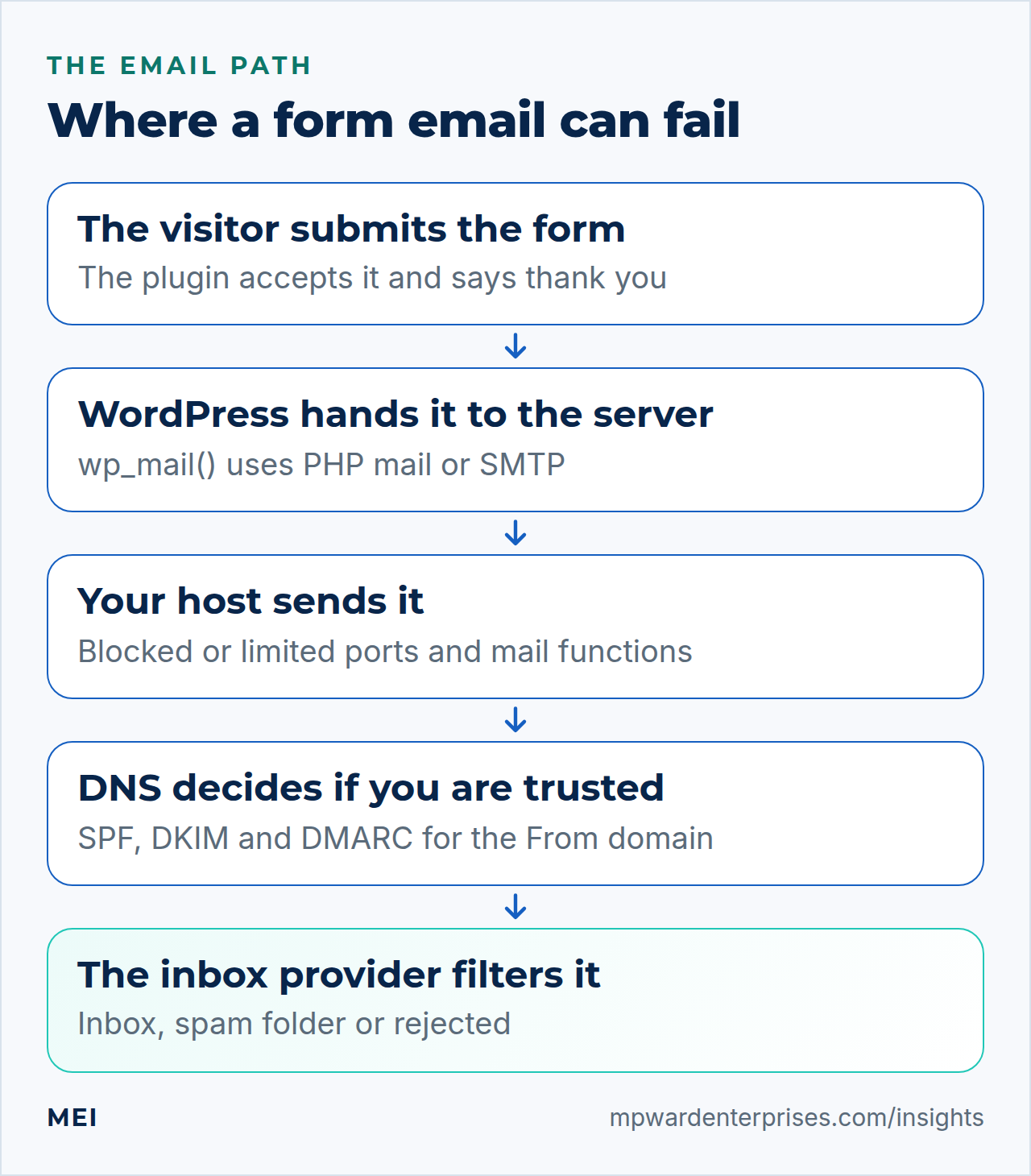
A form email crosses five stages, and a failure at any one of them looks the same from the outside: the visitor sees a success message and you see nothing.
- The form.Is it addressed to a valid recipient, with notifications switched on and a sensible From address?
- WordPress.The form plugin calls
wp_mail(), which by default passes the message to the web server's PHP mail function. If that is disabled or misconfigured, the message never leaves. - Your host.Many hosts limit, queue or block mail sent this way, and some block outbound mail ports entirely.
- DNS and authentication.The receiving provider checks whether your domain authorizes the sender (SPF, DKIM, DMARC). A message that cannot prove it is junked or rejected.
- The inbox provider.Even an authenticated message can be filtered if the content, the sender's reputation or the recipient's own rules say so.
Gmail, Yahoo and Microsoft now publish explicit authentication requirements, and a form that sends through the web server with no authentication is the classic way to fail them. Our guide to emails going to spam explains the provider side in detail.
Start here: the 2-minute checks
Before changing anything, rule out the simple causes. Check the spam and junk folders of the recipient address. Submit the form yourself and send the notification to a second address at a different provider, such as a Gmail address if the original is on your own domain. If the second address receives it and the first does not, the problem is the original mailbox or its filters, not the form.
Finally, confirm in the form's settings that email notifications are enabled and the "send to" address is spelled correctly; it is surprising how often it is not.
Do this first, whatever the cause
Make sure your form plugin is saving each submission inside WordPress (most call this "entries"). While you fix the email, no inquiry is lost, and you can recover everything sent in the meantime.
7 fixes for a WordPress contact form not sending email
1. Send from an address on your own domain
This is the number one cause. Many forms default to using the visitor's address (say, [email address]) as the From address, so the email appears to come from Gmail while actually leaving your server. Receiving servers see a message claiming to be from one domain, sent from a server that domain never authorized, and they junk it. Contact Form 7's own documentation says the sender address should belong to the same domain as your site, recommending [email address] as a good choice, created as a real address at your host.
The fix is to set From to an address on your domain and put the visitor's address in the Reply-To header instead. In Contact Form 7 that is Reply-To: [your-email] in the Additional Headers field of the Mail tab. WPForms, Gravity Forms and Forminator all have separate "From" and "Reply-To" settings in their notification options; use them.
2. Send through authenticated SMTP, not PHP mail
WordPress's default PHP mail is unauthenticated, often rate-limited, and sent from a shared server that other sites also use. The dependable alternative is SMTP: the message is handed to a real mail service with a username and password (or OAuth), which signs and delivers it properly. In practice that means an SMTP plugin such as WP Mail SMTP, FluentSMTP or Post SMTP, connected to either your own domain's mailbox provider or a transactional email service such as Postmark, Mailgun, Amazon SES or Brevo.
Use the connection method your provider currently supports; several providers are phasing out basic password authentication in favor of OAuth or app-specific credentials.
3. Authenticate your domain: SPF, DKIM and DMARC
Once mail leaves through a proper service, tell the world that service is allowed to send as you. Add the service to your SPF record, switch on its DKIM signing using your own domain, and publish a DMARC policy. The part that catches people is alignment: the domain that passes must match your From address. Work through SPF, DKIM and DMARC explained and our DMARC setup guide, then confirm the result by opening a delivered form email in Gmail and choosing Show original.
4. Check what your host allows
If SMTP still fails, the host may be blocking outbound connections. Many hosts block port 25, and some restrict outgoing SMTP on cheaper plans. Ask the host which ports are open for outgoing mail, or test from the server. If the host cannot or will not allow authenticated SMTP, that is a strong reason to look at a different plan; our guide to VPS versus shared hosting explains the trade-offs.
5. Turn on logging so failures stop being silent
The reason this problem lasts for months is that nobody sees the failure. Install an email log (most SMTP plugins include one) so every message WordPress tries to send is recorded with its result. WordPress also fires a wp_mail_failed action when sending fails, which logging tools use to capture the error text. With a log you can see whether the form is not generating mail, the server is refusing it, or the provider accepted it and delivery failed later.
6. Check the form plugin's own settings
| Form tool | Where to look | What to check |
|---|---|---|
| Contact Form 7 | Mail tab, and Mail (2) if used | To, a From on your domain, Reply-To: [your-email] in Additional Headers; run the configuration validator |
| WPForms | Settings, Email; each form's Notifications | Send To address, From Email on your domain, Reply-To set to the visitor |
| Gravity Forms | Form Settings, Notifications | Send To, From Email and Reply To fields; the notification's conditional logic |
| Forminator | Form, Email Notifications | Recipients and sender settings, and whether the notification is enabled |
| Divi contact form | The module's Email field and spam protection | A valid address in the Email field, and a captcha that can actually pass |
7. Test it, and keep testing
After any change, submit the form and trace one message from form to inbox, including a Gmail address and one at another provider. Do it again after plugin updates, hosting changes, a new SMTP password or any DNS edit. Put a recurring monthly reminder in your calendar; a form that worked in January can quietly stop working in May. A monthly form test is on the WordPress website maintenance checklist and in our IT audit for exactly this reason.
What the common error messages mean
If your form or SMTP plugin shows an error, it usually points straight at the stage that failed. These are the ones we see most often.
| Message | What it usually means | Fix |
|---|---|---|
| "There was an error trying to send your message" (Contact Form 7) | WordPress tried to send with wp_mail() and it failed: the server's mail function is disabled, blocked or misconfigured |
Move to authenticated SMTP |
| "Sender email address does not belong to the site domain" | The From address is on another domain, so receivers will distrust the mail | Use an address on your own domain; put the visitor in Reply-To |
| "Could not authenticate" or "Invalid credentials" | The SMTP username, password or OAuth connection is wrong or has expired | Reconnect the account or create a new app password |
| "Connection timed out" or "Could not connect to host" | The host blocks the SMTP port you chose | Try 587 or 465, or ask the host which ports are open |
| "550 5.7.515" or "550 5.7.1" in a bounce | The receiving provider rejected the message for failing authentication or alignment | Fix SPF, DKIM, DMARC and the From domain |
When the form is not sending email because of spam protection
Sometimes the form is fine and the protection in front of it is not. A captcha that cannot complete, a honeypot field that real browsers fill in, or an anti-spam plugin that quarantines legitimate submissions can all stop a message before it is ever emailed. If entries are missing from the stored list as well as from your inbox, look at the protection first. Test with a different browser and with browser extensions off.
When to call for help
If you have set a From address on your domain, moved to authenticated SMTP, authenticated the domain and the form email still does not arrive, the cause is usually something that needs a closer look: a host restriction, a DNS conflict between several senders, or a reputation problem. MEI's email deliverability service traces the whole path, repairs it and tests every form, and the same diagnosis is part of every Business Tech Rescue Audit.
Frequently asked questions
Why does my form say the message was sent when I never receive it?
The form plugin only knows that it handed the message to WordPress. Whether the email then left your server, was accepted by the recipient's provider and avoided the spam folder is a separate chain of events that the plugin cannot see. A thank-you message proves the form worked, not that the email arrived.
Do I need an SMTP plugin for my contact form?
In practice, yes. Without it WordPress sends through the web server's PHP mail function, which is unauthenticated, often rate-limited or blocked by hosts, and increasingly rejected by Gmail, Yahoo and Microsoft. SMTP lets the message leave through a properly authenticated mail service.
Why does Contact Form 7 say 'there was an error trying to send your message'?
Contact Form 7 shows that when WordPress reports that the email could not be sent at all, which usually means the server's mail function is disabled or blocked, or the From address is rejected. Switching to authenticated SMTP and a From address on your own domain fixes most cases.
Can I use my Gmail or Outlook account to send form emails?
You can, through your provider's supported SMTP or OAuth connection, but check the sending limits and that your plugin supports the current sign-in method. For a business site, a dedicated transactional email service or your own domain's mailbox is usually more reliable.
How do I make sure I never lose a lead again?
Turn on entry storage in your form plugin so every submission is saved in WordPress, and test every form monthly. Then a delivery problem becomes an inconvenience rather than a lost inquiry.
Sources and further reading
- WordPress Developer Resources: wp_mail() — the function WordPress and form plugins use to send email
- Contact Form 7: Sender email address does not belong to the site domain — use a From address on the same domain as the site, and Reply-To for the visitor
- Contact Form 7: Best practice to set up mail — the plugin's own recommended mail setup
- Google: Email sender guidelines — authentication and alignment requirements that apply to form email too
- IETF RFC 7489: DMARC — why a From address on someone else's domain fails alignment