
Systemd timer vs cron is the choice between two ways to run a job on a schedule on Ubuntu 24.04 LTS or 26.04 LTS: cron reads one line per job, while a systemd timer pairs a schedule with a service that systemd can log, order, limit and report on. This guide compares them in plain English, then builds three tested examples: a one-minute timer that replaces WordPress's built-in cron, a nightly database dump that catches up after downtime, and a failure alert. Pick your release with the switch below. It takes about 45 minutes and assumes you are comfortable with a terminal and sudo.
Every command below was run twice in disposable test machines, on Ubuntu 24.04 (systemd 255) and on Ubuntu 26.04 (systemd 259), and where we describe behavior we measured it instead of repeating folklore. Where the two releases differ, the page shows only the one you picked. The risk with scheduled jobs is silence: a backup, a certificate renewal or a WordPress email queue can stop running and nobody notices for weeks. So we show how to prove each systemd timer works before you remove the old cron job it replaces.
Choose your Ubuntu version
This guide covers both releases. Commands, file paths and version numbers change with your choice; everything else is the same.
JavaScript is off, so both versions are shown below and each block says which release it is for.
Before you start
Changing a schedule is low-risk if you keep the old job until the new one has proven itself. Four habits make that easy.
- Try it on a test server first, or at least at a quiet hour. A wrong schedule rarely breaks anything immediately; it just stops something from happening.
- Never run two schedulers for the same task. A cron job and a systemd timer that both run the same dump, or WP-Cron and a systemd timer that both run WordPress events, can do the work twice.
- Know the undo.
sudo systemctl disable --now name.timerstops a systemd timer now and keeps it off after a reboot. Put the old cron job back to return to where you were. - Have somewhere to read results. Everything below uses the systemd journal. Step 11 of our guide to harden Ubuntu Server shows how to keep logs across reboots.
Systemd timer vs cron: why this way and not the other ways
There is more than one way to run a scheduled job on a Linux server. This table compares them in plain English, with the verdict we use when we build servers.
| Option | In plain English | Our verdict |
|---|---|---|
A cron job (a crontab line or a file in /etc/cron.d) |
A list of "at this time, run this command" lines | Fine for simple jobs on one machine where a missed or silent failure is harmless. Everyone knows it |
| Systemd timers (this guide) | A schedule file paired with a job file, managed by the same system that starts your servers | Our default on Ubuntu for anything that matters. Logs, catch-up and limits are built in, and a failure hook is one line away |
| Cron plus anacron | Cron with a helper that replays missed daily, weekly and monthly jobs | Works for the stock cron.daily style folders. Not meant for per-minute or per-hour jobs |
The systemd-cron package |
A package in Ubuntu's universe repository that generates timers from crontab files | A possible bridge if you have a long crontab. We have not tested it, so we do not recommend it blind |
| WordPress's built-in WP-Cron | WordPress checks its to-do list whenever someone visits a page | Fine on a busy site. Late on a quiet one, and starved when a page cache answers visits without running WordPress |
A cron job that fetches wp-cron.php |
The WordPress handbook's method: a scheduler pokes the cron address over the web | Works anywhere, but it passes through the web server, caches, firewalls and PHP timeouts. WP-CLI avoids all of that |
| Your hosting panel's scheduler | A web form that writes cron entries for you | The right tool on managed hosting where you cannot touch systemd |
The short version: cron is a reminder note, and a systemd timer is a reminder note with a secretary. The note works, and for harmless jobs it is plenty. The secretary keeps a diary, notices when you were away, waits for the database to wake up, stops a runaway job and tells you when something fails.
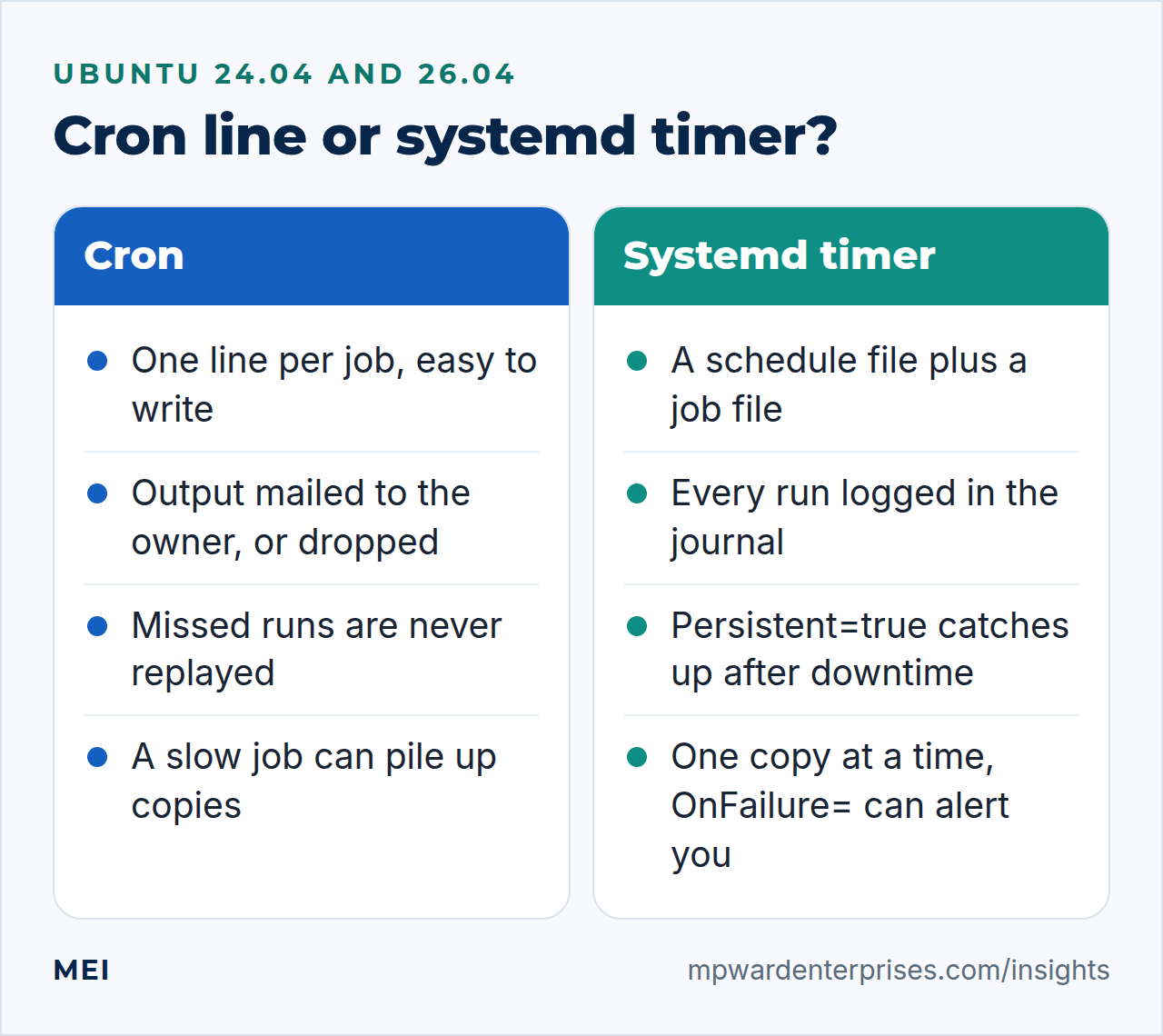
Systemd timer vs cron: the differences that matter, tested
Rows marked "tested" were reproduced in our lab, not copied from a manual. The cron job column describes the stock cron package on Ubuntu 24.04 and 26.04, and the systemd timer column describes systemd 255 and 259. Every row below behaved the same on both releases.
| The question | Cron job | Systemd timer |
|---|---|---|
| Where do the results go? | Output is mailed to the job's owner. With no mail system installed it is dropped, and cron logs only "No MTA installed, discarding output" (tested). The log shows when a command started, not whether it worked | Output and exit status go to the journal. journalctl -u name.service shows every run, and systemctl status shows the last result |
| What if the server was off at 03:30? | The run is skipped. Cron does not replay missed times (tested) | Persistent=true runs the job once at boot, or whenever the timer starts, if a scheduled time was missed (tested) |
| Can start times be spread out? | No. Every job fires at its exact minute | RandomizedDelaySec= and FixedRandomDelay= spread them, and AccuracySec= sets how precisely a timer fires |
| Can a job wait for something else? | No. It knows only the clock | After= orders a job behind MariaDB. Add Wants= to start MariaDB too: After= alone does not start it (tested) |
| Can I cap what a job uses? | Only by hand, with nice, ionice and timeout in front of the command |
Nice=, CPUQuota=, MemoryMax= (a runaway job is killed at the cap once swap cannot absorb it; tested, see Step 7), TimeoutStartSec= and sandboxing such as ProtectSystem=strict (tested) |
| What if the last run is still going? | A new copy starts anyway. A 150-second job launched every minute had up to three copies alive at once (tested) | No second copy starts. The timer waits, then runs once as soon as the first run finishes (tested) |
| How do I find out it failed? | You usually do not. The exit status is lost, and only printed output creates mail | systemctl --failed, OnFailure= to start an alert unit (tested), and Restart=on-failure to retry |
| What environment does it get? | A minimal one. The shell is /bin/sh, which is dash on Ubuntu, so {a,b} does not expand (tested). % is special |
A clean environment with a default PATH of /usr/local/sbin:/usr/local/bin:/usr/sbin:/usr/bin. No shell at all: pipes and redirects do nothing unless you start one. % is special here too |
| Which time zone? | The system's. A time skipped by daylight saving never runs, and a repeated time runs twice, says crontab(5) |
The system's, or one you name: *-*-* 03:00 America/New_York (tested) |
| How hard is it to write? | One line | Two small files and one systemctl enable. More typing, but each part is readable |
One 26.04 extra for the overlap row: when a run outlasts the timer's interval, systemd 259 can wait for the next regular slot instead of firing again at once. Add DeferReactivation=true to the [Timer] section. In our test a 100-second job on a one-minute timer started again on the next full minute after it finished, not the moment it finished. The option arrived in systemd 257, so Ubuntu 24.04 does not have it.
Older guides say cron's PATH is only /usr/bin:/bin. On Ubuntu 24.04 and 26.04 we printed the real value from a cron job and it was the longer system PATH from /etc/environment, which includes /usr/local/bin. That is a distribution detail rather than a promise, so use absolute paths in anything you schedule.
When a cron job is just fine
Do not migrate for fashion. A cron job that works and that somebody watches is an asset, and every change is a chance to break it. A cron job is the sensible choice in these cases.
- A cron job on one server for something harmless, where a person would notice if it stopped, such as a weekly cache purge.
- A personal crontab or an
@rebootline for a small task. - Machines without systemd, such as most container images, BSD and macOS.
- Shared hosting where the control panel offers cron and nothing else.
Cron plus a few small tools also covers more than people expect. flock -n stops overlap, timeout stops runaways, nice lowers priority, and MAILTO chooses who gets the mail. What cron cannot do without extra scripting is catch up after downtime, wait for a service, cap memory or raise an alert on failure. When a job has any of those needs, move it to a systemd timer.
Systemd timer vs cron: our verdict
Our rule on the servers we build is simple. Use a systemd timer for anything a business depends on, such as backups, certificate renewals and WordPress's scheduled tasks, because logs, catch-up and failure hooks are what you want on the worst night. Keep a cron job for small, low-stakes chores that a person reviews anyway. Never run both for the same task.
Step 1: Take stock of what already runs
Before you add anything, find out what is scheduled today. Jobs hide in four places: your own crontab, root's crontab, the system folders, and timers that Ubuntu or a package already installed.
crontab -l
sudo crontab -l
ls -l /etc/cron.d /etc/cron.daily
systemctl list-timers --all
journalctl -u cron --since yesterday | grep CMD | tail
The fourth command shows that Ubuntu itself already runs on systemd timers: package updates, log rotation, and more. This is from our lab, which also has certbot installed; your times will differ.
NEXT                        LEFT      LAST  PASSED  UNIT                     ACTIVATES
Fri 2026-10-09 00:00:00 UTC 2h 46min  -     -       logrotate.timer          logrotate.service
Fri 2026-10-09 00:18:59 UTC 3h 5min   -     -       certbot.timer            certbot.service
Fri 2026-10-09 06:30:38 UTC 9h        -     -       apt-daily-upgrade.timer  apt-daily-upgrade.service
NEXT LEFT LAST PASSED UNIT ACTIVATES
Sat 2026-10-10 00:00:01 UTC 10h Fri 2026-10-09 11:52:52 UTC - logrotate.timer logrotate.service
Sat 2026-10-10 03:58:09 UTC 14h Fri 2026-10-09 12:40:35 UTC - certbot.timer certbot.service
Sat 2026-10-10 06:48:25 UTC 17h Fri 2026-10-09 11:52:52 UTC - apt-daily-upgrade.timer apt-daily-upgrade.serviceThose stock files are good teachers. This is the timer the certbot package installs on Ubuntu 24.04 and 26.04:
[Timer]
OnCalendar=*-*-* 00,12:00:00
RandomizedDelaySec=43200
Persistent=true
It runs twice a day, spread over up to 12 hours so that thousands of servers do not call the certificate authority in the same second, and it catches up after downtime. Keep that 43200 in mind. A delay as large as the schedule's period suits a renewal check, and it would ruin a heartbeat. Step 3 shows why.
Step 2: Run a nightly job that catches up after downtime
We will dump one WordPress database every night at 03:30. The same pattern fits any maintenance job: log cleanup, a file sync, a report. A systemd timer needs two small files, a service that says what to run and a timer that says when. Start with the script, because a timer can only report a failure if the script exits with an error when something goes wrong.
sudo tee /usr/local/sbin/nightly-db-dump.sh > /dev/null <<'EOF'
#!/bin/bash
# Nightly dump of one WordPress database. Fails loudly if anything goes wrong.
set -euo pipefail
umask 077

db="${1:?usage: nightly-db-dump.sh DATABASE}"
dest=/var/backups/mariadb
keep_days=14

install -d -m 700 "$dest"
out="$dest/$db-$(date +%F).sql.gz"
trap 'rm -f "$out.partial"' EXIT

# --single-transaction: a consistent snapshot of InnoDB tables without locking the site
mariadb-dump --single-transaction --quick --routines --triggers --events --databases "$db" \
  | gzip -9 > "$out.partial"

# a backup that "ran" is not a backup: make sure the dump really contains tables
tables=$(zcat "$out.partial" | grep -c '^CREATE TABLE' || true)
[ "$tables" -ge 1 ] || { echo "no tables in the dump of $db" >&2; exit 1; }
mv "$out.partial" "$out"
echo "wrote $out ($(stat -c %s "$out") bytes, $tables tables)"

find "$dest" -name "$db-*.sql.gz" -mtime +"$keep_days" -delete
EOF
sudo chmod 750 /usr/local/sbin/nightly-db-dump.sh
sudo /usr/local/sbin/nightly-db-dump.sh sitedb
You should see one line such as wrote /var/backups/mariadb/sitedb-2026-10-08.sql.gz (17445 bytes, 12 tables). Your size will differ; a fresh WordPress has 12 tables.
Two parts of the script matter most. With set -o pipefail a failed dump fails the whole pipeline. Without it, a mistyped database name still produced a 402409-byte file and an exit status of 0 in our test, which any scheduler reports as success. The CREATE TABLE count checks the contents instead of trusting the exit status.
Why this way?
Cron lines and unit files are poor places for logic. % and $ mean special things in both, and ExecStart= does not run a shell, so a pipe reaches the program as plain text (we tested that, and a stray %F stops the unit loading). Put the logic in a script you can run and test by hand, and keep the unit tiny.
These dumps stay on the same server, so they are only the first copy. Our WordPress server backups guide covers off-site copies and restore tests.
Now the two unit files. The service says what to run and how politely to run it. The timer says when.
sudo tee /etc/systemd/system/nightly-db-dump.service > /dev/null <<'EOF'
[Unit]
Description=Nightly MariaDB dump of sitedb
After=mariadb.service
Wants=mariadb.service

[Service]
Type=oneshot
ExecStart=/usr/local/sbin/nightly-db-dump.sh sitedb
Nice=10
IOSchedulingClass=idle
TimeoutStartSec=1h
EOF
sudo tee /etc/systemd/system/nightly-db-dump.timer > /dev/null <<'EOF'
[Unit]
Description=Run the nightly MariaDB dump at 03:30

[Timer]
OnCalendar=*-*-* 03:30:00
Persistent=true
RandomizedDelaySec=10min

[Install]
WantedBy=timers.target
EOF| Setting | What it does in plain English |
|---|---|
Type=oneshot |
The job starts, finishes and exits, as opposed to a server that keeps running |
After= and Wants= |
Wait for MariaDB if both are starting, and start it if it is stopped. After= alone only sets the order; we stopped MariaDB and confirmed it stayed stopped |
Nice=10, IOSchedulingClass=idle |
Lower CPU priority, and use the disk only when nothing else wants it |
TimeoutStartSec=1h |
Kill the job if it hangs. For a oneshot service this limits the whole run |
OnCalendar=*-*-* 03:30:00 |
Every day at 03:30 server time |
Persistent=true |
If a run was missed while the server was off or the timer was stopped, run once when the timer starts |
RandomizedDelaySec=10min |
Wait a random 0 to 10 minutes after 03:30. Optional on one server; useful when you copy the unit to many servers that share a backup target |
Check the files, load them, and enable the timer, not the service. Then run the job once by hand to test it.
sudo systemd-analyze verify /etc/systemd/system/nightly-db-dump.service /etc/systemd/system/nightly-db-dump.timer
sudo systemctl daemon-reload
sudo systemctl enable --now nightly-db-dump.timer
systemctl list-timers nightly-db-dump.timer
sudo systemctl start nightly-db-dump.service
journalctl -u nightly-db-dump.service -n 4 --no-pager
systemd-analyze verify prints nothing when the files are fine. The list-timers line shows the next run, already including the random delay (ours said 03:34:31, a few minutes after 03:30). The journal shows the starting line, the script's own output and a "Deactivated successfully" line. Every run leaves that trail, which cron does not give you.
Now prove that catch-up works, because a feature you have not seen working is only a hope. Systemd stores the time of the last run in a stamp file. Backdate it, then start the timer.
sudo systemctl stop nightly-db-dump.timer
sudo touch -d "2 days ago" /var/lib/systemd/timers/stamp-nightly-db-dump.timer
sudo systemctl start nightly-db-dump.timer
journalctl -u nightly-db-dump.service --since "1 min ago" --no-pager
On a server that has been up for more than ten minutes, the journal shows a run within a second or two: the timer saw that a scheduled time had passed since its last run and made it up. In our separate test, a systemd timer stopped through three scheduled times ran once on restart, not three times, while an identical systemd timer without Persistent=true stayed silent until its next slot. Catch-up replays only the latest missed run.
If the machine booted more recently, expect a wait. Systemd spreads catch-up runs after a reboot across the random delay, counted from boot. We rebooted a test machine with a stale stamp, and the missed dump started 40 seconds after boot.We rebooted a test machine twice with a stale stamp and a two-minute delay, and the missed run started 31 and 120 seconds after boot. systemctl list-timers shows the planned moment in its NEXT column.
The cron job version, and its gotchas
The equivalent cron job goes in /etc/cron.d/nightly-db-dump. Cron's system files need a user name in the sixth column.
30 3 * * * root /usr/local/sbin/nightly-db-dump.sh sitedb >> /var/log/nightly-db-dump.log 2>&1- No catch-up. We stopped cron through two scheduled minutes and started it again: neither run was replayed. If the server is off at 03:30, tonight has no dump.
- No jitter and no ordering. It fires at exactly 03:30 whether or not MariaDB is up.
- The log needs care. Something must rotate
/var/log/nightly-db-dump.log(see our logrotate guide), and an unwritable log file stops the job from starting at all (Step 4 shows it). - The exit status vanishes. If the script fails and prints nothing, nobody hears. If it prints and no mail system is installed, cron discards the output (tested).
Step 3: Pick the right delay, because 120 seconds on every timer is a trap
Copied systemd timer examples often carry RandomizedDelaySec=120 on every timer "to be safe". The setting adds a random wait of up to that many seconds before a run. It is useful in the right place and harmful in the wrong one, so we measured it. We ran three one-minute systemd timers side by side for about 12 minutes on the same machine.
| One-minute systemd timer | Runs in about 12 minutes | Gap between runs |
|---|---|---|
| No delay (the default) | 13 | 59 to 61 seconds |
RandomizedDelaySec=120 |
9 | 48 seconds to 2 minutes 39 seconds, average 89 seconds |
RandomizedDelaySec=120 with FixedRandomDelay=true |
7 | 2 minutes, give or take a second, every time |
| One-minute systemd timer | Runs in about 20 minutes | Gap between runs |
|---|---|---|
| No delay (the default) | 20 | 59 to 61 seconds |
RandomizedDelaySec=120 |
16 | 29 seconds to 2 minutes 5 seconds, average 78 seconds |
RandomizedDelaySec=120 with FixedRandomDelay=true |
10 | 2 minutes, give or take a second, every time |
The reason is how systemd schedules the next run: from the moment the previous run actually started, not from the clock slot it was meant for. When the random wait is longer than the period, the next slot has often already passed by the time a run starts, and it is skipped. The "every minute" job ran about every minute and a half, sometimes twice in quick succession and sometimes after a gap of more than two minutes.
A fixed delay is worse on a short timer. Ours happened to be longer than a minute, so every run landed 477 seconds past the minute, two minutes apart: every other slot had already passed when the previous run started. We repeated the test at six times the speed (a 10-second schedule with a 20-second delay) to collect more samples, and it matched. Across 1581 gaps the average was 15.714.9 seconds instead of 10, ranging from 4 to 273 to 29.
The pattern we use instead
- Per-minute and few-minute timers: no
RandomizedDelaySecat all. If you care about the exact second, addAccuracySec=1s. The default lets systemd shift a start by up to a minute so that many timers wake the CPU together. In our lab a lone one-minute timer still started within a second of the minute, but the documented window is a full minute. - Hourly and daily jobs: add a delay only when many machines share a target, such as one backup server, or many heavy jobs would start in the same instant. Keep it a small fraction of the period: minutes for a daily job. Add
FixedRandomDelay=trueif you want the same offset every night, which makes logs easier to compare. - One server with several jobs: stagger them by hand at 03:10, 03:40 and 04:10. That is easier to reason about than luck.
- Catch-up runs: after a reboot they are spread across the random delay, counted from boot, so a 10-minute delay can postpone the catch-up by up to 10 minutes. On a machine that has been up longer than the delay, a restarted timer catches up at once.
Ubuntu's own timers follow the same logic. phpsessionclean.timer runs every 30 minutes with no delay. apt-daily-upgrade.timer is daily with a 60-minute delay, apt-daily.timer uses 12 hours, and the weekly fstrim.timer uses 100 minutes. The delay is a tool for spreading load, not a safety feature, so leave it off when you have nothing to spread.
Step 4: Replace WP-Cron with a real one-minute systemd timer
Why WordPress's built-in cron runs late
WordPress has its own scheduler, WP-Cron, for publishing scheduled posts, checking for updates and running the background queues that plugins such as WooCommerce use. Despite the name, nothing runs by itself. When a visitor loads a page, WordPress checks its to-do list and, if something is due, sends itself a quick request to wp-cron.php to do the work. It allows at most one such launch a minute.
That design has two weaknesses. On a quiet site nobody visits, so due tasks simply wait. And a visit answered from a page cache never runs WordPress, so it never checks. WordPress's Site Health screen reports the result as "A scheduled event is late" or "A scheduled event has failed". The WordPress developer handbook's fix is to turn off the page-visit trigger and have the system call WordPress on a schedule.
We reproduced this. With WP-Cron on, an overdue task did not run until a page was requested. With DISABLE_WP_CRON set to true, three page visits changed nothing, and the task ran only when the system tick did.
Turn off the page-visit trigger, then add the systemd timer
Set the constant first, then create the service and timer straight away. Between the two, nothing runs WordPress's scheduled tasks. Replace siteuser, the path and the site name with your own.
sudo -u siteuser -- wp --path=/var/www/example.com/public config set DISABLE_WP_CRON true --raw
command -v wp flock
That adds define( 'DISABLE_WP_CRON', true ); to wp-config.php. The second command prints the full paths of wp and flock, so you can check they match the unit file below.
sudo tee /etc/systemd/system/wp-cron-example.service > /dev/null <<'EOF'
[Unit]
Description=Run due WordPress cron events for example.com
After=mariadb.service
Wants=mariadb.service

[Service]
Type=oneshot
User=siteuser
Group=siteuser
ExecStart=/usr/bin/flock -n -E 0 /run/lock/wp-cron-example.com.lock /usr/local/bin/wp --path=/var/www/example.com/public cron event run --due-now
TimeoutStartSec=10min
Nice=10
IOSchedulingClass=best-effort
IOSchedulingPriority=6
EOF
sudo tee /etc/systemd/system/wp-cron-example.timer > /dev/null <<'EOF'
[Unit]
Description=Run WordPress cron for example.com every minute

[Timer]
OnCalendar=minutely
AccuracySec=1s

[Install]
WantedBy=timers.target
EOF
sudo systemd-analyze verify /etc/systemd/system/wp-cron-example.service /etc/systemd/system/wp-cron-example.timer
sudo systemctl daemon-reload
sudo systemctl enable --now wp-cron-example.timer
journalctl -u wp-cron-example.service --since "3 min ago" --no-pager
Within a minute the journal shows lines like these. "Executed a total of 0 cron events" is the normal answer when nothing is due. The program name reads flock because flock started WP-CLI.
systemd[1]: Starting wp-cron-example.service - Run due WordPress cron events for example.com...
flock[2328]: Success: Executed a total of 0 cron events.
systemd[1]: wp-cron-example.service: Deactivated successfully.
systemd[1]: Finished wp-cron-example.service - Run due WordPress cron events for example.com.
Why this way?
The handbook's example fetches wp-cron.php over HTTP with wget, which passes through the web server, caches, firewalls and web timeouts. WP-CLI runs PHP directly as the site user, so none of those can interfere. The cost is that it loads WordPress on every run: about a third of a seconda quarter of a second of CPU in our lab on a fresh install. A brochure site can use five minutes (OnCalendar=*:0/5); a shop that sends queued emails and renewals is better served by one.
Why flock, when systemd already avoids overlap?
Systemd will not start a second copy of the same service. When we made one tick last 100 seconds, no second tick started; one ran right after the first finished. But WP-CLI has no lock of its own (we read its source), so a hand-run command or a forgotten cron entry can still overlap the timer. flock -n -E 0 takes a lock file and exits quietly with status 0 if another copy holds it.
Now prove it works with a harmless overdue event. Schedule one that was due 20 minutes ago, watch the journal for a minute, and confirm it is gone.
cd /tmp
sudo -u siteuser -- wp --path=/var/www/example.com/public cron event schedule my_test_hook "-20 minutes"
sudo -u siteuser -- wp --path=/var/www/example.com/public cron event list --fields=hook,next_run_relative | head -4
journalctl -u wp-cron-example.service -f
Within a minute you should see Executed the cron event 'my_test_hook' in the journal (press Ctrl+C to stop following). In wp-admin, Tools and then Site Health should show "Scheduled events are running".
Note that WordPress changes its patience when you disable WP-Cron. In the code we read, an overdue event counts as late immediately and as failed after 5 minutes while WP-Cron is on. With it off, the limits become 15 minutes and 1 hour.
A dead timer can therefore take up to an hour to show in Site Health, which is why Step 6 adds an alert of its own.
Run it as the site user
If you test the flock command by hand as root, you may see cannot open lock file ... Permission denied. Ubuntu's fs.protected_regular setting stops root from opening a lock file that another user created in a shared folder such as /run/lock. We hit this in the lab. The cure is the habit you want anyway: run WP-CLI as the site user with sudo -u siteuser, so files stay owned by the right account.
The cron job version, and its gotchas
This is the same job as a cron file. Save it as /etc/cron.d/wp-cron-example.
* * * * * siteuser /usr/bin/flock -n /run/lock/wp-cron-example.com.lock /usr/local/bin/wp --path=/var/www/example.com/public cron event run --due-now >> /var/log/wp-cron-example.log 2>&1- The log file must exist and be writable by the site user. Ours was not. The job never started, and the only trace was a mail to the site user's local mailbox saying "cannot create /var/log/wp-cron-example.log: Permission denied". Create it with
sudo install -m 640 -o siteuser -g siteuser /dev/null /var/log/wp-cron-example.log. - The file name matters. A file called
/etc/cron.d/wp-cron-example.comis silently ignored, because names in that folder cannot contain a dot. A file writable by others is refused with an "INSECURE MODE" log line (both tested). - Use full paths and expect dash. Cron runs the line with
/bin/sh. Our test ofecho {a,b}printed the braces unchanged. - Escape every percent sign. In the crontab
date +%Fran asdate +, and the leftover text became standard input. Writedate +\%F. In a unit file the escape is%%F. - No timeout and no alert. A hung run holds the lock forever, and the exit status is discarded.
Step 5: Read the calendar, check the file, read the log
OnCalendar= takes DayOfWeek Year-Month-Day Hour:Minute:Second. A * means any value, a comma lists values, .. is a range and / repeats. Leave out the date and it means every day; leave out the seconds and they are :00. The shorthands are minutely, hourly, daily, weekly (Mondays at midnight) and monthly. Do not guess what a pattern means. Ask systemd.
systemd-analyze calendar "Mon..Fri 03:30" --iterations=3 Original form: Mon..Fri 03:30
Normalized form: Mon..Fri *-*-* 03:30:00
Next elapse: Fri 2026-10-09 03:30:00 UTC
From now: 6h left
Iteration #2: Mon 2026-10-12 03:30:00 UTC
From now: 3 days left
Iteration #3: Tue 2026-10-13 03:30:00 UTC
From now: 4 days leftUse this table to translate a cron job into a systemd timer schedule. We ran every middle-column value through systemd-analyze calendar.
| Cron says | OnCalendar= says |
Meaning |
|---|---|---|
*/5 * * * * |
*:0/5 |
Every 5 minutes |
30 3 * * * |
*-*-* 03:30:00 |
Every day at 03:30 |
30 2 * * 1-5 |
Mon..Fri 02:30 |
Weekdays at 02:30 |
0 6 1,15 * * |
*-*-1,15 06:00 |
The 1st and 15th at 06:00 |
0 0 1 * * |
monthly |
The 1st of each month at midnight |
| (cron cannot say it) | *-*~01 23:00 |
The last day of every month at 23:00 |
Watch out
Schedules that look alike can mean different things. In cron, 0 3 1 * 1 runs at 03:00 on the 1st or on Mondays: crontab(5) says either day field matching is enough. In systemd, Mon *-*-01 03:00 means Mondays that are also the 1st. On our lab clock its next run was 2027-02-01.
Next, check the files before you rely on them. This is what systemd-analyze verify printed when we misspelled OnCalendar as OnCalender in a timer, and pointed a service at a program that does not exist.
lab-typo.timer:5: Unknown key name 'OnCalender' in section 'Timer', ignoring.
lab-typo.timer: Timer unit lacks value setting. Refusing.
Unit lab-typo.timer has a bad unit file setting.
lab-typo.service: Command /usr/local/bin/does-not-exist is not executable: No such file or directory
/home/alex/typo/lab-typo.timer:5: Unknown key 'OnCalender' in section [Timer], ignoring.
lab-typo.timer: Timer unit lacks value setting. Refusing.
Unit lab-typo.timer has a bad unit file setting.
lab-typo.service: Command /usr/local/bin/does-not-exist is not executable: No such file or directoryTo read what happened, these are the commands you will use constantly. systemctl status shows the last exit code, the CPU time used and the last log lines. journalctl -u filters the journal to one job.
systemctl list-timers --all
systemctl status nightly-db-dump.service --no-pager
journalctl -u nightly-db-dump.service --since today --no-pager
journalctl -u wp-cron-example.service -p err --since "1 hour ago"
systemctl --failed
One more habit: after you edit a unit file, run sudo systemctl daemon-reload. If you forget, systemctl status warns that the unit "changed on disk", and systemd keeps using the old version.
Step 6: Get told when a job fails
A job that fails in the journal is still silent. We want a message. The pattern is a small template unit that systemd starts whenever a job fails, using OnFailure=. Start with the script it calls. It mails the unit's status and recent log lines, and it sends at most one message per unit per hour, because a per-minute job that breaks would otherwise send you 1,440 emails a day.
sudo tee /usr/local/sbin/notify-failure > /dev/null <<'EOF'
#!/bin/bash
# Mail the state and recent log lines of a failed unit, at most once an hour per unit.
# Usage: notify-failure UNIT
set -u
unit="$1"
to="[email address]"        # change this

stamp_dir=/run/notify-failure
mkdir -p "$stamp_dir"
stamp="$stamp_dir/$unit"
if [ -n "$(find "$stamp" -mmin -60 2>/dev/null)" ]; then
  exit 0      # already told someone within the last hour
fi
touch "$stamp"

{
  echo "To: $to"
  echo "Subject: [$(hostname)] $unit failed"
  echo
  systemctl status --no-pager --full "$unit" | head -n 15
  echo
  echo "--- last log lines"
  journalctl -u "$unit" -n 30 --no-pager
} | /usr/sbin/sendmail -t
EOF
sudo chmod 755 /usr/local/sbin/notify-failure
sudo tee /etc/systemd/system/notify-failure@.service > /dev/null <<'EOF'
[Unit]
Description=Send a failure notice for %i

[Service]
Type=oneshot
ExecStart=/usr/local/sbin/notify-failure %i
EOF
sudo systemctl daemon-reload
The @ in the file name makes it a template: whatever follows the @ becomes %i, the name of the unit that failed. Now attach it to the jobs you care about with a drop-in file, which adds a setting without editing the original unit.
for unit in nightly-db-dump wp-cron-example; do
  sudo mkdir -p /etc/systemd/system/$unit.service.d
  printf '[Unit]\nOnFailure=notify-failure@%%n.service\n' | sudo tee /etc/systemd/system/$unit.service.d/notify.conf > /dev/null
done
sudo systemctl daemon-reload
systemctl cat nightly-db-dump.service | tail -4
Test the alert with a throwaway job that is built to fail. If your mail setup works, a message arrives within seconds.
sudo systemd-run --unit=alert-test --property=OnFailure=[email address] --wait /bin/falseIn our lab the message arrived in the local mailbox with the unit's status and its last log lines. We could not test delivery to a real inbox.
Mail from a server needs working SPF, DKIM and DMARC records or it lands in spam. See SPF, DKIM and DMARC explained and why emails go to spam. If you prefer a chat message, replace the sendmail pipe with a curl call to your chat tool's webhook address.
Why this way?
An alert for failures only helps when the job runs. If the timer is disabled, or the server is down, nothing fails and nothing is sent. For jobs you cannot afford to lose, add a check-in: have the script call a URL on success, and use a dead-man's-switch service that alerts you when the call stops arriving. We did not test one here, so treat that as design advice rather than a verified recipe.
Step 7: Limit what a job can do
This is optional, and it is where timers pull far ahead of cron. These lines go in the [Service] section. We tested each one on Ubuntu 24.04 and 26.04.
| Setting | What happened in our test |
|---|---|
MemoryMax=64M |
A program that tried to use 300 MB was not stopped at first: our lab host has swap, so the job was pushed into swap and finished. With MemorySwapMax=0 added, it was killed and the journal said "Failed with result 'oom-kill'" |
TimeoutStartSec=5 |
A job that would have slept 30 seconds was terminated after 5 with "Failed with result 'timeout'" |
RuntimeMaxSec=5 |
Ignored on a oneshot service ("has no effect in combination with Type=oneshot"). Use TimeoutStartSec instead |
CPUQuota=20% |
Set the control group's cpu.max to 20000 100000, which is 20 milliseconds of CPU per 100 |
Nice=10, IOSchedulingClass=best-effort, IOSchedulingPriority=6 |
The job reported nice 10 and "best-effort: prio 6" |
ProtectSystem=strict with ReadWritePaths=/var/backups |
Writing to /etc failed with "Read-only file system"; writing to /var/backups worked |
Restart=on-failure, RestartSec=3 |
A failing oneshot was started again every three seconds until we stopped it |
Use limits to protect the rest of the server, not to micromanage. A cap that is too tight turns a slow night into a failed one, which is exactly what the alert from Step 6 is for.
Check your work
Run these after a day or two, and compare the results with what you intended.
systemctl list-timers --all | grep -E 'nightly|wp-cron'
systemctl --failed
journalctl -u nightly-db-dump.service --since yesterday --no-pager | tail -5
journalctl -u wp-cron-example.service --since "10 min ago" --no-pager | tail -4
sudo ls -l /var/backups/mariadb
sudo -u siteuser -- wp --path=/var/www/example.com/public config get DISABLE_WP_CRON
You are looking for a sensible NEXT time on each timer, a recent LAST time on the per-minute one, no failed units, a fresh dump file from last night, and a 1 from the last command, which is how WP-CLI prints true. Then do the one test people skip: restore the dump into a scratch database and count the tables. A file that exists is not a backup that restores.
Common mistakes
- Enabling the service instead of the timer. A service without an
[Install]section answers "no installation config", as we saw. - Forgetting
systemctl daemon-reloadafter editing a unit. - Putting a pipe, a redirect or
&&inExecStart=. There is no shell; use a script file. - Writing
%For$HOMEin a unit and expecting the shell to see it. Systemd expands%and$itself. In our test$HOMEcame out empty for a root service and$$printed a single dollar sign. - Using
After=and assuming it starts the dependency. AddWants=. - Giving a frequent timer a random delay as long as its period. See Step 3.
- Running WP-Cron and a systemd timer together, or a cron job and a systemd timer for the same task.
- Treating exit status 0 as proof that a backup worked. Check the contents, and restore it once.
- Never testing the alert. An alert path that has never fired is another hope.
Keep it healthy: a five-minute monthly routine
- Run
systemctl --failedandsystemctl list-timers --all. Every systemd timer should have a recent LAST and a sensible NEXT. - Skim the journal for each job you depend on, and confirm the newest dump or output file is the size you expect.
- Fire the alert by hand once in a while:
sudo systemctl start [email address]sends a test notice. - Restore last night's dump into a scratch database, and count its tables.
- Review the retention: 14 days of local dumps is an example from our setups, not a rule. Choose by how far back you might need to go.
Getting help
A cron job or a systemd timer is exactly the kind of thing that works for a year and then quietly stops. MEI's Managed Website & IT Care plans start at $149 a month, with scope-based tiers covering updates, backups, monitoring, reporting and help, so someone is watching the jobs and the alerts. If you want the server itself built and documented, our Infrastructure & Private Cloud service starts at $2,500, scoped by systems and scale.
For related reading, see our WordPress website maintenance checklist, why is my WordPress site so slow, and the 3-2-1 backup rule. If you would rather start with a review of everything, a Business Tech Rescue Audit starts at $497.
Frequently asked questions
Is a systemd timer better than cron?
For jobs that matter, usually yes. A systemd timer logs every run to the journal, can run a missed job after downtime with Persistent=true, can wait for services such as MariaDB, can cap memory and run time, and can start an alert when it fails. Cron is simpler, and a cron job is perfectly fine for harmless tasks, on machines without systemd, and on shared hosting.
Does a systemd timer run if the server was off?
Yes, if the systemd timer uses OnCalendar and has Persistent=true. Systemd keeps the time of the last run in /var/lib/systemd/timers and, at boot or when the timer starts, runs the job once if a scheduled time was missed. In our test three missed times produced one run. After a reboot the run is spread across any RandomizedDelaySec, counted from boot. A cron job skips missed runs, although anacron can replay daily, weekly and monthly jobs.
How do I replace WP-Cron with a real cron job or systemd timer?
Set DISABLE_WP_CRON to true in wp-config.php, then have a systemd timer (or a cron job) run wp cron event run --due-now every minute as the site user. Protect it with flock so two copies never overlap. WordPress then stops waiting for visitors to run its scheduled tasks. The full unit files are in Step 4 of this guide.
How do I see the logs of a systemd timer?
A systemd timer only triggers a service, so read the service's journal with journalctl -u name.service. Add --since today for recent runs, -p err for errors only, and -f to follow live. systemctl status name.service shows the last exit code, and systemctl list-timers shows when each timer last ran and will run next.
How do I convert a cron job to a systemd timer schedule?
Translate the five time fields of the cron job into an OnCalendar pattern: 30 3 * * * becomes *-*-* 03:30:00, and */5 * * * * becomes *:0/5. Then confirm it with systemd-analyze calendar. Beware one difference: cron treats day-of-month and day-of-week as OR when both are set, while systemd treats them as AND.
Why is my systemd timer not running?
Check four things. You enabled and started the systemd timer, not the service. The timer has an [Install] section with WantedBy=timers.target. You ran systemctl daemon-reload after editing. And systemd-analyze verify shows no errors, such as a misspelled OnCalendar. Then read systemctl list-timers and the service's journal.
Sources and further reading
- Ubuntu 24.04 manpage: systemd.timer(5) — Persistent=, RandomizedDelaySec=, FixedRandomDelay=, AccuracySec= and what happens when the triggered unit is already running
- Ubuntu 26.04 manpage: systemd.timer(5) — the same options on systemd 259, plus DeferReactivation= (added in systemd 257), which changes what happens when a run outlasts the timer interval
- Ubuntu 24.04 manpage: systemd.time(7) — calendar event syntax, the shorthand names, time zone suffixes and weekday-plus-day matching
- Ubuntu 24.04 manpage: systemd.service(5) — Type=oneshot, no shell in ExecStart= and RuntimeMaxSec= having no effect on oneshot services
- Ubuntu 24.04 manpage: systemd.unit(5) — OnFailure=, the difference between Wants=, Requires= and After=, and the % specifiers
- Ubuntu 24.04 manpage: crontab(5) — percent signs in commands, MAILTO, the day-of-month and day-of-week rule, and daylight saving behavior
- WordPress Plugin Handbook: Hooking WP-Cron Into the System Task Scheduler — why page-load cron is unreliable and how DISABLE_WP_CRON replaces it with a system scheduler
- WP-CLI: wp cron event run — the --due-now option and its example output
- Ubuntu 24.04 manpage: flock(1) — the -n and -E options used for single-instance jobs