Nginx rate limiting lets your web server slow down or refuse any visitor who asks for the same page too often, which is exactly how a password-guessing bot treats WordPress's login page. This guide sets it up on Ubuntu 24.04 LTS or 26.04 LTS (pick yours with the switch below) in six steps: choose sensible limits, define a limit zone, protect wp-login.php, block xmlrpc.php, count only real login attempts, and make it work behind a proxy. Allow about 45 minutes; you need nginx, a WordPress site and a user who can run sudo.
Every command was run twice in disposable labs, once on Ubuntu 24.04 (nginx 1.24) and once on Ubuntu 26.04 (nginx 1.28), each with a real WordPress 7.1.3 install and never on a live server. Where the two releases differ, the page shows only the one you picked. We also reproduced the traps that make a limit silently do nothing, or turn into an outage for every visitor. Addresses such as 203.0.113.10 are documentation placeholders, so swap in your own.
Choose your Ubuntu version
This guide covers both releases. Commands, file paths and version numbers change with your choice; everything else is the same.
JavaScript is off, so both versions are shown below and each block says which release it is for.
Before you start
You need an Ubuntu 24.04 LTS or 26.04 LTS server that already serves WordPress through nginx and PHP-FPM. If you are still building it, our guide to installing WordPress with Nginx on Ubuntu produces exactly the layout used here, and hardening Ubuntu Server covers the basics around it. A limit that is wrong can lock out real people, so three habits keep this safe.
- Keep a second SSH session open while you change nginx, and run
sudo nginx -tbefore every reload. - Start in dry-run mode. Step 3 shows how to log who would be blocked without blocking anyone, so you see the effect before it bites.
- Know the way back. Delete the
limit_reqlines, runsudo nginx -t && sudo systemctl reload nginx, and the site behaves as before.
On Ubuntu 26.04, sudo is sudo-rs, a Rust rewrite, and the everyday tools used below (seq, sort, uniq and head) are the Rust versions from the uutils project, while sed and grep are still the GNU ones. We ran every command as an admin user, and each behaved as it does on 24.04, so nothing in this guide changes because of them. sudo --version and ls --version tell you which implementation you have.
Why nginx rate limiting and not the other ways
WordPress's login page accepts as many password guesses as anyone cares to send, and a failed guess still returns a normal page, as we show in step 3. Several defenses exist. They work at different layers, and the best setups combine two or three.
| Option | In plain English | Our verdict |
|---|---|---|
| nginx rate limiting (this guide) | A counter per visitor address inside the web server. Too many requests in a short time are refused | Our first layer. It costs almost nothing and refuses a flood before PHP or the database starts work |
| fail2ban | Reads the logs afterwards and bans an address in the firewall | A good second layer that pairs well with the limit (Ubuntu ships a filter for it, step 6). It reacts after the fact |
| A WordPress login-limiting plugin | Counts failed logins inside WordPress | Fine for locking one account, but every guess has already started PHP and the database |
| A CDN or web application firewall | Blocks bad traffic at a provider's edge, before it reaches you | The best protection against large floods. WordPress's own security handbook prefers it for that reason. Costs money and adds a third party |
| HTTP basic authentication on the login page | A second password at the door, before WordPress sees anything | Very effective for a site only staff use. Every user needs two logins, and some apps cannot cope |
| Allow only your own addresses | A guest list for the login page | The strongest option if you can use it. Not workable when customers or members log in |
| Hide or rename the login page | Move the door | Cuts the noise from lazy bots, but it is not a lock: whoever finds the new address can still guess |
| Strong passwords and two-factor login | Make guessing useless | Do this whatever else you choose. WordPress core does not ship two-factor login, so it comes from a plugin or single sign-on |
The reasoning is the one a nightclub uses. A bouncer with a clicker is cheap and stops a crowd at the door. A guest list is stronger but only works for a private party. A CCTV system (fail2ban reading logs) tells you about trouble you then deal with. You want the cheap thing at the door, and the others behind it.
How nginx rate limiting works, in plain English
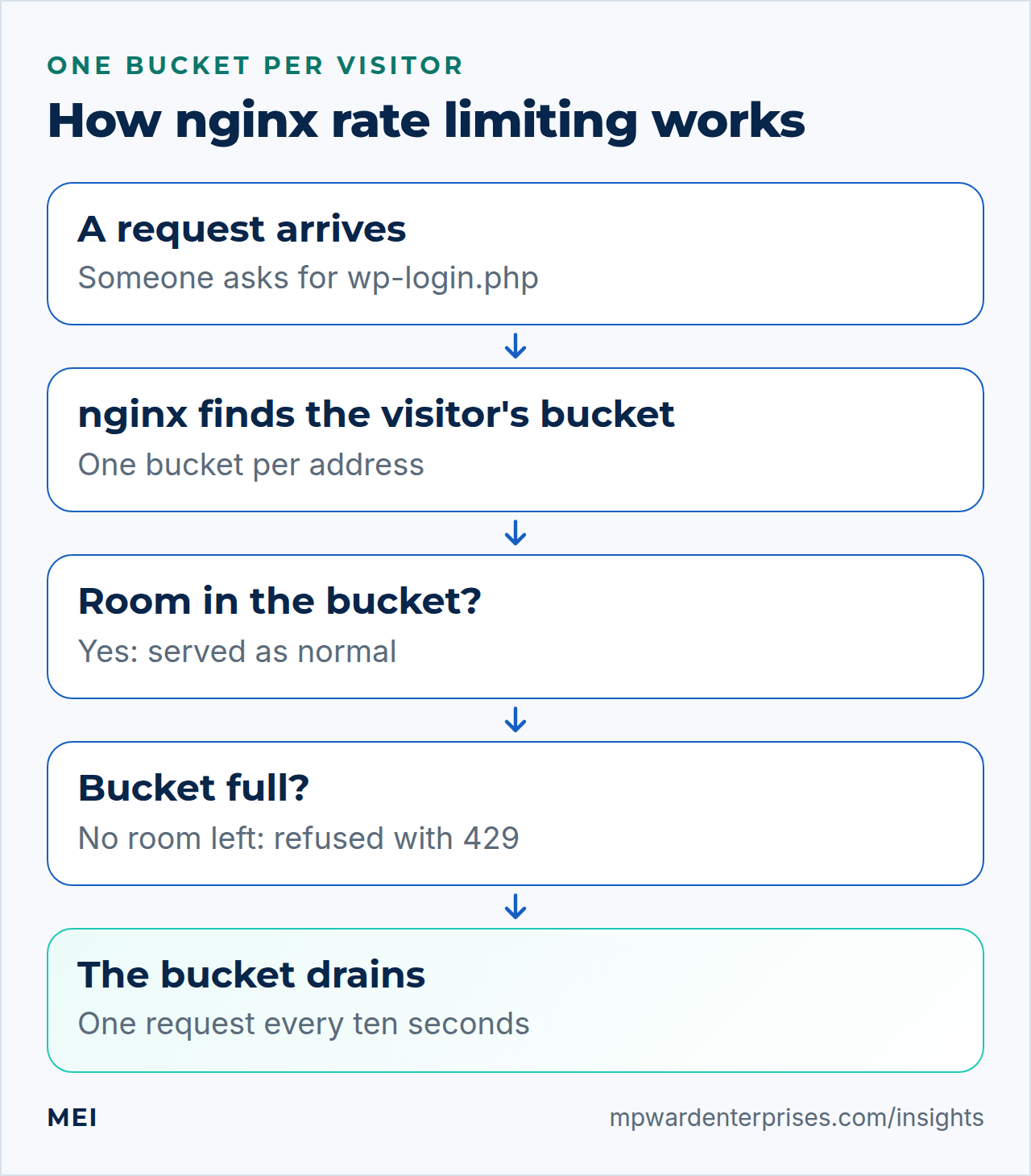
Picture a bucket with a small hole in the bottom. Each request from a visitor pours one cup of water in. The hole drains at a steady pace, which is the rate you set. The bucket has room for a few extra cups at once, which is the burst. If a request would overflow the bucket, nginx refuses it. The nginx project describes the same leaky-bucket idea, with a queue in place of the bucket.
Four settings describe the whole thing, and the first two go in one line that defines a "zone", a table nginx keeps in shared memory.
| Setting | In plain English | Our value |
|---|---|---|
key |
What counts as "one visitor". Normally the visitor's network address | $binary_remote_addr, a compact form of the address |
rate |
How fast the bucket drains. Written per second or per minute, so half a request a second is 30r/m |
6r/m, one request every ten seconds |
burst |
How many extra requests fit in the bucket at once | 6 |
nodelay |
Serve the burst immediately instead of spacing it out | On, because a person typing a password should not wait |
Put together, rate=6r/m burst=6 nodelay lets a visitor make seven quick attempts and then one more every ten seconds. That is generous for a person who forgot a password and hopeless for a bot that needs thousands of guesses. We measured it: seven requests answered normally, every further one refused, and one more allowed ten seconds later.
A zone costs little memory. The nginx documentation says one megabyte keeps about 16 thousand 64-byte states, so the 10 MB zone below tracks well over a hundred thousand visitors. If the table ever fills, nginx removes the least recently used entries first.
Step 1: Decide what to limit, and what not to
Limit the places where a guess is made, and leave everything else alone. A visitor reading your pages makes many requests in a minute, and a limit that suits a login form would break normal browsing.
| Address | What it is | What we do |
|---|---|---|
/wp-login.php |
The login form and the password check | Limit: 6 a minute with a burst of 6 |
/xmlrpc.php |
An old remote-publishing interface. WordPress's handbook calls it a frequent brute-force target | Block it unless something you use needs it (step 4) |
Home page, posts, the REST API, admin-ajax.php |
What visitors, themes and plugins use all day | Do not limit here. Caching and a firewall are the tools for load |
| Another login address, such as a shop's account page | Some plugins accept logins somewhere else | Needs its own limit; the same zone works. We tested wp-login.php |
Why this way?
One precise limit on the door that matters beats a blanket limit on the whole site. A blanket limit has to be loose enough for busy pages, which makes it too loose for guessing. Several people behind one office or mobile connection share a single address, so keep the burst high enough for a few people to mistype once each.
Step 2: Define the limit zone
A zone belongs at the top level of nginx's configuration, outside any server block. On Ubuntu, files in /etc/nginx/conf.d/ are loaded there. Run sudoedit /etc/nginx/conf.d/rate-limits.conf and add one line:
limit_req_zone $binary_remote_addr zone=wplogin:10m rate=6r/m;Read it left to right: keep a table named wplogin of 10 megabytes, with one entry per visitor address, and let each entry drain at six requests a minute. Nothing is limited yet. A zone only describes the bucket; the next step points a door at it.
Step 3: Protect wp-login.php
Open your site's server block, usually /etc/nginx/sites-available/example.com, and add this location. Copy the two PHP lines from the existing location ~ \.php$ block in the same file, because yours may name a different socket.
    location = /wp-login.php {
        limit_req zone=wplogin burst=6 nodelay;
        limit_req_dry_run on;
        limit_req_status 429;
        include snippets/fastcgi-php.conf;
        fastcgi_pass unix:/run/php/php8.38.5-fpm-siteuser.sock;
    }
limit_req applies the bucket. limit_req_dry_run on is the safety net: nginx still counts and logs, but refuses nobody. limit_req_status 429 makes refusals answer with 429 Too Many Requests, the status RFC 6585 defines for this case, instead of nginx's default 503, which looks like a broken server. Apply the change and try it from the server itself:
sudo nginx -t && sudo systemctl reload nginx
sleep 2
for i in $(seq 1 12); do
  curl -s -o /dev/null -w "%{http_code} " --resolve example.com:443:127.0.0.1 \
    -d "log=test&pwd=wrong-$i" https://example.com/wp-login.php
done; echo
The sleep 2 matters. A reload returns at once, and requests sent in the first moment can still be answered by the old workers, which know nothing about the new limit. In our labs, on both releases, a loop started straight after the reload usually left fewer than the five log lines you will look for in a moment, and sometimes none; after a two-second pause it always left all five.
In dry-run mode you should see twelve 200s. That 200 matters: a wrong password does not return an error status, it returns the login page again, which is why only a counter in front of WordPress can slow a bot down. Check that nginx noticed:
sudo grep "limiting requests" /var/log/nginx/example.com.error.log | tail -n 2Each line says limiting requests, dry run, excess: 6.727 by zone "wplogin", client: ... followed by the address and the request. Leave dry run on for a few days on a busy site and read who would have been refused. When you are happy, delete the limit_req_dry_run on; line and wait a minute, so the counter left by the dry run can drain. Then run the same commands again, reload and pause included. We got seven 200s and then five 429s, and one more request was allowed ten seconds later.
Watch out: two traps that make the limit do nothing or worse
First, use the exact-match form location = /wp-login.php. We put the same limit in location /wp-login.php and sent fifteen guesses: all fifteen got 200, because nginx prefers the regular-expression PHP block to a plain prefix block, so the limit never ran. Second, an exact-match location does not inherit the PHP settings from another block. Without the include and fastcgi_pass lines, our test served the PHP file itself as a download. For wp-login.php that is public code, but the same slip on another file could expose secrets. Always include both lines and test.
Why this way?
Dry run first means your first mistake costs a log line, not a locked-out colleague. A visible 429 tells a human or a script what happened, where a 503 looks like an outage and invites a retry storm. The limit counts every request to this address, including the page view that shows the form, so the burst has room for a normal visit: a page view plus a few attempts.
Step 4: Block or limit xmlrpc.php
xmlrpc.php is an older way for apps to talk to WordPress. WordPress's security handbook names it a frequent brute-force target, especially through a method that bundles many password guesses into one request, and says to disable it if you do not use it. Most business sites do not. One line does it:
location = /xmlrpc.php { deny all; }In our lab both a plain request and a POST to /xmlrpc.php answered 403. Some plugins and apps still call this address, so if something stops syncing after the change, look here first. If you do need it, give it the same treatment as the login page: add limit_req zone=wplogin burst=6 nodelay; to that location, together with the PHP lines.
The deny rule is the cheapest line in this guide, and it removes a whole attack route: the request never reaches PHP.
Step 5: Count only login attempts, and let your own team through
Two refinements make the limit friendlier. The first counts only POST requests, the ones that submit a password, so loading the form never uses up your budget. nginx does not count a request whose key is empty, the documentation says, so a map can produce an empty key for everything else. Replace the zone line from step 2 with:
map $request_method $wplogin_post_key {
    POST    $binary_remote_addr;
    default "";
}
limit_req_zone $wplogin_post_key zone=wplogin_post:10m rate=6r/m;
Then change zone=wplogin to zone=wplogin_post in the location. In our lab twenty page loads of the login form all answered 200, while the guesses were limited as before. The second refinement lets your office through, using the same empty-key idea with a geo block that marks addresses you trust:
geo $wplogin_exempt {
    default         0;
    203.0.113.0/24  1;
}
map $wplogin_exempt $wplogin_key {
    1       "";
    default $binary_remote_addr;
}
limit_req_zone $wplogin_key zone=wplogin_team:10m rate=6r/m;
Fifteen attempts from an address inside 203.0.113.0/24 all got 200, while an outside address was limited after seven. Use the exempt list sparingly: an allowed address that is ever compromised, or is shared with strangers, is a hole.
Watch out: renaming matters when you change a zone's key
We changed the key of an existing zone and ran sudo systemctl reload nginx. The syntax check said "test is successful", yet the reload failed and nginx kept running the old rules. The only trace was this line in the main error log: limit_req "wplogin_ex" uses the "$binary_remote_addr" key while previously it used the "$wplogin_ex_key" key. Give a zone with a new key a new name, as we did above, or restart nginx instead of reloading. After any change, test again.
Step 6: Make it work behind a proxy or CDN
This is the step that turns a good limit into a self-inflicted outage if you skip it. When a proxy, load balancer or CDN sits in front of nginx, every request arrives from the proxy's address. nginx then sees one "visitor", and one bot spends the budget for everybody. We reproduced it with a proxy in front: one visitor made ten attempts, and a completely different visitor's first attempt was refused. Every limiting line named the same client, 127.0.0.1.
The fix is to tell nginx which addresses to trust and where to find the real visitor address. This is the version for a proxy that sets the X-Forwarded-For header. List only your own proxy:
    set_real_ip_from 127.0.0.1;
    real_ip_header X-Forwarded-For;
Put those two lines in the server block, and use the proxy's real address in place of 127.0.0.1. The nginx documentation explains them as the trusted addresses that are known to send correct replacement addresses, and the header to read. After the change, in our test the same ten attempts limited only the guesser, the other visitor got a 200, and the log named 203.0.113.10 instead of the proxy.
If your proxy speaks PROXY protocol, as our HAProxy SNI routing setup does, use listen 443 ssl proxy_protocol; together with real_ip_header proxy_protocol;. We tested that too: with a PROXY header naming 203.0.113.10, only that address was limited. Our guide to PROXY protocol with HAProxy and nginx covers the details.
If your listen line already has http2 on it, keep it and add the new word after it: listen 443 ssl http2 proxy_protocol;. nginx 1.24 does not know the separate http2 on; line and stops with unknown directive "http2".
If your listen line already has http2 on it, take that word off the line and add http2 on; as a separate line in the same server block. The old form still works on nginx 1.28, but nginx -t and every reload then print the "listen ... http2" directive is deprecated. We sent a PROXY header with both forms, and both negotiated HTTP/2.
Watch out: trust only addresses you control
If you list too much in set_real_ip_from, anyone can send a fake header and pick whatever address they like, which lets a bot dodge the limit by changing it with every request. Name your own proxy and nothing else.
Check your work and watch the log
Run the loop from step 3 once more with dry run off, and confirm four things: the first seven attempts answer 200, the next ones answer 429, a page load still answers 200 once you use the POST-only zone, and a visitor from a different address is not limited by yours. Then read what the limit has caught:
sudo grep -h "limiting requests" /var/log/nginx/example.com.error.log \
  | sed 's/.*client: \([^,]*\),.*/\1/' | sort | uniq -c | sort -rn | head
That prints each address with the number of refused requests, largest first. Each refusal is logged at the error level by default, which can clutter a log you scan for real errors.
If that bothers you, limit_req_log_level warn; next to the other limit settings moves the refusals to the warn level, with one catch: a log keeps only messages at its own level or above, and the site's error_log is at error unless you say otherwise. We tested both ways on both releases. With the default, the refusals vanished from the log completely; with error_log /var/log/nginx/example.com.error.log warn; they came back tagged [warn].
The command above and the fail2ban filter below both read this log, so change both lines or neither.
The same lines can feed an automatic ban. Ubuntu's fail2ban package ships a filter named nginx-limit-req that reads exactly these messages, and we confirmed it matched a real line from the lab. It skipped a line marked dry run, so a trial period bans nobody. Our fail2ban guide shows how to switch it on, so the worst offenders are blocked at the firewall as well as slowed at the door.
Troubleshooting: what the symptoms mean
| What you see | Likely cause | What to do |
|---|---|---|
Everyone gets 429 after a few visits, and the log shows the same client: address every time |
A proxy or CDN hides the real visitors, so they share one bucket | Step 6: set_real_ip_from and real_ip_header |
You edited the limit, but behavior did not change, and nginx -t passed |
The reload failed because a zone's key changed, and the old rules are still running | Read the main error log, then rename the zone or run sudo systemctl restart nginx |
| Fifteen wrong guesses all answer 200 | The limit sits in a prefix location, or in no location that handles the request | Use location = /wp-login.php, with the PHP lines inside it |
| The login page downloads as a file, or shows PHP code | The exact-match location has no include snippets/fastcgi-php.conf; and fastcgi_pass |
Add both lines at once, reload, and request the page again |
| Refusals answer 503, not 429 | limit_req_status is missing; nginx's default is 503 |
Add limit_req_status 429; to the location |
| A staff member is locked out after a few typos | They used the whole burst, or share an address with others | Wait ten seconds per extra attempt, raise burst, or add the office to the exempt list in step 5 |
| No dry run lines in the error log after the test loop | The loop started in the first moment after the reload, while the old workers still answered | Wait two seconds after every reload, then run the loop again |
The refusals vanished from the error log after you added limit_req_log_level warn; |
The site's error_log still keeps only the error level and above |
Add warn to the end of the error_log line, or remove the limit_req_log_level line |
What rate limiting does not do
A per-address limit slows a single guesser, and that is all it promises. An attacker with many addresses, such as a botnet, can spread guesses across them, and each address stays under the limit. That is why the limit belongs beside strong, unique passwords, two-factor login, the allowed-address list where you can use one, fail2ban, and an edge service if floods become a real problem. Our small business cybersecurity checklist puts these in order.
It also does not protect a page from ordinary overload. For that, caching and sizing are the tools; our guide to why a WordPress site is slow explains where to start.
Keep it healthy
Once a month, run the log command above and look for addresses you recognize, such as your own office. After adding a plugin or shop that has its own login address, add a limit for it. After a proxy change, repeat the step 6 test, because a changed address range breaks real-address detection quietly. Our WordPress maintenance checklist and the Linux server hardening checklist list the other recurring jobs.
Getting help
If you would rather have someone set this up and watch it, MEI's Network Architecture and Security service covers firewall and server hardening, access control and monitoring, and starts at $1,500, scoped after an assessment. WordPress Engineering and Plugin Development covers performance, security hardening and migrations, and starts at $1,200, fixed scope or hourly. We focus on the highest-impact, most likely risks, and we do not promise perfect security.
Frequently asked questions
What is nginx rate limiting?
A feature of nginx that counts requests per visitor, normally per IP address, and delays or refuses those that arrive faster than a rate you set. It works like a leaky bucket: a steady drain rate plus a small burst allowance.
How do I rate limit wp-login.php in nginx?
Define a zone with limit_req_zone in the http context, then add limit_req with a burst to an exact-match location for /wp-login.php that also contains your PHP handler lines. Start with limit_req_dry_run on to see who would be refused.
What do rate=6r/m and burst=6 mean?
The bucket drains one request every ten seconds, and six extra requests may arrive at once. With nodelay, a visitor gets seven quick requests and then one more every ten seconds.
Should nginx return 429 or 503 for rate limited requests?
429 Too Many Requests, defined in RFC 6585, says what happened. nginx's default is 503, which looks like an outage. Set limit_req_status 429.
Does rate limiting stop brute force attacks completely?
No. It slows a single address. A botnet can spread guesses over many addresses, so combine it with strong passwords, two-factor login, fail2ban, an allowed-address list where practical and, for large floods, an edge service.
Why does every visitor get 429 behind my proxy?
Behind a proxy or CDN, nginx sees the proxy's address for everyone, so all visitors share one bucket. Use set_real_ip_from for your proxy and real_ip_header with X-Forwarded-For or proxy_protocol so nginx sees the real visitor address.
Sources and further reading
- nginx documentation: ngx_http_limit_req_module — limit_req_zone, limit_req, burst, nodelay, limit_req_status, limit_req_dry_run, empty keys not accounted, zone memory sizing
- NGINX blog: Rate Limiting with NGINX — the leaky-bucket idea, burst and nodelay explained
- nginx documentation: ngx_http_realip_module — set_real_ip_from, real_ip_header, X-Forwarded-For and proxy_protocol
- WordPress Advanced Administration Handbook: Brute Force Attacks — xmlrpc.php as a target, layers of defense, disabling XML-RPC, fail2ban
- RFC 6585: Additional HTTP Status Codes — 429 Too Many Requests
- nginx documentation: ngx_http_core_module (listen) — the proxy_protocol parameter of listen, and the http2 parameter being deprecated in favor of the http2 directive
- Ubuntu 26.04 LTS release notes: summary for LTS users — sudo-rs is the default sudo and rust-coreutils provides the core utilities, with cp, mv and rm still from GNU