
WordPress server backups are copies of three things: the site's files, a consistent dump of its database, and the server settings that make them run, kept somewhere that a dead disk, a mistake or an attacker on the web server cannot reach. This guide builds them with restic on Ubuntu 24.04 LTS or 26.04 LTS in seven steps, from the first command to a restore test you can repeat. Pick your release with the switch below. It takes about two hours and assumes you can use SSH and sudo.
We ran every command below twice in disposable labs. On Ubuntu 24.04 (restic 0.16, MariaDB 10.11) two test servers took part, one running WordPress and one acting as the backup target. On Ubuntu 26.04 (restic 0.18, MariaDB 11.8) one lab machine played both roles. Where the two releases differ, the page shows only the one you picked.
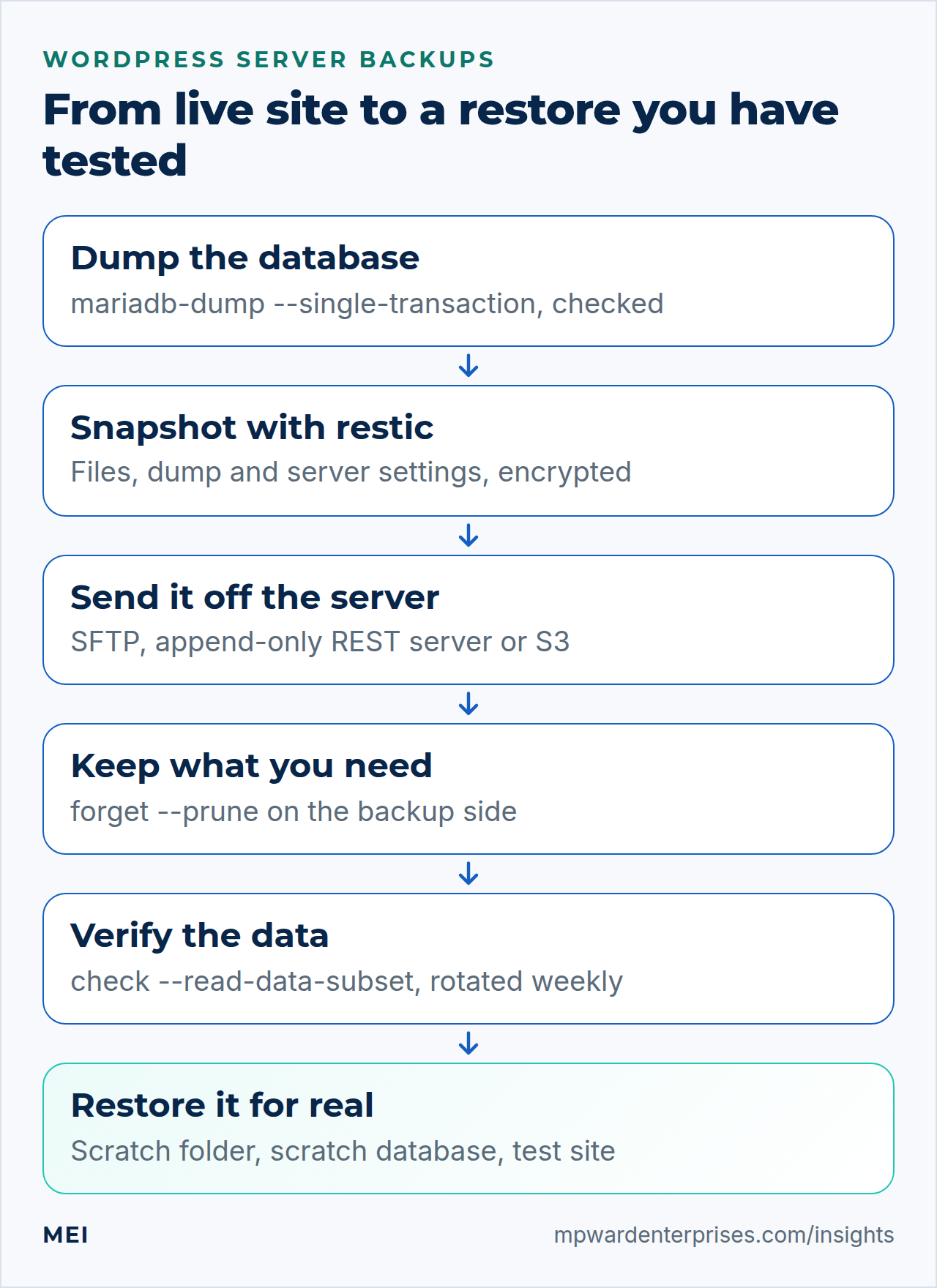
WordPress server backups fail quietly: a job that never ran, a repository you cannot decrypt, or a copy an attacker deletes in the same stroke as your site. So each stage ends with a check, and the most important step is a restore test you actually perform.
Choose your Ubuntu version
This guide covers both releases. Commands, file paths and version numbers change with your choice; everything else is the same.
JavaScript is off, so both versions are shown below and each block says which release it is for.
Before you start
WordPress server backups only read from your site, so the early steps are low-risk. Pruning and restoring are the steps to rehearse away from production.
- You need a second place to store copies. A second server you control, or S3-compatible object storage. A folder on the same disk is not a backup of that disk.
- You need a password manager (or a locked safe) for the repository password. Step 1 explains why it cannot live only on the web server.
- Know the rule you are building toward. Our 3-2-1 backup rule guide explains three copies, two kinds of storage and one off-site copy. This guide builds the off-site part and the restore test.
- Do the first run on a test server if you can. Keep your existing backup method running until this one has passed a restore test.
WordPress server backups: why restic and not the other ways
There are several sound ways to back up a WordPress server. This table compares them in plain English, with the verdict we use when we build servers.
| Option | In plain English | Our verdict |
|---|---|---|
| Restic (this guide) | Encrypted, deduplicated snapshots of any folders, to a server, object storage or a disk | Our choice for a server you manage. One program, fast restores, and the storage side can be simple and "dumb" |
| Borg | A close cousin of restic: encrypted, deduplicated, compressed | Equally good. Choose it if you like its built-in SSH append-only mode (see Step 7). It wants Borg installed on both ends for SSH repositories |
| rsync snapshots (hard links) | Plain copies of files, with unchanged files shared between days | Transparent and simple on a target you trust. No encryption of its own, and databases still need dumps |
| Hosting provider snapshots | A picture of the whole server disk, taken by the host | Great for a fast full-server rollback. But it lives in the same account as the server, and it is not aware of the database. Use it as an extra layer |
| A WordPress backup plugin | A plugin that zips files and the database and offers a restore screen | Convenient on shared hosting. On your own server it depends on PHP time limits and a healthy WordPress, and it does not cover server settings |
| A database dump only | Just the posts and settings | Not enough. Uploads, themes and plugins live in files, and they exist nowhere else |
Think of WordPress server backups as insurance with three parts: what is covered (files, database, settings), who holds the policy (a different machine), and whether it pays out (the restore test). Most failed recoveries are a gap in one of those, not in the software.
What WordPress server backups must contain
A WordPress site is more than one folder. This table lists what we include, and why.
| Item | Where it lives | Why it matters | Include? |
|---|---|---|---|
| Site files | /var/www/example.com |
Uploads, themes, plugins and wp-config.php. Uploads exist nowhere else |
Yes |
| The database | MariaDB | Posts, pages, users, orders and settings | Yes, as a dump |
| Server settings | /etc/nginx, /etc/php, /etc/mysql, /etc/systemd/system |
Rebuilding the same server in minutes instead of hours | Yes |
| TLS certificates | /etc/letsencrypt |
They can be re-issued, but the account and renewal settings speed up a rebuild. They hold private keys, so they belong only in an encrypted repository | Optional |
| Media kept elsewhere | Object storage, a CDN origin | Not on this server, so not in this backup | Back it up separately |
| Caches and logs | wp-content/cache, page-cache folders |
Rebuilt automatically | No |
| MariaDB's raw data folder | /var/lib/mysql |
Copying it while the database runs gives an inconsistent copy | No, use a dump |
The WordPress handbook says the same in two lines: the database and the site files are separate things, and both need backing up. Also keep a short recovery note somewhere off the server: DNS provider, registrar login, hosting account, and where the repository password is stored. A restore without those details is slower than it needs to be.
Restic in plain English
Restic stores your data in a repository, which is just a folder or bucket full of encrypted files. Each backup run creates a snapshot, a point-in-time view of everything you asked it to save. Restic splits files into chunks and stores each distinct chunk once (deduplication), so the second night's backup of an unchanged site is tiny. Everything is encrypted with a key unlocked by your password.
| Command | What it does |
|---|---|
restic init |
Creates an empty, encrypted repository |
restic backup |
Takes a new snapshot of the folders you name |
restic snapshots |
Lists the snapshots, with times, tags and paths |
restic restore |
Copies a snapshot, or part of one, back to disk |
restic forget --prune |
Deletes snapshots you no longer need, then removes the data only they used |
restic check |
Tests that the repository is consistent; with --read-data it also reads the stored data |
restic key |
Lists, adds and removes passwords that open the repository |
The restic reference describes the encryption as AES-256 in counter mode with Poly1305-AES authentication, with the key derived from your password using scrypt. The important consequence is the warning restic prints when you create a repository (you will see it in Step 3): losing the password means the data is irrecoverably lost. Treat the password as part of the backup, not as a setting.
Which restic?
Ubuntu 24.04 packages restic 0.16.4, and sudo apt install restic keeps it patched like any other package. The latest manual describes newer options that 0.16.4 does not have, such as --stdin-from-command for backing up a command's output. Everything in this guide runs on 0.16.4, and where a newer feature would help, we say so.
Which restic?
Ubuntu 26.04 packages restic 0.18.1, in its main component, and sudo apt install restic keeps it patched like any other package. It is newer than the 0.16.4 on Ubuntu 24.04 and has options that version lacks, such as --stdin-from-command for backing up a command's output. We ran every command in this guide on 0.18.1, and the places where it behaves differently from 0.16.4 are marked.
Step 1: Decide where the copies go, and where the password lives
Pick a repository type. The choice is mostly about who you trust and what you want to maintain.
| Repository | Address looks like | Good for | Watch out |
|---|---|---|---|
| A second server over SFTP | sftp:[email address]:/srv/restic/example.com |
Full control, cheap, nothing but SSH to run | The web server's key can delete the repository (we proved it). You patch a second server |
| S3-compatible object storage | s3:https://s3.example.net/bucket-name |
No server to maintain; some providers offer object lock | Read costs and provider quirks; the key on the web server may be able to delete unless the provider restricts it |
| A REST server in append-only mode | rest:https://backup.example.com:8000/example.com |
Stops the web server's credentials from deleting history (Step 7) | One more service to run, and pruning moves to the backup server |
| A local disk, then a synced copy | /var/backups/restic-local |
Very fast restores on the same server | A syncing tool copies damage as faithfully as data. See below |
We use a second server over SFTP in this guide, because it needs no extra software, and then harden it in Step 7. The 3-2-1 mapping is simple: the live site is copy one, a repository on another machine is copy two, and an independent second repository, or a disk you keep offline, is copy three.
Sync is not backup
Rsyncing a repository folder to another place looks like a second copy. We wiped a test repository and ran the same rsync --delete again: the "copy" lost its data and snapshots folders too. Use restic copy into a separate repository instead. When we wiped the source after a restic copy, the second repository still passed restic check.
Now create the password and the settings file on the web server. The password file lives in a root-only folder. Copy the password into your password manager now, before the first backup.
sudo install -d -m 700 /etc/restic
sudo sh -c 'umask 077; openssl rand -base64 32 > /etc/restic/example.com.password'
sudo cat /etc/restic/example.com.password
sudo tee /etc/restic/example.com.env > /dev/null <<'EOF'
RESTIC_REPOSITORY=sftp:[email address]:/srv/restic/example.com
RESTIC_PASSWORD_FILE=/etc/restic/example.com.password
EOF
sudo chmod 600 /etc/restic/example.com.env
Why this way?
A password stored only on the server being backed up is lost in exactly the disaster you are preparing for. Keep one copy in a password manager that does not depend on this server, and consider a printed copy in a safe. You can also add a second, independent password with restic key add; we tested adding and removing one. The alternative, a short memorable password, makes the encryption a formality, so use the generated one.
Step 2: Prepare the backup server
On the backup server, create a user that can do one thing: transfer files over SFTP. Do not call it backup, because Ubuntu already has a system account with that name, which has no login shell and a different home folder. We use restic.
sudo adduser --disabled-password --gecos "" restic
sudo install -d -o restic -g restic -m 700 /srv/restic
sudo tee /etc/ssh/sshd_config.d/10-restic-backup.conf > /dev/null <<'EOF'
Match User restic
    ForceCommand internal-sftp
    AllowTcpForwarding no
    X11Forwarding no
    PermitTTY no
    PasswordAuthentication no
EOF
sudo sshd -t && sudo systemctl reload ssh
sudo sshd -T -C user=restic,host=web,addr=203.0.113.10 | grep -E '^(forcecommand|allowtcpforwarding|permittty|passwordauthentication)'
The last command prints the settings sshd will apply to that user, so you can confirm them before relying on them. Now make a key on the web server. It has no passphrase, because a timer has to use it unattended, which is why the server side restricts it to SFTP.
sudo install -d -m 700 /root/.ssh
sudo ssh-keygen -t ed25519 -N "" -C "restic@web" -f /root/.ssh/restic_ed25519
sudo cat /root/.ssh/restic_ed25519.pub
Paste that public key into the backup server's authorized keys, restricted to the web server's address. The restrict option switches off forwarding and other extras.
sudo install -d -o restic -g restic -m 700 /home/restic/.ssh
sudo tee /home/restic/.ssh/authorized_keys > /dev/null <<'EOF'
restrict,from="203.0.113.10" ssh-ed25519 AAAA...paste-the-public-key-here... restic@web
EOF
sudo chown restic:restic /home/restic/.ssh/authorized_keys
sudo chmod 600 /home/restic/.ssh/authorized_keys
ssh-keygen -lf /etc/ssh/ssh_host_ed25519_key.pub
Back on the web server, tell SSH which key and user to use for the backup server, and trust the server's host key only after you have compared its fingerprint with the one just printed on the backup server.
sudo tee -a /root/.ssh/config > /dev/null <<'EOF'
Host backup.example.com
    User restic
    IdentityFile /root/.ssh/restic_ed25519
    IdentitiesOnly yes
    BatchMode yes
EOF
ssh-keyscan -t ed25519 backup.example.com | ssh-keygen -lf -
ssh-keyscan -t ed25519 backup.example.com | sudo tee -a /root/.ssh/known_hosts > /dev/null
sudo ssh backup.example.com id
The fingerprints must match. The final command should print "This service allows sftp connections only", which is the proof that the key cannot open a shell. Tighten the backup server further with our SSH hardening guide, and allow SSH only from the web server's address, as described in the UFW firewall guide.
Step 3: Create the repository and take the first backup
On the web server, install restic, load the settings and create the repository. Restic prints the repository ID and a reminder about the password.
sudo apt install -y restic
restic version
sudo -i
set -a; . /etc/restic/example.com.env; set +a
restic init
created restic repository 990ba48575 at sftp:[email address]:/srv/restic/example.com
Please note that knowledge of your password is required to access
the repository. Losing your password means that your data is
irrecoverably lost.Before the script, check that the database uses a transaction-safe engine. A consistent dump without locking the site relies on InnoDB, and MariaDB's documentation warns that MyISAM and MEMORY tables can still change during a --single-transaction dump.
sudo mariadb -e "SELECT engine, COUNT(*) AS tables FROM information_schema.tables WHERE table_schema='sitedb' GROUP BY engine"You want one row saying InnoDB. Now the backup script. It dumps the database to a staging file, checks the dump, adds a small plugin inventory, and takes one snapshot of the files, the dump and the server settings. Paths that do not exist on your server (say, no certificates yet) are skipped.
sudo tee /usr/local/sbin/wp-backup.sh > /dev/null <<'EOF'
#!/bin/bash
# Back up one WordPress site with restic: files, a database dump and server settings.
set -euo pipefail
umask 077

site=example.com
db=sitedb
siteuser=siteuser
stage=/var/backups/restic-staging

set -a; . "/etc/restic/$site.env"; set +a     # RESTIC_REPOSITORY and RESTIC_PASSWORD_FILE
install -d -m 700 "$stage"
# Never leave a plaintext copy of the database lying around, even when something fails.
trap 'rm -f "$stage/$db.sql" "$stage/$db.sql.partial" "$stage/plugins.csv"' EXIT

# 1. A consistent database dump, checked before it is trusted.
#    No --databases: the file then restores into whichever database you name.
mariadb-dump --single-transaction --quick --routines --triggers --events "$db" > "$stage/$db.sql.partial"
tables=$(grep -c '^CREATE TABLE' "$stage/$db.sql.partial" || true)
[ "$tables" -ge 1 ] || { echo "no tables in the dump of $db" >&2; exit 1; }
mv "$stage/$db.sql.partial" "$stage/$db.sql"

# 2. An inventory that makes a rebuild easier.
sudo -u "$siteuser" wp --path="/var/www/$site/public" plugin list --format=csv > "$stage/plugins.csv"

# 3. One snapshot with everything. Paths that do not exist on this server are skipped.
paths=("/var/www/$site" "$stage")
for p in /etc/nginx /etc/php /etc/mysql /etc/letsencrypt /etc/systemd/system; do
  if [ -e "$p" ]; then paths+=("$p"); fi
done
restic backup --tag wordpress --exclude-caches \
  --exclude "/var/www/$site/public/wp-content/cache" \
  --exclude "/var/www/$site/public/wp-content/upgrade" \
  "${paths[@]}"
EOF
sudo chmod 750 /usr/local/sbin/wp-backup.sh
sudo /usr/local/sbin/wp-backup.sh
no parent snapshot found, will read all files
Files: 3869 new, 0 changed, 0 unmodified
Dirs: 508 new, 0 changed, 0 unmodified
Added to the repository: 109.080 MiB (39.212 MiB stored)
processed 3869 files, 107.673 MiB in 0:01
snapshot 5c5e6cbf savedThat is our lab site on its first run: 109 MiB read, 39 MiB stored, because restic compresses as well as deduplicates. Run the script again and the second snapshot adds only about 24 KiB stored, because only the dump and the inventory changed. Your numbers will differ, but the pattern should be the same. Then look at what you made.
sudo -i
set -a; . /etc/restic/example.com.env; set +a
restic snapshots --compact
restic stats latest --mode restore-size
restic ls latest --long | grep -E 'sitedb.sql|wp-config.php'
Do not dump with --databases
A dump made with --databases sitedb starts with CREATE DATABASE and USE sitedb. We loaded one into a scratch database to test it, and it overwrote the live site's tables: the production site title reverted to the dump's value while the scratch database stayed empty. A dump made without --databases has neither line and loads into whichever database you name. That is why the script omits it.
Why a staging file and not a pipe?
Piping mariadb-dump straight into restic backup --stdin avoids a temporary file, but if the dump fails halfway restic can save a truncated snapshot; with 0.16.4 it cannot tell. Restic's manual warns about these empty backups, and newer versions add --stdin-from-command to detect a failing command. Writing to a file first lets us check it, and the trap line removes the plaintext dump afterwards.
Why a staging file and not a pipe?
Piping mariadb-dump straight into restic backup --stdin avoids a temporary file, but if the dump fails halfway restic can save a truncated snapshot. We piped a failing command into it on both releases: a snapshot was saved and restic exited with status 0. Restic 0.18.1 has --stdin-from-command, which runs the command itself; when ours failed, restic exited with status 1 and saved no snapshot. We still prefer the staging file, because the script can check the dump before trusting it, and the trap line removes the plaintext dump afterwards.
Step 4: Run it every night with a systemd timer
WordPress server backups that depend on someone remembering to run a script soon stop happening. We use a systemd service and timer, as in our systemd timer vs cron guide. The service wraps the script in flock -w so a nightly backup and the weekly upkeep from Step 5 wait for each other instead of colliding. It also gives restic a cache folder, because a service has no home directory and would otherwise run without a cache.
sudo tee /etc/systemd/system/wp-backup.service > /dev/null <<'EOF'
[Unit]
Description=Back up example.com with restic
After=mariadb.service network-online.target
Wants=mariadb.service network-online.target
OnFailure=notify-failure@%n.service

[Service]
Type=oneshot
ExecStart=/usr/bin/flock -w 7200 /run/lock/restic-example.com.lock /usr/local/sbin/wp-backup.sh
Nice=10
IOSchedulingClass=idle
TimeoutStartSec=6h
CacheDirectory=restic
Environment=RESTIC_CACHE_DIR=/var/cache/restic
EOF
sudo tee /etc/systemd/system/wp-backup.timer > /dev/null <<'EOF'
[Unit]
Description=Back up example.com every night

[Timer]
OnCalendar=*-*-* 02:30:00
Persistent=true
RandomizedDelaySec=15min

[Install]
WantedBy=timers.target
EOF
sudo systemd-analyze verify /etc/systemd/system/wp-backup.service /etc/systemd/system/wp-backup.timer
sudo systemctl daemon-reload
sudo systemctl enable --now wp-backup.timer
sudo systemctl start wp-backup.service
journalctl -u wp-backup.service --no-pager -n 12
The OnFailure= line sends you a message when a run fails. It relies on the notify-failure@.service alert built in Step 6 of the timer guide; if you have not built it, remove that line for now. Persistent=true makes the timer run a missed backup after downtime, and the small random delay is optional on one server but kind to a backup server that many sites share.
Prove the failure path before you need it. Point the settings file at a host that does not exist, run the service, and confirm that it fails, that the alert arrives, and that no plaintext dump is left behind. Then put the real address back.
sudo cp /etc/restic/example.com.env /root/example.com.env.good
sudo sed -i 's#backup.example.com#nonexistent.example.com#' /etc/restic/example.com.env
sudo systemctl start wp-backup.service
sudo ls -la /var/backups/restic-staging
sudo cp /root/example.com.env.good /etc/restic/example.com.env && sudo rm /root/example.com.env.good
In our lab the job failed with "unable to open repository", the alert mail arrived, and the staging folder was empty.
Step 5: Keep the right history, and check the repository
Without housekeeping a repository grows forever. Two commands manage it: forget marks old snapshots for removal by a retention rule, and prune deletes the data that only those snapshots used. Always rehearse with --dry-run first.
sudo -i
set -a; . /etc/restic/example.com.env; set +a
restic forget --tag wordpress --group-by host,tags --keep-daily 14 --keep-weekly 8 --keep-monthly 12 --dry-run --compact
The numbers are an example from our own setups: 14 daily, 8 weekly and 12 monthly snapshots. They are not a rule. Choose by how far back you might need to go, and how much a bad change could go unnoticed. Restic counts periods that have a snapshot, not calendar days, so a month with no backups does not use up your allowance.
Group by tags, not by paths
By default, restic applies the retention rule separately to each group of snapshots with the same host and the same list of paths. In a test repository of 47 nightly snapshots this policy kept 20 and marked 27 for removal. Then we added one snapshot with a shorter path list: it formed a group of its own and was kept whatever the policy said. With --group-by host,tags all 48 snapshots were one group, and 28 were marked for removal. Tag every snapshot, and group by host and tags.
Now check the repository, and understand what the check proves. We damaged one stored data file in a copy of our repository by overwriting 64 bytes. Plain restic check still said "no errors were found". A random 5% sample can miss it too: it did on all three of our tries on Ubuntu 24.04 (three packs only) and on two of three on 26.04 (two packs only). Only restic check --read-data reliably reported the damage ("Pack ID does not match") (a damaged pack, "ciphertext verification failed") and failed.
The default check verifies structure, not the data itself.
Reading everything every week costs bandwidth and time, so we rotate: each week the check reads one twelfth of the packs, and every pack is verified about once a quarter. Put it with the pruning in one weekly script.
sudo tee /usr/local/sbin/wp-backup-maintenance.sh > /dev/null <<'EOF'
#!/bin/bash
# Weekly upkeep: apply the retention policy, reclaim space, and verify part of the stored data.
set -euo pipefail

site=example.com
set -a; . "/etc/restic/$site.env"; set +a

restic forget --tag wordpress --group-by host,tags \
  --keep-daily 14 --keep-weekly 8 --keep-monthly 12 --prune

# Read one twelfth of the stored data each week, so every pack is verified about once a quarter.
part=$(( 10#$(date +%V) % 12 + 1 ))
restic check --read-data-subset="$part/12"
EOF
sudo chmod 750 /usr/local/sbin/wp-backup-maintenance.sh
sudo tee /etc/systemd/system/wp-backup-maintenance.service > /dev/null <<'EOF'
[Unit]
Description=Prune and check the restic repository for example.com
After=network-online.target
Wants=network-online.target
OnFailure=notify-failure@%n.service

[Service]
Type=oneshot
ExecStart=/usr/bin/flock -w 7200 /run/lock/restic-example.com.lock /usr/local/sbin/wp-backup-maintenance.sh
Nice=10
IOSchedulingClass=idle
TimeoutStartSec=6h
CacheDirectory=restic
Environment=RESTIC_CACHE_DIR=/var/cache/restic
EOF
sudo tee /etc/systemd/system/wp-backup-maintenance.timer > /dev/null <<'EOF'
[Unit]
Description=Prune and check the restic repository every Sunday

[Timer]
OnCalendar=Sun *-*-* 05:00:00
Persistent=true
RandomizedDelaySec=30min

[Install]
WantedBy=timers.target
EOF
sudo systemctl daemon-reload
sudo systemctl enable --now wp-backup-maintenance.timer
sudo systemctl start wp-backup-maintenance.service
journalctl -u wp-backup-maintenance.service --no-pager -n 8
The journal ends with a line such as "read group #6 of 2 data packs (out of total 9 packs in 12 groups)" and "no errors were found". During a prune the repository is locked and backups cannot complete, which is another reason the two services share a lock and the upkeep runs on Sunday morning.
Step 6: Run a restore test for real
This is the step that turns WordPress server backups from a hope into a backup. A job that exits 0 tells you that commands ran, not that the site can come back. Exit status 0 can hide a dump that is empty, a path that is wrong, or a password nobody can find. We do the restore on the same server, into places that cannot touch production: a scratch folder, a scratch database with its own user, and a test site on a private address.
Work in one root shell for this whole step, because the later commands reuse its variables. First restore the latest snapshot into the scratch folder. The --verify option reads the restored files back and compares them with what the snapshot recorded.
sudo -i
set -a; . /etc/restic/example.com.env; set +a
mkdir -p /srv/restore-test
restic restore latest --tag wordpress --target /srv/restore-test --verify
ls /srv/restore-test /srv/restore-test/var/backups/restic-staging
Summary: Restored 4486 files/dirs (107.673 MiB) in 0:01
verifying files in /srv/restore-test
finished verifying 3871 files in /srv/restore-test (took 446ms)Next, load the dump into a scratch database owned by a scratch user. The separate user is a safety net: even if the restored site's settings still point at the live database, it cannot write to it.
SCRATCHPW=$(openssl rand -hex 12)
mariadb -e "CREATE DATABASE restore_test; CREATE USER 'restore_test'@'localhost' IDENTIFIED BY '$SCRATCHPW'; GRANT ALL ON restore_test.* TO 'restore_test'@'localhost';"
mariadb restore_test < /srv/restore-test/var/backups/restic-staging/sitedb.sql
mariadb -N -e "SELECT COUNT(*) FROM information_schema.tables WHERE table_schema='restore_test'"
mariadb -N -e "SELECT COUNT(*) FROM information_schema.tables WHERE table_schema='sitedb'"
mariadb -N -e "SELECT COUNT(*) FROM restore_test.wp_posts WHERE post_type='post' AND post_status='publish'"
mariadb -N -e "SELECT COUNT(*) FROM sitedb.wp_posts WHERE post_type='post' AND post_status='publish'"
The pairs of counts should match (in our lab, 12 tables and 26 posts each). Now point the restored copy at the scratch database and a private address, switch off its scheduled tasks, and serve it on a port that only the server itself can reach.
R=/srv/restore-test/var/www/example.com/public
cd /tmp
sudo -u siteuser -- wp --path=$R config set DB_NAME restore_test --quiet
sudo -u siteuser -- wp --path=$R config set DB_USER restore_test --quiet
sudo -u siteuser -- wp --path=$R config set DB_PASSWORD "$SCRATCHPW" --quiet
sudo -u siteuser -- wp --path=$R config set WP_HOME http://127.0.0.1:8081 --quiet
sudo -u siteuser -- wp --path=$R config set WP_SITEURL http://127.0.0.1:8081 --quiet
sudo -u siteuser -- wp --path=$R config set DISABLE_WP_CRON true --raw --quiet
tee /etc/nginx/sites-available/restore-test > /dev/null <<'EOF'
server {
    listen 127.0.0.1:8081;
    root /srv/restore-test/var/www/example.com/public;
    index index.php;
    location / { try_files $uri $uri/ /index.php?$args; }
    location ~ \.php$ {
        include snippets/fastcgi-php.conf;
        fastcgi_pass unix:/run/php/php8.38.5-fpm-siteuser.sock;
    }
}
EOF
ln -s /etc/nginx/sites-available/restore-test /etc/nginx/sites-enabled/restore-test
nginx -t && systemctl reload nginx
curl -s http://127.0.0.1:8081/ | grep -o '<title>[^<]*</title>'
curl -s -o /dev/null -w 'front page HTTP %{http_code}\n' http://127.0.0.1:8081/
curl -s -o /dev/null -w 'login page HTTP %{http_code}\n' http://127.0.0.1:8081/wp-login.php
Use your site's own PHP-FPM socket
The restore keeps each file's original owner, so the test copy has to run PHP as the site's account: any other account cannot read the restored wp-config.php. That is why fastcgi_pass names the socket of the site's own pool, the one built in our WordPress stack guide. A socket copied from another guide, such as the default php8.38.5-fpm.sock, either does not exist once that pool is retired, which gives nginx's 502 Bad Gateway on every page, or runs PHP as an account that cannot read the files.
Keep the test copy quiet
A restored copy of a shop or membership site holds live settings. If its scheduled tasks run, it can email customers, retry payments or renew subscriptions a second time. That is why the commands above set DISABLE_WP_CRON and bind the test site to 127.0.0.1. Do not restore with real payment or mail credentials on a public address.
From your laptop, view the test site through an SSH tunnel with ssh -L 8081:127.0.0.1:8081 alex@your-server, then open http://127.0.0.1:8081/. Log in, open a post, and look at an uploaded image. In our lab the title was correct, both pages returned HTTP 200, an uploaded image came back with HTTP 200, and the plugin list matched. Then clean up, so that no forgotten copy is left behind.
rm -f /etc/nginx/sites-enabled/restore-test /etc/nginx/sites-available/restore-test
nginx -t && systemctl reload nginx
mariadb -e "DROP DATABASE restore_test; DROP USER 'restore_test'@'localhost';"
rm -rf /srv/restore-test- Pass criteria: the restore finishes and verifies, the table and post counts match, the front page, login page and an uploaded image load, and you can log in.
- Time it. Our lab restored 108 MiB in a few seconds over a fast local network; yours depends on size and bandwidth. Write the real number in your recovery note.
- Repeat it monthly at first, then at least quarterly, and after any big change such as a new plugin that writes files or a move to a new server.
You can also restore a single file or folder, which is the more common emergency. restic dump latest /var/www/example.com/public/wp-config.php prints one file, and restic restore latest --tag wordpress --include /var/www/example.com/public/wp-content/uploads --target /tmp/uploads-only brings back one folder. restic find sitedb.sql shows which snapshots contain a file.
Step 7: Make your WordPress server backups hard to destroy
So far, the web server holds a key that can write to the repository, and whoever controls the web server holds that key. We tested what it allows. With the SFTP setup, restic's own forget --prune can delete snapshots, and a plain SFTP delete can remove the repository's files.
The restic documentation says that deleting repository files is outside what restic protects against. Ransomware operators know this. CISA's #StopRansomware guide warns that ransomware tries to find and delete accessible backups, and advises keeping offline, encrypted backups of critical data and testing them regularly.
| Protection | How it works | Our verdict |
|---|---|---|
| Append-only REST server | The web server may add snapshots but not delete or overwrite. Pruning happens on the backup server | Our default for a second server. Tested in our lab |
| Object storage with versioning and object lock | The provider refuses to delete or overwrite locked versions for a set time | Excellent if you use object storage. Provider-specific, so test it. We could not test it in our lab |
| Borg in append-only mode | An SSH forced command (borg serve --append-only) allows adding data only |
Works, with a catch. In our test the client could still delete an archive from its own view, but the data stayed on disk until a full-access borg compact |
| A pull model | The backup server connects to the web server and pulls the data, so the web server holds no repository credentials | Strongest, and more to build |
| An offline copy | A disk or tape that is disconnected after the run | The classic answer to "what if everything online is gone" |
We will build the append-only server, because it adds the most protection for the least machinery. It needs a program that is not in Ubuntu's package repositories, so download it from the project's releases page and check it against the published checksums. On the backup server:
cd /tmp
curl -sSLO https://github.com/restic/rest-server/releases/download/v0.14.0/rest-server_0.14.0_linux_amd64.tar.gz
curl -sSLO https://github.com/restic/rest-server/releases/download/v0.14.0/SHA256SUMS
sha256sum --ignore-missing -c SHA256SUMS
tar xzf rest-server_0.14.0_linux_amd64.tar.gz
sudo install -m 755 rest-server_0.14.0_linux_amd64/rest-server /usr/local/bin/rest-server
sudo apt install -y apache2-utils restic
sudo adduser --system --group --home /srv/restic-rest --no-create-home restic-rest
sudo install -d -o restic-rest -g restic-rest -m 700 /srv/restic-rest
sudo htpasswd -B -c /srv/restic-rest/.htpasswd web
sudo chown restic-rest:restic-rest /srv/restic-rest/.htpasswd
sudo chmod 600 /srv/restic-rest/.htpasswd
The checksum command should print "OK" for the tarball. The restic package is there because the upkeep in a moment runs restic on this server too; without it the job fails with "restic: command not found". The project also signs the checksum file; check that signature against the key on the project's own page if you want more than integrity. Then run the server as a systemd service, with a hardened unit.
sudo tee /etc/systemd/system/rest-server.service > /dev/null <<'EOF'
[Unit]
Description=Restic REST server (append-only)
After=network-online.target
Wants=network-online.target

[Service]
User=restic-rest
Group=restic-rest
ExecStart=/usr/local/bin/rest-server --path /srv/restic-rest --listen :8000 --append-only --private-repos
Restart=on-failure
NoNewPrivileges=yes
ProtectSystem=strict
ReadWritePaths=/srv/restic-rest
PrivateTmp=yes

[Install]
WantedBy=multi-user.target
EOF
sudo systemctl daemon-reload
sudo systemctl enable --now rest-server
journalctl -u rest-server --no-pager -n 6
We will build the append-only server, because it adds the most protection for the least machinery. Ubuntu 26.04 packages the REST server as restic-rest-server (version 0.14.0, in the universe component), the same version the 24.04 steps download, so there is nothing to download or check. On the backup server:
sudo apt install -y restic-rest-server apache2-utils restic
sudo install -d -o restic-rest-server -g restic-rest-server -m 700 /srv/restic-rest
sudo htpasswd -B /etc/restic-rest-server/users.htpasswd web
The package creates the restic-rest-server account and installs a hardened service, but it starts nothing by itself: the service is disabled and has no backup folder yet. htpasswd asks for the password twice and adds the user web to the packaged password file, which keeps the owner and the mode that let only root and the service's group read it. The restic package is there because the upkeep in a moment runs restic on this server too; without it the job fails with "restic: command not found".
Now tell the service where to store backups and switch on the two protections:
sudo tee /etc/default/restic-rest-server > /dev/null <<'EOF'
LISTEN = :8000
BACKUP_DIR = /srv/restic-rest
ARGS = "\
  --htpasswd-file /etc/restic-rest-server/users.htpasswd \
  --append-only --private-repos \
"
EOF
sudo systemctl enable --now restic-rest-server
journalctl -u restic-rest-server --no-pager -n 8
The journal should say Append only mode enabled and Private repositories enabled. The packaged settings file only needs BACKUP_DIR uncommented and the two options added to ARGS, which is what the block above produces. Compared with the 24.04 steps, the account is restic-rest-server instead of restic-rest and the service is called restic-rest-server instead of rest-server.
In our lab this ran over plain HTTP on a closed test network. In production, do not expose it that way. Allow port 8000 only from the web server's address (sudo ufw allow from 203.0.113.10 to any port 8000 proto tcp), and either reach it through an encrypted tunnel, as in our WireGuard server setup guide, or give the server a certificate with its --tls option. The --private-repos option limits user "web" to the repository path /web.
On the web server, create a second settings file for the new repository and initialize it.
sudo tee /etc/restic/example.com-rest.env > /dev/null <<'EOF'
RESTIC_REPOSITORY=rest:http://backup.example.com:8000/web
RESTIC_REST_USERNAME=web
RESTIC_REST_PASSWORD=<password-you-gave-htpasswd>
RESTIC_PASSWORD_FILE=/etc/restic/example.com.password
EOF
sudo chmod 600 /etc/restic/example.com-rest.env
sudo -i
set -a; . /etc/restic/example.com-rest.env; set +a
restic init
restic backup --tag wordpress /var/www/example.com/public/wp-content/uploads /etc/nginx
restic backup --tag wordpress /var/www/example.com/public/wp-content/uploads /etc/nginx
restic forget --keep-last 1 --group-by host,tags --prune
We take two snapshots so that there is something to remove. Both backups work, and the last command removes nothing: it fails after restic retries for about a minute, reports "403 Forbidden", leaves both snapshots in place, and exits with status 1: restic reports "403 Forbidden" for the snapshot it tried to remove and leaves both snapshots in place. We also tried the raw requests an attacker might send with the same credentials. Deleting a data file, overwriting an existing data file and deleting a snapshot file each returned HTTP 403.
Watch out: restic 0.18.1 exits with status 0
After that 403 line, restic 0.18.1 goes on to print "1 snapshots have been removed, running prune" and exits with status 0, although nothing was removed. We repeated it without --prune and the status was still 0, where 0.16.4 retried and exited with status 1. The restic changelog lists a fix in 0.19.0 that makes forget exit with code 3 when it cannot remove snapshots, but Ubuntu 26.04 ships 0.18.1.
So never read a clean exit status as proof that anything was pruned: look for the 403 line, and run restic snapshots to see what is still there.
Housekeeping now moves to the backup server, with a key of its own. Create the new password on the web server, add it to the repository, copy it across once, and delete it from the web server.
sudo sh -c 'umask 077; openssl rand -base64 32 > /root/maintenance.password'
sudo -i
set -a; . /etc/restic/example.com-rest.env; set +a
restic key add --new-password-file /root/maintenance.password
cat /root/maintenance.password
On the backup server, save that password as /srv/restic-rest/maintenance.password (owned by restic-restrestic-rest-server, mode 600), then delete /root/maintenance.password on the web server. Now run the weekly upkeep there, as the user that owns the repository files. Running restic as root would leave root-owned files that the REST server could not use.
sudo tee /usr/local/sbin/rest-maintenance.sh > /dev/null <<'EOF'
#!/bin/bash
# Weekly upkeep for the append-only repository, run on the backup server itself.
set -euo pipefail
export RESTIC_REPOSITORY=/srv/restic-rest/web
export RESTIC_PASSWORD_FILE=/srv/restic-rest/maintenance.password

restic forget --tag wordpress --group-by host,tags \
  --keep-daily 14 --keep-weekly 8 --keep-monthly 12 --prune
part=$(( 10#$(date +%V) % 12 + 1 ))
restic check --read-data-subset="$part/12"
EOF
sudo chmod 755 /usr/local/sbin/rest-maintenance.sh
The service runs that script as the account that owns the repository files:
sudo tee /etc/systemd/system/rest-maintenance.service > /dev/null <<'EOF'
[Unit]
Description=Prune and check the example.com restic repository (backup server)

[Service]
Type=oneshot
User=restic-rest
Group=restic-rest
ExecStart=/usr/local/sbin/rest-maintenance.sh
CacheDirectory=restic-maintenance
Environment=RESTIC_CACHE_DIR=/var/cache/restic-maintenance
Nice=10
IOSchedulingClass=idle
EOF
sudo tee /etc/systemd/system/rest-maintenance.service > /dev/null <<'EOF'
[Unit]
Description=Prune and check the example.com restic repository (backup server)
[Service]
Type=oneshot
User=restic-rest-server
Group=restic-rest-server
ExecStart=/usr/local/sbin/rest-maintenance.sh
CacheDirectory=restic-maintenance
Environment=RESTIC_CACHE_DIR=/var/cache/restic-maintenance
Nice=10
IOSchedulingClass=idle
EOFThen the timer, and start both:
sudo tee /etc/systemd/system/rest-maintenance.timer > /dev/null <<'EOF'
[Unit]
Description=Prune and check the example.com restic repository every Sunday

[Timer]
OnCalendar=Sun *-*-* 05:00:00
Persistent=true

[Install]
WantedBy=timers.target
EOF
sudo systemctl daemon-reload
sudo systemctl enable --now rest-maintenance.timer
sudo systemctl start rest-maintenance.service
journalctl -u rest-maintenance.service --no-pager -n 8
In our lab this pruned the repository from the backup side, and the web server could still add snapshots afterwards. Now delete the maintenance timer on the web server (sudo systemctl disable --now wp-backup-maintenance.timer) so it no longer tries to prune a repository that refuses it. On 26.04 this matters even more: the job would finish with status 0 while deleting nothing, so the repository would keep growing and nobody would be told.
What append-only does not do
An attacker with the web server's key still has the repository password, so they can read every backup. They can also add junk snapshots. Restic's documentation notes that a hostile client could try to steer forget toward deleting good snapshots, so keep pruning on the backup side and prefer --keep-within rules there. Append-only protects history; encryption and access control protect privacy.
If you use S3-compatible storage instead
The same script works with object storage. Only the settings file changes: set the repository to an s3: address and give restic the provider's access keys. We tested this against a local S3-compatible server on both releases, not a commercial provider, so check the endpoint form, region and path rules in your provider's documentation.
sudo tee /etc/restic/example.com.env > /dev/null <<'EOF'
RESTIC_REPOSITORY=s3:https://s3.example.net/bucket-name
AWS_ACCESS_KEY_ID=<access-key-from-your-provider>
AWS_SECRET_ACCESS_KEY=<secret-key-from-your-provider>
RESTIC_PASSWORD_FILE=/etc/restic/example.com.password
EOF
sudo chmod 600 /etc/restic/example.com.env
Load the new settings and run restic init once to create the repository in the bucket. After that the script runs unchanged: in our test it took a snapshot, listed it and passed restic check.
Give the access key only the permissions it needs. A key that can write but not delete, combined with versioning and object lock, is the object-storage form of append-only; AWS describes object lock as a write-once, read-many model, and its compliance mode stops even the account's root user from deleting a locked version. Create a separate key with delete rights for pruning, and keep it off the web server. The details differ between providers.
Check your work
Run these on the web server, then on the backup server. Together they answer the three questions that matter for WordPress server backups: did it run, is it recent, and can I get it back?
systemctl list-timers 'wp-backup*'
journalctl -u wp-backup.service --since yesterday --no-pager | tail -n 8
sudo -i
set -a; . /etc/restic/example.com.env; set +a
restic snapshots --compact | tail -n 4
restic check --read-data-subset=1/12
You want a NEXT time on both timers, a successful journal entry from last night, a snapshot dated last night, and a clean check. If the backup server holds a maintenance key, add a freshness check there, because nobody notices the absence of a backup until they need it. This script complains when the newest snapshot is older than 36 hours, and you can run it daily from a timer with the same failure alert pattern.
sudo tee /usr/local/sbin/restic-freshness > /dev/null <<'EOF'
#!/bin/bash
# Run on the backup server. Complain if the newest snapshot is older than 36 hours.
set -euo pipefail
repo=/srv/restic-rest/web
newest=$(restic -r "$repo" --password-file /srv/restic-rest/maintenance.password snapshots --latest 1 --json | python3 -c 'import json,sys; print(max(s["time"] for s in json.load(sys.stdin)))')
age=$(( $(date +%s) - $(date -d "$newest" +%s) ))
if [ "$age" -gt $(( 36 * 3600 )) ]; then
  echo "newest snapshot is $(( age / 3600 )) hours old" >&2
  exit 1
fi
echo "newest snapshot is $(( age / 60 )) minutes old: OK"
EOF
sudo chmod 755 /usr/local/sbin/restic-freshness
Common mistakes
- Keeping the only copy of the repository password on the server being backed up.
- Calling the SFTP user
backup. Ubuntu already has one, with no shell and a different home folder. - Copying
/var/lib/mysqlinstead of making a dump, or dumping with--databasesand then loading the file into a scratch database on the live server. - Trusting
restic checkwithout--read-data, or a job's exit status without a restore. - Letting a plaintext dump sit on the server after the run.
- Syncing a repository folder with
rsync --deleteand calling it a second copy. - Letting the restore-test copy send mail, take payments or run scheduled tasks.
- Grouping retention by paths, then changing the path list. Group by host and tags.
- Running restic as root on the backup server against a repository owned by another user.
- Skipping the restore test, or never testing the alert.
Keep WordPress server backups healthy: a monthly 20-minute routine
- Look at
systemctl list-timers 'wp-backup*'and the last week of the journal. Every run should be there. - Run
restic snapshots --compact | tailand confirm the newest snapshot is from last night. - Repeat the Step 6 restore test, time it, and update your recovery note.
- Open your password manager and confirm the repository password is still there and still correct.
- Review the retention policy against the repository size, and confirm the backup server has free space and patches.
- Rotate or revoke keys when someone with access leaves:
restic key list, thenrestic key remove.
Getting help
Building WordPress server backups once is straightforward. Keeping them honest is the hard part: someone has to read the alerts, run the restore drills and notice when a new plugin writes files somewhere you do not back up. MEI's Integration, Backup & Recovery service starts at $1,200, scoped by systems, and covers backup strategy and automation, off-site copies, tested restore drills and business-continuity planning. Our Managed Website & IT Care plans start at $149 a month and include backups, updates and monitoring.
For the bigger picture, read the business continuity plan guide, the WordPress website maintenance checklist and the 12-step guide to harden Ubuntu Server, or start with a Business Tech Rescue Audit, which starts at $497.
Frequently asked questions
What is the best way to run WordPress server backups?
Back up the site files, a consistent dump of the database, and the server settings, send them encrypted to a different machine, and test a restore. Restic suits WordPress server backups well: it encrypts, deduplicates and restores with one command, and it can write to a second server or to object storage. The method matters less than the habit of restoring.
How do I back up a WordPress database consistently?
Use mariadb-dump with --single-transaction, which takes a consistent snapshot of InnoDB tables without locking the site. Dump to a file, check that it contains CREATE TABLE statements, and then back up the file. Do not copy /var/lib/mysql while MariaDB is running, and do not use --databases if you want to test the dump on the same server.
How often should I run a WordPress restore test?
Monthly at first, then at least quarterly, and after any big change such as a new plugin that writes files or a server move. Restore into a scratch folder and scratch database, load the restored site on a private address, and time it. A restore test is the only proof that a backup works; until then it is a hope.
Is restic better than borg for WordPress backups?
They are close. Both encrypt, deduplicate and compress. Restic works with many storage types and a single binary; Borg has a built-in SSH append-only mode but expects Borg on the server end. Pick the one you will keep running and test, and make sure the repository password is stored away from the server.
How do I protect WordPress backups from ransomware?
Assume an attacker who controls the web server can use its backup credentials. Give those credentials append-only rights, using a restic REST server in append-only mode or object storage with versioning and object lock, and run pruning from the backup side. CISA also advises offline, encrypted backups that are tested regularly.
What happens if I lose the restic password?
The backups cannot be decrypted, and restic cannot recover them: the password unlocks the key that protects the data. Store it in a password manager that does not depend on the server, consider a printed copy in a safe, and add a second password with restic key add so that one lost password is not fatal.
Sources and further reading
- Restic documentation: Backing up — restic cannot detect whether data piped through --stdin is complete, so a failed dump can leave an empty or truncated backup; --stdin-from-command; --exclude-caches and tags
- Restic documentation: Removing backup snapshots — forget and prune, the keep policies (periods with snapshots, not calendar days), grouping by host and paths, --dry-run, prune locking, and the append-only warning about --keep-within
- Restic documentation: References and design — the encryption scheme (AES-256 in counter mode, Poly1305-AES, scrypt), and the threat model: restic does not protect against files being deleted at the storage location, and what append-only access still allows
- rest-server (restic project) README — the --append-only and --private-repos options and htpasswd authentication
- MariaDB documentation: mariadb-dump — --single-transaction is consistent for InnoDB only (MyISAM and MEMORY tables can still change), and --databases adds CREATE DATABASE and USE statements
- WordPress Advanced Administration Handbook: Backups — that the database and the site files must both be backed up, and tested
- CISA: #StopRansomware Guide — offline, encrypted backups of critical data, tested regularly, because ransomware seeks out accessible backups
- Amazon S3 User Guide: Locking objects with Object Lock — write-once-read-many retention, governance and compliance modes, and the versioning requirement
- restic changelog — restic 0.19.0 makes forget exit with code 3 when it cannot remove snapshots (0.18.1, the version in Ubuntu 26.04, exits with 0), and no breaking changes to the commands used here between 0.16 and 0.18