WordPress file permissions come down to three questions: who owns each file, which account runs PHP, and who else may read or write. This guide answers them for a WordPress site on Ubuntu with nginx in six steps: see who owns what, set safe owners and modes, let nginx read only what it must, learn why updates ask for FTP, decide what PHP may change, and fence the uploads folder. It covers Ubuntu 24.04 LTS and 26.04 LTS, so pick yours with the switch below. Allow about an hour; you need a site user, sudo and a backup.
Every command was run twice in disposable labs, once on Ubuntu 24.04 (nginx 1.24, PHP-FPM 8.3) and once on Ubuntu 26.04 (nginx 1.28, PHP-FPM 8.5), each with a real WordPress 7.1.3 install, never on a live server. We also broke the permissions on purpose in a dozen different ways to see which symptom each one causes. Where the two releases differ, the page shows only the one you picked. Names such as example.com, siteuser and alex are placeholders, so swap in your own.
Choose your Ubuntu version
This guide covers both releases. Commands, file paths and version numbers change with your choice; everything else is the same.
JavaScript is off, so both versions are shown below and each block says which release it is for.
Before you start
You need the layout from our WordPress install guide: a Linux account for the site (siteuser), a PHP-FPM pool that runs as that account, nginx running as www-data, and the files in /var/www/example.com/public. If several sites share one PHP pool, our multiple WordPress sites guide explains why to split them first. A wrong chown can take a site down in seconds, so three habits.
- Back up first. Copy the files and dump the database, as in our WordPress backup guide. Permissions are not content, but a bad recursive command is far easier to undo from a backup.
- Keep a second SSH session open and save the old modes. Step 1 writes them to a file you can compare against.
- Change one thing, then load the site. Some mistakes stay hidden for a while, as the callout in step 2 shows.
On Ubuntu 26.04, sudo is now sudo-rs and the everyday tools used below (ls, chmod, chown, cat, tee, wc and others) are the Rust versions from the uutils project, with cp, mv and rm still GNU. We ran every command as the admin user alex. All but two behaved as they do on 24.04, and both exceptions are handled where they come up: the separate test program cannot be trusted to answer for ACLs and extra groups (step 1), and sudo -u siteuser hands your commands umask 022 instead of 002 (step 3).
WordPress file permissions: why this way and not the other ways
Several arrangements can decide who owns WordPress's files. They differ in how much damage one flawed plugin can do and how much work updates become.
| Arrangement | In plain English | Our verdict |
|---|---|---|
Everything owned by www-data, one shared PHP pool |
One key for the web server, PHP and every site on the pool | The classic tutorial. Updates just work, but one flawed plugin on any site can rewrite every site |
| The site account owns the files, and its own PHP pool runs as it (our base) | Each site has its own key | Our default. Dashboard updates work and a flaw stays inside one site. PHP can still rewrite its own site's code |
Read-only code: an admin account owns the code, PHP writes only uploads/ (step 5) |
The doors PHP never needs are locked | Strongest against a planted web shell. Dashboard and automatic updates stop, so you run updates yourself |
chmod 777, or forcing FS_METHOD |
Open every door until the error goes away | Never. Every account on the server can write, and it often does not even fix the problem (step 4) |
| A hosting control panel | Builds the second arrangement behind a web page | Reasonable if nobody wants the command line. Check what it does with ownership |
Picture an apartment building. The owner of a file is the tenant who holds its key. The mode says which doors the tenant, the neighbors on the same floor (the group) and strangers (everyone else) can open. The account PHP runs as is the person actually standing at the door. Most trouble comes from the wrong person holding the key, not from a weak lock.
The numbers in plain English
A mode is three digits: one for the owner, one for the group, one for everyone else. Each digit adds 4 for read, 2 for write and 1 for execute, as the chmod manual describes. On a folder, execute means "may walk through it" and read means "may list it". That is why folders need the execute bit and ordinary files do not.
| Mode | Owner, group, everyone else | Where we use it |
|---|---|---|
755 |
All; read and enter; read and enter | Folders in the standard layout |
644 |
Read and write; read; read | Files in the standard layout |
640 |
Read and write; read; nothing | wp-config.php. WordPress's hardening guide suggests 400 or 440; 640 lets the site account edit it with WP-CLI |
750, 640, 600 |
Nothing at all for everyone else | The group layout: folders, files, wp-config.php (step 3) |
777 |
Everything, for everyone | Never |
The WordPress file permissions handbook tells readers who cannot write to try chmod 746 up to 767 and, if that fails, to use 777 only when necessary and briefly. We disagree. Every one of those modes lets any account on the server write, and as step 4 shows, WordPress's FTP prompt depends on who owns the files, not on how open the folder is.
Step 1: See who owns what, and who runs PHP
Before you change anything, find out three things: who owns the files, which account runs nginx, and which account runs PHP. The first request below makes PHP-FPM start a worker, because our pool starts them on demand.
curl -s -o /dev/null https://example.com/
ls -ld /var/www/example.com /var/www/example.com/public /var/www/example.com/public/wp-config.php
ps -eo user:12,args | grep -E 'nginx: worker|php-fpm: pool' | grep -v grep | sort | uniq -c
drwx--x--x 4 siteuser siteuser 4096 Oct 9 02:11 /var/www/example.com
drwxr-xr-x 5 siteuser siteuser 4096 Oct 9 02:19 /var/www/example.com/public
-rw-r----- 1 siteuser siteuser 3415 Oct 9 02:19 /var/www/example.com/public/wp-config.php
1 siteuser php-fpm: pool siteuser
8 www-data nginx: worker processThe files belong to siteuser. The nginx workers run as www-data, which only needs to read. The PHP pool runs as siteuser, the same account that owns the files, which is what lets WordPress update itself. If your pool says www-data, you are still on the stock pool, which the install guide's step 3 retires.
Next, walk the path to the most sensitive file. namei -l prints the mode, owner and group of every folder on the way, so a closed door shows up at once. Then ask the operating system directly what nginx's account may do, and save a record of today's modes.
namei -l /var/www/example.com/public/wp-config.php
sudo -u www-data test -r /var/www/example.com/public/wp-config.php && echo "nginx CAN read wp-config.php" || echo "nginx cannot read wp-config.php"
sudo find /var/www/example.com -printf '%m %u:%g %p\n' > ~/perms-before.txt
wc -l < ~/perms-before.txt
namei -l /var/www/example.com/public/wp-config.php
sudo -u www-data sh -c 'test -r /var/www/example.com/public/wp-config.php' && echo "nginx CAN read wp-config.php" || echo "nginx cannot read wp-config.php"
sudo find /var/www/example.com -printf '%m %u:%g %p\n' > ~/perms-before.txt
wc -l < ~/perms-before.txtf: /var/www/example.com/public/wp-config.php
drwxr-xr-x root root /
drwxr-xr-x root root var
drwxr-xr-x root root www
drwx--x--x siteuser siteuser example.com
drwxr-xr-x siteuser siteuser public
-rw-r----- siteuser siteuser wp-config.php
nginx cannot read wp-config.php
4257The last number is how many paths were recorded. ~/perms-before.txt is your safety net: if a later step changes something it should not, you can look up the old mode and owner. The test -r line asks the kernel, so it is right even when ls -l is misleading, as step 3 shows.The test -r line, run inside sh -c, asks the kernel, so it is right even when ls -l is misleading, as step 3 shows. The note below explains why it runs inside sh -c.
Why this way?
A file can be readable and still unreachable. If any folder above it blocks the account, nginx logs Permission denied and the visitor sees a 403 or 404. In our lab we closed wp-content to mode 700 and namei -l pointed straight at it. The sudo -u tests beat guessing from ls -l, because ACL entries and group membership do not show in the mode letters.
Watch out: on 26.04 the test program can answer wrongly
Plain sudo -u www-data test -r FILE starts the separate test program, which on Ubuntu 26.04 is the Rust version. In our lab it missed two things the kernel counts. It said nginx could not read wp-config.php while an ACL entry let it, and it said the same when www-data had joined the file's group, although the kernel allowed both and cat proved it. Running test inside sh -c uses the shell's built-in instead, which asks the kernel, and it agreed with cat and head actually opening the file and with GNU's gnutest.
Every check in this guide that asks whether an account can read or write therefore runs test inside sh -c.
Step 2: Set the owner and modes, and repair a broken tree safely
The base layout is simple: the site account owns everything under public/, folders are 755, files are 644 and wp-config.php is 640. The same few commands also repair a site that someone has chmod 777-ed. Do not paste the commands one by one; a script can first show you what is wrong and change nothing, then apply the fix.
cat > ~/fix-wp-perms.sh <<'EOF'
#!/bin/bash
# Usage: sudo ./fix-wp-perms.sh SITE_ROOT SITE_USER [--apply]
# Shows what is wrong and changes nothing unless --apply is given.
# Group layout: run with DIRMODE=750 FILEMODE=640 CONFMODE=600 in front.
# Set KEEP_ACL=1 if you use ACLs on purpose; otherwise --apply removes them.
set -euo pipefail
ROOT=${1:?usage: fix-wp-perms.sh SITE_ROOT SITE_USER [--apply]}
OWNER=${2:?usage: fix-wp-perms.sh SITE_ROOT SITE_USER [--apply]}
APPLY=${3:-}
PUB="$ROOT/public"
DIRMODE=${DIRMODE:-755}; FILEMODE=${FILEMODE:-644}; CONFMODE=${CONFMODE:-640}
[ -f "$PUB/wp-includes/version.php" ] || { echo "$PUB does not look like WordPress. Stopping."; exit 1; }
GROUP=$(id -gn "$OWNER")
CONF="$PUB/wp-config.php"; [ -f "$CONF" ] || CONF="$ROOT/wp-config.php"
count() { find "$PUB" "$@" 2>/dev/null | wc -l; }
show() { printf '%-34s %s\n' "$1" "$2"; }
show "not owned by $OWNER:$GROUP" "$(count ! -type l \( ! -user "$OWNER" -o ! -group "$GROUP" \))"
show "folders not $DIRMODE" "$(count -type d ! -perm "$DIRMODE")"
show "files not $FILEMODE" "$(count -type f ! -perm "$FILEMODE" ! -path "$CONF")"
show "world-writable" "$(count ! -type l -perm -0002)"
show "with extra ACL entries (+)" "$(getfacl -R -s -p "$PUB" 2>/dev/null | grep -c '^# file:' || true)"
show "symbolic links (left alone)" "$(count -type l)"
if [ "$APPLY" = "--apply" ]; then
  chown -R "$OWNER:$GROUP" "$PUB"
  [ "${KEEP_ACL:-}" = 1 ] || setfacl -R -b "$PUB"
  find "$PUB" -type d -exec chmod "$DIRMODE" {} +
  find "$PUB" -type f -exec chmod "$FILEMODE" {} +
  chmod "$CONFMODE" "$CONF"
  echo "Done. Run it again without --apply: the first five counts should be 0."
else
  echo "Dry run only. Add --apply to make these changes."
fi
EOF
chmod +x ~/fix-wp-perms.sh
sudo ~/fix-wp-perms.sh /var/www/example.com siteuser
sudo ~/fix-wp-perms.sh /var/www/example.com siteuser --apply
sudo ~/fix-wp-perms.sh /var/www/example.com siteuser
not owned by siteuser:siteuser 0
folders not 755 0
files not 644 0
world-writable 0
with extra ACL entries (+) 0
symbolic links (left alone) 0
Dry run only. Add --apply to make these changes.On a healthy tree every count is already 0, as above. To see it work we broke a test tree the way a panicked fix usually does, with chown -R root:root and chmod -R 777, and added a symbolic link and a stray ACL entry. The dry run on that tree looked like this, and after --apply every count was 0 again:
not owned by siteuser:siteuser     4255
folders not 755                    472
files not 644                      3782
world-writable                     4255
with extra ACL entries (+)         1
symbolic links (left alone)        1
Dry run only. Add --apply to make these changes.
The script is cautious. It refuses to run unless public/wp-includes/version.php exists, so a mistyped path cannot reach the wrong folder. It uses find -type d and find -type f instead of chmod -R 755, which would make every file executable. It leaves symbolic links alone: after our run, a link to /etc/hostname was unchanged and so was its target. It removes ACL entries, which neither chown nor chmod does. And it defaults to a dry run.
Watch out: a permission mistake can stay hidden until PHP restarts
We ran chown -R www-data:www-data on a site whose PHP pool runs as siteuser. The home page still answered 200, because PHP's OPcache kept serving the compiled wp-config.php. After a PHP-FPM restart, the page failed with a 500 and the log said require_once(.../wp-config.php): Failed to open stream: Permission denied. A site that works right after a change has not proved the change is safe, so restart PHP-FPM and load the site again.
Why this way?
One owner and two plain modes are easy to audit, and the dry run lets a colleague check your reasoning first. The script resets every file to 644, so a plugin that ships a helper program which must be executable would lose that bit; add it back for that one file. WordPress itself needs none.
Step 3: Let nginx read what it must, and nothing else
nginx never runs your PHP. It only reads the files it serves directly: images, stylesheets and scripts. It should never need wp-config.php. There are three ways to give it read access, and we tested each one with sudo -u www-data and with a second account standing in for another site on the same server.
| Method | Can nginx read wp-config.php? |
Can another account on the server read your files? | The catch |
|---|---|---|---|
Others may read: folders 755, files 644, wp-config.php 640 (step 2) |
No | Yes, every 644 file, though not wp-config.php |
Fine for one site on a server. On a shared server, the other sites' PHP can read your code |
Group: www-data joins the site's group; folders 750, files 640, wp-config.php 600 |
No, because 600 gives the group nothing | No | nginx must be reloaded to learn the new group. Until then, files that exist answered 404 |
ACL: traverse-only on the site folder, a read ACL on public/ |
Yes, unless you remove its entry | No | The mask trap below, a hidden + in ls -l, and plain tar or rsync backups that drop ACLs (our multi-site guide measured it) |
For one site, the standard layout is enough. For several sites on one server, use the group layout, which our multiple WordPress sites guide builds in full. The commands below switch the lab site to it. The two config set lines matter, and the paragraph after the output explains why.
sudo usermod -aG siteuser www-data
sudo chmod 710 /var/www/example.com
sudo env DIRMODE=750 FILEMODE=640 CONFMODE=600 ~/fix-wp-perms.sh /var/www/example.com siteuser --apply > /dev/null
cd /tmp
sudo -u siteuser wp --path=/var/www/example.com/public config set FS_CHMOD_DIR 0750 --raw
sudo -u siteuser wp --path=/var/www/example.com/public config set FS_CHMOD_FILE 0640 --raw
curl -s -o /dev/null -w 'before reload: %{http_code}\n' https://example.com/readme.html
sudo systemctl reload nginx
sleep 2
curl -s -o /dev/null -w 'after reload:  %{http_code}\n' https://example.com/readme.html
Success: Added the constant 'FS_CHMOD_DIR' to the 'wp-config.php' file with the raw value '0750'.
Success: Added the constant 'FS_CHMOD_FILE' to the 'wp-config.php' file with the raw value '0640'.
before reload: 404
after reload: 200Before the reload, readme.html existed but nginx's workers did not yet hold the new group, so the request fell through to WordPress and answered 404. The FS_CHMOD lines stop a second kind of drift. WordPress derives the modes of new files from existing ones, OR-ed with 755 and 644, so on a 750/640 tree a plugin installed with WP-CLI came out 755 and 644, open to others again. With the two constants it came out 750 and 640.
A command run with sudo -u siteuser also gets umask 002, so a plain touch produced 664 and mkdir 775; the repair script fixes both.A login-style session as the site account, such as su, gets umask 002, so a plain touch produces 664 and mkdir 775; the repair script fixes both. sudo -u siteuser is different on this release: sudo-rs gave our commands umask 022, so touch produced 644 and mkdir 755.
Undo the group layout before the next experiment. This returns the lab to the standard layout:
sudo gpasswd -d www-data siteuser
sudo chmod 711 /var/www/example.com
cd /tmp
sudo -u siteuser wp --path=/var/www/example.com/public config delete FS_CHMOD_DIR
sudo -u siteuser wp --path=/var/www/example.com/public config delete FS_CHMOD_FILE
sudo ~/fix-wp-perms.sh /var/www/example.com siteuser --apply > /dev/null
sudo systemctl reload nginx
The ACL trap, on a test server
ACLs look like the most precise tool: give www-data a traverse-only entry on the site folder and read access below it. This is the trap we found, and it is easy to fall into. Run it on a test server, and clean up afterwards with the last block.
sudo chmod 750 /var/www/example.com
sudo env DIRMODE=750 FILEMODE=640 CONFMODE=640 ~/fix-wp-perms.sh /var/www/example.com siteuser --apply > /dev/null
sudo setfacl -m u:www-data:--x /var/www/example.com
sudo setfacl -R -m u:www-data:rX /var/www/example.com/public
sudo ls -l /var/www/example.com/public/wp-config.php
sudo -u www-data test -r /var/www/example.com/public/wp-config.php && echo "nginx CAN read wp-config.php"
sudo chmod 640 /var/www/example.com/public/wp-config.php
sudo getfacl -p /var/www/example.com/public/wp-config.php | grep -E 'www-data|mask'
sudo -u www-data test -r /var/www/example.com/public/wp-config.php && echo "still readable after chmod 640"
sudo setfacl -x u:www-data /var/www/example.com/public/wp-config.php
sudo -u www-data test -r /var/www/example.com/public/wp-config.php || echo "nginx cannot read wp-config.php now"
sudo chmod 750 /var/www/example.com
sudo env DIRMODE=750 FILEMODE=640 CONFMODE=640 ~/fix-wp-perms.sh /var/www/example.com siteuser --apply > /dev/null
sudo setfacl -m u:www-data:--x /var/www/example.com
sudo setfacl -R -m u:www-data:rX /var/www/example.com/public
sudo ls -l /var/www/example.com/public/wp-config.php
sudo -u www-data sh -c 'test -r /var/www/example.com/public/wp-config.php' && echo "nginx CAN read wp-config.php"
sudo chmod 640 /var/www/example.com/public/wp-config.php
sudo getfacl -p /var/www/example.com/public/wp-config.php | grep -E 'www-data|mask'
sudo -u www-data sh -c 'test -r /var/www/example.com/public/wp-config.php' && echo "still readable after chmod 640"
sudo setfacl -x u:www-data /var/www/example.com/public/wp-config.php
sudo -u www-data sh -c 'test -r /var/www/example.com/public/wp-config.php' || echo "nginx cannot read wp-config.php now"-rw-r-----+ 1 siteuser siteuser 3415 Oct 9 02:19 /var/www/example.com/public/wp-config.php
nginx CAN read wp-config.php
user:www-data:r--
mask::r--
still readable after chmod 640
nginx cannot read wp-config.php nowThe recursive entry gave www-data read access to every file, including the one that holds your database password. ls -l still shows mode 640, with a + at the end. A later chmod 640 changes only the ACL mask and leaves the named entry in place; only setfacl -x on that file closed the hole. (chmod 600 also worked, because it zeroes the mask.) Write rx instead of rX and every file also gains an execute entry for www-data: 4,2534,254 of them in our tree. Clean up with:
sudo setfacl -b /var/www/example.com
sudo chmod 711 /var/www/example.com
sudo ~/fix-wp-perms.sh /var/www/example.com siteuser --apply > /dev/null
Why this way?
Both the group layout and the ACL layout let nginx read; the group layout shows its rules in plain ls -l letters, and survives ordinary backups. The ACL manual explains the trap: a named entry is limited by the mask, chmod changes the mask, and so a loose entry can hide behind tidy-looking mode letters. If you use ACLs, check each sensitive file with getfacl and by asking the kernel as www-data, as in step 1, and remove the entry from wp-config.php.
Step 4: Learn why updates ask for FTP
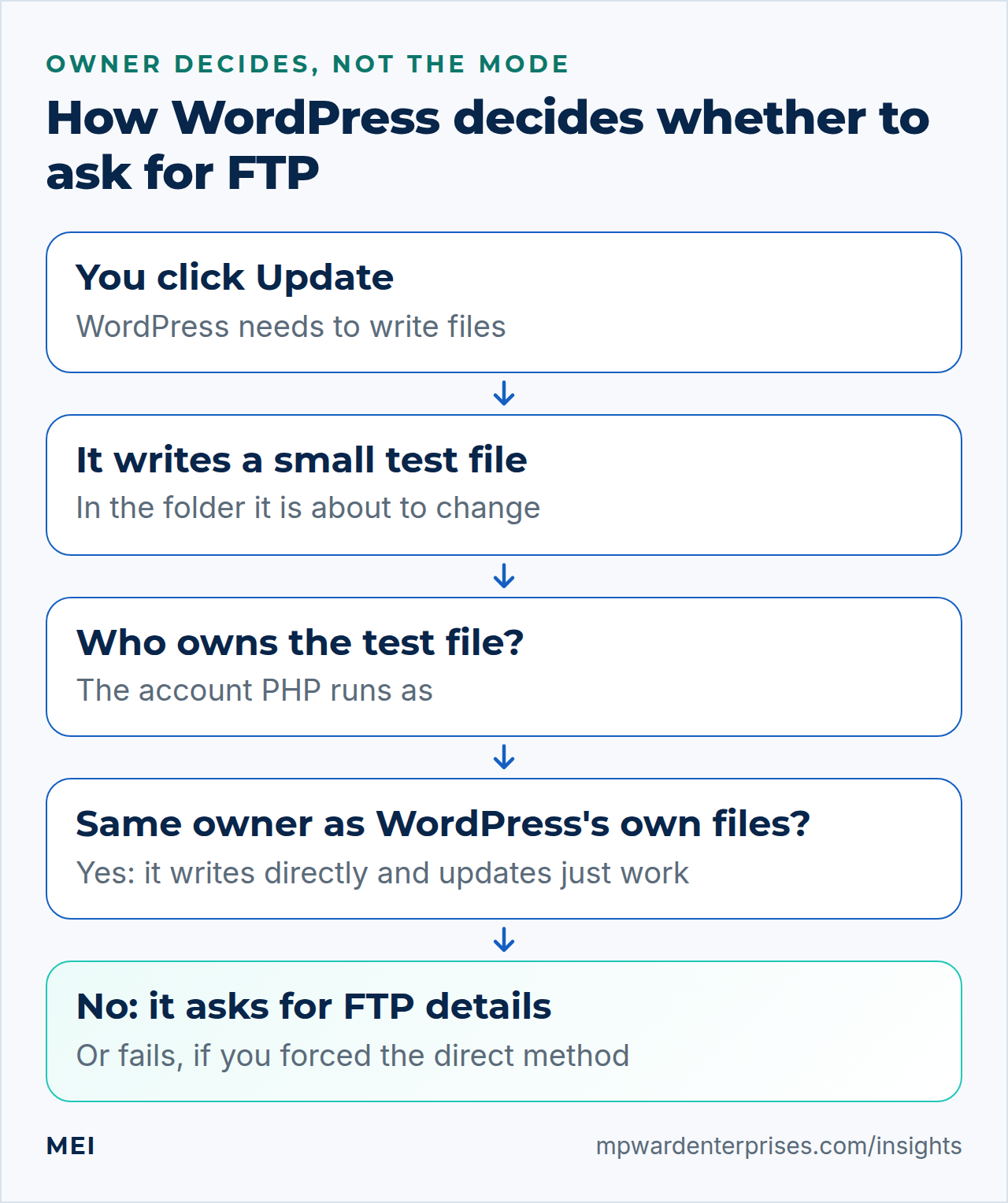
When you click Update, WordPress does not look at your modes. It writes a small test file in the folder it is about to change and compares the owner of that new file, which is the account PHP runs as, with the owner of WordPress's own files. If they match, it writes directly. If not, it falls back to FTP, and the dashboard asks for details you do not have. That is what WordPress's developer reference describes for get_filesystem_method().
You can ask WordPress the same question from the command line, for each folder it updates. WP-CLI forces the direct method for its own commands, so the check removes that filter first; without it the answer is always "direct". In five scenarios the command matched what PHP-FPM decided for the dashboard.
fsm() { ( cd /tmp && sudo -u siteuser wp --path=/var/www/example.com/public eval 'remove_all_filters("filesystem_method"); require_once ABSPATH."wp-admin/includes/file.php"; foreach (array(ABSPATH, WP_CONTENT_DIR, WP_PLUGIN_DIR) as $dir) echo str_pad(basename($dir), 12), get_filesystem_method(array(), $dir), "\n";' ); }
fsm
sudo chown root:root /var/www/example.com/public/wp-content/plugins
fsm
sudo chown siteuser:siteuser /var/www/example.com/public/wp-content/plugins
public direct
wp-content direct
plugins direct
public direct
wp-content direct
plugins ftpextIn the second run one wrong folder made plugins answer ftpext while the rest stayed direct: WordPress would update itself but ask for FTP details when you update a plugin. The dashboard shows related facts under Tools, Site Health, Info, Filesystem Permissions, where each folder is Writable or Not writable. We tried more situations. Each answer comes from who owns the files, not from how open they are.
Situation (PHP runs as siteuser) |
What WordPress decided |
|---|---|
siteuser owns everything (step 2) |
direct: updates just work |
alex owns the code, siteuser can write only uploads/ (step 5) |
ftpext: the dashboard asks for FTP details |
Everything chowned to www-data, as tutorials say, while the pool still runs as siteuser |
ftpext. It can also stop PHP from reading wp-config.php (the callout in step 2) |
The read-only layout, plus wp-content set to 775 with the right group |
ftpext: writable is not enough, the owner must match |
The read-only layout, plus define('FS_METHOD', 'direct') |
direct: no prompt, but writing into wp-content still failed |
The same, plus wp-content set to 777 |
direct, and the write worked: a folder every account on the server can now change |
Watch out: forcing the direct method is not a fix
Blogs often say to add define('FS_METHOD', 'direct'); to stop the FTP prompt. In our test it only hid the prompt: WordPress went ahead and failed to write. Making it work then took chmod 777. WordPress's configuration handbook itself warns that direct file access can open security problems on poorly configured hosts. The cure for the prompt is matching ownership, as in step 2.
Step 5: Decide what PHP may change
In the standard layout, PHP can rewrite every file of its own site, including the theme and wp-config.php. That is what makes updates convenient, and it is also what lets a flawed plugin plant a backdoor that survives. Two settings and one layout narrow this. We measured what each one really does.
| Setting | What an administrator can do (measured) | Honest limit |
|---|---|---|
| Neither | Edit plugin and theme code in the dashboard, install, update, delete | The code editor is a gift to anyone who steals an administrator login |
DISALLOW_FILE_EDIT |
No code editors. Install, update and delete still work | Does not stop uploading a plugin, or an attacker already running PHP |
DISALLOW_FILE_MODS |
No editors, no install, update or delete of plugins and themes, no core update, and the automatic updater is disabled. Media uploads still work | You now own every update. It is a gate inside WordPress, not on the filesystem, and WP-CLI still installs plugins |
cd /tmp
wps() { sudo -u siteuser wp --path=/var/www/example.com/public "$@"; }
wps config set DISALLOW_FILE_EDIT true --raw
wps eval 'wp_set_current_user(1); foreach (array("edit_plugins","install_plugins","update_core") as $c) echo str_pad($c, 16), var_export(current_user_can($c), true), "\n";'
wps config set DISALLOW_FILE_MODS true --raw
wps eval 'wp_set_current_user(1); foreach (array("edit_plugins","install_plugins","update_core") as $c) echo str_pad($c, 16), var_export(current_user_can($c), true), "\n";'
wps config delete DISALLOW_FILE_MODS
Success: Updated the constant 'DISALLOW_FILE_EDIT' in the 'wp-config.php' file with the raw value 'true'.
edit_plugins false
install_plugins true
update_core true
Success: Added the constant 'DISALLOW_FILE_MODS' to the 'wp-config.php' file with the raw value 'true'.
edit_plugins false
install_plugins false
update_core false
Success: Deleted the constant 'DISALLOW_FILE_MODS' from the 'wp-config.php' file.We removed DISALLOW_FILE_MODS again because most small sites rely on WordPress's automatic security updates, and the setting switches them off. Keep DISALLOW_FILE_EDIT on every site: WordPress's hardening guide says it adds a layer if an administrator account is taken.
The strongest layout: code PHP cannot write
For a site that rarely changes, such as a brochure site, make the filesystem enforce the rule. An administrator account (alex) owns the code, the site account can read it but not write it, and only uploads/ belongs to the site account. Files stay world-readable (644), so nginx and PHP both read them as before.
sudo chown -R alex:siteuser /var/www/example.com/public
sudo chown -R siteuser:siteuser /var/www/example.com/public/wp-content/uploads
sudo find /var/www/example.com/public -type d -exec chmod 755 {} +
sudo find /var/www/example.com/public -type f -exec chmod 644 {} +
sudo chmod 640 /var/www/example.com/public/wp-config.php
sudo -u siteuser test -w /var/www/example.com/public/wp-content/themes || echo "PHP cannot write to themes"
sudo -u siteuser test -w /var/www/example.com/public/wp-content/uploads && echo "PHP can write to uploads"
fsm
curl -s -o /dev/null -w 'home page: %{http_code}\n' https://example.com/
sudo chown -R alex:siteuser /var/www/example.com/public
sudo chown -R siteuser:siteuser /var/www/example.com/public/wp-content/uploads
sudo find /var/www/example.com/public -type d -exec chmod 755 {} +
sudo find /var/www/example.com/public -type f -exec chmod 644 {} +
sudo chmod 640 /var/www/example.com/public/wp-config.php
sudo -u siteuser sh -c 'test -w /var/www/example.com/public/wp-content/themes' || echo "PHP cannot write to themes"
sudo -u siteuser sh -c 'test -w /var/www/example.com/public/wp-content/uploads' && echo "PHP can write to uploads"
fsm
curl -s -o /dev/null -w 'home page: %{http_code}\n' https://example.com/PHP cannot write to themes
PHP can write to uploads
public ftpext
wp-content ftpext
plugins ftpext
home page: 200wp-config.php is 640 with the group siteuser, so PHP can read it but nothing can write it. To prove this works through the real pool and not just in a shell, we put a probe page on the lab site that tries to write seven places, and ran it once per layout.
| PHP tried to write | Standard layout | Read-only layout |
|---|---|---|
A file in uploads/ |
Yes | Yes |
An existing theme file, or a new file in themes/ or plugins/ |
Yes | No |
wp-includes/, the site root |
Yes | No |
wp-config.php |
Yes | No |
The site kept serving (200), and importing a picture into the media library still worked, because uploads/ stayed writable. The price is updates. WordPress's Site Health test for background updates went from "good" to "critical: Background updates are not working as expected", which is correct: the pool can no longer write. You now update as the owner, with WP-CLI, and the files come out owned by alex, which PHP can still read:
cd /tmp && sudo -u alex wp --path=/var/www/example.com/public plugin install hello-dolly
sudo -u alex wp --path=/var/www/example.com/public plugin delete hello-dolly
sudo ~/fix-wp-perms.sh /var/www/example.com siteuser --apply > /dev/null
The last line returns the lab to the standard layout. Only keep the read-only layout if someone will run the updates on a schedule; an unpatched site is a worse risk than a writable one. Our WordPress maintenance checklist lists the routine.
Why this way?
DISALLOW_FILE_MODS is a lock on one door inside WordPress, so code that is already running can walk around it and write files. The read-only layout puts the lock in the operating system, where PHP cannot take it off. It does not hide the database password from a flawed plugin, since PHP must read it, and it does not stop writing to uploads/; that is the next step.
Step 6: Fence the uploads folder
uploads/ must stay writable by PHP in every layout, because it is where media goes. So permissions cannot stop an attacker who plants a PHP file there. The web server has to refuse to run it. The mode of the file is no protection: our probe, a plain 644 file owned by the site account, ran as PHP when nginx had no rule for it.
    # This rule must stay ABOVE the generic PHP location
    location ~* ^/wp-content/uploads/.*\.php$ {
        deny all;
    }
Test it with a harmless probe, as the install guide does, and delete the probe afterwards. You want 403.
sudo -u siteuser mkdir -p /var/www/example.com/public/wp-content/uploads/2026/10
echo '<?php echo "PHP RAN";' | sudo -u siteuser tee /var/www/example.com/public/wp-content/uploads/2026/10/probe.php > /dev/null
curl -s -o /dev/null -w 'PHP in uploads: %{http_code} (want 403)\n' https://example.com/wp-content/uploads/2026/10/probe.php
sudo rm /var/www/example.com/public/wp-content/uploads/2026/10/probe.php
PHP in uploads: 403 (want 403)We tried three placements of the same rule. Above the PHP location it answered 403. With no rule, and with the rule placed after the PHP location, the probe answered 200 and printed PHP RAN. The nginx documentation explains why: regular-expression locations are checked in the order they appear, and the first match wins. Our nginx rate limiting guide shows two more ways a location silently fails to apply, an exact-match block that loses its PHP settings and a prefix block that never runs.
Check your work
Finish with an audit you can rerun. This script asks the operating system, as the real accounts, the questions from this guide, and prints PASS or FAIL for each. It reads wp-config.php from public/ or from one level above, as in the multiple-sites layout.
cat > ~/check-perms.sh <<'EOF'
#!/bin/bash
# Usage: sudo ./check-perms.sh SITE_ROOT SITE_USER
ROOT=${1:?usage: check-perms.sh SITE_ROOT SITE_USER}; U=${2:?usage: check-perms.sh SITE_ROOT SITE_USER}
PUB="$ROOT/public"; CONF="$PUB/wp-config.php"; [ -f "$CONF" ] || CONF="$ROOT/wp-config.php"
check() { want=$1; desc=$2; shift 2
  if "$@" > /dev/null 2>&1; then got=yes; else got=no; fi
  printf '%-52s %s\n' "$desc" "$([ "$got" = "$want" ] && echo PASS || echo FAIL)"; }
check yes "nginx (www-data) can read index.php"            sudo -u www-data test -r "$PUB/index.php"
check no  "nginx (www-data) cannot read wp-config.php"     sudo -u www-data test -r "$CONF"
check no  "nginx (www-data) cannot write in public/"       sudo -u www-data test -w "$PUB"
check no  "a stranger (nobody) cannot read wp-config.php"  sudo -u nobody test -r "$CONF"
check yes "$U can write in uploads/"                       sudo -u "$U" test -w "$PUB/wp-content/uploads"
check no  "nothing under the site is world-writable"       test -n "$(find "$ROOT" ! -type l -perm -0002 -print -quit)"
check no  "everything in public/ is owned by $U"           test -n "$(find "$PUB" ! -user "$U" -print -quit)"
check no  "wp-config.php has no extra ACL entries"         test -n "$(getfacl -s -p "$CONF" 2>/dev/null)"
EOF
chmod +x ~/check-perms.sh
sudo ~/check-perms.sh /var/www/example.com siteuser
cat > ~/check-perms.sh <<'EOF'
#!/bin/bash
# Usage: sudo ./check-perms.sh SITE_ROOT SITE_USER
ROOT=${1:?usage: check-perms.sh SITE_ROOT SITE_USER}; U=${2:?usage: check-perms.sh SITE_ROOT SITE_USER}
PUB="$ROOT/public"; CONF="$PUB/wp-config.php"; [ -f "$CONF" ] || CONF="$ROOT/wp-config.php"
check() { want=$1; desc=$2; shift 2
if "$@" > /dev/null 2>&1; then got=yes; else got=no; fi
printf '%-52s %s\n' "$desc" "$([ "$got" = "$want" ] && echo PASS || echo FAIL)"; }
# ask the kernel through the shell's own test: the separate test program ignores ACLs and extra groups on 26.04
asuser() { sudo -u "$1" sh -c 'test -"$2" "$3"' sh "$@"; }
check yes "nginx (www-data) can read index.php" asuser www-data r "$PUB/index.php"
check no "nginx (www-data) cannot read wp-config.php" asuser www-data r "$CONF"
check no "nginx (www-data) cannot write in public/" asuser www-data w "$PUB"
check no "a stranger (nobody) cannot read wp-config.php" asuser nobody r "$CONF"
check yes "$U can write in uploads/" asuser "$U" w "$PUB/wp-content/uploads"
check no "nothing under the site is world-writable" test -n "$(find "$ROOT" ! -type l -perm -0002 -print -quit)"
check no "everything in public/ is owned by $U" test -n "$(find "$PUB" ! -user "$U" -print -quit)"
check no "wp-config.php has no extra ACL entries" test -n "$(getfacl -s -p "$CONF" 2>/dev/null)"
EOF
chmod +x ~/check-perms.sh
sudo ~/check-perms.sh /var/www/example.com siteusernginx (www-data) can read index.php PASS
nginx (www-data) cannot read wp-config.php PASS
nginx (www-data) cannot write in public/ PASS
a stranger (nobody) cannot read wp-config.php PASS
siteuser can write in uploads/ PASS
nothing under the site is world-writable PASS
everything in public/ is owned by siteuser PASS
wp-config.php has no extra ACL entries PASSEvery line should say PASS. When we planted an ACL entry on wp-config.php, a 777 folder and a root-owned file, the script reported FAIL on four lines, including the one that says nginx cannot read wp-config.php. In the read-only layout, the line about owning everything fails by design; use the test -w checks from step 5 instead. Run it after every restore or manual file job, and keep ~/perms-before.txt until you are sure nothing is missing.
Troubleshooting: what the symptoms mean
| What you see | Likely cause | What to do |
|---|---|---|
| The dashboard asks for FTP details when you update | The account PHP runs as does not own WordPress's files, or a folder is not writable | Step 4: run fsm, then fix ownership with the script. Do not force FS_METHOD |
| "The uploaded file could not be moved to wp-content/uploads/..." | The uploads folder, or its newest subfolder, belongs to another account | sudo chown -R siteuser:siteuser on uploads/, or run the script |
Images and CSS return 403, and the nginx log says open() ... failed (13: Permission denied) |
A folder in the path is closed to nginx (we used mode 700 on wp-content) |
namei -l on the file shows which folder; fix its mode |
Files that exist return 404 after you added www-data to a group |
nginx workers have not reloaded, so they do not hold the new group | sudo systemctl reload nginx |
The site worked after a chown, then shows a critical error after PHP restarts |
PHP cannot read wp-config.php; OPcache hid it. The log says Failed to open stream: Permission denied |
Fix the owner and mode of wp-config.php; restart PHP-FPM and test |
| Plugin updates ask for FTP but core updates do not | One folder, usually plugins/ or themes/, belongs to root or another account |
fsm shows which; chown that folder (step 4) |
nginx can still read wp-config.php although it is 640 |
A named ACL entry. ls -l shows a + |
getfacl, then setfacl -x u:www-data on that file (step 3) |
| New files and folders come out 664 and 775 | umask 002 for commands run as the site accountumask 002 for a login-style session as the site account, such as su; sudo -u gives 022 on this release |
Run the repair script after manual file work; set FS_CHMOD_DIR and FS_CHMOD_FILE for WordPress's own writes |
What file permissions cannot do
Permissions decide who may touch a file, not what runs. A flawed plugin that PHP loads still has all the rights of the PHP account: it can read the database password, change the database and write to uploads, and in the standard layout it can rewrite the site's own code. Permissions limit the damage; they do not remove the flaw. Patching, two-factor login, a firewall (see our UFW guide) and tested backups do that, and our server hardening checklist puts them in order.
They cannot protect a server where PHP runs as www-data for every site, because then all sites share one key whatever the modes say. And files restored or unpacked by sudo tar come back owned by root, which is why the audit belongs after every restore.
Common mistakes
- Running
chmod -R 777to silence an error. It opens the site to every account and rarely fixes the cause. - Using
chmod -R 755or644on the whole tree. The first makes every file executable, the second removes the folders' execute bit. Usefind -type dandfind -type f. - Running WP-CLI or
taras root inside the site. The files become root-owned and updates fall back to FTP. - Forcing
FS_METHODtodirectinstead of fixing ownership. - Trusting
ls -lalone. A+means an ACL, and only asking the kernel as that account, as in step 1, gives the real answer. - Turning on
DISALLOW_FILE_MODSand forgetting updates.
Keep it healthy
Once a month, run sudo ~/check-perms.sh and the dry run of fix-wp-perms.sh; neither changes anything. Run them again after every restore, migration or manual file job. When you add a site, repeat steps 1 and 2 with its own account and pool. If you use the read-only layout, put the update day on a calendar and check Site Health afterwards. Our comparison of self-hosting and cloud weighs how much of this routine you want to own.
Getting help
If you would rather have someone audit your permissions and run the updates, MEI's WordPress Engineering and Plugin Development service covers performance, security hardening and migrations, and starts at $1,200, fixed scope or hourly. Managed Website and IT Care starts at $149 a month, with scope-based tiers for updates, backups, monitoring and reporting. We focus on the highest-impact, most likely risks, and we do not promise perfect security.
Frequently asked questions
What are the correct WordPress file permissions?
Folders 755 and files 644, with wp-config.php at 640 or stricter, provided the right account owns them. WordPress's hardening guide gives 755 or 750 for folders, 644 or 640 for files and 400 or 440 for wp-config.php. Ownership matters as much as the numbers: the account PHP runs as should own the files.
Why does WordPress ask for FTP credentials when I update?
Because the account PHP runs as does not match the owner of WordPress's files, or a folder is not writable. WordPress writes a test file and compares owners. Fix ownership, for example with chown to the site account. Do not reach for chmod 777 or force FS_METHOD.
Is chmod 777 ever safe for WordPress?
No. Mode 777 lets every account on the server write, including other sites' PHP and any compromised service. In our lab a folder set to 775 with the right group still triggered the FTP prompt, so wide modes often fail to fix the usual cause as well. Match ownership instead.
Should wp-config.php be 640 or 600?
640 when the site account owns it and only the site's group can read it, which lets WP-CLI edit it. 600 when nginx's account is in the site group, as in a group layout, so the group gets nothing. Check by running the test as nginx's account, for example sudo -u www-data sh -c 'test -r /var/www/example.com/public/wp-config.php': it should fail. The sh -c matters on Ubuntu 26.04, where the plain test program misses ACLs and extra groups.
What do DISALLOW_FILE_EDIT and DISALLOW_FILE_MODS do?
DISALLOW_FILE_EDIT removes the plugin and theme code editors in the dashboard. DISALLOW_FILE_MODS also blocks installing, updating and deleting plugins and themes, core updates and the automatic updater. It is a gate inside WordPress, not a filesystem lock, and WP-CLI still works.
Who should own WordPress files, www-data or a site user?
A dedicated site user, with a PHP-FPM pool that runs as that user. nginx's www-data account then only needs to read. If www-data owns everything on a shared pool, every site can change every other site. For the strongest setup, let an admin account own the code and let PHP write only the uploads folder.
Sources and further reading
- WordPress Advanced Administration Handbook: Hardening WordPress — 755 and 644 modes, wp-config.php at 400 or 440, DISALLOW_FILE_EDIT, files owned by your own account
- WordPress Advanced Administration Handbook: Changing File Permissions — recommended modes, the 746 to 767 advice, the dangers of 777
- WordPress Advanced Administration Handbook: Editing wp-config.php — DISALLOW_FILE_MODS, FS_METHOD values and warning, FS_CHMOD_DIR and FS_CHMOD_FILE
- WordPress Developer Reference: get_filesystem_method() — the test file, the owner comparison, the FS_METHOD override and the FTP fallbacks
- acl(5), Linux manual page — the ACL mask, effective permissions, chmod changing the mask, default ACLs
- chmod(1), Linux manual page — octal digits, the capital X permission, symbolic links during recursion
- namei(1), Linux manual page — -l lists the mode, owner and group of every path component
- nginx documentation: ngx_http_core_module, location — regular-expression locations are checked in order of appearance, first match wins
- Ubuntu 26.04 LTS release notes: summary for LTS users — sudo-rs as the default sudo and rust-coreutils as the default core utilities, with cp, mv and rm still from GNU