
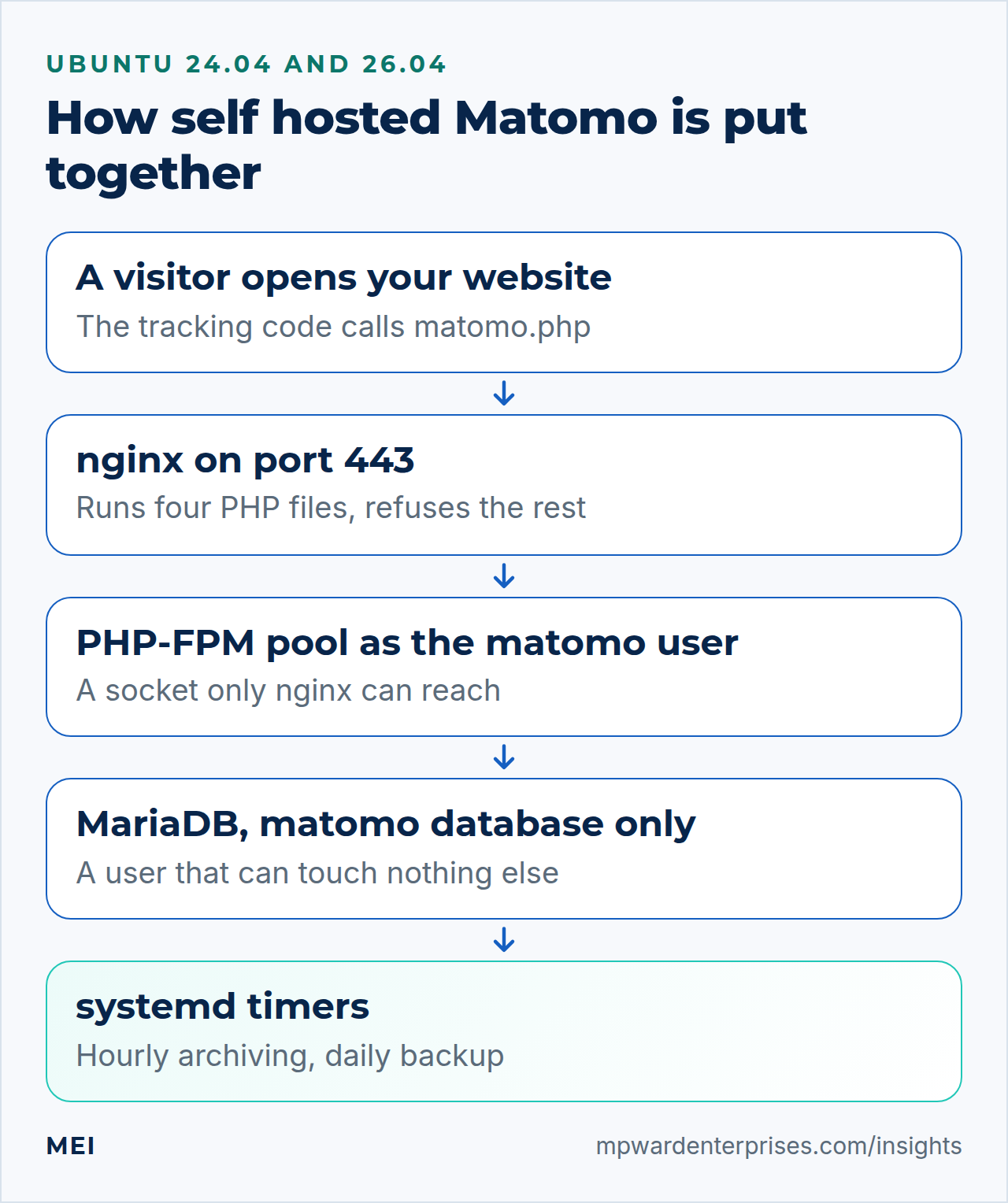
Self hosted Matomo puts your website analytics on a server you control: visitor data lands in your own database instead of a vendor's, and you decide how long it is kept. This guide installs it with nginx, PHP-FPM and MariaDB on Ubuntu 24.04 LTS or 26.04 LTS (pick yours with the switch below), then secures it: a verified download, a web server that runs only the PHP files Matomo needs, hardened settings, scheduled archiving and backups you have restored once. Plan on two to three hours; the level is intermediate.
We ran every command below twice in disposable test machines: once on Ubuntu 24.04 LTS (nginx 1.24, PHP 8.3.6, MariaDB 10.11) and once on Ubuntu 26.04 LTS (nginx 1.28.3, PHP 8.5.4, MariaDB 11.8.6), both with Matomo 5.14.1, the stable release when we tested. Where the two releases differ, the page shows only the one you picked.
Two things a lab cannot do are called out where they come up: issuing a real certificate needs public DNS, and we walked the installer screens with scripted requests rather than a browser. The risks are real. One loose web server rule can expose a database password, and a backup you never restored is only a hope.
Choose your Ubuntu version
This guide covers both releases. Commands, file paths and version numbers change with your choice; everything else is the same.
JavaScript is off, so both versions are shown below and each block says which release it is for.
Before you start: what you need and how to back out
You need four things. A fresh Ubuntu 24.04 LTS or 26.04 LTS server that you have already hardened (start with our 12-step server hardening guide and the UFW firewall guide), with ports 80 and 443 open. A host name such as stats.example.com whose DNS record points at the server. A sudo user, called alex in our examples. And enough memory.
Matomo's requirements page gives rough sizing by traffic: about 2 GB of RAM for 100,000 page views a month, 8 GB at around a million, and 16 GB or more beyond ten million. Take a snapshot before you begin. Backing out is simple while the install is new: drop the database and its user, delete /var/www/matomo, and remove the pool and nginx files. Nothing else on the server changes.
On Ubuntu 26.04, sudo is sudo-rs, a Rust rewrite, and everyday tools such as ls, chown, chmod, install, tee and dd are the Rust versions from the uutils project, while cp, mv, rm and find stay GNU. We ran every command below as the admin user alex, and each one worked as written, so nothing in this guide changes because of them.
Why people run self hosted Matomo, and what it costs
Three reasons come up again and again. Ownership: visit data sits in a database you can query, export, back up and delete on your own schedule. Privacy: nothing is sent to an analytics vendor, so there is no third party to share data with. Cost: Matomo is free software (GPL v3 or later), so there is no license fee per visit. You pay for the server, and the server grows with your traffic.
The honest costs are just as real. You apply the security updates, upgrade Matomo, watch disk growth and own the backups. Visits that arrive while your server is down are normally lost. And privacy law is still your job: keeping data on your own server does not by itself decide whether you need a consent banner or a privacy notice. That depends on where your visitors are and how you configure Matomo. This is not legal advice; ask a qualified adviser.
Here is a fair comparison with the tool most people start from. Google's statements in the table come from its own help pages; Matomo's come from its documentation and from what we measured in the lab.
| Question | Self hosted Matomo | Google Analytics 4 |
|---|---|---|
| Where the data lives | On your server, in a MariaDB database you control | On Google's servers |
| Who keeps it running | You: updates, backups, capacity, uptime | |
| Software cost | Free; you pay for the server and your time | Free to use; no server to buy |
| Visit-level data | Rows in your database until you delete them; you set the retention | Event-level data for Explorations is kept for 2 or 14 months; standard reports are unaffected |
| IP addresses | Stored, with two bytes masked by default | Google states that GA4 does not log or store IP addresses |
| Advertising tools | None built in | Direct links to Google Ads |
| Consent and privacy law | Still your responsibility | Still your responsibility |
Neither choice is wrong. If your marketing runs through Google Ads, GA4's built-in links are a real advantage. If you want the raw visits in your own database and no data leaving your servers, Matomo is built for that, and our wider self-hosted versus cloud comparison covers the same trade-off for other tools.
Self hosted Matomo: why this way and not the other ways
There is more than one way to run Matomo. This table compares them in plain English, so you can see why the guide is built the way it is.
| Option | In plain English | Our verdict |
|---|---|---|
| Matomo on its own server (this guide) | A small server you control runs Matomo with its own Linux user, PHP pool and database | Best when you want ownership and can spend an hour a month on care |
| Matomo Cloud | Matomo's company runs it for you | Less work, and a good middle path. The data lives with a vendor again, which is what many people wanted to avoid |
| The Matomo plugin for WordPress | Matomo runs inside your WordPress site and keeps its data in the WordPress database | Easiest start. It shares the website's database and PHP resources, so heavy reports can slow the site |
| Shared hosting and the web installer | Upload the zip, click through the wizard | Fine for a tiny site. You cannot add the nginx rules or timers below |
A generic location ~ \.php$ rule |
The copy-and-paste nginx setup that sends every PHP file to PHP | Avoid. In our lab a PHP file dropped into plugins/ ran and printed its output |
The WordPress.org page for the official Matomo Analytics plugin says it runs Matomo inside WordPress and stores the data there, and tells anyone who already runs a Matomo server of their own to use the Connect Matomo plugin instead. We come back to that choice in step 14.
What Matomo 5 needs, and what Ubuntu provides
Matomo's requirements page says Matomo 5 needs PHP 8 and a MySQL or MariaDB database, recommends the latest PHP 8.x, and lists the GD, curl, CLI, MySQL, XML and mbstring extensions as recommended. Ubuntu 24.0426.04 ships PHP 8.38.5 and MariaDB 10.1111.8, so no extra repositories are needed.
Versions move. On 8 and 9 October 2026 the download server reported 5.14.1 as the stable release and 6.0.0-b5 as a beta, and the requirements page says Matomo 6.0.0 needs PHP 8.1 or newer and MariaDB 10.6 or newer. Ubuntu 24.04 and 26.04 both meet them. We also ran Matomo's own checker with GD, mbstring and curl removed in turn, on both releases. Only GD raised a warning, because without it sparklines and image graphs stop working. Install the whole recommended set anyway.
Matomo's requirements page names neither PHP 8.5 nor MariaDB 11.8: it sets minimums, not upper limits. Matomo's changelog for release 5.6.0 (26 November 2025) lists a change to ensure compatibility with PHP 8.5. In our lab, Matomo 5.14.1 passed the installer's system check, and with every PHP notice and deprecation switched on, about fifty admin pages and API calls, and the archiver, logged no PHP messages. MariaDB 11.8 needed no changes, apart from one collation detail in Step 3.
One caution: on 9 October 2026 Matomo's issue tracker had an open report of a PHP 8.5 deprecation notice in the reporting menu code, filed against Matomo itself (issue 24890, still open that day, with no fix released). We did not see it on a standalone install of the current release. Deprecations are warnings, not errors, and Ubuntu's PHP hides them by default.
Step 1: Install the packages
Install everything from Ubuntu's own repositories. These packages get security fixes through normal updates, which our automatic updates guide shows how to keep on.
sudo apt update
sudo apt install -y nginx mariadb-server php8.38.5-fpm php8.38.5-cli php8.38.5-mysql \
  php8.38.5-gd php8.38.5-curl php8.38.5-xml php8.38.5-mbstring unzip curl gnupg
php -v | head -1
nginx -v
mariadb --version
sudo ss -tlnp | grep 3306
You should see PHP 8.38.5, nginx 1.241.28 and MariaDB 10.1111.8. The last command should show MariaDB listening on 127.0.0.1:3306 only, which is Ubuntu's default: the database is reachable from this machine and nowhere else.
Why this way?
Distribution packages mean one trusted source and one update mechanism. A newer PHP from a third-party archive is possible, but it adds a key to trust and another repository to watch, and Matomo does not need it. A container image is a fair alternative; it moves the same updating job from apt to you.
Step 2: Create a dedicated user and a PHP-FPM pool
A pool is a group of PHP worker processes. Giving Matomo its own pool, running as its own user, limits the damage if Matomo or one of its plugins is ever compromised: the attacker gets what that one user can touch, not your other sites. Create the user, then the pool. Our guide to several WordPress sites on one server uses the same pattern.
sudo adduser --system --group --home /var/www/matomo --shell /usr/sbin/nologin matomo
sudo tee /etc/php/8.38.5/fpm/pool.d/matomo.conf > /dev/null <<'EOF'
[matomo]
user = matomo
group = matomo
listen = /run/php/php8.38.5-fpm-matomo.sock
listen.owner = www-data
listen.group = www-data
listen.mode = 0660

pm = dynamic
pm.max_children = 10
pm.start_servers = 2
pm.min_spare_servers = 2
pm.max_spare_servers = 4
pm.max_requests = 500

php_admin_value[memory_limit] = 512M
php_admin_value[max_execution_time] = 300
php_admin_value[post_max_size] = 8M
php_admin_value[upload_max_filesize] = 8M
php_admin_flag[display_errors] = off
EOF
sudo php-fpm8.38.5 -t && sudo systemctl reload php8.38.5-fpm
sleep 2                       # the new pool needs a moment to create its socket
ls -l /run/php/php8.38.5-fpm-matomo.sock
ps -eo user,cmd | grep '[p]ool matomo'
The test should print "test is successful", the socket should belong to www-data with mode srw-rw----, and the workers should run as matomo. That socket permission is a lock: only nginx can send requests to this pool.
The numbers are starting points. pm = dynamic keeps two workers warm because the tracker is called on every page view of every site you track. pm.max_children = 10 is the ceiling. In our lab each Matomo worker showed roughly 9085 MB resident, which overstates real use because shared memory is counted in every worker, so ten workers cap the worst case near 1 GB. Measure yours with ps before you raise it.
Why this way?
The default shared pool runs every site as www-data, so one weak plugin exposes everything. A separate pool costs a little memory and buys a wall. pm = ondemand would save memory on a quiet server, but the first hit after a pause is slower, and a busy tracker rarely pauses.
Step 3: Create the database and a least-privilege user
Matomo needs one database and one account that can change only that database. First put a random password in a file only root can read. A password typed on a command line lands in your shell history and, while the command runs, in the process list; a root-only file avoids both.
sudo install -m 600 /dev/null /root/matomo-db.pass
openssl rand -hex 24 | sudo tee /root/matomo-db.pass > /dev/null
DBPASS=$(sudo cat /root/matomo-db.pass)
sudo mariadb <<SQL
CREATE DATABASE matomo CHARACTER SET utf8mb4 COLLATE utf8mb4_general_ci;
CREATE USER 'matomo'@'localhost' IDENTIFIED BY '$DBPASS';
GRANT SELECT, INSERT, UPDATE, DELETE, CREATE, INDEX, DROP, ALTER,
      CREATE TEMPORARY TABLES, LOCK TABLES ON matomo.* TO 'matomo'@'localhost';
SQL
unset DBPASS
sudo mariadb -e "SHOW GRANTS FOR 'matomo'@'localhost'"
sudo install -m 600 /dev/null /root/matomo-db.pass
openssl rand -hex 24 | sudo tee /root/matomo-db.pass > /dev/null
DBPASS=$(sudo cat /root/matomo-db.pass)
sudo mariadb <<SQL
CREATE DATABASE matomo CHARACTER SET utf8mb4 COLLATE utf8mb4_uca1400_ai_ci;
CREATE USER 'matomo'@'localhost' IDENTIFIED BY '$DBPASS';
GRANT SELECT, INSERT, UPDATE, DELETE, CREATE, INDEX, DROP, ALTER,
CREATE TEMPORARY TABLES, LOCK TABLES ON matomo.* TO 'matomo'@'localhost';
SQL
unset DBPASS
sudo mariadb -e "SHOW GRANTS FOR 'matomo'@'localhost'"The grant list is the one Matomo's documentation gives. The installer proves it by trying CREATE, ALTER, SELECT, INSERT, UPDATE, DELETE, DROP and CREATE TEMPORARY TABLES before it continues. We kept LOCK TABLES because Matomo's code skips cleaning up unused log entries without it. The account exists for localhost only, so the password is useless from any other machine.
The one change on 26.04 is the collation, the rule MariaDB uses to sort and compare text. MariaDB 11.8's default for utf8mb4 is utf8mb4_uca1400_ai_ci, and Matomo's installer asks the server for that default and gives every table the same one, whatever the database itself was created with. We name it here so the database default matches Matomo's tables, and any table created without a collation of its own inherits the same one.
Why this way?
Giving the application ALL PRIVILEGES, or worse the database root account, is common and turns one leaked config file into full control of the database server. We also leave out the optional global FILE privilege. It lets an account read and write files on the server, and Matomo's documentation marks it optional. Our MariaDB secure installation guide covers the server-level basics.
Step 4: Download Matomo and verify the signature
Download the zip and its signature file, import Matomo's public key, check the key's fingerprint against the one on Matomo's website, and only then trust the file. Do this in a scratch folder, not in the web root.
mkdir -p ~/matomo-download && cd ~/matomo-download
curl -fsSLO https://builds.matomo.org/matomo.zip
curl -fsSLO https://builds.matomo.org/matomo.zip.asc
gpg --keyserver hkps://keyserver.ubuntu.com --recv-keys F529A27008477483777FC23D63BB30D0E5D2C749
gpg --fingerprint F529A27008477483777FC23D63BB30D0E5D2C749
gpg --verify matomo.zip.asc matomo.zip
A good result looks like this. The warning is normal: it only says your own keyring has not been told to trust the key. What makes the check meaningful is that you compared the fingerprint with the vendor's page.
gpg: Signature made Sun Oct  4 19:49:55 2026 UTC
gpg:                using RSA key F529A27008477483777FC23D63BB30D0E5D2C749
gpg: Good signature from "Matomo <[email address]>" [unknown]
gpg: WARNING: This key is not certified with a trusted signature!
gpg:          There is no indication that the signature belongs to the owner.
Primary key fingerprint: F529 A270 0847 7483 777F  C23D 63BB 30D0 E5D2 C749
Watch out: take the fingerprint from the vendor, not from us
That fingerprint is the one Matomo's verification page lists for releases from 4.8.0 onward, and it matched the real signature on 8 and 9 October 2026. Open the page, compare, and do the same next time. Older tutorials quote a different key, starting 814E, which signed only earlier releases. If a guide gives you that one, the guide is out of date.
Now see what a failure looks like, and make the check scriptable. Change one byte of a copy and verify again, then use the machine-readable form, which prints a line starting VALIDSIG followed by the full fingerprint only when the signature is good.
cp matomo.zip test.zip && printf 'x' | dd of=test.zip bs=1 seek=1000 conv=notrunc 2>/dev/null
gpg --verify matomo.zip.asc test.zip          # BAD signature, exit status 1
rm test.zip
gpg --status-fd 1 --verify matomo.zip.asc matomo.zip 2>/dev/null \
  | grep -q '^\[GNUPG:\] VALIDSIG F529A27008477483777FC23D63BB30D0E5D2C749 ' \
  && echo "signature OK" || echo "STOP: do not install this file"
Why a signature and not a checksum?
A checksum fetched from the same server as the file only proves the download was not corrupted: anyone who can replace the zip can replace the checksum beside it. A signature is made with a private key that never sits on the download server, so it also proves who published the file. Matomo publishes no checksum files for its zip (we requested them and got 404), so the signature is the check.
Step 5: Put the files in place
Unpack into /var/www, give the files to the matomo user, and set modes so nginx can read what it must serve but never the configuration or the cache folder.
sudo unzip -q matomo.zip 'matomo/*' -d /var/www/
sudo chown -R matomo:matomo /var/www/matomo
sudo find /var/www/matomo -type d -exec chmod 755 {} +
sudo find /var/www/matomo -type f -exec chmod 644 {} +
sudo chmod 750 /var/www/matomo/config /var/www/matomo/tmp
ls -ld /var/www/matomo /var/www/matomo/config /var/www/matomo/tmp
The web server runs as www-data, which can read the world-readable code and images but cannot enter config/ or tmp/. PHP runs as matomo, so it can write where Matomo must: the configuration, the cache, plugin folders and the tracker script. In our lab this was a second lock: with a deliberately sloppy nginx rule, requests for those two folders returned 404 because nginx could not even look inside.
Why this way?
This layout keeps Matomo's one-click updater working. The price is that PHP can write to its own code, so a flaw that lets an attacker run PHP could also change Matomo's files. A stricter layout is possible. Matomo's security FAQ lists the minimum writable paths (config/config.ini.php, misc/user, matomo.js, piwik.js and tmp) and says to set enable_auto_update = 0 when permissions are restricted. It is safer and more work, because you then update from the command line.
Step 6: Start nginx on port 80 and get a certificate
Matomo handles logins and API tokens, so it must be served over HTTPS. A certificate can only be issued once your DNS record points at the server, and nginx will not start an HTTPS block whose certificate files do not exist yet. So begin with a plain port-80 block that serves Certbot's challenge file and redirects everything else.
sudo tee /etc/nginx/sites-available/stats.example.com > /dev/null <<'EOF'
server {
    listen 80;
    listen [::]:80;
    server_name stats.example.com;
    root /var/www/matomo;

    # Certbot (webroot mode) puts its challenge files here
    location ^~ /.well-known/acme-challenge/ {
        default_type text/plain;
        try_files $uri =404;
    }

    location / {
        return 301 https://$host$request_uri;
    }
}
EOF
sudo ln -s /etc/nginx/sites-available/stats.example.com /etc/nginx/sites-enabled/
sudo rm -f /etc/nginx/sites-enabled/default      # only if this server hosts nothing else
sudo nginx -t && sudo systemctl reload nginx
sudo apt install -y certbot
sudo certbot certonly --webroot -w /var/www/matomo -d stats.example.com \
  -m [email address] --agree-tos --no-eff-email --deploy-hook "systemctl reload nginx"
The lab has no public DNS, so we could not issue a real certificate, and you should treat the Certbot line as untested here. We did test everything around it: nginx -t passes, a file under /.well-known/acme-challenge/ is served as plain text with status 200, and any other plain-HTTP request returns a 301 to the HTTPS address. The --deploy-hook makes every future renewal reload nginx. Our Certbot guide covers renewals and what to do when validation fails.
Step 7: Add the HTTPS block that allows only the right PHP files
This is the most important file in the guide. Matomo ships more than four thousand PHP files, but a browser only ever needs four. index.php is the interface. matomo.php is the tracker, and it simply includes piwik.php, the old name that older tracking codes still call. js/index.php is a proxy that serves the tracker script. The rest is code that should run only inside PHP, never as a web address.
Add this block once Certbot has finished. If the certificate files do not exist yet, nginx -t will refuse the file and tell you so.
sudo tee -a /etc/nginx/sites-available/stats.example.com > /dev/null <<'EOF'

server {
    listen 443 ssl http2;
    listen [::]:443 ssl http2;
    server_name stats.example.com;

    ssl_certificate     /etc/letsencrypt/live/stats.example.com/fullchain.pem;
    ssl_certificate_key /etc/letsencrypt/live/stats.example.com/privkey.pem;
    ssl_protocols       TLSv1.2 TLSv1.3;
    ssl_session_cache   shared:SSL:10m;
    ssl_session_timeout 1d;
    ssl_session_tickets off;

    root  /var/www/matomo;
    index index.php;
    client_max_body_size 8m;
    gzip_types application/javascript text/css image/svg+xml;

    access_log /var/log/nginx/matomo.access.log;
    error_log  /var/log/nginx/matomo.error.log;

    add_header X-Content-Type-Options "nosniff" always;

    # 1. The only PHP files that may run
    location ~ ^/(index|matomo|piwik|js/index)\.php$ {
        include snippets/fastcgi-php.conf;
        fastcgi_param HTTP_PROXY "";
        fastcgi_pass unix:/run/php/php8.3-fpm-matomo.sock;
    }

    # 2. Every other .php file is refused, never executed
    location ~* \.php$ {
        return 403;
    }

    # 3. Folders the browser never needs
    location ~ ^/(config|tmp|core|lang)(/|$) {
        return 403;
    }
    location ~ /\.ht {
        return 403;
    }

    # 4. Static files Matomo does serve directly, from anywhere including plugins/
    location ~* \.(gif|ico|jpe?g|png|svg|webp|js|css|woff2?|ttf|eot)$ {
        expires 1h;
        try_files $uri =404;
    }

    # The one JSON file the login page links to (a web-app manifest)
    location = /plugins/CoreHome/javascripts/manifest.json {
        expires 1h;
    }

    # 5. Whatever is left inside these folders is not for the web
    location ~ ^/(libs|vendor|plugins|misc|node_modules)/ {
        return 403;
    }

    location / {
        try_files $uri $uri/ =404;
    }
}
EOF
sudo nginx -t && sudo systemctl reload nginx
sleep 2                       # nginx needs a moment to open the new port
sudo tee -a /etc/nginx/sites-available/stats.example.com > /dev/null <<'EOF'
server {
listen 443 ssl;
listen [::]:443 ssl;
http2 on;
server_name stats.example.com;
ssl_certificate /etc/letsencrypt/live/stats.example.com/fullchain.pem;
ssl_certificate_key /etc/letsencrypt/live/stats.example.com/privkey.pem;
ssl_protocols TLSv1.2 TLSv1.3;
ssl_session_cache shared:SSL:10m;
ssl_session_timeout 1d;
ssl_session_tickets off;
root /var/www/matomo;
index index.php;
client_max_body_size 8m;
gzip_types application/javascript text/css image/svg+xml;
access_log /var/log/nginx/matomo.access.log;
error_log /var/log/nginx/matomo.error.log;
add_header X-Content-Type-Options "nosniff" always;
# 1. The only PHP files that may run
location ~ ^/(index|matomo|piwik|js/index)\.php$ {
include snippets/fastcgi-php.conf;
fastcgi_param HTTP_PROXY "";
fastcgi_pass unix:/run/php/php8.5-fpm-matomo.sock;
}
# 2. Every other .php file is refused, never executed
location ~* \.php$ {
return 403;
}
# 3. Folders the browser never needs
location ~ ^/(config|tmp|core|lang)(/|$) {
return 403;
}
location ~ /\.ht {
return 403;
}
# 4. Static files Matomo does serve directly, from anywhere including plugins/
location ~* \.(gif|ico|jpe?g|png|svg|webp|js|css|woff2?|ttf|eot)$ {
expires 1h;
try_files $uri =404;
}
# The one JSON file the login page links to (a web-app manifest)
location = /plugins/CoreHome/javascripts/manifest.json {
expires 1h;
}
# 5. Whatever is left inside these folders is not for the web
location ~ ^/(libs|vendor|plugins|misc|node_modules)/ {
return 403;
}
location / {
try_files $uri $uri/ =404;
}
}
EOF
sudo nginx -t && sudo systemctl reload nginx
sleep 2 # nginx needs a moment to open the new portThe structure follows the sample in Matomo's own nginx repository. Five details differ, each from testing:
- The tracker script is compressed. That shrank
matomo.jsfrom 68 KB to 26 KB in our lab, and every first-time visitor of your websites downloads it. - TLS 1.0 and 1.1 are switched off explicitly, because Ubuntu 24.04's stock
nginx.confstill lists them.although Ubuntu 26.04's stocknginx.confalready drops them. The line costs nothing and keeps the file safe if you copy it to an older server. - Static files use
expiresalone. In nginx, anadd_headerinside a location replaces the headers inherited from the server block; with one added, our lab response lost its nosniff header. - One exact-match line lets the login page's web-app manifest through, which avoids a 403 in the browser console.
- There is no second
Referrer-Policy. Matomo already sends its own, plus X-Frame-Options and a Content-Security-Policy. If nginx added another, browsers would use the last one they recognize, and nginx's comes last.
We also left HSTS out. It tells browsers to refuse plain HTTP for a set time, so add it only once HTTPS is permanent, and start with a short max-age. Our nginx security headers guide covers the trade-off.
Watch out: copy-paste traps on Ubuntu 24.04
Matomo's sample says to add try_files $fastcgi_script_name =404; unless your snippet has it. Ubuntu's fastcgi-php.conf already does, and adding it again makes nginx -t fail with "try_files directive is duplicate". Many guides also use http2 on;, which needs nginx 1.25.1 or newer. Ubuntu 24.04 ships 1.24, which answers "unknown directive", so use listen 443 ssl http2; as above.
Watch out: copy-paste traps on Ubuntu 26.04
Matomo's sample says to add try_files $fastcgi_script_name =404; unless your snippet has it. Ubuntu's fastcgi-php.conf already does, and adding it again makes nginx -t fail with "try_files directive is duplicate". The sample also writes listen 443 ssl http2;. nginx 1.28 still accepts that and still negotiates HTTP/2, but nginx -t and every reload print a warning that the form is deprecated, so use http2 on; as above. On a 24.04 server, change it back, because nginx 1.24 rejects http2 on;.
Order matters because nginx tests regular-expression locations in the order they appear and stops at the first match. The allow-list sits above the catch-all .php refusal. We swapped them as an experiment: /index.php and /matomo.php both returned 403, and tracking stopped. Now prove the rules. This script pins every request to the local machine, so it works before DNS exists.
check() {
  code=$(curl -sk -o /dev/null -w '%{http_code}' --resolve stats.example.com:443:127.0.0.1 "https://stats.example.com$1")
  printf '%-40s %s  (want %s)\n' "$1" "$code" "$2"
}
check /index.php 200
check /matomo.php 200
check /matomo.js 200
check /plugins/CoreHome/images/favicon.png 200
check /config/config.ini.php 403
check /tmp/ 403
check /lang/en.json 403
check /plugins/Login/Login.php 403
check /vendor/autoload.php 403
check /index.php/x.php 403
check /matomo.php/foo 404
check /nope 404
echo '<?php echo "EXECUTED";' | sudo -u matomo tee /var/www/matomo/plugins/probe.php > /dev/null
check /plugins/probe.php 403
sudo rm /var/www/matomo/plugins/probe.php
Every line in our lab matched its expected code, including the same probe file in tmp, misc/user and js. On a deliberately naive server with a generic PHP rule, /plugins/probe.php returned 200 and printed EXECUTED. That one difference is the whole reason for this step: it turns "someone uploaded a PHP file" from a takeover into a harmless 403.
Why this way?
An allow-list fails closed: a new PHP file that nobody thought about is refused until you add it. A deny-list fails open. The cost is that a feature that needs another entry point needs one more name in rule 1. Matomo's sample adds plugins/HeatmapSessionRecording/configs.php for a plugin we do not use, so we left it out.
Step 8: Run the web installer (there is no headless route)
Matomo's installer is a browser wizard, and we looked hard for a way around it. Here is what we found.
- No install command exists.
console listshows none, and Matomo's console reference documents none. config:setworks before the wizard, but it only edits the configuration file.- The database screen can be pre-filled from
MATOMO_DATABASE_*environment variables set for PHP. We confirmed it, but you still click through. - Replaying the forms with scripted requests works today, yet it is unsupported and tied to this version's screens.
So open https://stats.example.com/ in a browser. Matomo says the wizard has eight steps and takes about five minutes. This table lists what to choose on each screen.
| Screen | What to do |
|---|---|
| 1. Welcome | Click Next |
| 2. System Check | Fix anything reported as an error; warnings are advice, so read them and continue |
| 3. Database Setup | Server 127.0.0.1, login matomo, the password from /root/matomo-db.pass, database matomo, prefix matomo_, adapter PDO\MYSQL, engine MariaDB |
| 4. Creating the Tables | Automatic. You should see "Tables created" |
| 5. Superuser | A personal login (not "admin"), a long unique password, your email. Two newsletter boxes were unticked by default in our version |
| 6. Set up a Website | Name, address (for example https://www.example.com) and time zone of the site you want to track |
| 7. JavaScript Tracking Code | Copy it for step 14, or fetch it again later from the administration area |
| 8. Congratulations | Two boxes are ticked by default: automatic geolocation with a DB-IP database, and anonymizing visitor IP addresses. Keep both (see step 12), then continue |
We could not click through in a browser. We replayed the same forms with scripted requests, which exercised every step from the database form to the final screen, and the field names, defaults and results in the table come from that run. Afterwards, tighten the file the wizard wrote and look at what it contains.
sudo chmod 640 /var/www/matomo/config/config.ini.php
sudo grep -n 'trusted_hosts\|force_ssl' /var/www/matomo/config/config.ini.php
The wizard saved your host name as a trusted host (trusted_hosts[] = "stats.example.com") along with the database settings and a random salt. On Ubuntu 26.04 the database settings also include collation = "utf8mb4_uca1400_ai_ci", the collation from Step 3. Never paste this file anywhere: it holds the database password and the salt.
Step 9: Harden Matomo's configuration and your logins
Matomo keeps its settings in config/config.ini.php, on top of defaults in global.ini.php. You can edit the file by hand, or let Matomo write it with config:set, which keeps the format valid. Always run Matomo's console as the matomo user. When we ran it once as root, two root-owned cache files appeared under tmp/, and Matomo's console reference says to use the web server's user.
matomo() { sudo -u matomo php /var/www/matomo/console "$@"; }    # paste again in each new session
matomo config:set 'General.force_ssl=1'
matomo config:get General.force_ssl
matomo config:get General.trusted_hosts
The result is a short [General] block. Settings you do not list stay at Matomo's defaults.
[General]
force_ssl = 1
trusted_hosts[] = "stats.example.com"
; salt = "..." was written by the installer: leave it alone and keep it private
force_ssl = 1redirects any plain-HTTP request to HTTPS and makes the links Matomo creates, such as those in emails, use https. Turn it on only after HTTPS works, because Matomo's own comment warns that a broken HTTPS setup will break Matomo. If that happens, set it back to 0.trusted_hosts[]lists the host names Matomo accepts. We sent a request with a forgedHostheader: Matomo showed a warning page instead of processing it. The shipped comment says this helps prevent host header attacks, such as reset links built from a stranger's domain. Add other names withconfig:set 'General.trusted_hosts[]="analytics.example.com"'.enable_trusted_host_check = 1is the default. Leave it alone: it is the switch for the previous item.login_allow_logme = 0andenable_framed_pages = 0are already Matomo's defaults. We read them in the shipped file, so you do not need to add them.
Behind a proxy or load balancer, the visitor's address is the part that goes wrong. There are two ways to fix it, and you should choose one layer to decide who the visitor is. Let nginx rewrite the address with its real-IP module, and Matomo sees the right value without further settings.
Or tell Matomo to read a header with proxy_client_headers[] = HTTP_X_FORWARDED_FOR, which the shipped settings file describes; from version 5 it reads the last address in the list by default. Two layers can disagree, and then nobody can tell which address was used.
# Only when a proxy you control sits in front of nginx: trust its header, nobody else's
set_real_ip_from 192.0.2.10;
real_ip_header X-Forwarded-For;
real_ip_recursive on;
Watch out: do not trust proxy headers on a server that is also reachable directly
We switched proxy_client_headers on and sent a tracking request straight to the server with a made-up X-Forwarded-For: 198.51.100.7. Matomo recorded the made-up address, masked to 198.51.0.0 by its anonymization. With nginx's set_real_ip_from, the same header from an untrusted address was ignored, and from the trusted one it was honored (we tested from two source addresses). If your proxy speaks PROXY protocol instead, see our guide to PROXY protocol with HAProxy and nginx.
Finally, protect the people. Turn on two-factor authentication for every administrator: sign in, open Administration, Personal, Security, and choose to turn on two-factor authentication. Keep the recovery codes in a password manager. Once your own account has it, a superuser can require it for everyone from the General settings page.
Matomo's brute-force detection is on by default, with allow and block lists for IP addresses, so you can allow-list your office. We confirmed those settings and pages exist, but did not enroll an authenticator in the lab.
Step 10: Move archiving to a systemd timer
Matomo's reports do not read raw visits each time you open them. Matomo first computes ("archives") the numbers for each period and stores them, so reports load fast. By default, a person opening a report can trigger that work. On a busy site the visitor waits while heavy queries run in a web worker, a second person repeats it, and Matomo's documentation warns of slow pages and "error with the request" messages when impatient clicks pile on more work.
The fix is to do the work on a schedule, outside the web server, with no web timeout, so browsers only ever read finished numbers. It takes two settings, one switch in the interface and a timer. Set both settings, because they cover different gaps:
enable_browser_archiving_triggering = 0only applies until someone saves the General settings page, which stores its own value.browser_archiving_disabled_enforce = 1also stops API requests that use segments from triggering archiving. Only a custom date range that was never pre-processed can still do it.
matomo config:set 'General.enable_browser_archiving_triggering=0' 'General.browser_archiving_disabled_enforce=1'Then, in the web interface, open Administration, System, General settings and set "Archive reports when viewed from the browser" to No. We proved why this matters: we stored a Yes in the database, as that page would, and Matomo's diagnostics immediately warned that browser and automatic archiving were both enabled, even though the configuration file said 0. Now create the timer. Our systemd timers versus cron guide explains each line.
sudo tee /etc/systemd/system/matomo-archive.service > /dev/null <<'EOF'
[Unit]
Description=Matomo report archiving
After=network-online.target mariadb.service
Wants=network-online.target

[Service]
Type=oneshot
User=matomo
Group=matomo
ExecStart=/usr/bin/php /var/www/matomo/console core:archive --url=https://stats.example.com
Nice=10
IOSchedulingClass=best-effort
IOSchedulingPriority=6
NoNewPrivileges=yes
PrivateTmp=yes
ProtectHome=yes
ProtectSystem=full
EOF
sudo tee /etc/systemd/system/matomo-archive.timer > /dev/null <<'EOF'
[Unit]
Description=Run Matomo archiving every hour

[Timer]
OnCalendar=hourly
Persistent=true
RandomizedDelaySec=120

[Install]
WantedBy=timers.target
EOF
sudo systemd-analyze verify /etc/systemd/system/matomo-archive.service /etc/systemd/system/matomo-archive.timer
sudo systemctl daemon-reload
sudo systemctl enable --now matomo-archive.timer
sudo systemctl start matomo-archive.service
journalctl -u matomo-archive.service --no-pager -n 15
systemctl list-timers matomo-archive.timer
The service finished with status success and the timer listed its next run. A first run on an install with a few test visits prints lines such as "Archived website id 1, period = day ... 7 visits found" and "done: 4 req ... no error". If you already ran core:archive by hand, the log says "Processed 0 archives", which is fine.
Persistent=true replays a run missed while the server was off, and Nice plus the I/O class keep the job polite to the web workers. The --url must be your Matomo's public address, as Matomo's documentation requires.
Why this way?
Cron works just as well; Matomo's own example is a crontab line that runs hourly. A timer adds logs you can read with journalctl, catch-up after downtime, and sandboxing in the same file. The wrong answer is leaving it to visitors' browsers. Matomo's archiver also runs the scheduled tasks that refresh the geolocation database, so the timer does two jobs.
Step 11: Tune MariaDB, but measure first
Run Matomo's own checker now. It reads your whole setup, including whether the private folders can be fetched from the internet.
matomo diagnostics:run --matomo-domain=https://stats.example.comOn our fresh install it printed a single warning: "It is recommended to configure a 'max_allowed_packet' size in your MySQL database of at least 64MB. Configured is currently 16MB." That is a fact from the tool, not a guess, so set it. The other setting people reach for is innodb_buffer_pool_size, the memory MariaDB uses to cache table data. Its default is 128 MB, so look at your own numbers before changing it.
sudo mariadb -e "SELECT ROUND(SUM(data_length+index_length)/1024/1024) AS matomo_mb FROM information_schema.tables WHERE table_schema='matomo'"
sudo mariadb -e "SHOW GLOBAL STATUS LIKE 'Innodb_buffer_pool_read%'"
Compare Innodb_buffer_pool_reads (reads that had to go to disk) with Innodb_buffer_pool_read_requests (all reads) by dividing the first by the second, once the server has been busy for a while. Our lab showed 165 reads in 42,736 requests, under 0.4 percent, on a database of 1.2 MB369 reads in 255,892 requests, about 0.14 percent, on a database of 2 MB, so there was nothing to tune.
A common rule of thumb says a ratio that stays above about one percent on a busy server means the pool is too small.
If you do need more, MariaDB's documentation says the setting can go up to 80 percent of memory on a server that runs mainly InnoDB tables. Your server also runs nginx and PHP, so we start lower, at a quarter to a half of RAM, and never above the size of the data plus room to grow. Put the values in a drop-in file instead of editing the packaged ones.
sudo tee /etc/mysql/mariadb.conf.d/60-matomo.cnf > /dev/null <<'EOF'
[mysqld]
max_allowed_packet      = 64M
innodb_buffer_pool_size = 1G
EOF
sudo systemctl restart mariadb
sudo mariadb -e "SELECT @@innodb_buffer_pool_size/1024/1024 AS pool_mb, @@max_allowed_packet/1024/1024 AS packet_mb"
matomo diagnostics:run --matomo-domain=https://stats.example.com
The 1G above is an illustration for a 4 GB server; replace it with your own measured figure. In the lab we used 256M, because the data set was tiny, and the checker then answered "There are no problems with your Matomo setup." A restart takes a few seconds, and visits that arrive during it are not recorded, so pick a quiet moment.
Step 12: Privacy settings, data retention and geolocation
Three privacy controls matter on day one, and one you may have read about no longer does. IP anonymization is on by default in Matomo, masking two bytes. In our lab a visit from 8.8.8.8 was stored as 8.8.0.0 yet still placed in the United States, because by default Matomo uses the full address for the location lookup and stores only the masked one. You can raise the masking to three bytes under Administration, Privacy, Anonymize data.
Do Not Track support is off by default, and Matomo's documentation now calls it deprecated and no longer recommends turning it on. Do not count on it. Data retention is the one that also protects your disk. Matomo recommends keeping detailed logs for only three to six months, while the aggregated reports stay. Open Administration, Privacy, Anonymize data and use "Regularly delete old raw data", or set it in the configuration file.
matomo config:set 'Deletelogs.delete_logs_enable=1' 'Deletelogs.delete_logs_older_than=180'Two cautions from the lab. A comment in Matomo's own configuration says to be sure all archives are processed first, or you may lose tracking data, which is another reason for the timer in step 10. And the first run after you enable deletion only arms the feature: when we ran the deletion task by hand, nothing was deleted the first time, and two test visits aged 400 days were removed on the second run.
Geolocation turns addresses into countries and cities. The wizard's last screen configured Matomo to download the free DB-IP city database and refresh it monthly through the scheduled tasks that the archiver runs. We ran that updater by hand: it downloaded about 60 MB and wrote a 127 MB database into misc/, which our nginx rules refuse to serve (status 403). A visit from 81.2.69.142 was placed in London.
Two more facts help you plan. The tracker has consent and cookie controls, requireConsent and disableCookies among them, but whether you need them is a legal question, not a technical one. And a self hosted server still calls out: the setting enable_internet_features controls Matomo's update checks and the downloads for components such as the geolocation database, and turning it off disables those updaters. Not legal advice; ask a privacy adviser.
Step 13: Back up the database and the config file
Matomo's documentation says to back up your configuration file, which holds the database credentials and plugin settings, along with the database. Save both daily, keep copies off the server, and restore them once to a scratch database. Save this script as /usr/local/sbin/matomo-backup.sh.
#!/usr/bin/env bash
set -euo pipefail
umask 077

dest=/var/backups/matomo
stamp=$(date +%F-%H%M)
mkdir -p "$dest"

# Consistent snapshot of InnoDB tables without blocking tracking
mariadb-dump --single-transaction --quick --routines --triggers matomo \
  | gzip > "$dest/matomo-db-$stamp.sql.gz"

# The config file holds the salt and the database password: restores need it
cp /var/www/matomo/config/config.ini.php "$dest/config-$stamp.ini.php"

find "$dest" -type f -mtime +14 -delete
Make it executable and run it once as root. It uses root's local database login, so it needs no stored password. Then prove the restore: load the dump into a scratch database and compare row counts with the live one.
sudo chmod 700 /usr/local/sbin/matomo-backup.sh
sudo /usr/local/sbin/matomo-backup.sh
sudo ls -l /var/backups/matomo
f=$(sudo bash -c 'ls -t /var/backups/matomo/matomo-db-*.sql.gz | head -1')
sudo mariadb -e "CREATE DATABASE matomo_restore_test CHARACTER SET utf8mb4"
sudo zcat "$f" | sudo mariadb matomo_restore_test
for t in matomo_log_visit matomo_site matomo_option; do
  echo "$t live=$(sudo mariadb -N -e "SELECT COUNT(*) FROM matomo.$t") restored=$(sudo mariadb -N -e "SELECT COUNT(*) FROM matomo_restore_test.$t")"
done
sudo mariadb -e "DROP DATABASE matomo_restore_test"
Run the comparison right after a backup, because a busy live database moves on. In our lab all three counts matched, as did the table count (38 live, 38 restored) and the saved config file. To run the backup daily, add a service and a timer, as in step 10, and enable the timer.
sudo tee /etc/systemd/system/matomo-backup.service > /dev/null <<'EOF'
[Unit]
Description=Matomo backup (database dump and config)
After=mariadb.service

[Service]
Type=oneshot
ExecStart=/usr/local/sbin/matomo-backup.sh
Nice=10
IOSchedulingClass=idle
EOF
sudo tee /etc/systemd/system/matomo-backup.timer > /dev/null <<'EOF'
[Unit]
Description=Daily Matomo backup

[Timer]
OnCalendar=*-*-* 03:30:00
Persistent=true
RandomizedDelaySec=300

[Install]
WantedBy=timers.target
EOF
sudo systemctl daemon-reload && sudo systemctl enable --now matomo-backup.timer
Watch out: these files are secrets, and they are still on the same disk
The dump contains visitor data and the config copy contains the database password, which is why the script uses umask 077. Copies on the same machine do not survive a failed disk or a break-in. Encrypt them and ship them off the server; see our restic backup guide and the 3-2-1 backup rule.
Step 14: Add the tracking code to WordPress
You have three sensible ways to get the code onto a WordPress site. The Connect Matomo plugin adds the code and shows your statistics inside the WordPress dashboard, using Matomo's API. The official Matomo Analytics plugin is not the right one here, because it runs its own copy of Matomo inside WordPress. Or you can print the snippet yourself, which needs no third-party code.
The simplest durable place is a must-use plugin: a small PHP file in wp-content/mu-plugins/, which WordPress loads on its own and which survives theme changes. This one skips logged-in users, so your own editing does not count as traffic. Use the exact code from your installer's tracking-code screen; the one below is what our version produced for site 1.
<?php
/**
 * Plugin Name: Matomo tracking code
 * Description: Prints the Matomo tracking code on public pages. Logged-in users are not tracked.
 */

add_action( 'wp_head', function () {
	if ( is_user_logged_in() ) {
		return;
	}
	?>
<!-- Matomo -->
<script>
  var _paq = window._paq = window._paq || [];
  _paq.push(['trackPageView']);
  _paq.push(['enableLinkTracking']);
  (function() {
    var u = "//stats.example.com/";
    _paq.push(['setTrackerUrl', u + 'matomo.php']);
    _paq.push(['setSiteId', '1']);
    var d = document, g = d.createElement('script'), s = d.getElementsByTagName('script')[0];
    g.async = true; g.src = u + 'matomo.js'; s.parentNode.insertBefore(g, s);
  })();
</script>
<!-- End Matomo Code -->
	<?php
}, 20 );
In a throwaway WordPress in the lab, an anonymous page view contained the snippet, and a logged-in request did not. Confirm yours the same way: view the page source while logged out and search for matomo.js, then load the site from a phone and look for the visit in Matomo's visitor log.
Why this way?
A plugin that only prints a snippet cannot go out of date or be abandoned, and it keeps the number of plugins on your site down. The cost is that statistics live in Matomo, not in WordPress. A must-use plugin also survives a theme change, which is where tracking snippets quietly disappear. See our WordPress maintenance checklist for checking it after changes.
Check your work in 10 minutes
Run these and compare the output with what you intended. Re-run the check() lines from step 7 as well.
gpg --fingerprint F529A27008477483777FC23D63BB30D0E5D2C749    # compare with the vendor's page
sudo nginx -t
matomo diagnostics:run --matomo-domain=https://stats.example.com
systemctl list-timers 'matomo-*'
sudo ls -l /var/backups/matomo
sudo ss -tlnp | grep -E ':80 |:443 |:3306'
You are looking for: a fingerprint you checked yourself; every test line matching its expected code; "There are no problems with your Matomo setup"; two timers with a next run time; today's backup files owned by root and unreadable by others; and MariaDB listening on 127.0.0.1 only.
Common mistakes
- Using a generic
location ~ \.php$rule. It runs every PHP file in every folder. - Copying a fingerprint from a tutorial instead of from the vendor's page, or trusting "Good signature" without comparing it.
- Switching on
force_sslbefore HTTPS works, or enablingproxy_client_headerson a server that visitors can also reach directly. - Turning off browser archiving in the configuration file only. A Yes saved in the settings page overrides it.
- Running Matomo's console as root, which leaves root-owned files in
tmp/. - Giving the database user
ALL PRIVILEGES, or leaving the installer password in a file or shell history. - Backing up the database but not
config.ini.php, then never restoring either. - Copying the
http2syntax or a secondtry_filesfrom a guide written for another nginx version.
Keep it healthy: updates and a monthly routine
Updating is the job people forget. Matomo's documentation offers three routes: the one-click updater in the interface, replacing the files by hand, or the command line, which it recommends for large databases. Whichever you choose, run a fresh backup first (step 13). For the manual route, verify the new zip as in step 4, replace the files, fix ownership and modes as in step 5, and run the update as the matomo user.
sudo /usr/local/sbin/matomo-backup.sh
sudo unzip -q -o matomo.zip 'matomo/*' -d /var/www/
sudo chown -R matomo:matomo /var/www/matomo
sudo find /var/www/matomo -type d -exec chmod 755 {} +
sudo find /var/www/matomo -type f -exec chmod 644 {} +
sudo chmod 750 /var/www/matomo/config /var/www/matomo/tmp
sudo chmod 640 /var/www/matomo/config/config.ini.php
matomo core:update --yes
matomo core:version
We rehearsed this upgrade on both releases, from Matomo 5.10.0 to 5.14.1. The command reported "Matomo database will be upgraded from version 5.10.0 to the new version 5.14.1", ran two table changes and ended with "Matomo has been successfully updated". The visit we had recorded was still there, and the same least-privilege database account did all of it. On the finished install, core:update --yes answers "Everything is already up to date."
Keep a monthly routine of about fifteen minutes.
- Install pending operating system updates and reboot if the server asks for it.
- Check the Matomo update notice, back up, then update.
- Run the diagnostics command and read every warning.
- Read the last day of
journalctl -u matomo-archive.service; if a run creeps toward an hour, the server needs more memory or CPU. - Check free disk space and the size of the
matomo_log_*tables, then confirm old backups are pruned and copies are leaving the server. - Restore the latest backup to a scratch database every few months.
If tracking requests start to arrive faster than the database can store them, Matomo's free QueuedTracking plugin can buffer them in Redis or MySQL; our Redis guide covers the Redis side. Do not add it before you need it.
Getting help
Doing this once is a good afternoon; keeping it patched, backed up and restorable is the part that needs an owner. MEI's Infrastructure & Private Cloud service starts at $2,500, scoped by systems and scale, and covers provisioning and Linux administration, performance tuning, self-hosted files, calendar and analytics, migrations, monitoring and updates, and documentation.
If your server also needs its firewall and access reviewed, see Network Architecture & Security, which starts at $1,500 and is scoped after an assessment. We say plainly that no one can promise perfect security; we focus on the highest-impact, most likely risks. For the bigger picture, read the Linux server hardening checklist, or start with a Business Tech Rescue Audit from $497.
Frequently asked questions
Is self hosted Matomo free?
The software is free: Matomo is released under the GPL v3 or later and has no per-visit fee. You pay for the server, which grows with traffic (Matomo's guidance runs from about 2 GB of RAM at 100,000 page views a month to 8 GB at a million), and with your own time for updates, backups and monitoring.
What does Matomo need to run on Ubuntu 24.04 or 26.04?
Matomo 5 needs PHP 8 and a MySQL or MariaDB database, plus the GD, curl, XML and mbstring extensions it recommends. Ubuntu 24.04's PHP 8.3 and MariaDB 10.11 fit, and so do Ubuntu 26.04's PHP 8.5 and MariaDB 11.8: Matomo's changelog lists PHP 8.5 compatibility from release 5.6.0, and 5.14.1, the current stable release when we tested, installed and ran cleanly on both.
Can I install Matomo without the browser installer?
Not in a supported way. We checked: the console has no install command, Matomo's console reference documents none, and the database screen can only be pre-filled from environment variables. Use the browser wizard, which takes about five minutes, then harden the configuration from the command line.
Why are my Matomo reports slow?
Most often because of browser-triggered archiving: the report you open computes its numbers while you wait. Turn it off in General settings and in config.ini.php, and run core:archive from a systemd timer or cron every hour. Matomo's diagnostics:run command warns you when both browser and scheduled archiving are enabled.
Do I need a cookie banner with self hosted Matomo?
It depends on the law where your visitors are and on how you configure Matomo, so self-hosting alone does not decide it. Matomo documents narrow configurations that some regulators accept and offers consent and cookie controls in its tracker. This is not legal advice; ask a privacy adviser.
How do I back up and update Matomo?
Back up the database with mariadb-dump --single-transaction and copy config/config.ini.php, send both off the server, and test a restore. To update, verify the new zip, replace the files, restore ownership and run console core:update --yes as the matomo user. We rehearsed an upgrade from 5.10.0 to 5.14.1 on both Ubuntu releases.
Sources and further reading
- Matomo: Requirements for Matomo On-Premise — PHP 8 and MySQL or MariaDB for Matomo 5 with no upper version named, recommended extensions, RAM by traffic and the Matomo 6.0.0 minimums
- Matomo changelog: Matomo 5.6.0 — the 26 November 2025 release whose Compatibility section lists ensuring compatibility with PHP 8.5
- Matomo: How do I verify Matomo release builds using GPG? — the current signing key fingerprint for releases from 4.8.0, the older key, and the gpg commands
- Matomo nginx configuration (matomo-org/matomo-nginx) — the vendor's sample server block: the PHP entry-point allow-list and the denied folders
- Matomo: Set up auto-archiving — core:archive with --url, the hourly schedule, disabling browser-triggered archiving, and why it hurts
- Matomo: Configure privacy settings — IP anonymization default, Do Not Track deprecated, and three to six months of raw logs
- Matomo: Update Matomo On-Premise — the three update routes, backing up config.ini.php, and the manual update steps
- MariaDB documentation: InnoDB system variables — innodb_buffer_pool_size: default value, dynamic, and up to 80 percent of memory
- Google Analytics Help: Data retention — GA4 event-level data retention of 2 or 14 months and what it applies to
- Matomo issue 24890: PHP 8.5 deprecation in Category::hasSubcategory — an open report from July 2026 of a PHP 8.5 deprecation notice (null as array offset) in the reporting menu code; a fix pull request was closed without merging