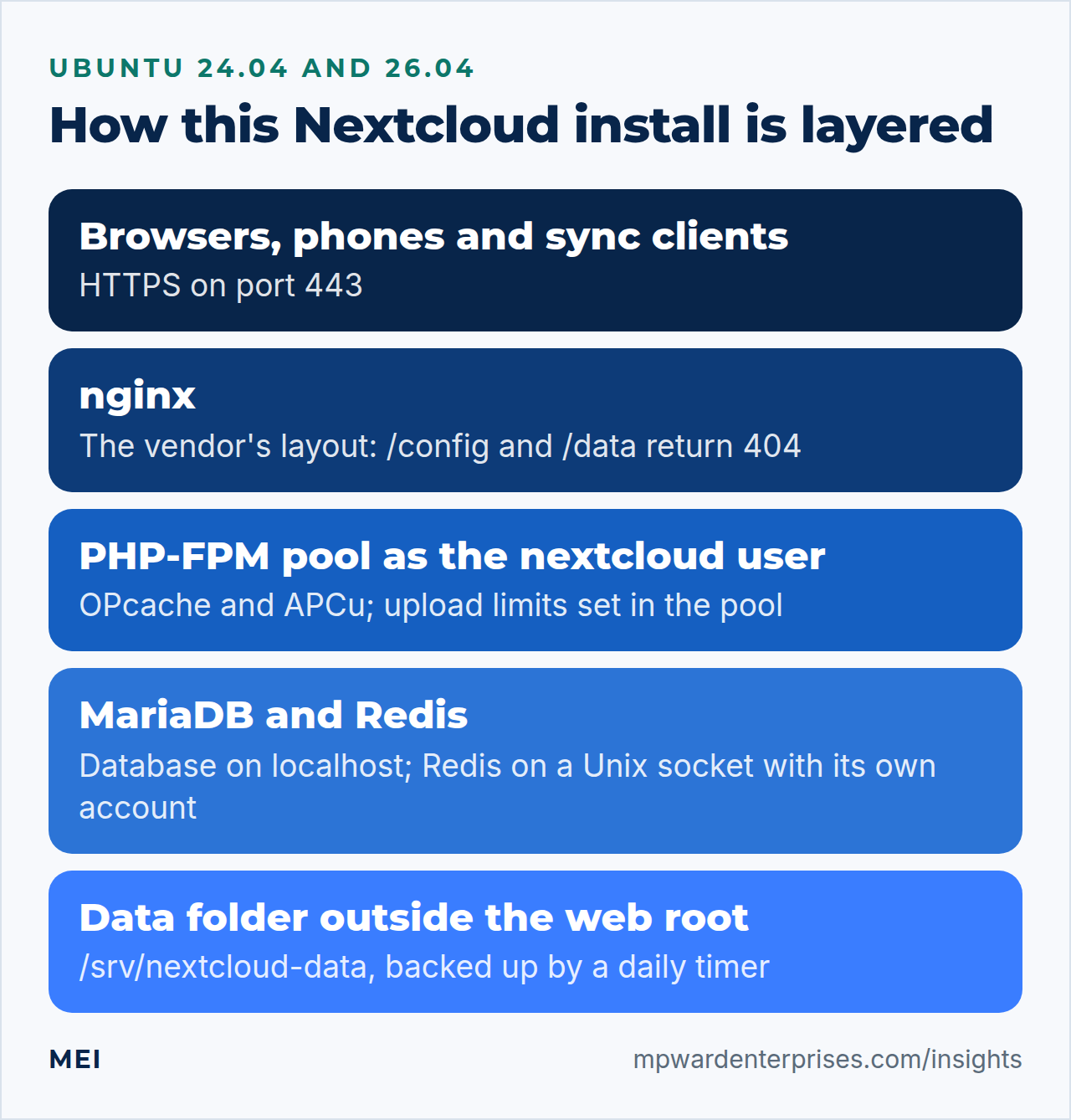
This Nextcloud install Ubuntu Nginx guide builds your own file sync, calendar and contacts server on Ubuntu 24.04 LTS or 26.04 LTS, so pick yours with the switch below: a verified download, a dedicated PHP user, a data folder outside the web root, a database account that touches only Nextcloud, Redis for file locking, a systemd timer for background jobs, and backups you have restored once. Plan on three to four hours; the level is intermediate.
We ran every command below twice in disposable labs, with Nextcloud 35.0.1, the stable release when we tested: once on Ubuntu 24.04 LTS (nginx 1.24.0, PHP 8.3.6, MariaDB 10.11, Redis 7.0) and once on Ubuntu 26.04 LTS (nginx 1.28.3, PHP 8.5.4, MariaDB 11.8.6, Redis 8.0.5 and Valkey 9.0.4). The outputs are what the labs printed, and where the two releases differ, the page shows only the one you picked.
Two things a lab cannot do are called out where they come up: issuing a real certificate needs public DNS, and we had no desktop or phone clients to sync. The risks are real. One loose web server rule can expose your files, and a backup you never restored is only a hope.
Choose your Ubuntu version
This guide covers both releases. Commands, file paths and version numbers change with your choice; everything else is the same.
JavaScript is off, so both versions are shown below and each block says which release it is for.
Before you start: what you need and how to back out
You need a fresh Ubuntu Server 24.04 LTS or 26.04 LTS machine that you have already hardened (start with our 12-step hardening guide and the UFW firewall guide), with ports 80 and 443 open. You need a host name such as cloud.example.com whose DNS record points at the server, and a sudo user, called alex in our examples.
Plan the memory and the disk. Nextcloud's manual asks for at least 128 MB of RAM per PHP process and recommends 512 MB. Our rule of thumb is 4 GB of RAM for a small team, and a separate disk or volume for the data folder, because that is the part that grows. Take a snapshot before you begin. Backing out is easy while the install is new: drop the database and its user, delete the two folders and remove the pool and nginx files.
On Ubuntu 26.04, sudo is sudo-rs, a Rust rewrite, and everyday tools such as ls, tee, install, sha256sum, tr, head and date are the Rust versions from the uutils project (cp, mv and rm are still GNU). We ran every command in this guide as the admin user alex, and each one behaved as it does on 24.04 unless a step says otherwise.
Two differences are worth knowing now: sudo-rs runs commands with a umask of 022 (step 14 shows where that shows up), and it ignores the -E option that the vendor's examples use. Nothing in this guide needs -E. Running ls --version tells you which implementation you have.
Why people run their own Nextcloud, and what it costs
Four reasons come up again and again. Ownership: your files are ordinary files in a folder you choose, plus a database. Cost: the server software is free (the project is AGPL-licensed), so there is no per-user license fee. Location: you decide in which country and on whose hardware the data sits. And it is more than storage, because calendars and contacts are included and speak the standard CalDAV and CardDAV protocols.
The honest burden is the maintenance. You apply operating system updates, upgrade Nextcloud one major version at a time, watch disk growth, test restores and answer for security. Nextcloud's manual also lists the outside servers your install talks to, such as the update server, which receives the server version, install time, instance ID and instance size. A fair comparison with hosted storage follows. Our self-hosted versus cloud guide covers the wider decision.
| Question | Self-hosted Nextcloud | Hosted cloud storage |
|---|---|---|
| Where the files live | On a disk you choose, as ordinary files plus a database | On the provider's servers |
| Who patches it | You, on a monthly routine | The provider |
| Cost model | Server, storage and your time; no per-user license fee for the software | Usually a monthly fee per user |
| Calendar and contacts | Included, with standard CalDAV and CardDAV | Often a separate product or an add-on |
| When something breaks | You fix it or restore it | The provider's service levels apply |
| Data location and access | Your choice; nobody else holds a copy unless you send one | The provider's regions and policies |
Neither is wrong. If nobody on your team wants to own a server, hosted storage or a managed Nextcloud host is the honest answer. If you want control and can give the server an hour a month, keep reading.
Nextcloud install Ubuntu Nginx: why this way and not the other ways
There is more than one way to run Nextcloud. This table compares them in plain English, so you can see why the guide is built the way it is.
| Option | In plain English | Our verdict |
|---|---|---|
| The tarball with nginx, PHP-FPM and MariaDB (this guide) | You assemble the pieces from Ubuntu's packages and Nextcloud's download | Best when the server also hosts other sites or you want to see every moving part |
| Nextcloud All-in-One (Docker) | The vendor's turnkey method: containers for Nextcloud, database, Redis and extras, run by a master container | Good on a dedicated Docker host. Sharing the host with other websites needs a reverse proxy in front |
| Snap, NCP or a ready-made VM image | A prebuilt install with its own update path | Quick to start. Check how updates and backups work before you commit |
| The browser installer on the same files | Same software, set up by clicking | Fine for a trial. We use the command line because it can be repeated and keeps passwords off the screen |
| A managed Nextcloud host | Someone else runs it | Right when nobody wants to own a server |
Nextcloud's own PHP chapter says you can skip it if you use one of the turnkey methods, because their PHP is already configured. This guide is the other road, and the reward for taking it is that you know what every line does.
What Nextcloud 35 needs, and what Ubuntu provides
Nextcloud 35's manual supports PHP 8.3, 8.4 and 8.5 (8.5 recommended), lists MariaDB 10.11, 11.4, 11.8 and 12.3, and names Ubuntu 26.04 LTS (recommended) and 24.04 LTS as supported systems. For the web server it says only "nginx with php-fpm", with no version number.
Ubuntu 24.04 ships PHP 8.3 and MariaDB 10.11. Both are supported; neither is the version the manual recommends.
There is a catch you should plan for. On our fresh install, Nextcloud's own check said: "PHP 8.3 is deprecated since Nextcloud 35. Nextcloud 37 may require at least PHP 8.4." So this setup is sound for now, and it has a deadline. Before Nextcloud 37, you will move to a newer Ubuntu LTS or add a PHP repository. Decide which, and put it in the calendar.
Ubuntu 26.04 ships PHP 8.5.4, MariaDB 11.8.6 and nginx 1.28.3. PHP and MariaDB are both on the manual's list, the manual sets no nginx version, and PHP 8.5 and Ubuntu 26.04 are the versions it recommends, so there is no deadline to plan around, unlike on 24.04. We checked rather than assumed. On our fresh install, Nextcloud's own report said "You are currently running PHP 8.5.4" and raised no PHP or database version warning.
We also switched on every PHP notice and deprecation, then used the Files app, the settings and administration pages, the dashboard, WebDAV, CalDAV and the cron job, and ran the command-line tools. Nothing reached the PHP error log or the terminal. Nextcloud 34.0.4 also installed and updated to 35.0.1 on PHP 8.5.4 (step 14).
The manual's required PHP modules are ctype, curl, DOM, fileinfo, GD, xml, mbstring, OpenSSL, posix, session, zip and zlib, plus the MariaDB connector. It recommends intl and sodium, APCu and Redis for caching, and a PHP memory_limit of at least 512 MB. We removed two optional modules to see what Nextcloud notices: without gmp it reports a missing recommended module, and without imagick it warns that favicon generation will not work.
Step 1: Install the packages
Install everything from Ubuntu's own repositories, so security fixes arrive through normal updates (see our automatic updates guide).
sudo apt update
sudo apt install -y nginx mariadb-server redis-server php8.38.5-fpm php8.38.5-cli php8.38.5-mysql \
  php8.38.5-gd php8.38.5-curl php8.38.5-xml php8.38.5-mbstring php8.38.5-zip php8.38.5-intl php8.38.5-apcu \
  php8.38.5-redis php8.38.5-gmp php8.38.5-imagick bzip2 curl gnupg rsync
php -v | head -1
nginx -v
mariadb --version
redis-server --version
php -m | grep -i -E '^(apcu|gd|gmp|imagick|intl|redis|zip|pdo_mysql)$'
sudo ss -tlnp | grep -E ':3306|:6379'
You should see PHP 8.38.5, nginx 1.241.28, MariaDB 10.1111.8, Redis 7.08.0 and all eight modules. The last command should show MariaDB and Redis listening on the loopback addresses only, which is how Ubuntu ships them. We replace Redis's TCP listener with a Unix socket in step 9.
Redis or Valkey on Ubuntu 26.04?
Ubuntu 26.04 packages two servers that speak the same protocol: redis-server and valkey-server. The commands above install Redis, as on 24.04. We ran the whole guide against both servers, and through the PHP extension the results matched, so this table is about packaging, licenses and what Nextcloud's manual says about each.
| Redis | Valkey | |
|---|---|---|
| Version we tested | 8.0.5 | 9.0.4 |
| Ubuntu component | universe | main |
| License, as the package's copyright file states it | Your choice of the Redis Source Available License 2.0, the Server Side Public License v1 or the GNU AGPLv3 | BSD 3-clause |
| Service and configuration file | redis-server, /etc/redis/redis.conf |
valkey-server, /etc/valkey/valkey.conf |
| Unix socket and group | /run/redis/redis-server.sock, group redis |
/run/valkey/valkey-server.sock, group valkey |
| Command-line client | redis-cli (package redis-tools) |
valkey-cli (package valkey-tools) |
| What Nextcloud's manual says | Formally tested with the PHP extension | Formally tested through Nextcloud's own KeyValueCache; the extension is "expected to work" |
If you want the pairing the manual tests with the extension, which is what the steps below use, install Redis. If you prefer a package in Ubuntu's main component with a BSD license, install valkey-server instead of redis-server. Install one of them, not both, because their default settings use the same port. Step 9 lists the few names that change for Valkey, and shows the KeyValueCache route.
The other packages split the same way. Nginx, MariaDB, valkey-server and most of the PHP packages are in main. PHP-FPM, zip, intl, APCu, the Redis extension, Imagick and redis-server are in universe. Our WordPress stack guide explains what main and universe mean for security updates.
Step 2: Create a dedicated user, a PHP-FPM pool and the PHP settings
Give Nextcloud its own Linux user and its own PHP-FPM pool, so a flaw in Nextcloud or one of its apps cannot reach your other sites. Keep the user's home folder out of the web root: in our lab, a home inside the web root let a library drop a .cache folder there, and Nextcloud's code-integrity check reported it as an unexpected file.
sudo adduser --system --group --home /var/lib/nextcloud --shell /usr/sbin/nologin nextcloud
sudo tee /etc/php/8.38.5/fpm/pool.d/nextcloud.conf > /dev/null <<'EOF'
[nextcloud]
user = nextcloud
group = nextcloud
listen = /run/php/php8.38.5-fpm-nextcloud.sock
listen.owner = www-data
listen.group = www-data
listen.mode = 0660

pm = dynamic
pm.max_children = 12
pm.start_servers = 3
pm.min_spare_servers = 2
pm.max_spare_servers = 6
pm.max_requests = 500

; Nextcloud checks that PHP can see PATH
env[PATH] = /usr/local/bin:/usr/bin:/bin

php_admin_value[memory_limit] = 512M
php_admin_value[upload_max_filesize] = 512M
php_admin_value[post_max_size] = 512M
php_admin_value[max_execution_time] = 3600
php_admin_value[max_input_time] = 3600
php_admin_flag[display_errors] = off
EOF
sudo tee /etc/php/8.38.5/fpm/conf.d/90-nextcloud.ini > /dev/null <<'EOF'
opcache.enable = 1
opcache.memory_consumption = 256
opcache.interned_strings_buffer = 32
opcache.max_accelerated_files = 20000
opcache.revalidate_freq = 60
opcache.save_comments = 1
apc.shm_size = 128M
EOF
sudo php-fpm8.38.5 -t && sudo systemctl restart php8.38.5-fpm
sleep 2                       # the new pool needs a moment to create its socket
ls -l /run/php/php8.38.5-fpm-nextcloud.sock
ps -eo user,cmd | grep '[p]ool nextcloud'
The socket belongs to www-data with mode srw-rw----, so only nginx can talk to the pool, and the workers run as nextcloud. In our lab each worker showed 76 to 9886 to 105 MB resident after real use. That overstates real use, because shared memory is counted in every worker, but it is why ten or twelve workers is a sensible ceiling for a small server. Measure yours with ps.
Each setting here exists because something told us to set it. The upload limits are php_admin_value lines because values set that way cannot be overridden by a per-folder .user.ini, and Nextcloud 35's own .user.ini no longer sets any limits, so PHP's own defaults (2 MB and 8 MB) would apply without them. The OPcache numbers come from a count and a warning:
- 20,000 accelerated files. Nextcloud 35 ships 13,301 PHP files and the default cap is 10,000.
- 32 MB of interned strings. With the default 8 MB, Nextcloud's web check warned: "The OPcache interned strings buffer is nearly full".
- 128 MB of APCu. Nextcloud's caching page says the 32 MB default is usually too low and suggests 128 MB as a start.
env[PATH]. With PHP-FPM's defaults, the check said: "The test with getenv("PATH") only returns an empty response". Oneenv[PATH]line fixed it, which is safer thanclear_env = no, which hands the whole environment to PHP.
Good to know: OPcache is built into PHP 8.5
On Ubuntu 26.04 there is no php8.5-opcache package and no opcache.ini file, because PHP 8.5 has OPcache compiled in. The opcache lines in 90-nextcloud.ini still apply, since PHP reads every file in conf.d. We confirmed the values with php-fpm8.5 -i, and Nextcloud's check read "Correctly configured".
Why this way?
A pool per application, running as its own user, is the same pattern as in our guides to several WordPress sites on one server and to self hosted Matomo. The alternative, one shared pool, means one weak plugin exposes everything. Nextcloud's tuning page also describes an optional JIT setting; JIT is a server-wide switch, so we leave it off unless a test shows a benefit.
Step 3: Create the database and a database user
Nextcloud needs one database and one account that owns only that database. As in our Matomo guide, put the password in a root-only file first, so it never appears in your shell history or the process list.
sudo install -m 600 /dev/null /root/nextcloud-db.pass
openssl rand -hex 24 | sudo tee /root/nextcloud-db.pass > /dev/null
DBPASS=$(sudo cat /root/nextcloud-db.pass)
sudo mariadb <<SQL
CREATE DATABASE nextcloud CHARACTER SET utf8mb4 COLLATE utf8mb4_bin;
CREATE USER 'nextcloud'@'localhost' IDENTIFIED BY '$DBPASS';
GRANT ALL PRIVILEGES ON nextcloud.* TO 'nextcloud'@'localhost';
SQL
unset DBPASS
sudo tee /etc/mysql/mariadb.conf.d/60-nextcloud.cnf > /dev/null <<'EOF'
[mysqld]
transaction_isolation = READ-COMMITTED
binlog_format = ROW
EOF
sudo systemctl restart mariadb
sudo mariadb -e "SELECT @@tx_isolation"
The statements are the ones in Nextcloud's database page. ALL PRIVILEGES sounds broad, and for Nextcloud it is the vendor's instruction because upgrades change the schema, but it is limited to the one database and to localhost. The drop-in file sets the transaction isolation level the manual asks for. The last command should print READ-COMMITTED; MariaDB 10.1111.8 defaults to REPEATABLE-READ.
Watch out: two names for one setting
In the option file the name is transaction_isolation, but the variable you query on MariaDB 10.11 is tx_isolation. We tried the query name in the file, and MariaDB refused to start with "unknown variable". If that happens to you, correct the file and run sudo systemctl reset-failed mariadb before restarting.
Watch out: two names for one setting
The option file wants transaction_isolation. When you query the value, MariaDB 11.8 answers to both @@transaction_isolation and the older @@tx_isolation, but the older spelling is still refused in the option file. We tried it, and MariaDB failed to start with "unknown variable". If that happens to you, correct the file and run sudo systemctl reset-failed mariadb before restarting.
Two more facts about MariaDB 11.8 explain lines you just typed. The server's default collation changed from utf8mb4_general_ci to utf8mb4_uca1400_ai_ci, but that does not change what Nextcloud gets: it sets utf8mb4_bin on its own tables, and in our lab every table came out that way whether the database was created with utf8mb4_bin, with utf8mb4_unicode_ci or with the new default. We still name utf8mb4_bin, because that is the vendor's instruction. And binary logging is off by default, so binlog_format = ROW changes nothing today.
It is there for the day you switch logging on, because the manual accepts binary logging only in ROW format, and MariaDB's own default is MIXED.
Step 4: Download Nextcloud, verify it and unpack it
Download the tarball, its checksum and its signature, then check both. The vendor's download page gives the key fingerprint, so compare what GPG prints with that page.
mkdir -p ~/nextcloud-download && cd ~/nextcloud-download
curl -fsSLO https://download.nextcloud.com/server/releases/latest.tar.bz2
curl -fsSLO https://download.nextcloud.com/server/releases/latest.tar.bz2.sha256
curl -fsSLO https://download.nextcloud.com/server/releases/latest.tar.bz2.asc
sha256sum -c --ignore-missing latest.tar.bz2.sha256
gpg --keyserver hkps://keyserver.ubuntu.com --recv-keys 28806A878AE423A28372792ED75899B9A724937A
gpg --fingerprint 28806A878AE423A28372792ED75899B9A724937A
gpg --verify latest.tar.bz2.asc latest.tar.bz2
The checksum file lists two files, so --ignore-missing skips the second. You want "latest.tar.bz2: OK", and then a good signature from "Nextcloud Security" with the primary key fingerprint 2880 6A87 8AE4 23A2 8372 792E D758 99B9 A724 937A. The "not certified with a trusted signature" warning is normal. We also compared against the key file hosted on nextcloud.com, and its fingerprint was identical.
Why both a checksum and a signature?
They answer different questions. The checksum catches a corrupted download. The signature proves who published it. To see the difference, we changed one byte of a copy and wrote a matching checksum file, as an attacker who controls the download server could. The checksum check said OK; the signature check said BAD. Always run both, and take the fingerprint from the vendor's own page.
Now unpack it. Create the data folder outside the web root, and give the files to the nextcloud user. The modes differ from the 750 and 640 in Nextcloud's manual-upgrade instructions. Those assume nginx and PHP run as the same user, while here nginx is www-data and must read the static files. When we tried the stricter modes, the whole site answered 404. So the code is world-readable, and the secrets stay private.
sudo tar -xjf latest.tar.bz2 -C /var/www/
sudo chown -R nextcloud:nextcloud /var/www/nextcloud
sudo find /var/www/nextcloud -type d -exec chmod 755 {} +
sudo find /var/www/nextcloud -type f -exec chmod 644 {} +
sudo chmod 750 /var/www/nextcloud/config
sudo install -d -o nextcloud -g nextcloud -m 750 /srv/nextcloud-data
ls -ld /var/www/nextcloud /var/www/nextcloud/config /srv/nextcloud-data
Nextcloud's hardening page says it is "highly recommended" to keep the data directory outside the web root, and easiest to do on a new installation. Here it sits in /srv/nextcloud-data, readable only by the nextcloud user, so even a serious web server mistake cannot serve it, and you can mount a bigger disk there without touching the code.
Step 5: Start nginx on port 80 and get a certificate
Nextcloud carries passwords, calendars and your files, so it must be served over HTTPS. As with Matomo, begin with a plain port-80 block that only serves Certbot's challenge file and redirects everything else, because nginx will not start an HTTPS block whose certificate files do not exist yet.
sudo tee /etc/nginx/sites-available/cloud.example.com > /dev/null <<'EOF'
server {
    listen 80;
    listen [::]:80;
    server_name cloud.example.com;
    server_tokens off;
    root /var/www/nextcloud;

    # Certbot (webroot mode) puts its challenge files here
    location ^~ /.well-known/acme-challenge/ {
        default_type text/plain;
        try_files $uri =404;
    }

    location / {
        return 301 https://$host$request_uri;
    }
}
EOF
sudo ln -s /etc/nginx/sites-available/cloud.example.com /etc/nginx/sites-enabled/
sudo rm -f /etc/nginx/sites-enabled/default      # only if this server hosts nothing else
sudo nginx -t && sudo systemctl reload nginx
sudo apt install -y certbot
sudo certbot certonly --webroot -w /var/www/nextcloud -d cloud.example.com \
  -m [email address] --agree-tos --no-eff-email --deploy-hook "systemctl reload nginx"
The lab has no public DNS, so we could not issue a real certificate, and you should treat the Certbot line as untested here. We tested everything around it: nginx -t passes, a challenge file is served as plain text, and every other plain-HTTP request returns a 301 to HTTPS. The Certbot guide covers renewals and failures. On Ubuntu 26.04 the apt package is Certbot 4.0.0, and its help text still lists every option on that line.
Step 6: Add the HTTPS block in the vendor's layout, and test it
This block follows the sample in Nextcloud's nginx page, dated 2026-06-09. It does five jobs: it sends every PHP request through one front controller, redirects the calendar and contacts discovery addresses, returns 404 for folders that must never be served, serves static files with the right types, and allows large uploads. Add it after Certbot has finished.
sudo tee -a /etc/nginx/sites-available/cloud.example.com > /dev/null <<'EOF'

upstream php-nextcloud {
    server unix:/run/php/php8.3-fpm-nextcloud.sock;
}

# "immutable" only for assets that carry a cache-busting ?v= argument.
# Define this map once per server, not once per site.
map $arg_v $asset_immutable {
    "" "";
    default ", immutable";
}

server {
    listen 443 ssl http2;
    listen [::]:443 ssl http2;
    server_name cloud.example.com;
    root /var/www/nextcloud;

    ssl_certificate     /etc/letsencrypt/live/cloud.example.com/fullchain.pem;
    ssl_certificate_key /etc/letsencrypt/live/cloud.example.com/privkey.pem;
    ssl_protocols       TLSv1.2 TLSv1.3;
    ssl_session_cache   shared:SSL:10m;
    ssl_session_timeout 1d;
    ssl_session_tickets off;
    server_tokens off;

    # Uploads: keep client_max_body_size equal to PHP's post_max_size
    client_max_body_size 512M;
    client_body_timeout 300s;
    client_body_buffer_size 512k;
    fastcgi_buffers 64 4K;
    fastcgi_read_timeout 3600s;

    gzip on;
    gzip_vary on;
    gzip_comp_level 4;
    gzip_min_length 256;
    gzip_proxied expired no-cache no-store private no_last_modified no_etag auth;
    gzip_types application/atom+xml application/javascript application/json application/ld+json
               application/manifest+json application/rss+xml application/vnd.geo+json
               application/vnd.ms-fontobject application/wasm application/x-font-ttf
               application/x-web-app-manifest+json application/xhtml+xml application/xml
               font/opentype image/bmp image/svg+xml image/x-icon text/cache-manifest text/css
               text/javascript text/plain text/vcard text/vnd.rim.location.xloc text/vtt
               text/x-component text/x-cross-domain-policy;

    add_header Referrer-Policy                   "no-referrer"       always;
    add_header X-Content-Type-Options            "nosniff"           always;
    add_header X-Frame-Options                   "SAMEORIGIN"        always;
    add_header X-Permitted-Cross-Domain-Policies "none"              always;
    add_header X-Robots-Tag                      "noindex, nofollow" always;
    #add_header Strict-Transport-Security        "max-age=15552000"  always;   # see step 12

    fastcgi_hide_header X-Powered-By;

    # Ubuntu's mime.types knows .wasm but not .mjs
    include mime.types;
    types {
        text/javascript mjs;
    }

    index index.php index.html /index.php$request_uri;

    # Microsoft's WebDAV client
    location = / {
        if ( $http_user_agent ~ ^DavClnt ) {
            return 302 /remote.php/webdav/$is_args$args;
        }
    }

    location = /robots.txt {
        allow all;
        log_not_found off;
        access_log off;
    }

    # Calendar and contacts auto-discovery, and the certificate challenge
    location ^~ /.well-known {
        location = /.well-known/carddav { return 301 /remote.php/dav/; }
        location = /.well-known/caldav  { return 301 /remote.php/dav/; }
        location /.well-known/acme-challenge { try_files $uri $uri/ =404; }
        location /.well-known/pki-validation { try_files $uri $uri/ =404; }
        return 301 /index.php$request_uri;
    }

    # Folders and files that must never be served
    location ~ ^/(?:build|tests|config|lib|3rdparty|templates|data)(?:$|/)  { return 404; }
    location ~ ^/(?:\.|autotest|occ|issue|indie|db_|console)                { return 404; }
    location ~ ^/(?:composer\.(?:json|lock)|package(?:-lock)?\.json|core/shipped\.json)$ { return 404; }

    # PHP: this block must stay ABOVE the static-file blocks below
    location ~ \.php(?:$|/) {
        rewrite ^/(?!index|remote|public|cron|status|ocs\/v[12]|ocs-provider\/.+|core\/ajax\/update|updater\/.+|.+\/richdocumentscode(_arm64)?\/proxy) /index.php$request_uri;

        fastcgi_split_path_info ^(.+?\.php)(/.*)$;
        set $path_info $fastcgi_path_info;
        try_files $fastcgi_script_name =404;

        include fastcgi_params;
        fastcgi_pass php-nextcloud;

        fastcgi_param SCRIPT_FILENAME         $document_root$fastcgi_script_name;
        fastcgi_param PATH_INFO               $path_info;
        fastcgi_param HTTPS                   on;
        fastcgi_param modHeadersAvailable     true;
        fastcgi_param front_controller_active true;

        fastcgi_intercept_errors on;
        fastcgi_request_buffering on;
        fastcgi_max_temp_file_size 0;
    }

    # Static files (add_header here replaces the server-level headers, so they are repeated)
    location ~ \.(?:css|js|mjs|svg|gif|ico|jpg|png|webp|wasm|tflite|map|ogg|flac|mp4|webm)$ {
        try_files $uri /index.php$request_uri;
        add_header Cache-Control                     "public, max-age=15778463$asset_immutable";
        add_header Referrer-Policy                   "no-referrer"       always;
        add_header X-Content-Type-Options            "nosniff"           always;
        add_header X-Frame-Options                   "SAMEORIGIN"        always;
        add_header X-Permitted-Cross-Domain-Policies "none"              always;
        add_header X-Robots-Tag                      "noindex, nofollow" always;
        access_log off;
    }

    location ~ \.(otf|woff2?)$ {
        try_files $uri /index.php$request_uri;
        expires 7d;
        access_log off;
    }

    location /remote {
        return 301 /remote.php$request_uri;
    }

    location / {
        try_files $uri $uri/ /index.php$request_uri;
    }
}
EOF
sudo nginx -t && sudo systemctl reload nginx
sleep 2                       # nginx needs a moment to open the new port
sudo tee -a /etc/nginx/sites-available/cloud.example.com > /dev/null <<'EOF'
upstream php-nextcloud {
server unix:/run/php/php8.5-fpm-nextcloud.sock;
}
# "immutable" only for assets that carry a cache-busting ?v= argument.
# Define this map once per server, not once per site.
map $arg_v $asset_immutable {
"" "";
default ", immutable";
}
server {
listen 443 ssl;
listen [::]:443 ssl;
http2 on;
server_name cloud.example.com;
root /var/www/nextcloud;
ssl_certificate /etc/letsencrypt/live/cloud.example.com/fullchain.pem;
ssl_certificate_key /etc/letsencrypt/live/cloud.example.com/privkey.pem;
ssl_protocols TLSv1.2 TLSv1.3;
ssl_session_cache shared:SSL:10m;
ssl_session_timeout 1d;
ssl_session_tickets off;
server_tokens off;
# Uploads: keep client_max_body_size equal to PHP's post_max_size
client_max_body_size 512M;
client_body_timeout 300s;
client_body_buffer_size 512k;
fastcgi_buffers 64 4K;
fastcgi_read_timeout 3600s;
gzip on;
gzip_vary on;
gzip_comp_level 4;
gzip_min_length 256;
gzip_proxied expired no-cache no-store private no_last_modified no_etag auth;
gzip_types application/atom+xml application/javascript application/json application/ld+json
application/manifest+json application/rss+xml application/vnd.geo+json
application/vnd.ms-fontobject application/wasm application/x-font-ttf
application/x-web-app-manifest+json application/xhtml+xml application/xml
font/opentype image/bmp image/svg+xml image/x-icon text/cache-manifest text/css
text/javascript text/plain text/vcard text/vnd.rim.location.xloc text/vtt
text/x-component text/x-cross-domain-policy;
add_header Referrer-Policy "no-referrer" always;
add_header X-Content-Type-Options "nosniff" always;
add_header X-Frame-Options "SAMEORIGIN" always;
add_header X-Permitted-Cross-Domain-Policies "none" always;
add_header X-Robots-Tag "noindex, nofollow" always;
#add_header Strict-Transport-Security "max-age=15552000" always; # see step 12
fastcgi_hide_header X-Powered-By;
# Ubuntu's mime.types knows .wasm but not .mjs
include mime.types;
types {
text/javascript mjs;
}
index index.php index.html /index.php$request_uri;
# Microsoft's WebDAV client
location = / {
if ( $http_user_agent ~ ^DavClnt ) {
return 302 /remote.php/webdav/$is_args$args;
}
}
location = /robots.txt {
allow all;
log_not_found off;
access_log off;
}
# Calendar and contacts auto-discovery, and the certificate challenge
location ^~ /.well-known {
location = /.well-known/carddav { return 301 /remote.php/dav/; }
location = /.well-known/caldav { return 301 /remote.php/dav/; }
location /.well-known/acme-challenge { try_files $uri $uri/ =404; }
location /.well-known/pki-validation { try_files $uri $uri/ =404; }
return 301 /index.php$request_uri;
}
# Folders and files that must never be served
location ~ ^/(?:build|tests|config|lib|3rdparty|templates|data)(?:$|/) { return 404; }
location ~ ^/(?:\.|autotest|occ|issue|indie|db_|console) { return 404; }
location ~ ^/(?:composer\.(?:json|lock)|package(?:-lock)?\.json|core/shipped\.json)$ { return 404; }
# PHP: this block must stay ABOVE the static-file blocks below
location ~ \.php(?:$|/) {
rewrite ^/(?!index|remote|public|cron|status|ocs\/v[12]|ocs-provider\/.+|core\/ajax\/update|updater\/.+|.+\/richdocumentscode(_arm64)?\/proxy) /index.php$request_uri;
fastcgi_split_path_info ^(.+?\.php)(/.*)$;
set $path_info $fastcgi_path_info;
try_files $fastcgi_script_name =404;
include fastcgi_params;
fastcgi_pass php-nextcloud;
fastcgi_param SCRIPT_FILENAME $document_root$fastcgi_script_name;
fastcgi_param PATH_INFO $path_info;
fastcgi_param HTTPS on;
fastcgi_param modHeadersAvailable true;
fastcgi_param front_controller_active true;
fastcgi_intercept_errors on;
fastcgi_request_buffering on;
fastcgi_max_temp_file_size 0;
}
# Static files (add_header here replaces the server-level headers, so they are repeated)
location ~ \.(?:css|js|mjs|svg|gif|ico|jpg|png|webp|wasm|tflite|map|ogg|flac|mp4|webm)$ {
try_files $uri /index.php$request_uri;
add_header Cache-Control "public, max-age=15778463$asset_immutable";
add_header Referrer-Policy "no-referrer" always;
add_header X-Content-Type-Options "nosniff" always;
add_header X-Frame-Options "SAMEORIGIN" always;
add_header X-Permitted-Cross-Domain-Policies "none" always;
add_header X-Robots-Tag "noindex, nofollow" always;
access_log off;
}
location ~ \.(otf|woff2?)$ {
try_files $uri /index.php$request_uri;
expires 7d;
access_log off;
}
location /remote {
return 301 /remote.php$request_uri;
}
location / {
try_files $uri $uri/ /index.php$request_uri;
}
}
EOF
sudo nginx -t && sudo systemctl reload nginx
sleep 2 # nginx needs a moment to open the new portThree details differ from the vendor's sample. It uses a TCP address for PHP; ours uses the pool's Unix socket.
We added modern TLS settings. Ubuntu's stock nginx.conf still lists TLS 1.0 and 1.1. Ubuntu 26.04's stock nginx.conf already allows only TLS 1.2 and 1.3, so there those lines just make the policy visible in this file. And we set a longer fastcgi_read_timeout that matches PHP's max_execution_time; the manual calls it "often the solution to 504 timeouts during MOVE transactions", the step that assembles a big chunked upload.
One line was removed. The sample maps wasm, but Ubuntu's own mime.types already does, and repeating it only makes nginx warn about a duplicate extension. The mjs line stays, because without it .mjs files came back as application/octet-stream. Everything else is the vendor's.
Watch out: three traps in this file
The PHP block must stay above the static-file blocks, or nginx can loop through internal redirects. The sample's listen 443 ssl http2; is right for Ubuntu 24.04's nginx 1.24; the http2 on; form needs 1.25.1 or newer. And the map may exist only once per server, so a second Nextcloud vhost must not repeat it.
Watch out: three traps in this file
The PHP block must stay above the static-file blocks, or nginx can loop through internal redirects. The sample's own comment says to use http2 on; from nginx 1.25.1 on, so the 26.04 block above does. The old listen 443 ssl http2; form still serves HTTP/2 on nginx 1.28, but nginx -t then prints a warning that the parameter is deprecated, once per listen line, and every reload repeats it in the service's journal.
And the map may exist only once per server, so a second Nextcloud vhost must not repeat it.
Now prove the rules. This script pins every request to the local machine, so it works before DNS exists. The paths come from Nextcloud's own setup checks and from the folders the vendor denies.
check() {
  code=$(curl -sk -o /dev/null -w '%{http_code}' --resolve cloud.example.com:443:127.0.0.1 "https://cloud.example.com$1")
  printf '%-34s %s  (want %s)\n' "$1" "$code" "$2"
}
check /status.php 200
check /login 200
check /core/img/favicon.ico 200
check /config/config.php 404
check /data/.ncdata 404
check /lib/base.php 404
check /3rdparty/autoload.php 404
check /occ 404
check /composer.json 404
check /.htaccess 404
check /.well-known/caldav 301
check /.well-known/carddav 301
check /remote 301
Every line matched in our lab. The two calendar discovery addresses redirect to /remote.php/dav/, which is what calendar and contact apps follow. A .mjs file was served as text/javascript and a test .wasm file as application/wasm, both with the long cache header. One more line, /nope.php, answers 404 only after Nextcloud is installed, so it is in the final check.
Two more tests are worth running. A request with a forged Host header got HTTP 400 and Nextcloud's "Access through untrusted domain" page. A 600 MB upload was refused with a 413 while 400 MB went through, which proves the 512 MB limit.
Step 7: Install Nextcloud from the command line, without passwords in sight
Create the administrator's password the same way as the database one. Then run the installer. Nextcloud's manual says occ maintenance:install "prompts for the database and administrator passwords" and warns against "exposing production passwords in shell history or process listings". We read the command's source and tried it. It takes secrets in two ways, and only one is safe on a shared server.
- As options (
--database-pass,--admin-pass). It works, but while the installer runs, any local account can read both passwords in the process list. We watched this as an unprivileged user in the lab. On Ubuntu 26.04 both passwords also reached the system journal, because sudo-rs logs the whole command line:journalctl -t sudoshowed them after our test, and showed none for the piped install below. - At the prompts. If you answer the two questions, nothing appears in the process list. The prompts also accept piped input, so a root-only file can answer them. That is the headless route below.
- What does not exist: there is no environment variable or password-file option for this command. The vendor's
autoconfig.phpis meant for the browser installer, and a plain request to it only displayed the setup form.
sudo install -m 600 /dev/null /root/nextcloud-admin.pass
openssl rand -base64 24 | tr -d '/+=' | sudo tee /root/nextcloud-admin.pass > /dev/null
(sudo cat /root/nextcloud-db.pass; sudo cat /root/nextcloud-admin.pass) | \
  sudo -u nextcloud php /var/www/nextcloud/occ maintenance:install \
    --database mysql --database-name nextcloud --database-host localhost \
    --database-user nextcloud --admin-user alex --data-dir /srv/nextcloud-data
sudo -u nextcloud php /var/www/nextcloud/occ status
sudo ls -la /srv/nextcloud-data /var/www/nextcloud/config/config.php
The two answers are read in order: database password first, then the administrator's. You should see "Nextcloud was successfully installed" after about fifteen seconds, installed: true and version 35.0.1. In the data folder, look for a .ncdata marker file, the administrator's folder and nextcloud.log. The installer wrote config.php with mode 640. In our test, 2540 samples of the process list taken as an unprivileged user never contained either password.
Why this way?
A browser install is fine, but it types the administrator's password into a page and cannot be repeated. The options route is the one most blog posts show. Piping from a root-only file costs one extra line and leaves nothing behind. Keep the admin password in a password manager, then delete both files once the install is done and you have saved them.
Step 8: Set the core options
The installer leaves some settings unset. Four of them matter on day one: the host name Nextcloud accepts, the URL that command-line jobs use to build links, a default phone region, and a maintenance window for heavy daily jobs. Define a small helper first, so every command runs as the right user.
occ() { sudo -u nextcloud php /var/www/nextcloud/occ "$@"; }    # paste again in each new session
occ config:system:set trusted_domains 0 --value=cloud.example.com
occ config:system:set overwrite.cli.url --value=https://cloud.example.com/
occ config:system:set default_phone_region --value=US
occ config:system:set maintenance_window_start --type=integer --value=1
occ config:system:get trusted_domains
The installer had put localhost at position 0 of trusted_domains; the command above replaces it. Nextcloud only lets people sign in through names on that list, which is why a forged Host header got an error page earlier. Use your own ISO 3166-1 country code for the phone region. The window start is an hour in UTC: jobs that are not time-sensitive wait and run in the four hours after it, so 1 means 01:00 to 05:00 UTC.
Step 9: Put Redis on a Unix socket, and turn on the caches
Nextcloud keeps files consistent with locks. With no cache configured, it stores them in the database, and its own check says: "The database is used for transactional file locking. To enhance performance, please configure memcache". The manual's advice for a single server is APCu for the local cache and Redis for locking and the shared cache. Our Redis guide explains the security model; the short version is below.
We make Redis listen on a Unix socket only, turn off its passwordless default account, and give Nextcloud its own account that may run everything except the administrative and dangerous commands. The password is stored in the Redis file only as a hash.
If you chose Valkey in step 1, change every name that says redis in the commands below to valkey: the folder /etc/valkey, the file valkey.conf, the owner and group valkey, the socket /run/valkey/valkey-server.sock and the service valkey-server. That includes the After= line of the service unit in step 10. The account lines and the ACL rules stay as written, and so do Nextcloud's own setting names, because Nextcloud calls both servers "redis". Only the host path in the second block must be the Valkey socket.
We ran both servers through all of step 9 that way.
sudo install -m 600 /dev/null /root/nextcloud-redis.pass
openssl rand -hex 24 | sudo tee /root/nextcloud-redis.pass > /dev/null
HASH=$(sudo cat /root/nextcloud-redis.pass | tr -d '\n' | sha256sum | cut -d' ' -f1)
sudo tee /etc/redis/nextcloud.conf > /dev/null <<EOF
# Unix socket only: no TCP port
port 0
unixsocket /run/redis/redis-server.sock
unixsocketperm 770

# No passwordless default account; Nextcloud gets its own
user default off
user nextcloud on #$HASH ~* +@all -@admin -@dangerous
EOF
sudo chown redis:redis /etc/redis/nextcloud.conf
sudo chmod 640 /etc/redis/nextcloud.conf
sudo sh -c 'echo "include /etc/redis/nextcloud.conf" >> /etc/redis/redis.conf'
sudo usermod -aG redis nextcloud
sudo systemctl restart redis-server php8.38.5-fpm
sleep 2
ls -l /run/redis/redis-server.sock
sudo ss -tln | grep -c ':6379 '
The socket should show mode srwxrwx---, owned by redis, and the last command should print 0: nothing listens on TCP port 6379 any more. Only members of the redis group can open the socket, and nextcloud is one.
We checked from the outside: an unrelated account got "Permission denied", a connection without credentials got "NOAUTH", and the Nextcloud account was refused FLUSHALL, CONFIG and ACL but could SET, GET and run scripts. One consequence: anything else that used Redis's open default account, such as a monitoring tool or another application, now needs an account of its own.
Now tell Nextcloud. Set the Redis connection first, and only then switch the caches on. In our first attempt we did it the other way round, and the commands in between logged errors such as "Redis server went away". The password goes in through standard input, using config:import, so it is not on a command line either.
REDISPASS=$(sudo cat /root/nextcloud-redis.pass)
occ config:import <<JSON
{"system": {"redis": {"host": "/run/redis/redis-server.sock", "port": 0, "user": "nextcloud", "password": "$REDISPASS", "timeout": 1.5, "read_timeout": 1.5}}}
JSON
unset REDISPASS
occ config:system:set memcache.local --value='\OC\Memcache\APCu'
occ config:system:set memcache.distributed --value='\OC\Memcache\Redis'
occ config:system:set memcache.locking --value='\OC\Memcache\Redis'
occ config:system:get memcache.locking
Then exercise it. In the lab we uploaded, downloaded, moved and deleted files over WebDAV, ran a file scan, a repair and the cron job, and read Redis's access-control log afterwards: zero denied commands. Nextcloud used SET, GET, DEL, EXPIRE, EVAL, SCAN and a few others, all allowed. If a future version needs a command we block, that log is where you will see it. Reading it needs an account allowed to run ACL LOG, which the Nextcloud account deliberately is not, so add a temporary administrator account for the test and remove it afterwards.
On Ubuntu 26.04 we got the same result, zero denied commands, with Redis 8.0.5 and with Valkey 9.0.4, both through the PHP extension. For Valkey, though, the manual formally tests Nextcloud's own KeyValueCache, which arrived in Nextcloud 34.0.2 and needs no PHP extension (we switched the Redis extension off to check). We ran that route too. Use these lines in place of the second block above:
VALKEYPASS=$(sudo cat /root/nextcloud-redis.pass)
occ config:import <<JSON
{"system": {"memcache.kvstore": {"server": {"host": "/run/valkey/valkey-server.sock"}, "user": "nextcloud", "password": "$VALKEYPASS", "timeout": 1.5, "read_timeout": 1.5}}}
JSON
unset VALKEYPASS
occ config:system:set memcache.local --value='\OC\Memcache\APCu'
occ config:system:set memcache.distributed --value='\OC\Memcache\KeyValueCache'
occ config:system:set memcache.locking --value='\OC\Memcache\KeyValueCache'
This route needs one change on the server. The KeyValueCache clears cached entries with the KEYS command, which belongs to the @dangerous group that our account line blocks. In our test occ maintenance:repair was refused that command, and Nextcloud logged no error, so that clean-up did nothing. Add +keys to the end of the user nextcloud line in /etc/valkey/nextcloud.conf and restart the server. The same workload then had zero denied commands, and FLUSHALL stayed forbidden. The extension route uses SCAN and needs no change.
Why this way?
The manual says APCu is faster than Redis for the local cache, and that Redis is the right home for file locking and the shared cache. A Unix socket with a group-only mode is a stronger boundary than a TCP port that anyone on the machine can reach. The manual also describes a bundled "KeyValueCache" that needs no PHP extension, but says its formal testing covers Redis through the extension and Valkey through the KeyValueCache. We used Redis and the extension.
Why this way?
The manual says APCu is faster than Redis for the local cache, and that Redis is the right home for file locking and the shared cache. A Unix socket with a group-only mode is a stronger boundary than a TCP port that anyone on the machine can reach. The manual also describes a bundled "KeyValueCache" that needs no PHP extension, but says its formal testing covers Redis through the extension and Valkey through the KeyValueCache. We used the extension with both servers, and the KeyValueCache with Valkey as a second test.
Step 10: Run background jobs from a systemd timer
Nextcloud has jobs to run: clean-ups, notifications, file scans. By default it runs one job whenever someone opens a page ("AJAX" mode), which the manual calls the least reliable method. Webcron is limited to about 288 jobs a day. The manual says the operating system's scheduler is preferred, and it gives a systemd timer as an alternative to cron. Here is that timer with a few extra lines, as in our systemd timers versus cron guide.
sudo tee /etc/systemd/system/nextcloudcron.service > /dev/null <<'EOF'
[Unit]
Description=Nextcloud background jobs (cron.php)
After=mariadb.service redis-server.service php8.38.5-fpm.service

[Service]
Type=oneshot
User=nextcloud
Group=nextcloud
ExecCondition=/usr/bin/php -f /var/www/nextcloud/occ status -e
ExecStart=/usr/bin/php -f /var/www/nextcloud/cron.php
KillMode=process
Nice=10
NoNewPrivileges=yes
PrivateTmp=yes
ProtectHome=yes
ProtectSystem=full
EOF
sudo tee /etc/systemd/system/nextcloudcron.timer > /dev/null <<'EOF'
[Unit]
Description=Run Nextcloud background jobs every 5 minutes

[Timer]
OnBootSec=5min
OnUnitActiveSec=5min
Unit=nextcloudcron.service

[Install]
WantedBy=timers.target
EOF
sudo systemd-analyze verify /etc/systemd/system/nextcloudcron.service /etc/systemd/system/nextcloudcron.timer
sudo systemctl daemon-reload
sudo systemctl enable --now nextcloudcron.timer
occ background:cron
sudo systemctl start nextcloudcron.service
systemctl list-timers nextcloudcron.timer
The service finished with status success and Nextcloud's check then read: "Last background job execution ran seconds ago". ExecCondition runs occ status -e, which exits non-zero when Nextcloud is not running normally, so jobs are skipped during maintenance. We switched maintenance mode on and started the service: systemd logged "Skipped due to 'exec-condition'". KillMode=process is the vendor's, so programs a job starts can finish after it ends. The timer counts five minutes from the last run, so a long job cannot overlap itself.
Step 11: Read Nextcloud's own report and finish the repairs
Nextcloud 35 can print its setup checks on the command line. Run them, then run the two repair commands the first report asks for.
occ db:add-missing-indices
occ maintenance:repair --include-expensive
occ setupchecks
On a fresh install, before this guide's settings, the report had one error (background jobs had never run) and several warnings: no maintenance window, mimetype migrations waiting, database findings, the PHP version and the missing HSTS header. It also had notes about memory caching, file locking in the database, the phone region and insecure URLs. After the steps above, the checks that remain are expected:
- PHP version: 8.3 is deprecated; see the requirements section.
- Database configuration: four findings, such as the InnoDB buffer pool being smaller than the 1 GB the manual suggests. As with any database, measure before you tune; our MariaDB guide covers the basics.
- HTTP headers: HSTS is not set yet. That is a decision, covered next.
- Second factor, email and server ID: notes, not faults.
- Database configuration: four findings, such as the InnoDB buffer pool being smaller than the 1 GB the manual suggests. As with any database, measure before you tune; our MariaDB guide covers the basics.
- HTTP headers: HSTS is not set yet. That is a decision, covered next.
- Second factor, email and server ID: notes, not faults.
The report includes real network checks. They fetch your own server through its public name, so they only pass once the host name resolves: the data directory was reported protected, the .well-known URLs and the WebDAV endpoint worked, and the code integrity check passed. The same report appears in a browser under the administration settings.
Step 12: Harden the install: HTTPS, HSTS, two-factor, throttling and apps
HTTPS is done. Four more decisions remain, and each one has a trade-off.
HSTS. The header tells browsers to refuse plain HTTP for a period. Nextcloud's check wants at least 15,552,000 seconds, about six months. It is hard to undo, because browsers remember it. Turn it on once HTTPS is permanent, start with a shorter value if you are unsure, and never add includeSubDomains unless every subdomain serves HTTPS. We switched it on with the command below, and the check turned green.
sudo sed -i 's|^    #add_header Strict-Transport-Security .*|    add_header Strict-Transport-Security "max-age=15552000" always;|' /etc/nginx/sites-available/cloud.example.com
sudo nginx -t && sudo systemctl reload nginx
curl -sI https://cloud.example.com/login | grep -i '^strict-transport'
Two-factor sign-in. In this version the TOTP provider and backup codes were already enabled. Each user switches them on under their own security settings, and an administrator can require them for everyone. Enroll your own account first, store the backup codes, then enforce. We ran the command and confirmed it, then turned it off again, as we could not enroll an authenticator in the lab.
occ twofactorauth:enforce --on          # everyone must use a second factor at next login
occ twofactorauth:enforce --off         # back to optional
Brute-force protection. It is built in and on by default. It slows down and eventually blocks requests from an address that keeps failing. In the lab, 11 wrong passwords from one address were followed by 429 Too Many Requests for every later request from that address, including one with the right password. Clear a lock with occ security:bruteforce:reset ADDRESS.
The catch is a reverse proxy: if every visitor appears to come from the proxy's address, one attacker can lock out everyone. The manual says protection depends on settings such as trusted_proxies being right; see our PROXY protocol guide.
Apps you do not need. Every enabled app is code to patch. The manual lists the servers Nextcloud may call, including a weather lookup, the announcements feed and a usage survey, all of which are optional. We disabled six and confirmed the login page and file listing still worked.
occ app:disable weather_status nextcloud_announcements survey_client firstrunwizard support recommendations
occ app:list | head -40
Disable what you do not use and re-enable anything you miss. The manual also describes fail2ban for blocking repeat offenders at the firewall; our fail2ban guide shows how that works. None of this removes risk. It reduces and limits it.
Step 13: Back up the database, the config and the data
Nextcloud's backup page names five things to keep: the config folder, custom apps, the data folder, the theme folder and the database, with maintenance mode on while you copy. Maintenance mode locks users out, so schedule the job when nobody is working. This script turns it on, copies, and always turns it off again, even if a step fails.
#!/usr/bin/env bash
# Nextcloud backup: maintenance mode on, database + config + data, maintenance mode off.
set -euo pipefail
umask 077

dest=/var/backups/nextcloud
stamp=$(date +%F-%H%M)
occ() { runuser -u nextcloud -- php /var/www/nextcloud/occ "$@"; }

mkdir -p "$dest/$stamp"
occ maintenance:mode --on
trap 'occ maintenance:mode --off' EXIT      # never leave users locked out, even if a step fails

# Consistent database dump (4-byte characters kept)
mariadb-dump --single-transaction --default-character-set=utf8mb4 nextcloud \
  | gzip > "$dest/$stamp/nextcloud-db.sql.gz"

# config.php holds the database password, the secret and the salt: restores need it
cp -a /var/www/nextcloud/config "$dest/$stamp/config"

# The data directory is mirrored; the first run copies everything, later runs only the changes
rsync -aHAX --delete /srv/nextcloud-data/ "$dest/data/"

# Keep two weeks of database and config copies
find "$dest" -mindepth 1 -maxdepth 1 -type d -name '20*' -mtime +14 -exec rm -rf {} +
Save it as /usr/local/sbin/nextcloud-backup.sh, make it executable with mode 700 and run it once. The data mirror always holds the latest state; the dated folders hold the database and config history. The mirror also means you need as much spare disk as the data. For versions and off-site copies, ship /var/backups/nextcloud with restic, as in our restic backup guide and the 3-2-1 backup rule.
A backup is only proven by a restore. In the lab we uploaded a file, ran the script, deleted the file, then restored the database, the data mirror and the config, and the file came back with identical content. The order matters: do the file scan after leaving maintenance mode, because the files commands do not exist while it is on.
occ maintenance:mode --on
sudo mariadb -e "DROP DATABASE nextcloud; CREATE DATABASE nextcloud CHARACTER SET utf8mb4 COLLATE utf8mb4_bin"
sudo bash -c 'zcat /var/backups/nextcloud/2026-10-08-2220/nextcloud-db.sql.gz | mariadb nextcloud'
sudo rsync -aHAX --delete /var/backups/nextcloud/data/ /srv/nextcloud-data/
sudo rsync -aHAX /var/backups/nextcloud/2026-10-08-2220/config/ /var/www/nextcloud/config/
occ maintenance:mode --off
occ files:scan --all
Replace the dated folder with yours. If the backup is older than what your users' devices hold, run occ maintenance:data-fingerprint afterwards so clients can recover newer files, as the manual describes. Then schedule the script with a service and a timer, as in step 10.
sudo tee /etc/systemd/system/nextcloud-backup.service > /dev/null <<'EOF'
[Unit]
Description=Nextcloud backup (maintenance mode, database, config, data)
After=mariadb.service

[Service]
Type=oneshot
ExecStart=/usr/local/sbin/nextcloud-backup.sh
Nice=10
IOSchedulingClass=idle
EOF
sudo tee /etc/systemd/system/nextcloud-backup.timer > /dev/null <<'EOF'
[Unit]
Description=Daily Nextcloud backup

[Timer]
OnCalendar=*-*-* 03:45:00
Persistent=true
RandomizedDelaySec=300

[Install]
WantedBy=timers.target
EOF
sudo systemctl daemon-reload && sudo systemctl enable --now nextcloud-backup.timer
Watch out: the backup is a secret, and it is on the same disk
The config copy contains the database password and the instance secret, and the dump contains your users' data, which is why the script uses umask 077 and the folder is root-only. Copies on the same machine do not survive a failed disk or a break-in. Encrypt them and keep a copy somewhere else.
Step 14: Update without surprises
Nextcloud must be upgraded one major version at a time: from 34 to 35, never straight from 33 to 35. Upgrade to the latest point release of your current version first, make a fresh backup, and know that downgrading is not supported. The manual says the built-in updater is the easiest route for most servers, in the browser or on the command line, and that the manual route is for places where the updater cannot run.
We rehearsed the command-line updater on both releases, from Nextcloud 34.0.4 to 35.0.1, on an install with the same user, file modes and separate data folder as this guide. It finished in about 30 seconds each time with "Update successful", ran the upgrade steps, and left everything owned by nextcloud, with the config folder still private.
sudo /usr/local/sbin/nextcloud-backup.sh
sudo -u nextcloud php /var/www/nextcloud/updater/updater.phar --no-interaction
occ status
occ db:add-missing-indices
occ maintenance:repair --include-expensive
sudo -u nextcloud php -f /var/www/nextcloud/cron.php
Run cron.php two or three times after a major upgrade, because the manual says some migrations are queued as background jobs and must finish before you go further. If there is no update, the updater says "No update available" and exits. The updater keeps a copy of the old code in a folder inside the data directory, and a background job removes it later.
Normalize the file modes afterwards if you like, since the updater left files group-writable.On Ubuntu 26.04 the updater left the modes as they were, 755 for folders and 644 for files, because sudo-rs runs sudo -u nextcloud with a umask of 022. There is nothing to normalize.
One honest note about the release we tested. The new occ db:schema:check command reported a missing table named oc_federated_invites, after the upgrade and also on a fresh install of 35.0.1. The repair routine in the same release has a step called "Conditionally drop the federated_invites table", and in our lab it printed "Table federated_invites dropped""federated_invites does not exist", while the check kept reporting the table as missing. So the report looks like a mismatch inside the release, not something your server did.
Check your work in 10 minutes
Re-run the check() lines from step 6 and add check /nope.php 404, then run these.
gpg --fingerprint 28806A878AE423A28372792ED75899B9A724937A    # compare with the vendor's page
sudo nginx -t
occ status
occ setupchecks | grep -E '✗|⚠'
systemctl list-timers 'nextcloud*'
sudo ls -l /var/backups/nextcloud
sudo ss -tln | grep -E ':3306|:6379|:443 '
You are looking for: a fingerprint you checked yourself; every test line matching its code; no errors and only the expected warnings; two timers with a next run time; today's backup folder; and MariaDB on 127.0.0.1, nothing on port 6379, and nginx on 443.
Common mistakes
- Putting the data folder inside the web root, or leaving it at the installer's default path under the code.
- Passing the passwords as
--database-passand--admin-passon a shared server. - Using Nextcloud's 750 and 640 file modes when nginx and PHP run as different users. In our lab the whole site then answered 404, and nginx logged "Permission denied".
- Leaving background jobs on AJAX, then wondering why shares, notifications and clean-ups lag.
- Switching on the Redis cache settings before the Redis connection details exist.
- Copying
http2 on;from a newer guide, or repeating themapblock in a second vhost.Keeping the oldlisten 443 ssl http2;form on nginx 1.28, where it works but warns, or repeating themapblock in a second vhost. - Skipping a major version, or upgrading without a backup you have restored.
- Ignoring the PHP deprecation notice until Nextcloud 37 will not install.Mixing Redis and Valkey names: the socket, group, folder and service names all change together.
Keep it healthy: a monthly routine
- Install pending operating system updates and reboot when the server asks.
- Read Nextcloud's update notice; back up, then update the point release.
- Run
occ setupchecksand read every warning and error. - Check free space on the data volume and the size of the backup folder, and confirm a copy is leaving the server.
- Look at
journalctl -u nextcloudcron.serviceand Nextcloud's log for repeated errors. - Every few months, restore the latest backup to a scratch machine and open it.
Getting help
Building this once is a weekend; keeping it patched, backed up and restorable is the part that needs an owner. MEI's Infrastructure & Private Cloud service starts at $2,500, scoped by systems and scale, and covers provisioning and Linux administration, self-hosted files, calendar and analytics, private cloud and secure remote access, migrations, monitoring and updates, and documentation.
If backups are your worry, see Integration, Backup & Recovery, from $1,200, scoped by systems, which includes tested restore drills. We say plainly that no one can promise perfect security; we focus on the highest-impact, most likely risks. For the bigger picture, read the Linux server hardening checklist, or start with a Business Tech Rescue Audit from $497.
Frequently asked questions
How do I install Nextcloud on Ubuntu 24.04 or 26.04 with nginx?
Install nginx, PHP-FPM with the required modules (PHP 8.3 on 24.04, PHP 8.5 on 26.04), MariaDB and Redis from Ubuntu's repositories; create a dedicated user, PHP-FPM pool and database; download the tarball and verify its checksum and GPG signature; keep the data directory outside the web root; use the vendor's nginx layout over HTTPS; install with occ maintenance:install; then configure caching, a cron timer and backups. Ubuntu 26.04 also offers Valkey in place of Redis.
Which PHP version should I use for Nextcloud 35 on Ubuntu 24.04 and 26.04?
Use the PHP your Ubuntu ships. Ubuntu 24.04 has PHP 8.3, which Nextcloud 35 supports but reports as deprecated; its own check says Nextcloud 37 may require at least PHP 8.4, so plan a move to a newer Ubuntu LTS or a PHP repository. Ubuntu 26.04 has PHP 8.5, the version the manual recommends, and Nextcloud's check raised no PHP warning in our lab.
Should I use APCu, Redis or Valkey with Nextcloud?
APCu and Redis, for different jobs. On a single server, Nextcloud's manual suggests APCu for the local cache and Redis for file locking and the shared cache. Without a locking cache, Nextcloud falls back to the database for file locks, which its own check flags as slower. Run Redis on a Unix socket with its own account. On Ubuntu 26.04 you can use Valkey instead; it worked in our tests through the PHP extension and through Nextcloud's KeyValueCache.
Can I install Nextcloud without leaving passwords in the process list?
Yes. occ maintenance:install asks for the database and administrator passwords when you leave out --database-pass and --admin-pass, and it accepts them from standard input. Pipe a root-only file into it. Passing the passwords as options works, but any local user can read them in the process list while the installer runs.
Why does Nextcloud say background jobs have not run?
By default Nextcloud runs jobs only when someone opens a page, and nobody may be. Switch to cron mode with occ background:cron and run cron.php every five minutes from a systemd timer or a cron entry as the web user. The setup check then reads: Last background job execution ran seconds ago.
How do I update Nextcloud safely?
Back up first and restore-test the backup. Upgrade one major version at a time, after moving to the latest point release of your current one; downgrades are not supported. The command-line updater (updater.phar, run as the Nextcloud user) is the easiest route, followed by occ db:add-missing-indices and a few cron runs.
Sources and further reading
- Nextcloud admin manual: System requirements — supported PHP, MariaDB and Ubuntu versions for Nextcloud 35, and memory per process
- Nextcloud admin manual: NGINX configuration — the vendor's webroot server block (version 2026-06-09), the http2 on; alternative for nginx 1.25.1 and newer, well-known redirects, denied folders and upload settings
- Nextcloud admin manual: Install from the command line — occ maintenance:install, its password prompts, and the warning about shell history and process listings
- Nextcloud admin manual: Memory caching — APCu for the local cache, Redis for locking, Unix socket settings, the user and password options, and the KeyValueCache that the manual tests with Valkey
- Nextcloud admin manual: Background jobs — AJAX, webcron and cron modes, the systemd timer example and maintenance_window_start
- Nextcloud admin manual: Hardening and security guidance — data directory outside the web root, HSTS, the list of outbound connections and fail2ban
- Nextcloud admin manual: How to upgrade — one major version at a time, backups first, no downgrades, and background migrations after an upgrade
- Nextcloud: Install (download, checksum and PGP key) — SHA-256 and PGP verification of the server download, and the key fingerprint command
- Ubuntu 26.04 LTS release notes: summary for LTS users — PHP 8.5 and Valkey 9.0 in the release, sudo-rs as the default sudo, and rust-coreutils as the default core utilities with cp, mv and rm still from GNU