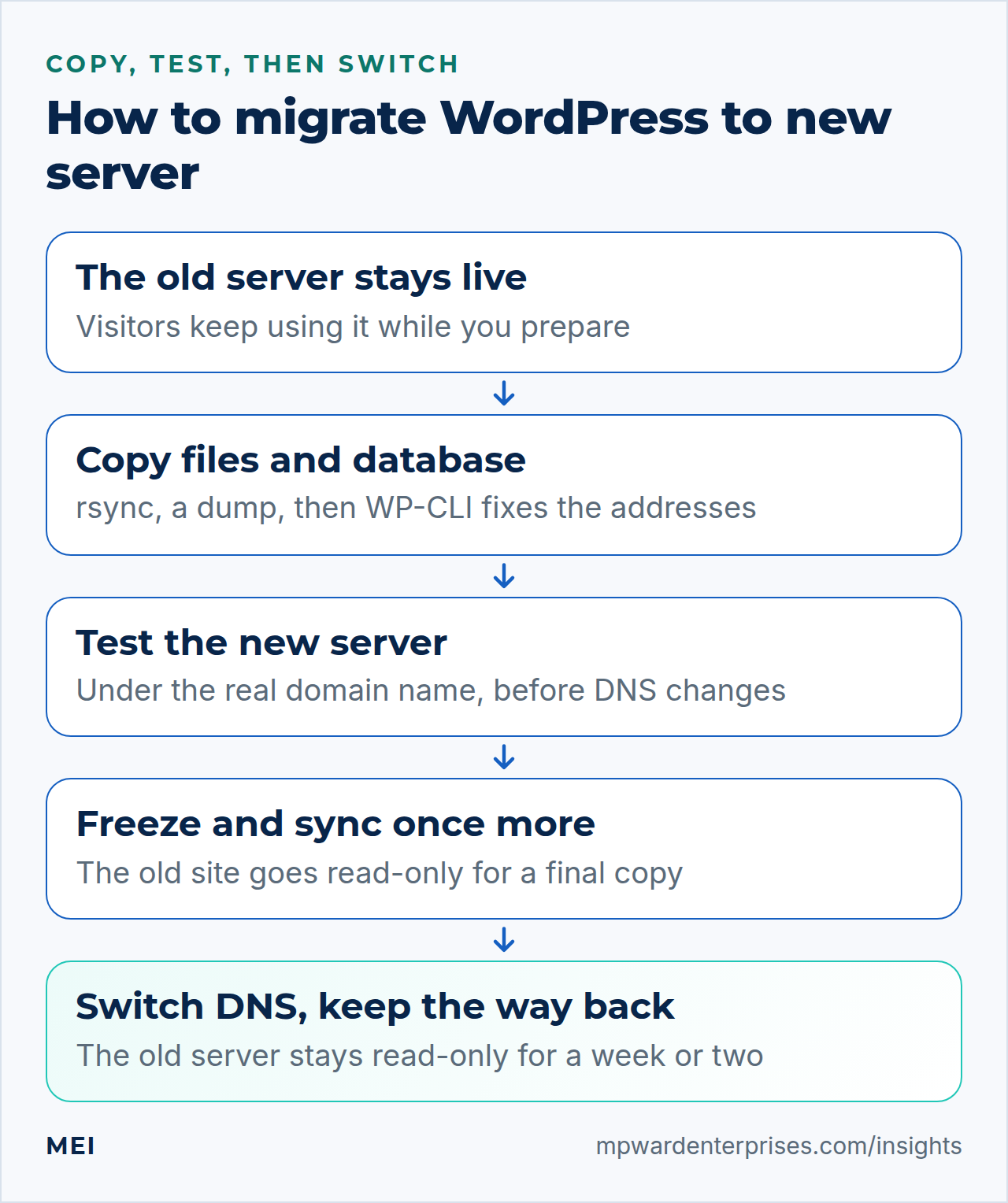
To migrate WordPress to new server hardware without losing orders, comments or search rankings, copy first, test under your real domain name, and switch DNS last. This WordPress server migration guide uses rsync, a database dump and WP-CLI, with a read-only freeze, a final sync and a rollback you have tried in advance. It covers Ubuntu 24.04 LTS and 26.04 LTS, so pick yours with the switch below. Allow an afternoon; command-line basics are enough.
We ran every command a lab can run in disposable containers, so this WordPress migration checklist is tested, not remembered. The "old" machine was an Ubuntu 24.04 container running Apache, PHP 8.3, MariaDB 10.11 and a neglected WordPress 6.4.7 site.
The "new" machine was Ubuntu 26.04 (nginx 1.28, PHP 8.5.4, MariaDB 11.8.6) in one run and Ubuntu 24.04 (nginx 1.24, PHP 8.3.6, MariaDB 10.11.14) in another, and we tried dumps on MariaDB 10.6.28 and MySQL 8.0.46. Real DNS, certificates and mail cannot be tested in a lab, so those parts are described, not shown.
Choose your Ubuntu version
This guide covers both releases. Commands, file paths and version numbers change with your choice; everything else is the same.
JavaScript is off, so both versions are shown below and each block says which release it is for.
Before you start: five things a WordPress server migration needs
A WordPress server migration goes wrong when someone finds a missing piece halfway through. Check these first, and keep the old site running until the end: it is your safety net.
- A new server built to our standard: Ubuntu 24.04 LTS or 26.04 LTS, hardened with the server hardening guide and running the stack from installing WordPress with nginx, PHP-FPM and MariaDB, minus the WordPress download.
- Shell access to the old site, with an account that can read its files and run WP-CLI. Without SSH (shared hosting), download the files and export the database with the host's own tools, and adapt steps 4 and 5 to that.
- DNS access to lower the TTL and change the A and AAAA records.
- A fresh backup away from the old server (the 3-2-1 backup rule says how many copies). The dump in step 5 counts as one.
- A quiet window. The only real risk is content that changes while you copy: orders, comments, form entries.
We use www.example.com for the site, 203.0.113.10 for the old server, 203.0.113.20 for the new one, oldsite and siteuser for the two Linux accounts, alex for you and wp7k_ as the table prefix. Our old site uses plain http and the new one gets https; if yours already uses https, skip the http-to-https pass in step 6.
Migrate WordPress to new server: why this way and not the other ways
There are four common ways to move WordPress site to new server infrastructure. They differ in how much you control and what they leave behind.
| Option | In plain English | Our verdict |
|---|---|---|
| Manual WordPress server migration: rsync, a dump and WP-CLI (this guide) | You copy the files and the data, test the copy, then switch | Our choice. Works at any size, can be repeated until it is right, and nothing runs inside WordPress. Needs shell access |
| A migration plugin (All-in-One WP Migration, Duplicator and similar) | A plugin packs the site into one archive that you unpack on the new server | Fine for a small site you can pause. It runs inside the site it is moving, so it needs a working site and enough PHP time and memory, and its archives can sit under the web root (see step 7). Check its current limits and terms |
| The host's own migration tool | Your new host copies the site for you | Good when the new server belongs to that host. It does not help with a server you built yourself, and you still need step 9 |
| Rebuild and import the content | A fresh WordPress, then export and import posts and media | The cleanest result and the most work: settings, widgets, users and plugin data do not come across |
The rest of this guide is the first row done carefully: the way to migrate WordPress to new server hardware and still test before any visitor sees it.
Step 1: Take stock before you move WordPress site to new server
Every WordPress migration checklist starts with an inventory, because most surprises come from something the old server did quietly. Run these on the old server, as the account that owns the site.
cd /home/oldsite/public_html
wp core version
wp plugin list --fields=name,status,version,update
wp theme list --fields=name,status,version
wp config list --fields=name,value | grep -vE 'KEY|SALT|PASSWORD'
wp db size --size_format=mb
du -sh wp-content/uploads
php -v | head -1
crontab -l
Write down the version, the active plugins, the table prefix and unusual constants such as DISABLE_WP_CRON. A dropin row, such as advanced-cache.php, is a file a cache plugin placed in wp-content; step 4 explains why it stays behind.
wp db query "SELECT TABLE_COLLATION, ENGINE, COUNT(*) AS tables_n FROM information_schema.TABLES WHERE TABLE_SCHEMA = DATABASE() GROUP BY 1, 2"This is the most important query in the guide. A collation is the rule a database uses to compare and sort text. A current WordPress creates its own tables with utf8mb4_unicode_520_ci, so on a young site anything else came from a plugin. Older sites can show an older collation (for instance utf8mb4_unicode_ci); if all your tables agree on another one, use it wherever this guide says utf8mb4_unicode_520_ci. Our lab site printed this; the MyISAM table belongs to an old plugin and matters in step 5.
TABLE_COLLATION	ENGINE	tables_n
utf8mb4_unicode_520_ci	InnoDB	12
utf8mb4_unicode_520_ci	MyISAM	1
Next, look for clutter and check whether it is public. Forgotten database dumps, zip backups, debug logs and phpinfo pages are a data leak waiting to happen: in our lab the SQL dump, the debug log and the phpinfo.php page were all downloadable (HTTP 200). Do not copy them, and delete them on the old server after the move.
find . -type f \( -name '*.sql*' -o -name '*.zip' -o -name '*.tar.gz' -o -name '*.wpress' -o -name 'error_log' -o -name 'debug.log' -o -name 'phpinfo.php' \) -not -path './wp-content/plugins/*' -not -path './wp-content/themes/*' -ls
curl -s -o /dev/null -w '%{http_code}  backup-2025-03.sql\n' https://www.example.com/backup-2025-03.sql
Then ask the web server which PHP settings the site really runs with. They come from php.ini, the pool or, on Apache with mod_php, php_value lines in .htaccess, so a temporary file is the reliable test. Remove it in the same breath: a page that prints PHP settings helps an attacker too.
echo '<?php foreach (["short_open_tag","upload_max_filesize","post_max_size","memory_limit","max_execution_time","max_input_vars"] as $k) { echo $k, " = ", ini_get($k), "\n"; }' > ini-check.php
curl -s https://www.example.com/ini-check.php
rm ini-check.php
Finally, note what else depends on this server, because a WordPress server migration moves only the site: email (leave the MX records alone), other sites or cron jobs on the same machine, .htaccess rules (nginx ignores that file; step 7 translates them), anything that knows the old IP address (payment or SMTP allow-lists, an ip4: entry in SPF, a CDN origin) and an HSTS header, which means https must work on the new server from the first minute.
WordPress migration checklist, step 1, done when: you hold a written list of plugins, settings, collations, clutter, scheduled jobs and outside dependencies.
Why this way?
We move first and update later. Change PHP, WordPress and plugins in the same weekend as a WordPress server migration and a broken page has four suspects. The exception is a plugin that cannot run on the new PHP at all (step 8 finds it): replace that one on the old server first.
Step 2: Build the new server before the WordPress server migration
Build and harden the destination completely before you migrate WordPress to new server data, so that a later problem can only come from the move. From the install guide you need its steps 1 to 4: packages, a Linux user for the site, a private PHP-FPM pool and WP-CLI. Secure MariaDB as in the MariaDB secure installation guide. Step 7 below writes the nginx file. Give the pool at least the limits you found in step 1.
One command differs for a move: create the database with the collation your tables already use, not the server default.
DB_PASS=$(openssl rand -base64 24 | tr -d '/+=')
sudo mariadb <<SQL
CREATE DATABASE sitedb CHARACTER SET utf8mb4 COLLATE utf8mb4_unicode_520_ci;
CREATE USER 'sitedb_user'@'localhost' IDENTIFIED BY '$DB_PASS';
GRANT ALL PRIVILEGES ON sitedb.* TO 'sitedb_user'@'localhost';
SQL
If sitedb already exists with another collation, run ALTER DATABASE sitedb CHARACTER SET utf8mb4 COLLATE utf8mb4_unicode_520_ci before the import; it affects tables created afterwards. Even a familiar default can bite: in our lab a collation-less table in a database defaulting to utf8mb4_unicode_ci could not be joined to a WordPress table (step 5 explains why).
Ubuntu 24.04: MariaDB 10.11
A new database defaults to utf8mb4_general_ci and the data lives in /var/lib/mysql. That differs from WordPress's utf8mb4_unicode_520_ci, so name the collation here too.
Ubuntu 26.04: MariaDB 11.8 changes the defaults
A new database defaults to utf8mb4_uca1400_ai_ci, the data lives in /var/lib/mariadb, and the client commands are mariadb and mariadb-dump (mysqldump remains as a link). That is why the command above names the collation.
Keep the new server quiet until the cut-over: no cron jobs and no outgoing mail. Step 6 switches off WP-Cron and automatic updates for that reason.
WordPress migration checklist, step 2, done when: the new server is hardened and serving a test page, and sitedb exists with the collation of your tables.
Why this way?
A server built first can be hardened, snapshotted and tested without a clock running. The cut-over of a WordPress server migration then changes one thing, where DNS points.
Step 3: Lower the DNS TTL before you migrate WordPress to new server hardware
Resolvers cache every DNS answer for the record's TTL (time to live). If yours is a day, some visitors reach the old server for a day after you switch. Lower the TTL on the records that point at the old server to 300 seconds, at least as long before the cut-over as the old TTL: 86,400 seconds needs a full day's notice. Then check what the world sees (real DNS cannot be tested in a lab, so there is no output to show).
Read the TTL column, and look for an AAAA record you forgot (it would keep IPv6 visitors on the old server) and for a CNAME. Leave MX and TXT records alone: moving the website does not move the mail.
dig +noall +answer www.example.com A www.example.com AAAA example.com AWordPress migration checklist, step 3, done when: every record that points at the old server shows the low TTL.
Why this way?
A low TTL makes the switch, and the rollback, of a WordPress server migration take minutes instead of a day. Raise it again in step 11. Behind a CDN, you change its origin address instead.
Step 4: Move WordPress site to new server, part one: the files
Copy while the old site stays live. The first pass of a WordPress server migration takes longest and later ones move only what changed, so it doubles as a rehearsal. We pull from the new server with a throwaway key that works only from its address. On the new server, as alex:
ssh-keygen -t ed25519 -N '' -C migrate-temp -f ~/.ssh/migrate_ed25519
cat ~/.ssh/migrate_ed25519.pub
On the old server, as the site's account, authorize that key. In front of it, from= accepts it only from the new server's address, and restrict switches off forwarding and terminals. Paste your own public key where shown.
mkdir -p ~/.ssh && chmod 700 ~/.ssh
echo 'from="203.0.113.20",restrict <paste the public key line here>' >> ~/.ssh/authorized_keys
chmod 600 ~/.ssh/authorized_keys
Back on the new server, fetch the old server's host key. Compare its fingerprint with the one the old server reports (ssh-keygen -lf /etc/ssh/ssh_host_ed25519_key.pub) and only when they match, trust it and test the login.
ssh-keyscan -t ed25519 203.0.113.10 | tee /tmp/old_host_key | ssh-keygen -lf -cat /tmp/old_host_key >> ~/.ssh/known_hosts
SSH_CMD="ssh -i $HOME/.ssh/migrate_ed25519 -o UserKnownHostsFile=$HOME/.ssh/known_hosts"
$SSH_CMD oldsite@203.0.113.10 'hostname; id -un'The exclude list names what must not travel: the old wp-config.php (step 6 builds a new one), .htaccess (nginx ignores it), cache and upgrade folders, cache drop-ins, logs and the clutter from step 1. A small function wraps the copy, so the dry run, the real run and the final sync use identical options.
sudo tee /root/migrate-excludes.txt > /dev/null <<'EXCLUDE_LIST_Q5'
/wp-config.php
/.htaccess
/wp-content/cache/
/wp-content/upgrade/
/wp-content/advanced-cache.php
/wp-content/object-cache.php
/wp-content/debug.log
/wp-content/ai1wm-backups/
/error_log
/phpinfo.php
/backup-*.sql
/site-backup.zip
EXCLUDE_LIST_Q5
pull() {
  sudo rsync -a --chown=siteuser:siteuser --chmod=D755,F644 \
    --exclude-from=/root/migrate-excludes.txt -e "$SSH_CMD" "$@" \
    oldsite@203.0.113.10:/home/oldsite/public_html/ /var/www/example.com/public/
}
pull -n --itemize-changes | head -20
The rsync run to move WordPress site to new server files
-a is archive mode (recursive, keeping links, times, permissions, owner and group), --chown and --chmod set the owner and modes from the install guide while copying, and -e points ssh at our key, because sudo gives rsync no keys of its own. The trailing slashes copy the folder's contents, not the folder. The last command is a dry run (-n): it lists and changes nothing. When the list looks right, copy for real:
pull --info=stats2Watch out: rsync maps owners by name
When you move WordPress site to new server hardware, rsync maps owners by name. We copied the lab site into a scratch folder without --chown. Of about 3,600 files and folders, all but about 200 came out owned by the bare number 1005, an account that does not exist on the new server, and the rest, owned by www-data on the old one, became owned by the new server's www-data, the web server's own account. PHP runs as siteuser, so uploads and updates would fail.
In a web test with the files owned by 1005, WordPress chose its FTP method, which means it asks for FTP details.
Watch out: exit code 23
In our WordPress server migration the first real run ended with send_files failed to open ".../export-2025.csv": Permission denied (13) and exit code 23: a file created by the old web server's account could not be read. Fix the permission on the old server, or connect with an account that can read it, then run the same command again; rsync copies only what is missing.
Check the result. All three commands should print 0: nothing owned by another account, nothing world-writable, and a repeat dry run with nothing left to copy.
sudo find /var/www/example.com/public \! -user siteuser | wc -l
sudo find /var/www/example.com/public -perm -0002 | wc -l
pull -n --itemize-changes | wc -l
WordPress migration checklist, step 4, done when: those three commands print 0 and the site folder belongs to siteuser.
Why this way?
For a WordPress server migration, rsync can be repeated, resumed and verified, which a zip file and an upload form cannot. The cache drop-ins stay behind because they hold the old server's folder names: in our lab, with the old drop-in in place, WP Super Cache printed an HTML comment saying it was installed but broken, and PHP logged warnings about the old path that no longer existed. More on modes: WordPress file permissions.
Step 5: Move WordPress site to new server, part two: the database
To move WordPress site to new server data safely, export the database on the old server, as the site's account. WP-CLI reads the credentials from wp-config.php, so no password appears on a command line. It runs mariadb-dump with --default-character-set=utf8mb4 but, in WP-CLI 2.12.0, not --single-transaction, so we add that.
mkdir -p ~/migration && chmod 700 ~/migration
cd /home/oldsite/public_html
wp db export ~/migration/site.sql --single-transaction
tail -n 1 ~/migration/site.sql
The last line must start with -- Dump completed; a dump that stops early lacks it. Keep the file private: it holds password hashes and email addresses. On the new server, fetch it and import it. The input redirect is done by your own shell, not by sudo, so the file must be readable by you; that is why it lives in your home folder.
install -d -m 700 ~/migration
rsync -a -e "$SSH_CMD" oldsite@203.0.113.10:migration/site.sql ~/migration/
sudo mariadb sitedb < ~/migration/site.sql
sudo mariadb -e "SELECT TABLE_COLLATION, ENGINE, COUNT(*) AS tables_n FROM information_schema.TABLES WHERE TABLE_SCHEMA = 'sitedb' GROUP BY 1, 2"
The last query should print the list you saw in step 1. If the import stops with ERROR 1273, read the next section before you try again.
The collation trap when you migrate WordPress to new server databases
A dump records every table's collation, so an import keeps each table as it was. The trouble comes afterwards. A table created without naming a collation, for example by a plugin update, takes its database's default, and if that differs from the table it is joined to, MariaDB refuses the query:
ERROR 1267 (HY000): Illegal mix of collations (utf8mb4_unicode_520_ci,IMPLICIT) and (utf8mb4_general_ci,IMPLICIT) for operation '='ERROR 1267 (HY000): Illegal mix of collations (utf8mb4_unicode_520_ci,IMPLICIT) and (utf8mb4_uca1400_ai_ci,IMPLICIT) for operation '='We reproduced it on both releases. A database created with defaults gives new tables utf8mb4_uca1400_ai_ci on MariaDB 11.8, utf8mb4_general_ci on Ubuntu's 10.11 and utf8mb4_0900_ai_ci on MySQL 8, while WordPress uses utf8mb4_unicode_520_ci. The fix is the one from step 2. Moving between versions adds a second problem: a dump can name a collation the target does not know. We tried every direction:
| Dump from, import into | What happened in our lab | What to do |
|---|---|---|
| MariaDB 10.11 into 11.8, or 11.8 into 10.11 | Imports either way; tables keep their collation, and 10.11.14 accepts utf8mb4_uca1400_ai_ci |
Create the database with the collation your tables use (step 2) |
| MariaDB 11.8 into 10.6, or into MySQL 8.0 | ERROR 1273 ... Unknown collation: 'utf8mb4_uca1400_ai_ci', with six of 14 tables already imported on 10.6 |
Convert the tables before dumping, or rewrite the name in the dump |
| MySQL 8.0 into MariaDB 11.8 | Imports, but a plugin table keeps utf8mb4_0900_ai_ci, so a mix remains |
Convert the strays (below) |
| MySQL 8.0 into MariaDB 10.11 | ERROR 1273 ... Unknown collation: 'utf8mb4_0900_ai_ci' |
Rewrite the name in the dump, or convert at the source |
Tables that disagree with WordPress are easy to list and fix. This prints one conversion statement per stray table; read them, then run them by appending | sudo mariadb sitedb. On our clean import it prints nothing, which is what you want.
sudo mariadb -N -e "SELECT CONCAT('ALTER TABLE \`', TABLE_NAME, '\` CONVERT TO CHARACTER SET utf8mb4 COLLATE utf8mb4_unicode_520_ci;') FROM information_schema.TABLES WHERE TABLE_SCHEMA = 'sitedb' AND TABLE_COLLATION <> 'utf8mb4_unicode_520_ci'"To go to an older server, convert on the newer one before you dump. With only the file, you can rewrite the collation name, because it normally appears only in table definitions (our test import into 10.6 then worked). Check first with grep -c utf8mb4_uca1400_ai_ci site.sql: expect one line per stray table, and a larger number means the name also occurs in your content. Then run sed -i 's/utf8mb4_uca1400_ai_ci/utf8mb4_unicode_520_ci/g' site.sql. Never do that for addresses; step 6 shows why.
An import that stopped half way leaves tables behind. Before step 6 there is no wp-config.php for WP-CLI to read, so recreate the database yourself with the collation named, as in step 2 (the database user keeps its rights), and import again:
sudo mariadb -e "DROP DATABASE sitedb; CREATE DATABASE sitedb CHARACTER SET utf8mb4 COLLATE utf8mb4_unicode_520_ci"
sudo mariadb sitedb < ~/migration/site.sql
Watch out: wp db reset undoes your collation
From step 6 on, repeat an import in a WordPress server migration by emptying the database with wp db clean --yes, which drops the tables and keeps the database. wp db reset drops and recreates it with the server default: in our lab it silently turned utf8mb4_unicode_520_ci into utf8mb4_general_ci on MariaDB 10.11 and into utf8mb4_uca1400_ai_ci on 11.8.
WordPress migration checklist, step 5, done when: the import finished without errors and the collation list matches step 1.
Why this way?
In a WordPress server migration, --single-transaction reads every InnoDB table from one consistent snapshot without locking the site; MyISAM tables get none. We ran a writer against two InnoDB and two MyISAM tables during a dump: the InnoDB pair came out identical (1,203 rows each), the MyISAM pair did not (1,208 and 1,210). So the dump you import for real is the one taken after the freeze in step 10; this one is a rehearsal.
Step 6: Fix wp-config.php and addresses after you move WordPress site to new server
In a WordPress server migration, build a fresh wp-config.php instead of copying the old one: the new server has new credentials and paths and no cache plugin yet. The table prefix is the one setting you must carry over (with the default prefix, ours redirected every page to /wp-admin/install.php). Run this in the terminal window from step 2, where DB_PASS still exists.
wps() { ( cd /tmp && sudo -u siteuser -- wp --path=/var/www/example.com/public "$@" ); }
printf '%s\n' "$DB_PASS" | wps config create --dbname=sitedb --dbuser=sitedb_user --dbhost=localhost --dbcharset=utf8mb4 --dbprefix=wp7k_ --prompt=dbpass --quiet
unset DB_PASS
sudo chmod 640 /var/www/example.com/public/wp-config.php
wps db check | tail -1
On Ubuntu 24.04, sudo -u siteuser runs with umask 002 in our lab, so files WP-CLI creates come out group-writable; the chmod 640 covers wp-config.php.
On Ubuntu 26.04, sudo is sudo-rs, and sudo -u siteuser runs with umask 022 in our lab, so wp-config.php came out world-readable (mode 644) until the chmod 640. Classic sudo and su give 002.
Compare the new constants with your step 1 notes (wps config list --fields=name,value | grep -vE 'KEY|SALT|PASSWORD') and carry over those you want with wps config set NAME value --raw. Skip the old database settings, the keys and salts (new ones just log everyone out once) and cache constants. Then switch off two things that must not run on a server nobody visits yet:
wps config set DISABLE_WP_CRON true --raw
wps config set WP_AUTO_UPDATE_CORE false --raw
Watch out: the new server may update WordPress by itself
The first time we ran WordPress's scheduled tasks on the new server, core jumped from 6.4.7 to 7.1.3 on its own. WordPress's documentation says new installs since version 5.6 have automatic updates enabled for major releases, and our old site was one. The new layout lets WordPress write its own files, which you want, but it can then update itself after a WordPress server migration. With WP_AUTO_UPDATE_CORE set to false, the same run left core at 6.4.7.
Do the addresses change when you migrate WordPress to new server hardware?
Only some WordPress server migration jobs need a search-and-replace. WordPress's own migration guide says that when the database and the URLs stay the same, copying the files and the database is enough. You need it when the scheme changes (http to https), the domain or folder changes, or a plugin stored a server path such as /home/oldsite/public_html. The tool is wp search-replace, which understands serialized data. Run it with --dry-run first. The report lists every table and column with a count and a type; ours found 9 replacements.
wps search-replace 'http://www.example.com' 'https://www.example.com' --all-tables-with-prefix --skip-columns=guid --dry-run --report-changed-only--all-tables-with-prefix includes tables WordPress does not know about; without it our plugin table wp7k_promo_log was skipped. --skip-columns=guid leaves the permanent post identifiers alone. Columns of type PHP hold serialized data, which WP-CLI handles in PHP so it can recalculate string lengths. Here is why that matters:
stored:   s:3:"url";s:29:"http://www.example.com/promo/";
sed:      s:3:"url";s:29:"https://www.example.com/promo/";   (30 characters, still says 29)
WP-CLI:   s:3:"url";s:30:"https://www.example.com/promo/";
After a sed on the dump, PHP could no longer read that setting, so the plugin would silently lose its configuration. When the dry run looks right, run three real passes: the plain address, the same address with escaped slashes (page builders store URLs in JSON as http:\/\/, which the plain pattern cannot match; our lab had one such row) and the old server path. Then flush the caches and hunt for old paths and addresses no pattern anticipated.
The first and third searches should find nothing; in our lab the second found the old IP in a plugin's allow-list setting, to fix by hand in that plugin's screen.
wps search-replace 'http://www.example.com' 'https://www.example.com' --all-tables-with-prefix --skip-columns=guid --report-changed-only
wps search-replace 'http:\/\/www.example.com' 'https:\/\/www.example.com' --all-tables-with-prefix --skip-columns=guid --report-changed-only
wps search-replace '/home/oldsite/public_html' '/var/www/example.com/public' --all-tables-with-prefix --report-changed-only
wps cache flush
wps rewrite flush
wps db search '/home/oldsite' --all-tables-with-prefix --table_column_once
wps db search '203.0.113.10' --all-tables-with-prefix --table_column_once
sudo grep -rIl --include='*.php' -e '/home/oldsite' -e '203.0.113.10' /var/www/example.com/public | head
WordPress migration checklist, step 6, done when: wps db check passes, cron and auto-updates are off, and the searches find nothing you did not expect.
Why this way?
When you migrate WordPress to new server hardware, searching and replacing the dump text is the usual shortcut, and it quietly corrupts serialized settings. WP-CLI does the same job on the live tables with the lengths kept right, and the dry run shows the damage before it happens. The WordPress maintenance checklist lists what else to review afterwards.
Step 7: Make the new server answer like the old one in a WordPress server migration
Two jobs remain before you can test a WordPress server migration: translate the old .htaccess rules and get https working under the real name. nginx never reads .htaccess, so every rule in it must become nginx configuration or it stops existing. Before the translation our new server answered /old-about/ with 404 and xmlrpc.php with 405 where the old one answered 301 and 403. After it, every status code matched.
Translate the old rules for the WordPress server migration
Old .htaccess rule |
What it did | On nginx and PHP-FPM |
|---|---|---|
Redirect 301 /old-about/ /about/ |
Permanent redirect, also for paths below it | location ^~ /old-about/ { rewrite ^/old-about/(.*)$ /about/$1 permanent; } |
A RewriteCond on ^example\.com$ |
Bare domain to www |
if ($host = example.com) { return 301 ... } in the server block |
<Files xmlrpc.php> Require all denied </Files> |
Block XML-RPC | location = /xmlrpc.php { deny all; } |
php_value upload_max_filesize 64M, ExpiresByType image/jpeg ... |
PHP limits (mod_php only) and browser caching | php_admin_value[...] in the pool; the expires 30d static-files location |
Here is the whole nginx setup. The WordPress rules go in one snippet file, and the site file includes it.
sudo tee /etc/nginx/snippets/example.com-wordpress.conf > /dev/null <<'NGINX_SNIPPET_R7'
root /var/www/example.com/public;
index index.php;
client_max_body_size 64M;

access_log /var/log/nginx/example.com.access.log;
error_log  /var/log/nginx/example.com.error.log;

location / {
    try_files $uri $uri/ /index.php?$args;
}

# carried over from the old .htaccess
location = /xmlrpc.php {
    deny all;
}
location ^~ /old-about/ {
    rewrite ^/old-about/(.*)$ /about/$1 permanent;
}

location ~* ^/wp-content/uploads/.*\.php$ {
    deny all;
}

location ~ /\.(?!well-known) {
    deny all;
}

location ~ \.php$ {
    include snippets/fastcgi-php.conf;
    fastcgi_pass unix:/run/php/php8.38.5-fpm-siteuser.sock;
    fastcgi_read_timeout 120s;
}

location ~* \.(?:css|js|mjs|jpe?g|png|gif|webp|avif|svg|woff2?)$ {
    expires 30d;
    access_log off;
}
NGINX_SNIPPET_R7
sudo tee /etc/nginx/sites-available/example.com.conf > /dev/null <<'NGINX_SITE_T2'
# Plain HTTP: certificate checks pass through, everything else goes to https
server {
    listen 80;
    listen [::]:80;
    server_name www.example.com example.com;
    location /.well-known/acme-challenge/ {
        root /var/www/example.com/public;
    }
    location / {
        return 301 https://www.example.com$request_uri;
    }
}

server {
    listen 443 ssl;
    listen [::]:443 ssl;
    server_name www.example.com example.com;

    ssl_certificate     /etc/letsencrypt/live/www.example.com/fullchain.pem;
    ssl_certificate_key /etc/letsencrypt/live/www.example.com/privkey.pem;

    # TEMPORARY: shows which server answered. Remove it after the move.
    add_header X-Served-By new-server always;

    if ($host = example.com) {
        return 301 https://www.example.com$request_uri;
    }

    include snippets/example.com-wordpress.conf;
}
NGINX_SITE_T2
The file does not switch on HTTP/2 yet, because nginx spells that differently on the two releases. On Ubuntu 24.04, nginx 1.24 has no http2 directive and takes http2 as a parameter of listen. On 26.04, nginx 1.28 has the http2 on; directive, and the old listen ... http2 form still works but prints a deprecation warning per line.
The canonical name comes first in server_name on purpose: nginx hands the first name to PHP as SERVER_NAME, and with the bare domain first WordPress added a stray dns-prefetch link to every page.
sudo sed -i 's/^\( listen .*443 ssl\);$/\1 http2;/' /etc/nginx/sites-available/example.com.confsudo sed -i 's/^ listen \[::\]:443 ssl;$/&\n http2 on;/' /etc/nginx/sites-available/example.com.confNow the certificate, which must exist before the switch so that the first visitor gets a valid one. This is the one part we could not run for real: a lab has no public DNS, so we tested the nginx file with a temporary self-signed certificate and describe the rest. Our choice is the DNS-01 challenge, where a TXT record proves you own the name, because it needs no traffic at the new server.
Certbot 2.94.0 (Ubuntu's version) can do it by hand, but a manual certificate does not renew by itself, so re-issue it with the normal method after the cut-over (see the certbot guide). Waiting for the cut-over and using the HTTP-01 challenge is simpler, with a few minutes of broken https.
sudo certbot certonly --manual --preferred-challenges dns -d www.example.com -d example.comCertbot prints a TXT record to create at your DNS provider, waits for you, then writes the certificate to /etc/letsencrypt/live/www.example.com/. With it in place, enable the site and reload. Open ports 80 and 443 as described in our UFW guide when you want to reach the server from another machine.
sudo ln -sf /etc/nginx/sites-available/example.com.conf /etc/nginx/sites-enabled/example.com.conf
sudo nginx -t && sudo systemctl reload nginx
Watch out: nginx ignores the .htaccess that plugins write
When you migrate WordPress to new server hardware from Apache, remember that backup and export plugins often protect their archive folder with a .htaccess file. We put one saying "Deny from all" next to a test archive under wp-content and requested it through nginx: HTTP 200, the file downloaded. Apache would have refused it. Delete such folders or add a location that denies them.
WordPress migration checklist, step 7, done when: nginx -t prints test is successful and the translated rules give the same status codes as the old server.
Why this way?
In a WordPress server migration, one snippet means the https redirect and the WordPress rules cannot drift apart. The temporary X-Served-By header shows, after the switch, which server really answered: no new-server header means it was still the old one.
Step 8: Check PHP compatibility before the WordPress server migration goes live
When you migrate WordPress to new server hardware, the PHP version usually jumps, and code that worked for years can now fail or complain. Three checks find that before visitors do: a lint, a debug log and a comparison of settings. php -l checks a file's syntax without running it, and with full error reporting it also prints deprecations found while compiling.
cd /var/www/example.com/public
find wp-content -name '*.php' -exec php -d error_reporting=-1 -d display_errors=1 -d log_errors=0 -l {} + | grep -v -e '^No syntax errors' -e '^$'
Our legacy site produced findings like these. The first line takes a site down:
Fatal error: Array and string offset access syntax with curly braces is no longer supported in wp-content/plugins/abandoned-gallery/abandoned-gallery.php on line 8
Errors parsing wp-content/plugins/abandoned-gallery/abandoned-gallery.php
Parse error: syntax error, unexpected token "{", expecting ";" in wp-content/plugins/abandoned-gallery/abandoned-gallery.php on line 8
Errors parsing wp-content/plugins/abandoned-gallery/abandoned-gallery.php
Deprecated: Non-canonical cast (boolean) is deprecated, use the (bool) cast instead in wp-content/plugins/legacy-promo/legacy-promo.php on line 60Watch out: do not use xargs for this
The popular find ... | xargs php -l can skip files without telling you. xargs passes the names to php in batches of up to 128 KiB and quits when a batch exits with status 255, which a parse error causes. Our small lab site fits in one batch, so it did no harm. On 4,000 generated files with one broken file in the middle, xargs checked 3,447 of the 4,000 good ones, and find -exec ... {} + checked all of them.
The PHP log: the second check before you migrate WordPress to new server PHP
A lint sees only syntax. Removed functions such as create_function() are valid syntax and fail only when the code runs, so the second check is a log of a real visit. WordPress hides deprecations on its own, whatever PHP is set to, unless debugging is on.
Switch it on with a log file outside the web root, restart PHP-FPM (its code cache would otherwise hide compile-time messages after the first request), then click through the site (step 9 shows how to reach it under the real name): front page, a post, search, login, admin screens and every form.
sudo install -d -o siteuser -g siteuser -m 750 /var/www/example.com/logs
wps config set WP_DEBUG true --raw
wps config set WP_DEBUG_LOG /var/www/example.com/logs/php-debug.log
wps config set WP_DEBUG_DISPLAY false --raw
sudo systemctl restart php8.38.5-fpm
sudo grep -h 'PHP ' /var/www/example.com/logs/php-debug.log | sed -E 's/^\[[^]]*\] //; s/ on line [0-9]+//' | sort | uniq -c | sort -rn | head -15We tested both claims. With only the pool's error_reporting raised and WP_DEBUG off, our site logged nothing. With WP_DEBUG on, ten page loads (five pages, twice each) logged 16 lines on the old server's PHP 8.3, all from the legacy plugin. A message raised while compiling a file appeared once after each PHP-FPM restart, however many requests followed.
On the new server's PHP 8.3 the same ten page loads logged the same 16 lines, because nothing newer than 8.3 complains there.
On the new server's PHP 8.5.4 they logged 141 lines, 109 of them from WordPress 6.4.7 itself.
Turn debugging off again straight away: with it on, every WP-CLI command also prints PHP's deprecations to your terminal, which buries the output of the later steps.
wps config delete WP_DEBUG
wps config delete WP_DEBUG_LOG
wps config delete WP_DEBUG_DISPLAY
Read your findings against this table, each row run in our lab on PHP 8.3 and 8.5:
| Old habit | PHP 8.3 | PHP 8.5 |
|---|---|---|
create_function(), each(), money_format(), get_magic_quotes_gpc() (removed by PHP 8.0) |
Fatal error | Fatal error |
$string{0} curly-brace offsets (removed in 8.0) |
Fatal error at compile time | Parse error |
| A method named like its class as the constructor | Never called, no message | Never called, no message |
count(null), a normal method called statically |
Fatal error | Fatal error |
Null passed to strlen() (8.1); dynamic properties (8.2) |
Deprecated | Deprecated |
function f(Foo $x = null) (8.4); (boolean) casts, backticks, case 1;, null as an array key, curl_close() (8.5) |
Silent | Deprecated |
A fatal or parse error means a white screen or WordPress's "critical error" page; a deprecation is noise today and a warning of breakage later. The PHP manual's migration pages list the removals and deprecations of each release; the pages for 8.0 and 8.5 are linked under Sources. The silent row deserves attention too: an old-style constructor simply stops running. For a finding, update the plugin or theme, replace it, or delete it if it is inactive (the abandoned plugin above was).
When an active plugin breaks the site, visitors get HTTP 500 and "There has been a critical error on this website", and the error lands in PHP-FPM's own log (/var/log/php8.38.5-fpm.log) even with debugging off. WP-CLI loads the broken plugin too, so deactivate it with --skip-plugins:
wps --skip-plugins=abandoned-gallery plugin deactivate abandoned-galleryNow compare settings with step 1 by repeating the ini-check.php test on the new server, with the file created by the site's own account and removed straight after:
echo '<?php foreach (["short_open_tag","upload_max_filesize","post_max_size","memory_limit","max_execution_time","max_input_vars"] as $k) { echo $k, " = ", ini_get($k), "\n"; }' | sudo -u siteuser tee /var/www/example.com/public/ini-check.php > /dev/null
curl -s --resolve www.example.com:443:127.0.0.1 https://www.example.com/ini-check.php
sudo rm /var/www/example.com/public/ini-check.php
Our pool matched the old limits and raised the execution time and input variables, but short_open_tag was on at the old host and off here, so the theme's <? echo date( 'Y' ); ?> printed as raw text and the copyright year vanished from every page. Until you fix the template, enable short tags for this pool only:
echo 'php_admin_flag[short_open_tag] = on' | sudo tee -a /etc/php/8.38.5/fpm/pool.d/siteuser.conf
sudo systemctl restart php8.38.5-fpm
Watch out: fix settings, not files
In a WordPress server migration, your final sync will overwrite any file you edit in the copy with the old server's version. Fix compatibility with configuration that lives outside the site folder, like the pool flag above (we tested it: the year came back), and edit the templates themselves after the cut-over.
On Ubuntu 24.04, a clean log on PHP 8.3 does not clear the site for a later move to Ubuntu 26.04, because the 8.4 and 8.5 rows are silent here. Run the lint with a newer PHP (a 26.04 lab or container is enough) before that day.
On Ubuntu 26.04, OPcache is built into PHP 8.5, so there is no php8.5-opcache package and an old zend_extension=opcache.so line only produces a warning. WP-CLI 2.12.0 triggers one PHP 8.5 deprecation of its own, in a library inside its phar, which Ubuntu's default command-line settings hide; it says nothing about your site. Lint the core folders wp-admin and wp-includes too: in WordPress 6.4.7, 18 of their 954 PHP files produced PHP 8.5 deprecations (52 lines), one more reason to update in step 11.
WordPress migration checklist, step 8, done when: every lint and log finding is fixed, explained or scheduled, and the settings match.
Why this way?
Before you move WordPress site to new server PHP, remember that the old log looked clean for a reason: Ubuntu's default error_reporting hides deprecations and WordPress lowers it further. The lint finds problems in files that never load, the log finds those that appear only at run time, and the settings comparison finds the silent differences.
Step 9: Test under the real name before the WordPress server migration
Compare old and new before you move WordPress site to new server DNS
To test a WordPress server migration safely, reach the new server under the real name without touching DNS. For scripts, curl --resolve pins a name to an address for one command. For a browser, put the line 203.0.113.20 www.example.com example.com in the hosts file of your own computer (/etc/hosts on Linux and macOS, C:\Windows\System32\drivers\etc\hosts on Windows) and delete it afterwards. That leaves WordPress untouched, unlike the temporary siteurl and home edit its own guide suggests.
First ask both servers for every page in the sitemap and compare the answers:
OLD_IP=203.0.113.10; NEW_IP=203.0.113.20
code() { curl -s -o /dev/null -w '%{http_code}' --resolve "www.example.com:$1:$2" "$3"; }
for map in $(curl -s --resolve www.example.com:80:$OLD_IP http://www.example.com/wp-sitemap.xml | grep -o '<loc>[^<]*' | cut -c6-); do
  curl -s --resolve www.example.com:80:$OLD_IP "$map" | grep -o '<loc>[^<]*' | cut -c6-
done | while read -r url; do
  path=${url#http://www.example.com}
  printf '%-40s old=%s new=%s\n' "$path" "$(code 80 $OLD_IP "$url")" "$(code 443 $NEW_IP "https://www.example.com$path")"
done
Every line should say 200 on both sides. Then compare the pages themselves. The sed turns the new server's https addresses for this site back into http (plain, JSON-escaped and URL-encoded), the only difference we expect, so the diff should print nothing:
diff <(curl -s --resolve www.example.com:80:$OLD_IP http://www.example.com/) \
     <(curl -s --resolve www.example.com:443:$NEW_IP https://www.example.com/ | sed -E 's#https(:(//|\\/\\/)|%3A%2F%2F)www\.example\.com#http\1www.example.com#g')
This exact diff caught the vanished copyright year in step 8. Run it for a post, a page and a category too. Everything so far only read, so test a write: this uploads an image through the REST API as the web process, with a throwaway application password, and shows who owns the file.
APP_PW=$(wps user application-password create alex migration-check --porcelain)
php -r '$i = imagecreatetruecolor(300, 200); imagejpeg($i, "/tmp/probe.jpg", 80);'
curl -s -u "alex:$APP_PW" -H 'Content-Disposition: attachment; filename=probe.jpg' -H 'Content-Type: image/jpeg' --data-binary @/tmp/probe.jpg -w 'upload: HTTP %{http_code}\n' -o /dev/null --resolve www.example.com:443:$NEW_IP https://www.example.com/wp-json/wp/v2/media
sudo find /var/www/example.com/public/wp-content/uploads -name 'probe*' -printf '%u:%g %m %p\n'
wps post delete "$(wps post list --post_type=attachment --name=probe --field=ID)" --force
wps user application-password delete alex --all
unset APP_PW
We got HTTP 201 and files owned by siteuser with mode 644, so the pool, the database and the permissions work together. Then use the site in a browser through the hosts-file line, as a visitor and as an editor: front page, a post, search, the contact form (mail is a separate check; see step 11), login, an upload and, for a shop, a test order with the payment gateway in test mode. Watch the nginx error log meanwhile.
WordPress migration checklist, step 9, done when: the sitemap check shows 200 on both sides, the diff is empty and the test upload belongs to siteuser.
Why this way?
Before you move WordPress site to new server DNS, comparing the same URLs and HTML from both servers turns "it looks fine" into evidence, and a script can be run again after the final sync. For more sites on one machine, see multiple WordPress sites on one server.
Step 10: Freeze, sync once more and switch DNS to migrate WordPress to new server
This is the short, planned part of every WordPress server migration. In order: freeze writes on the old site, copy the changes, check, switch DNS, watch. Announce a read-only window first. Visitors can read the old site throughout; they just cannot comment, order or log in.
Watch out: WordPress maintenance mode ends by itself
In a WordPress server migration, wp maintenance-mode activate is the obvious freeze, and it lapses: WordPress ignores a .maintenance file older than 10 minutes. We backdated the file to 11 minutes and the site returned 200 again; at 9 minutes it still returned 503. A final sync can easily take longer. Freeze in the web server instead.
On the old server, add rules at the top of .htaccess that let reads through but answer 503 to every write and to the login, admin and cron files (we tested them: pages returned 200, the rest 503). The same block stops the old server's scheduled jobs, so nothing runs twice, and takes the final dump.
cd /home/oldsite/public_html
cp .htaccess ~/htaccess.before-freeze
cat - ~/htaccess.before-freeze > .htaccess <<'FREEZE_RULES_A1'
# TEMPORARY FREEZE for the final copy: no writes, no admin
RewriteEngine On
RewriteCond %{REQUEST_METHOD} !^(GET|HEAD|OPTIONS)$
RewriteRule ^ - [R=503,L]
RewriteRule ^(wp-login\.php|wp-cron\.php|wp-admin/) - [R=503,L]
ErrorDocument 503 "Back in a few minutes."
FREEZE_RULES_A1
wp config set DISABLE_WP_CRON true --raw
crontab -l | sed 's/^\([^#]\)/#FROZEN \1/' | crontab -
wp db export ~/migration/site.sql --single-transaction
tail -n 1 ~/migration/site.sql
If the old server runs nginx instead, put these two lines at the top of its server block and reload nginx, then run the last four commands of the block above from the site folder. We tested the lines on our new server: pages returned 200, while the login, admin and cron files and every write returned 503.
if ($request_method !~ ^(GET|HEAD|OPTIONS)$) { return 503; }
if ($uri ~ ^/(wp-login\.php|wp-cron\.php|wp-admin/)) { return 503; }
The final sync script for a WordPress server migration
Now the final sync of the WordPress server migration, written as a script you can also use for rehearsals. On the new server, create it once and run it. It copies the files with --delete so the new site is an exact mirror, checks that the dump is complete, empties the database without recreating it, imports, and repeats the address and path passes from step 6. Delete the passes you do not need.
cat > ~/migrate-sync.sh <<'SYNC_SCRIPT_Z3'
#!/usr/bin/env bash
# Repeat the copy of one WordPress site from the old server. Run on the NEW server as your admin user.
set -euo pipefail
OLD=oldsite@203.0.113.10
OLD_SITE=/home/oldsite/public_html
NEW_SITE=/var/www/example.com/public
SSH_CMD="ssh -i $HOME/.ssh/migrate_ed25519 -o UserKnownHostsFile=$HOME/.ssh/known_hosts"
wps() { ( cd /tmp && sudo -u siteuser -- wp --path="$NEW_SITE" "$@" ); }

echo "== files"
sudo rsync -a --delete --chown=siteuser:siteuser --chmod=D755,F644 \
  --exclude-from=/root/migrate-excludes.txt -e "$SSH_CMD" "$OLD:$OLD_SITE/" "$NEW_SITE/"

echo "== database"
rsync -a -e "$SSH_CMD" "$OLD:migration/site.sql" "$HOME/migration/"
tail -n 1 "$HOME/migration/site.sql" | grep -q '^-- Dump completed' || { echo "the dump looks truncated"; exit 1; }
wps db clean --yes
sudo mariadb sitedb < "$HOME/migration/site.sql"

echo "== addresses and paths"
wps search-replace 'http://www.example.com' 'https://www.example.com' --all-tables-with-prefix --skip-columns=guid --report-changed-only
wps search-replace 'http:\/\/www.example.com' 'https:\/\/www.example.com' --all-tables-with-prefix --skip-columns=guid --report-changed-only
wps search-replace '/home/oldsite/public_html' '/var/www/example.com/public' --all-tables-with-prefix --report-changed-only

echo "== caches"
wps cache flush
wps rewrite flush
SYNC_SCRIPT_Z3
chmod +x ~/migrate-sync.sh
~/migrate-sync.sh
Watch out: --delete and the excluded files
--delete removes files on the new server that no longer exist on the old one: in our rehearsal it removed the image we had deleted and copied the new upload. Files named in the exclude list are protected from deletion, so the new wp-config.php survived. Look first with pull --delete -n --itemize-changes and watch for *deleting lines. The script also erases the whole new database each run, which is the point; never aim it at a database holding content you want.
Verify the copy with numbers, one command on each server. They must match exactly (ours printed identical lines on both servers; your numbers will differ). The first runs in the old site folder as the site account, the second on the new server.
printf 'posts %s, comments %s, users %s, upload files %s\n' "$(wp post list --post_type=any --post_status=any --format=count)" "$(wp comment list --format=count)" "$(wp user list --format=count)" "$(find wp-content/uploads -type f | wc -l)"printf 'posts %s, comments %s, users %s, upload files %s\n' "$(wps post list --post_type=any --post_status=any --format=count)" "$(wps comment list --format=count)" "$(wps user list --format=count)" "$(sudo find /var/www/example.com/public/wp-content/uploads -type f | wc -l)"Repeat the sitemap and diff checks from step 9. Then let the new server do its own work: keep DISABLE_WP_CRON on and run WordPress's scheduled tasks from a timer instead of from page loads (our timers guide shows the unit files). The command to run is sudo -u siteuser -- wp --path=/var/www/example.com/public cron event run --due-now.
Rehearse the way back before a WordPress server migration goes live
Point the hosts-file line from step 9 at the old server (203.0.113.10) and request the site. You should see the old site, working and read-only. That is the rehearsal. Then fix your rule for going back. A problem before the DNS switch needs no rollback: fix it, run the script again, unfreeze the old site. A problem in the first hours, with almost no new content, means switching the records back (the low TTL makes it minutes) and unfreezing.
After real orders or comments have arrived, do not switch back blindly: dump the new database and copy the new uploads to the old server first. A dump from 11.8 imports into 10.11 as is; for older targets see the table in step 5.
Now change the records: the A records for the bare domain and www (or the origin address in your CDN) to 203.0.113.20, and any AAAA records to the new server's IPv6 address, or delete them if it has none. On a workstation, remove the hosts-file line and check what the world sees:
dig +short www.example.com A
curl -sI https://www.example.com/ | grep -iE '^(HTTP|x-served-by)'
Once DNS has reached you, the second command prints x-served-by: new-server; before that it does not, because only the new server sends that header. Watch the new server's access log (sudo tail -f /var/log/nginx/example.com.access.log). Most traffic should move within minutes and the rest more slowly, because some resolvers ignore TTLs; that is why the old server stays up. We could not test real propagation in a lab, so watch rather than predict.
WordPress migration checklist, step 10, done when: the counts match, DNS points at the new server and the header says new-server.
Why this way?
In a WordPress server migration, freezing at the web server loses nothing a visitor can see and cannot silently expire. The script makes the final sync the same commands you already rehearsed, and the rollback rule exists because the dangerous moment is the hour after the switch, when you must decide quickly.
Step 11: Keep the old server as a fallback after you move WordPress site to new server
A WordPress server migration is not finished on switch day, so do not delete the old server. Keep it read-only, with its scheduled jobs off, for a stated window: at least a week, and two if the site has monthly jobs, subscriptions or billing runs. Put the date in your calendar. Meanwhile work through this list as the new server settles:
- Update WordPress on purpose. Remove the guard with
wps config delete WP_AUTO_UPDATE_CORE, then runwps core update,wps core update-dband update plugins and themes. In our lab core went from 6.4.7 to 7.1.3 and the database from version 56657 to 61833. On PHP 8.3 the ten-page-load log stayed at 16 lines, all from our legacy plugin, because 6.4.7 was already clean there.With debugging switched on again for the test, the ten page loads logged 32 lines instead of 141, all from our legacy plugin and theme. - Remove the temporary access:
~/.ssh/migrate_ed25519*on the new server, the key's line in~/.ssh/authorized_keyson the old one and itsknown_hostsentry (ssh-keygen -R 203.0.113.10). Delete the dumps (~/migration/site.sql) on both servers too. - Check email. If your SPF record lists the old server's IP address, the new one is not in it yet. We could not test delivery in a lab; start with why a WordPress form is not sending email, SPF, DKIM and DMARC explained and emails going to spam.
- Raise the TTL back to your normal value, and delete the hosts-file line and the temporary
X-Served-Byheader. - Back up the new server and test a restore (server backups with restic), then add FastCGI caching and fix the templates you worked around.
- Retire the old server. When the window of your WordPress server migration ends, store a last archive (dump, files, configuration) off-server for as long as your records policy says. Then cancel it, remove its DNS records, and delete its address from firewalls, allow-lists and SPF.
WordPress migration checklist, step 11, done when: the fallback window is over, the temporary access is gone and the old server is archived.
Why this way?
After you move WordPress site to new server hardware, the window is insurance against problems that only appear with real use, such as a monthly job or a rarely used form. It costs one more week of hosting. If you are weighing whether to stay on shared hosting at all, VPS vs shared hosting covers the trade-offs.
Check your work against the WordPress migration checklist
When the new server has been live for a day, run this WordPress migration checklist check on it. The first two print 0, the third fails with Permission denied (proving the web server's account cannot read your database password), the fourth shows one collation or a short list you can explain, the fifth says the installation verifies against checksums, and the last shows HTTP/2 200 and, until you remove it, the temporary header.
sudo find /var/www/example.com/public \! -user siteuser | wc -l
sudo find /var/www/example.com \( -type d -o -type f \) -perm -0002 | wc -l
sudo -u www-data cat /var/www/example.com/public/wp-config.php
sudo mariadb -N -e "SELECT TABLE_COLLATION, COUNT(*) FROM information_schema.TABLES WHERE TABLE_SCHEMA = 'sitedb' GROUP BY 1"
wps core verify-checksums
curl -sI https://www.example.com/ | grep -iE '^(HTTP|x-served-by)'
Troubleshooting a WordPress server migration
Most trouble in a WordPress server migration falls into the rows below, with the step that explains each.
| What you see | Likely cause | What to do |
|---|---|---|
Every page redirects to /wp-admin/install.php |
Wrong table prefix in the new wp-config.php |
Run config create --force with the old --dbprefix (step 6) |
| "Error establishing a database connection" | Wrong name, user, password or host, or a missing grant | wps db check; if the credentials are wrong, give the database user a new password and run the config create command of step 6 again with --force |
| rsync ends with exit code 23 | Files the SSH account cannot read | Read the named files, fix their permissions, run it again (step 4) |
ERROR 1273 ... Unknown collation |
The dump names a collation the target does not know | Convert before dumping, or rewrite the name (step 5), then recreate the database and import again |
ERROR 1267 ... Illegal mix of collations |
A table's collation differs from the one it is joined to | Convert the stray tables and set the database default (steps 2 and 5) |
| "There has been a critical error on this website" | A plugin or theme that cannot run on the new PHP | Read the log, then wps --skip-plugins=name plugin deactivate name (step 8) |
| Old links return 404, images are missing, or mixed-content warnings | Rules not translated, uploads not copied, or addresses not replaced | Compare status codes from both servers (steps 7 and 9); repeat the search-replace passes |
| Uploads fail, WordPress asks for FTP details, or WordPress changed version by itself | File ownership does not match the PHP account, limits are too low, or automatic updates are on | Check --chown, client_max_body_size and the pool limits; set WP_AUTO_UPDATE_CORE to false (step 6) |
Common mistakes when you migrate WordPress to new server hardware
These are the mistakes to avoid when you move WordPress site to new server infrastructure:
- Starting without a backup stored away from the old server, or skipping the TTL change.
- Running
sedover the dump to change addresses, and losing serialized settings. - Copying the old
wp-config.phpand cache drop-ins along with everything else. - Leaving the new database on the server's default collation, or using
wp db resetfor a repeat import. - Using WordPress maintenance mode as the freeze, or letting both servers run cron jobs at the same time.
- Switching DNS before testing under the real name, or deleting the old server on switch day.
The WordPress migration checklist on one page
Print this WordPress migration checklist and tick it off in order. The steps above explain each line, and the "done when" lines are its checkpoints.
- Days before: back up away from the old server; take stock (step 1); build and harden the new server (step 2); lower the TTL (step 3).
- Rehearsal: copy the files (step 4); import the database with the right collation (step 5); rebuild
wp-config.php, switch off cron and auto-updates, fix addresses (step 6); translate rules and get the certificate (step 7); lint and read the PHP log (step 8); test under the real name (step 9). - Switch day: announce; freeze the old site; final sync; compare counts; switch DNS; watch (step 10).
- Afterwards: keep the old server read-only for a week or two; update on purpose; clean up keys, dumps and debug settings; check mail; back up; raise the TTL; retire the old server (step 11).
Keep it healthy after the WordPress server migration
A finished WordPress server migration should leave you with a routine. Each month, repeat the checks above together with the WordPress maintenance checklist, review logs as in our logrotate guide and test a restore. Keep your migration script and exclude list: the next move, or a recovery, will be quicker.
Getting help to migrate WordPress to new server hardware
If you would rather not migrate WordPress to new server hardware yourself, MEI can run a tested migration. Infrastructure & Private Cloud covers migrations between servers as part of provisioning and Linux administration, and starts at $2,500, scoped by systems and scale. WordPress Engineering & Plugin Development includes migrations, performance and security work, from $1,200 at a fixed scope or hourly. Both begin with a look at what you actually run, and we focus on the highest-impact, most likely risks.
Frequently asked questions
How do I migrate WordPress to new server hardware without downtime?
Copy first and switch last. Build and harden the new Ubuntu server, copy the files with rsync and the database with a dump while the old site keeps serving visitors, and test the copy under the real domain name with curl --resolve or a hosts-file line. Lower the DNS TTL ahead of time, by at least the old TTL. At the cut-over, freeze writes on the old site in its web server, run a final sync, switch DNS and keep the old server read-only as your way back. A WordPress server migration done this way costs visitors only a short read-only window.
How long does it take to move WordPress site to new server?
When you move WordPress site to new server hardware, the time depends on the size of the files and your bandwidth, so check the sizes in step 1. The first copy is the long one and runs while the old site stays live; later passes copy only what changed. The DNS switch is quick if you lowered the TTL first, but some resolvers ignore TTLs, so keep the old server running read-only for a week or two. We could not test real DNS propagation in a lab.
Do I need a plugin for a WordPress server migration?
No. A migration plugin is fine for a small WordPress server migration you can pause, but it runs inside the site it is moving and needs enough PHP time and memory. Copying the files with rsync, dumping the database and fixing addresses with WP-CLI works at any size, can be repeated, and lets you test the new server before DNS changes. Check any plugin's current limits and terms first.
What should a WordPress migration checklist include?
A good WordPress migration checklist covers a backup away from the old server; an inventory of plugins, PHP settings, cron jobs, mail and anything tied to the old IP; the new server built and hardened first; a lowered DNS TTL; a first copy of files and database; collation, address and path fixes; PHP compatibility checks; translated .htaccess rules and a certificate; testing under the real name; a read-only freeze, final sync and DNS switch; and a fallback window before you retire the old server.
Why does my database import fail with Unknown collation?
The dump names a collation the target server does not know. When you migrate WordPress to new server hardware, note that MariaDB 11.8 creates tables with utf8mb4_uca1400_ai_ci by default, which MariaDB 10.6 and MySQL 8.0 reject, and that MySQL 8's utf8mb4_0900_ai_ci is unknown to MariaDB 10.11. Recreate the half-imported database (step 5 shows how), then convert the tables on the source before dumping, or replace the collation name in the dump with utf8mb4_unicode_520_ci, and import again.
Do I have to run search-replace when I move WordPress site to new server?
Only if an address changes: a new domain, http to https, a different folder, or server paths stored by plugins. If the domain and scheme stay the same, copying the files and the database is enough to move WordPress site to new server hardware. When you do need it, run wp search-replace with --dry-run first and never sed the dump, because serialized settings store string lengths and break when the text changes length.
Sources and further reading
- WordPress Advanced Administration: Migrating WordPress — how WordPress itself describes a WordPress server migration, the serialized-data warning, and that an unchanged database and URL need only a copy of the files and database
- WP-CLI: wp search-replace — --dry-run, --skip-columns, --all-tables-with-prefix, --report-changed-only, --precise, and how serialized data is handled
- Ubuntu 26.04 manpage: rsync(1) — the rsync options used to move a WordPress site: archive mode, --chown, --chmod, --exclude-from, --dry-run, the trailing slash, and that excluded files are protected from --delete
- MariaDB documentation: Setting character sets and collations — how a database and table default collation is chosen, the character_set_collations variable (from 11.5), and the 11.6 default of utf8mb4_uca1400_ai_ci
- PHP manual: Backward incompatible changes in PHP 8.0 — removed functions and syntax, the count() TypeError, constructors named like the class, and the new string-to-number comparison
- PHP manual: Deprecated features in PHP 8.5 — non-canonical casts, the backtick operator, case statements ending in a semicolon, null as an array offset, and curl_close() and imagedestroy()
- WordPress Advanced Administration: Debugging in WordPress — WP_DEBUG, WP_DEBUG_LOG (including a custom file path) and WP_DEBUG_DISPLAY, used to find PHP problems before a WordPress server migration goes live
- WordPress Advanced Administration: Upgrading WordPress — automatic background updates and the WP_AUTO_UPDATE_CORE values; new installs since 5.6 update to major releases by default, so a new server can update on its own
- Certbot documentation: User guide — the manual plugin with the DNS-01 challenge, that manual certificates do not renew without hooks, and the DNS plugins